Adding and accessing data in Fabric

Introduction to Microsoft Fabric

Fiodar Sazanavets

Senior Software Engineer

Four ways to bring data in
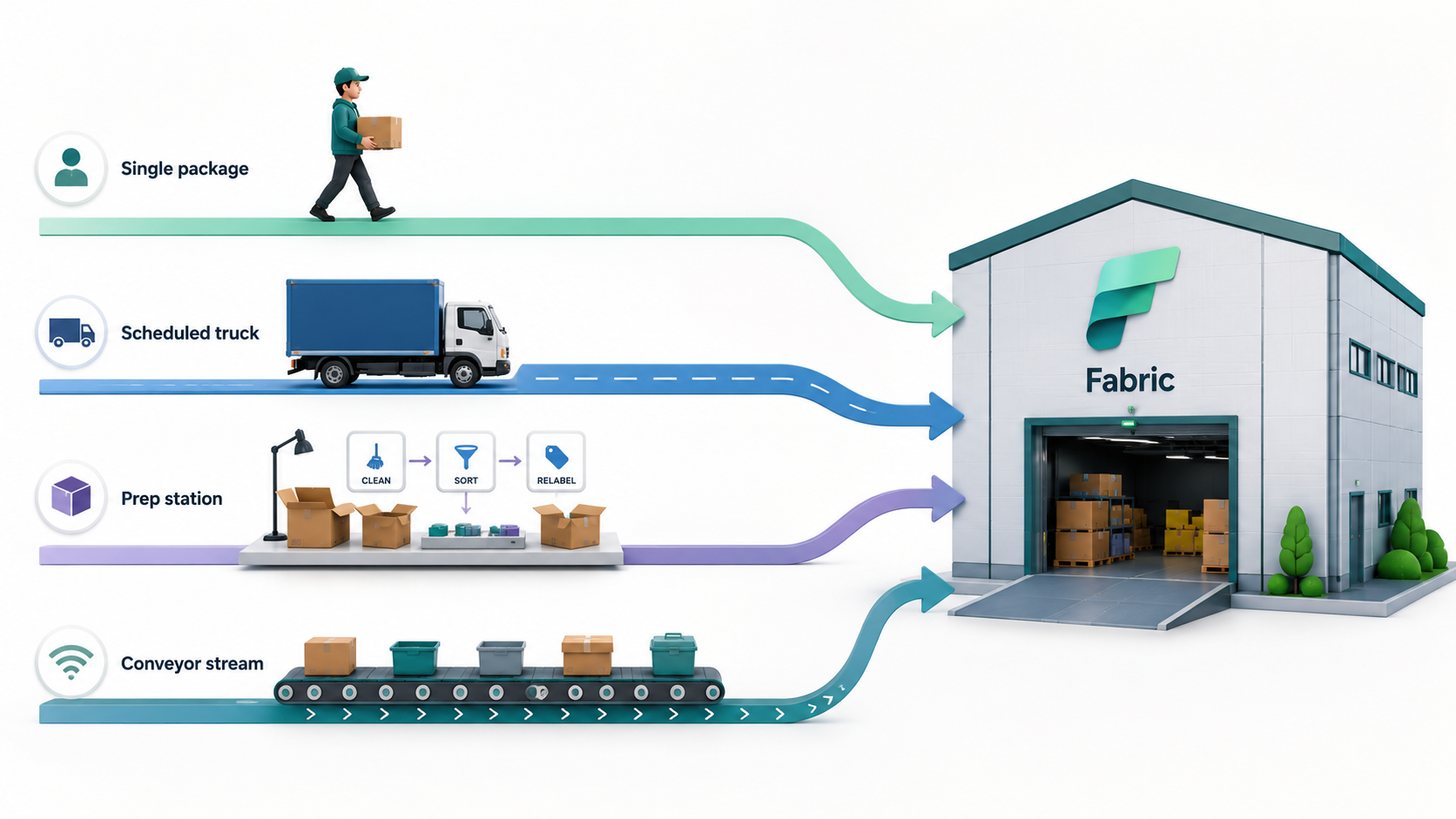
Four delivery methods into Fabric: single package, scheduled truck, prep station, and conveyor stream

Introduction to Microsoft Fabric

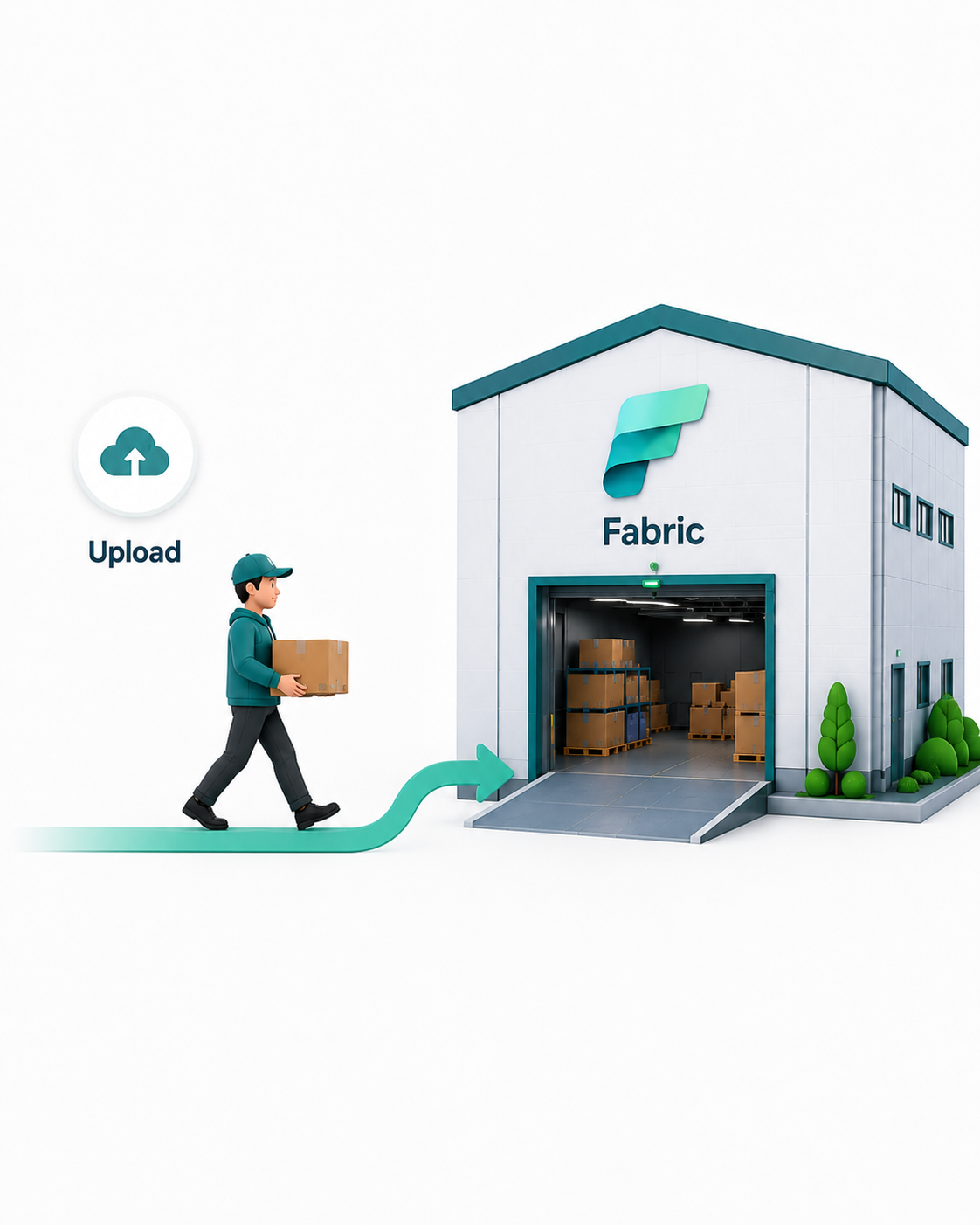
Uploading data

  • Like carrying in one package by hand
  • Choose a file and place it
  • Useful for small files and one-off tasks
  • Not for scheduled data

A person manually delivering a package

Introduction to Microsoft Fabric

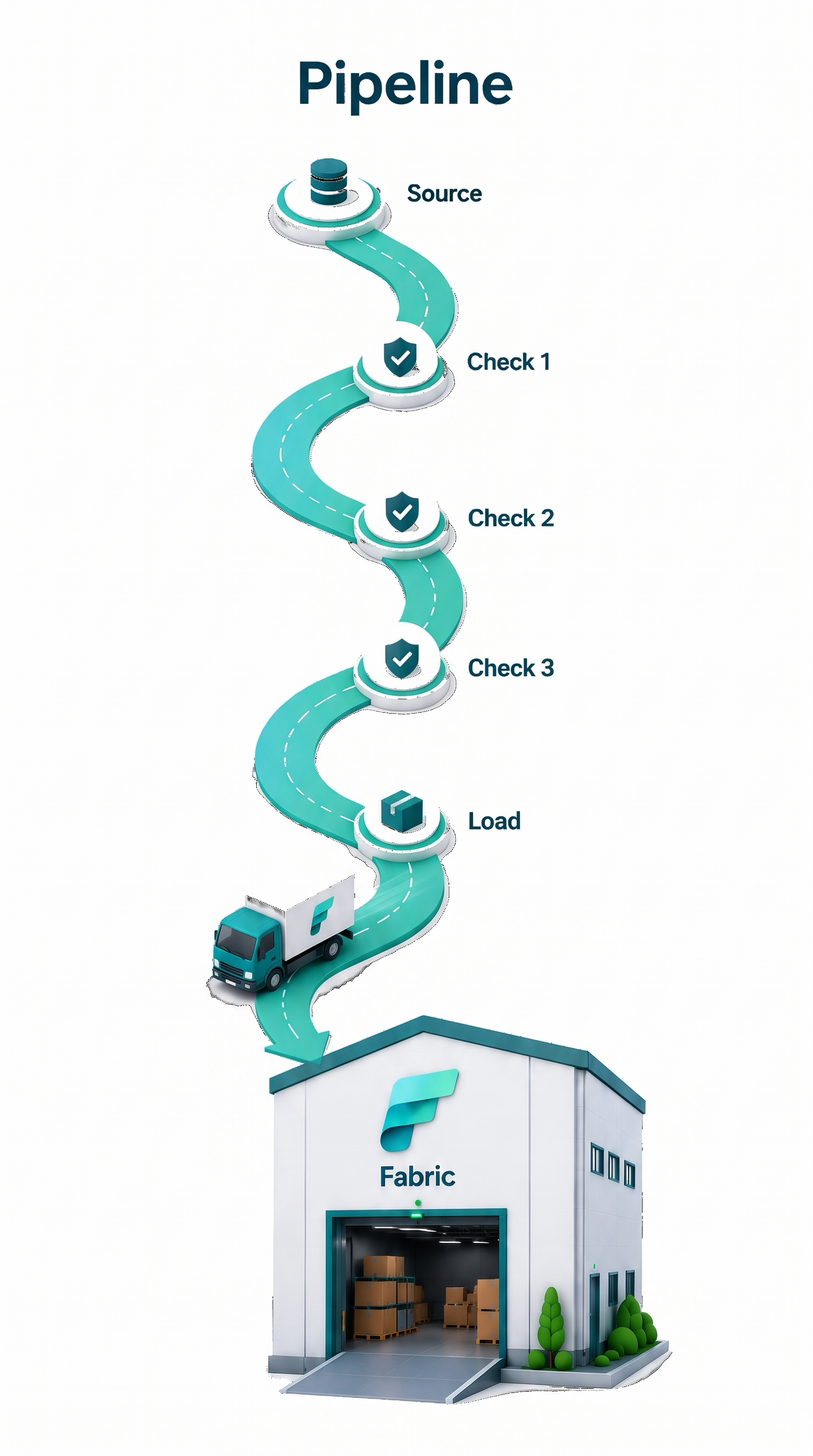
Pipelines

A scheduled delivery route with several checkpoints

  • Like a scheduled delivery route
  • Orchestrates a sequence of steps
  • Useful for batch ingestion
Introduction to Microsoft Fabric

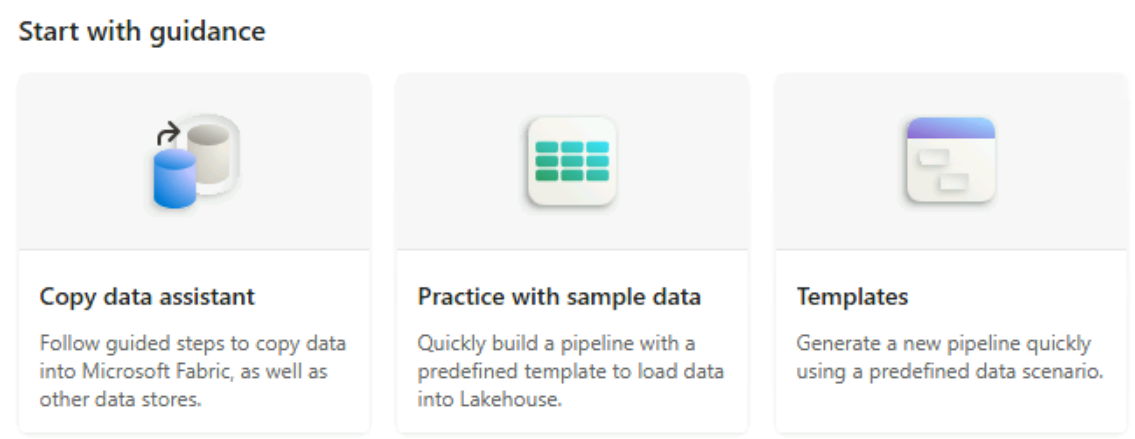
Choosing the pipeline data source

Pipeline Start with guidance options: Copy data assistant, Practice with sample data, and Templates

Introduction to Microsoft Fabric

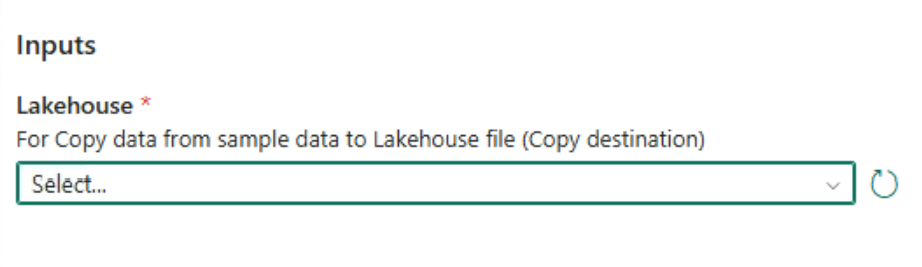
Choosing the destination

Copy data destination settings with a required Lakehouse dropdown

Introduction to Microsoft Fabric

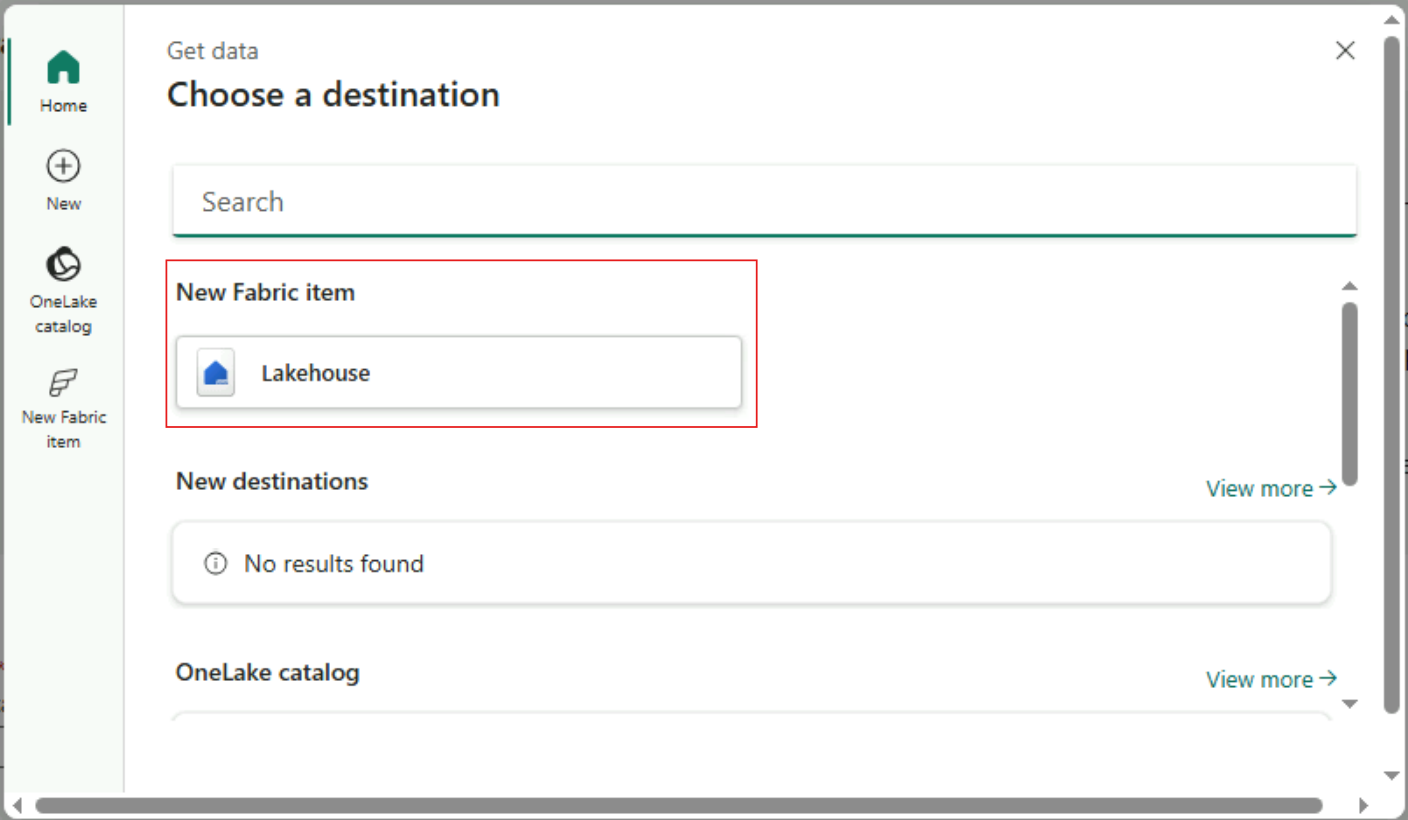
Creating a destination on the go

Choose a destination dialog with the Lakehouse option under New Fabric item highlighted

Introduction to Microsoft Fabric

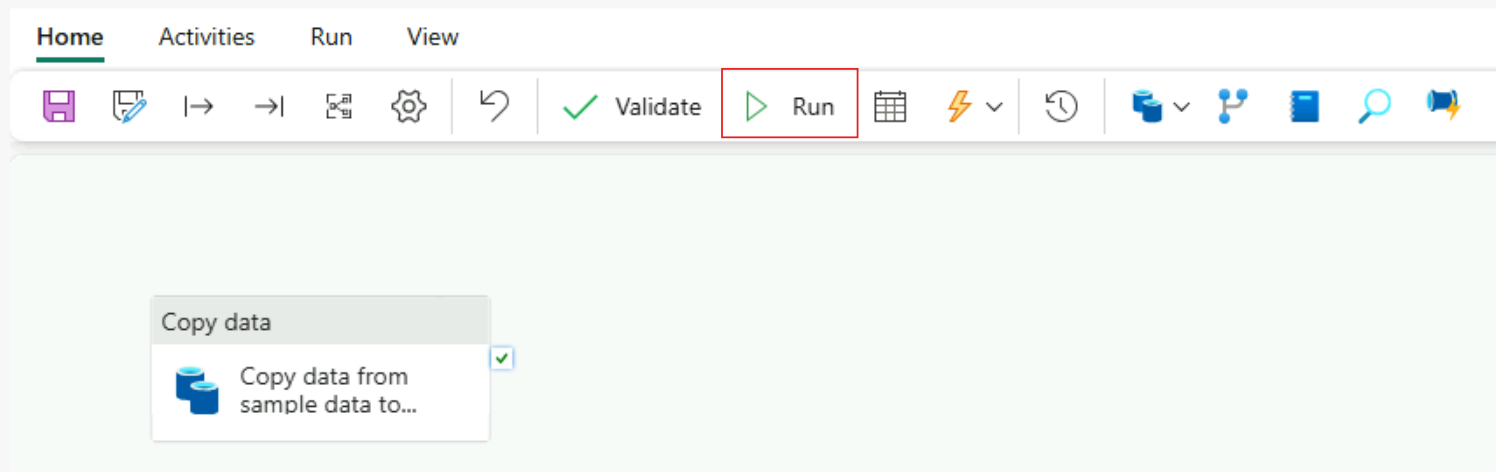
Running the pipeline

Pipeline editor with a Copy data activity on the canvas and the Run button highlighted

Introduction to Microsoft Fabric

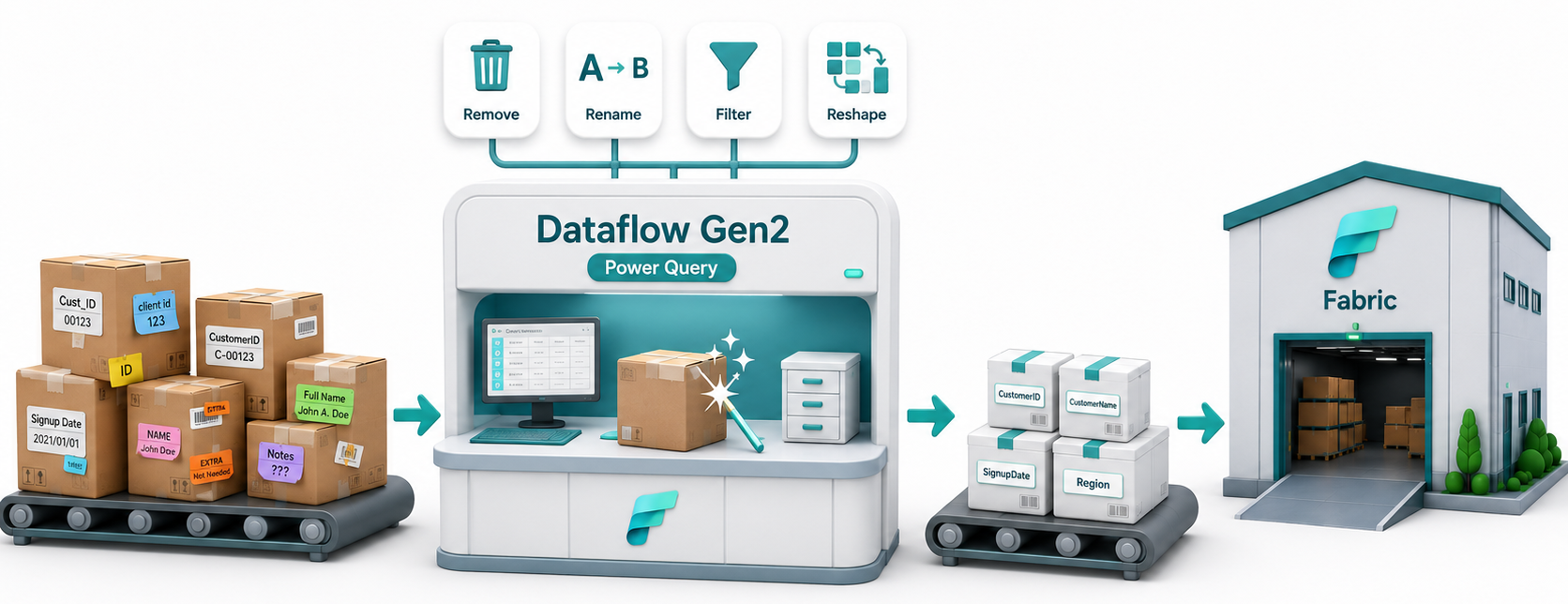
Dataflow Gen2

A station sorting, cleaning, and relabeling packages

  • Like a preparation and sorting station
  • Uses low-code Power Query
  • Cleans and reshapes data
Introduction to Microsoft Fabric

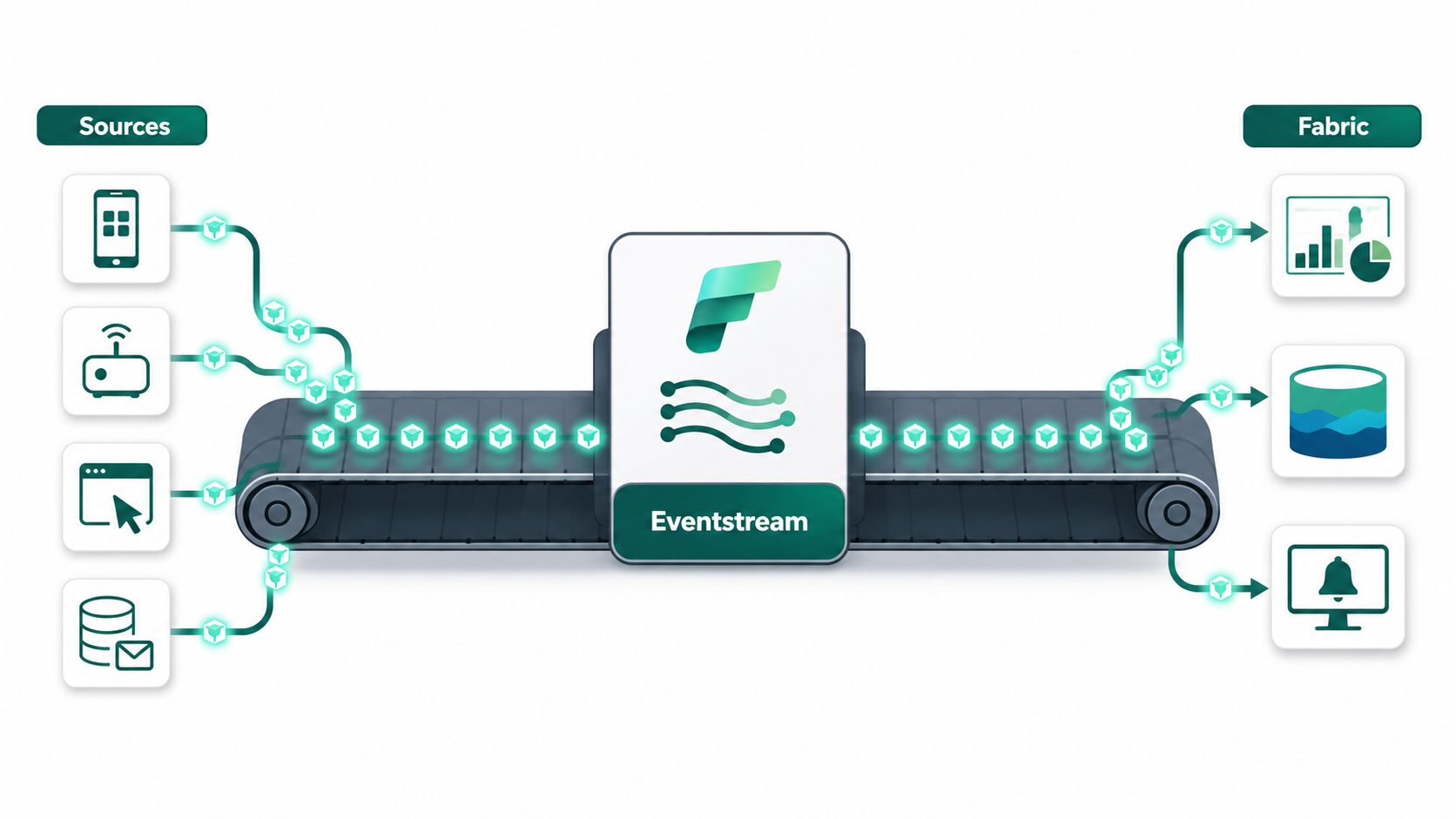
Eventstreams

Packages continuously moving along a conveyor belt

  • Like a continuously moving conveyor belt
  • Ingests data in real time
  • Can transform and route events
Introduction to Microsoft Fabric

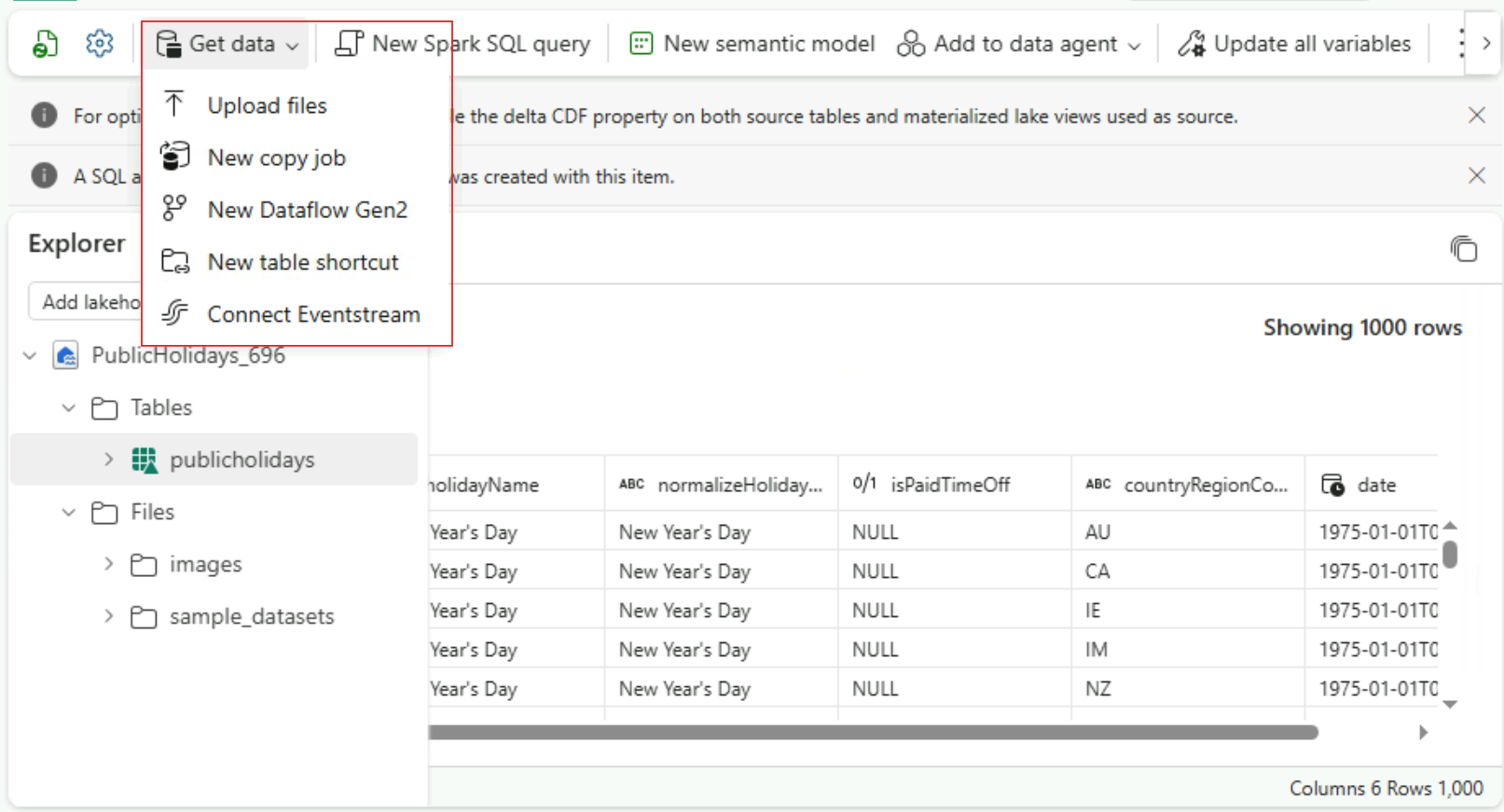
Importing data into a lakehouse

Lakehouse Get data menu: Upload files, New copy job, New Dataflow Gen2, New table shortcut, and Connect Eventstream

Introduction to Microsoft Fabric

Let's practice!

Introduction to Microsoft Fabric

Preparing Video For Download...