Scaling and troubleshooting Web Apps
Azure App Services

Florin Angelescu
Azure Cloud Architect
Why scaling matters
- Scaling up
- More resources (CPU, memory, etc.)
Manual vs. automatic scaling
- Manual scaling
- Control the number of instances directly
- Auto-scale
- Adjusts resources automatically
- Based on rules you define
Configuring auto-scale rules
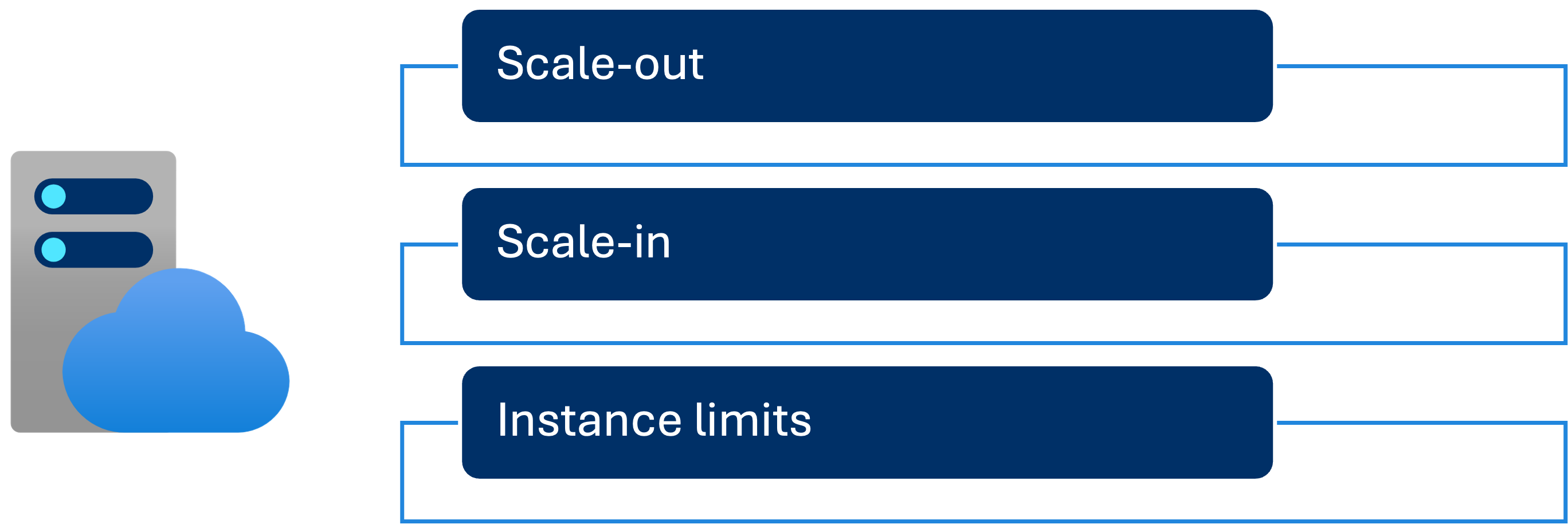
- Add an instance if CPU usage stays above 70% for 10 minutes
- Set limits to avoid provisioning too many instances
Monitoring your Web App
- Monitoring:
- Helps detect issues early
- Supports informed decisions
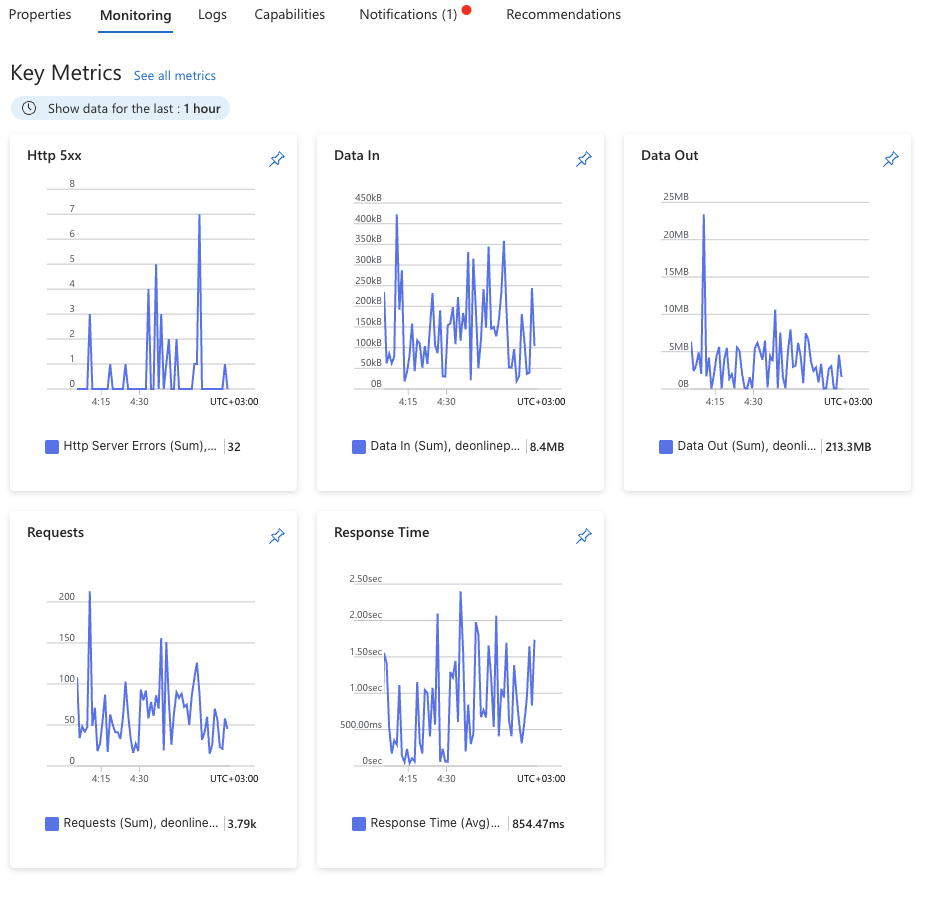
- Azure provides built-in metrics such as:
- Response time
- Request rates
- Error counts
- Metrics can be viewed in real time
- Basic metrics offer good insights
- Deeper analysis is needed for effective troubleshooting
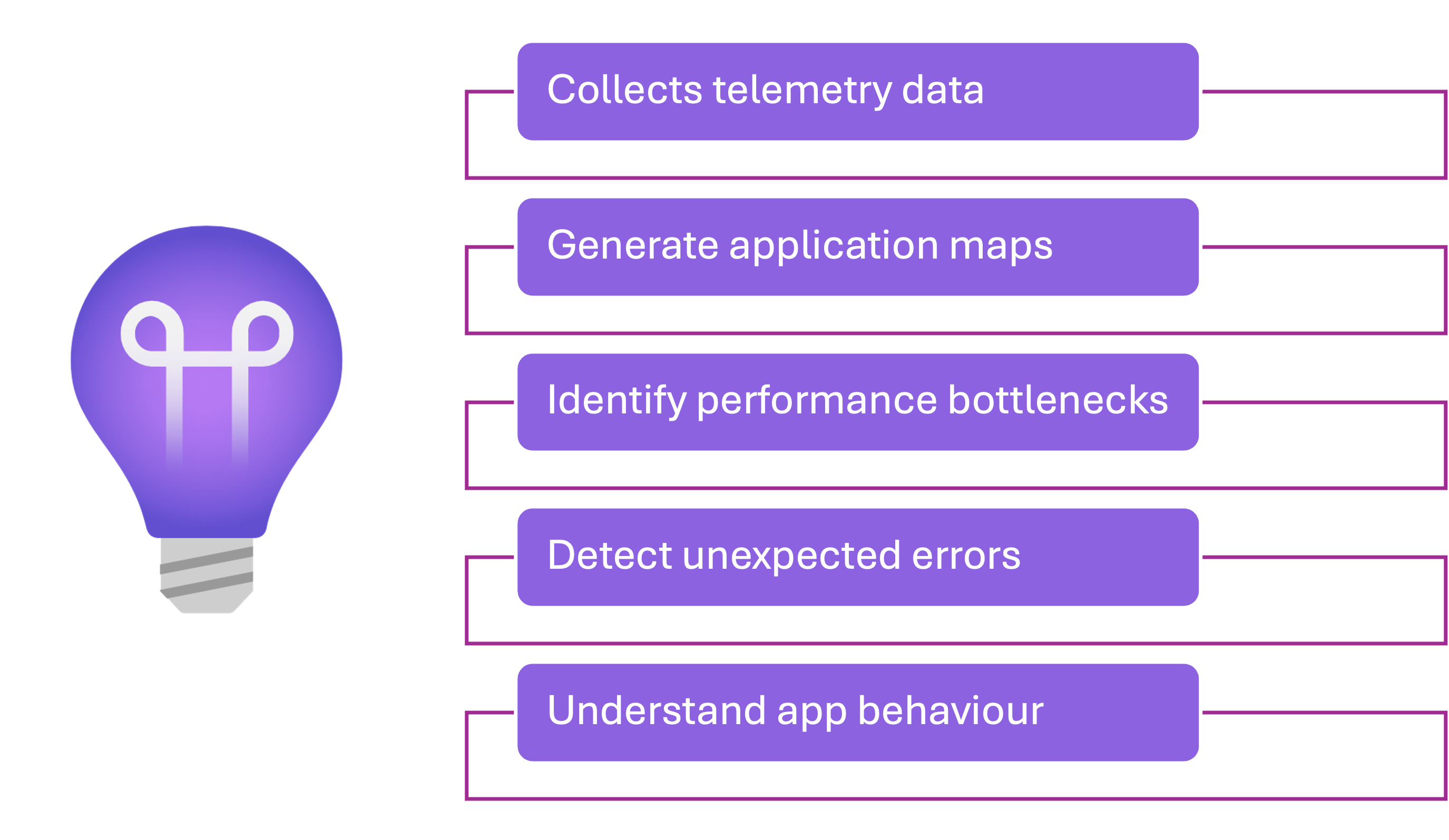
What is Application Insights?
Enabling Application Insights
- Enable Application Insights
- Collects data automatically
Troubleshooting example

- Use Application Insights to check the "Performance" tab
- Response times increase sharply during those hours
- Look at "Dependencies"
- A database call is taking too long
- Optimize the database query
- Improves your application speed
Summary
- Scale out
- Add more instances to handle increased load
- Scale up
- Increase compute resources for faster performance
- Monitor
- Track performance and troubleshoot issues
Let's practice!
Azure App Services
 Preparing Video For Download...