Prompting with Microsoft Copilot

Working with Microsoft Copilot

Susanth Sutheesh

Copilot Solution Engineer, Microsoft

About me


Member of Microsoft Copilot and Agentic AI team

  • 15+ years in IT and AI
  • Helping teams transform work with Copilot
  • Designing secure, practical AI solutions

Logos and instructor photo

Working with Microsoft Copilot

Overview


Image showing the Microsoft Copilot logo connected by yellow arrows to an illustration of two people shaking hands inside gears

Working with Microsoft Copilot

Overview

Diagram showing the GCSE framework applied across Microsoft 365 apps like Word, PowerPoint, and Excel

Working with Microsoft Copilot

Overview


Illustration of a person and a robot in front of a large AI screen, beside a workflow diagram with gears and arrows

Working with Microsoft Copilot

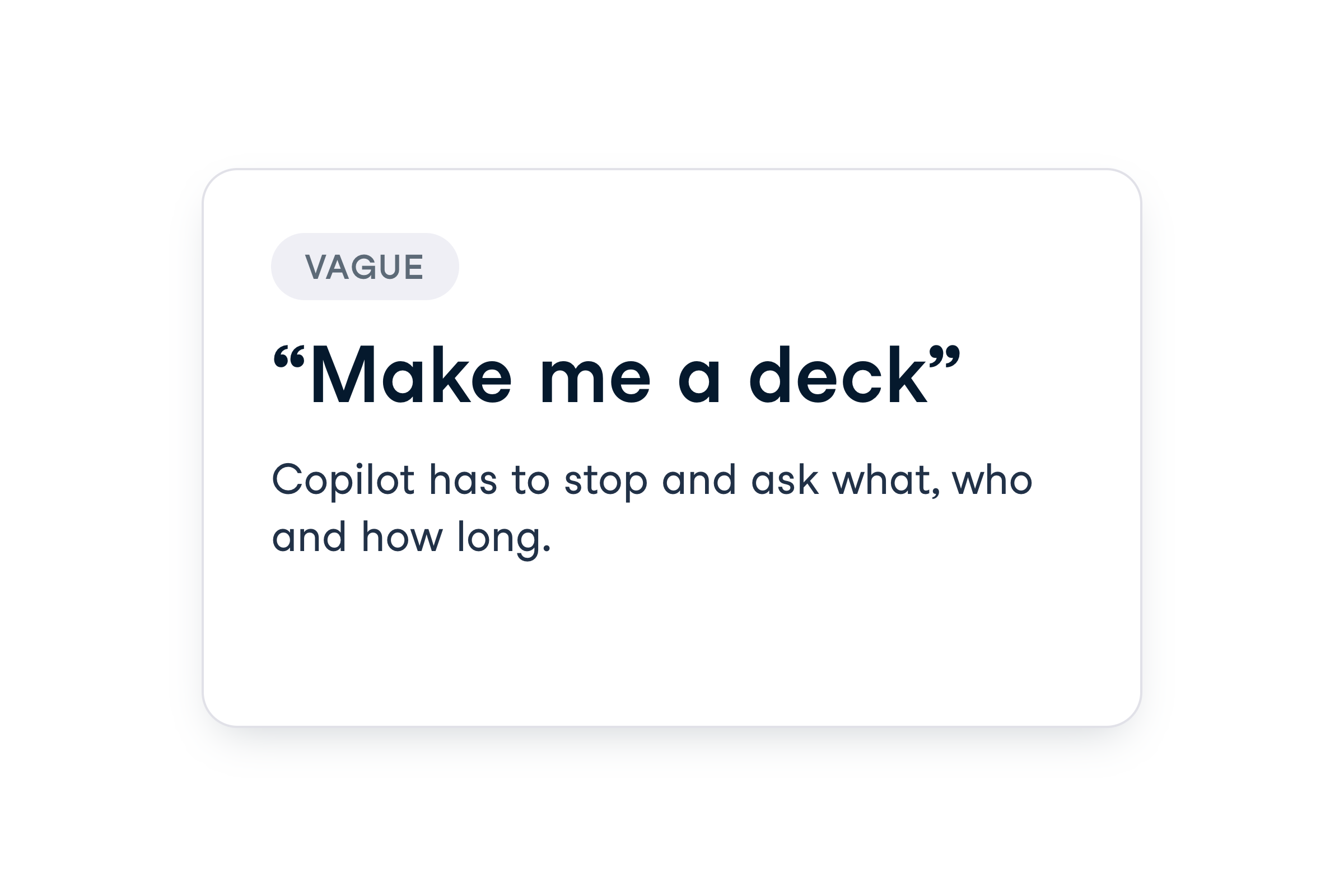
Illustration of two people talking in an office, with one showing a PowerPoint icon in a speech bubble

Working with Microsoft Copilot

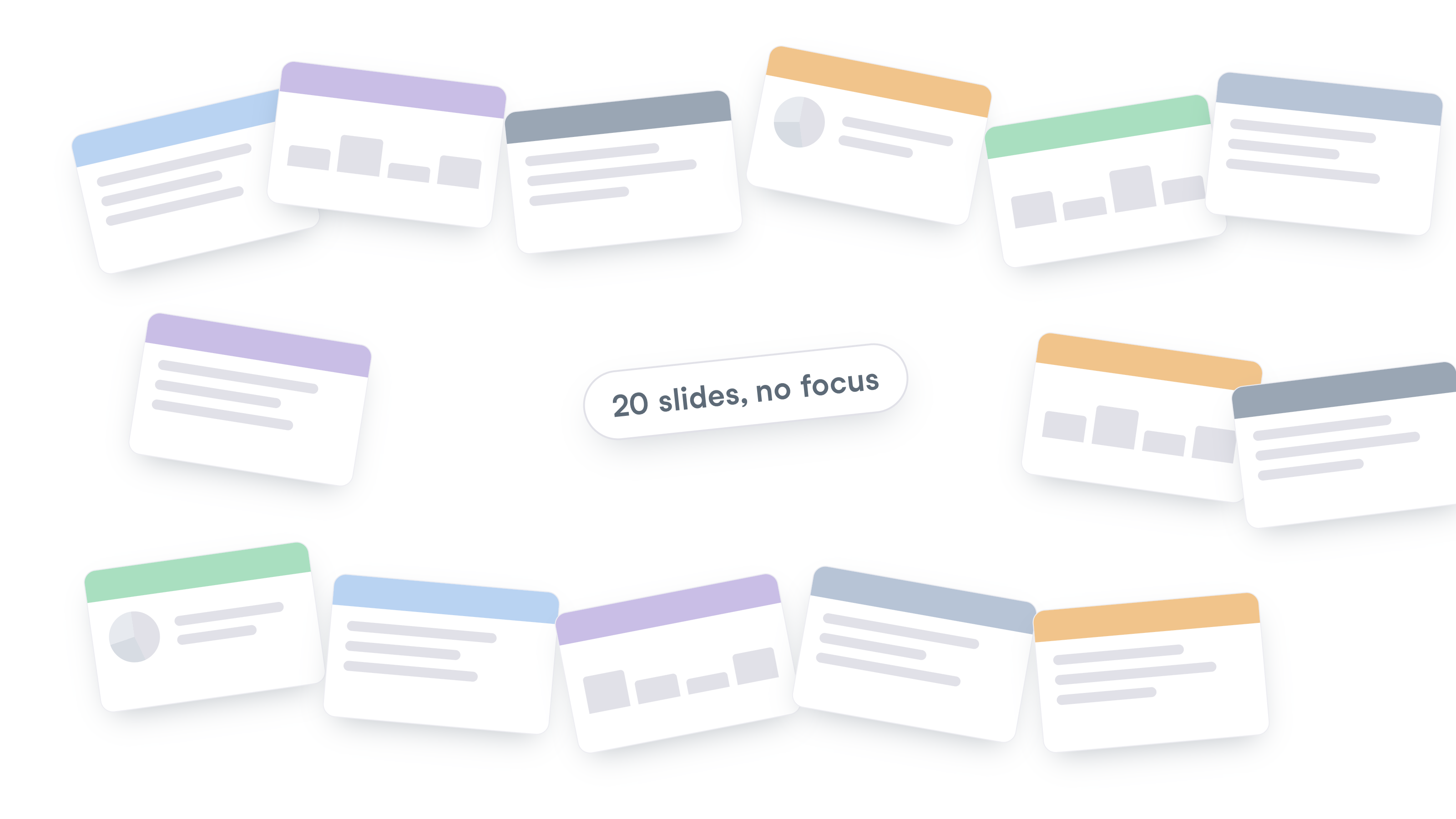
Image of a pile of disorganized PowerPoint slides, representing unclear or unfocused work output

Working with Microsoft Copilot

Why prompt engineering matters

Screenshot showing specific prompts in Copilot

Screenshot showing specific prompt in Copilot, illustrating how clear prompts produce better results

Working with Microsoft Copilot

The GCSE Framework

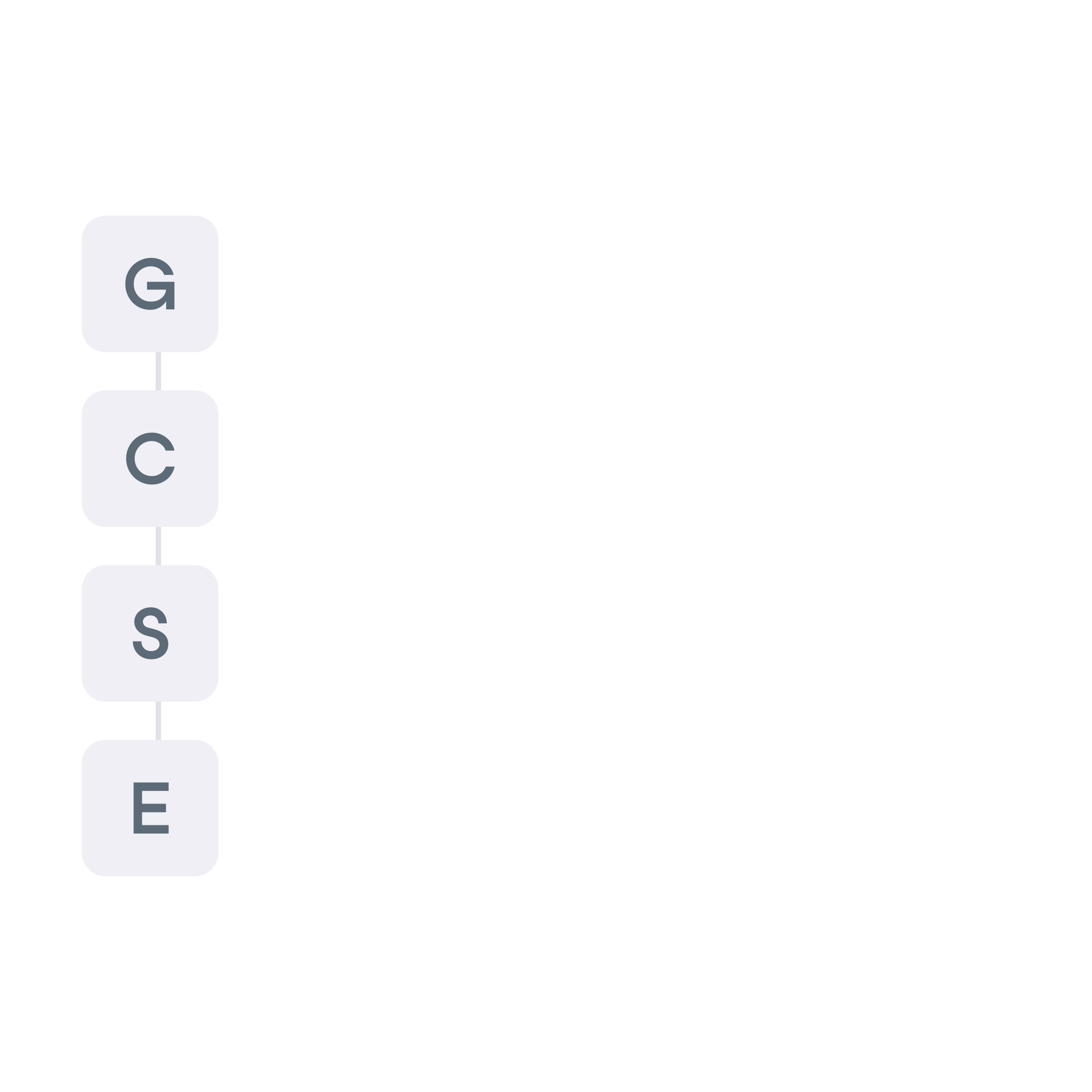
GCSE Framework Letters

Working with Microsoft Copilot

The GCSE Framework

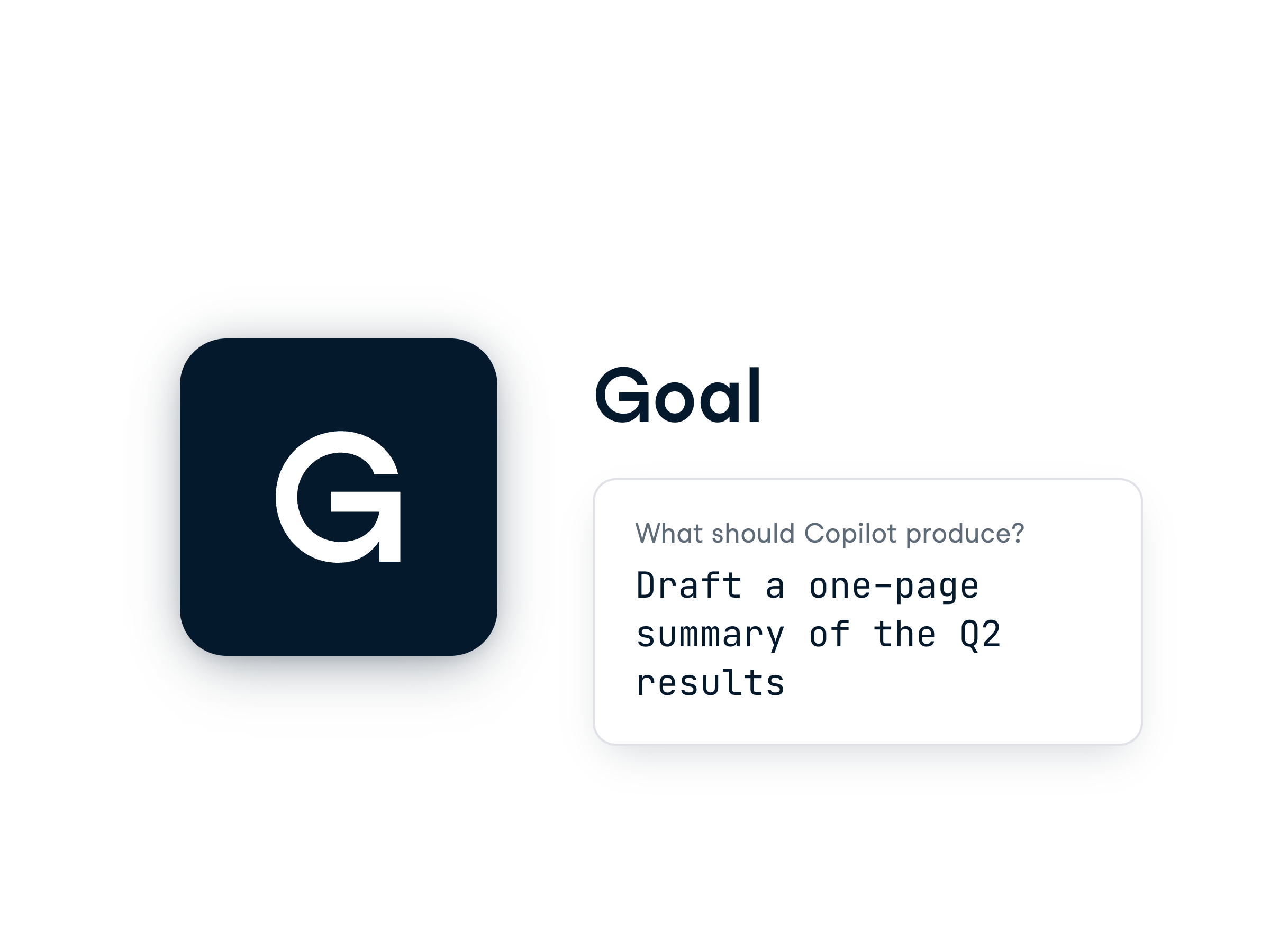
GCSE letters with Goal spelled out

Working with Microsoft Copilot

The GCSE Framework

GCSE letters with Goal and Context spelled out

Working with Microsoft Copilot

The GCSE Framework

GCSE letters with Goal, Context, and Source spelled out

Working with Microsoft Copilot

The GCSE Framework

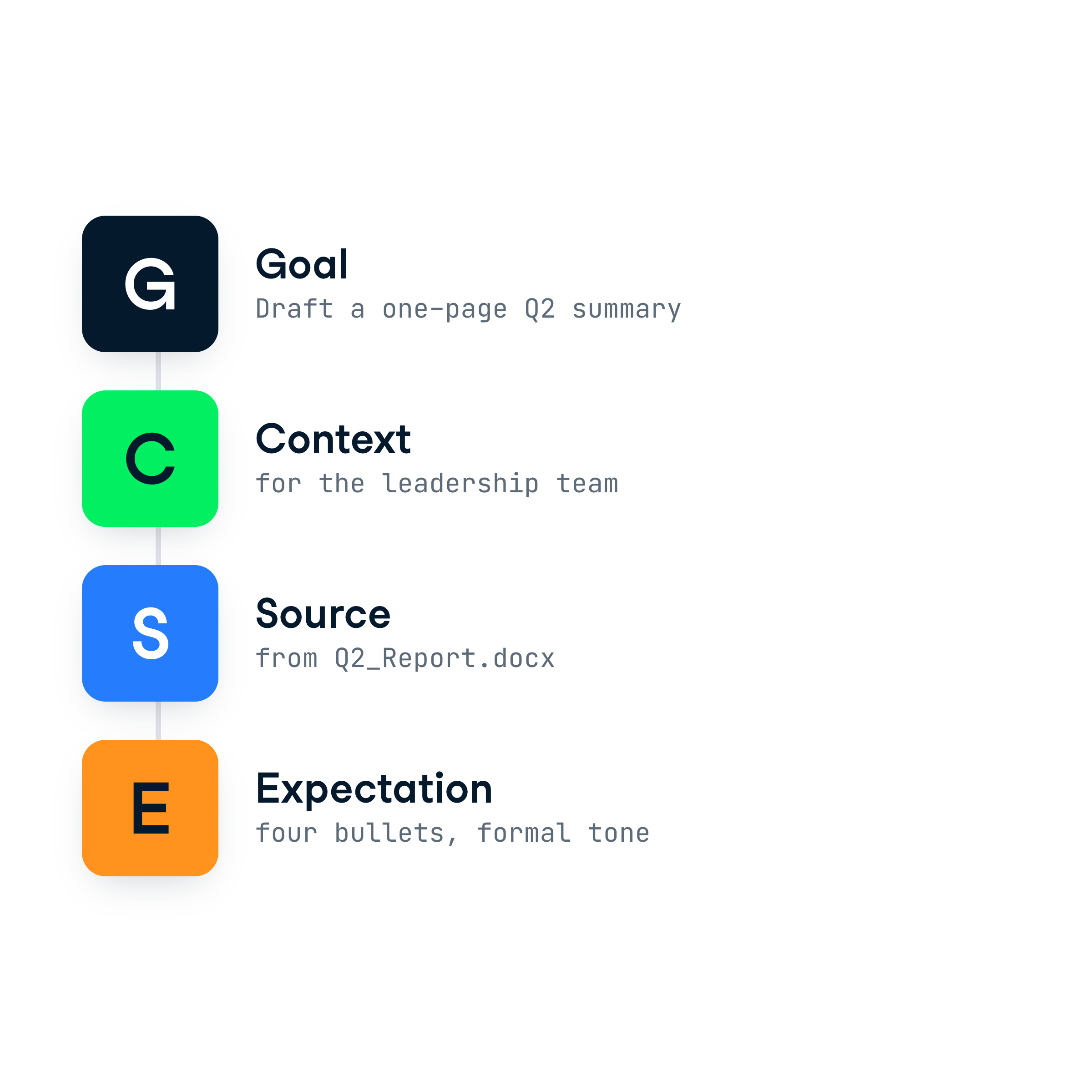
GCSE letters with all the words spelled out in full

  • GCSE - a checklist for clear prompts
  • Avoids vague or inconsistent answers
  • Works across Microsoft 365 apps (Word, Excel, PowerPoint)


Note_on_toolkit_elements.png

Working with Microsoft Copilot


Image_of_an_archery_target.png


The letter G and Goal text next to it

  • Be clear and specific
  • Focus on the action and the task
    • Keeps Copilot focused on the right outcome
Working with Microsoft Copilot


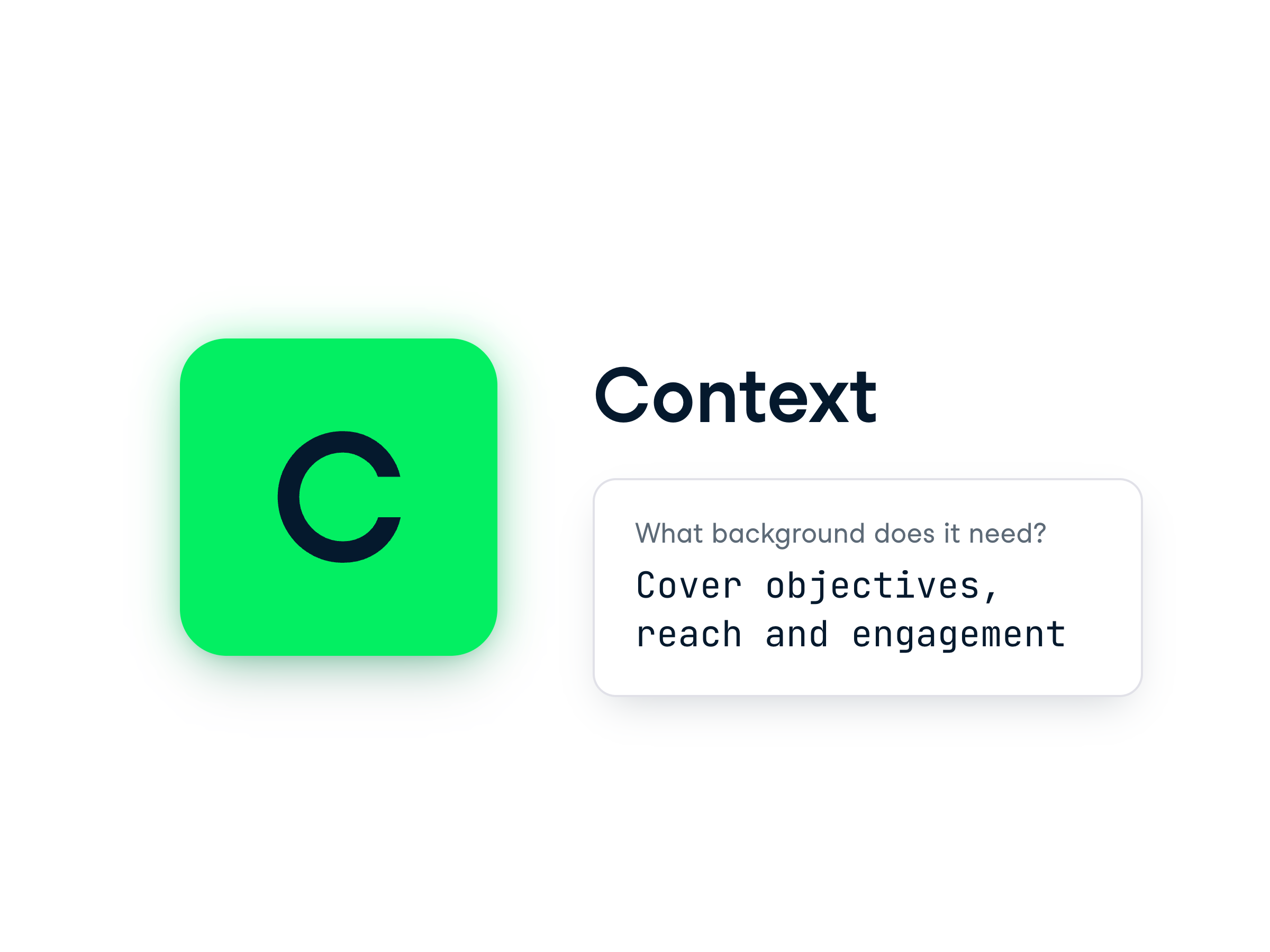
Image_of_context.png


The letter C and Context text next to it

  • Give background so Copilot understands your task.
  • Clear context improves accuracy.
    • Helps Copilot tailor responses to your situation
Working with Microsoft Copilot


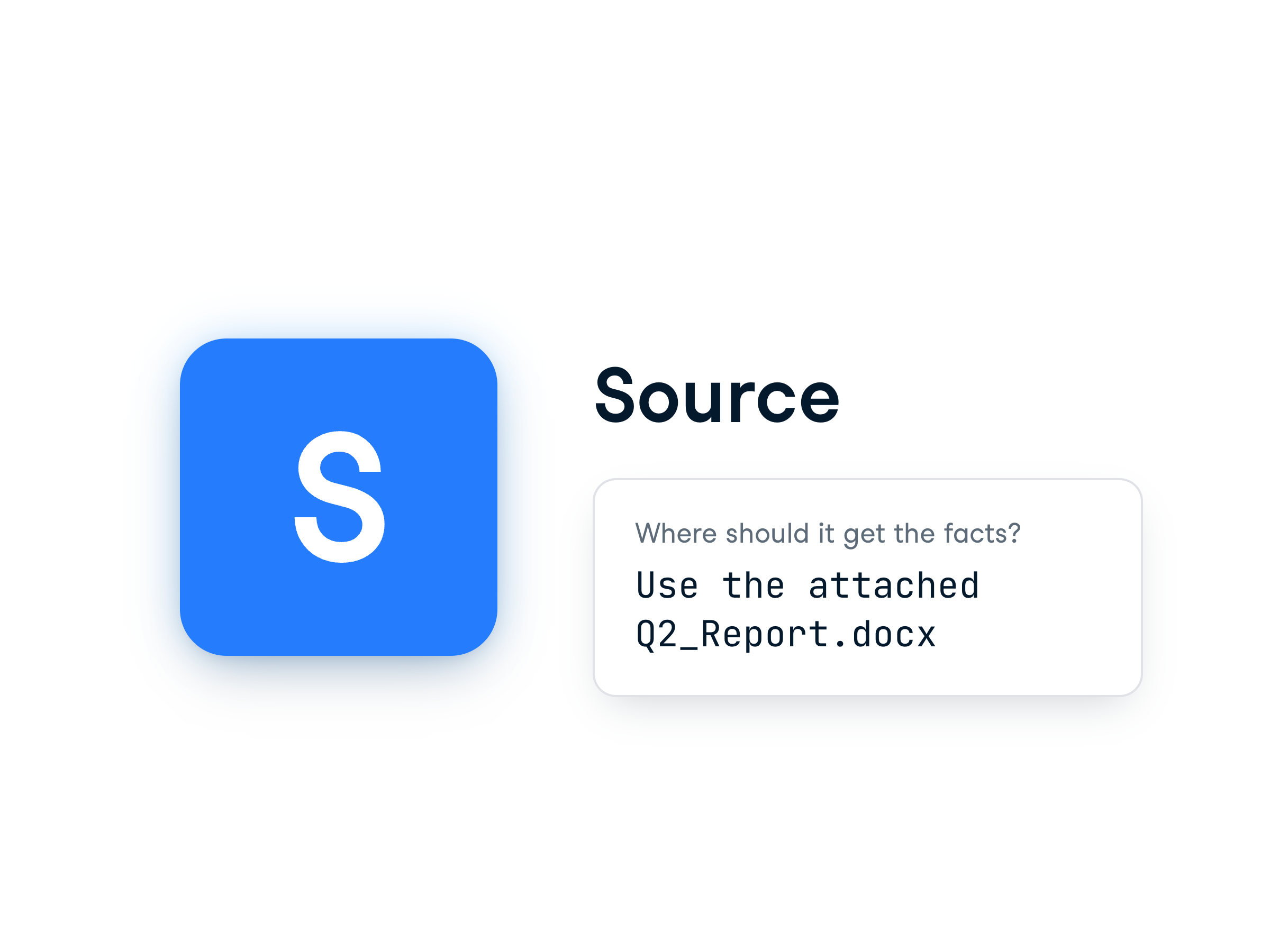
Image_of_source.png


The letter S and Source text next to it

  • Tell Copilot where to find info.
  • Avoid gaps or guesswork.
    • Grounds Copilot's answers in real data and reduces errors
Working with Microsoft Copilot


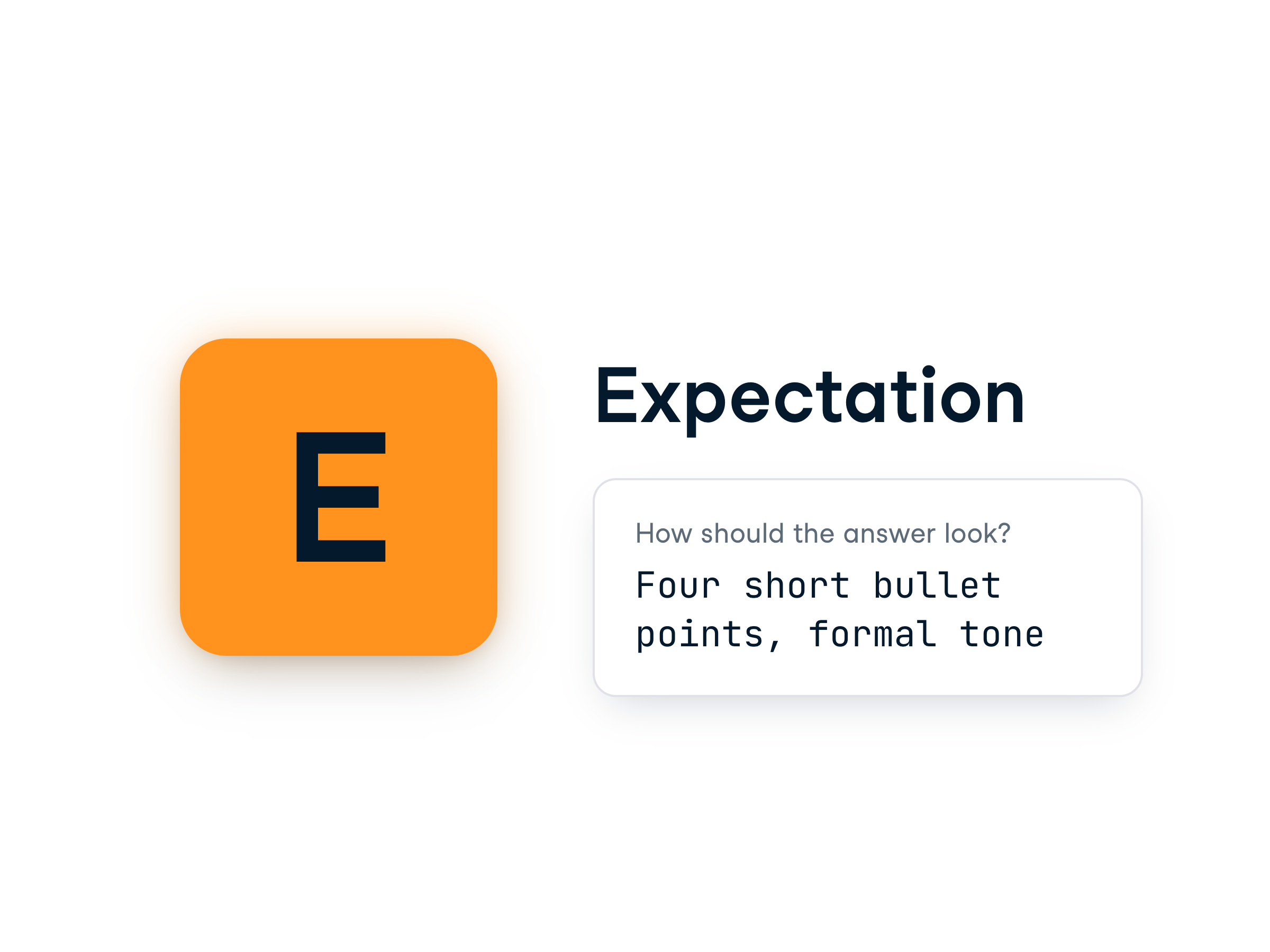
Image_of_expectation.png


The letter E and Expectation text next to it

  • Explain how you want the response.
  • Set clear expectations for usable output.
    • Ensures the response meets your needs and saves time refining results.
Working with Microsoft Copilot

Putting it all together

Screenshot showing Copilot summarizing a sales strategy report, with the Goal instruction highlighted in blue

Working with Microsoft Copilot

Putting it all together

Screenshot showing Copilot summarizing a sales report, highlighting the COntext instruction to include different campaign types

Working with Microsoft Copilot

Putting it all together

Screenshot showing Copilot summarizing a sales report, highlighting the Source instruction to reference the Word document

Working with Microsoft Copilot

Putting it all together

Screenshot showing Copilot summarizing a sales report, highlighting the Expectation instruction to format the summary as bullet points

Working with Microsoft Copilot

Let's practice!

Working with Microsoft Copilot

Preparing Video For Download...