Event-driven and multi-path flows

Building Agents with Microsoft Copilot Studio

Nia Joseph

AI Product Manager, Microsoft

Triggers you configure but don't fire
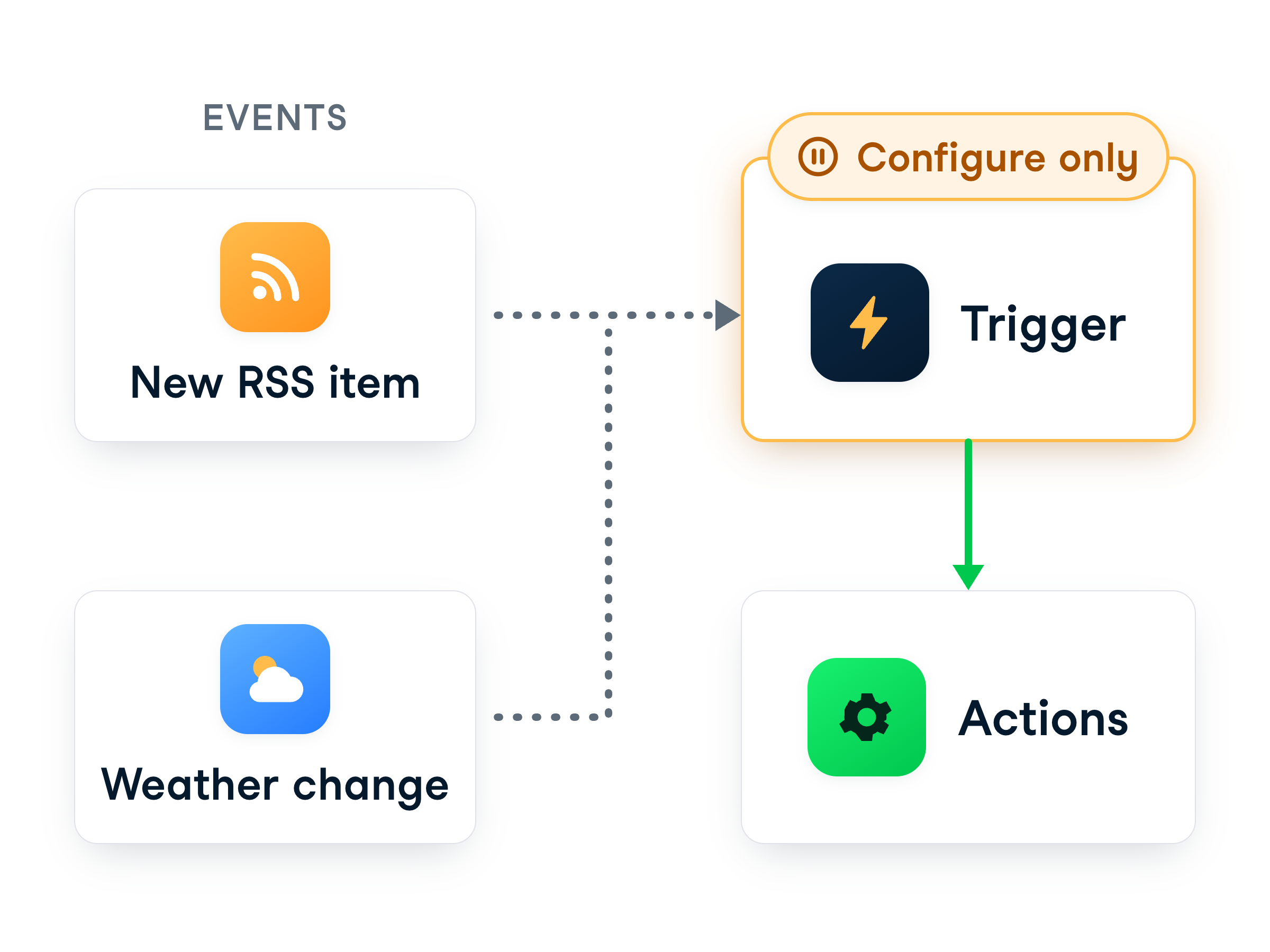


  • Start on an event: new RSS item, weather change
  • On this learning tenant, they're configure-only
  • On a real tenant, the same flow would run live


Event triggers are configure-only on this tenant

Building Agents with Microsoft Copilot Studio

A human in the loop


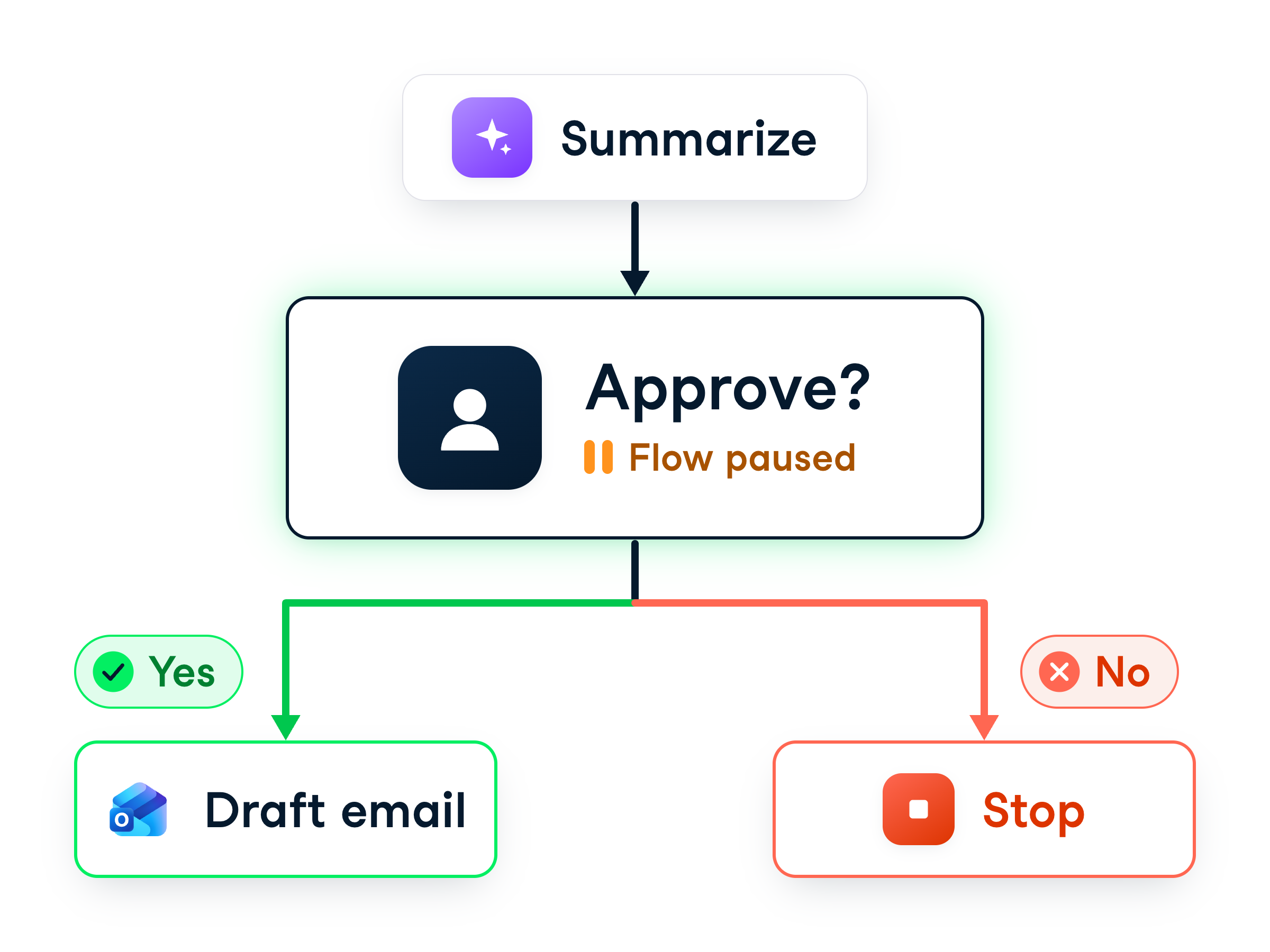
A human-in-the-loop pauses the flow for approval


  • Request information pauses the flow
  • Asks a person a question, waits for Yes / No
Building Agents with Microsoft Copilot Studio

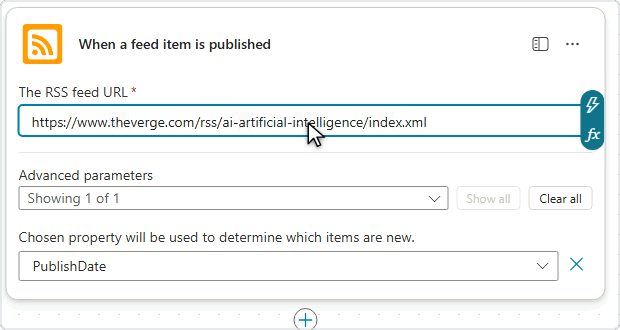
Add the RSS trigger


  • Create a new Agent flows workflow from the arrow
  • Set the trigger to RSS
  • Point it at The Verge's AI feed


Copilot Studio flow with the trigger card selected

Building Agents with Microsoft Copilot Studio

Summarize the article


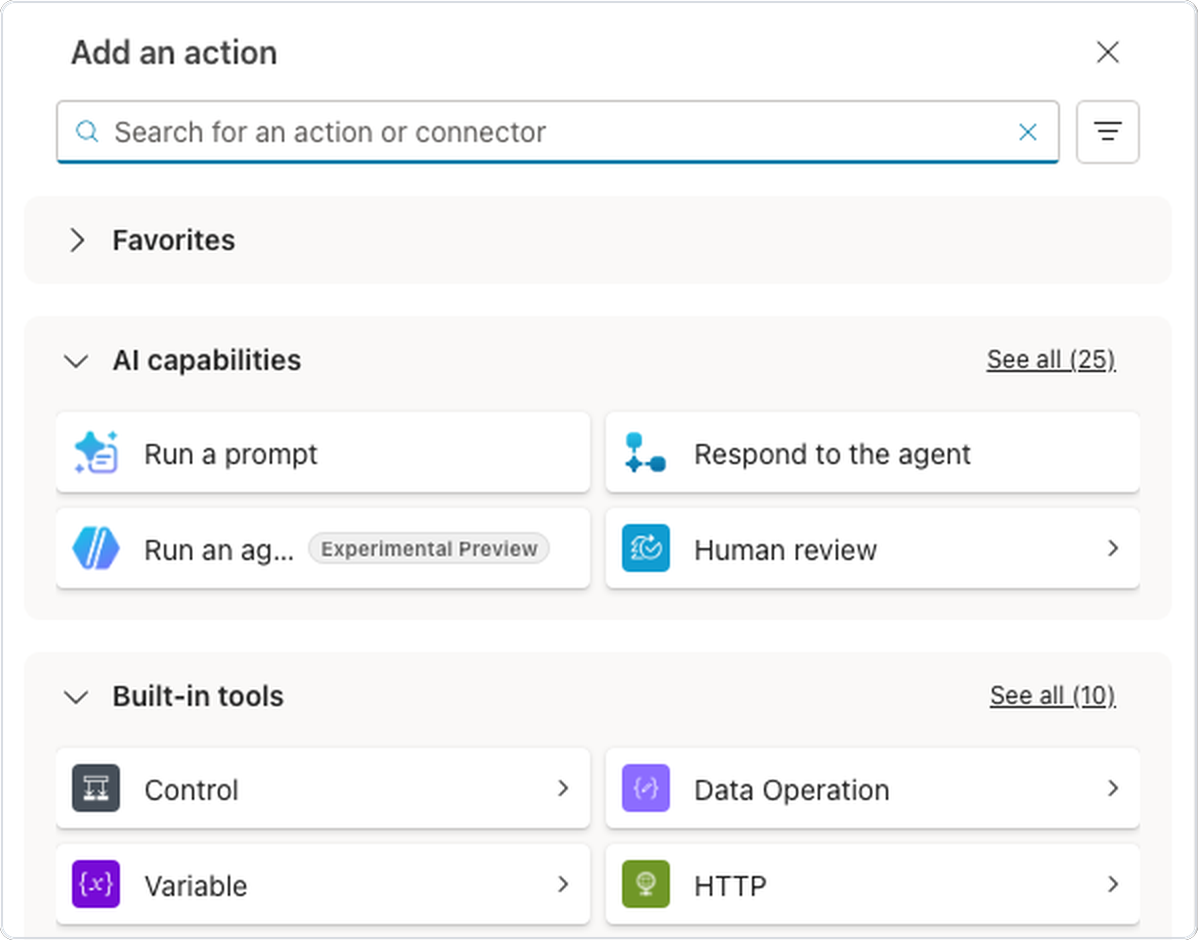
The Add an action picker, with Run a prompt under AI capabilities


  • + → Run a prompt → AI Summarize
  • Its input: the feed item's Feed summary
  • A short, readable blurb for your reviewer
Building Agents with Microsoft Copilot Studio

Ask a person to approve


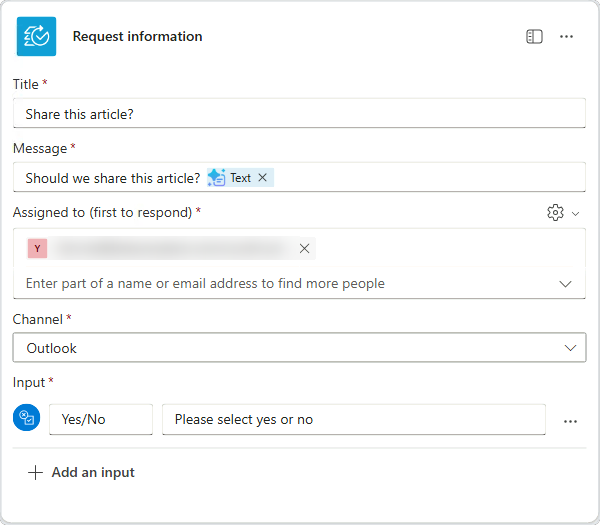
  • AI capabilities → Human review → Request information
  • Ask the reviewer to approve with Yes or No
  • The flow stops and hands the decision to a human


The Request information step with a title, a message that includes the summary, a reviewer, and a Yes/No input

Building Agents with Microsoft Copilot Studio

Add the condition on the answer


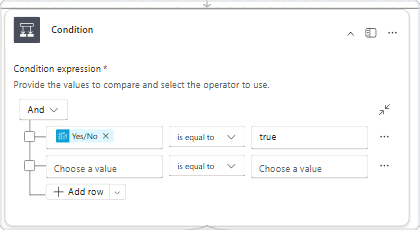
Copilot Studio flow with the Condition added and its rule showing


  • Click the +, search for Condition, add it
  • Set it to check whether the reviewer answered Yes
  • That answer splits the flow into two routes
Building Agents with Microsoft Copilot Studio

Route the True branch


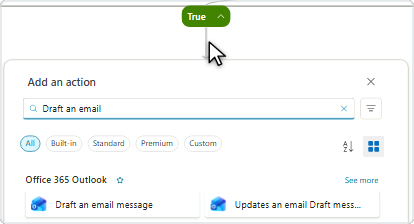
  • On the True branch, create an Outlook draft
  • Teams isn't available here → use Outlook
  • First use of Outlook? Sign in and click Allow


True branch action search showing Draft an email message

Building Agents with Microsoft Copilot Studio

Route the False branch


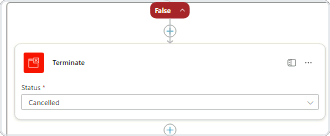
False branch ending in Terminate with its status set to Cancelled


  • On the False branch, add Terminate
  • Change its status to Cancelled
  • A rejection ends the run cleanly
Building Agents with Microsoft Copilot Studio

Save and review the structure


  • Click Save draft
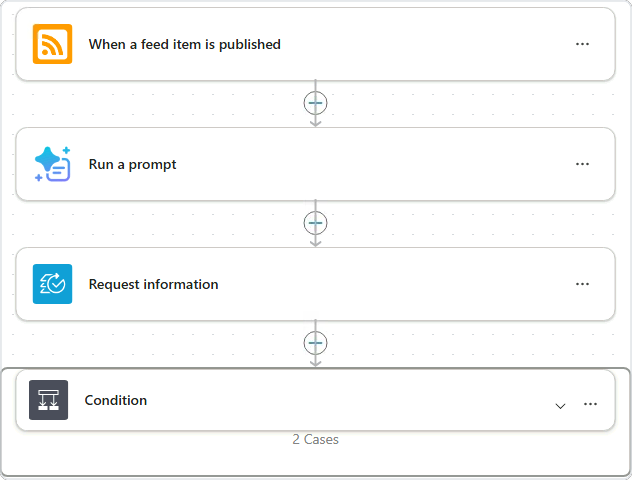
  • Trigger can't fire here → check the shape, not a run
  • Feed → summary → approval → condition → two routes


The saved flow from top to bottom: the feed trigger, Run a prompt, Request information, and a Condition with two cases

Building Agents with Microsoft Copilot Studio

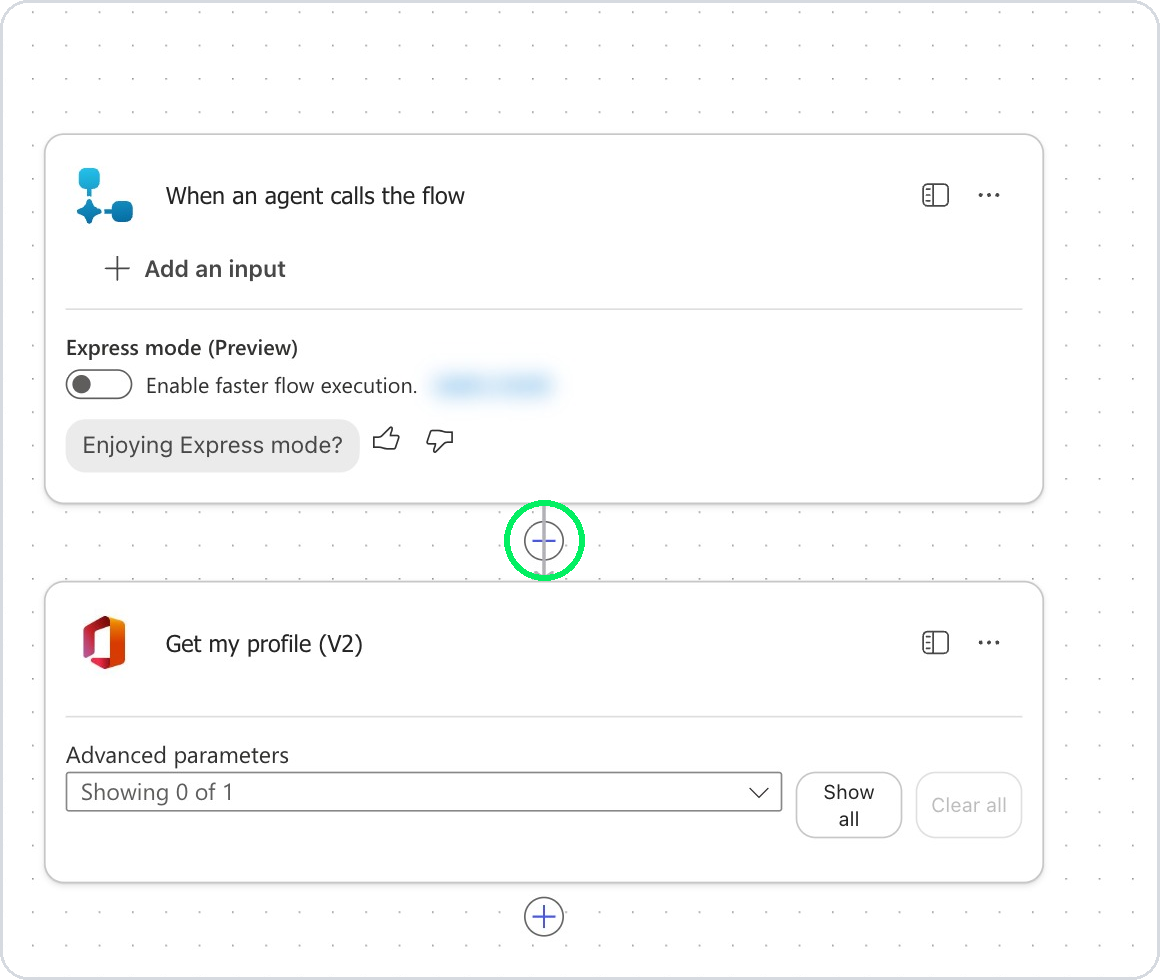
Insert a step in the right place


  • Each + sits between two steps
  • Use the + above the step you want to gate
  • Read the canvas top to bottom to check the order


The agent flow designer canvas, with the plus between the trigger and the next step circled

Building Agents with Microsoft Copilot Studio

Let's practice!

Building Agents with Microsoft Copilot Studio

Preparing Video For Download...