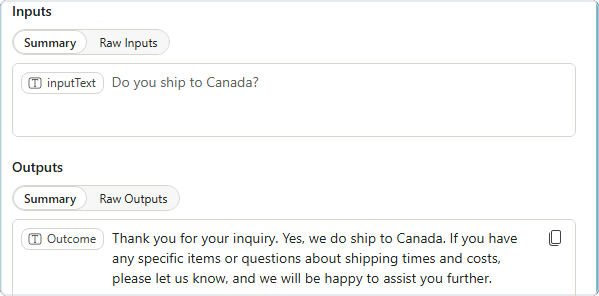
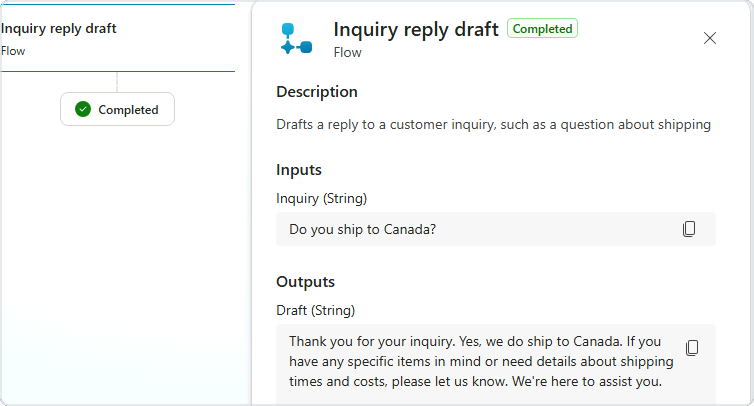
Your first agent flow
Building Agents with Microsoft Copilot Studio
Nia Joseph
AI Product Manager, Microsoft
A topic talks, a flow acts
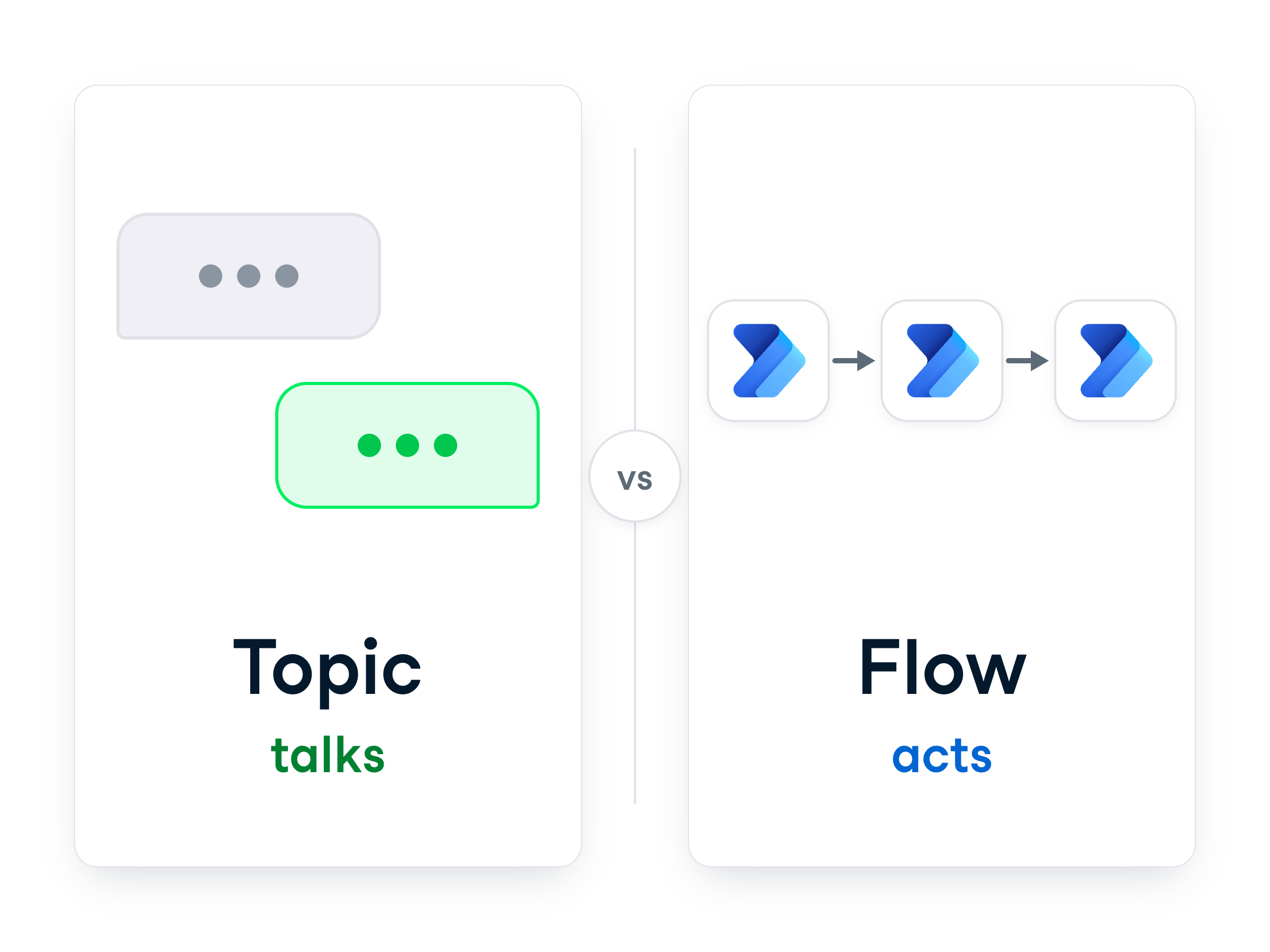
Topic
→ conversational: listens for intent, responds
Flow
→ procedural: runs a fixed sequence, same every time
Best for tasks you
repeat
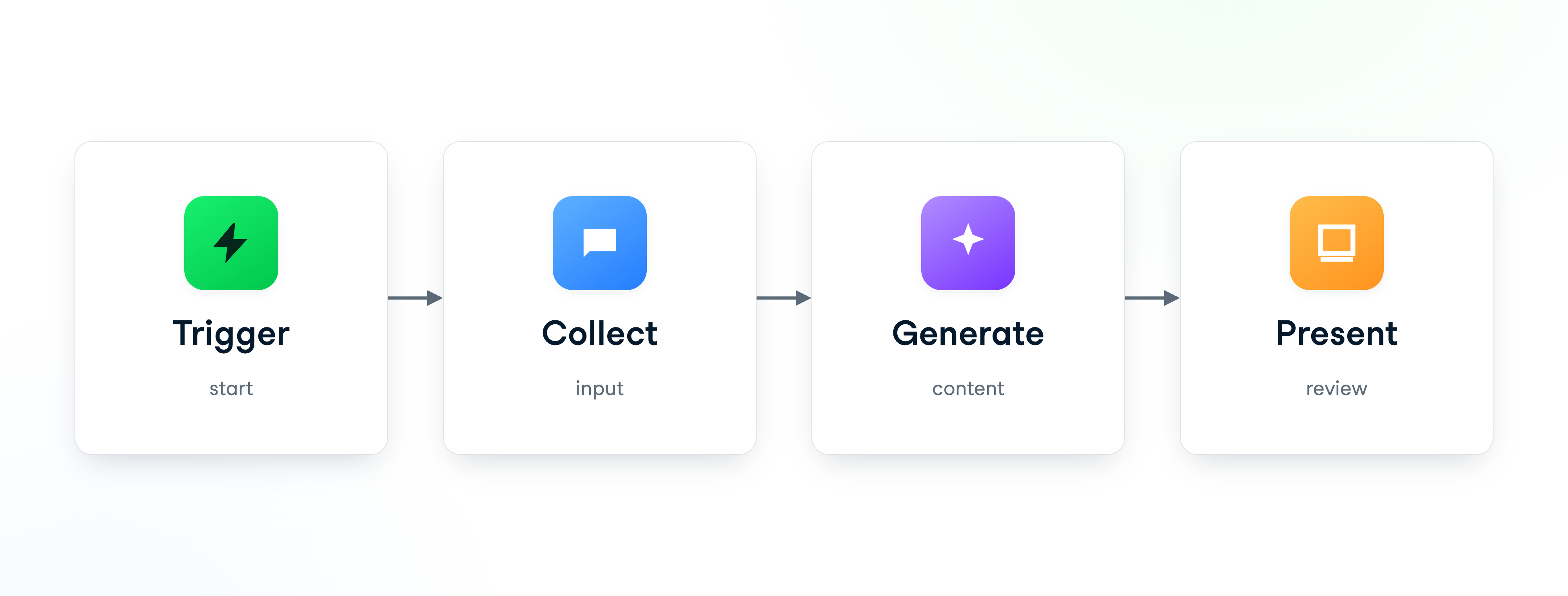
The four-part backbone
Every basic flow has the same four parts
Find Agent flows
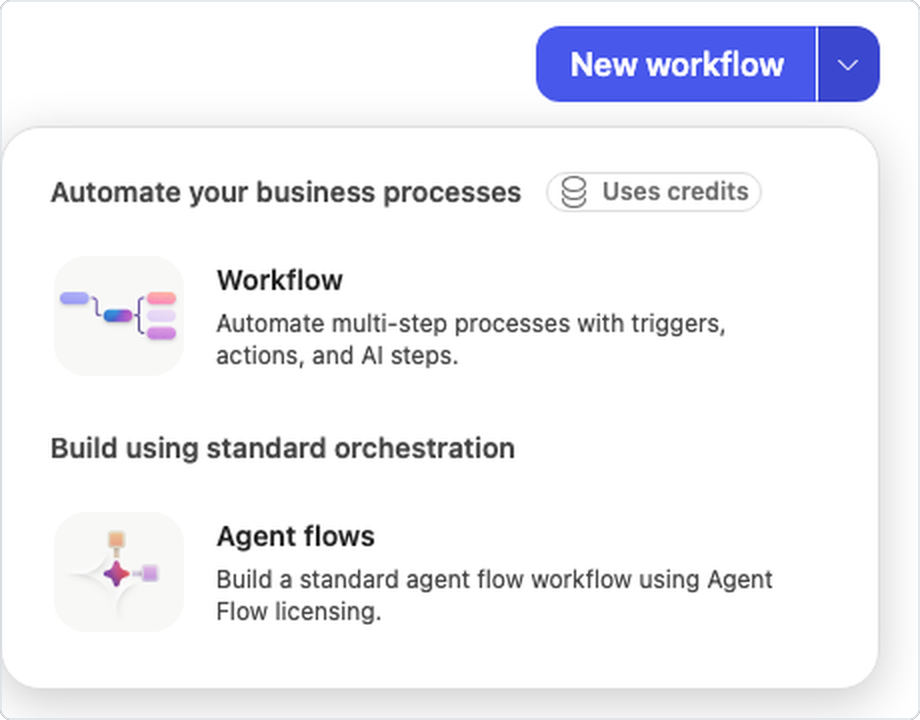
Click
Workflows
in the left rail
Click the small
arrow
beside
New workflow
, not the button
Choose
Agent flows
(no credits)
It opens in a new tab
Agent flows open in a
new browser tab
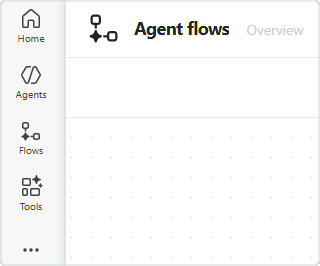
That tab's rail reads
Home / Agents / Flows / Tools
Skip
any welcome tour you're offered
Set the trigger
Every flow needs to know what
starts
it
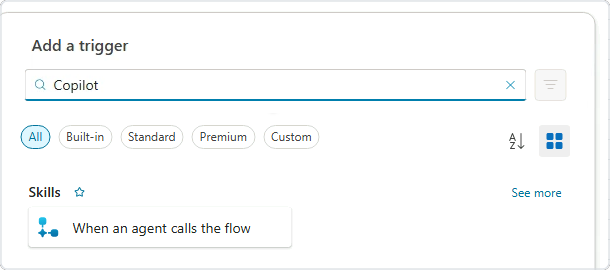
Search
Copilot
→
When an agent calls the flow
Add an input

On the trigger node →
+ Add an input
Choose
Text
, name it
Inquiry
This is how the
agent passes data in
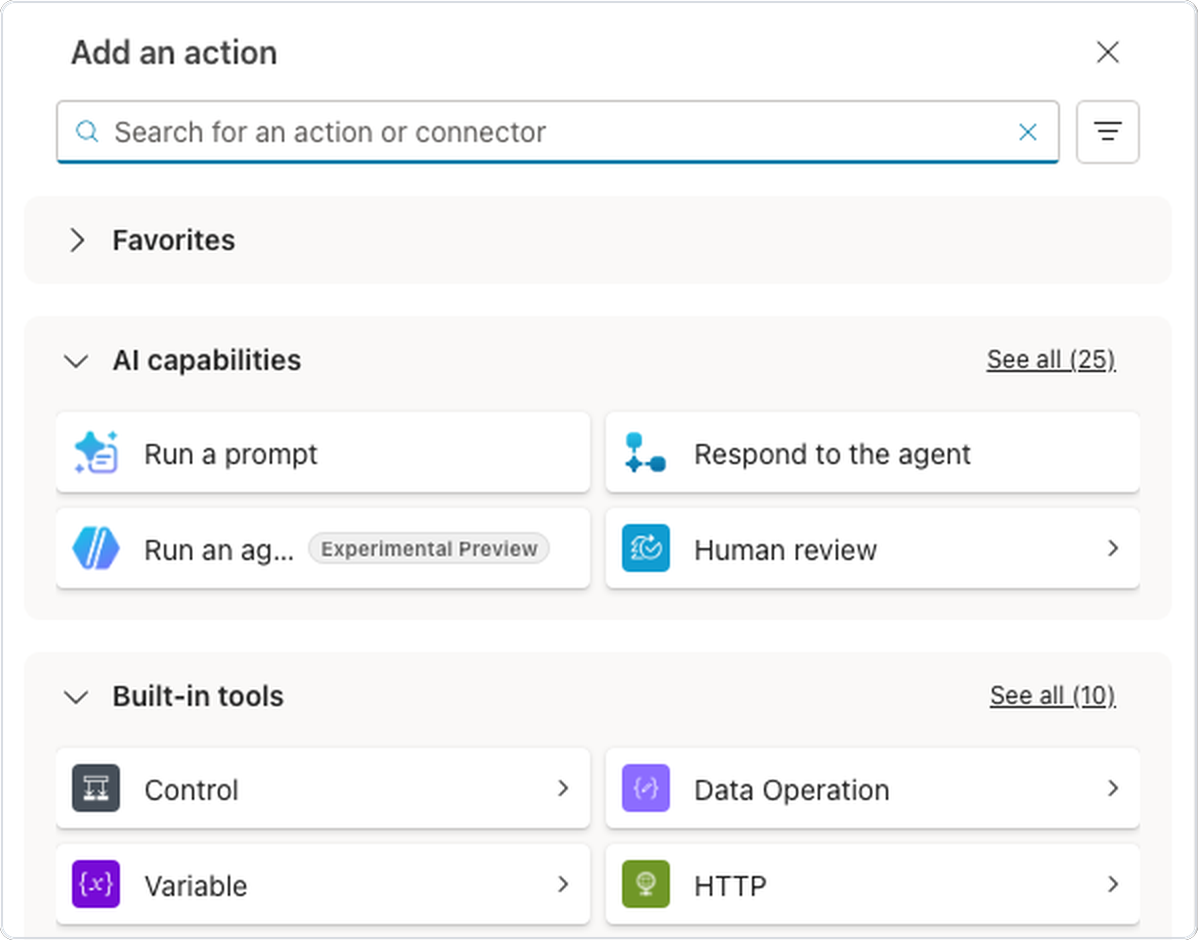
Run a prompt
AI capabilities
→
Run a prompt
Expect a
Dataverse connection
first
Pick the ready-made
AI Reply
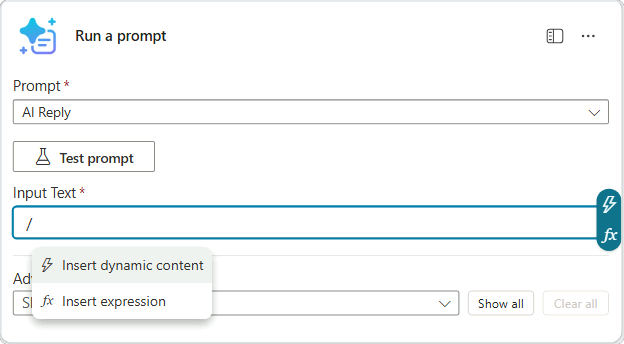
Input Text
→ press
/
→
Insert dynamic content
Respond to the agent
→ hands the draft back
+ Add an output
→ carries the reply
Backbone wired:
trigger → collect → generate → present
Save your draft
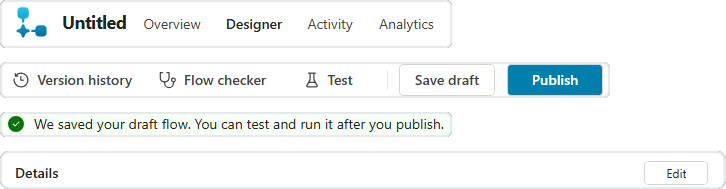
Click
Save draft
in the toolbar
The banner confirms your draft is saved
It starts as
Untitled
→ rename it in
Details
→
Edit
Version history
→ see and restore earlier saves
Publish before you test
Test
stays grayed out until you
publish
Publish first, then run a rough inquiry
Read the draft: would you actually
send it
?
Let the agent call your flow
Tools
→
Add a tool
→
Workflows
→ your flow
Describe
the tool and say
when to use it
Test the agent: the
activity map
shows the flow ran
Let's practice!
Building Agents with Microsoft Copilot Studio
Preparing Video For Download...