Your first agent flow

Building Agents with Microsoft Copilot Studio

Nia Joseph

AI Product Manager, Microsoft

A topic talks, a flow acts
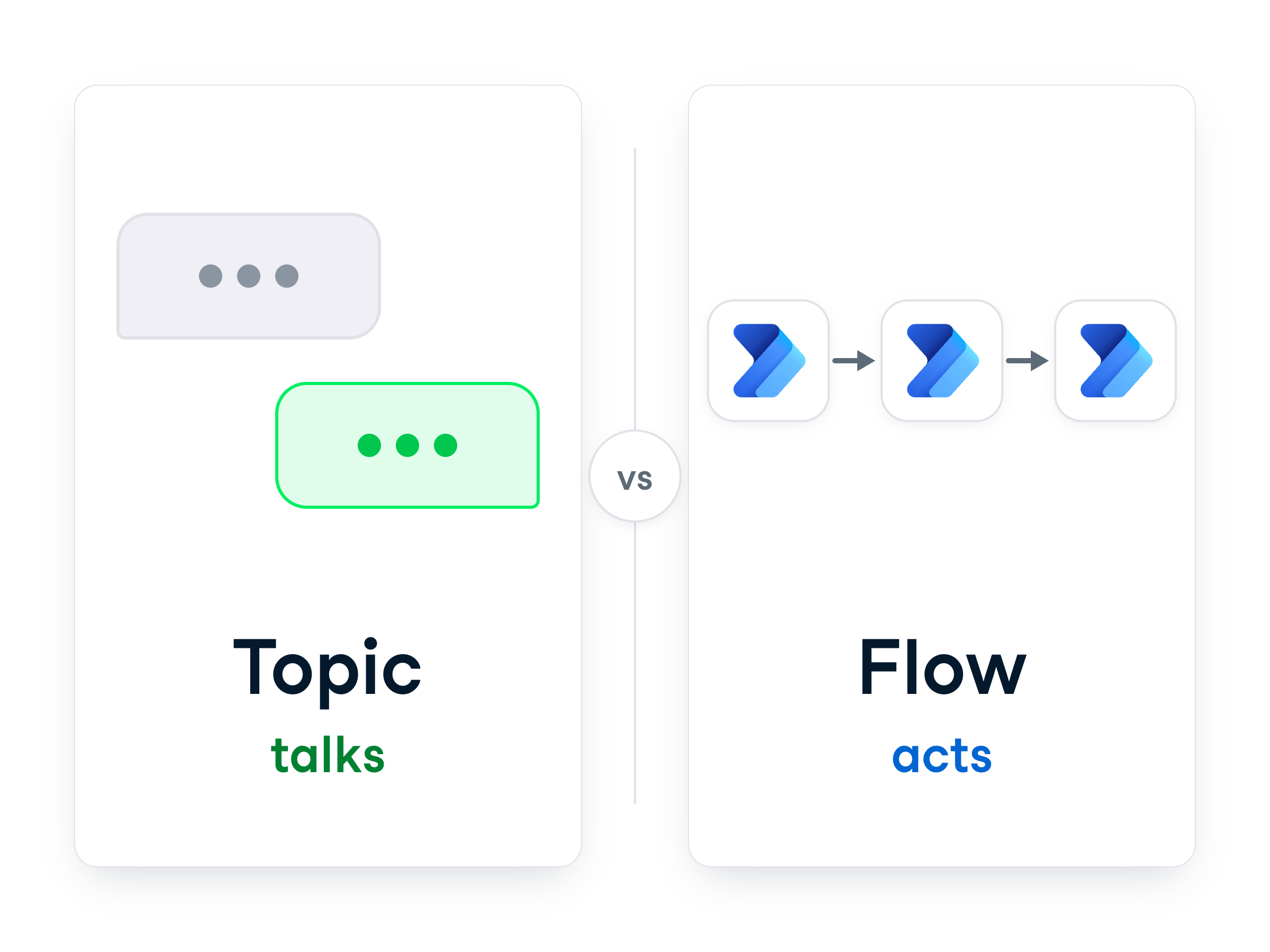


  • Topic → conversational: listens for intent, responds
  • Flow → procedural: runs a fixed sequence, same every time
  • Best for tasks you repeat


A topic talks, a flow acts

Building Agents with Microsoft Copilot Studio

The four-part backbone

  • Every basic flow has the same four parts
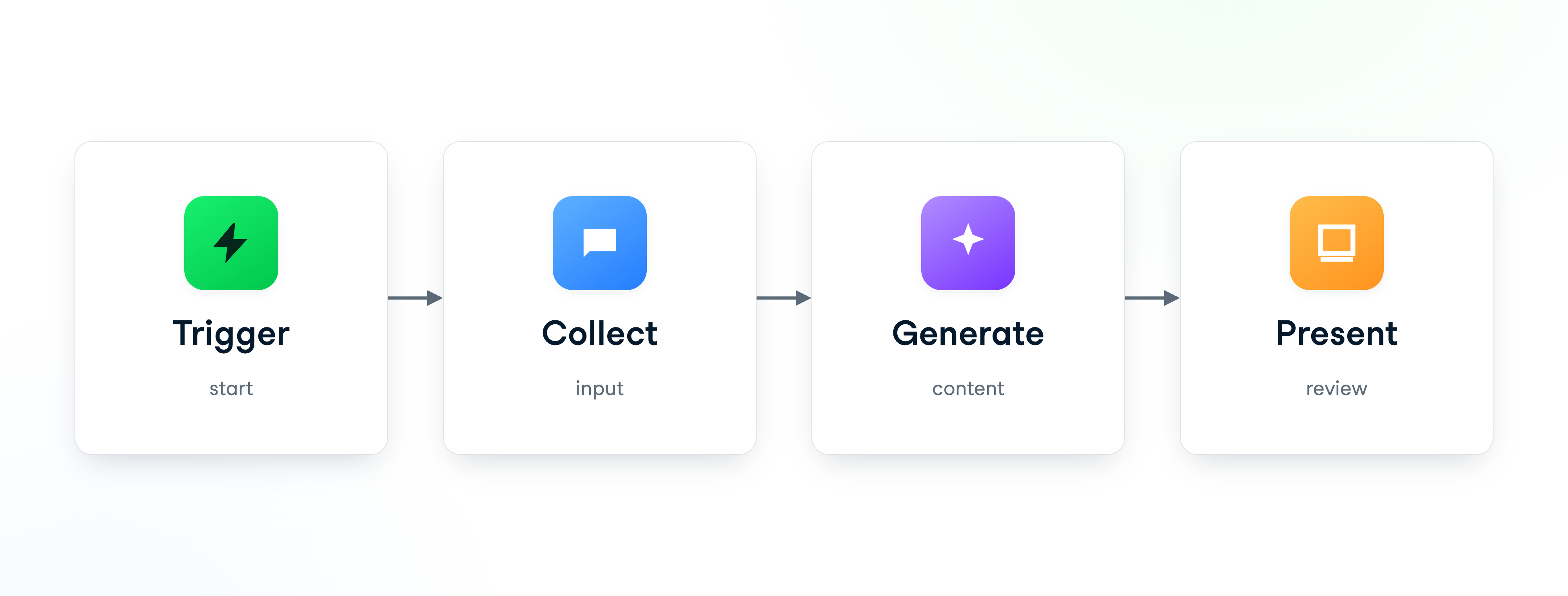
 

The four-part backbone: Trigger, Collect, Generate, Present

Building Agents with Microsoft Copilot Studio

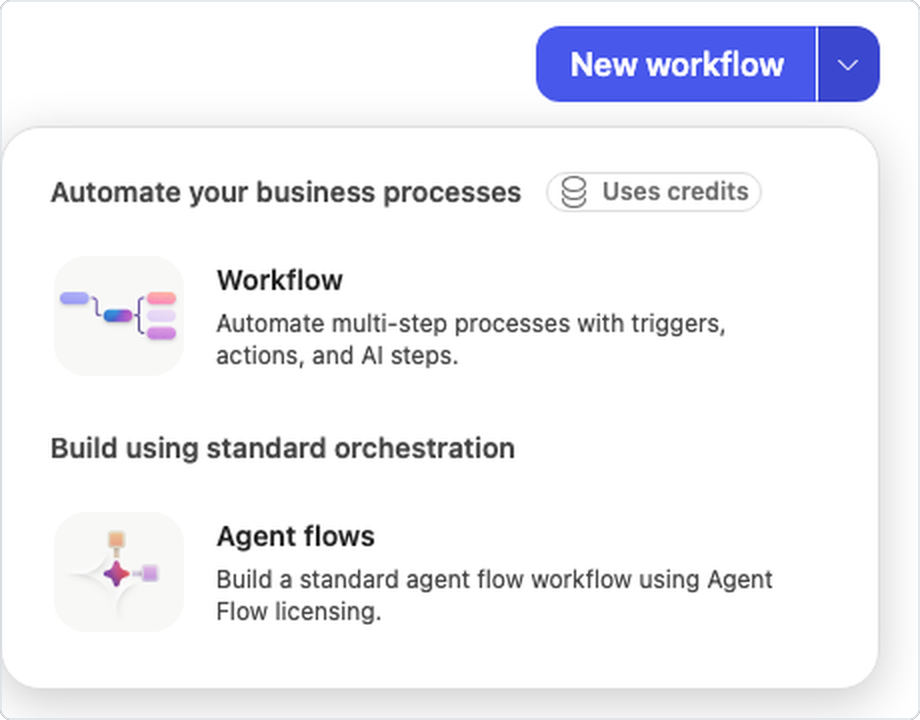
Find Agent flows


The New workflow dropdown, showing the credit-using Workflow and the free Agent flows


  • Click Workflows in the left rail
  • Click the small arrow beside New workflow, not the button
  • Choose Agent flows (no credits)
Building Agents with Microsoft Copilot Studio

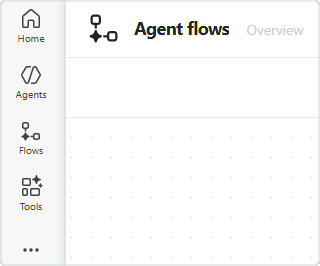
It opens in a new tab


  • Agent flows open in a new browser tab
  • That tab's rail reads Home / Agents / Flows / Tools
  • Skip any welcome tour you're offered


Copilot Studio new agent flow starting from a blank canvas

Building Agents with Microsoft Copilot Studio

Set the trigger

  • Every flow needs to know what starts it
  • Search Copilot → When an agent calls the flow
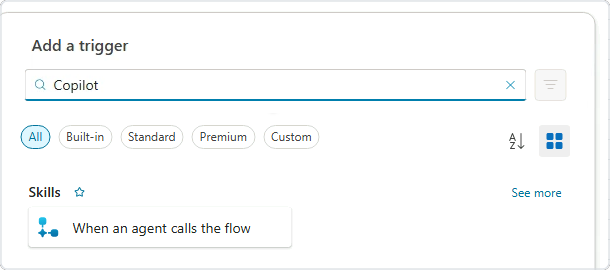
Add a trigger with Copilot searched and When an agent calls the flow under Skills

Building Agents with Microsoft Copilot Studio

Add an input


  • On the trigger node → + Add an input
  • Choose Text, name it Inquiry
  • This is how the agent passes data in


The When an agent calls the flow trigger with Add an input beneath it

Building Agents with Microsoft Copilot Studio

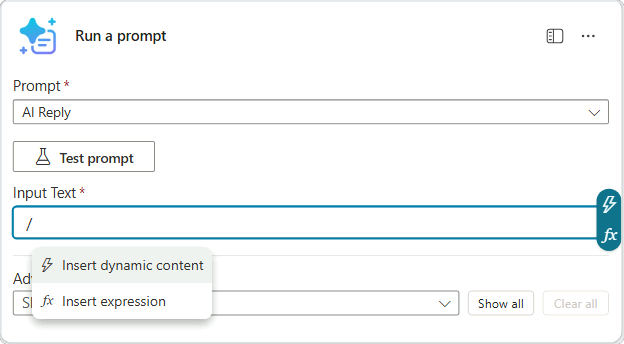
Run a prompt


Run a prompt with the AI Reply prompt chosen and the slash menu offering Insert dynamic content


  • AI capabilities → Run a prompt
  • Expect a Dataverse connection first
  • Pick the ready-made AI Reply
  • Input Text → press / → Insert dynamic content
Building Agents with Microsoft Copilot Studio

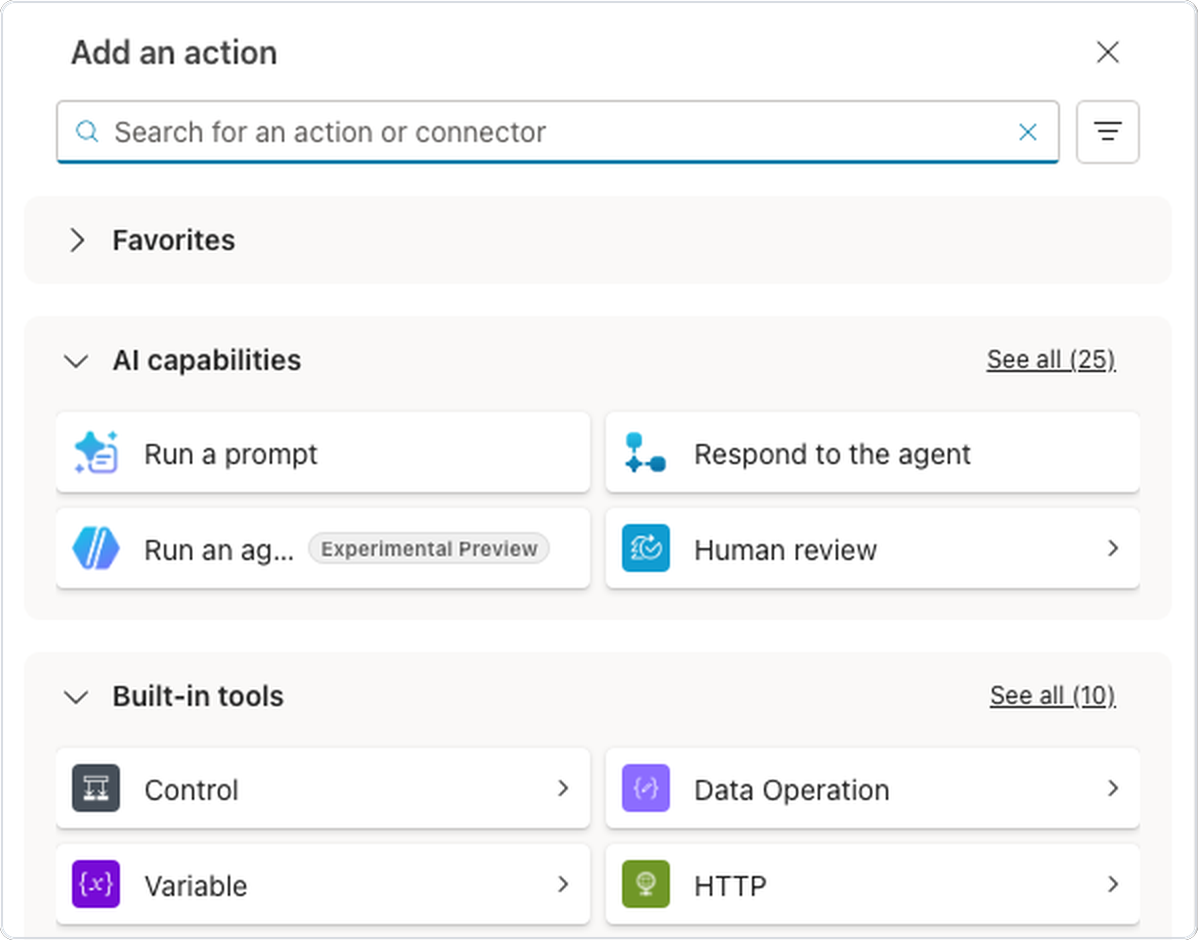
Respond to the agent


  • Respond to the agent → hands the draft back
  • + Add an output → carries the reply
  • Backbone wired: trigger → collect → generate → present


The Add an action picker, with Respond to the agent under AI capabilities

Building Agents with Microsoft Copilot Studio

Save your draft


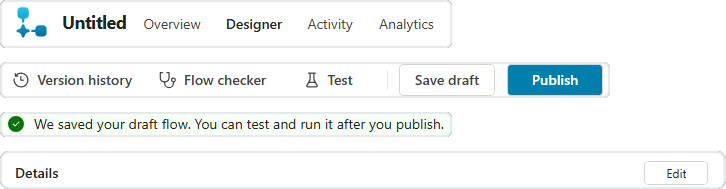
A new Untitled flow, the toolbar with Version history and Save draft, the saved banner, and the Details card's Edit button


  • Click Save draft in the toolbar
  • The banner confirms your draft is saved
  • It starts as Untitled → rename it in Details → Edit
  • Version history → see and restore earlier saves
Building Agents with Microsoft Copilot Studio

Publish before you test


  • Test stays grayed out until you publish
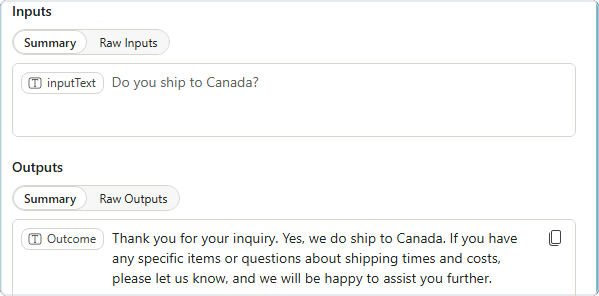
  • Publish first, then run a rough inquiry
  • Read the draft: would you actually send it?


A test run's inputs and outputs, showing the drafted reply to a shipping question

Building Agents with Microsoft Copilot Studio

Let the agent call your flow


  • Tools → Add a tool → Workflows → your flow
  • Describe the tool and say when to use it
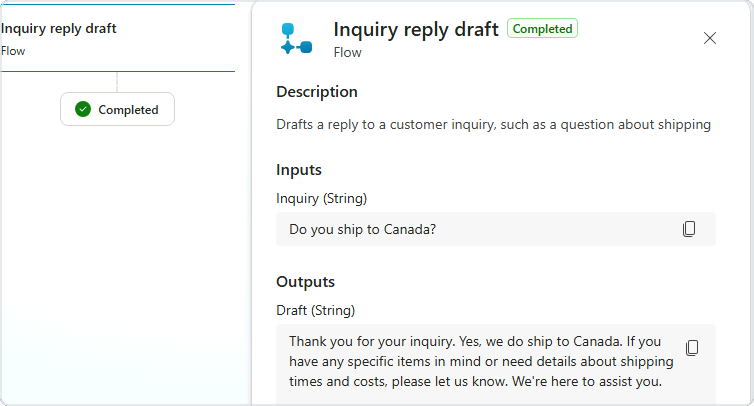
  • Test the agent: the activity map shows the flow ran


The activity map showing the agent called the Inquiry reply draft flow, with its description, input and drafted reply

Building Agents with Microsoft Copilot Studio

Let's practice!

Building Agents with Microsoft Copilot Studio

Preparing Video For Download...