Lookups you can trust

Microsoft Copilot in Excel

James Chapman

AI Curriculum Manager, DataCamp

Connecting data from two places
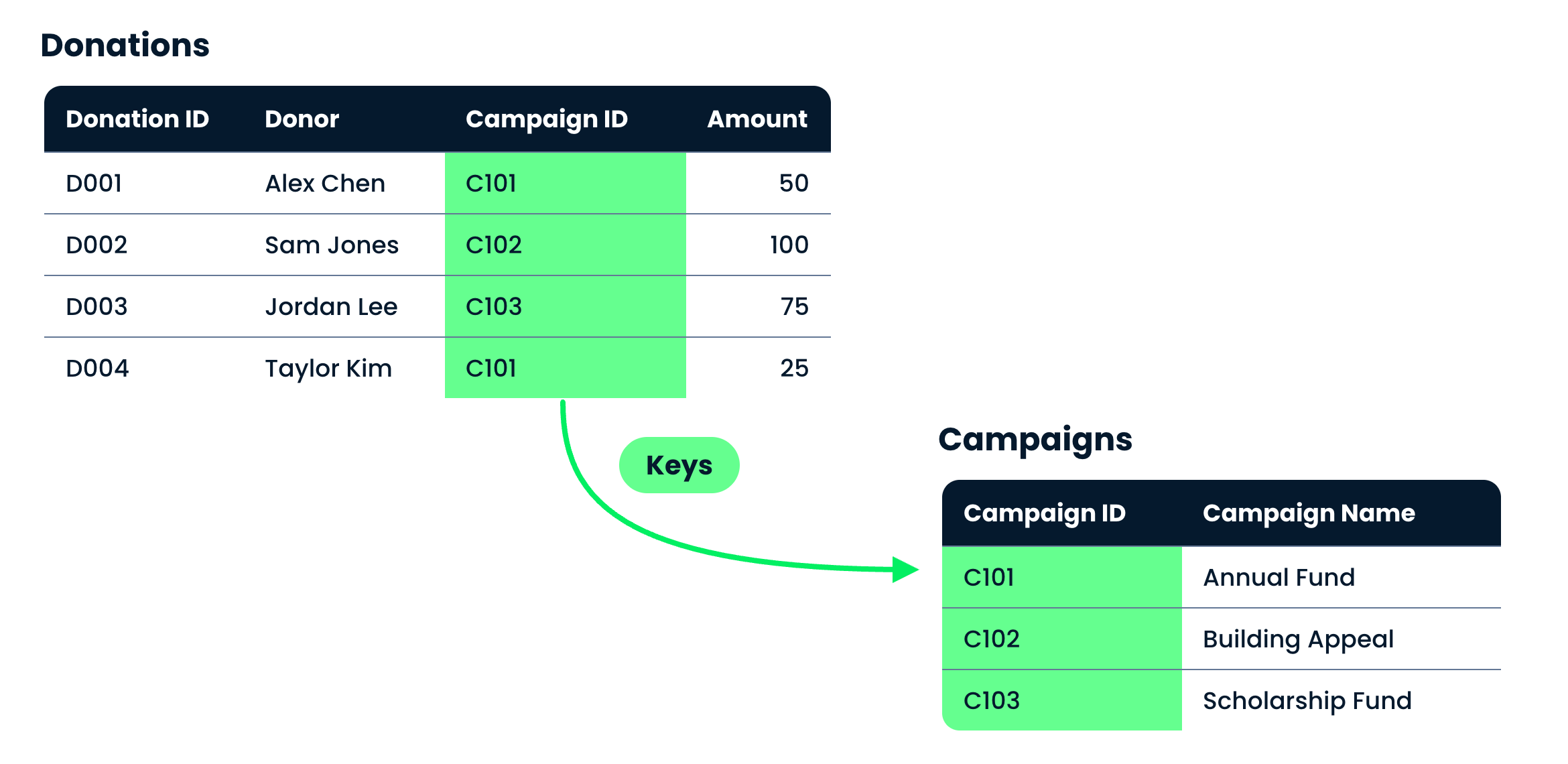
The Donations and Campaigns tables, joined on the Campaign ID column they share

  • Best Practice: Separate data into clear, modular domains to be combined during analysis
  • Copilot often combines data using XLOOKUP formulas
Microsoft Copilot in Excel

How XLOOKUP works

=XLOOKUP(lookup_value, lookup_array, return_array)
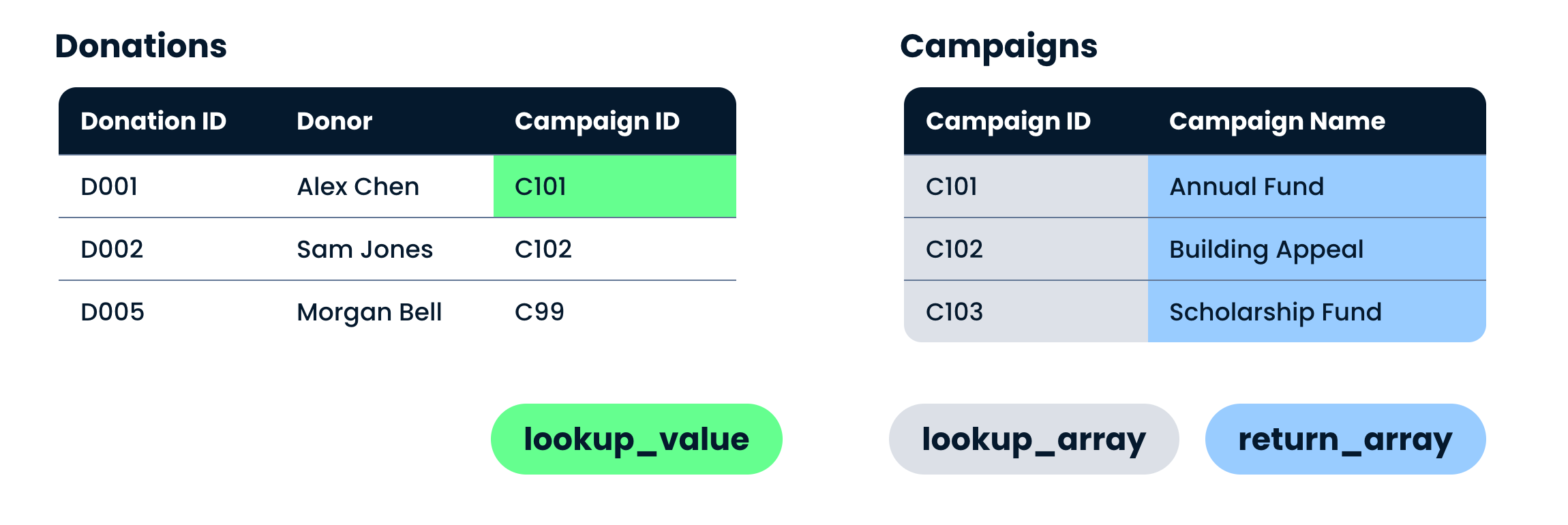
Donations and Campaigns side by side, with XLOOKUP's three arguments labeled underneath

Microsoft Copilot in Excel

When there is no match

=XLOOKUP(lookup_value, lookup_array, return_array)
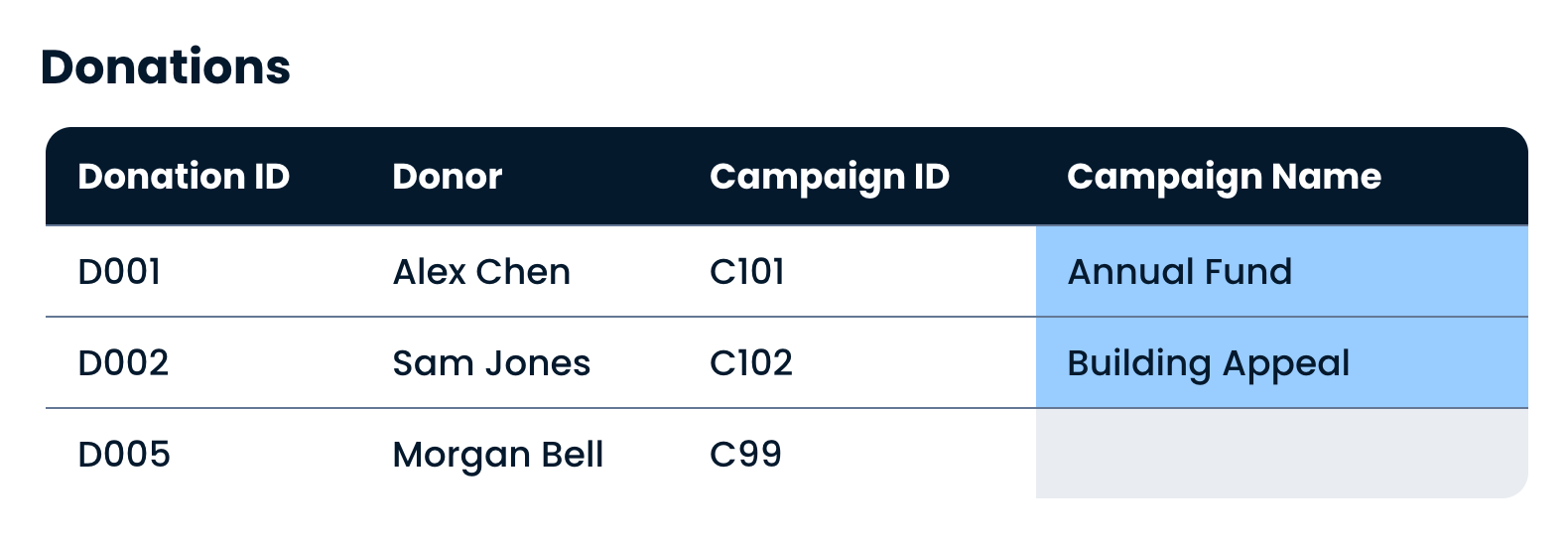
The Donations table with Campaign Name filled in, and nothing against the unmatched C99 row

Microsoft Copilot in Excel

Example: Copilot and XLOOKUP

  • Both sheets live in the same workbook - Donations and Campaigns

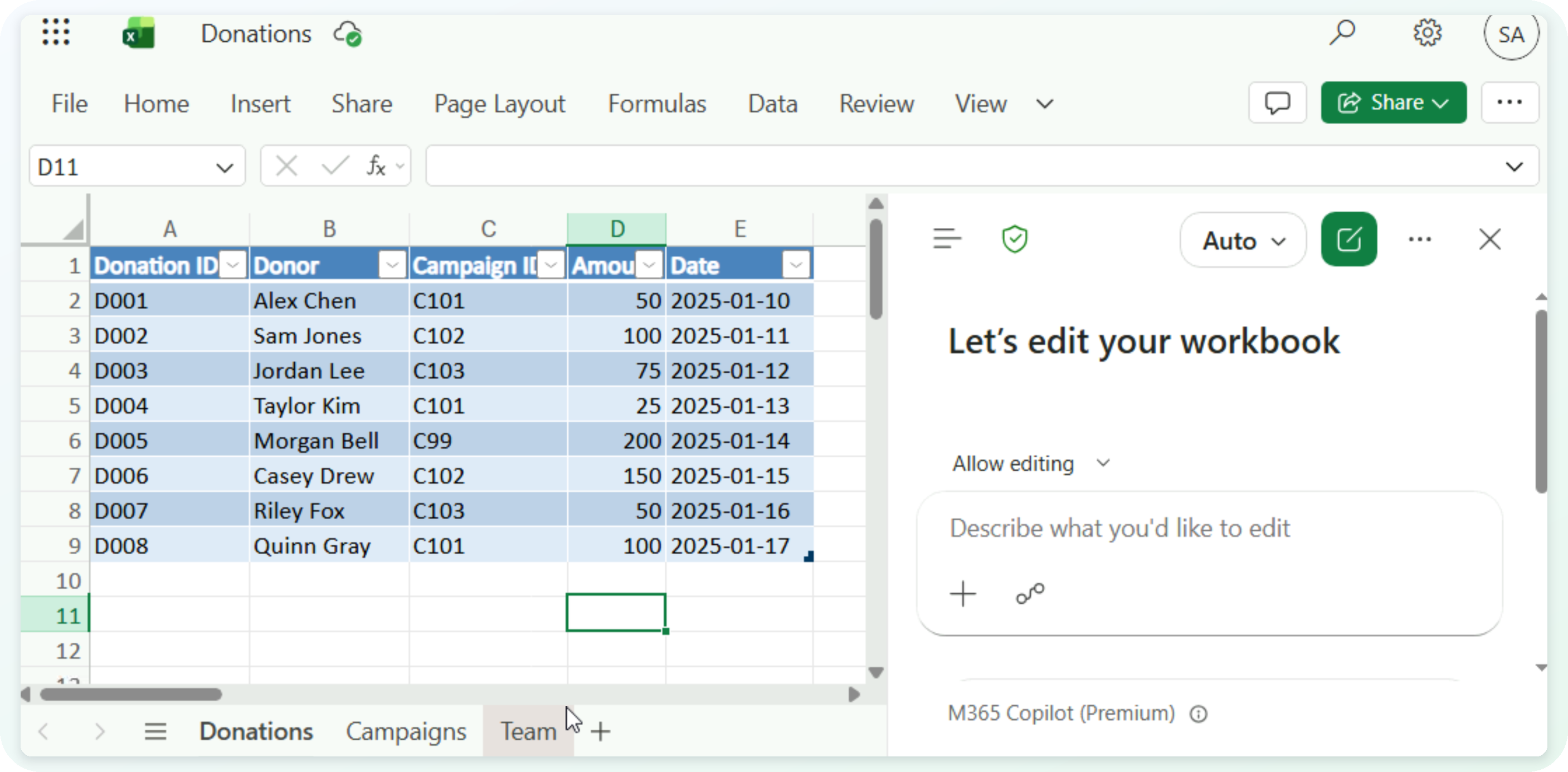
The Donations workbook with the Campaigns sheet alongside it and Copilot open in Allow editing mode

Microsoft Copilot in Excel

Example: Copilot and XLOOKUP

  • Name both tables and the matching column in your prompt
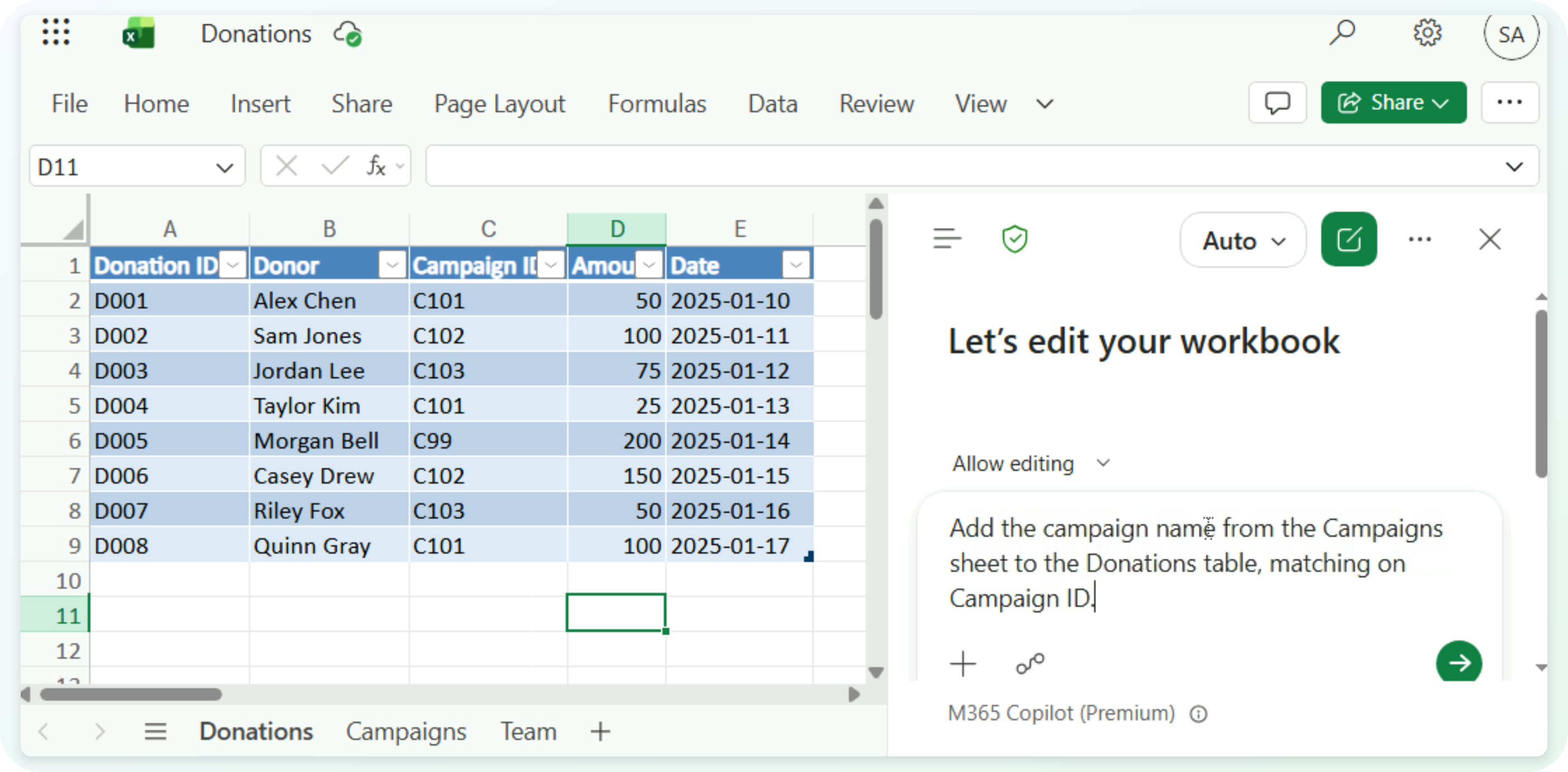
The same workbook with the lookup prompt typed into the Copilot pane

Microsoft Copilot in Excel

Example: Copilot and XLOOKUP

  • Read the formula, then look for rows that found nothing
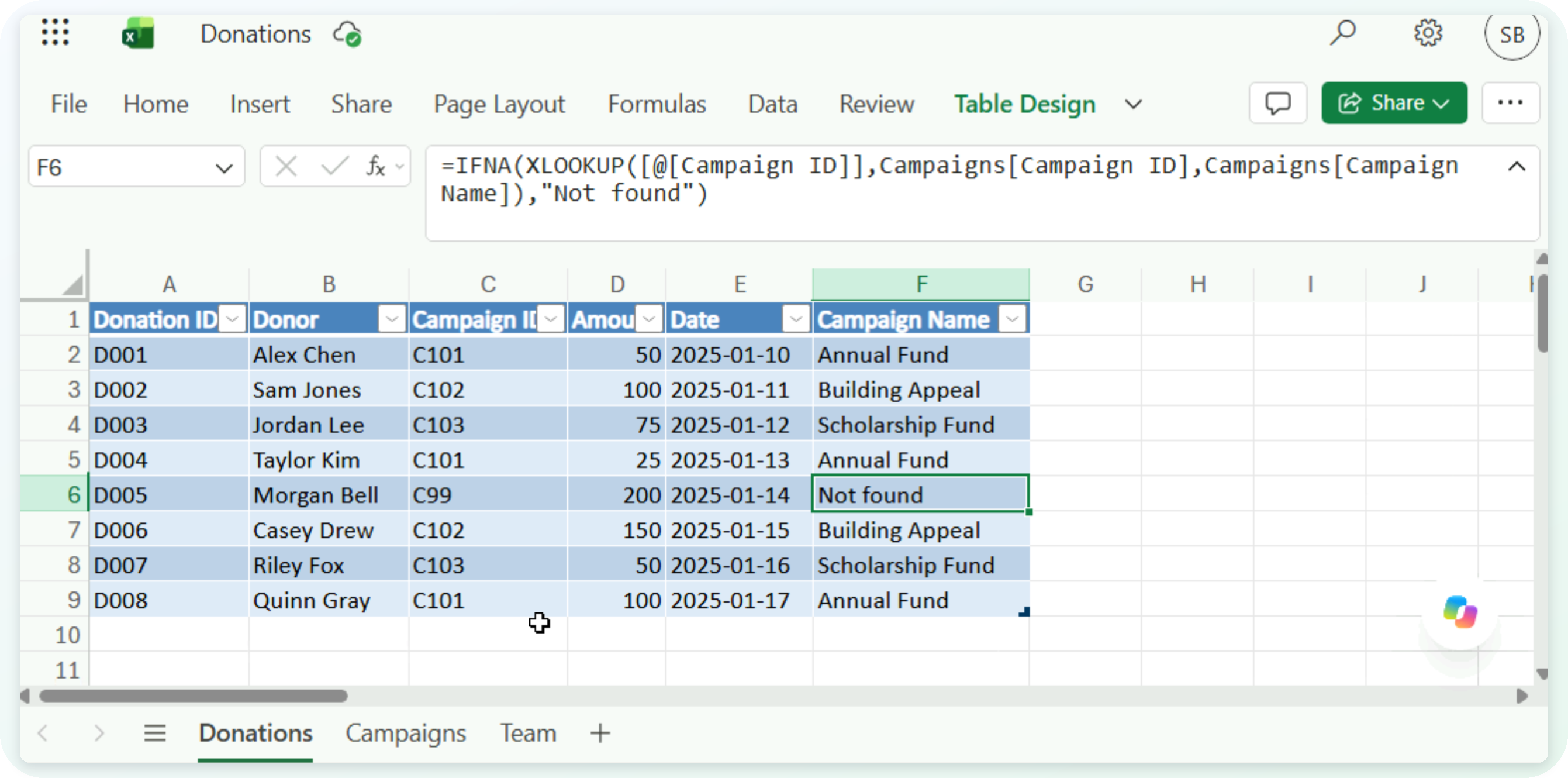
The Campaign Name column filled in, with Not found against the unmatched C99 row and the XLOOKUP formula Copilot wrote in the formula bar

Microsoft Copilot in Excel

Verification checklist

$$

A checklist with three ticked items


  1. Results: do the matches look right?
  2. Formula: are the tables and ranges the ones you meant?
  3. Blanks: the key may not be in the lookup list
  4. Duplicates: the key may appear twice in that list
Microsoft Copilot in Excel

Let's practice!

Microsoft Copilot in Excel

Preparing Video For Download...