Conditional formatting: when the data talks back

Microsoft Copilot in Excel

James Chapman

AI Curriculum Manager, DataCamp

The big Excel challenge
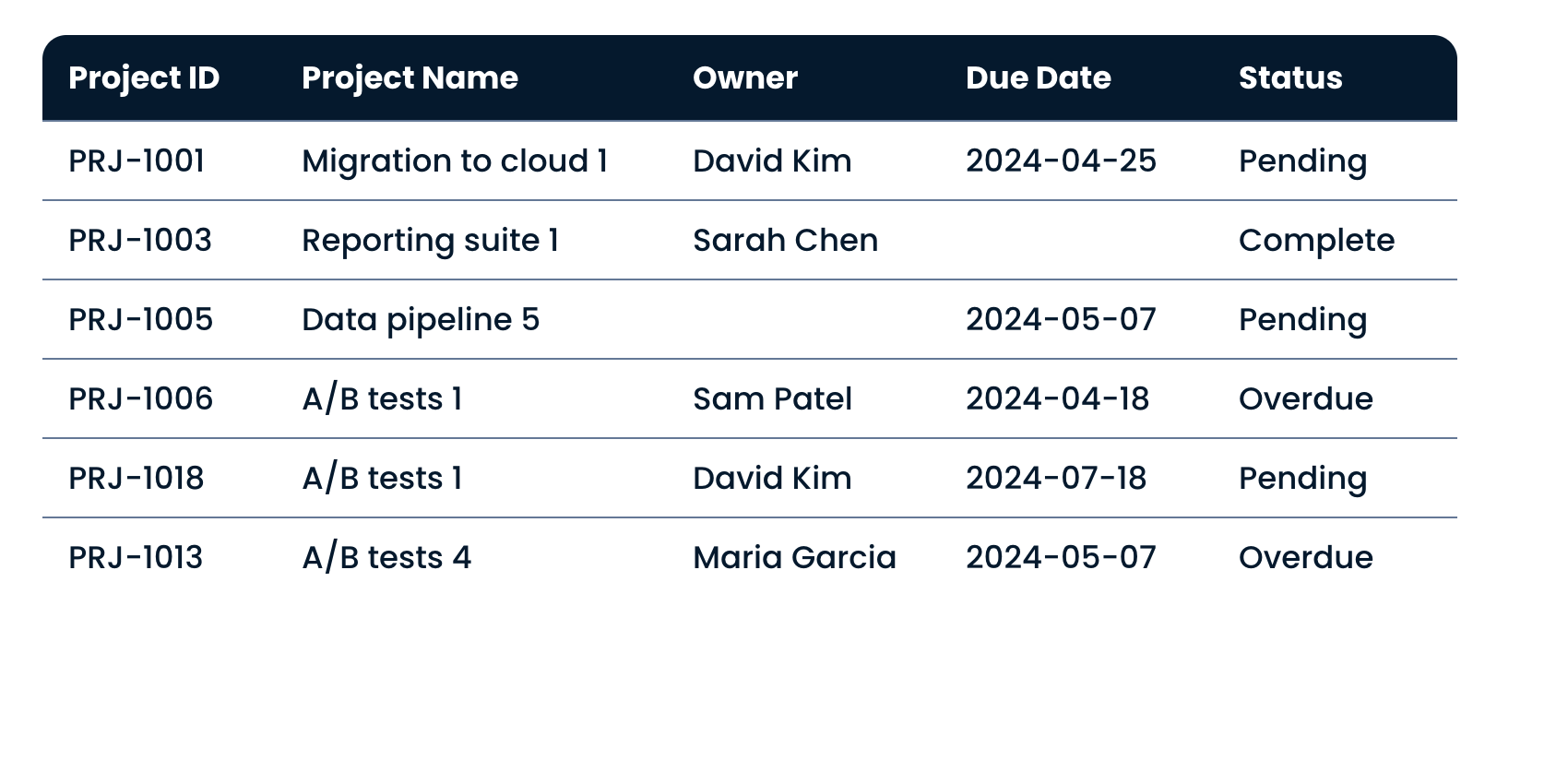
 

The Projects table, with blank cells, a repeated project name and two overdue rows


  • Identifying and addressing messy data
  • Missing values, duplicates, inconsistent entries → misleading insights
  • Catch issues early so your analysis is built on solid ground
  • Conditional formatting → highlight data quality issues
Microsoft Copilot in Excel

Conditional formatting to surface issues
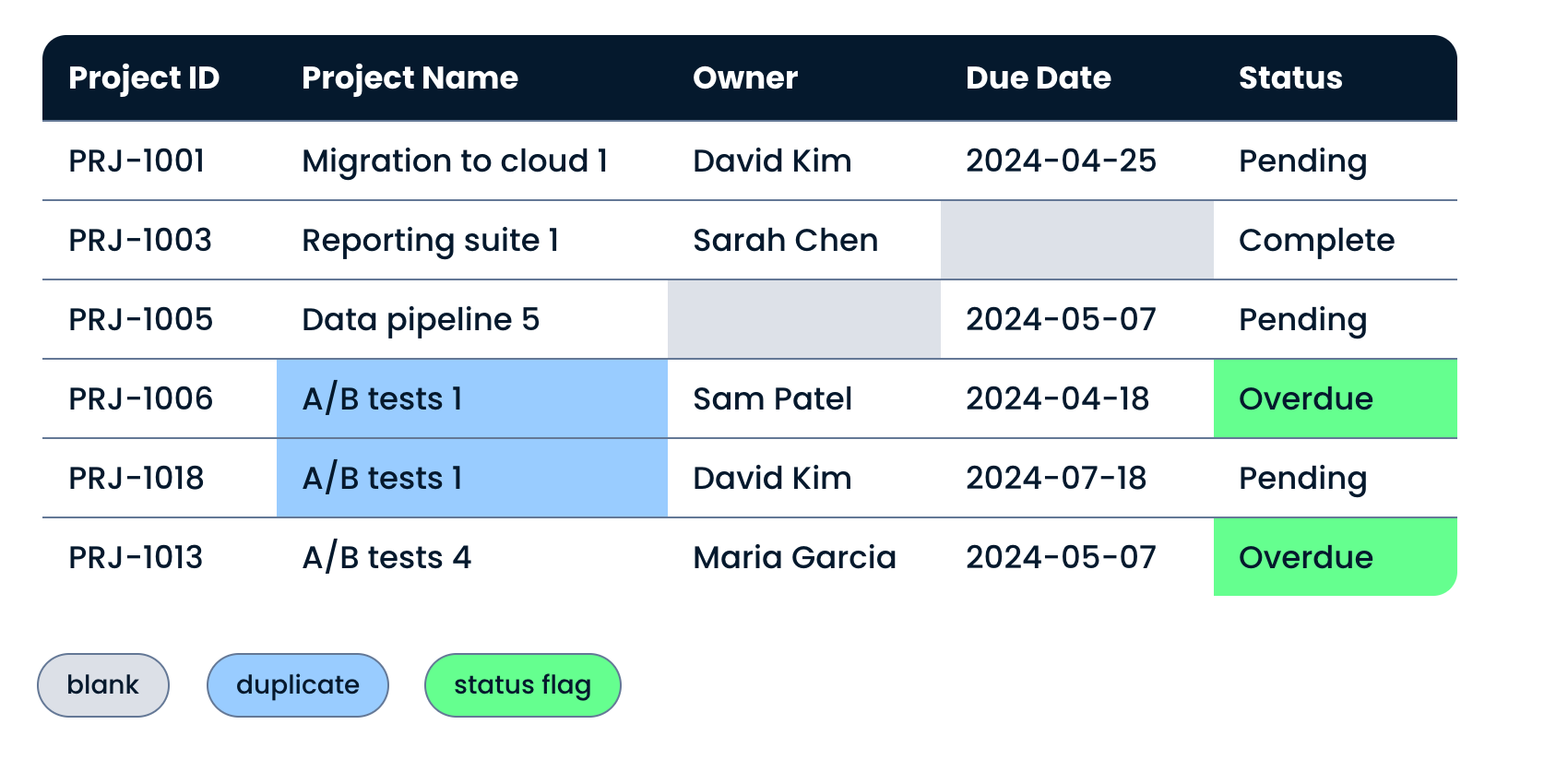
 

The same Projects table with formatting marking blanks, duplicates and the overdue status


  • Conditional formatting = rules that highlight cells based on their value
  • Blanks, duplicates, specific status flags stand out visually
  • Copilot can suggest conditional formatting rules
  • Copilot can implement them!
Microsoft Copilot in Excel

Example: Highlight missing values

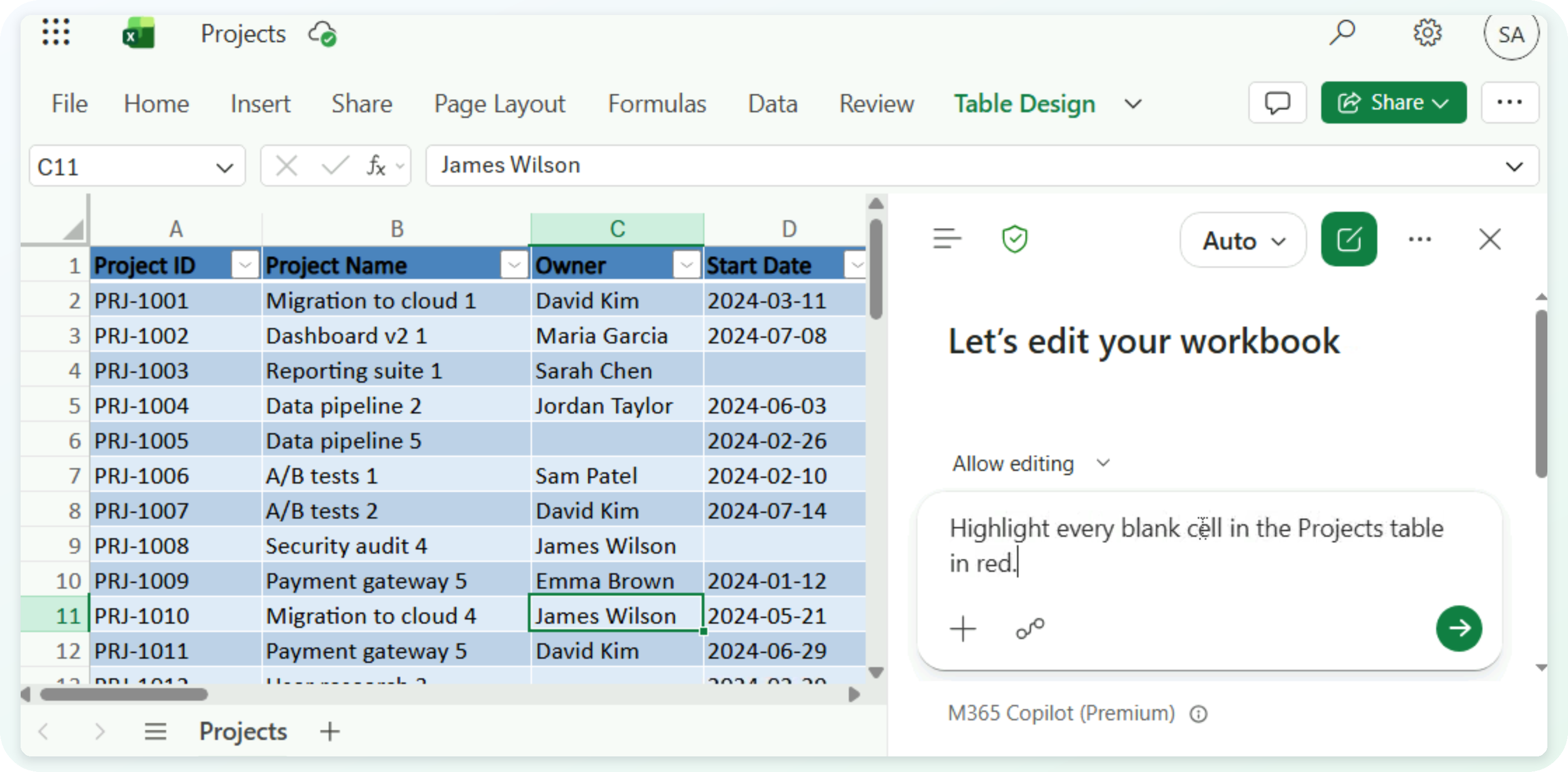
  • Ask for the rule in plain words

The Projects table with the blanks rule typed into the Copilot pane

Microsoft Copilot in Excel

Example: Highlight missing values

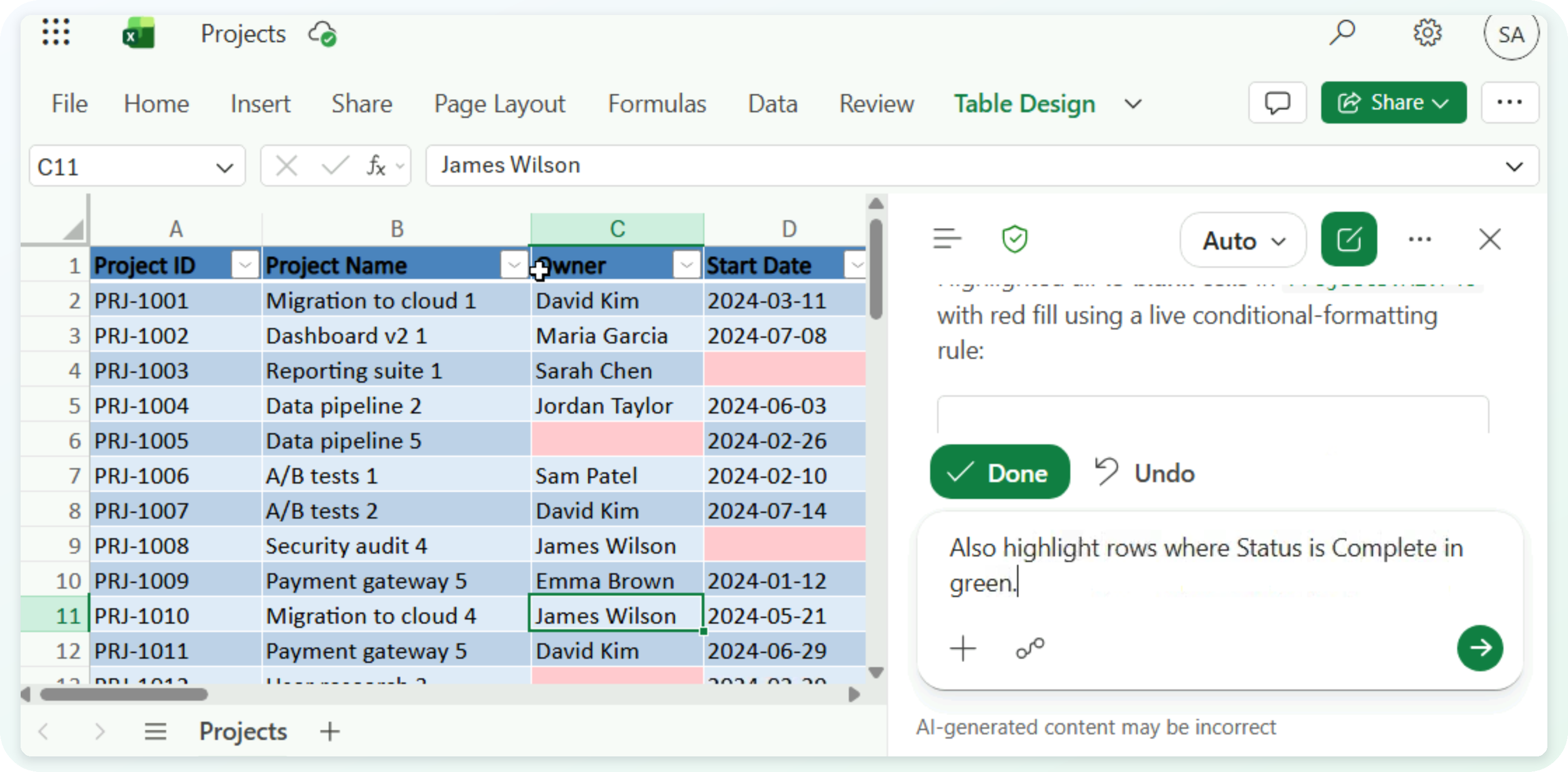
  • Copilot reports its scope: Projects!A2:F46, all 45 rows
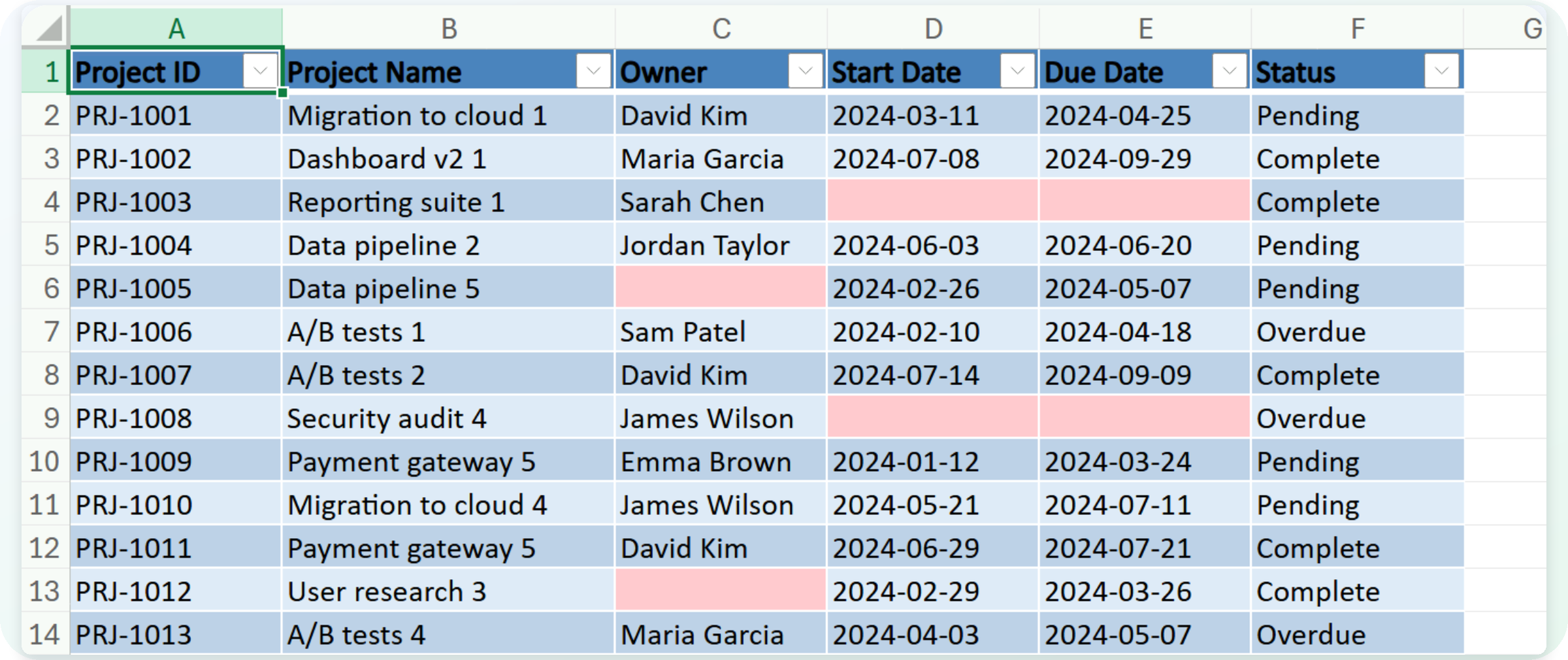
Blank cells highlighted in red by a Copilot conditional formatting rule

Microsoft Copilot in Excel

Example: Layering a second rule

$$

The same workbook with a second prompt typed, asking for Complete rows in green

Microsoft Copilot in Excel

Example: Layering a second rule

  • Check the column, the condition and the color
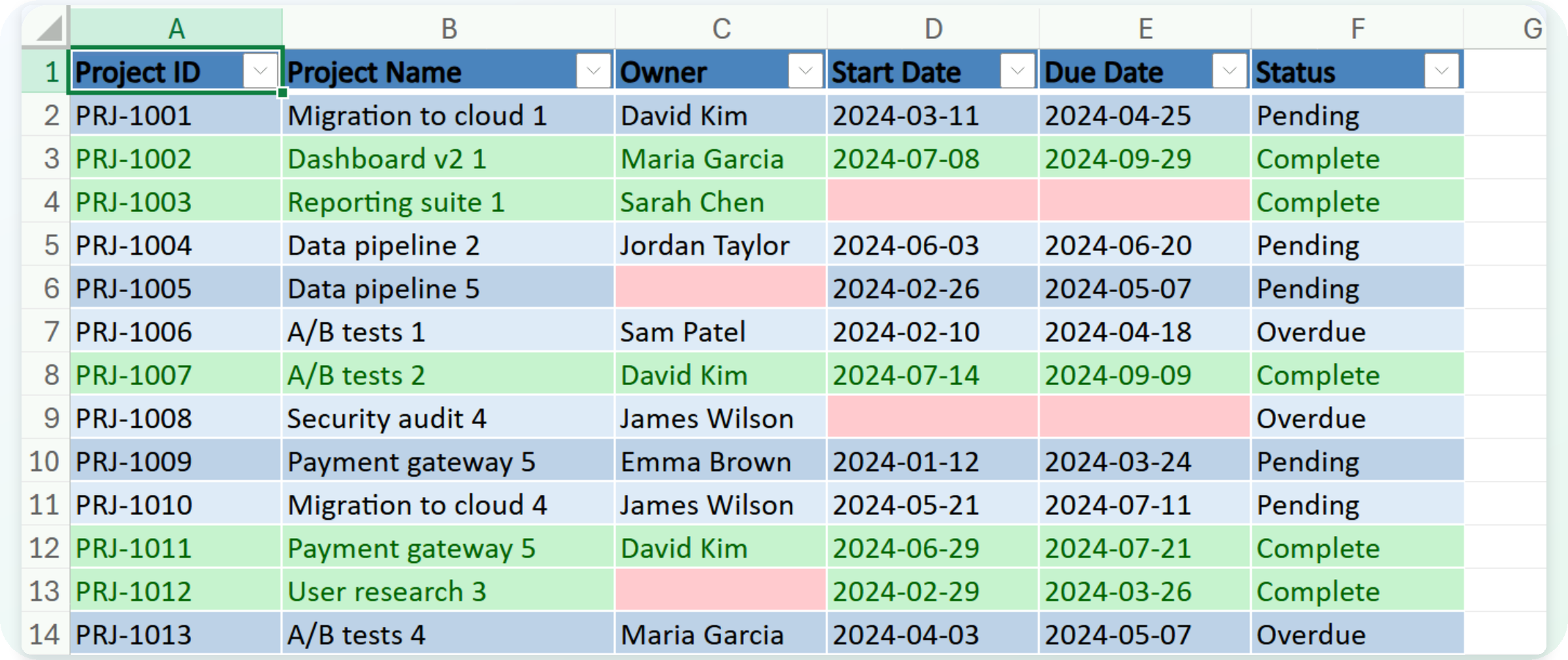
A second rule marking Complete rows green, layered over the red blanks

Microsoft Copilot in Excel

Let's practice!

Microsoft Copilot in Excel

Preparing Video For Download...