User inputs in Dash components

Créer des tableaux de bord avec Dash et Plotly

Alex Scriven

Data Scientist

Why user input?


Some useful applications of user inputs:

  • Filtering across a large number range (number inputs)
    • Consider a dropdown with 2000 'year' values!
  • Filtering based on text-matching (search or text inputs)
  • Creating a login (password and email/text input)
Créer des tableaux de bord avec Dash et Plotly

User input in Dash


A user input is a dash core components Input type (dcc.Input)

  • An id is required for callback integration
  • The type will default to text
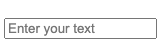
  • The placeholder shows faded guidance text

A small image of a rectangle with a black border inside which has faded grey text of "Enter your text"


dcc.Input(
    id='my_input',
    type='text',
    placeholder="Enter your text")
Créer des tableaux de bord avec Dash et Plotly

Using the input


  • Input becomes a Python variable
  • Used with the callback


# @callback()
def update_plot(entered_data):
    fig = px.scatter(
    data_frame=sales, 
    y='OrderValue', x='Quantity',
    , title=f'{entered_data}')
    return fig
Créer des tableaux de bord avec Dash et Plotly

User input types


  • Some are straightforward: 'text', 'number', 'password', 'email'
  • Some are more specialized:
    • 'range' produces a range slider
    • 'tel' and 'url' are for telephone numbers and website urls
  • Some are advanced:
    • 'search' and 'hidden' involve advanced browser interaction
Créer des tableaux de bord avec Dash et Plotly

Restricting user input


The type argument automatically sets some limitations.

dcc.Input(
    id='my_input',
    type='email',
    placeholder="Enter your email")


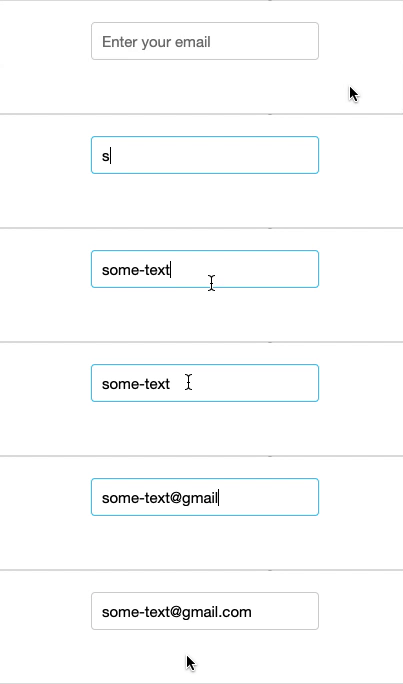
A gif of an input textbox where someone enters the words 'some-text,' and the mouse leaves the box, which causes the outside of the box to turn red, indicating an error. The mouse then re-enters the box and extends this by adding '@gmail.com' to the end, which doesn't cause an error when the mouse leaves

Créer des tableaux de bord avec Dash et Plotly

Additional restrictions

  • A number type only allows numbers
    • Additionally: min and max set numerical limit
    • minLength / maxLength for text inputs
  • A text type also has pattern for regex validation


A gif of a small box with up and down toggle keys on the right. The mouse clicks these to produce the number 1, then (after clicking the down arrow) the number turns to zero. The number 249 is typed, and no action is seen, however then the number 251 is typed, which causes a red box to appear around the input indicating an error.

dcc.Input(
    id='my_input',
    type='number',
    max=250)
Créer des tableaux de bord avec Dash et Plotly

Toggling an input


  • Turn off an input programmatically with disabled


  • Force its usage with required

$$

  • True/False arguments of dcc.Input()


A gif of a rectangular input box that a mouse tries to click into but cannot. The text inside the box is "A disabled input"

dcc.Input(id='my_input', disabled=True)

A gif of a rectangular input box that a mouse clicks into and then out of without entering text. A red box appears around the input once the mouse clicks outside, indicating an error. The text inside the box is "A Required input"

dcc.Input(id='my_input', required=True)
Créer des tableaux de bord avec Dash et Plotly

When to update


$$

dcc.Input(id='my_input', type='text',
          debounce=False)

$$

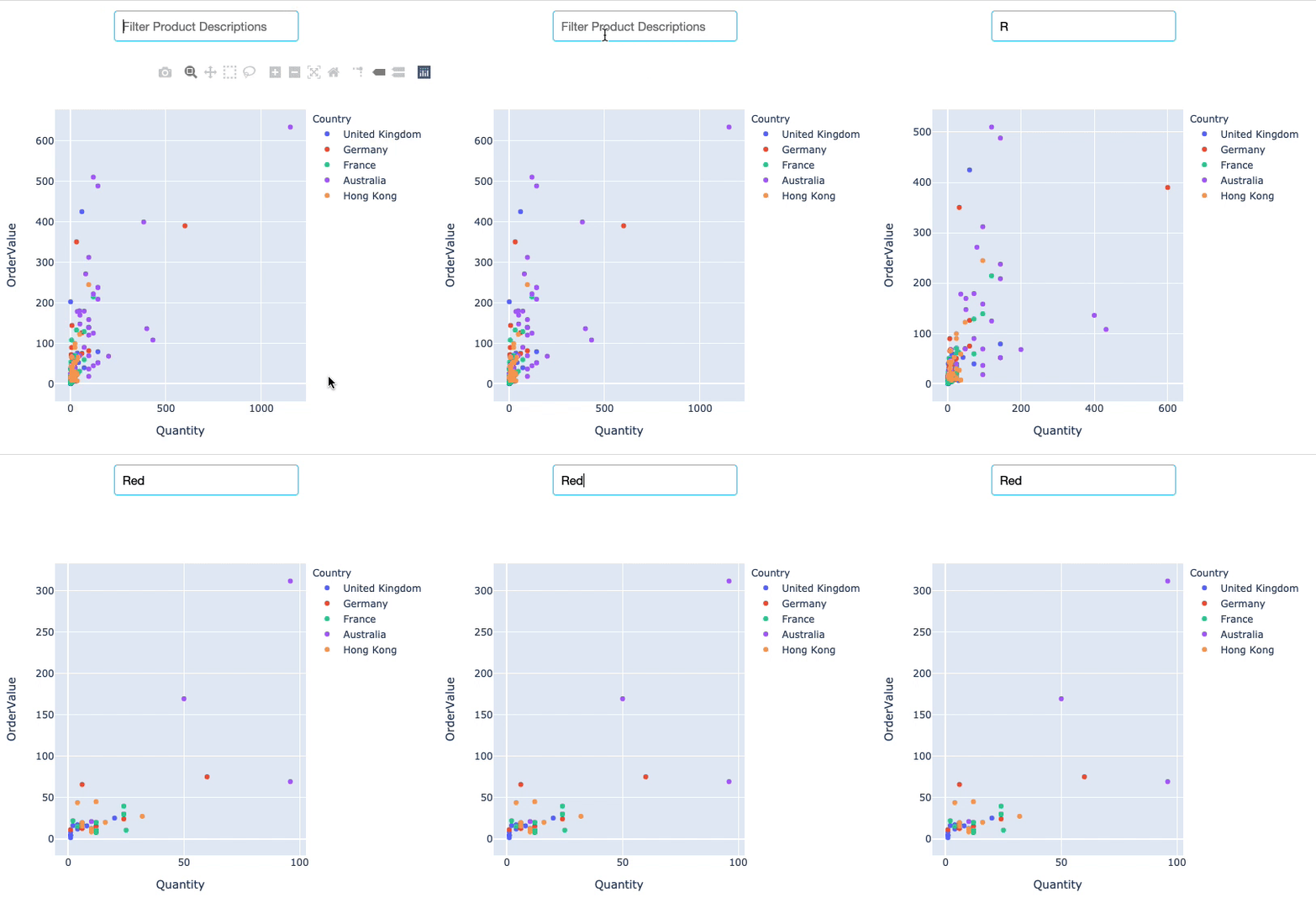
  • Filtering for R, Re, Red, Redd

A gif of a text input with the placeholder text 'Filter Product Descriptions'. Text is typed in one letter at a time, and the graph below changes to show less data each time. The text typed is R-E-D-D. When it is all entered, there is no data available indicating there are no data points that have redd in their description column

Créer des tableaux de bord avec Dash et Plotly

Let's practice!

Créer des tableaux de bord avec Dash et Plotly

Preparing Video For Download...