Introduction to AWS Security

Using AWS Security for Developers

Rahul Singh

Technical Product Manager

Course prerequisites

 

  • Basic AWS security knowledge
  • Understanding of cloud computing concepts
  • AWS Security and Cost Management Concepts


AWS Security and Cost Management Concepts course title card

Using AWS Security for Developers

Course objectives


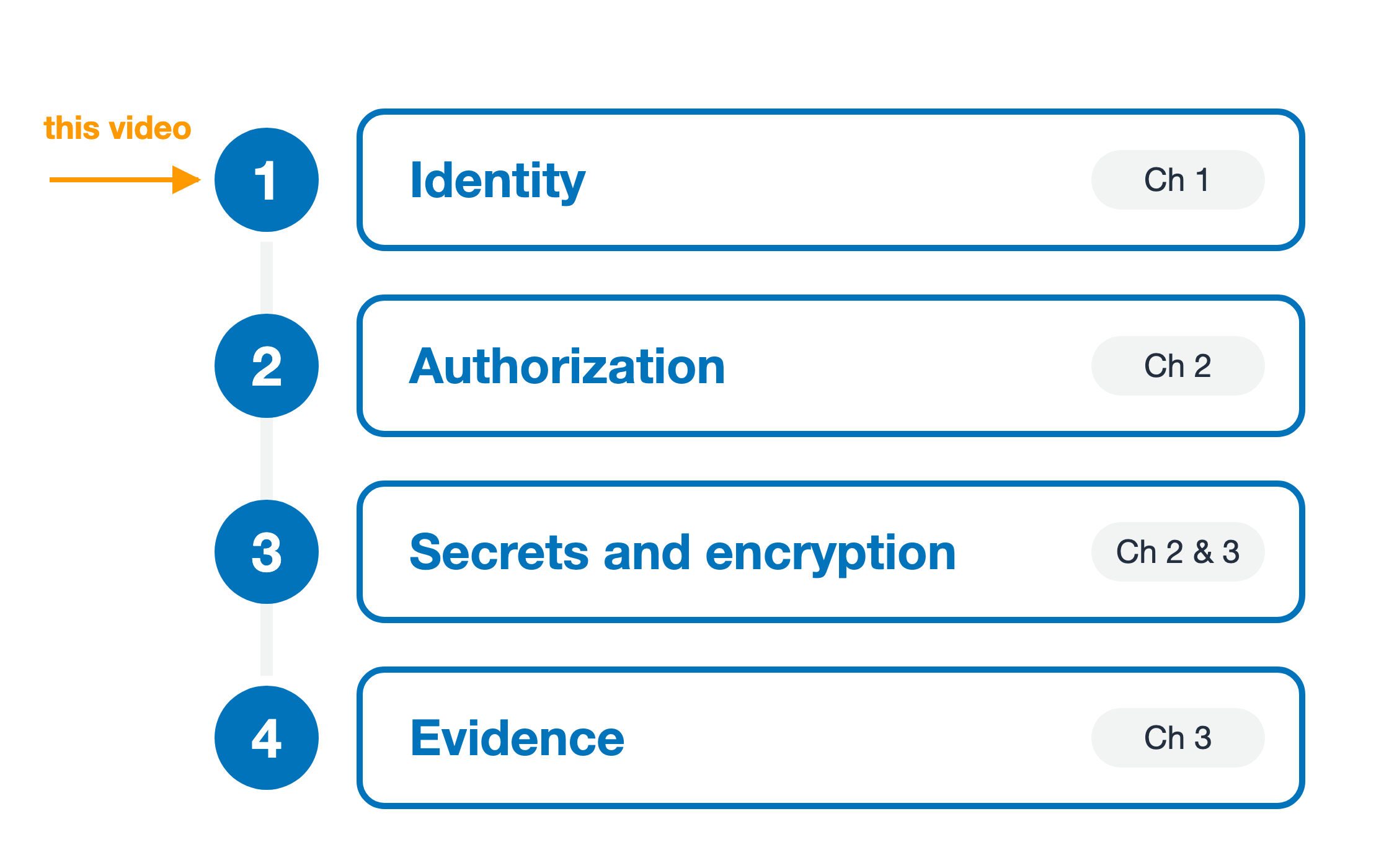
  1. Identity: who is calling
  2. Authorization: what they may reach
  3. Secrets and encryption: protecting the data
  4. Evidence: what happened, afterwards

Four numbered bands stacked down a spine, one for each area the course covers. Band one, Identity, marked Chapter 1. Band two, Authorization, marked Chapter 2. Band three, Secrets and encryption, marked Chapters 2 and 3. Band four, Evidence, marked Chapter 3. An orange arrow on the left, labelled this video, points at band one.

Using AWS Security for Developers

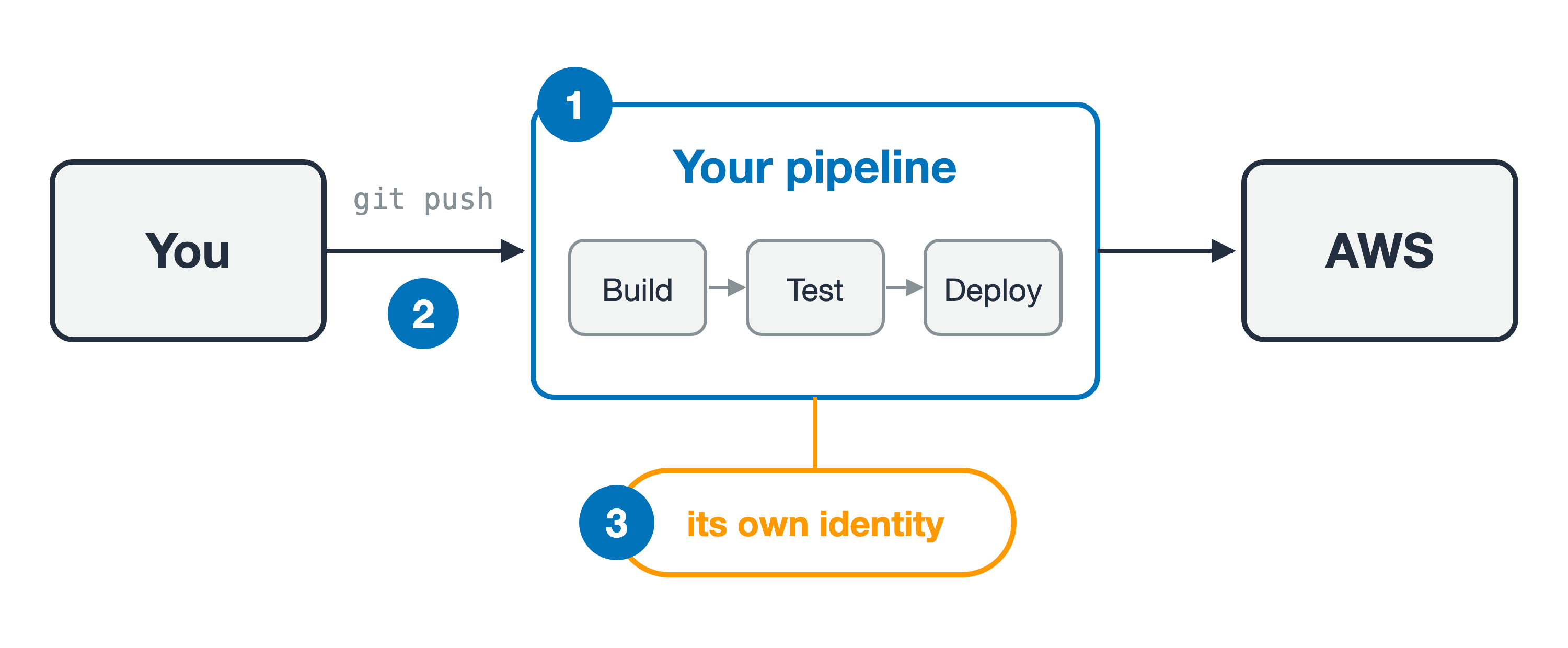
Your code ships through a pipeline

A left-to-right flow. Step one, a box labelled Your pipeline containing three stages in order: Build, Test, Deploy. Step two, an arrow labelled git push running into it from a box labelled You. Step three, an orange badge hanging beneath the pipeline, labelled its own identity. An arrow continues from the pipeline to a box labelled AWS.

First, one piece of vocabulary

  • A pipeline is the automation that builds, tests, and deploys your code
  • It runs on your push, with no human in the loop
Using AWS Security for Developers

A deploy that fails for the wrong reason

On a code change, whose permissions are actually being checked?
  1. You push a change

Step one of a vertical flow. A box labeled You, pushing a code change.

Using AWS Security for Developers

A deploy that fails for the wrong reason
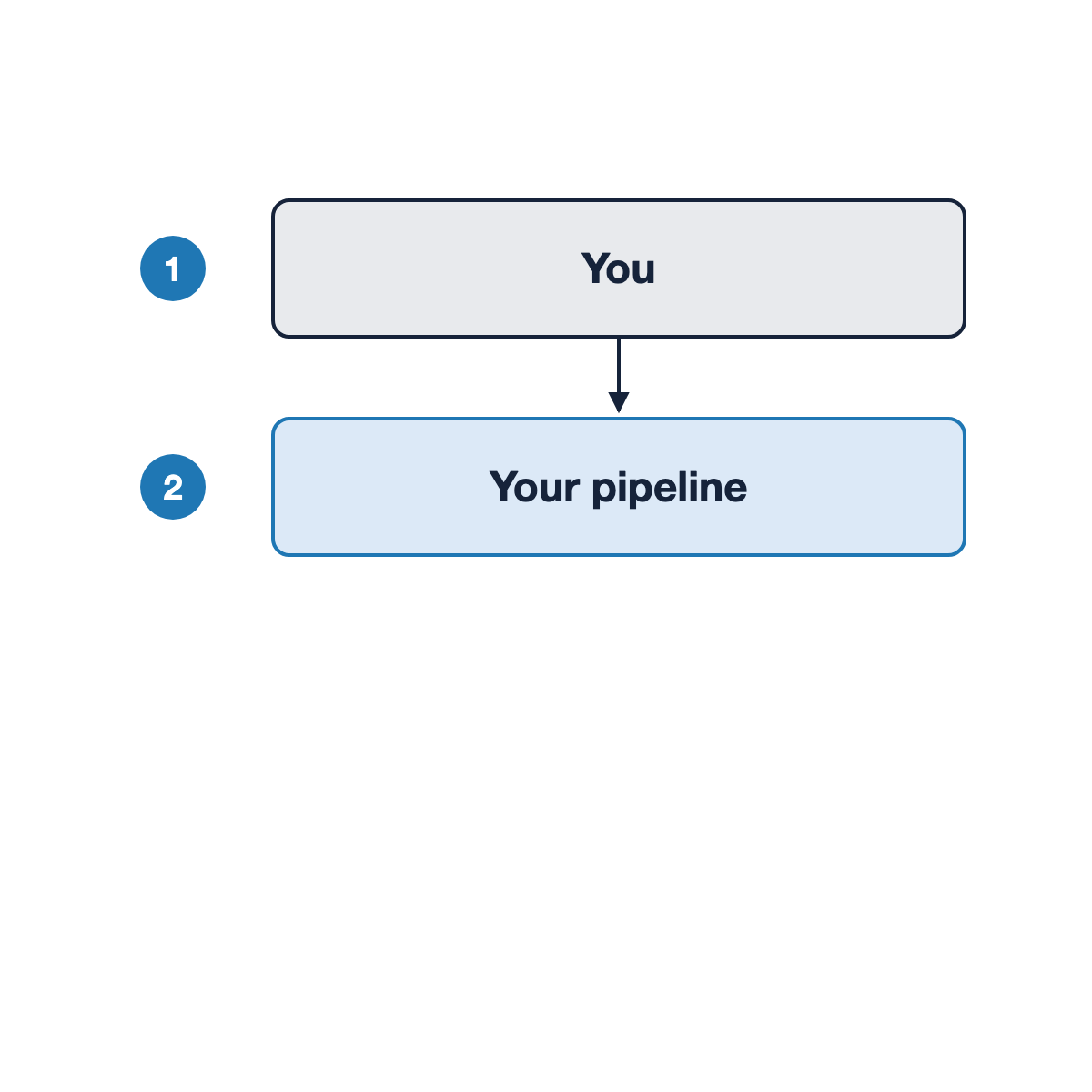
On a code change, whose permissions are actually being checked?
  1. You push a change

  2. Your pipeline runs

A vertical flow. Step one, You, pushing a code change. An arrow leads down to step two, your pipeline, which runs the deploy.

Using AWS Security for Developers

A deploy that fails for the wrong reason
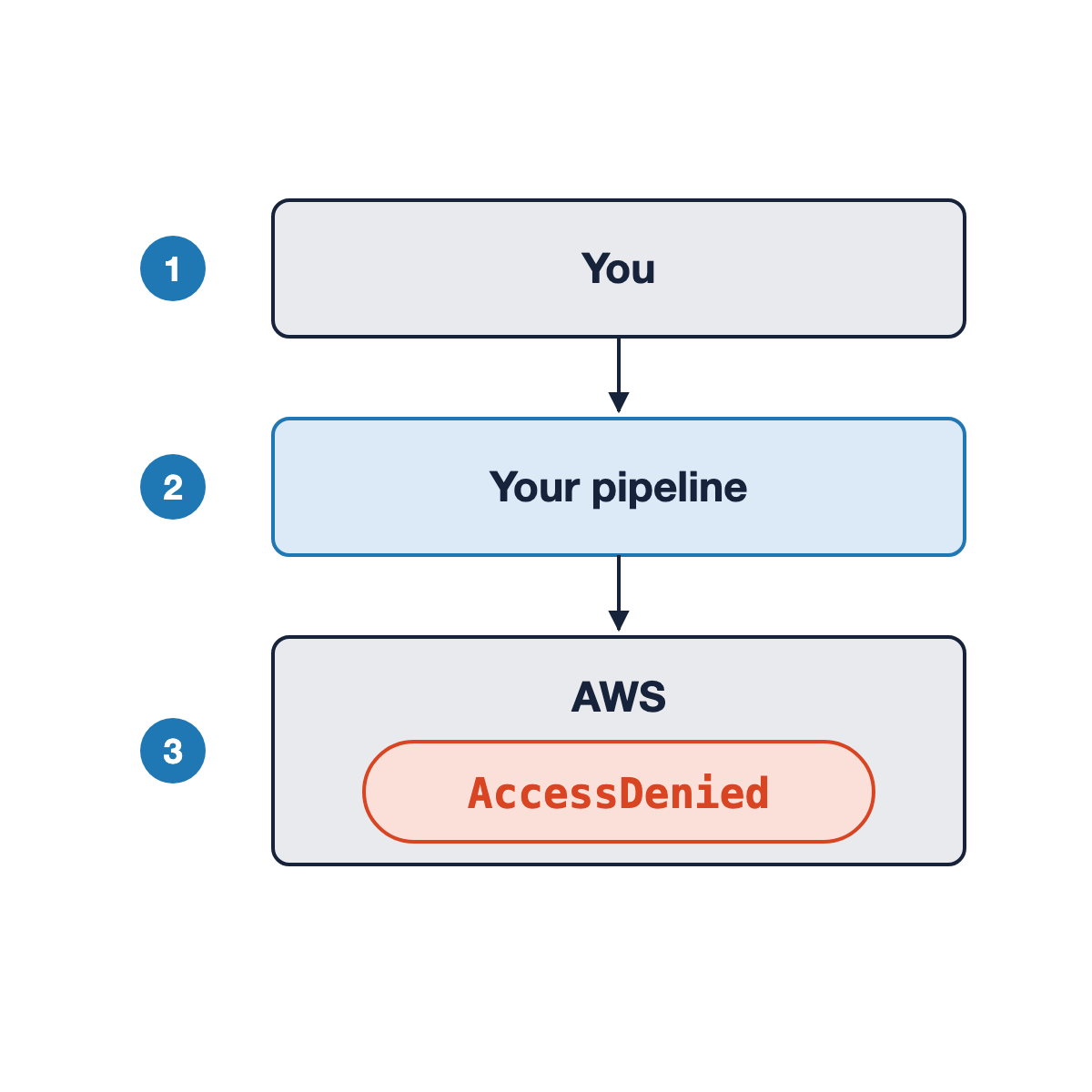
On a code change, whose permissions are actually being checked?
  1. You push a change

  2. Your pipeline runs

  3. The deploy stops: AccessDenied

First instinct: "Let me check my own permissions."

A vertical flow. Step one, You, pushing a code change. Step two, your pipeline runs the deploy. Step three, AWS evaluates the request and returns AccessDenied.

Using AWS Security for Developers

What actually happened

Step one of a left-to-right flow. A box labeled You, whose involvement ends here.

  1. You push. Your involvement ends here
Using AWS Security for Developers

What actually happened

A left-to-right flow. A box labeled You, with an arrow to a box labeled Your pipeline. A badge labeled deploy-role hangs beneath the pipeline.

  1. You push. Your involvement ends here
  2. The pipeline deploys, running as a role your team created
Using AWS Security for Developers

What actually happened

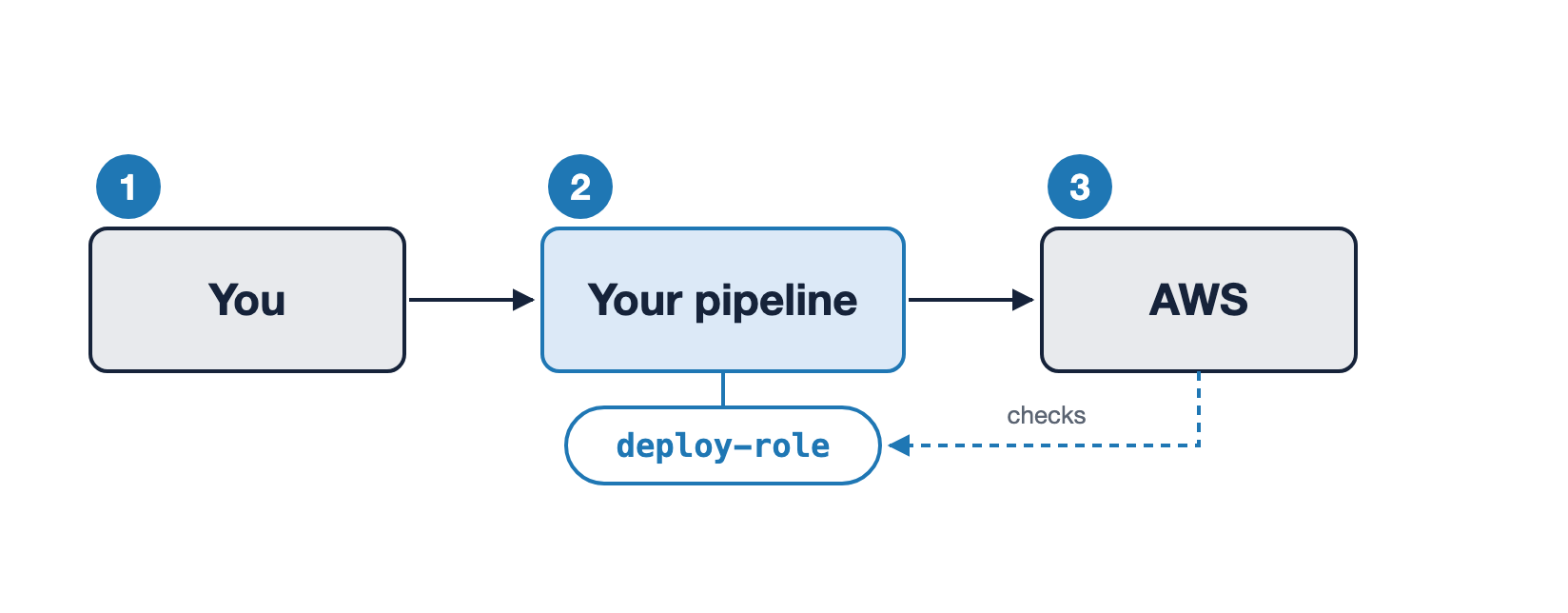
A left-to-right flow from You, to Your pipeline, to AWS. A badge labeled deploy-role hangs beneath the pipeline, and a dashed arrow labeled checks runs from AWS back to that badge rather than back to You.

  1. You push. Your involvement ends here
  2. The pipeline deploys, running as a role your team created
  3. AWS evaluates that role
Using AWS Security for Developers

Actor and principal

Actor

Whoever set the work in motion.

Here: you.

A human figure icon denoting an actor who sets the work in motion.

Using AWS Security for Developers

Actor and principal

Actor

Whoever set the work in motion.

Here: you.

Principal

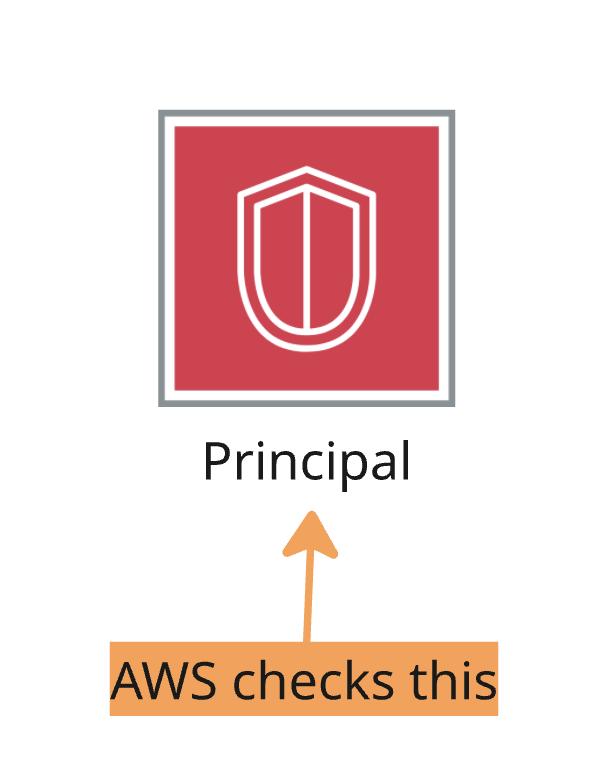
The identity AWS evaluates when the request arrives.

Here: the pipeline's role.

A human figure icon denoting an actor who sets the work in motion.

An icon denoting the principal.

Using AWS Security for Developers

Actor and principal

Actor

Whoever set the work in motion.

Here: you.

Principal

The identity AWS evaluates when the request arrives.

Here: the pipeline's role.

  • Lambda: execution role. ECS: task role. New name, same principal
  • Exception: a long-lived key in your terminal, so the IAM user is the principal

A human figure icon denoting an actor who sets the work in motion.

An icon showing AWS checking the principal as opposed to the actor.

Using AWS Security for Developers

Same deploy, two roles

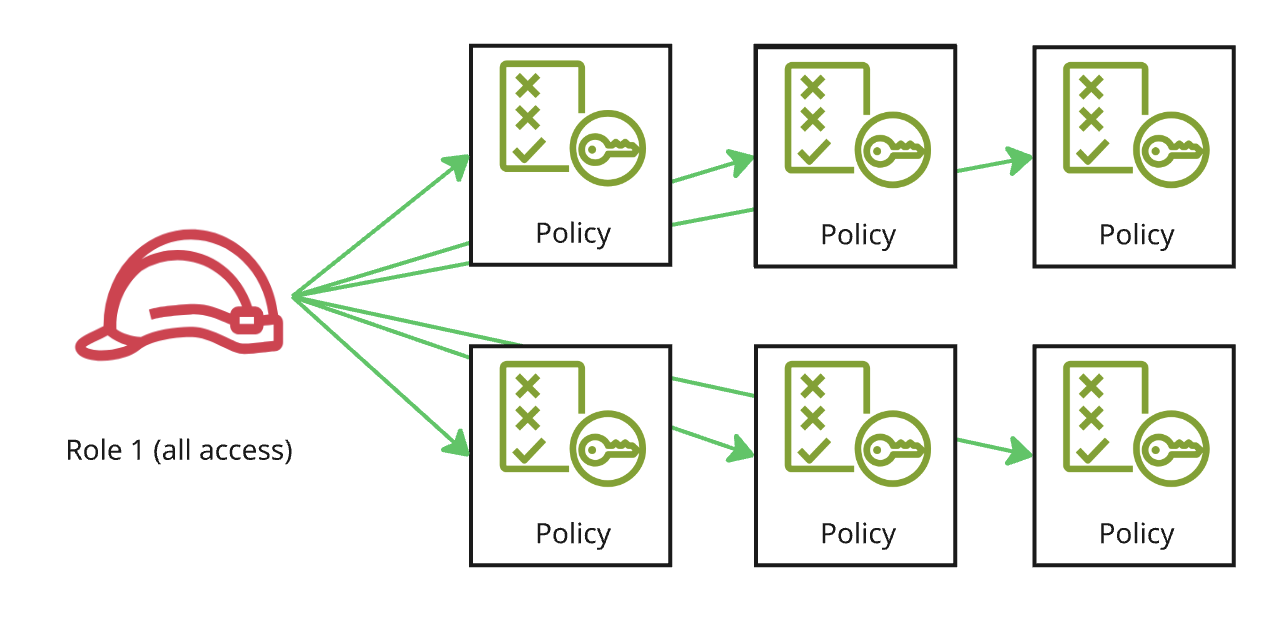
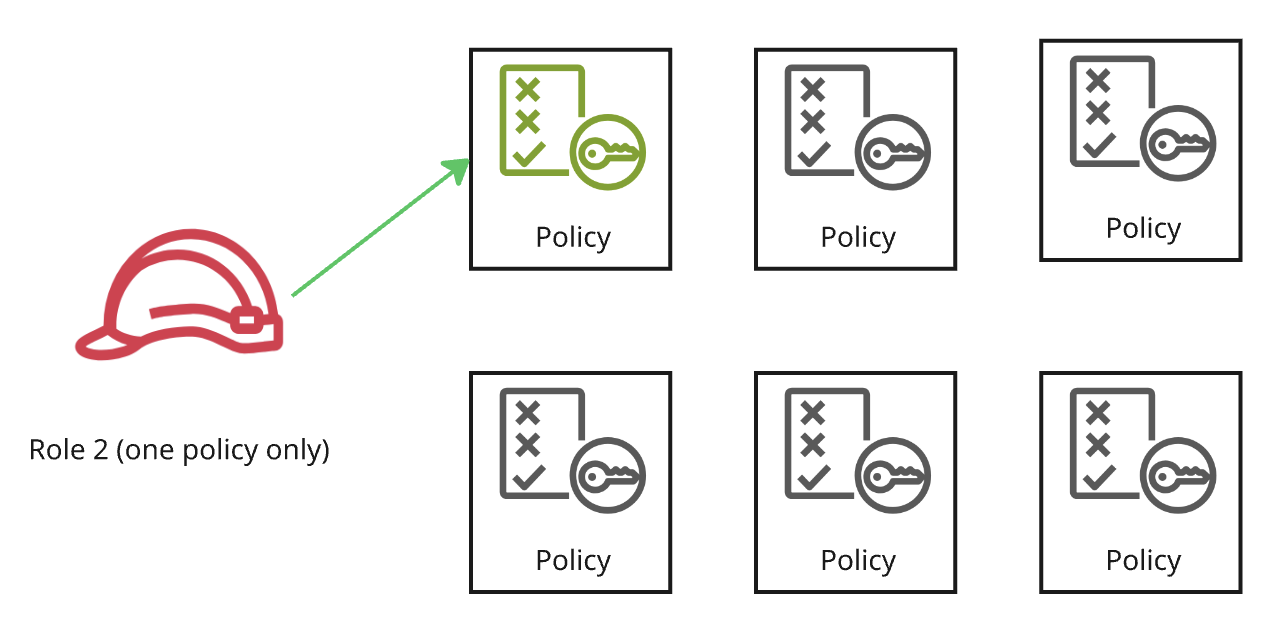
Role A (The shape of AdministratorAccess)

  • Read every bucket
  • Use every key
  • Update every function

Role B

  • Read one bucket
  • Use one key
  • Update one function

Prefix: a folder-like path inside a bucket

An image showing an all-access role with access to six different policies.

An image showing a narrow access role with access to only one policy.

Using AWS Security for Developers

Blast radius

Wide role

If compromised: reaches every bucket, prefix, and object in the account.

Narrow role

If compromised: reaches one prefix, in one bucket. Nothing more.

Concentric rings illustrating a wide role that reaches every part on the whole account.

Concentric rings illustrating that a narrow role reaches only the innermost object and prefix rings, leaving other parts untouched.

Using AWS Security for Developers

Least privilege, in practice

A role should do what its job requires, and very little beyond that.

  • AWS managed, like AmazonS3ReadOnlyAccess: every bucket. Customer managed: yours, down to one prefix
  • Scope reach and lifetime: short-lived credentials over long-lived keys
  • AWS secures the infrastructure
  • How broad your roles are is your decision, and it lives in your repository

Example: a reports-bucket reader role Two allows. Nothing else granted.

  • Nothing on IAM, the service that decides who may do what
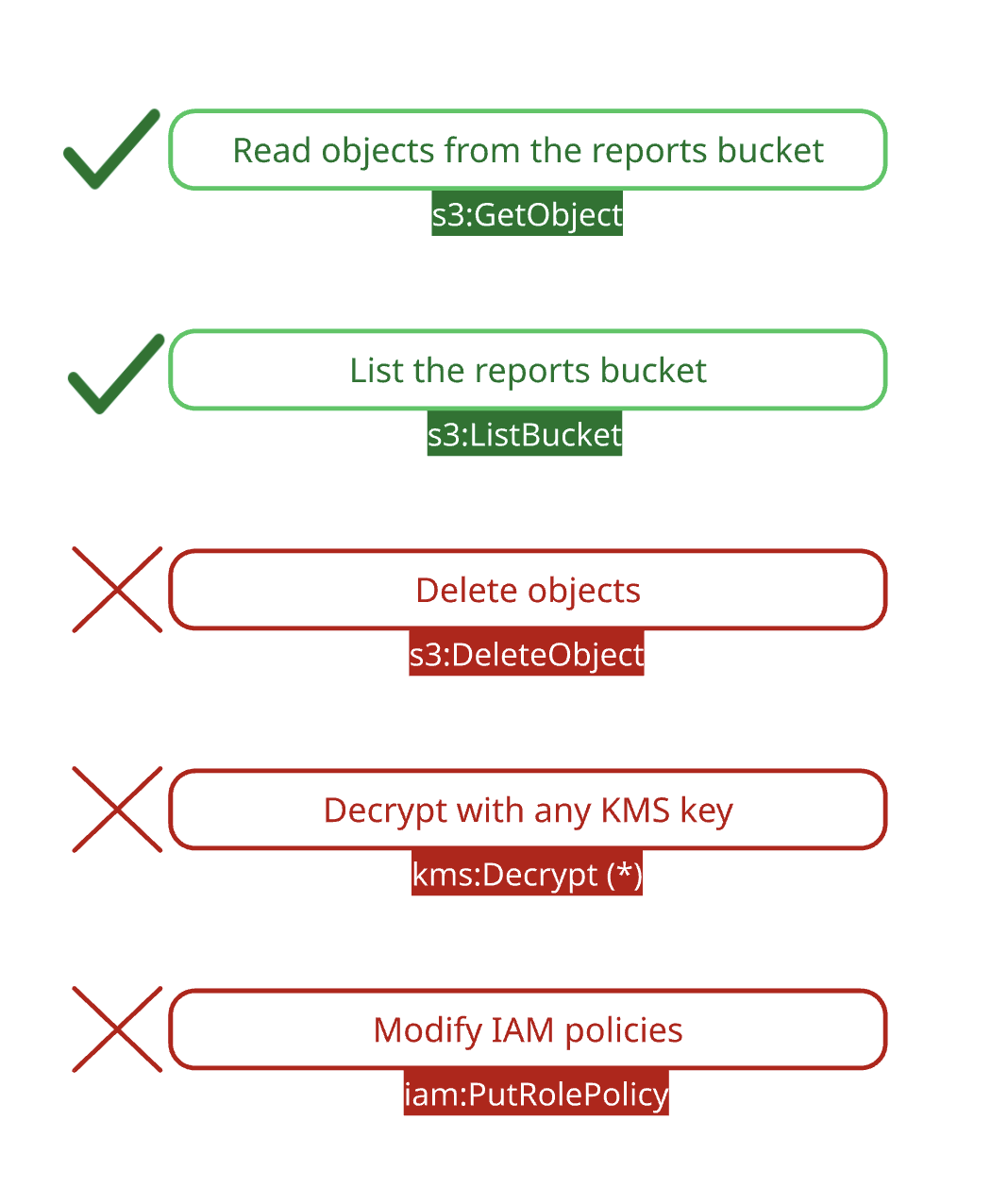
A role's permission list with three excess permissions struck through in red and two required permissions kept in green.

Using AWS Security for Developers

Let's practice!

Using AWS Security for Developers

Preparing Video For Download...