What is Power Apps?

Introduction to Power Apps

Luise Freese

Azure & Power Platform Architect

Meet your instructor

 

Luise Freese, Azure & Power Platform Architect


  • Luise Freese, Azure & Power Platform Architect (Düsseldorf)
  • 2× Microsoft MVP, M365 Development + Business Applications
Introduction to Power Apps

What you'll learn


Microsoft Power Apps product icon


  • Ch 1 → Get oriented and build your first single-screen app
  • Ch 2 → Connect to data and show it in a gallery
  • Ch 3 → Add navigation, forms, validation, a real workflow
  • Ch 4 → Make it responsive, publish it, share it
Introduction to Power Apps

Where this course takes you

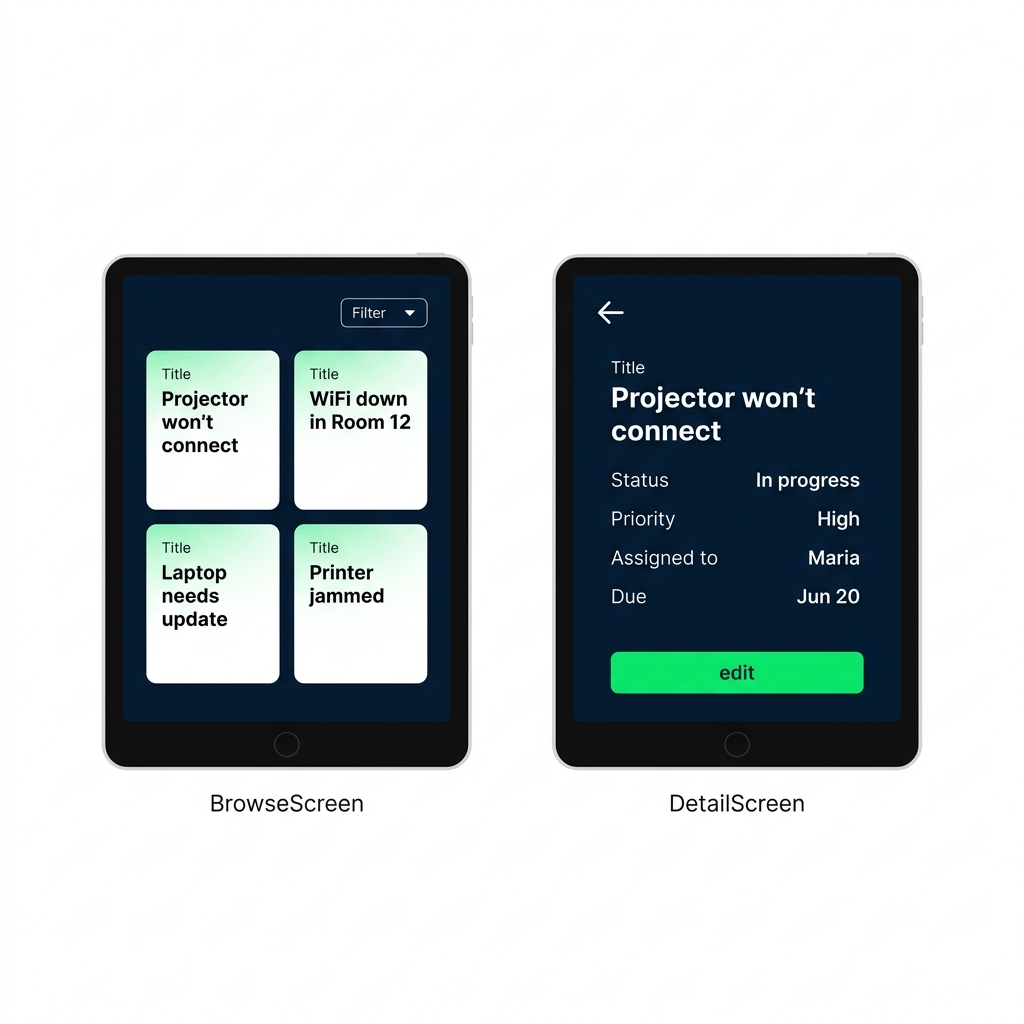
Real screenshot of the Bramblewood app in Power Apps Studio showing a gallery list screen alongside a detail/edit form screen


  • A multi-screen app that lists data, opens a detail, and lets you add or edit records
  • Records live in a collection the app builds at startup
  • All built with Power Fx, no traditional coding
Introduction to Power Apps

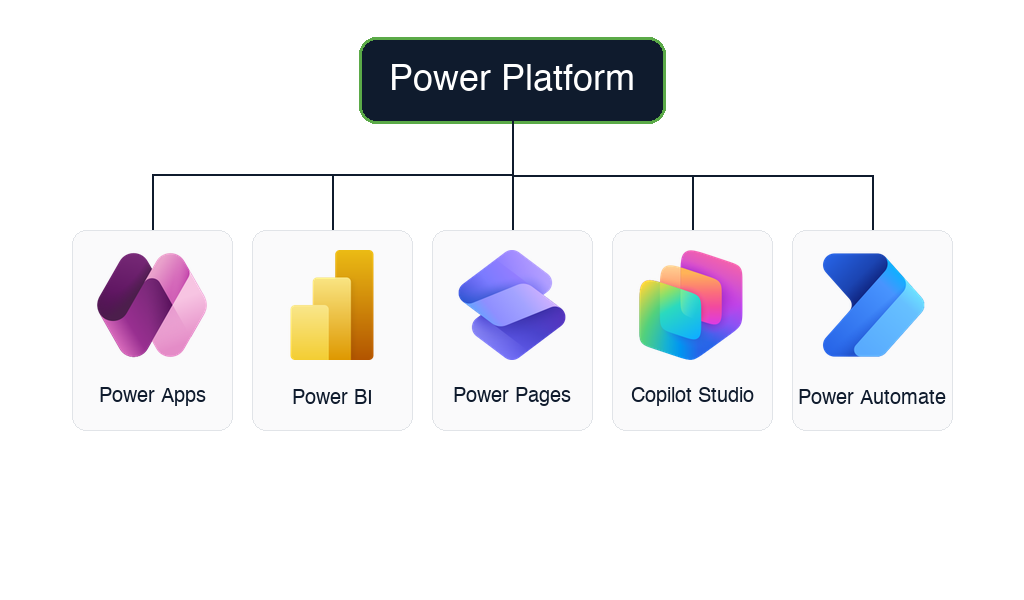
Meet the Power Platform


  • Power Apps → custom business apps (this course)
  • Power Automate → automated workflows
  • Power BI → dashboards and reports
  • Power Pages → external websites and portals
  • Copilot Studio → custom AI agents and chatbots

$$

Microsoft Power Platform family tree with the official product logos for all five tools, Power Apps, Power BI, Power Pages, Copilot Studio, and Power Automate, each in a labeled card under a "Power Platform" header

Introduction to Power Apps

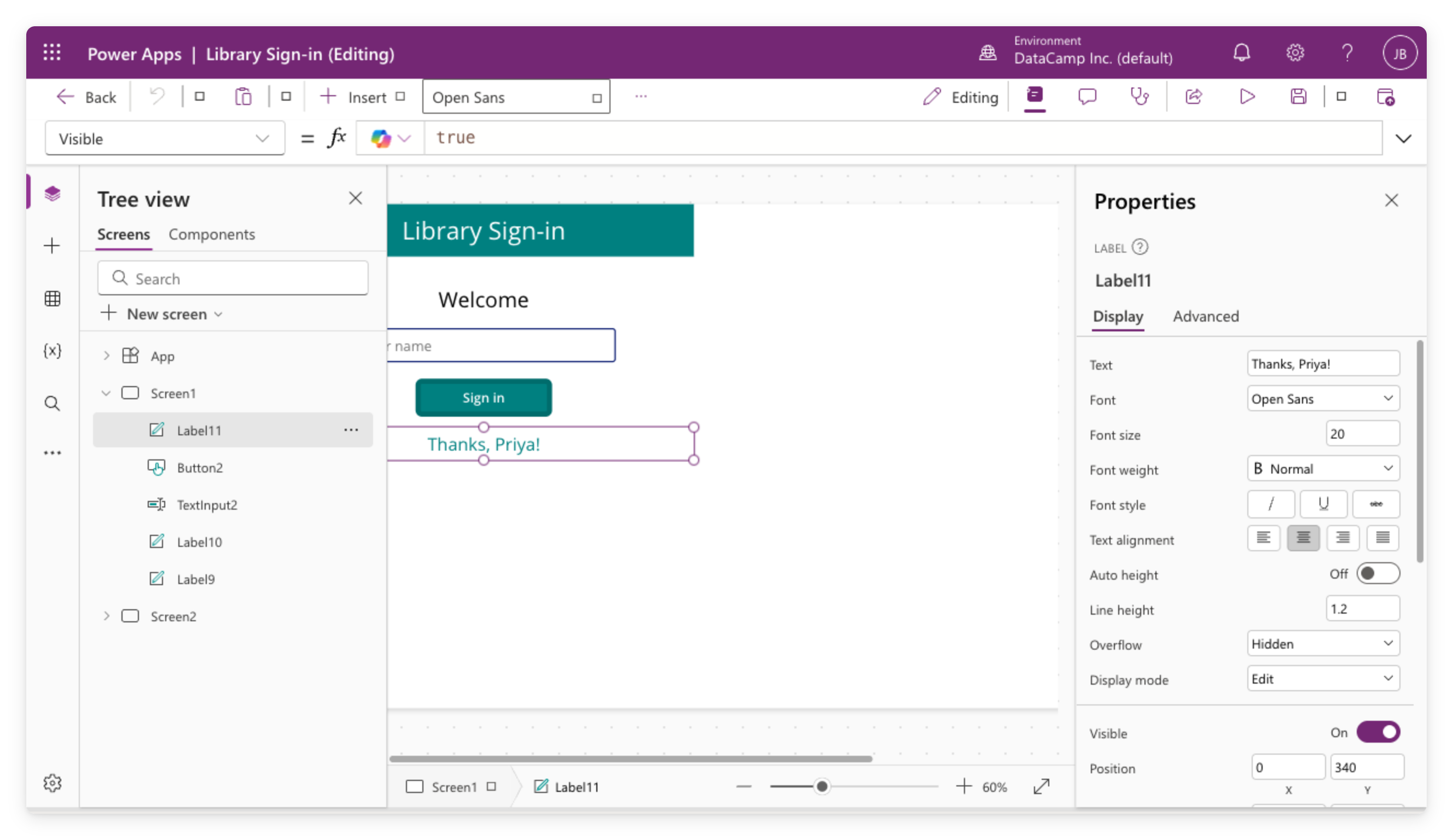
Canvas apps


Real screenshot of the Library Sign-in canvas app open in Power Apps Studio, showing the tree view, canvas with controls, formula bar, and properties panel


  • You design the screen, pixel by pixel
  • Great for single-purpose tools: sign-in kiosks, field forms, logging apps
  • Works with many data sources: SharePoint, Excel, and more
Introduction to Power Apps

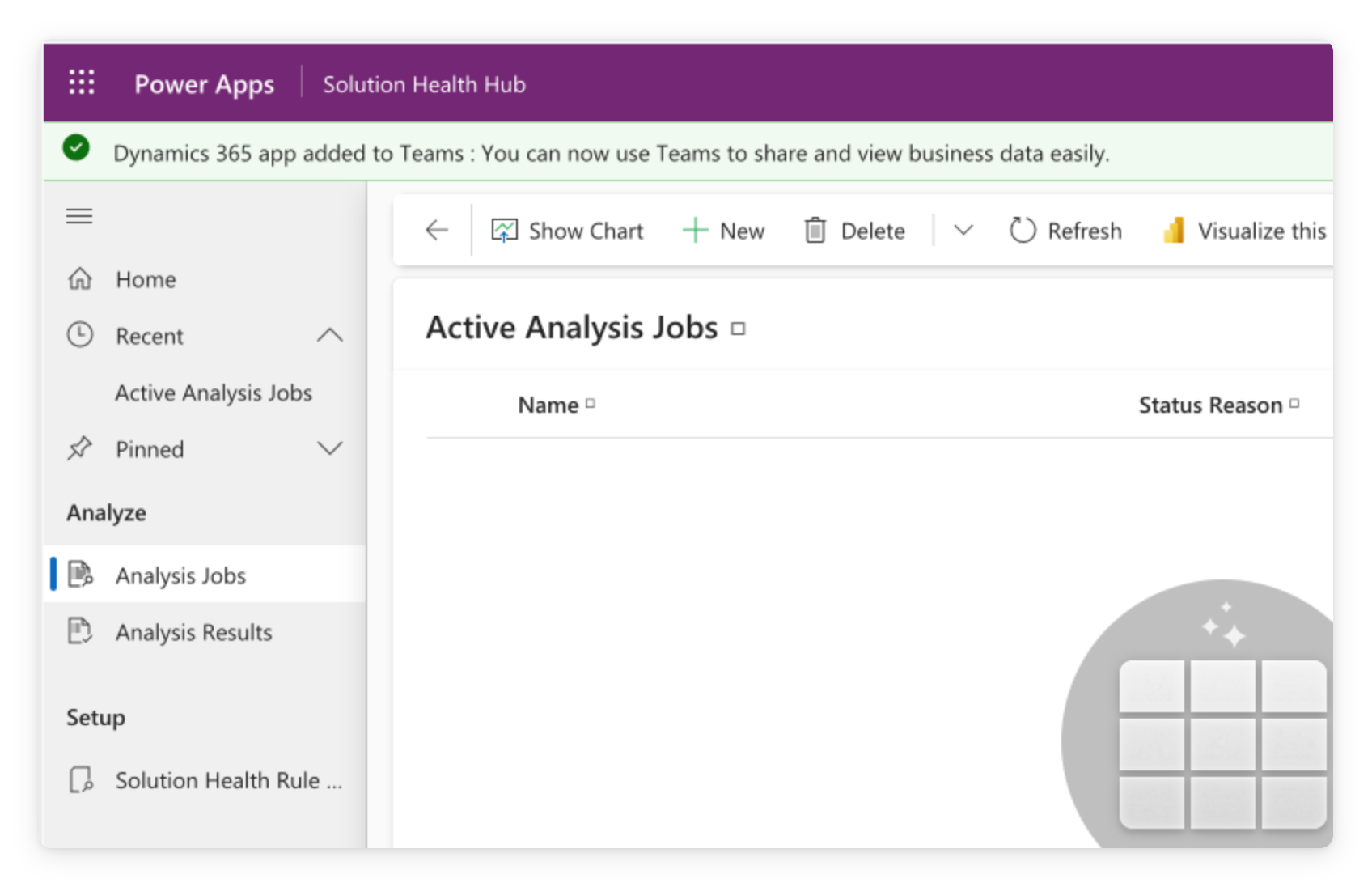
Model-driven apps


  • Auto-generated from your data tables
  • Standardized layout, list, form, view
  • Ideal for CRM, service desks, case management at scale


Model-driven app showing a standardized grid view with sidebar navigation, header bar, and data columns

Introduction to Power Apps

Modern controls and themes


  • Classic controls → the older set, long used by canvas apps
  • Modern controls + themes → newer, built on Fluent 2, off by default
  • A theme sets palette, typography, borders, shadows → app-wide
  • Controls keep their own size, shape, orientation

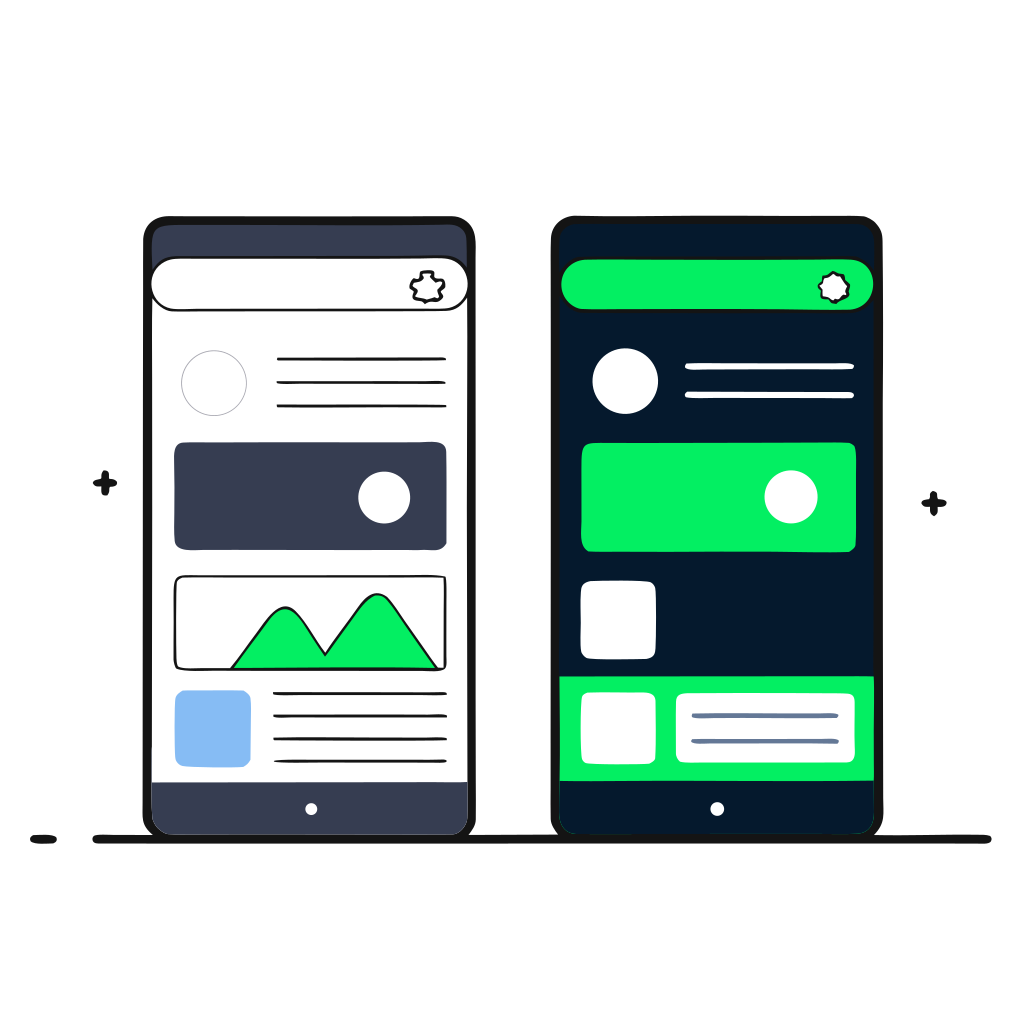
Two phone-app screens side by side. The left uses classic controls, with sharp rectangular buttons, thick borders, and a beige-gray palette. The right uses modern controls, with rounded buttons, flat fills, and a blue-teal palette. An arrow points from classic to modern.

Introduction to Power Apps

Why Power Apps?

Three business people, each holding a phone running a different small app, with the central figure pointing at their screen.


  • Low-code: drag-and-drop UI, formulas instead of code
  • Business people ship apps without waiting on IT
  • Included with most Microsoft 365 plans
Introduction to Power Apps

Where new apps start

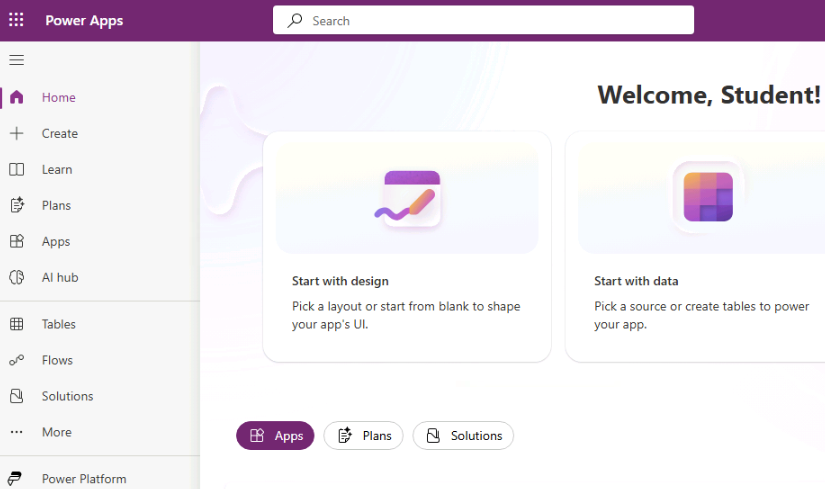
  • The left navigation gets you anywhere in the maker portal
  • New apps start at + Create


Full menu.png

  • Collapsed to icons, the entry is +
  • Either way, it opens the Create an app page
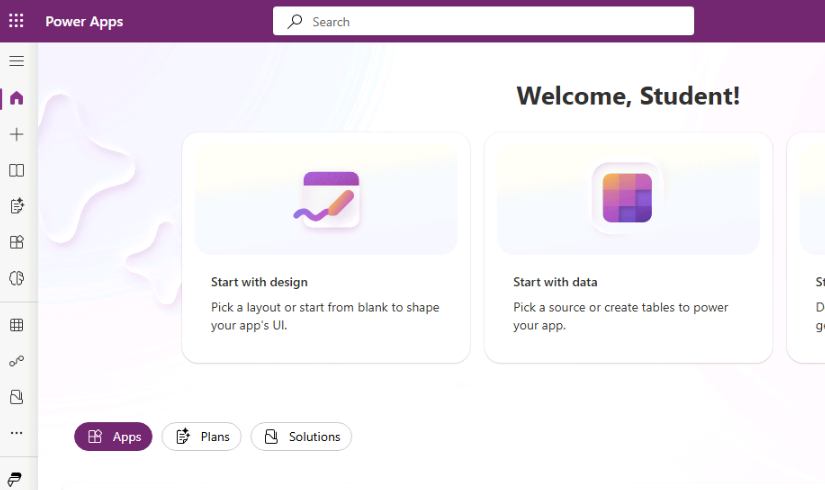
 

Collapsed menu.png

Introduction to Power Apps

Let's practice!

Introduction to Power Apps

Preparing Video For Download...