Navigating between screens

Introduction to Power Apps

Luise Freese

Azure & Power Platform Architect

From one screen to many
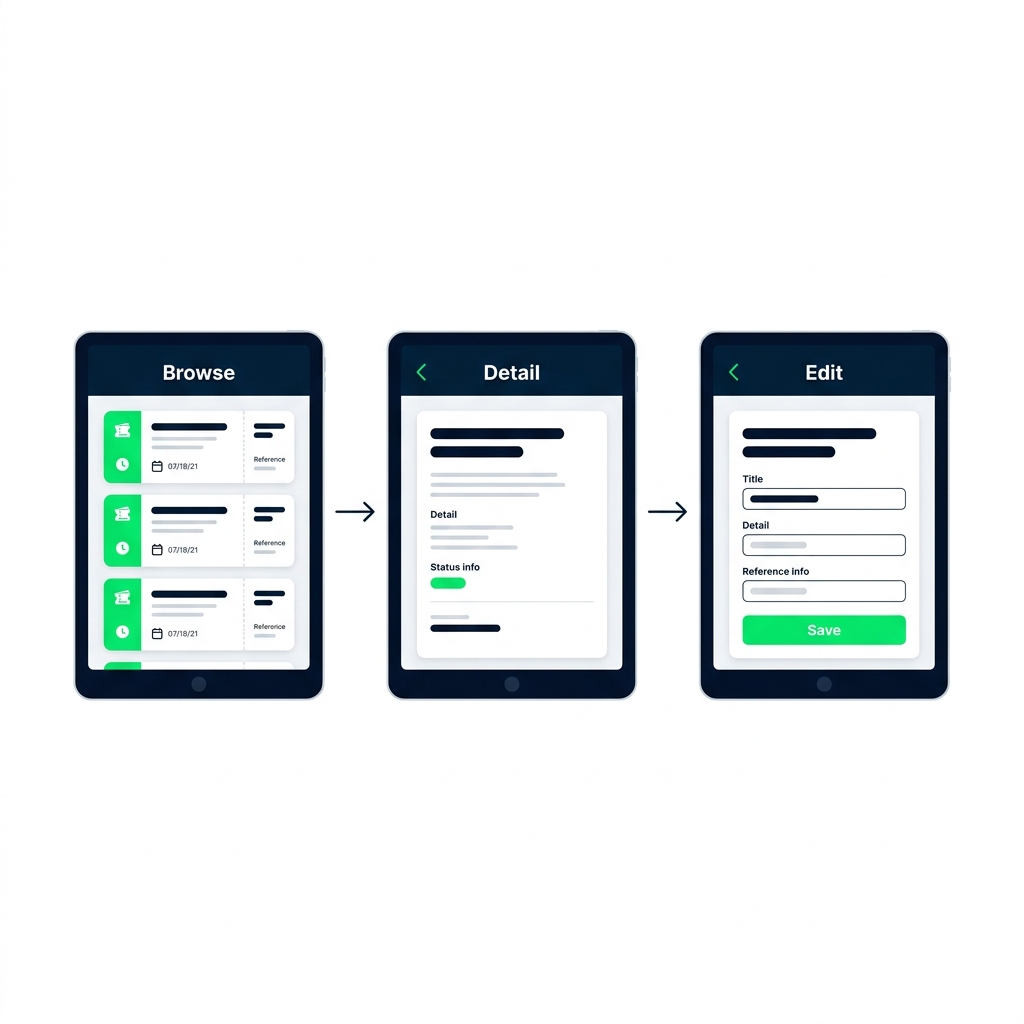
 

  • A real app has multiple screens
  • Each screen owns its controls and layout
  • Power Fx moves the user between them

Three tablet screens for Browse, Detail, and Edit connected by arrows, showing a help-desk ticket list, expanded details, and an editable form.

Introduction to Power Apps

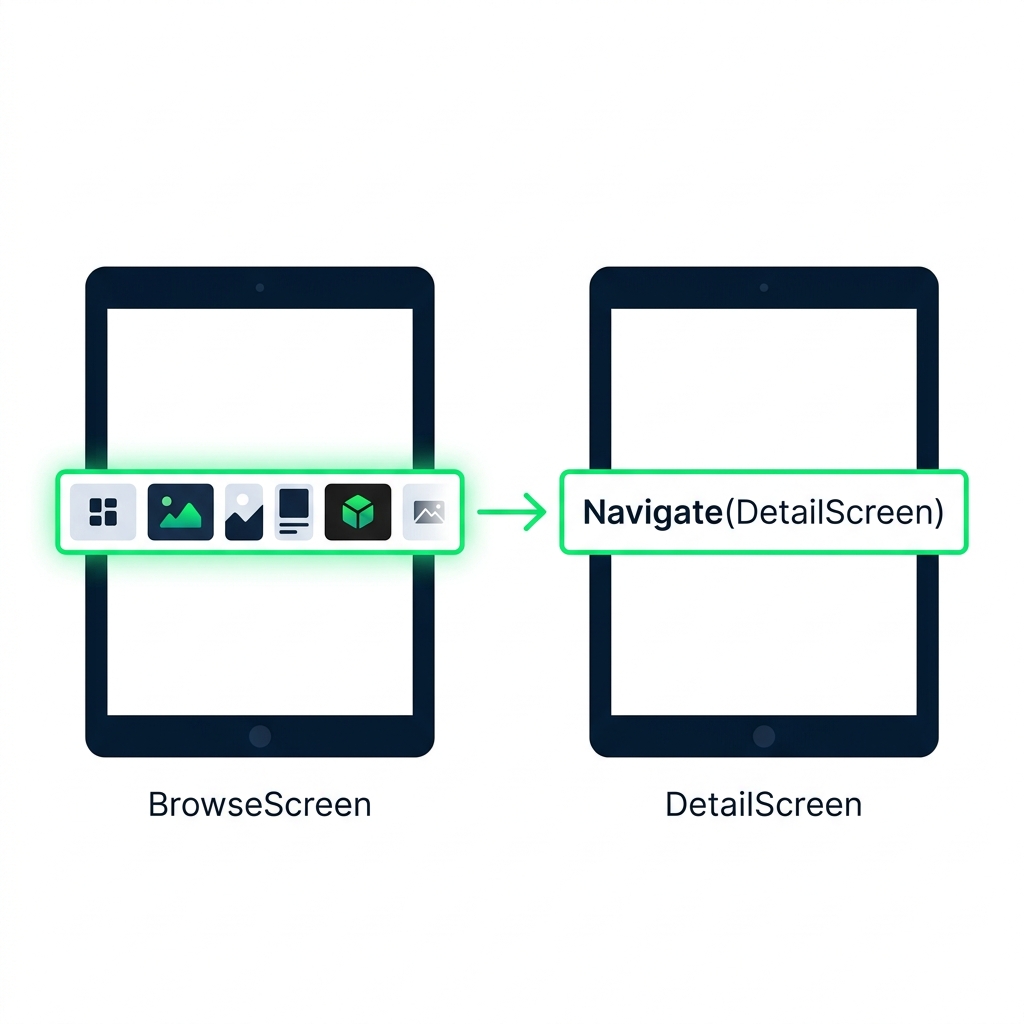
Navigate()

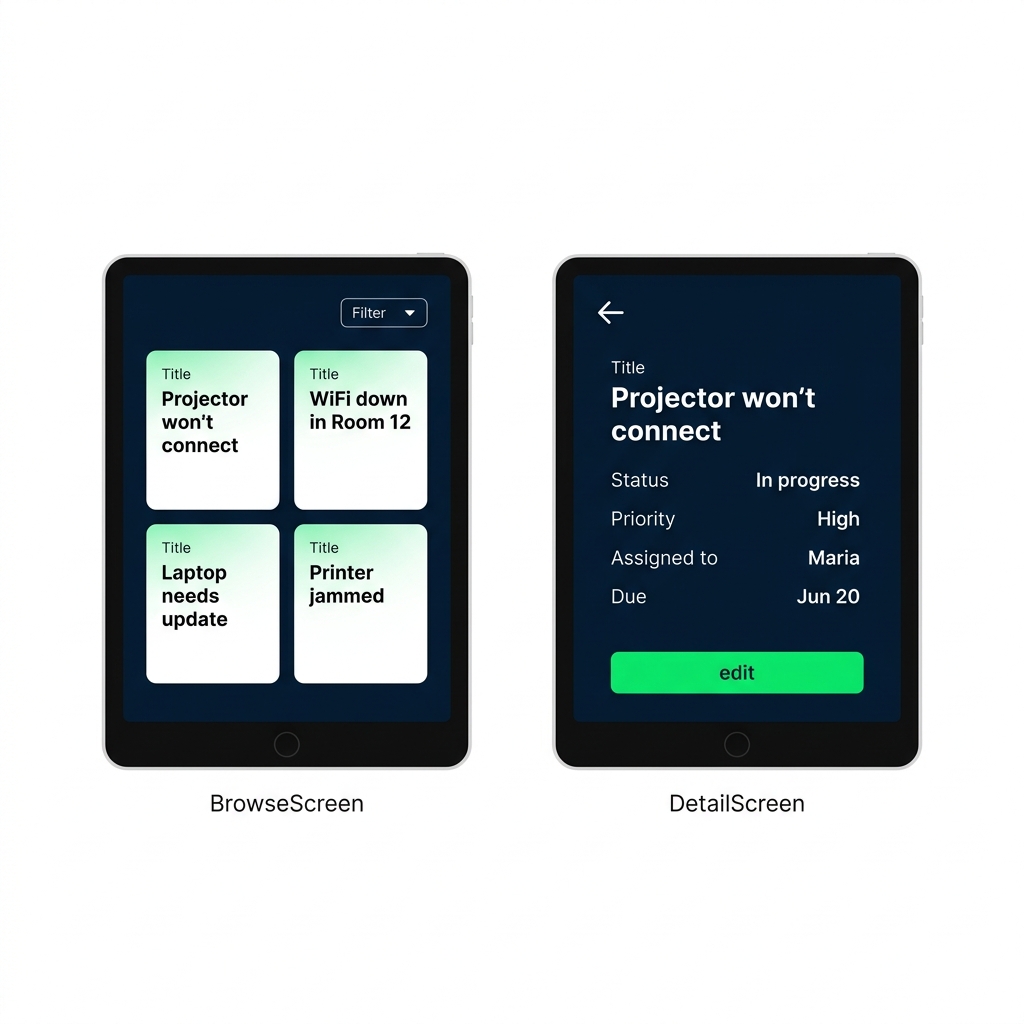
Two tablet screens linked by an arrow, showing Navigate() moving from a selected gallery row on BrowseScreen to DetailScreen.


  • Navigate(ScreenName) takes the user there
  • Put it on a Button's or Gallery's OnSelect
  • The user lands on the new screen instantly
Introduction to Power Apps

Set(), carrying data across

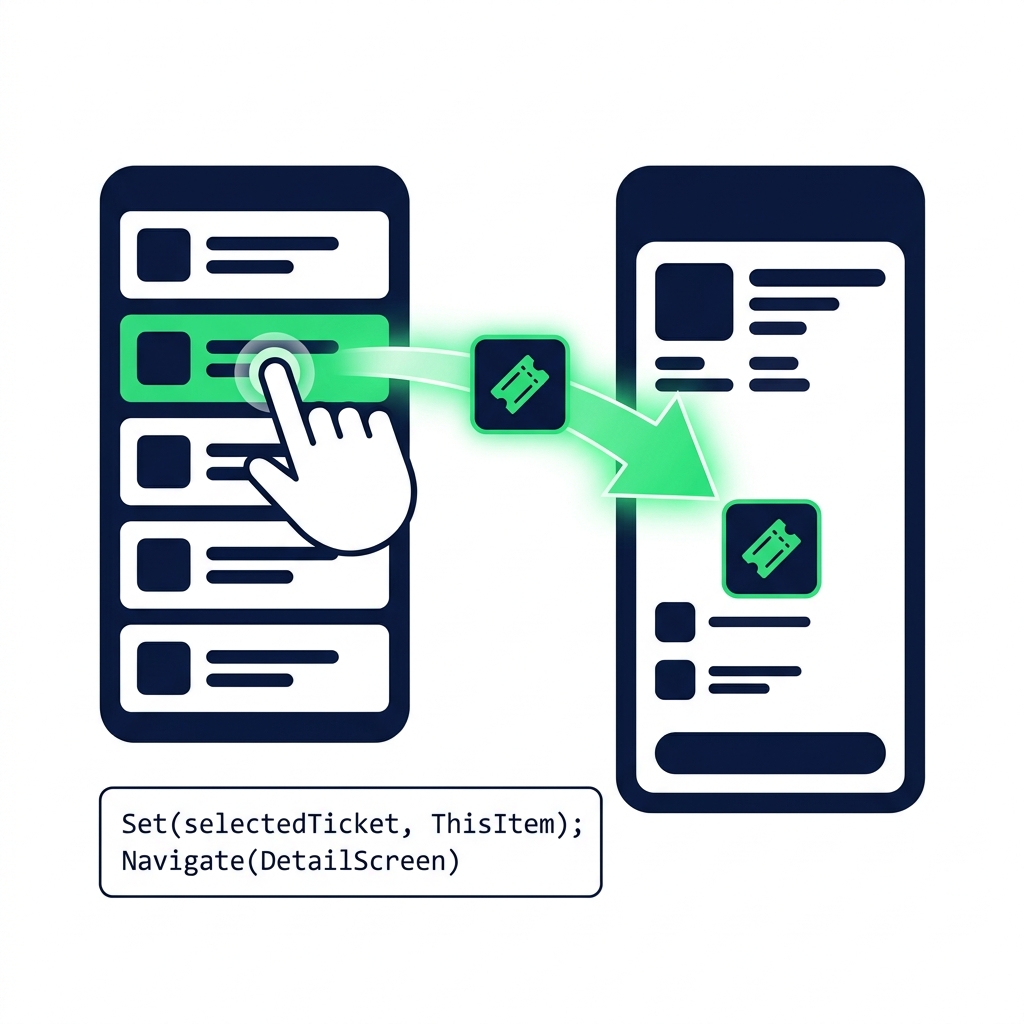
A tapped gallery row sends selectedTicket data to a detail screen via Set() chained with Navigate() in one OnSelect formula.

  • Set(name, value) creates an app-wide variable
  • Chain Set() and Navigate() with a semicolon
  • Detail screen reads selectedTicket.Title, .Priority, anything
Introduction to Power Apps

Back()

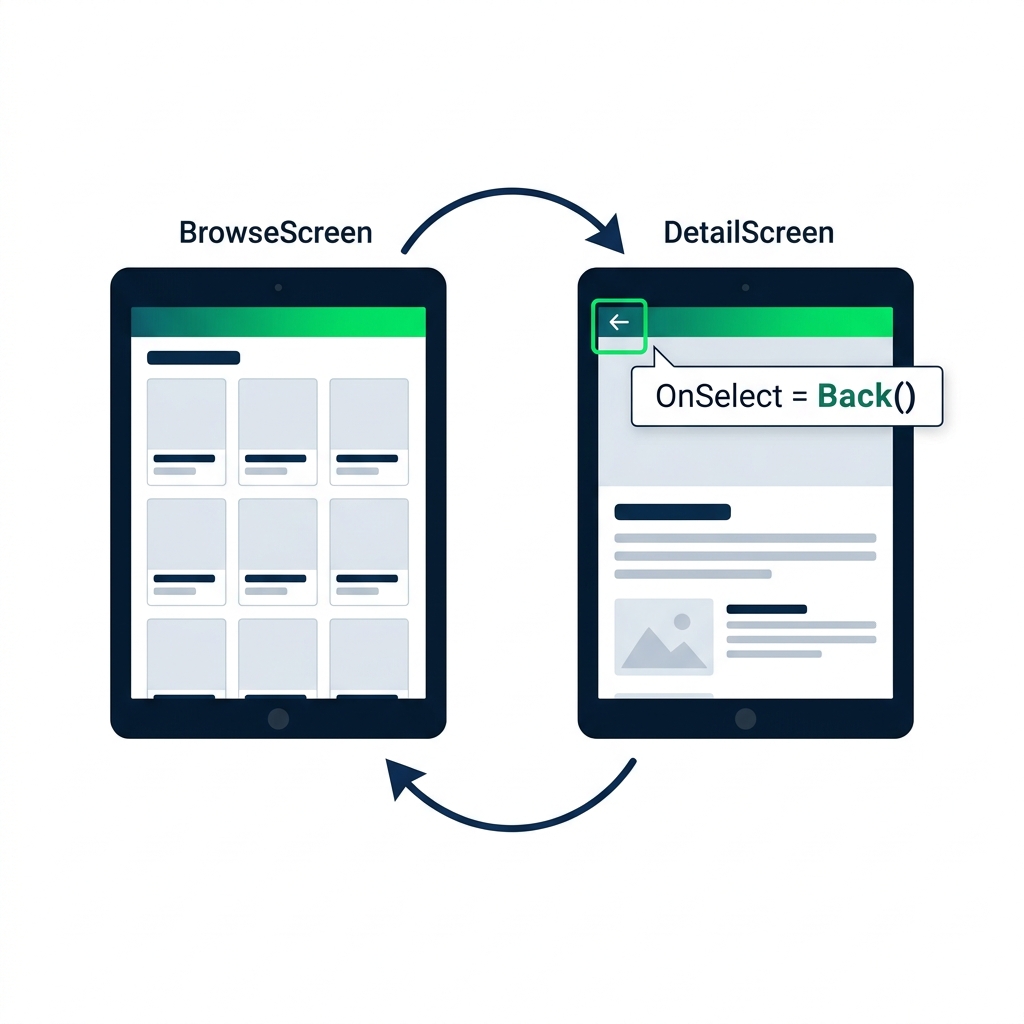
DetailScreen with a highlighted back-arrow icon wired to Back(), returning the user to the previous BrowseScreen gallery view.


  • Back() returns the user to the previous screen
  • No arguments, Power Apps remembers where they came from
  • Wire it to a back-arrow icon or a button
Introduction to Power Apps

Variable scope, where does it belong?
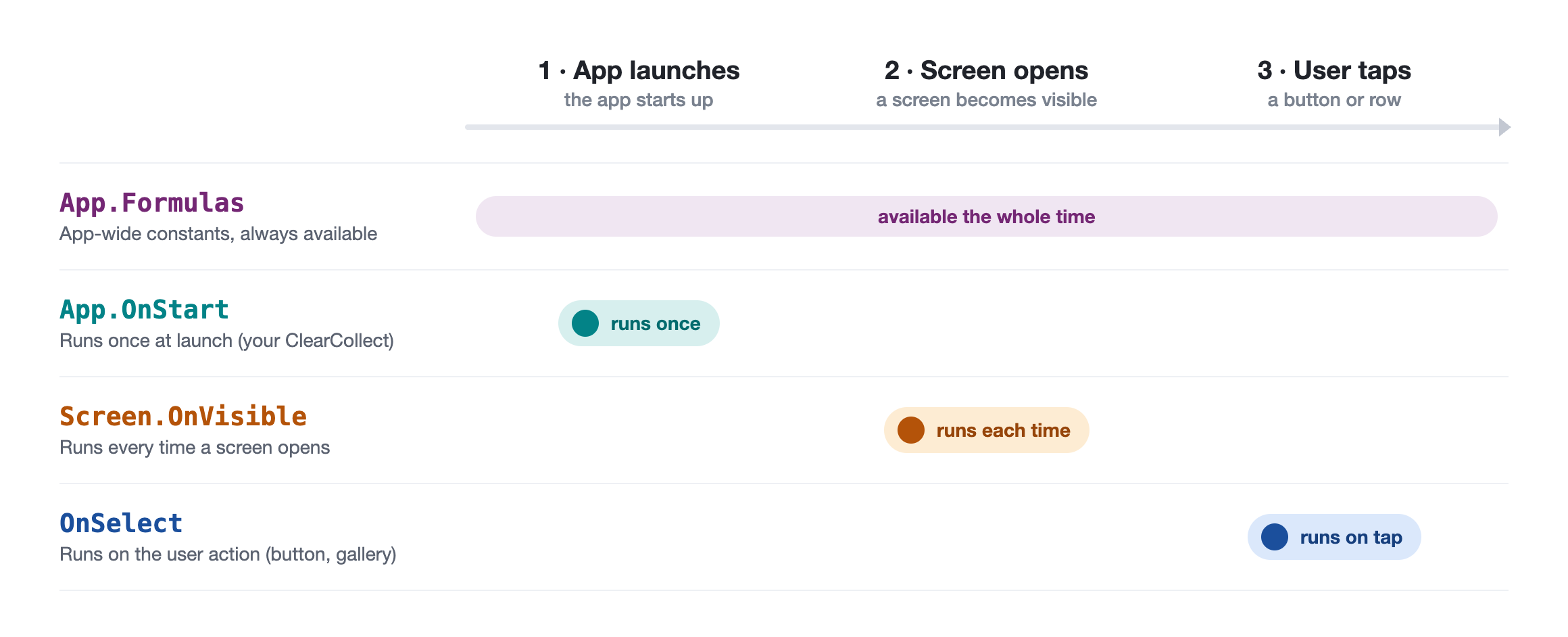
 

  • App.Formulas: app-wide constants, always available
  • Screen.OnVisible: runs every time a screen opens
  • Button OnSelect: runs on the user action


Three lanes comparing when App.Formulas, Screen.OnVisible, and Button OnSelect each run during app launch, screen open, and user tap.

Introduction to Power Apps

Name your controls like a pro

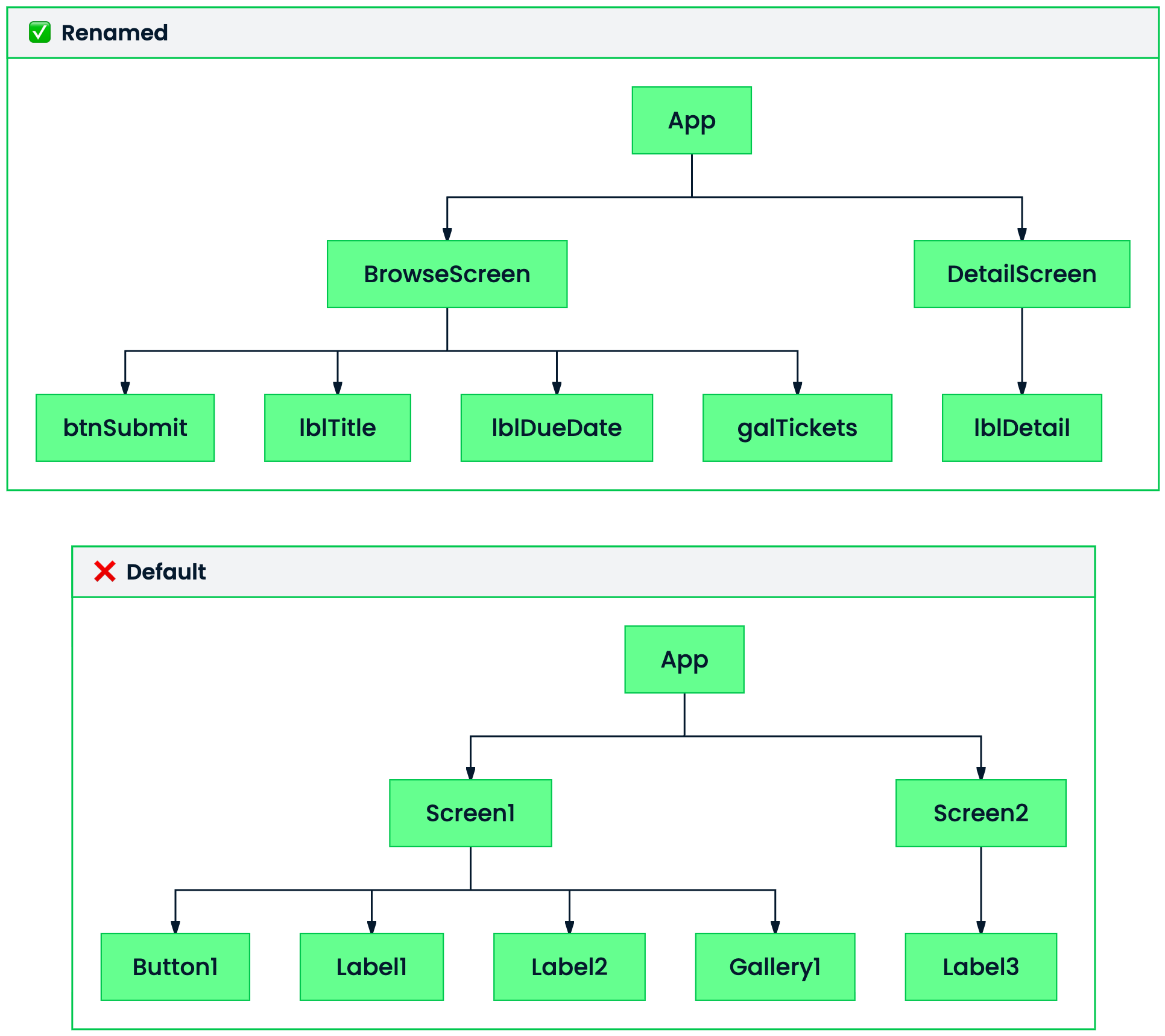
$$ Tree View panels comparing generic default names like Label1 with clear prefixed names such as lblTitle, btnSubmit, and galTickets.


  • Default names: Label1, Button2, Gallery1, unreadable
  • Prefix by type: lblTitle, btnSubmit, galTickets
  • Saves you when a screen has 15+ controls
Introduction to Power Apps

What you'll build


  • Wire a browse → detail flow
  • Tap a row to see its details
  • A back-arrow returns to the gallery

Browse and detail screens with a ticket gallery, detail view showing ticket fields, and a back-arrow in the navy header bar.

Introduction to Power Apps

Let's practice!

Introduction to Power Apps

Preparing Video For Download...