Navigating between screens

Introduction to Power Apps

Luise Freese

Azure & Power Platform Architect

From one screen to many
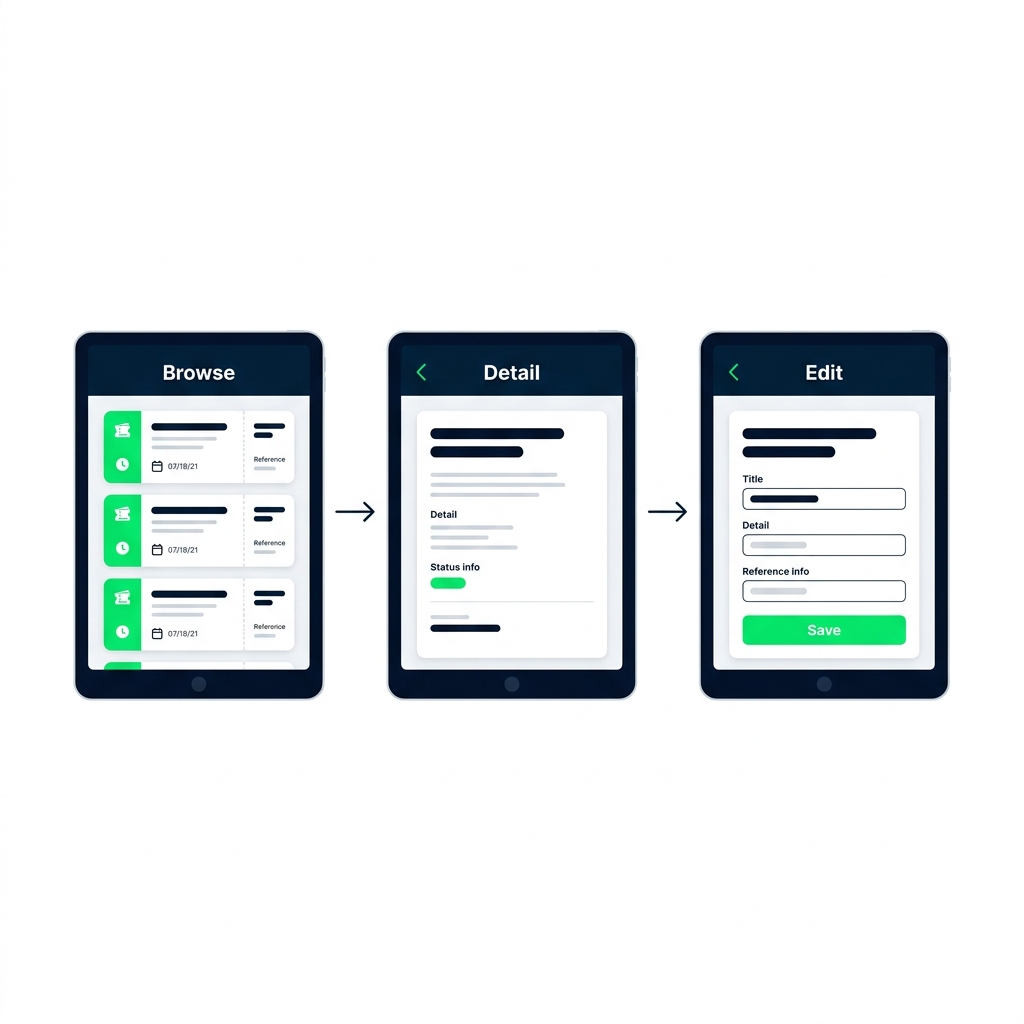
 

  • A real app has multiple screens
  • Each screen owns its controls and layout
  • Power Fx moves the user between them

Three tablet screens for Browse, Detail, and Edit connected by arrows, showing a help-desk ticket list, expanded details, and an editable form.

Introduction to Power Apps

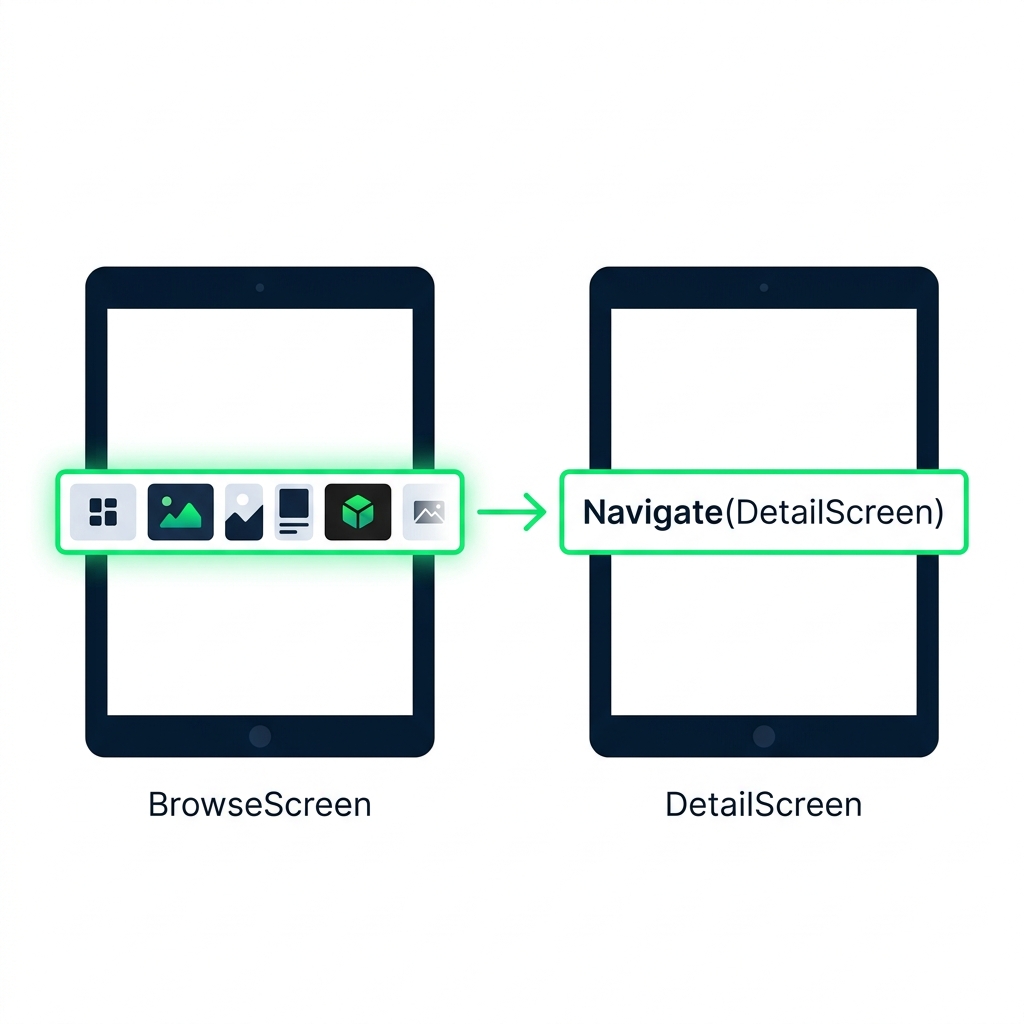
Navigate()

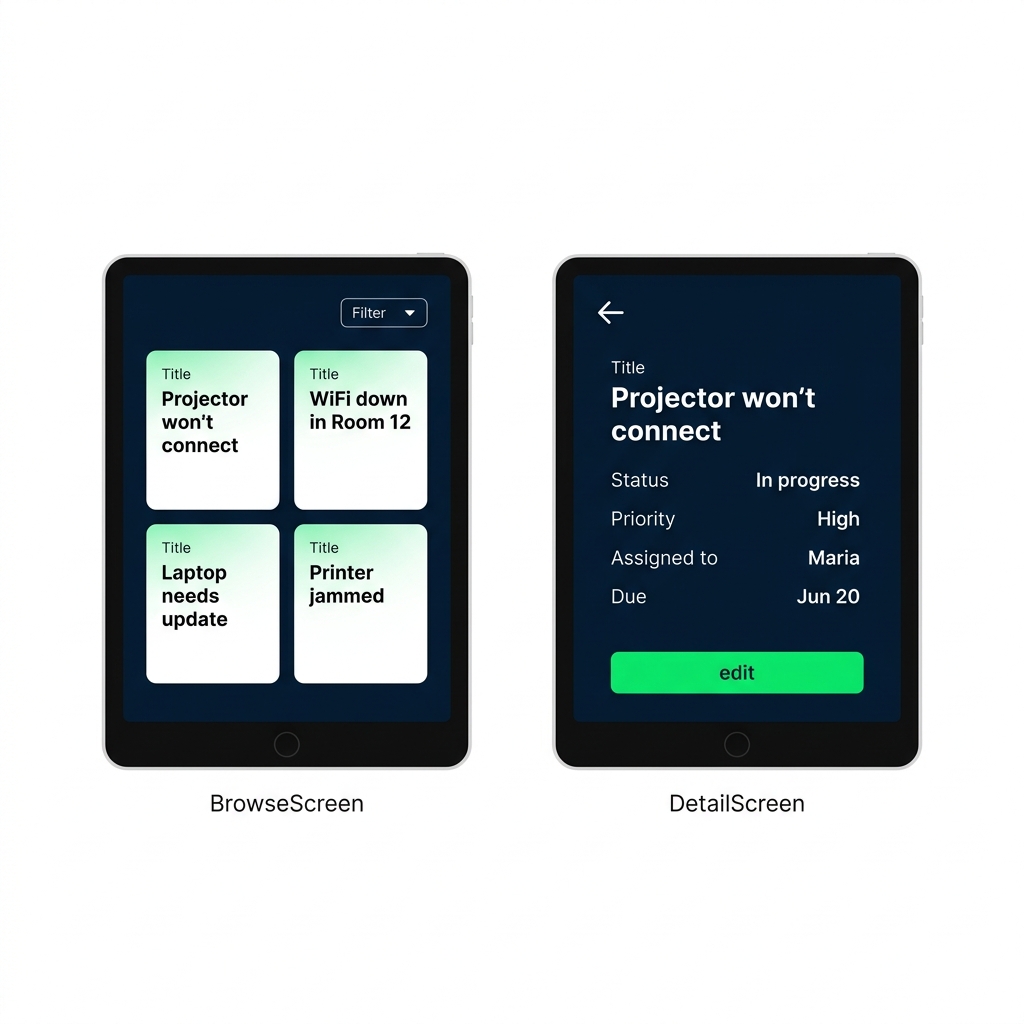
Two tablet screens linked by an arrow, showing Navigate() moving from a selected gallery row on BrowseScreen to DetailScreen.


  • Navigate(ScreenName) takes the user there
  • Put it on a Button's or Gallery's OnSelect
  • The user lands on the new screen instantly
Introduction to Power Apps

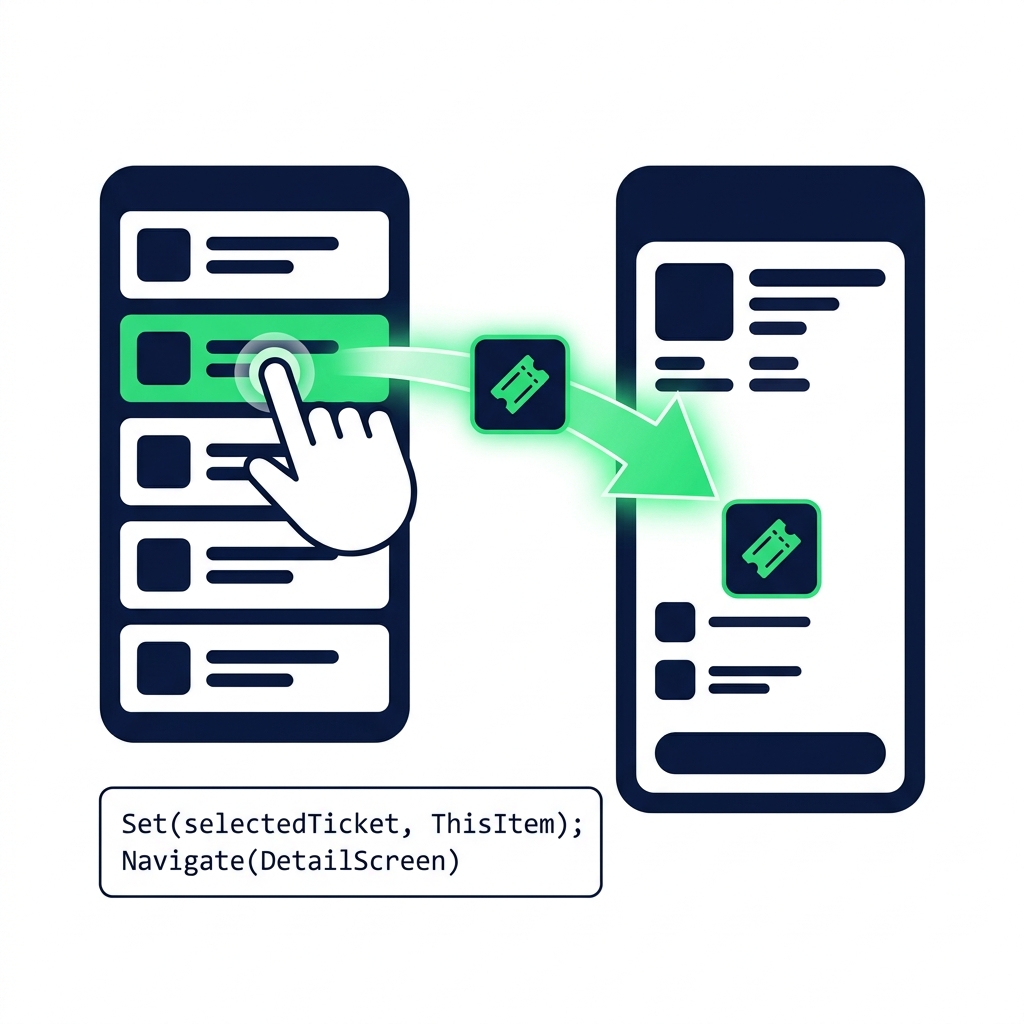
Set(), carrying data across

A tapped gallery row sends selectedTicket data to a detail screen via Set() chained with Navigate() in one OnSelect formula.

  • Set(name, value) creates an app-wide variable
  • Chain Set() and Navigate() with a semicolon
  • Detail screen reads selectedTicket.Title, .Priority, anything
Introduction to Power Apps

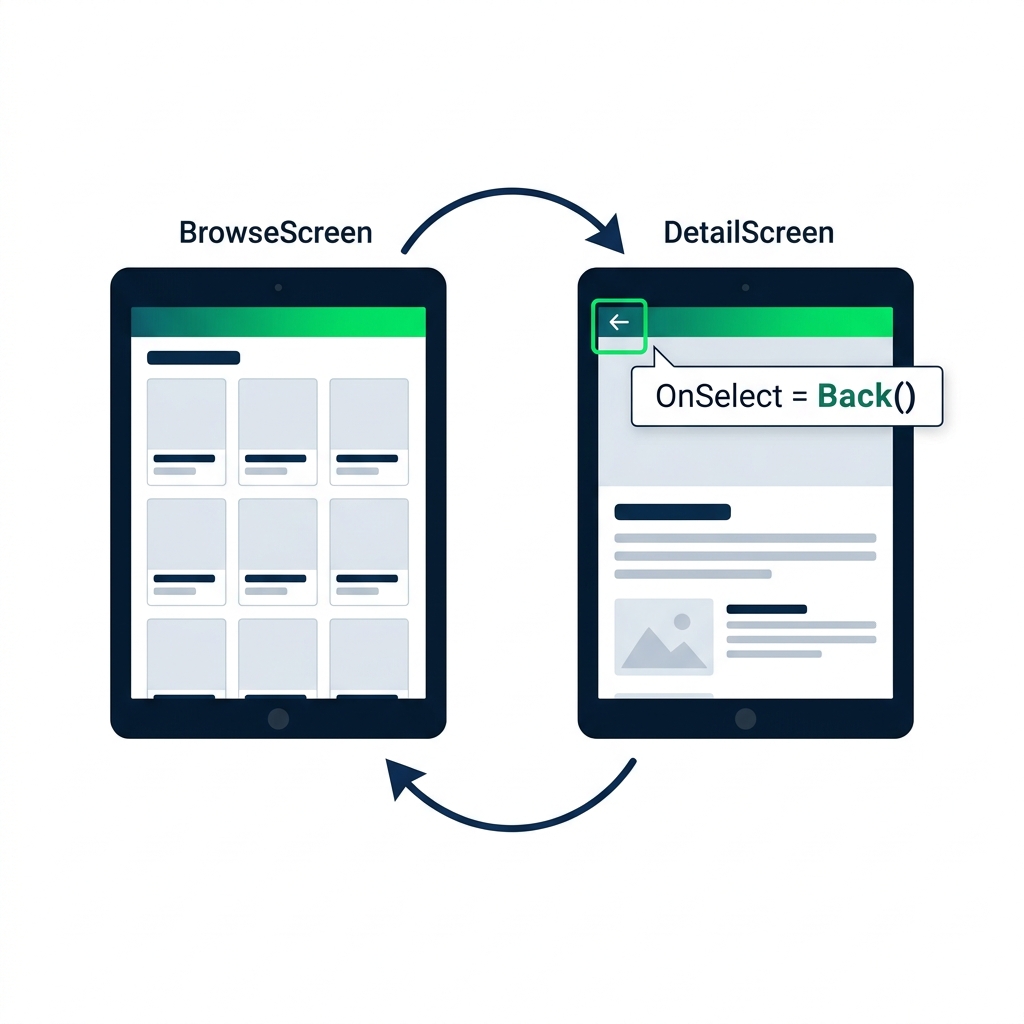
Back()

DetailScreen with a highlighted back-arrow icon wired to Back(), returning the user to the previous BrowseScreen gallery view.


  • Back() returns the user to the previous screen
  • No arguments, Power Apps remembers where they came from
  • Wire it to a back-arrow icon or a button
Introduction to Power Apps

Variable scope, where does it belong?
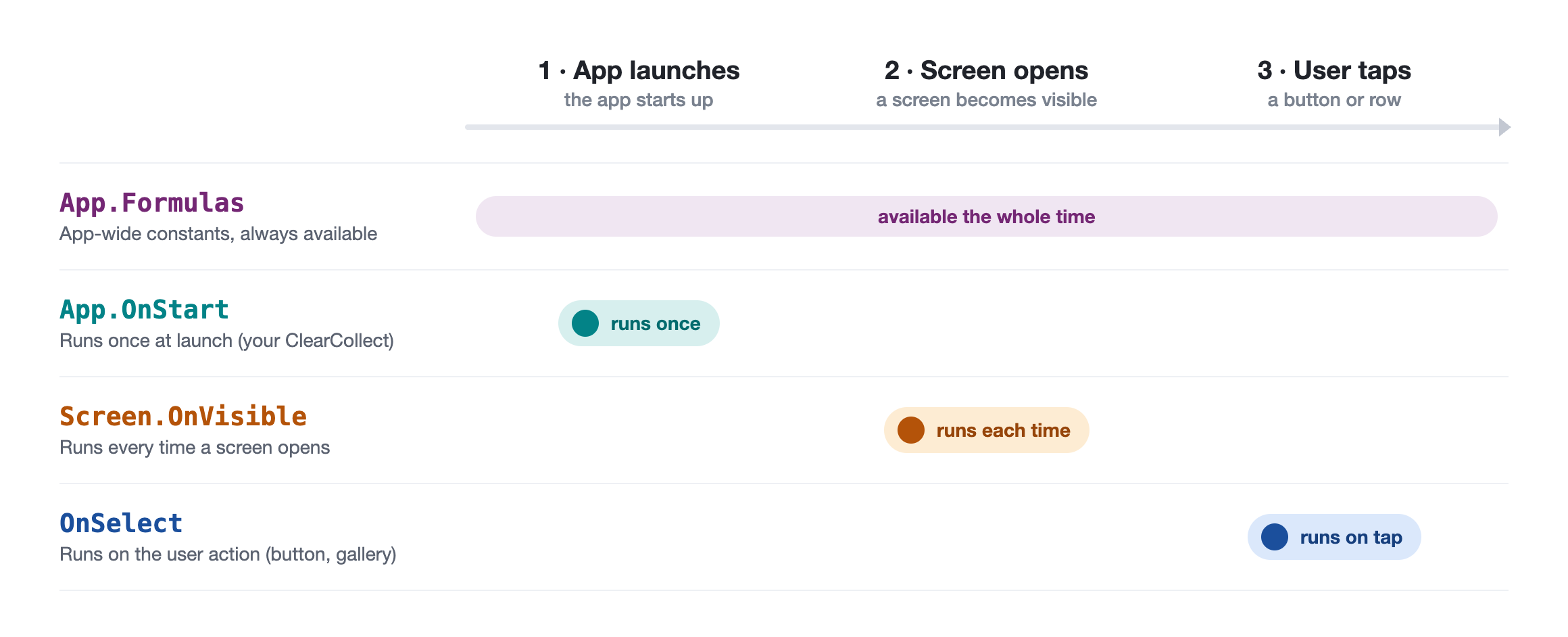
 

  • App.Formulas: app-wide constants, always available
  • App.OnStart: runs once at launch, where your ClearCollect lives
  • Screen.OnVisible: runs every time a screen opens
  • Button OnSelect: runs on the user action


Four-lane timeline of where a value lives: App.Formulas available the whole time, App.OnStart runs once at launch, Screen.OnVisible runs each time a screen opens, and OnSelect runs on a user tap

Introduction to Power Apps

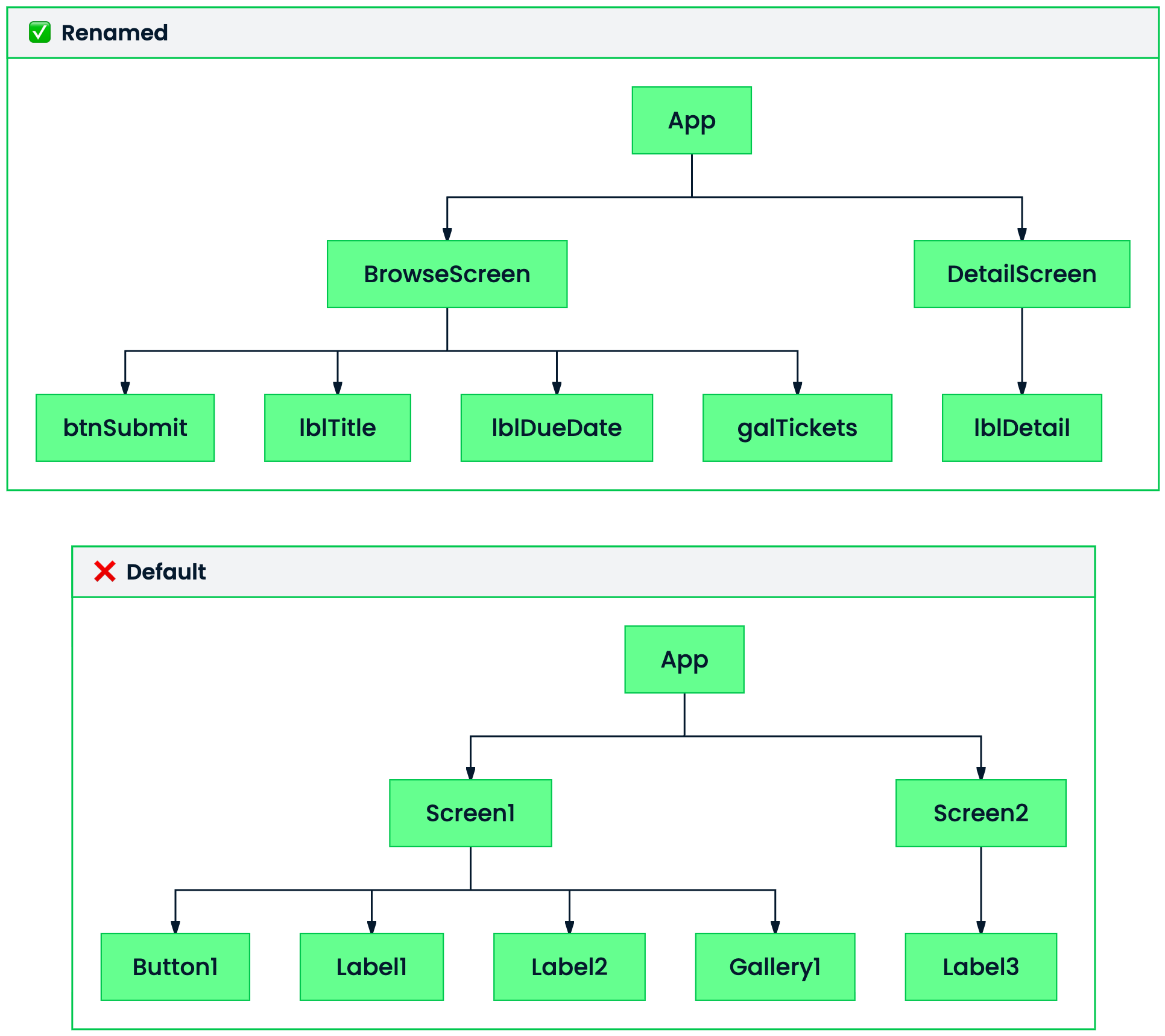
Name your controls like a pro

$$ Tree View panels comparing generic default names like Label1 with clear prefixed names such as lblTitle, btnSubmit, and galTickets.


  • Default names: Label1, Button2, Gallery1, unreadable
  • Prefix by type: lblTitle, btnSubmit, galTickets
  • Helps you when a screen has 15+ controls
Introduction to Power Apps

What you'll build


  • Wire a browse → detail flow
  • Tap a row to see its details
  • A back-arrow returns to the gallery

Browse and detail screens with a ticket gallery, detail view showing ticket fields, and a back-arrow in the navy header bar.

Introduction to Power Apps

Let's practice!

Introduction to Power Apps

Preparing Video For Download...