Conditional logic and validation

Introduction to Power Apps

Luise Freese

Azure & Power Platform Architect

Conditional formatting (recap)
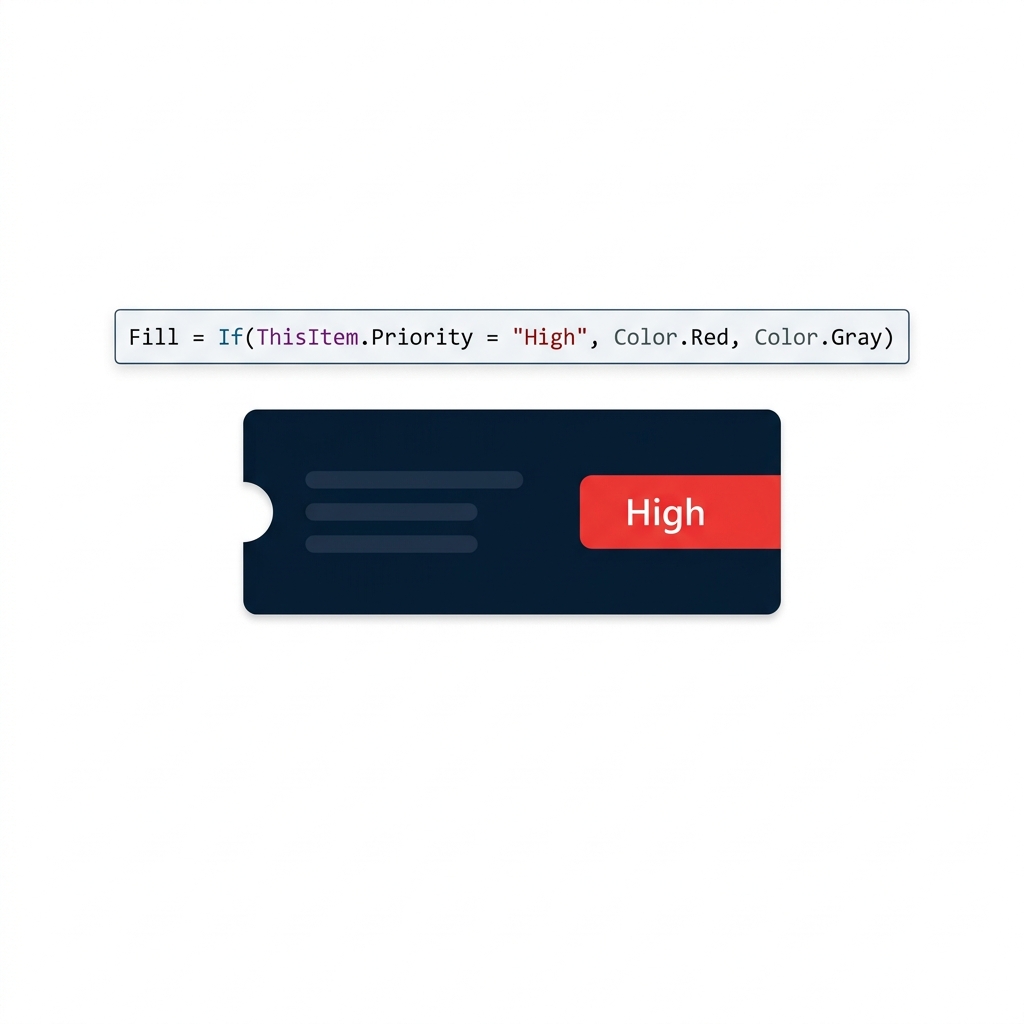
Gallery ticket card with a red High priority pill, illustrating conditional Fill coloring driven by an If() formula on Priority.


  • If(condition, ifTrue, ifFalse), the workhorse
  • Already seen on gallery row colors
  • Same shape powers everything in this video
Introduction to Power Apps

IsBlank(), catching empty fields


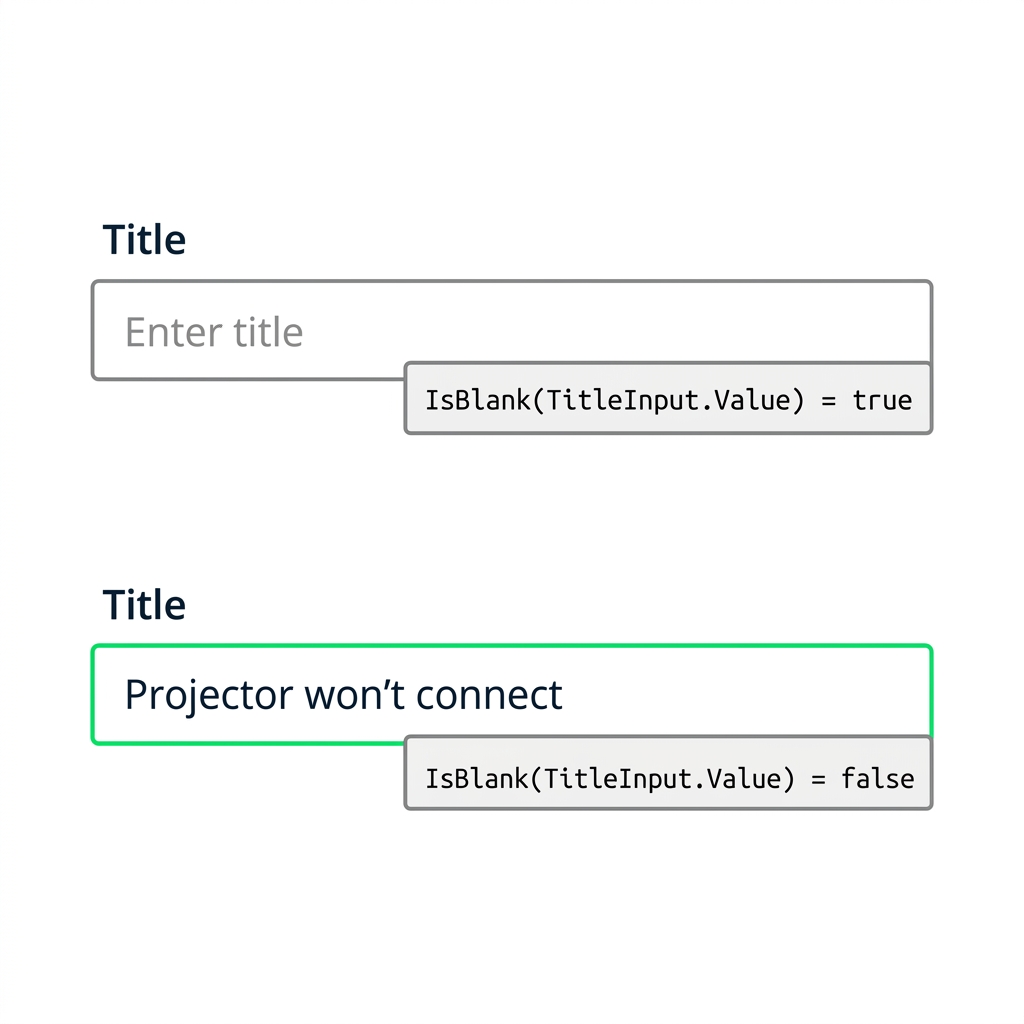
  • IsBlank(value) returns true if the value is empty
  • Works on any control's value
  • The validation building block for the rest of the video

Two Title text inputs showing IsBlank() returning true for an empty field and false when the field contains ticket text.

Introduction to Power Apps

Prevention: DisplayMode

$$

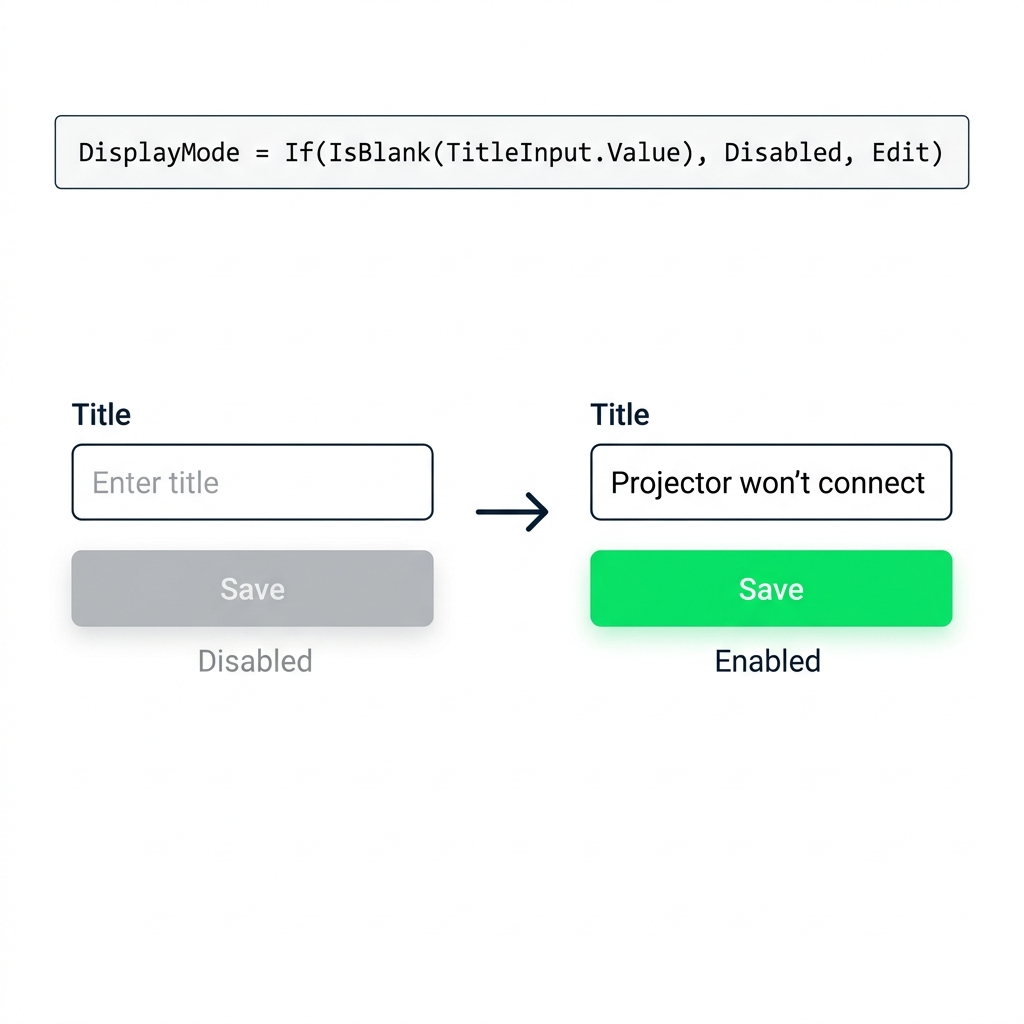
Submit button disabled when Title is empty and enabled once filled, illustrating DisplayMode controlled by an IsBlank() If() formula.


  • Stop the bad submit before it happens

DisplayMode = If(IsBlank(...), DisplayMode.Disabled, DisplayMode.Edit)

  • The button grays out until the field is filled
Introduction to Power Apps

Correction: Notify() after submit


Notify(
    "Save failed: check fields",
    NotificationType.Error
)
  • Catches what prevention can't: server rules, network errors
  • Wire OnFailureNotify() with NotificationType.Error
  • Use together with prevention, not on its own

Power Apps form with a red error toast, highlighted Title field, and grayed Save button after a failed validation submit.

Introduction to Power Apps

Visible versus DisplayMode

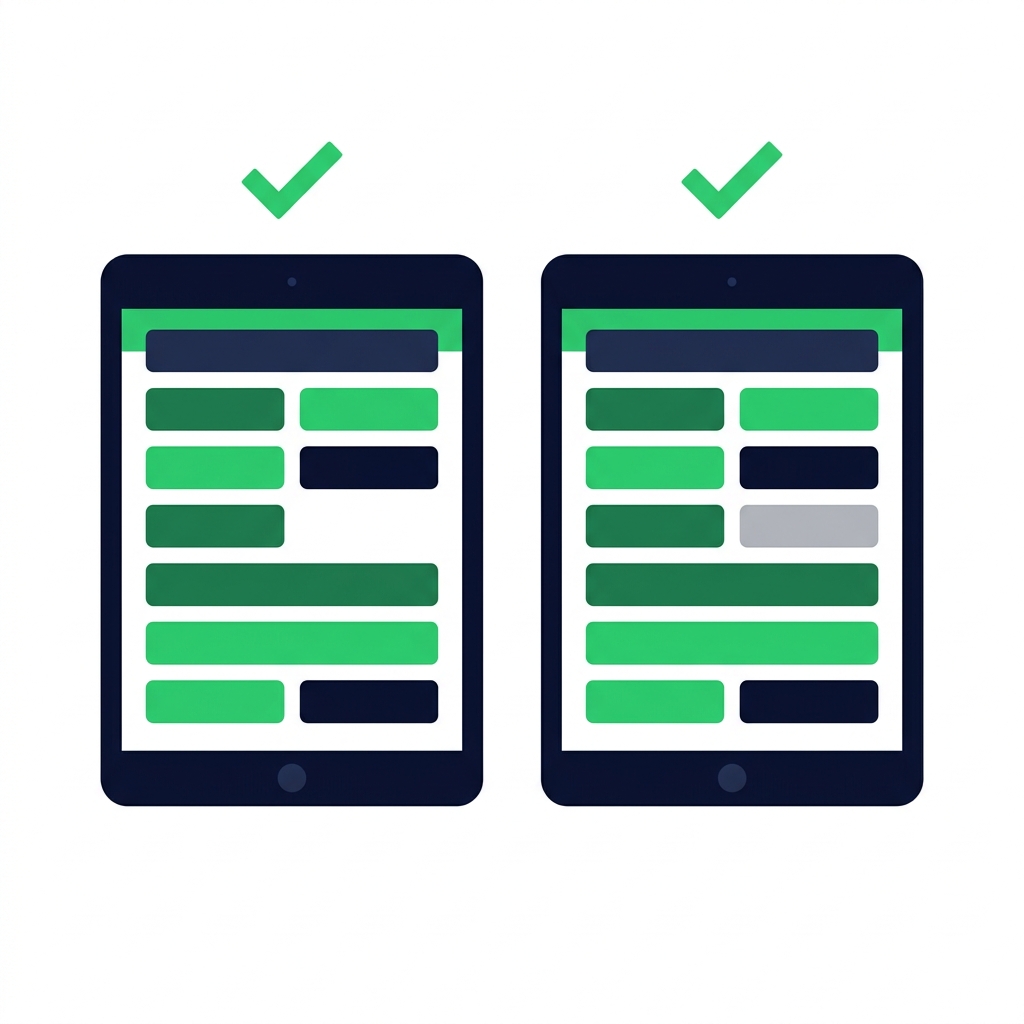
Side-by-side screens comparing Visible=false removing a button from layout versus DisplayMode=Disabled graying it out in place.


  • Visible = falseremoves from layout, tab order
  • DisplayMode.Disabledstays in place, grayed, read-only
  • DisplayMode.View → for cards inside forms
Introduction to Power Apps

A concrete example


  • Approve button: visible to all, Disabled until fields filled
  • Manager-only section: Visible = isManager
  • One screen, both rules in action

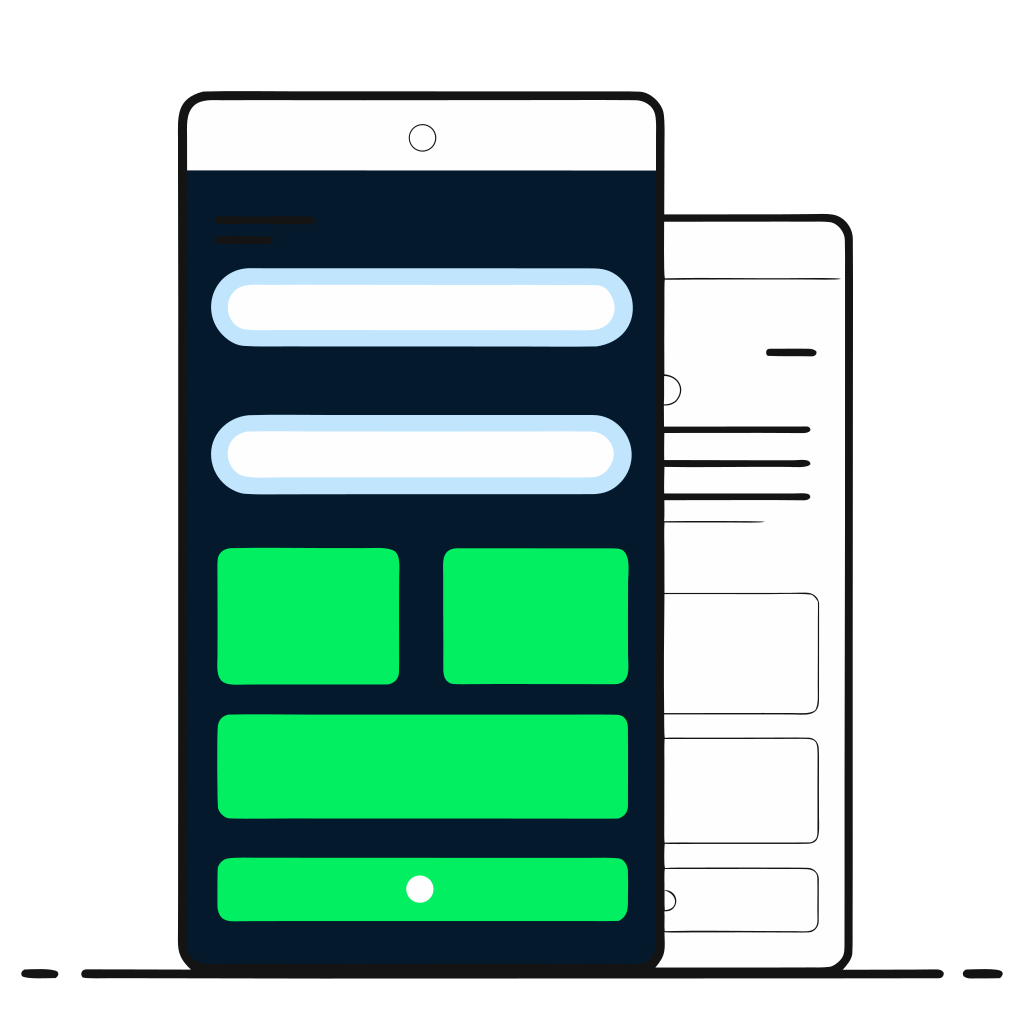
Dark phone showing a form app with input fields, action cards, and a green submit button.

Introduction to Power Apps

Server-side vs client-side

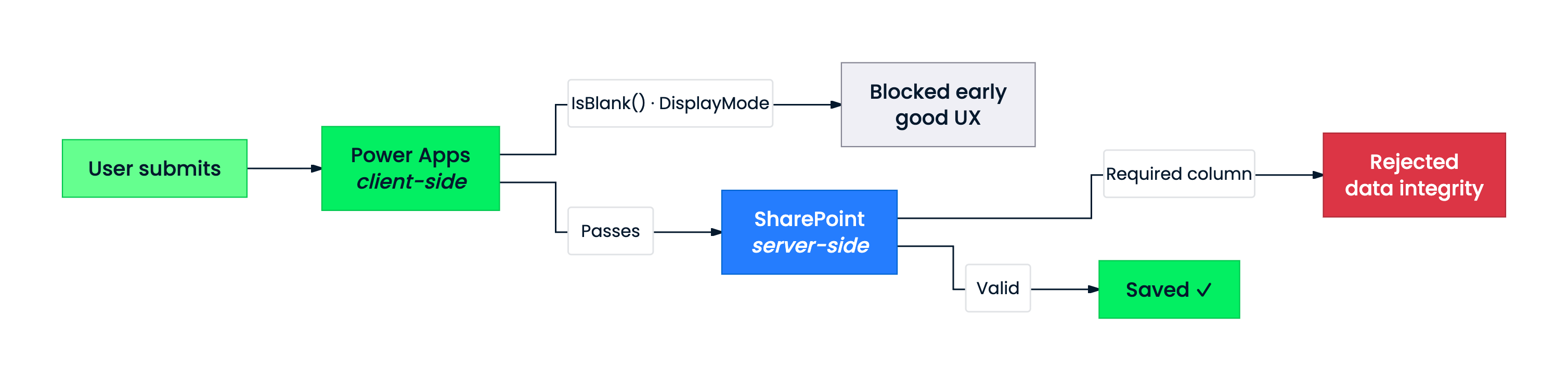
Flowchart showing user submit passing through Power Apps client-side checks (IsBlank, DisplayMode) then SharePoint server-side checks (Required column) before saving.


  • Client-side, in the app: improves UX
  • Server-side, on SharePoint: protects data integrity

Power Apps formulas are not a security boundary.

Introduction to Power Apps

What you'll build


  • Block empty submits with validation
  • Show error messages when something goes wrong
  • Show or hide controls based on user role

Dark phone showing a form with input fields and a green submit button representing the finished validation app.

Introduction to Power Apps

Let's practice!

Introduction to Power Apps

Preparing Video For Download...