Data sources and connectors

Introduction to Power Apps

Luise Freese

Azure & Power Platform Architect

The words everyone mixes up
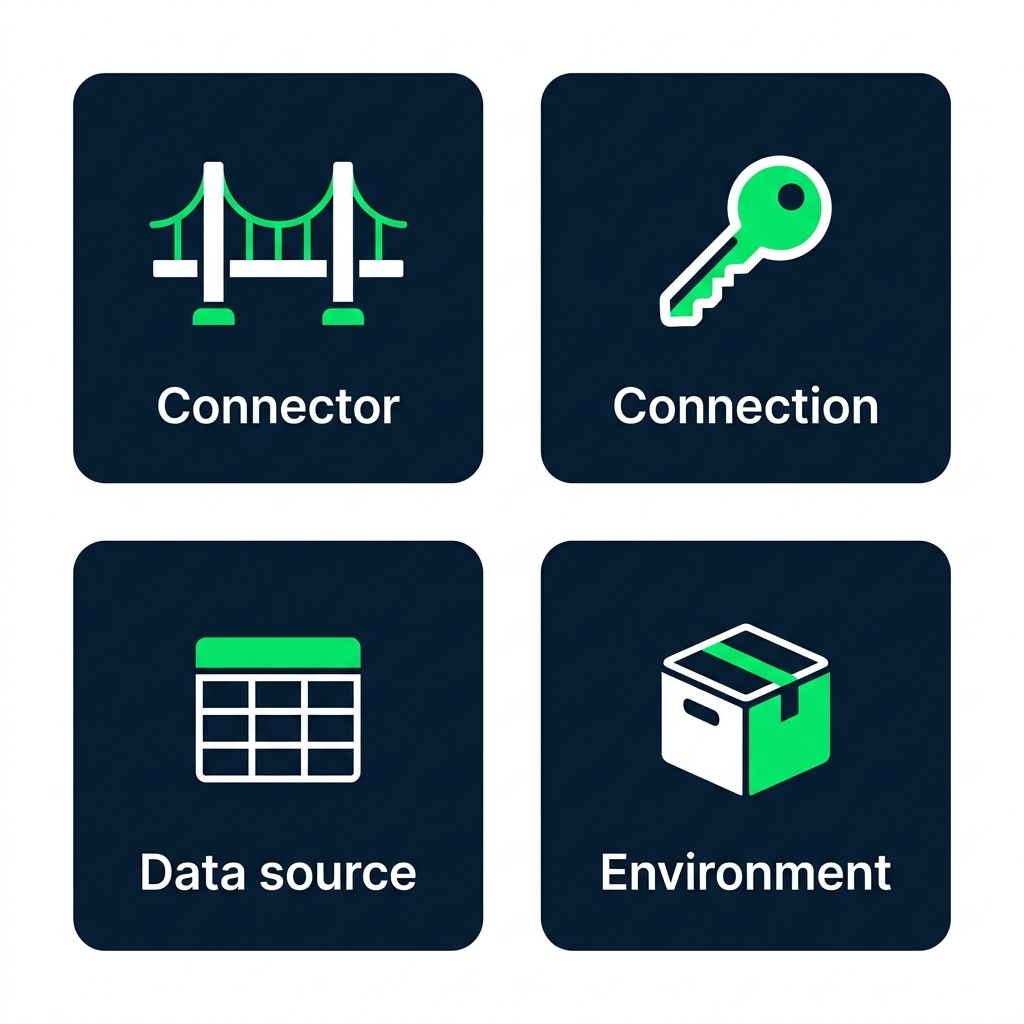
 

  • Connector, the bridge (SharePoint, Excel...)
  • Connection, your specific sign-in to that bridge
  • Data source, the table you point your app at
  • Environment, the space your app and data live in

Diagram of four labeled cards: Connector (bridge icon), Connection (key icon), Data source (table icon), and Environment (container icon)

Introduction to Power Apps

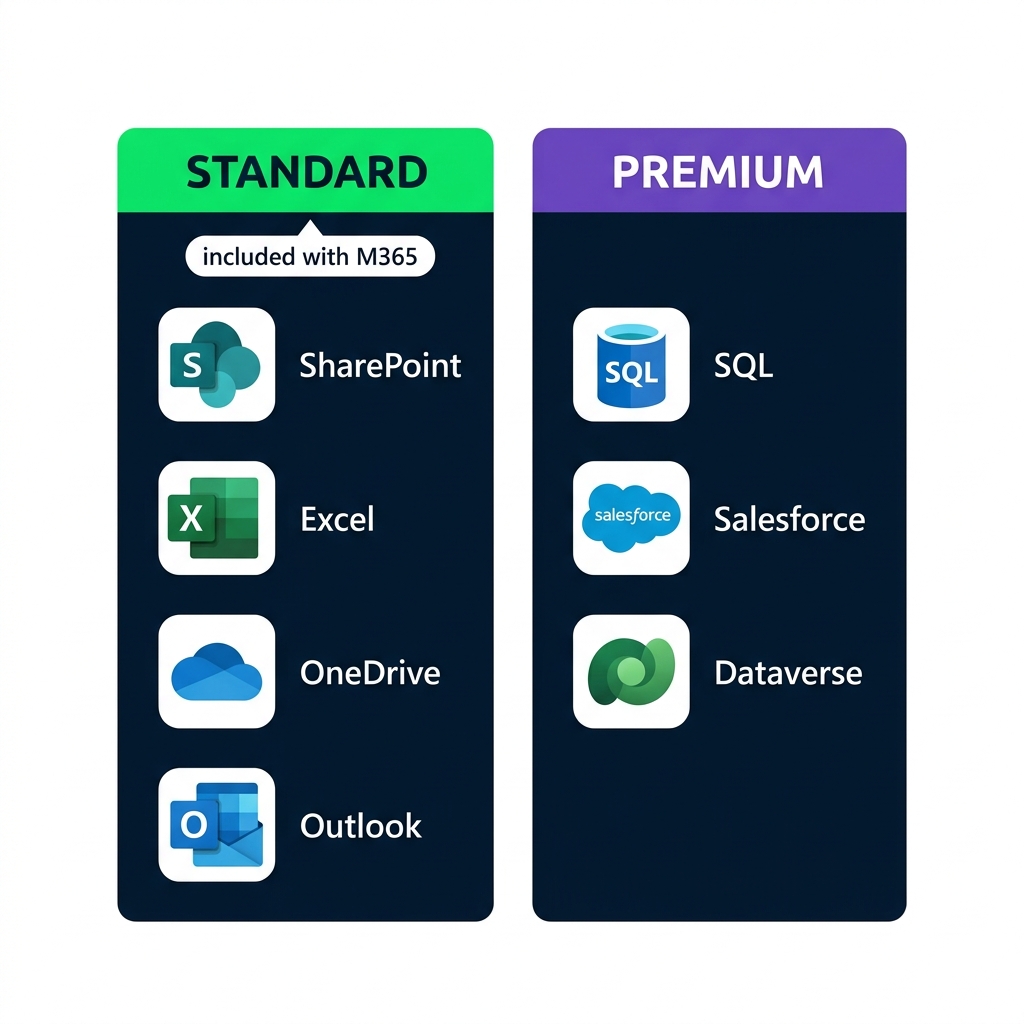
Standard vs premium

Comparison of Standard connectors (SharePoint, Excel, OneDrive, Outlook, included with M365) and Premium connectors (SQL Server, Salesforce, Dataverse)


  • Standard connectors come with Microsoft 365
  • Premium connectors need an add-on license
  • This course uses Standard only
Introduction to Power Apps

A tasks list for Lumen Coffee


  • A marketing team at Lumen Coffee
  • One SharePoint list: Marketing Tasks
  • Five columns: Title, Status, Priority, AssignedTo, DueDate

SharePoint list view showing the Marketing Tasks table with five columns: Title, Status, Priority, AssignedTo, and DueDate, with three sample task rows

Introduction to Power Apps

Excel

$$

Real screenshot of the Power Apps "Start with data" page showing the title and helper text on the left, with six connector tiles in a grid on the right: Create new data, SharePoint, Dataverse, Excel Online Business, SQL, and Upload file


  • Start with dataUpload Excel file
  • Power Apps builds a starter app for you
  • Excel is a learning shortcut, not how you'd actually ship
Introduction to Power Apps

What happens on first upload


  • A developer environment is created for you (~50s)
  • A welcome dialog appears once, dismiss it
  • Your app opens with the data already wired

Loading screen showing a spinner with the label "Creating your developer environment" and a progress bar, with database, cloud, and checkmark step icons

Introduction to Power Apps

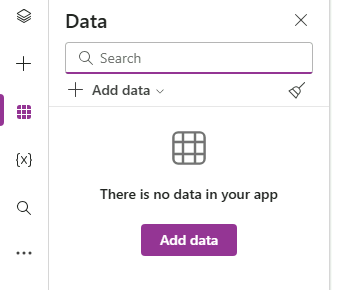
The data panel

Screenshot of the Power Apps Studio Data panel with Add data button, Search field, and table grid


  • Find it in the left rail
  • Shows every table your app is connected to
  • Click any table to inspect its columns
Introduction to Power Apps

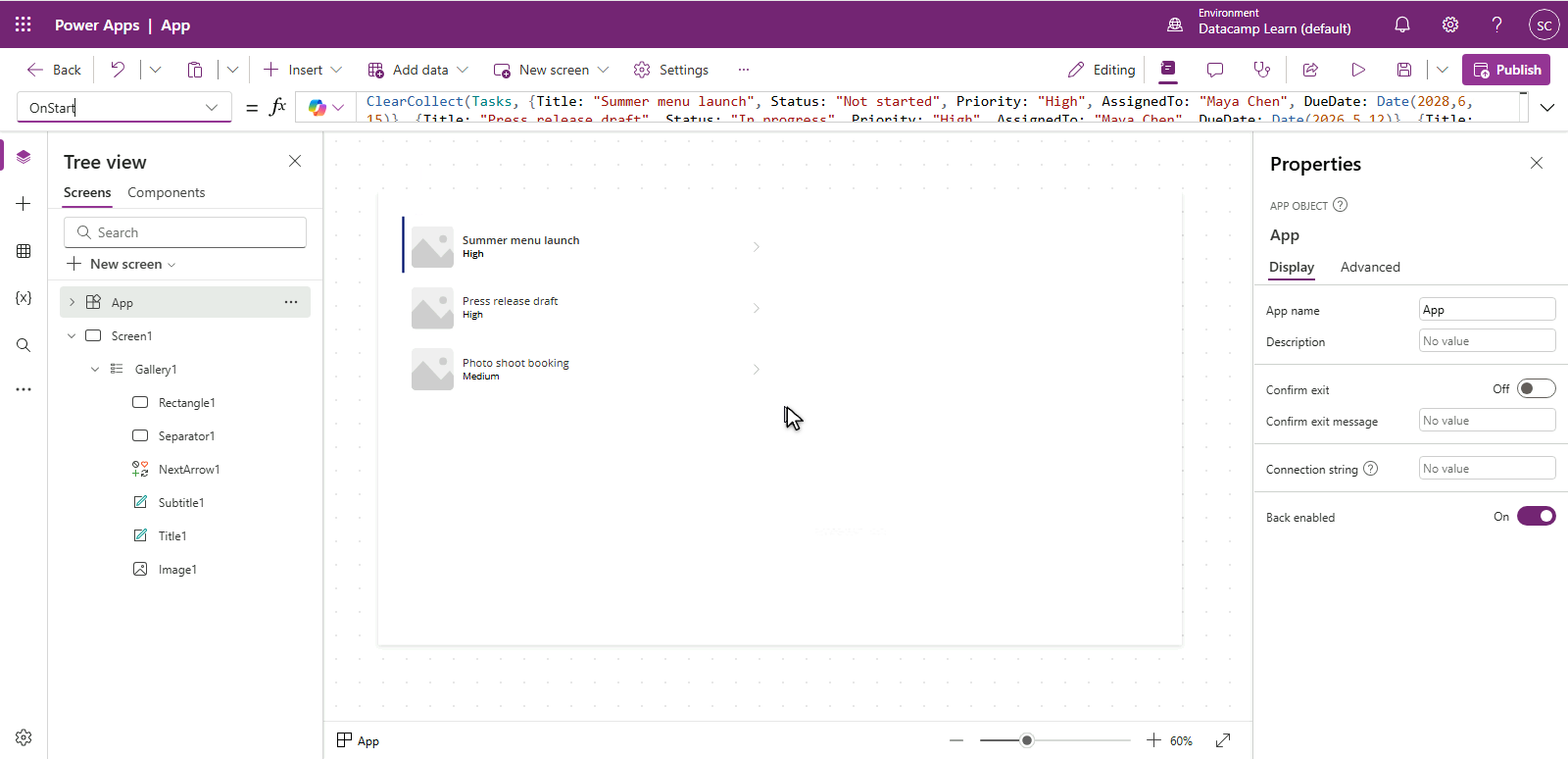
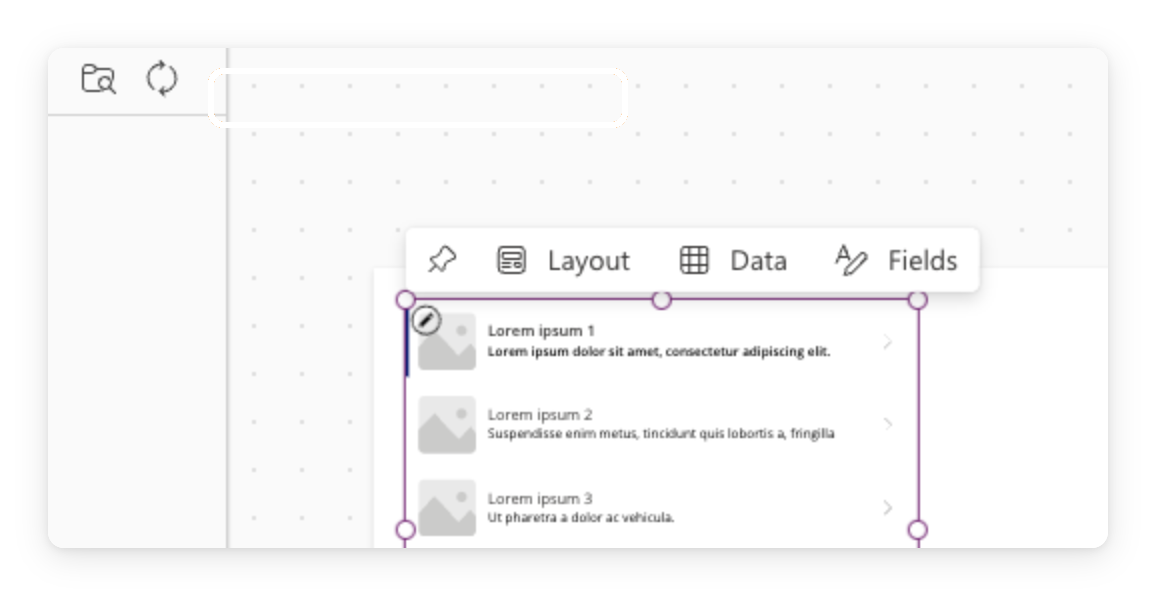
Gallery: how Power Apps shows lists


  • A gallery repeats one template for every row
  • Set Items to your data source
  • Each row is a clickable copy of the template

$$

Real screenshot of Power Apps Studio with a gallery control on canvas

Introduction to Power Apps

What you'll build

Mockup of the finished Lumen Marketing Tasks app showing a header and four task cards with title and status pills in a warm coffee-brown accent


  • Connect your app to a real dataset
  • Inspect the data with the Data panel
  • Insert a gallery and bind it to the data
Introduction to Power Apps

Let's practice!

Introduction to Power Apps

Preparing Video For Download...