Data sources and connectors

Introduction to Power Apps

Luise Freese

Azure & Power Platform Architect

The words everyone mixes up
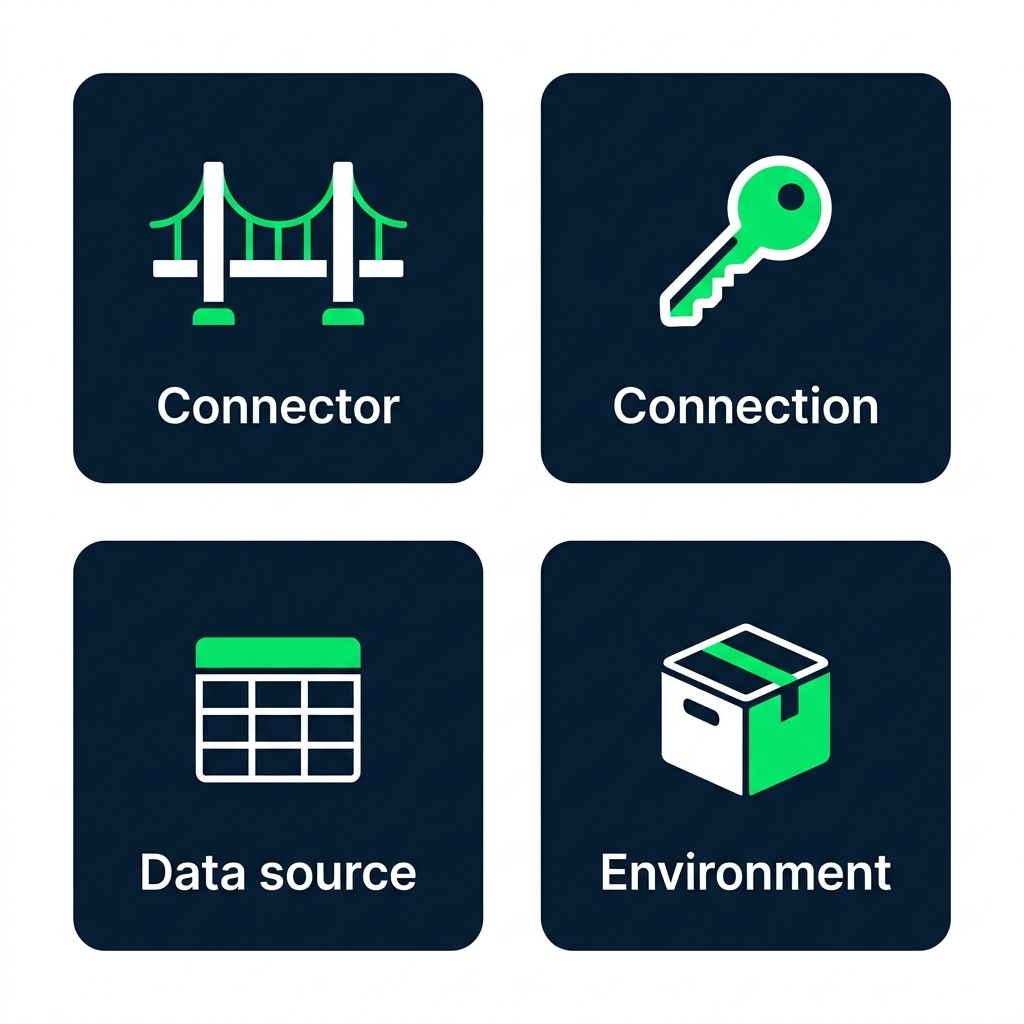
 

  • Connector, the bridge (SharePoint, Excel...)
  • Connection, your specific sign-in to that bridge
  • Data source, the table you point your app at
  • Environment, the space your app and data live in

Diagram of four labeled cards: Connector (bridge icon), Connection (key icon), Data source (table icon), and Environment (container icon)

Introduction to Power Apps

Standard versus premium

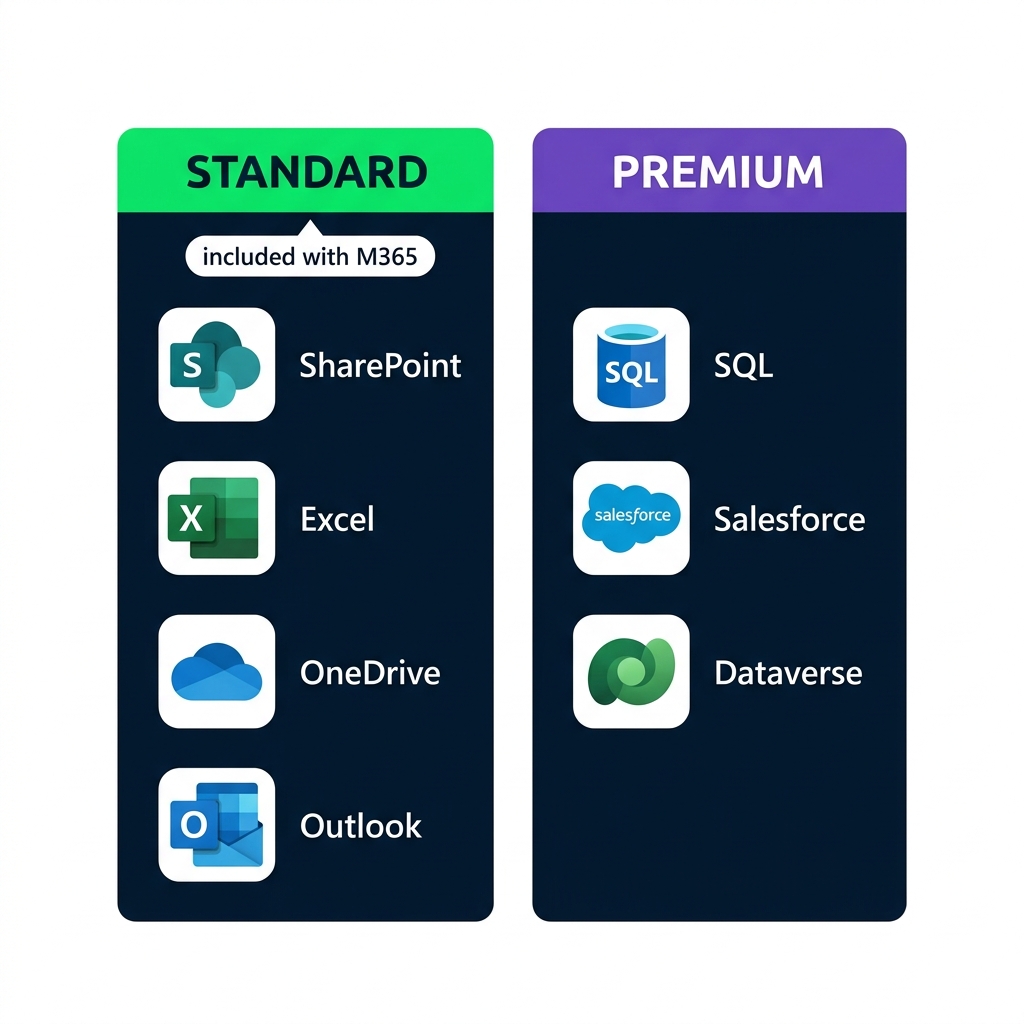
Comparison of Standard connectors (SharePoint, Excel, OneDrive, Outlook, included with M365) and Premium connectors (SQL Server, Salesforce, Dataverse)


  • Standard connectors come with Microsoft 365
  • Premium connectors need an add-on license
  • This course uses Standard only
Introduction to Power Apps

A tasks list for Lumen Coffee


  • A marketing team at Lumen Coffee
  • One table of tasks: Marketing Tasks
  • Five columns: Title, Status, Priority, AssignedTo, DueDate

SharePoint list view showing the Marketing Tasks table with five columns: Title, Status, Priority, AssignedTo, and DueDate, with three sample task rows

Introduction to Power Apps

Connectors and collections


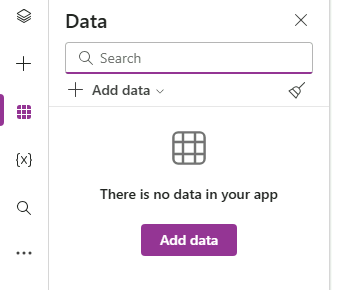
  • At work: + Add data → a connector → the table lands in the Data panel
  • In this course: the app builds its own table at startup
  • Same Power Fx either way, no license or tenant setup needed

Power Apps Studio Data panel showing the Add data button, the Search field, and the empty-state table grid before any data source is connected

Introduction to Power Apps

Building a collection with ClearCollect


ClearCollect(Tasks,
    {Title: "Summer menu launch", Status: "Not started", Priority: "High"},
    {Title: "Press release draft", Status: "In progress", Priority: "High"}
)
  • A collection is a table that lives inside the app
  • ClearCollect(name, records) empties it, then refills it
  • Each { } is one record: Column: value, separated by commas
Introduction to Power Apps

App.OnStart runs it once

$$

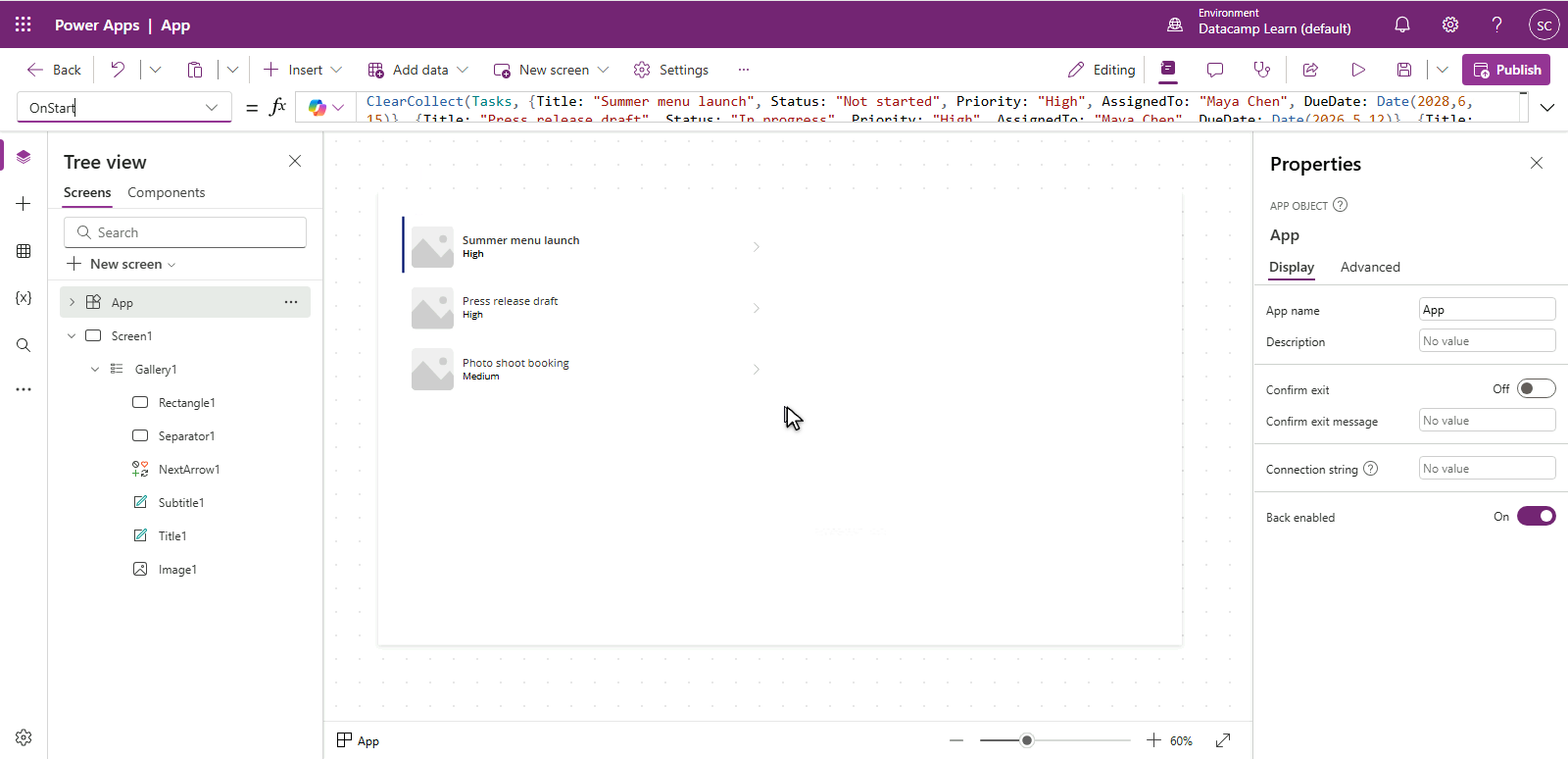
Power Apps Studio with the App object selected in the Tree view, OnStart chosen in the property dropdown, and a ClearCollect(Tasks, ...) formula in the formula bar


  • Select App at the top of the Tree view
  • Choose OnStart in the property dropdown, left of the formula bar
  • ... → Run OnStart loads the data without restarting
Introduction to Power Apps

Gallery: how Power Apps shows lists


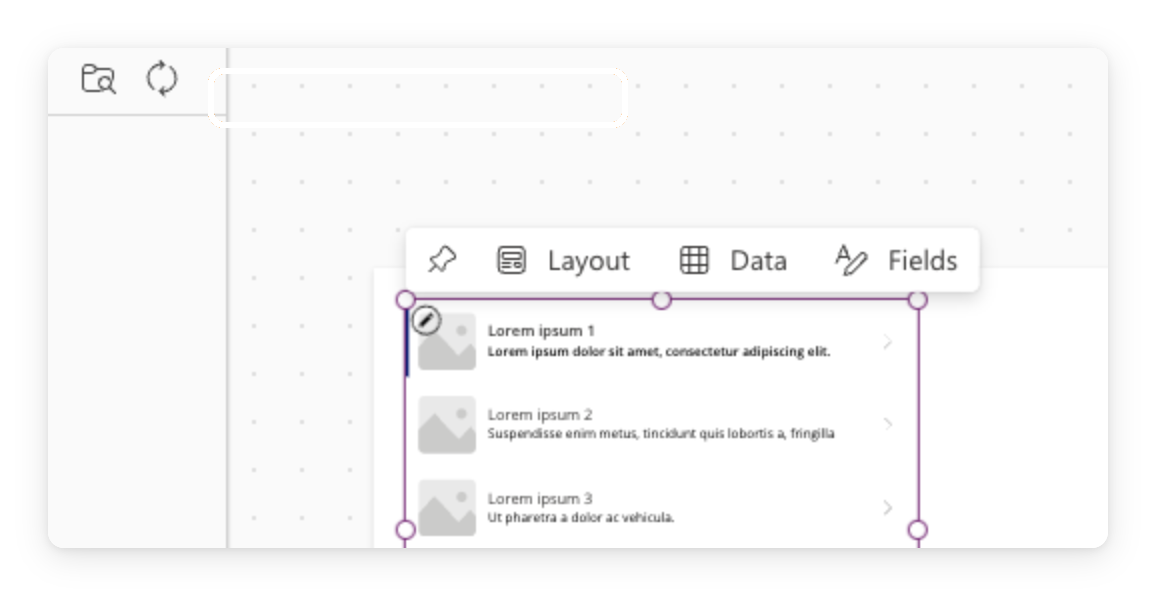
  • A gallery repeats one template for every row
  • Set Items to a table, like your Tasks collection
  • Each row is a clickable copy of the template

$$

Real screenshot of Power Apps Studio with a gallery control on canvas

Introduction to Power Apps

What you'll build

Mockup of the finished Lumen Marketing Tasks app showing a header and four task cards with title and status pills in a warm coffee-brown accent


  • Create a blank app and set its OnStart
  • Load the tasks with ClearCollect, then Run OnStart
  • Insert a gallery and bind its Items to Tasks
Introduction to Power Apps

Let's practice!

Introduction to Power Apps

Preparing Video For Download...