Navigating Power Apps Studio

Introduction to Power Apps

Luise Freese

Azure & Power Platform Architect

The maker portal
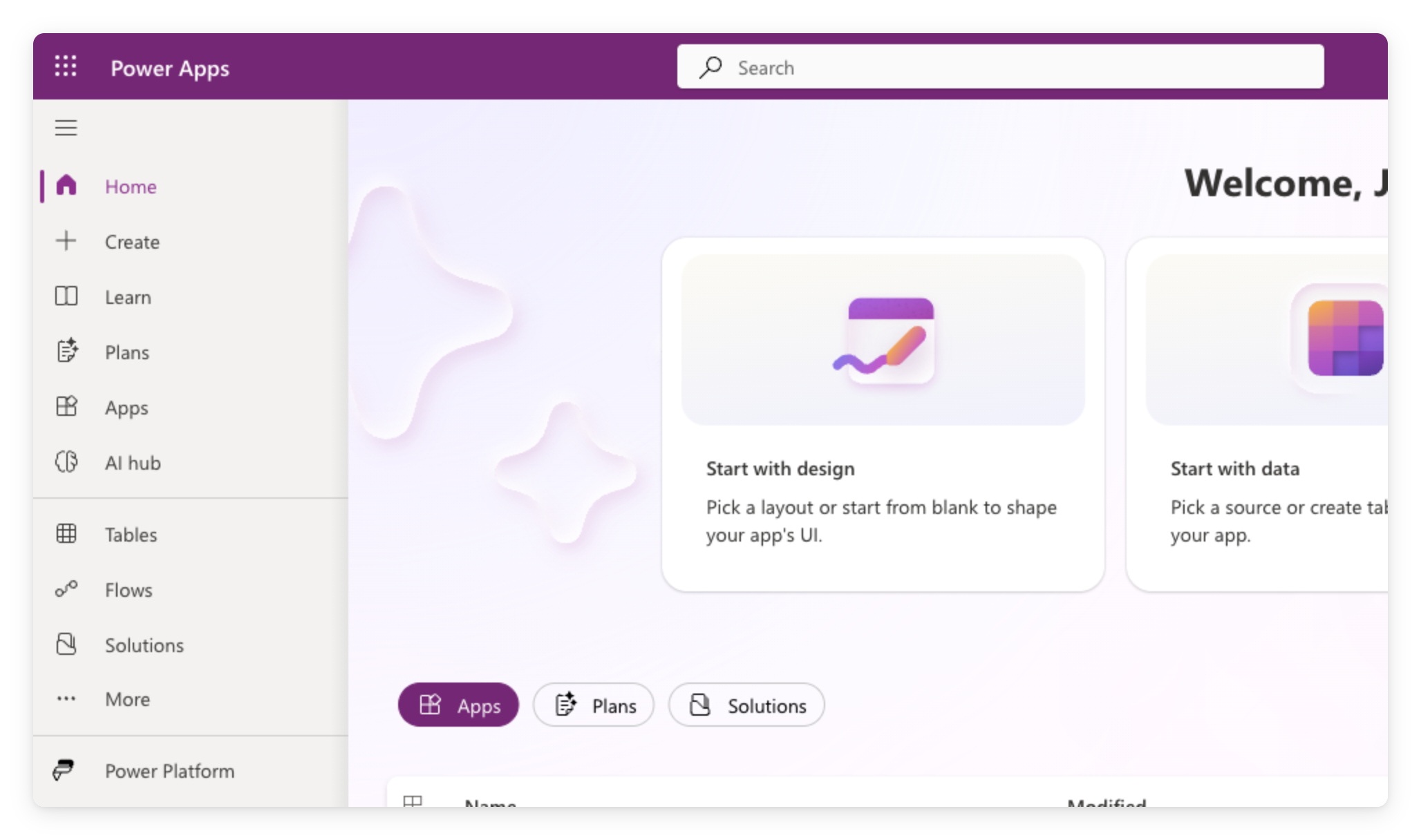
 

  • Sign in at make.powerapps.com with your work account
  • Left nav: Home, Create, Apps, Tables, Flows
  • Everything you build in this course lives here


Power Apps maker portal home page at make.powerapps.com, showing the left navigation and welcome screen with Start-with tiles

Introduction to Power Apps

Creating a blank canvas app


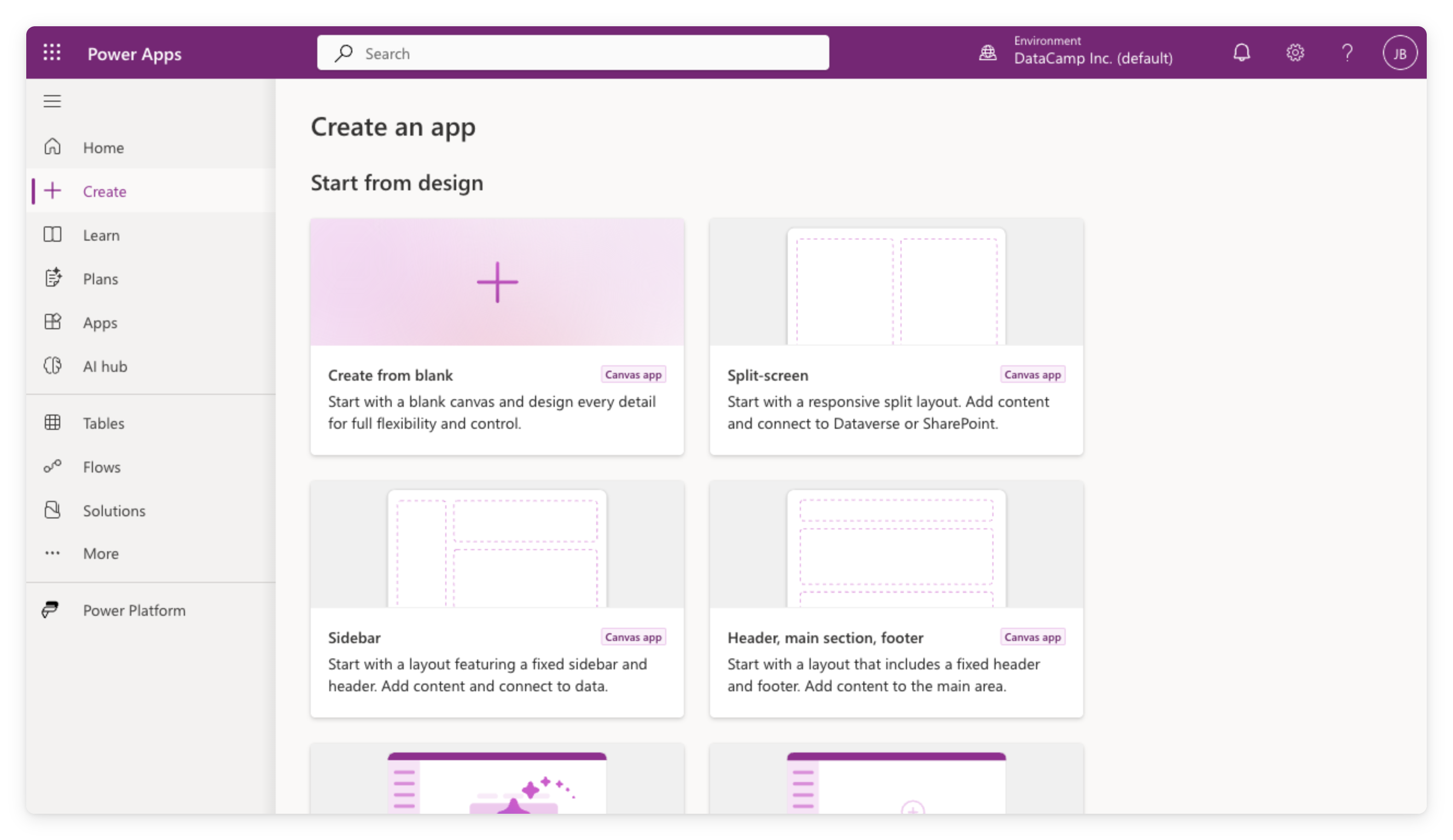
  • In the left nav, click Create
  • Choose Blank appBlank canvas app
  • Pick Tablet or Phone; you name it when you save


Power Apps Create page at make.powerapps.com showing Start from design options including Create from blank, Split-screen, Sidebar, and Header layouts

Introduction to Power Apps

Inside the studio editor


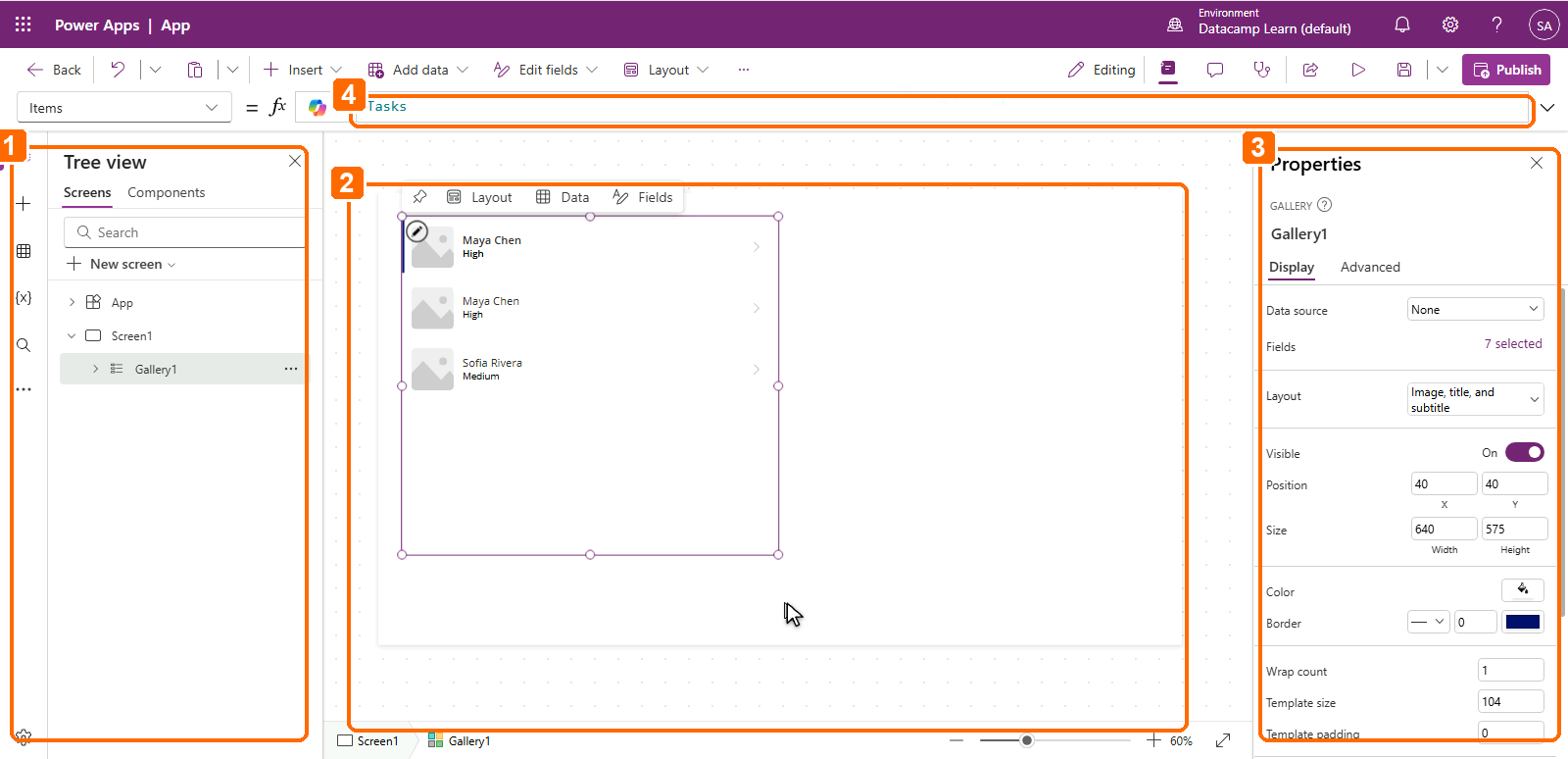
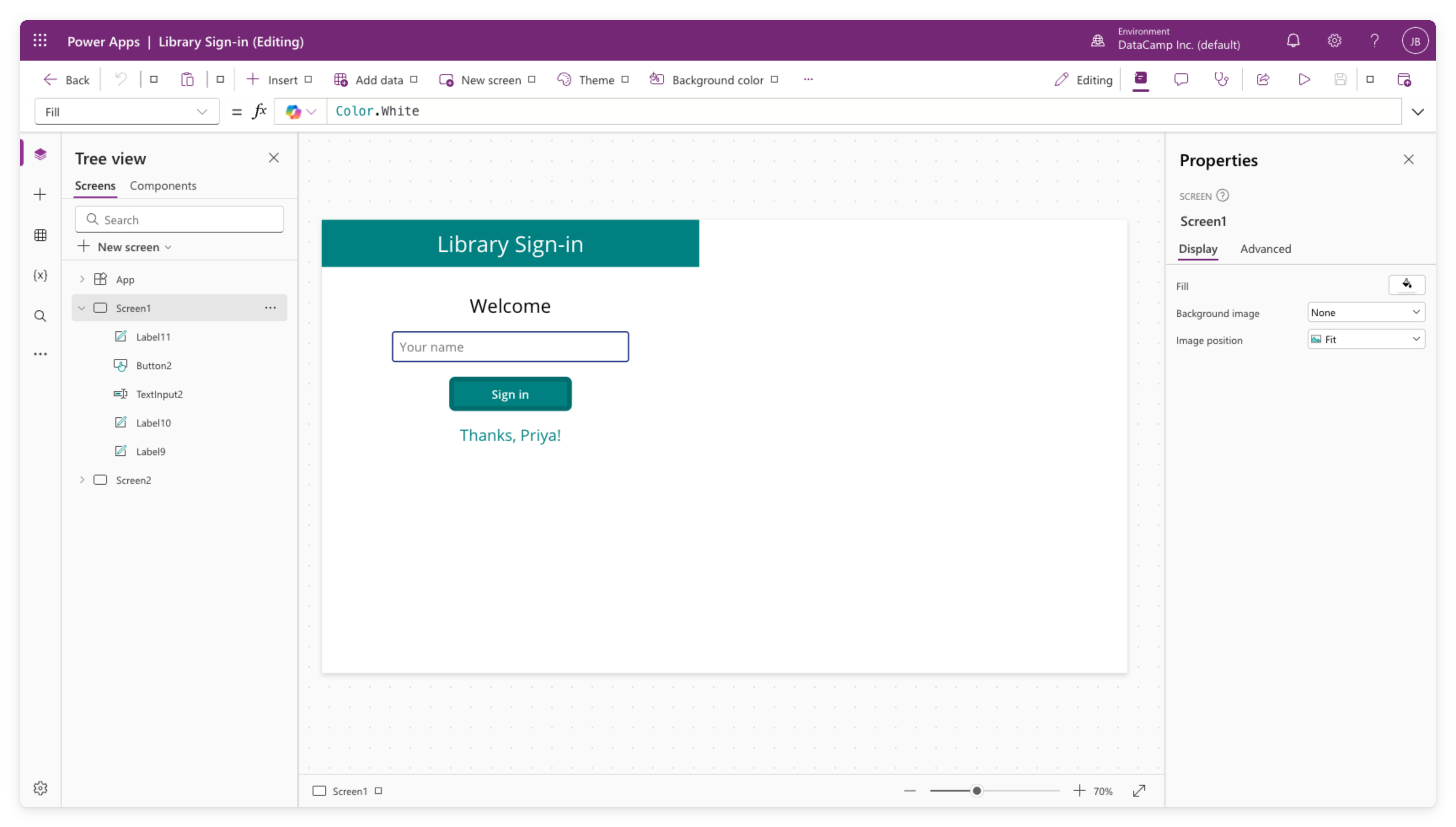
  • Tree View (left): every screen and control; click to select, double-click to rename
  • Canvas (center): arrange controls visually
  • Properties panel (right): settings for the selected control
  • Formula bar (top): write Power Fx expressions


Power Apps Studio showing all four main areas: Tree View on the left, canvas in the center with the Library Sign-in app, formula bar at the top, and Properties panel on the right

Introduction to Power Apps

Adding controls


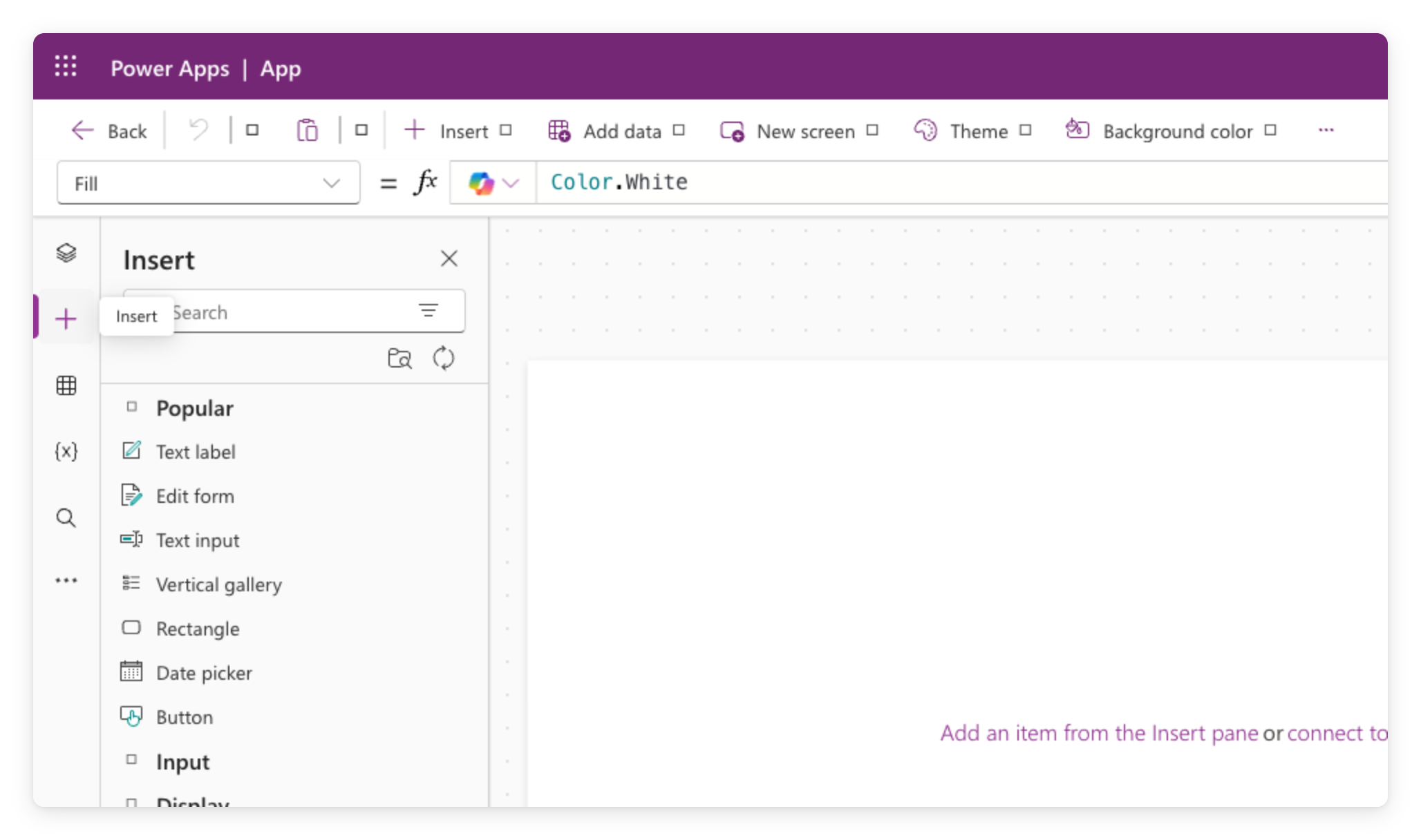
  • Click + Insert to open the catalog
  • Drop in a Text label, Text input, Button
  • Each control has properties: Text, Fill, Size, more


Power Apps Studio Insert panel open from the toolbar, listing control categories such as Text label, Button, and Gallery

Introduction to Power Apps

Press F5 to run


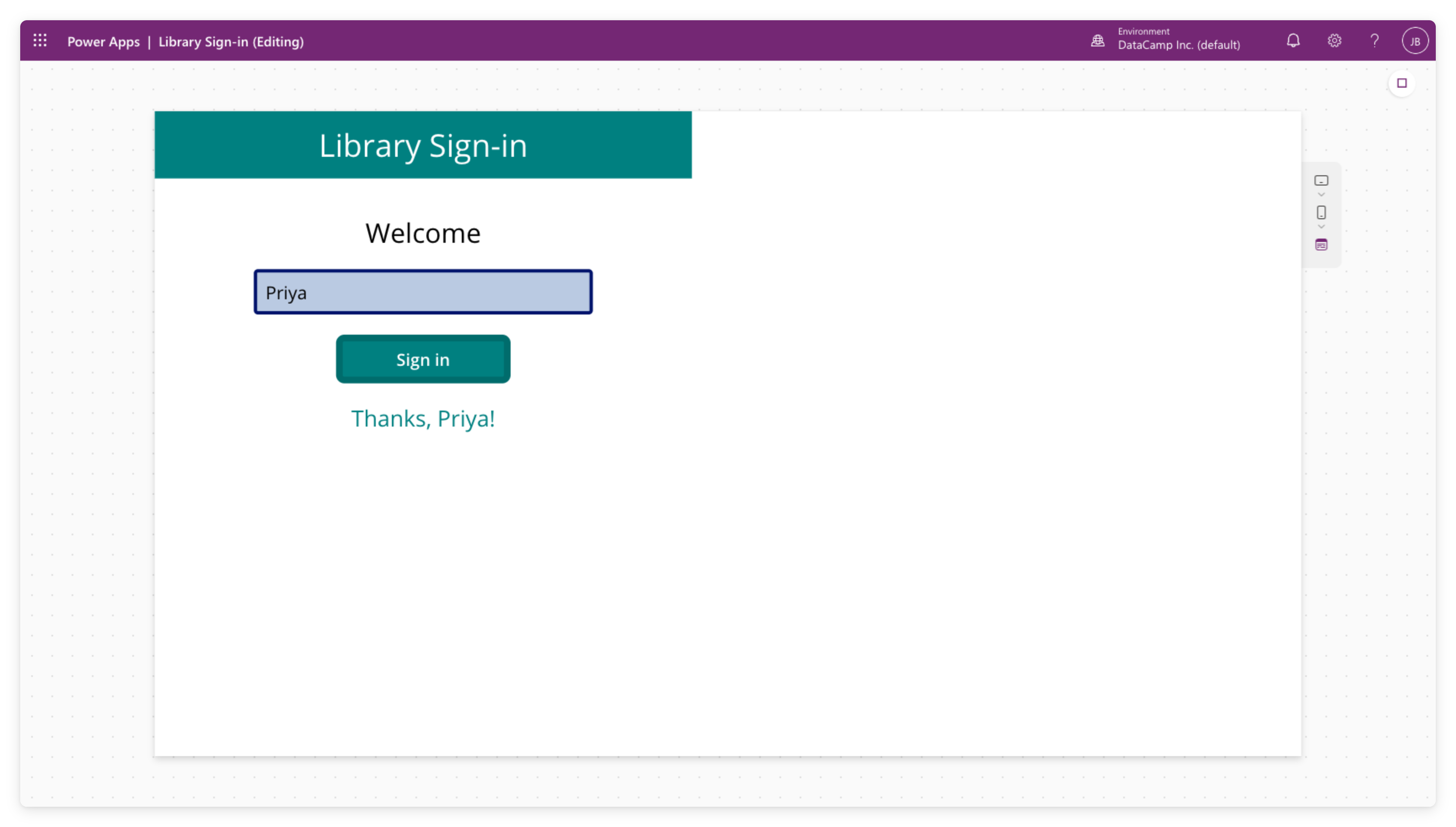
Power Apps Studio preview mode with the app running


  • Press F5 (or click the play button) to run the app
  • Click buttons, type into inputs, it behaves like the real app
  • Press Esc to return to the editor
Introduction to Power Apps

Save vs publish


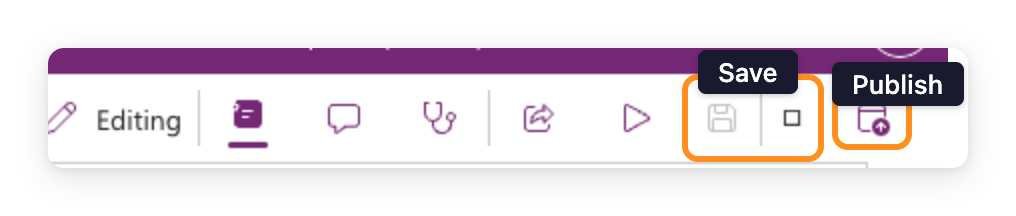
  • Save, preserves your work
  • Publish, makes the version live to anyone you share with
  • We'll publish properly in Chapter 4

$$

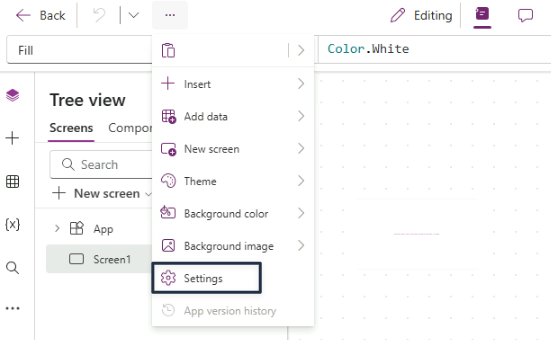
Power Apps Studio toolbar with Save and Publish icons highlighted in the upper-right, alongside Editing, Properties, Comments, App Checker, Share, and Preview buttons

Introduction to Power Apps

Containers come later

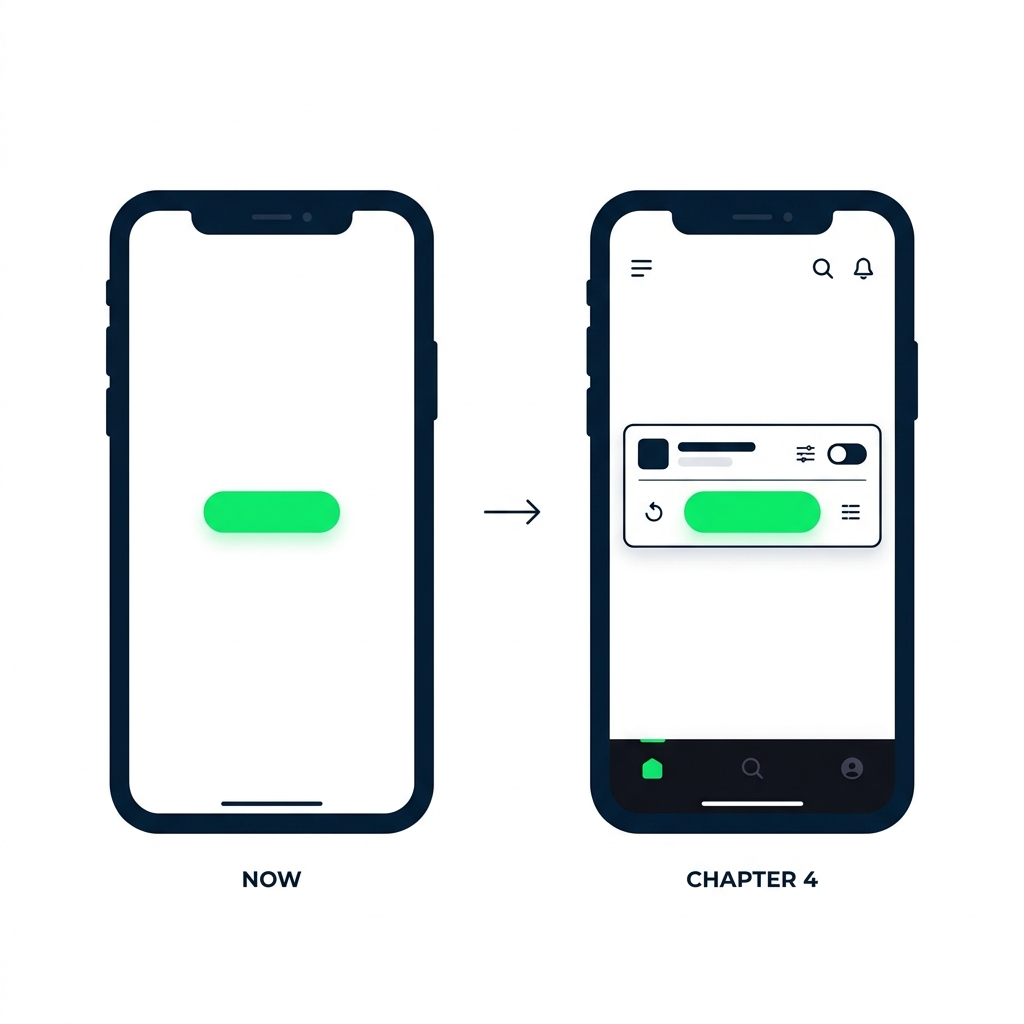
nanobanana: half: Clean modern flat illustration on pure white background showing two phone-app screens side by side. Left screen labeled "Now: blank screen" shows a single button floating on an empty canvas. Right screen labeled "Chapter 4: layouts" shows the same button neatly inside a horizontal container with other controls aligned around it. A small arrow between the two screens. Flat 2D, no shadows.


  • Today: a blank screen so you can see each control
  • Chapter 4: layout containers so the app stays responsive
  • Don't worry about alignment yet
Introduction to Power Apps

What you'll build


  • Create a blank canvas app
  • Add two screens and your first controls
  • Preview everything with F5

$$

Real screenshot of Power Apps Studio showing the Library Sign-in app with Tree View on the left listing Screen1 (with Label, Button, TextInput controls) and Screen2, the canvas displaying the sign-in screen with teal header, Welcome text, name input, Sign in button, and Thanks Priya message, and the Properties panel on the right

Introduction to Power Apps

Let's practice!

Introduction to Power Apps

Preparing Video For Download...