Putting it all together

Introduction to Power Apps

Luise Freese

Azure & Power Platform Architect

What you've built so far
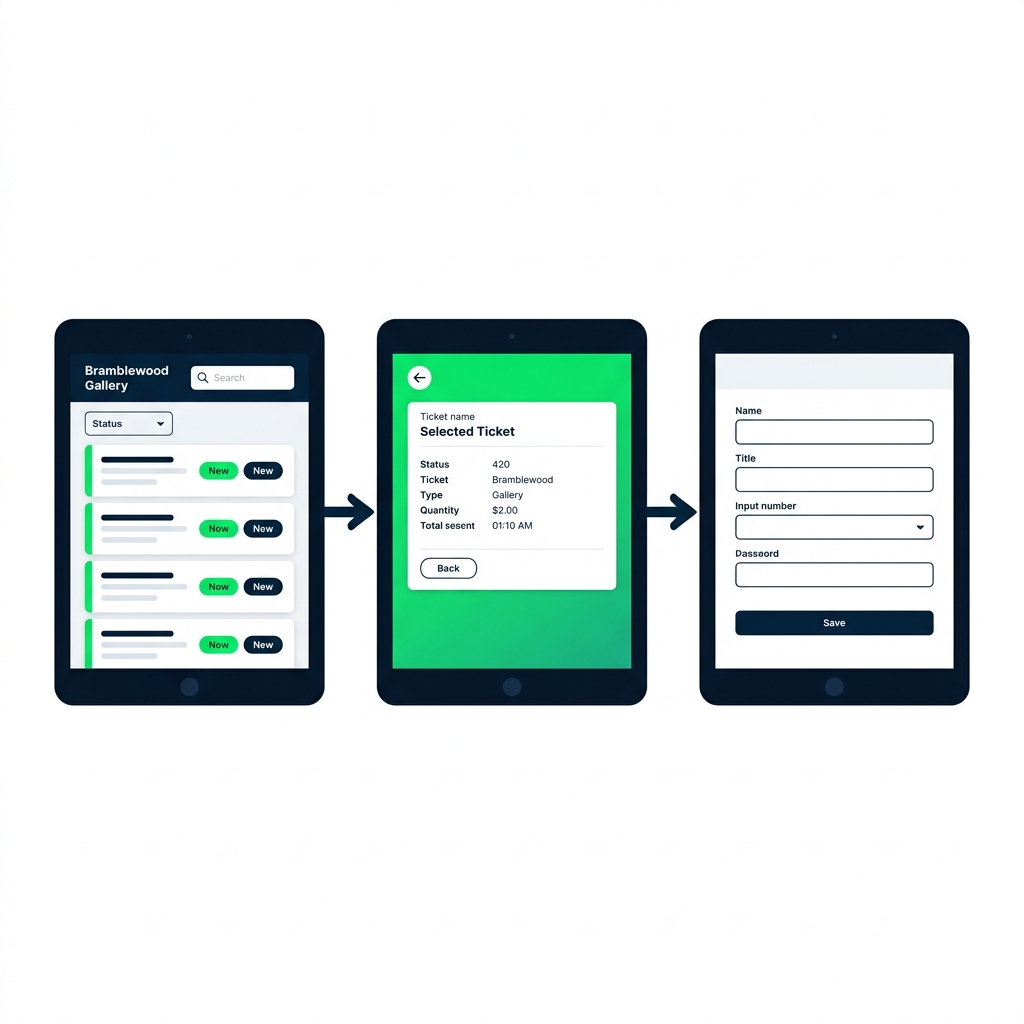
Three connected screens: gallery with filter and search, detail with back arrow, and edit form with Save button.


  • Gallery, bound, filtered, searched
  • Detail, carries the selected row via Set()
  • Edit Form, submits with validation
Introduction to Power Apps

The App checker


  • A built-in linter for canvas apps
  • Scans every formula, every property
  • Catches bugs before your users do


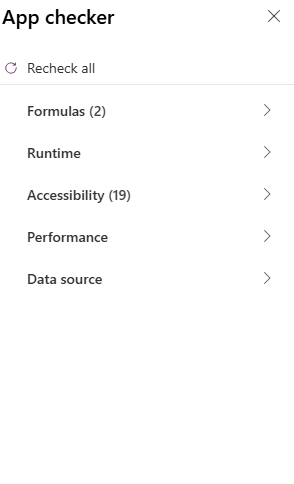
App Checker panel open in Power Apps Studio, showing the category list: Formulas, Runtime, Accessibility, Performance, and Data source

Introduction to Power Apps

Formulas tab

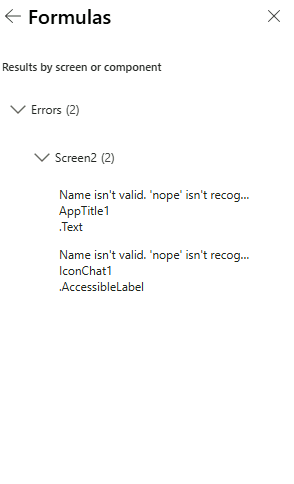
App Checker Formulas tab expanded, listing red formula errors grouped by screen, with matching red error markers on the canvas


  • Red errors, broken references, formulas that won't run
  • Yellow warnings, delegation, performance hints
  • Blue info, unused variables, stylistic suggestions
Introduction to Power Apps

Accessibility tab


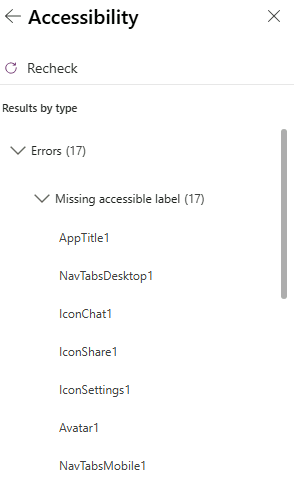
  • Screen readers need AccessibleLabel on inputs
  • Text needs enough contrast to read
  • Tab order should make sense

App Checker Accessibility tab showing findings: a missing accessible label and a missing tab stop, plus tips to revise screen names

Introduction to Power Apps

Fixing a finding

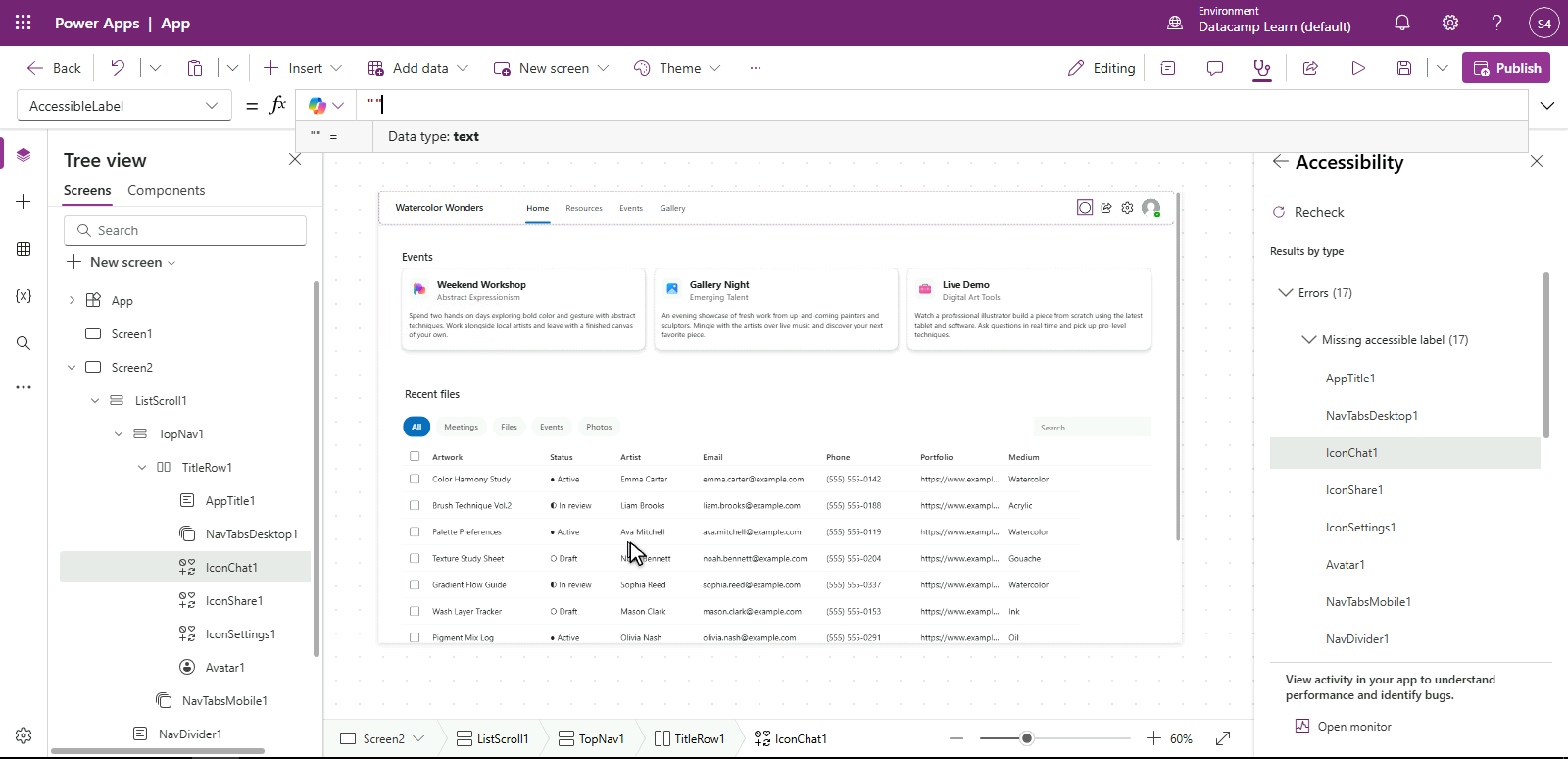
App Checker with the missing-accessible-label finding selected; Studio has jumped to the Gallery control, ready to set its AccessibleLabel in the formula bar


  • Click the finding → Studio jumps to it
  • Fix the property in the formula bar
  • Re-run App Checker to confirm
Introduction to Power Apps

What you'll build


  • Walk the app end-to-end in preview
  • Wire up the final edit-from-detail flow
  • Run App Checker and clear any warnings

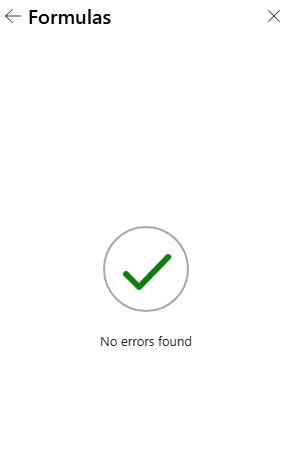
App Checker Formulas results showing a clean No errors found state

Introduction to Power Apps

Let's practice!

Introduction to Power Apps

Preparing Video For Download...