Displaying data with galleries

Introduction to Power Apps

Luise Freese

Azure & Power Platform Architect

Connect to SharePoint data


  • Data panel → + Add data → SharePoint
  • Pick your site, then your list
  • The list appears as a data source

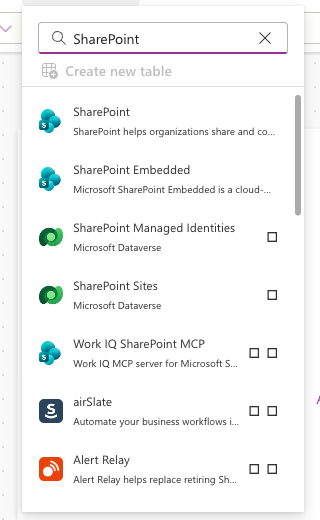
Power Apps data panel with SharePoint searched, showing the SharePoint connector as the top result

Introduction to Power Apps

Flexible-height galleries

$$

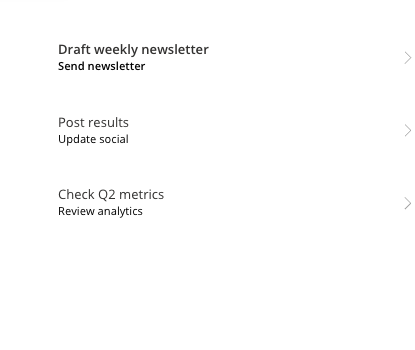
Power Apps gallery showing three task rows with title and subtitle, each row auto-sized to its content


  • Rows grow to fit their content
  • No truncated titles or status pills
  • The default for modern canvas apps
Introduction to Power Apps

Customizing the template


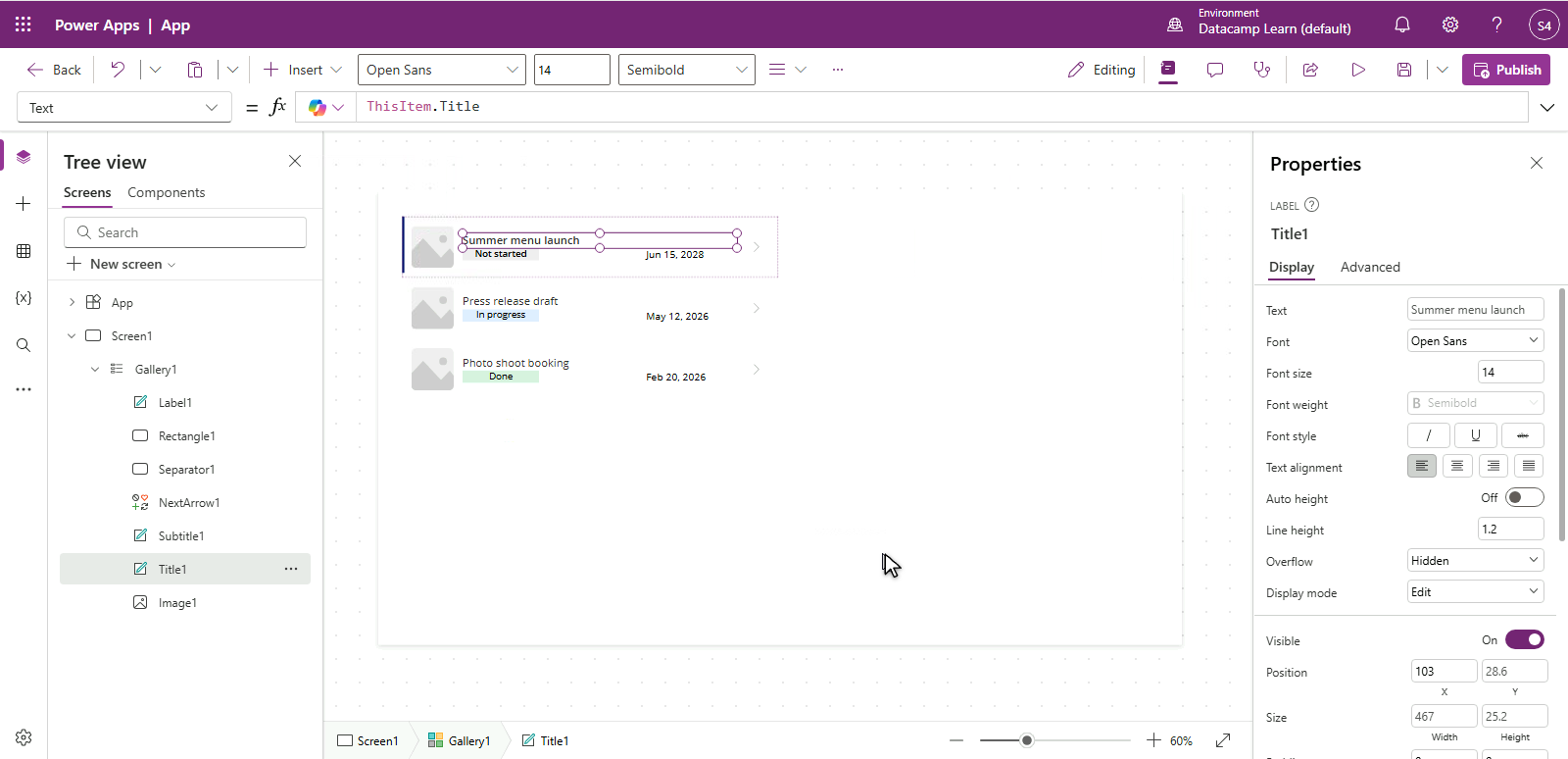
  • Select the template row (top card)
  • Each control in the template uses ThisItem.Column
  • Edit once, every row updates

Gallery template row selected with dashed outline, showing Title label with formula bar reading ThisItem.Title, a Status pill, and a date, with other gallery rows faded below

Introduction to Power Apps

Conditional formatting


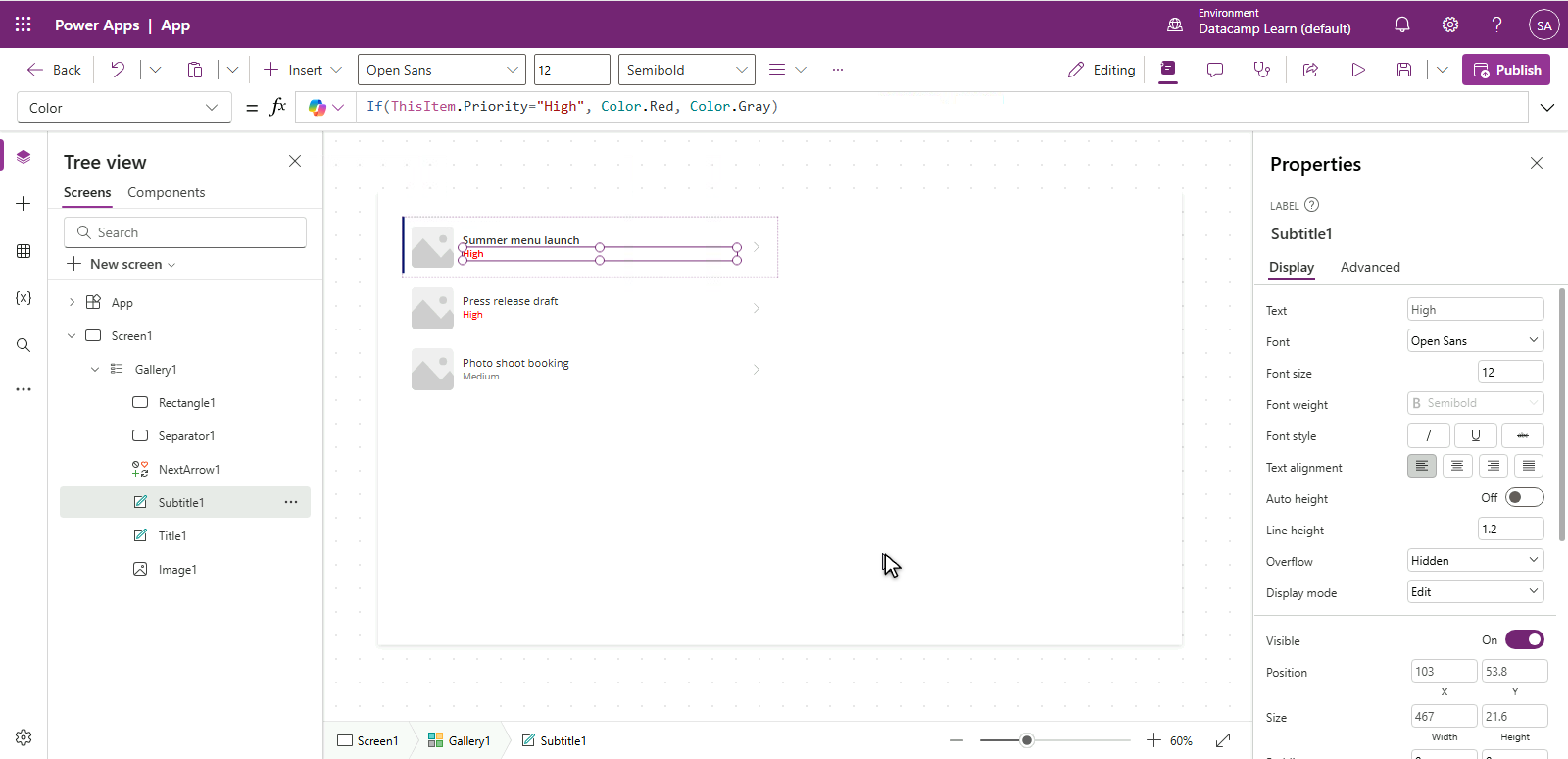
  • A control's color can depend on the row's data
  • Use If() in the Fill or Color property
  • For example:
    • If(ThisItem.Priority = "High", Color.Red, Color.Black)


Gallery showing four task rows with color-coded Priority pills: red for High, amber for Medium, and gray for Low

Introduction to Power Apps

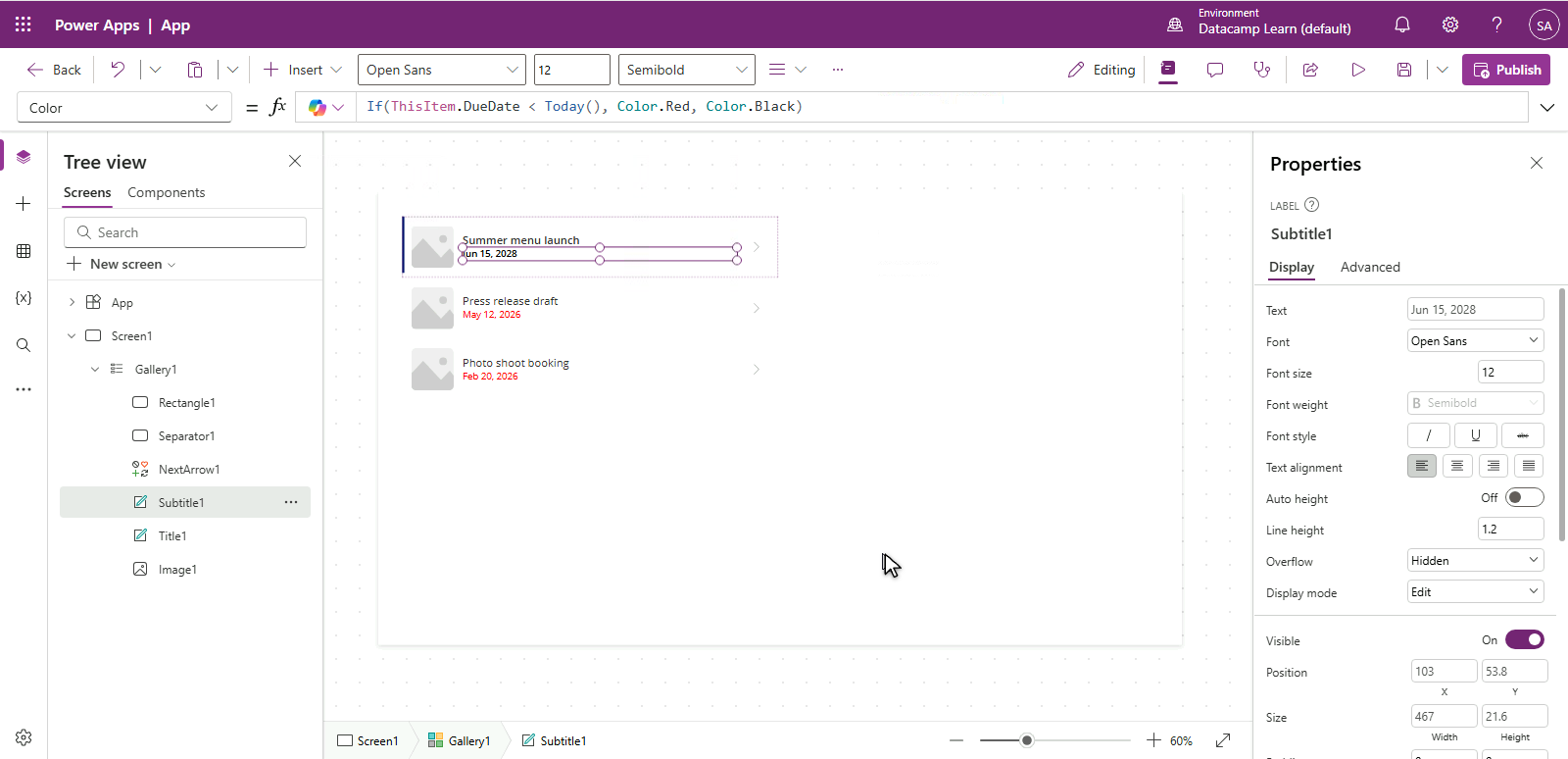
DueDate highlights


  • Format dates the same way
  • If(ThisItem.DueDate < Today(), Color.Red, Color.Black)
  • Overdue rows stand out instantly

Gallery showing four task rows with overdue DueDate values highlighted in red and on-time dates in black

Introduction to Power Apps

Empty states

App screen showing an empty state with a friendly coffee cup icon and a "No matching tasks" message centered on screen


  • Show a friendly message when the gallery is empty
  • Use Visible = IsEmpty(Gallery1.AllItems) on a placeholder Label
  • Works for empty data and zero filter results
Introduction to Power Apps

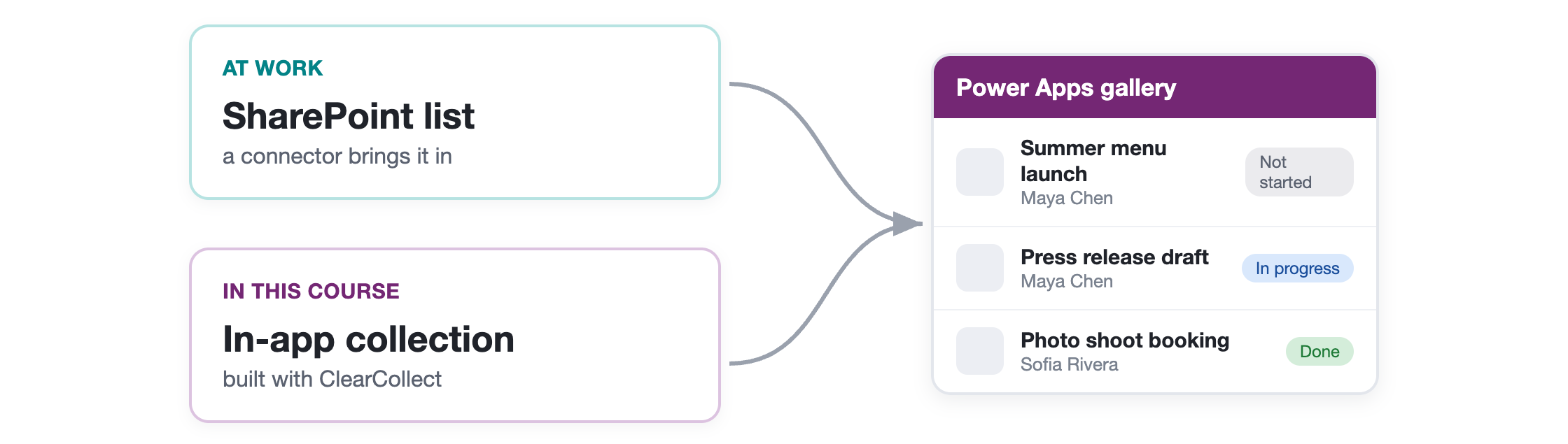
Excel now, SharePoint at work


  • In these exercises you'll use Excel
  • At your organisation you'd often use a SharePoint list
  • Every gallery concept works the same way

Two paths, SharePoint and Excel, both leading to the same Power Apps gallery

Introduction to Power Apps

Let's practice!

Introduction to Power Apps

Preparing Video For Download...