Displaying data with galleries

Introduction to Power Apps

Luise Freese

Azure & Power Platform Architect

Adding a data source with SharePoint
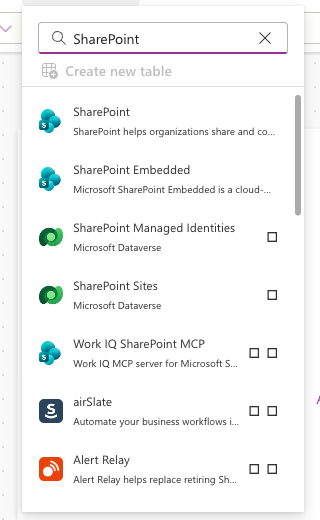
 

  • Data panel → + Add data → SharePoint
  • Pick your site, then your list
  • The list appears as a data source

Power Apps data panel with SharePoint searched, showing the SharePoint connector as the top result

Introduction to Power Apps

Flexible-height galleries

$$

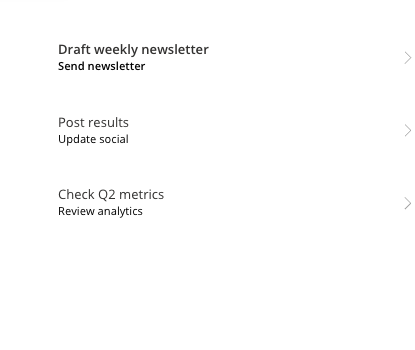
Power Apps gallery showing three task rows with title and subtitle, each row auto-sized to its content


  • Rows grow to fit their content
  • No truncated titles or status pills
  • The default for modern canvas apps
Introduction to Power Apps

Customizing the template


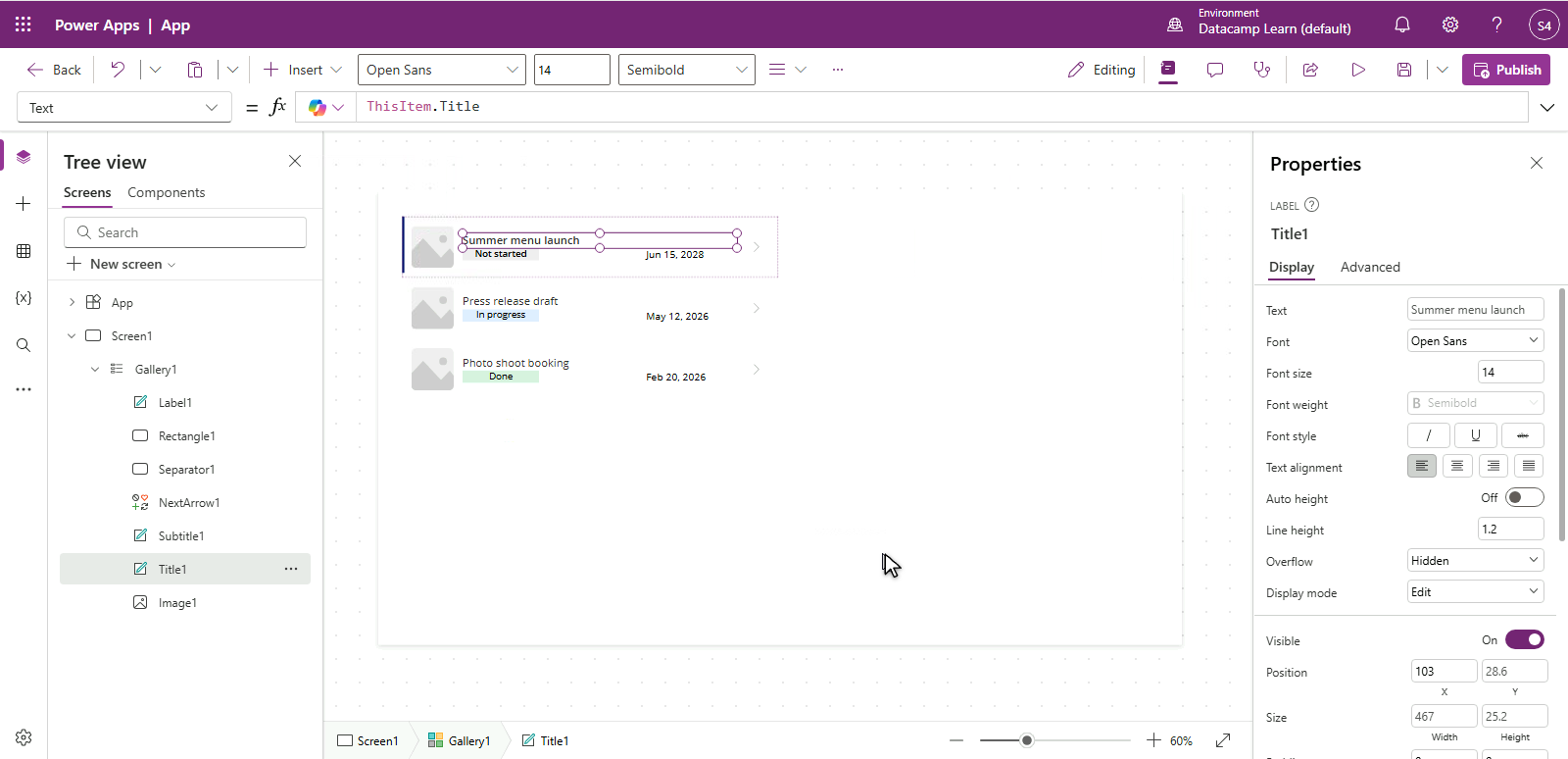
  • Select the template row (top card)
  • Each control in the template uses ThisItem.Column
  • Edit once, every row updates

$$

Power Apps gallery in template-edit mode with the title label selected and the formula bar reading ThisItem.Title, so every row shows its own task title

Introduction to Power Apps

Reading a value with Text()


Text(ThisItem.DueDate, "[$-en-US]mmm d")
  • Type . after an object to see its properties and columns
  • Values have types: Text, Number, Boolean, Date/Time, Record, Table
  • ThisItem.DueDate is a Date, so Text() formats it as Jun 15
  • [$-en-US] sets the language, mmm d sets the pattern
Introduction to Power Apps

Conditional formatting


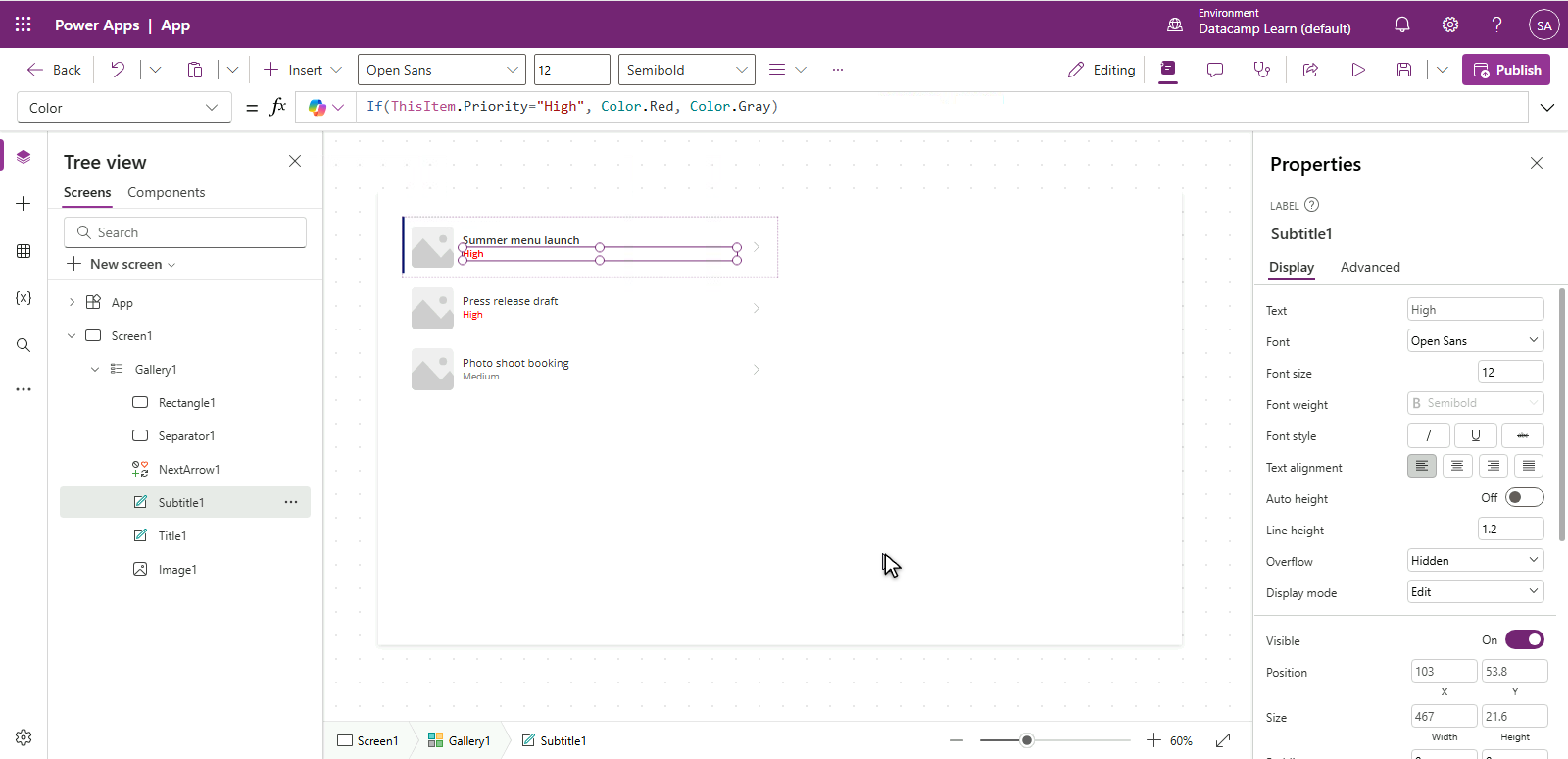
  • A control's color can depend on the row's data
  • Use If() in a label's Color property
  • For example:

If(ThisItem.Priority = "High", Color.Red, Color.Gray)


Power Apps gallery with the Priority label colored by If(ThisItem.Priority = High, Red, Gray), showing High in red on two rows and Medium in gray

Introduction to Power Apps

DueDate highlights


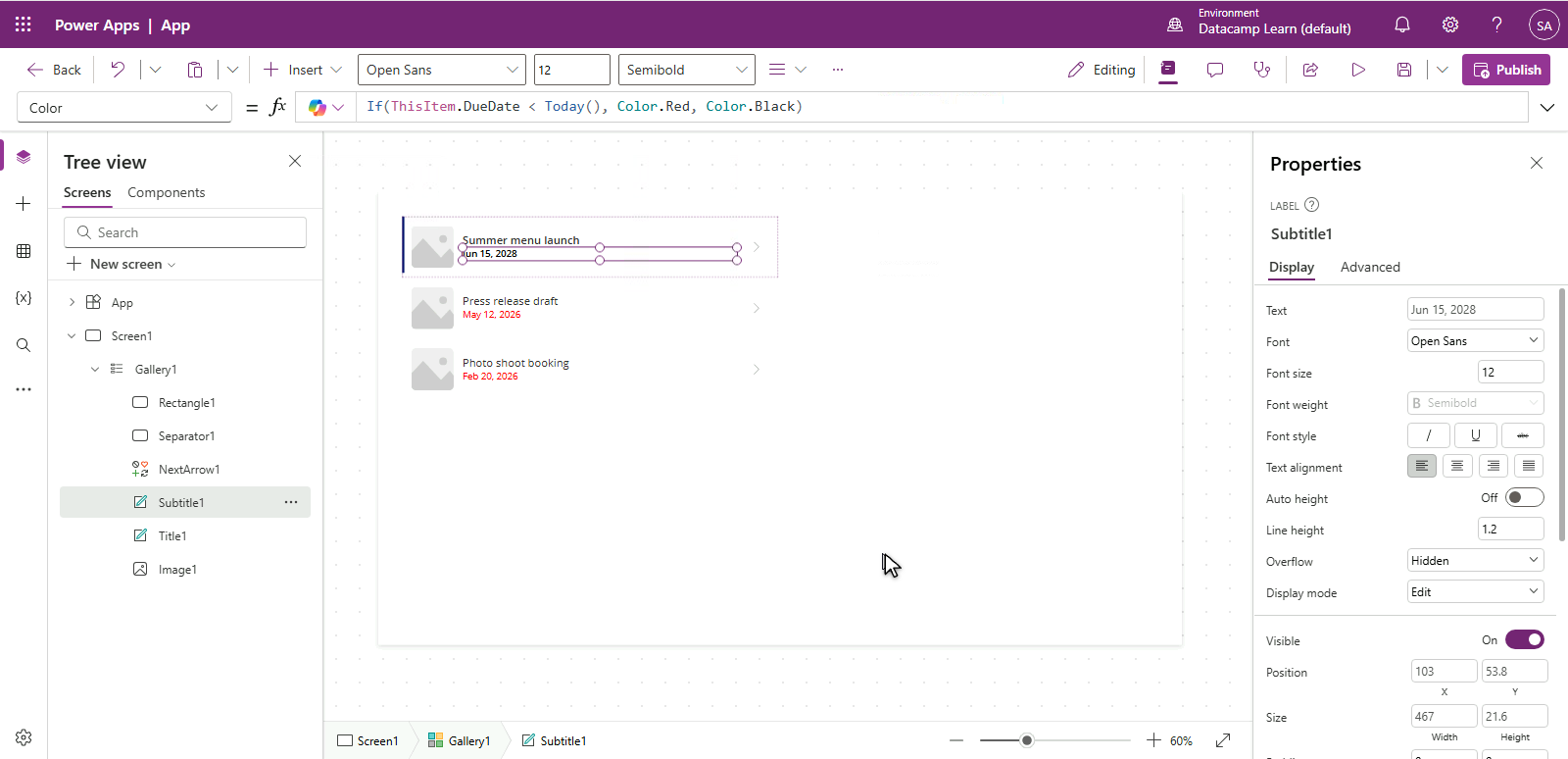
  • Format dates the same way:

If(ThisItem.DueDate < Today(), Color.Red, Color.Black)

  • Overdue rows stand out instantly

Power Apps gallery with the due-date label colored by If(ThisItem.DueDate < Today(), Red, Black), showing past dates in red and a future date in black

Introduction to Power Apps

Empty states

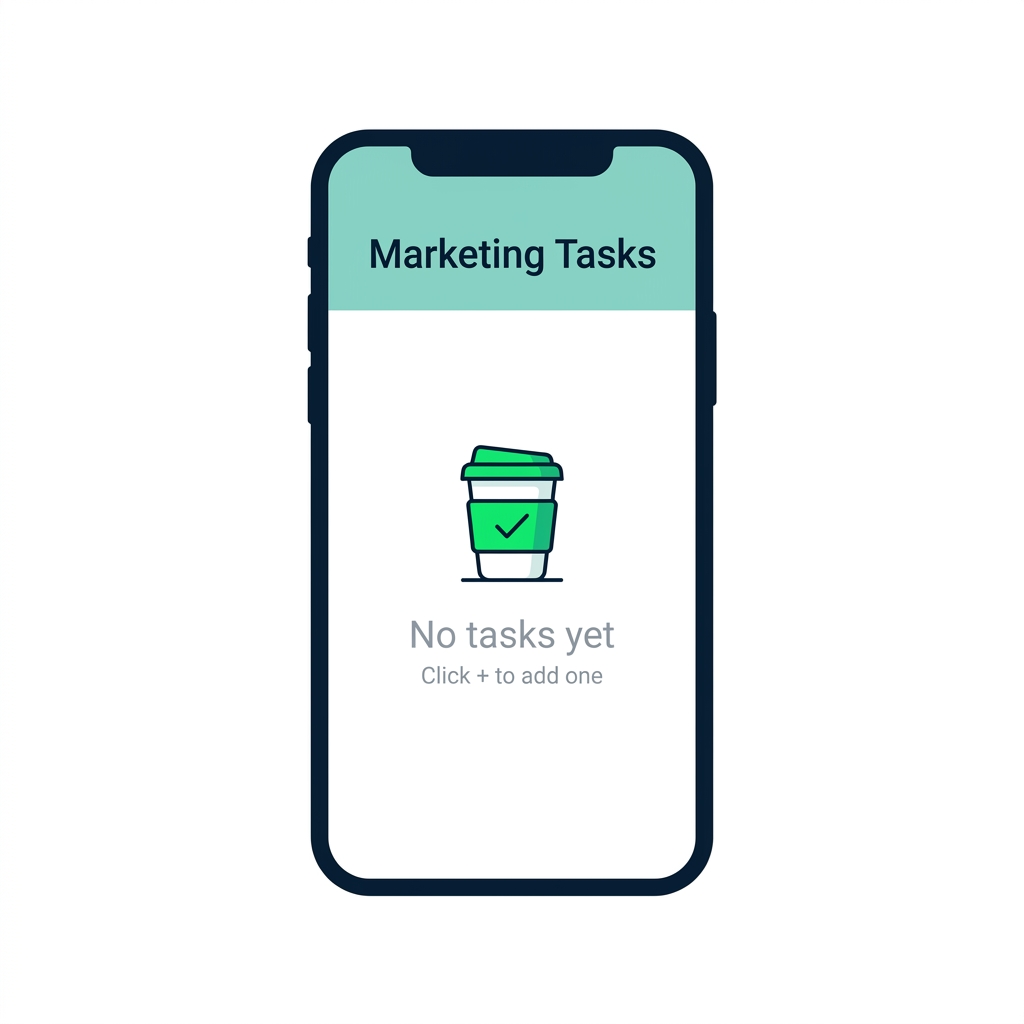
App screen showing an empty state with a friendly coffee cup icon and a "No matching tasks" message centered on screen


  • Show a friendly message when the gallery is empty
  • Use Visible = IsEmpty(Gallery1.AllItems) on a placeholder Label
  • Works for empty data and zero filter results
Introduction to Power Apps

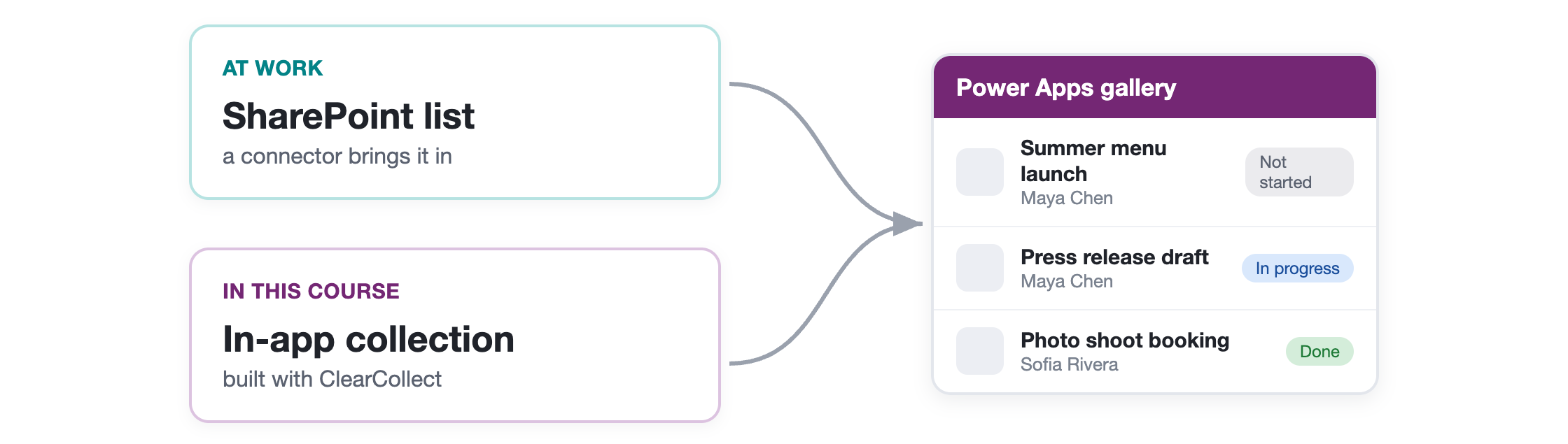
A collection now, a connector at work


  • In these exercises your rows live in a collection
  • At your organisation you'd point at a SharePoint list or similar
  • Every gallery concept works the same way

$$

$$

Diagram: a SharePoint list and an in-app collection both feeding one Power Apps gallery, showing the gallery works the same regardless of source

Introduction to Power Apps

Let's practice!

Introduction to Power Apps

Preparing Video For Download...