Your first controls

Introduction to Power Apps

Luise Freese

Azure & Power Platform Architect

Controls are building blocks
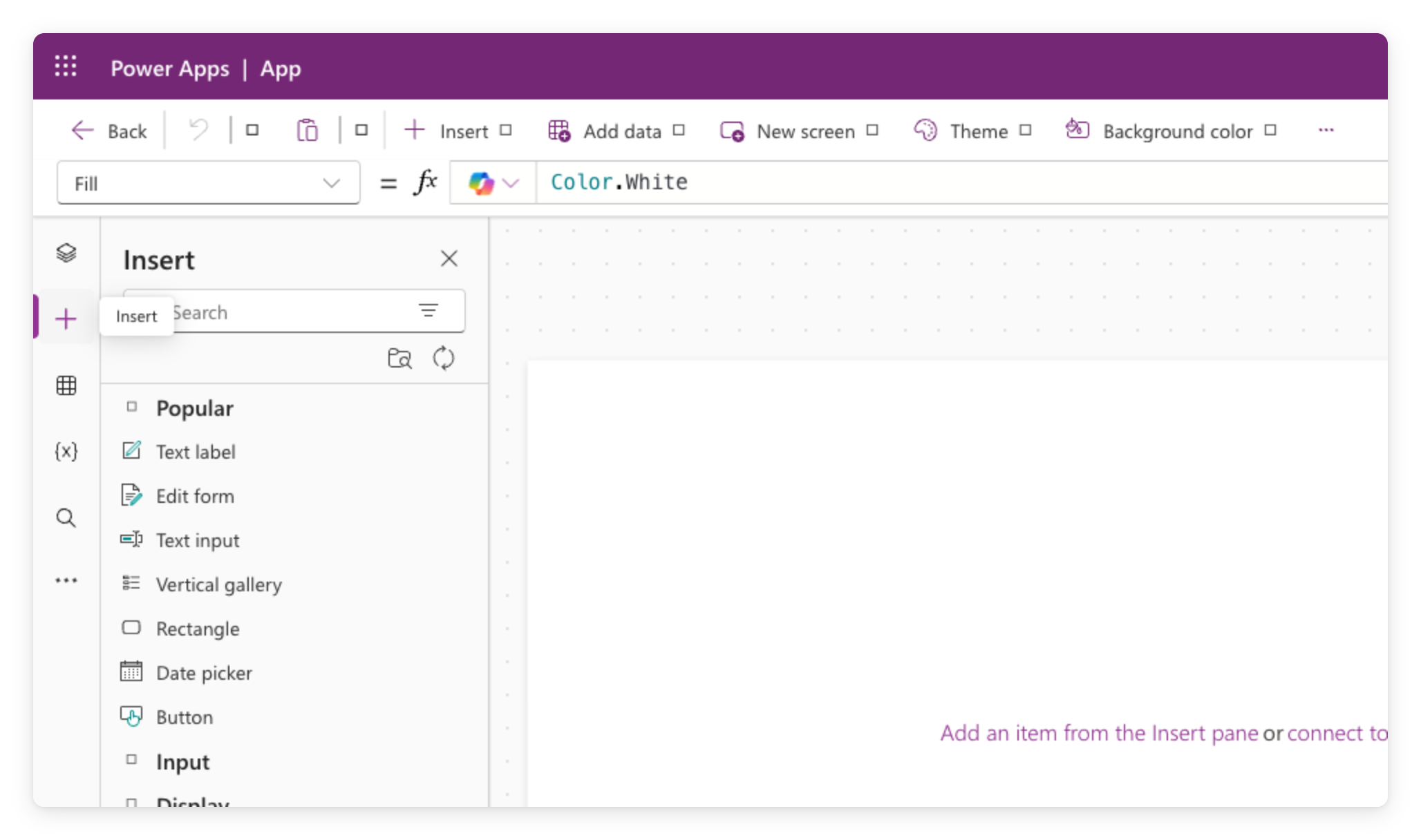
 

  • Controls are the building blocks of every canvas app
  • Each one does one thing: display text, accept input, trigger an action
  • You configure them through the formula bar at the top of the editor


Power Apps Studio Insert panel open from the toolbar, listing control categories such as Text label, Button, and Gallery

Introduction to Power Apps

Reading from a text input


  • A Text Input holds whatever the user types
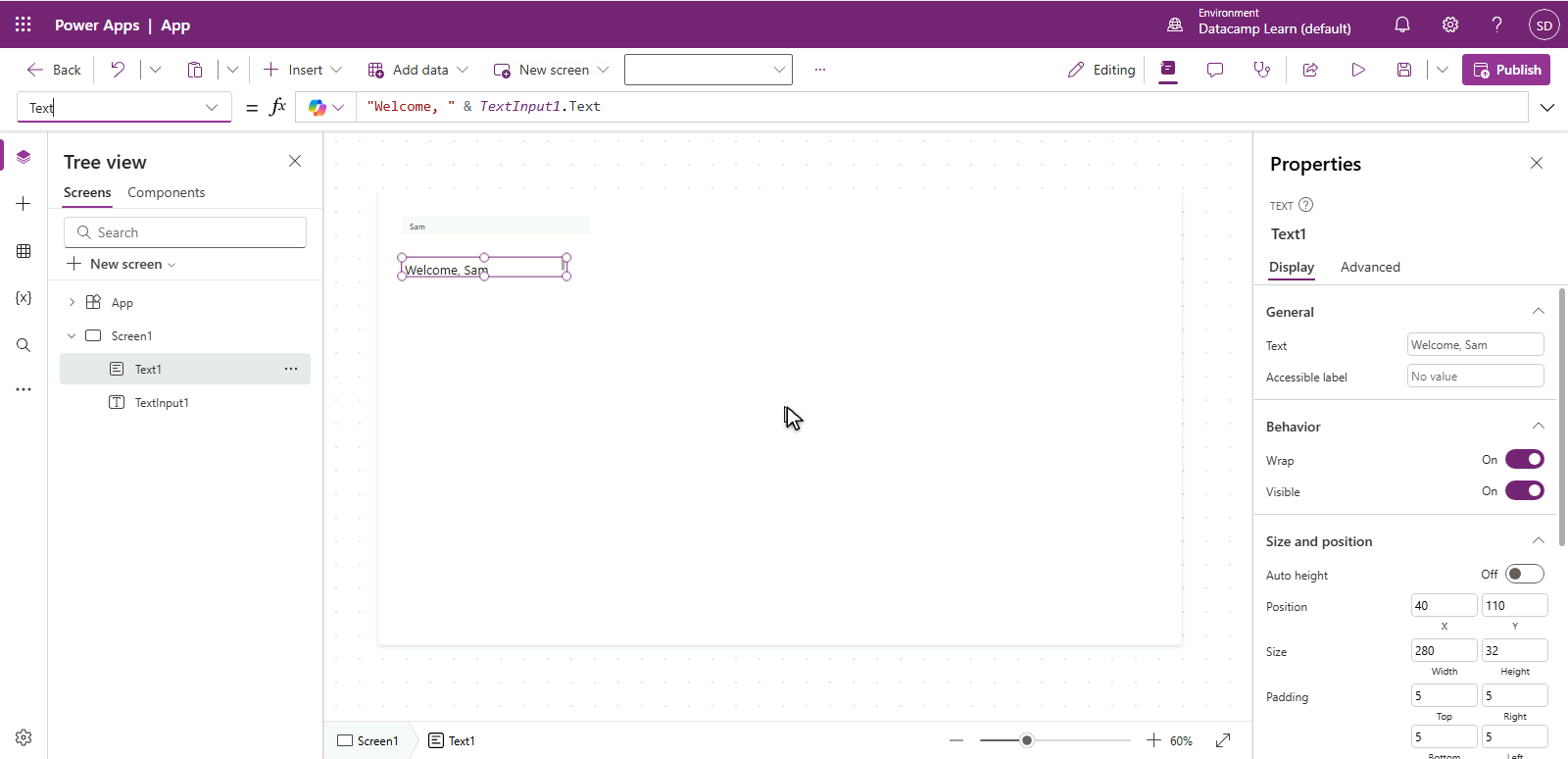
  • Its current value lives in TextInput1.Text
  • Reference that anywhere, including a Label's Text


Power Apps Studio with Label10 selected, formula bar showing Text = "Welcome, " & TextInput2.Text with syntax highlighting, demonstrating how a label references a text input value

Introduction to Power Apps

Variables with Set()


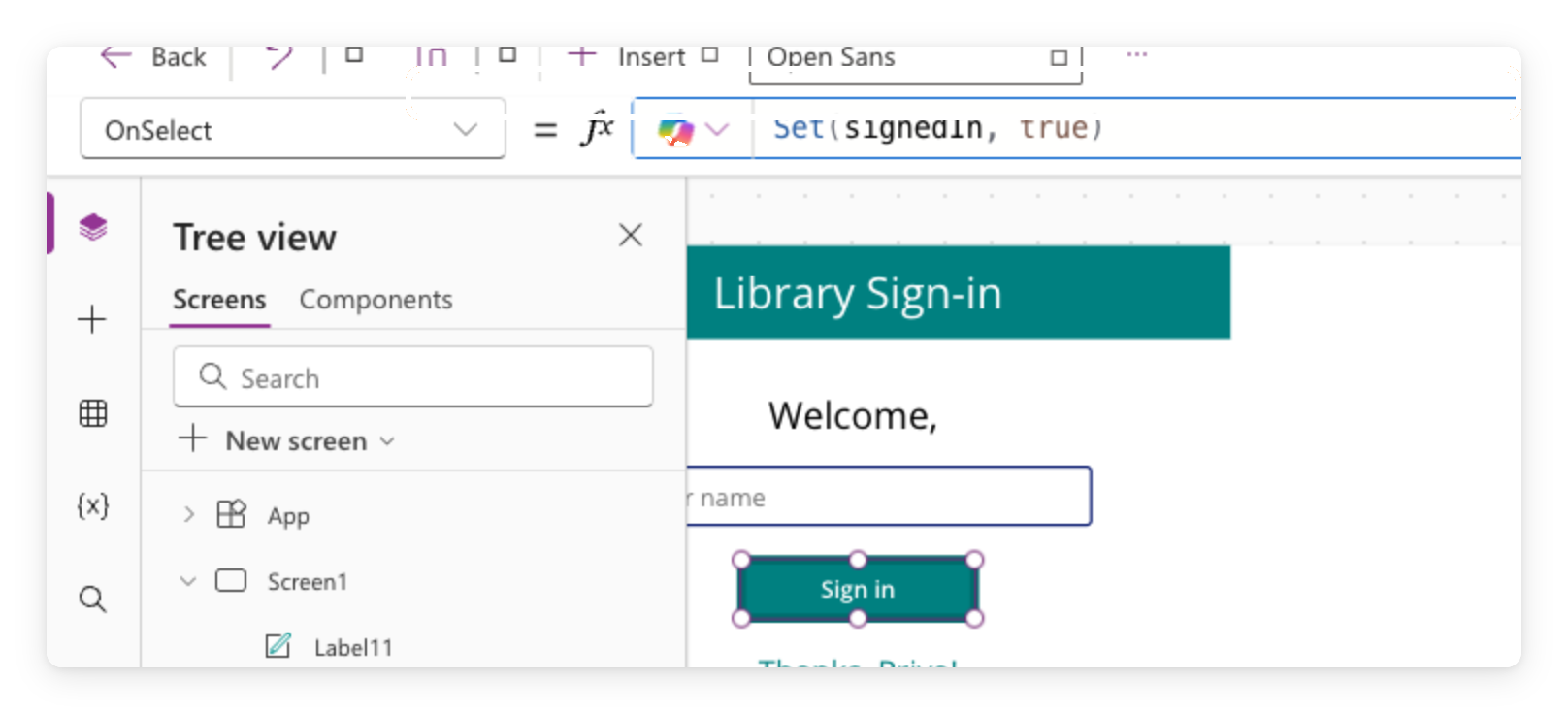
Power Apps Studio with Button2 selected, formula bar showing OnSelect = Set(isSignedIn, true), and the Sign in button highlighted on the canvas


  • A variable holds a value across actions
  • Set(isSignedIn, true) creates one named isSignedIn
  • We'll meet the same Set() again in Chapter 3
Introduction to Power Apps

Conditional display with If()


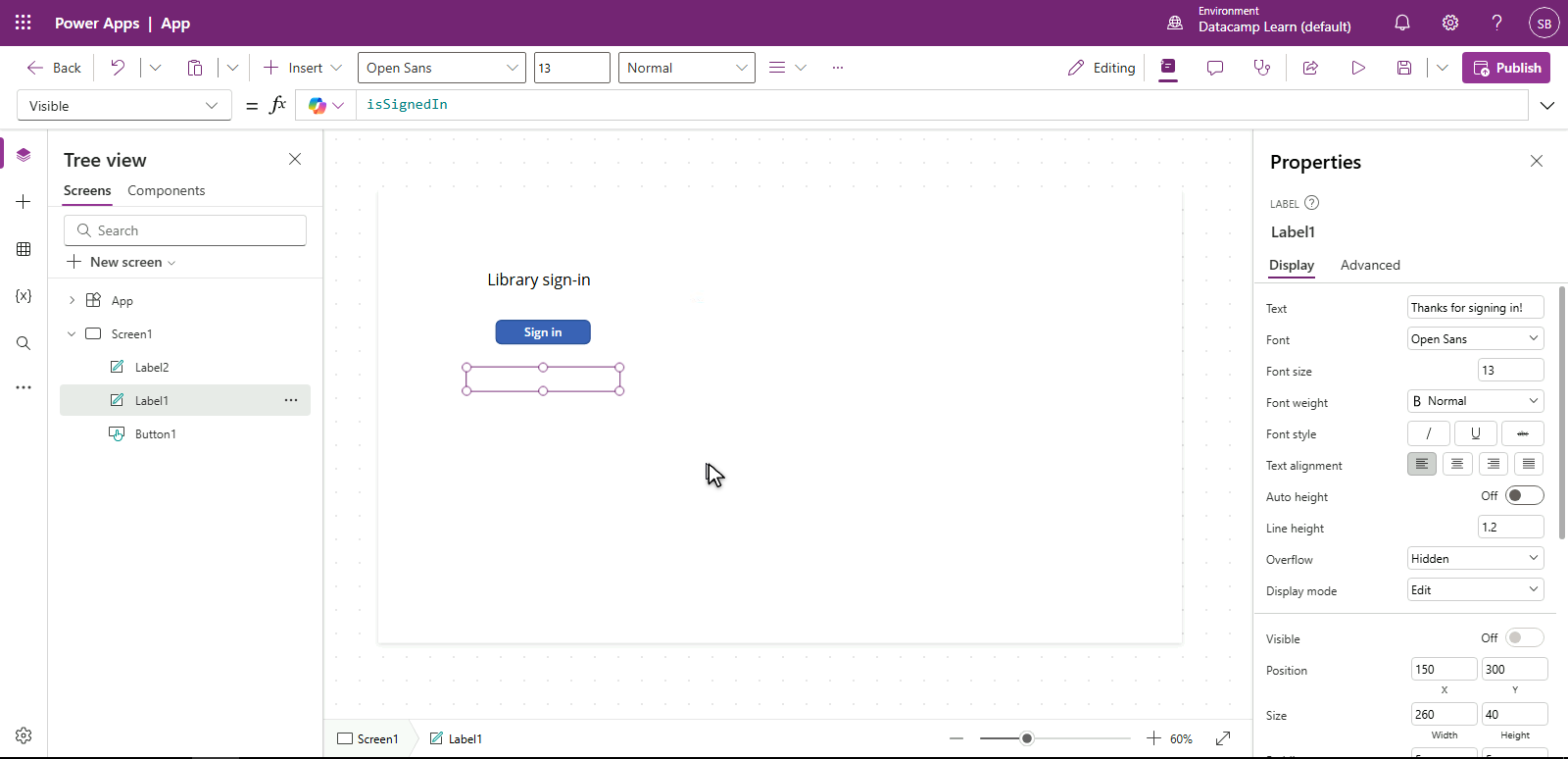
  • Visible = isSignedIn shows the Label only when true
  • Press the button → variable updates → Label appears
  • If(condition, value-if-true, value-if-false) for two-way choices

$$

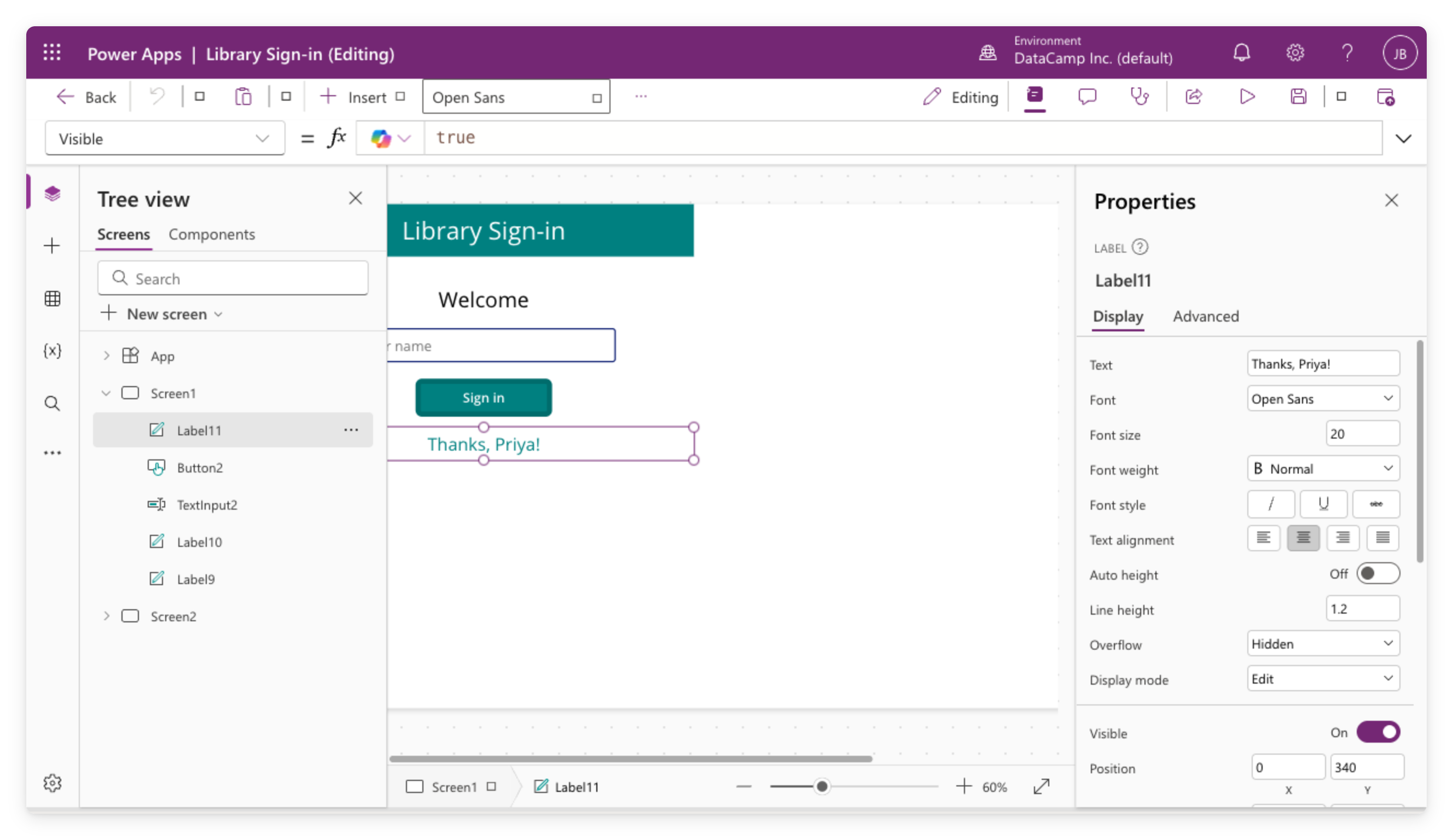
Power Apps Studio with Label11 selected, formula bar showing Visible = isSignedIn, the label hidden on the canvas because isSignedIn is false

Introduction to Power Apps

Themes beat one-by-one styling


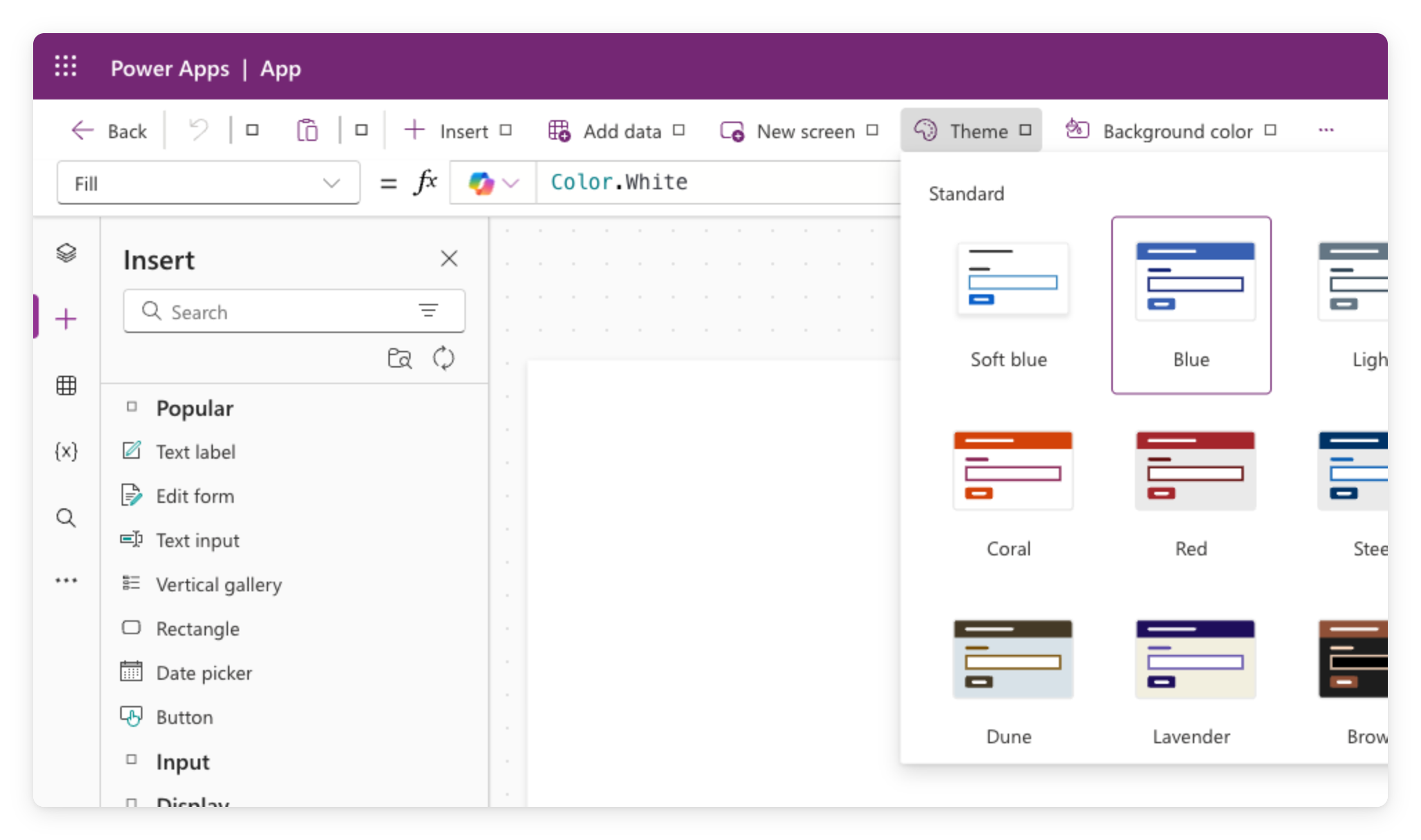
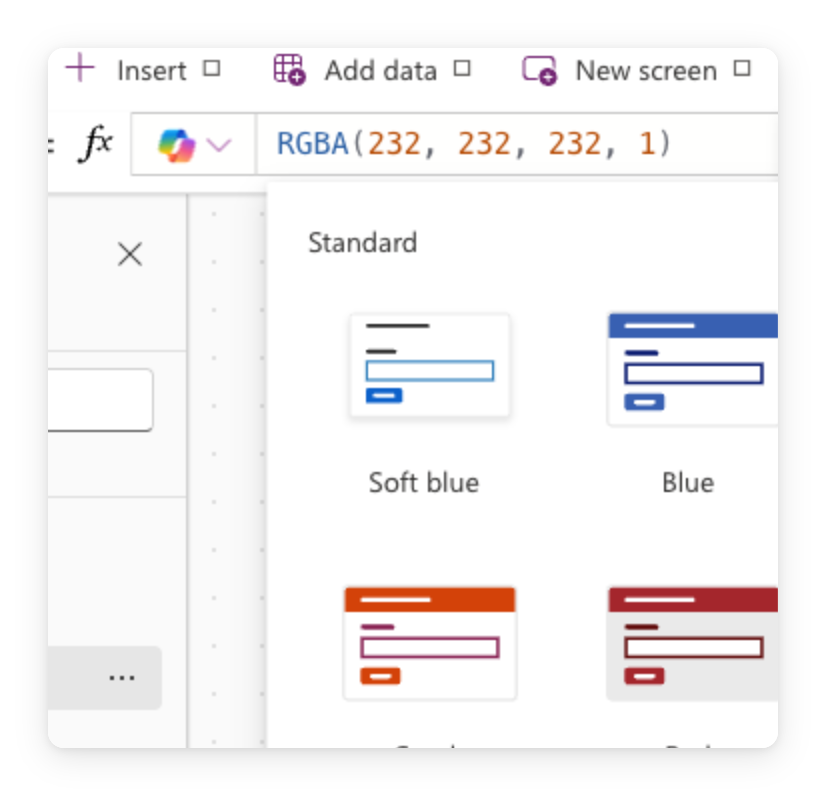
Power Apps Studio Theme picker showing a grid of color theme previews to apply across the whole app


  • App.Theme sets the whole app at once
  • Pick a theme; all modern controls inherit it
  • One change vs editing each control's Fill
Introduction to Power Apps

Overriding one accent


  • Want one control to stand out?
  • Select it, set its Fill directly: RGBA(...) or Color.Teal
  • Use sparingly, it overrides the theme

Real screenshot of Power Apps canvas with a Steel theme applied and one accent override

Introduction to Power Apps

Summary

The Library Sign-in canvas app open in Power Apps Studio, showing the tree view, canvas with controls, formula bar, and properties panel

  • A Text Input feeds other controls live via the formula bar
  • Set() stores a value, If() shows or hides based on it
  • Themes style the whole app at once; override one control's Fill for an accent
Introduction to Power Apps

Let's practice!

Introduction to Power Apps

Preparing Video For Download...