Congratulations

Introduction to Power Apps

Luise Freese

Azure & Power Platform Architect

Chapter 1: your first canvas app
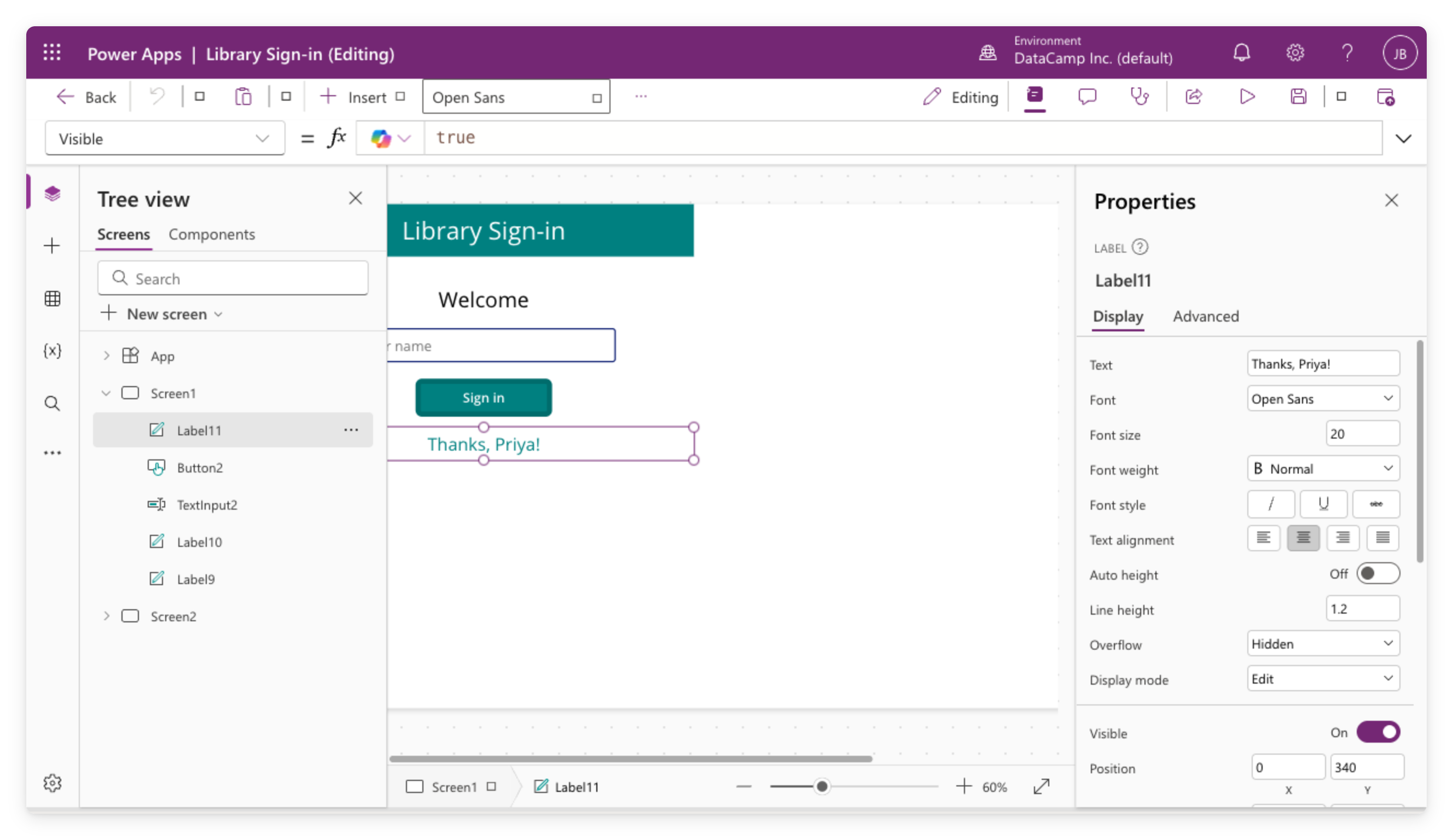
 

Real screenshot of the Library Sign-in canvas app open in Power Apps Studio


  • Created a canvas app from a blank screen
  • Added controls: labels, buttons, text inputs
  • Used Set() and If() for logic in the formula bar
  • Applied a theme to style the whole app at once
Introduction to Power Apps

Chapter 2: real data and galleries


  • Connected to a data source
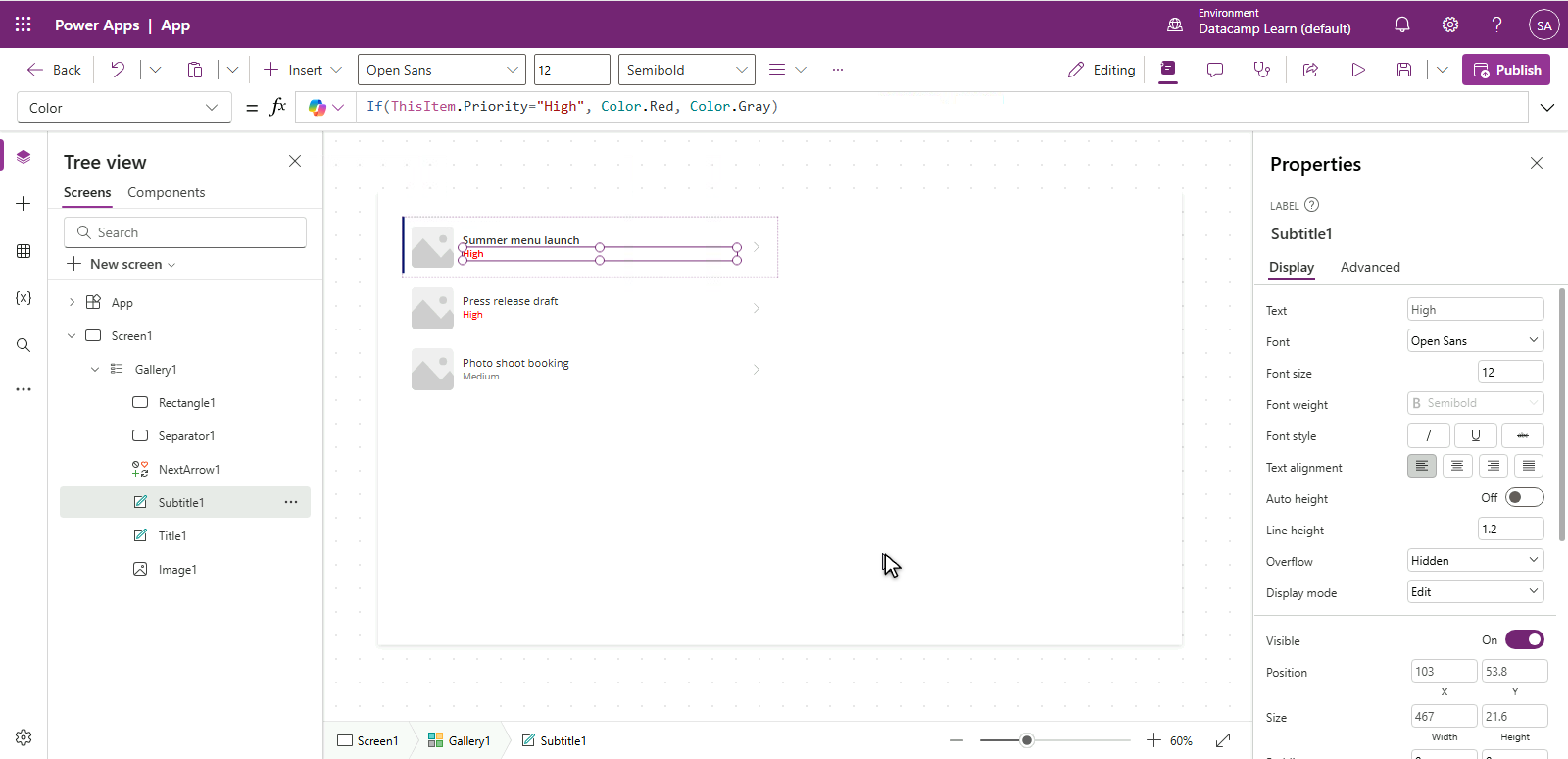
  • Displayed records in a gallery with templates
  • Added Filter() and StartsWith() for finding records
  • Learned about delegation and its limits


Illustration recap of four chapter milestones: welcome screen, gallery, detail form, and responsive multi-device layout.

Introduction to Power Apps

Chapter 3: multi-screen workflow


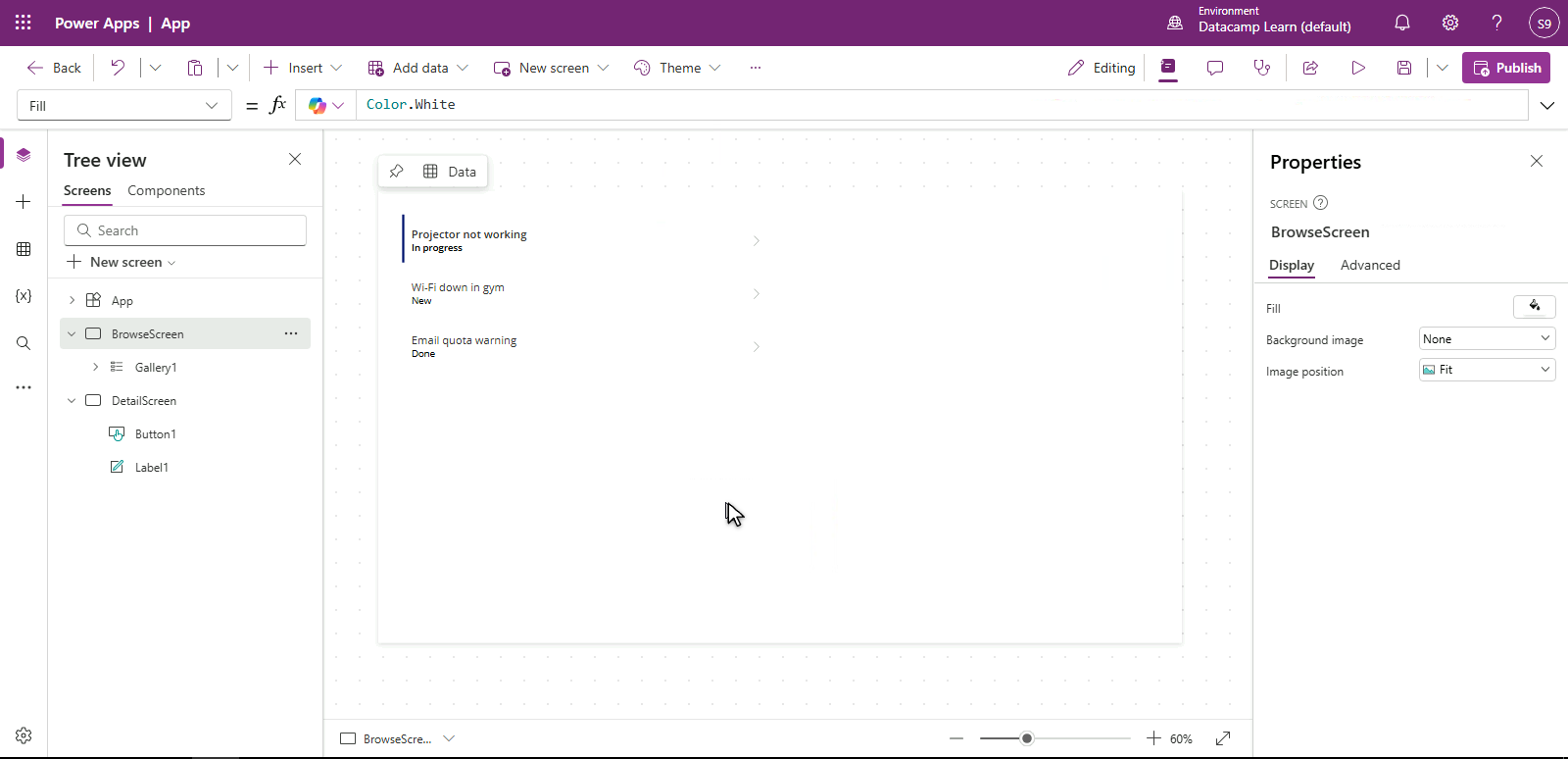
Real screenshot of the Bramblewood app in Power Apps Studio showing a gallery list screen alongside a detail/edit form screen


  • Added navigation between screens
  • Built an Edit form with the full create/edit lifecycle
  • Added validation that refuses bad input
  • Ran App Checker before every publish
Introduction to Power Apps

Chapter 4: responsive and shipped


  • Wrapped controls in Layout containers
  • Made the app responsive across phone, tablet, laptop
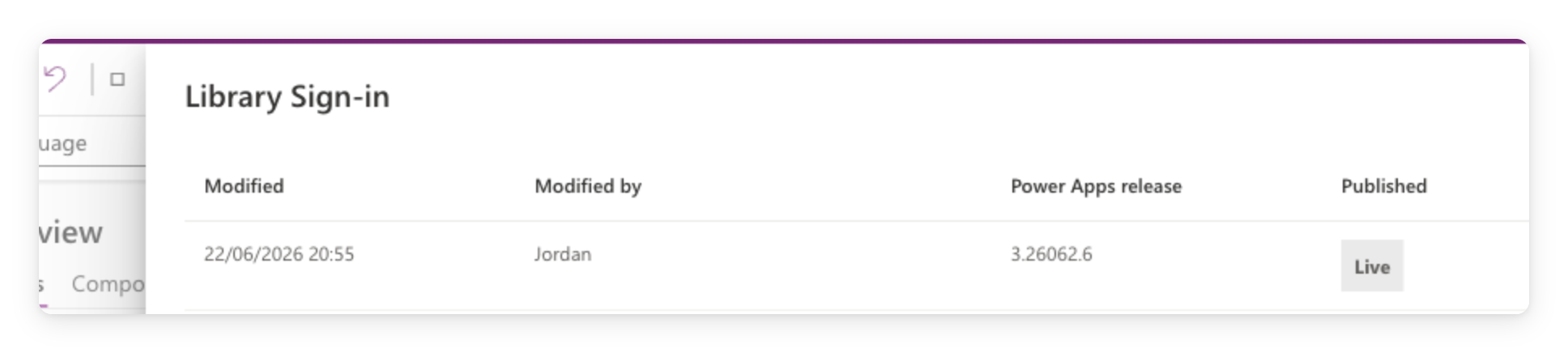
  • Published and managed version history
  • Shared with the right permission tiers


Illustration of an app on phone, tablet, and laptop, showing the gallery layout adapting to each screen size.

Introduction to Power Apps

What's next?

Illustration of a person climbing steps with a laptop, surrounded by certification, achievement, and rocket icons.


  • Microsoft certifications align with what you've learned here
  • Keep an eye out for more DataCamp courses on Power Platform
  • Your real next step → build one small app for your team
Introduction to Power Apps

Thank you!

Introduction to Power Apps

Preparing Video For Download...