Dynamic content and expressions

Introduction to Power Automate

Anushika Agarwal

Cloud Data Engineer

What is dynamic content?
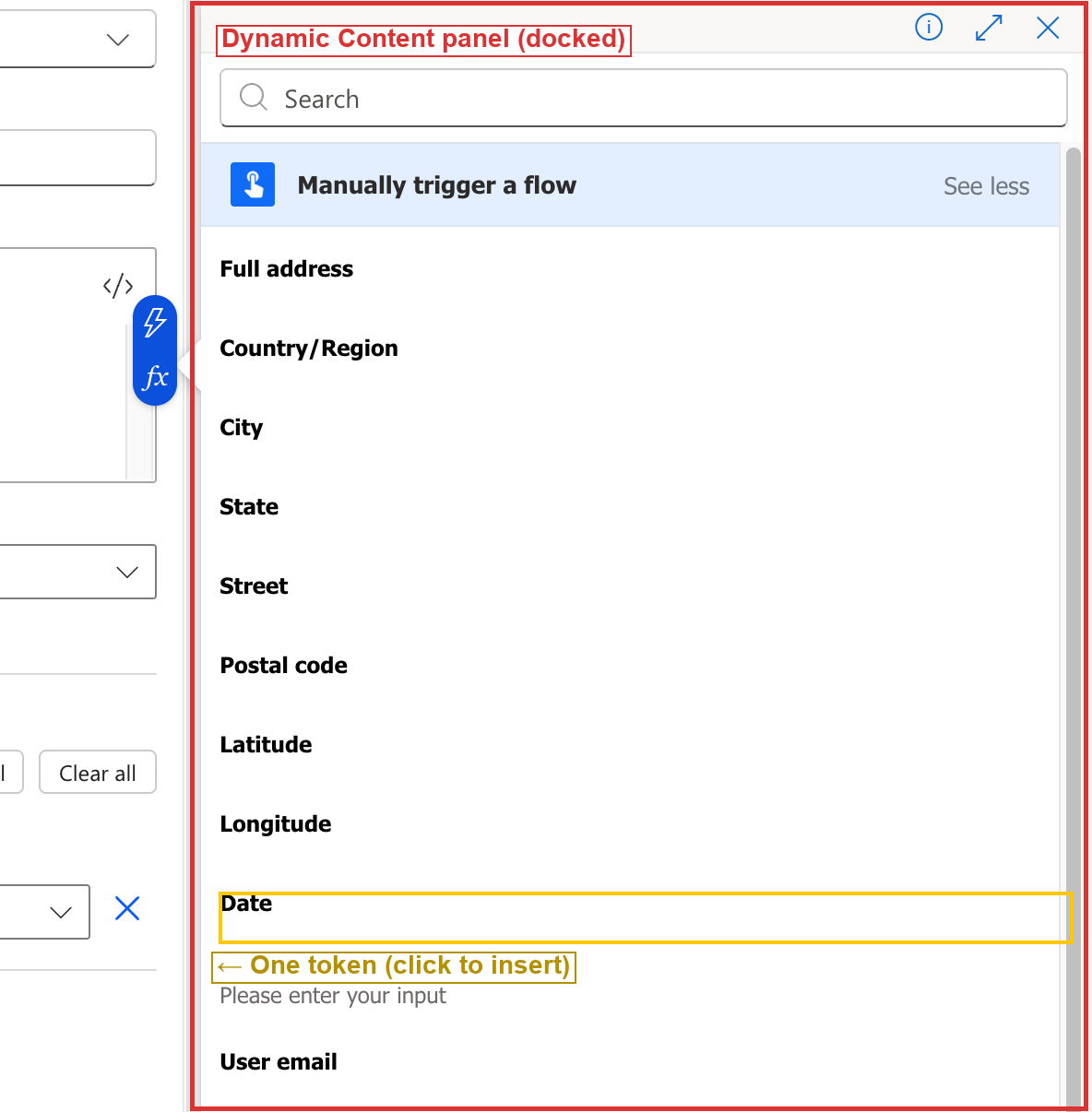
 

Power Automate Send an email V2 action's open Subject field on the left with fx and lightning-bolt pills visible, and the Dynamic Content panel docked to its right inside a red highlight box labelled Dynamic Content panel docked, with the Manually trigger a flow header and a scrollable list of tokens including Full address, Country/Region, City, State, Street, Postal code, Latitude, Longitude, Date, Text, and User email, and a yellow highlight box around the Date token row labelled One token click to insert


  • Every trigger and action produces outputs called tokens
  • Tokens appear in the Dynamic Content panel when you click into any field
  • Insert with a click, no formula needed
  • A token always carries the live value from that step
Introduction to Power Automate

Ways to open the panel

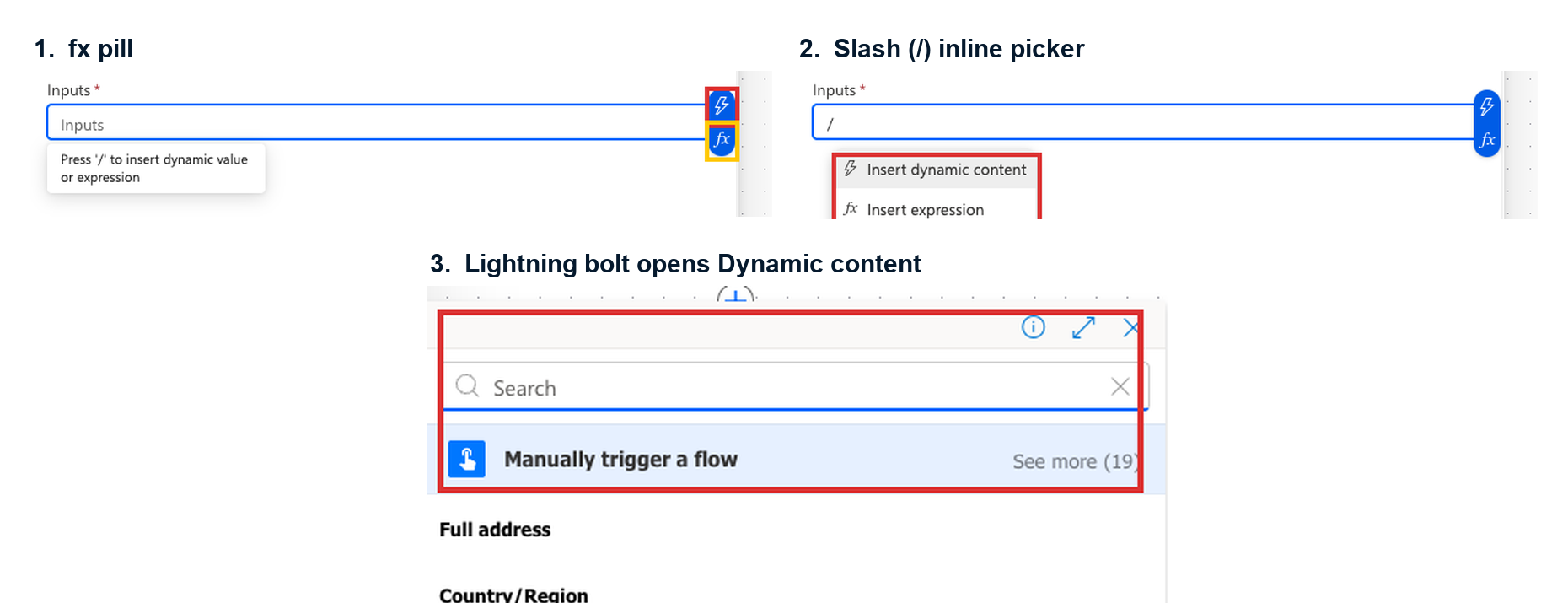
Three real Power Automate captures stacked together with red highlight boxes around each affordance: panel 1 fx pill, showing the open Inputs field with a blue lightning-bolt icon stacked above a blue fx pill on the right and a Press slash to insert dynamic value tooltip below; panel 2 Slash inline picker, showing the same field with a slash typed and a small dropdown reading Insert dynamic content over Insert expression; panel 3 Lightning bolt opens Dynamic content, showing the docked panel with a Search box, Manually trigger a flow header highlighted in red, and a list of trigger output tokens

  • fx pill / / slash / lightning-bolt open the same picker beside any field
Introduction to Power Automate

And the gear icon route

$$

Gear icon next to a field label in Power Automate: the To field of Send an email V2 with a red-boxed gear icon at the top right of the label and a yellow-boxed dropdown menu reading Use dynamic content and Show guests


  • Gear icon next to a label opens a menu with Use dynamic content
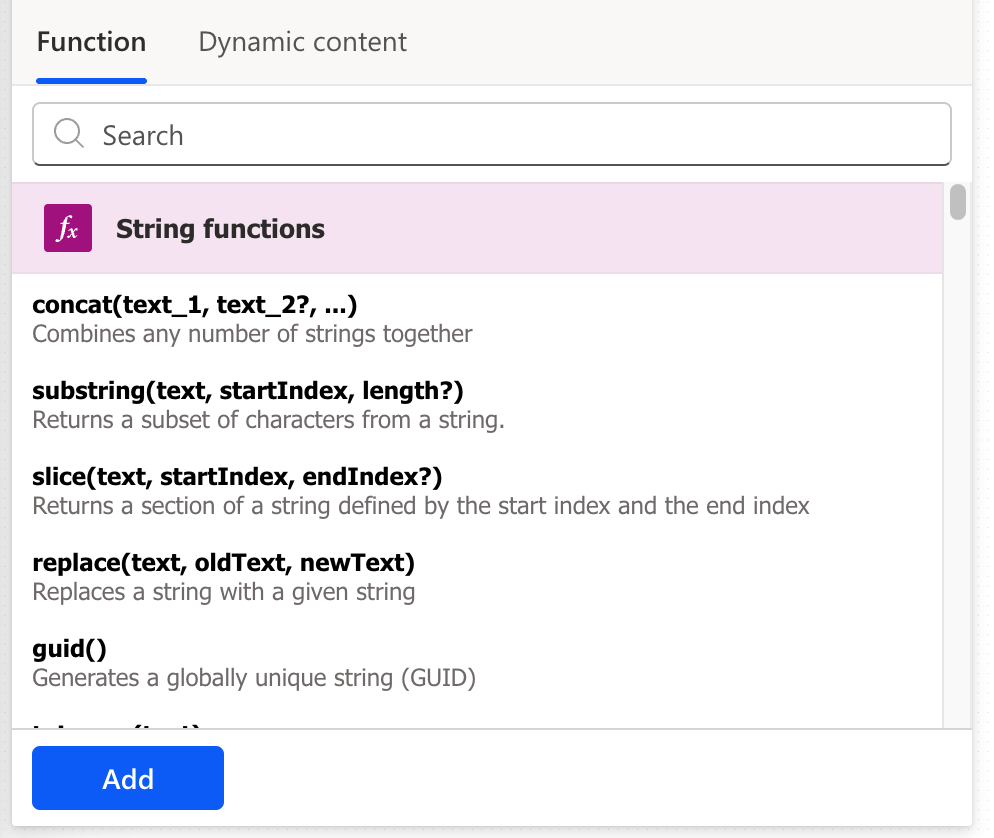
  • The picker has two tabs: Dynamic content for tokens, Function for expressions
Introduction to Power Automate

What are expressions?


  • When you need to transform, combine, or format data → write an expression
  • The fx button opens the Expression Editor
  • Two rules to remember:
    • Function names are not case-sensitive
    • Always click Add to save. There's no autosave


Power Automate Expression Editor's Function tab showing the Function and Dynamic content tab switcher at the top, the Search bar, the String functions category in the middle with concat, substring, slice, replace, and guid, and the Add button at the bottom-left

Introduction to Power Automate

Dynamic content or expression?


  • Just need the value as-isDynamic content
    • e.g. sender's email from the trigger, dropped into a reply To field
  • Need to format, combine, or transform it → Expression
    • e.g. formatDateTime(utcNow(), 'dd MMMM yyyy') for a dynamic date
  • Many flows use both
    • e.g. concat('Dear ', triggerOutputs()?['name'], ',') (dynamic token wrapped in an expression)
Introduction to Power Automate

Function categories


Category What it does Key functions
String Manipulate and combine text concat(), toLower(), trim()
Date & Time Work with timestamps and time zones utcNow(), formatDateTime()
Logical Compare values and evaluate conditions if(), equals(), greater()
Manipulation Handle missing or null data coalesce()


Browse all categories by scrolling the editor, or search by name.

Introduction to Power Automate

Building step by step with Compose


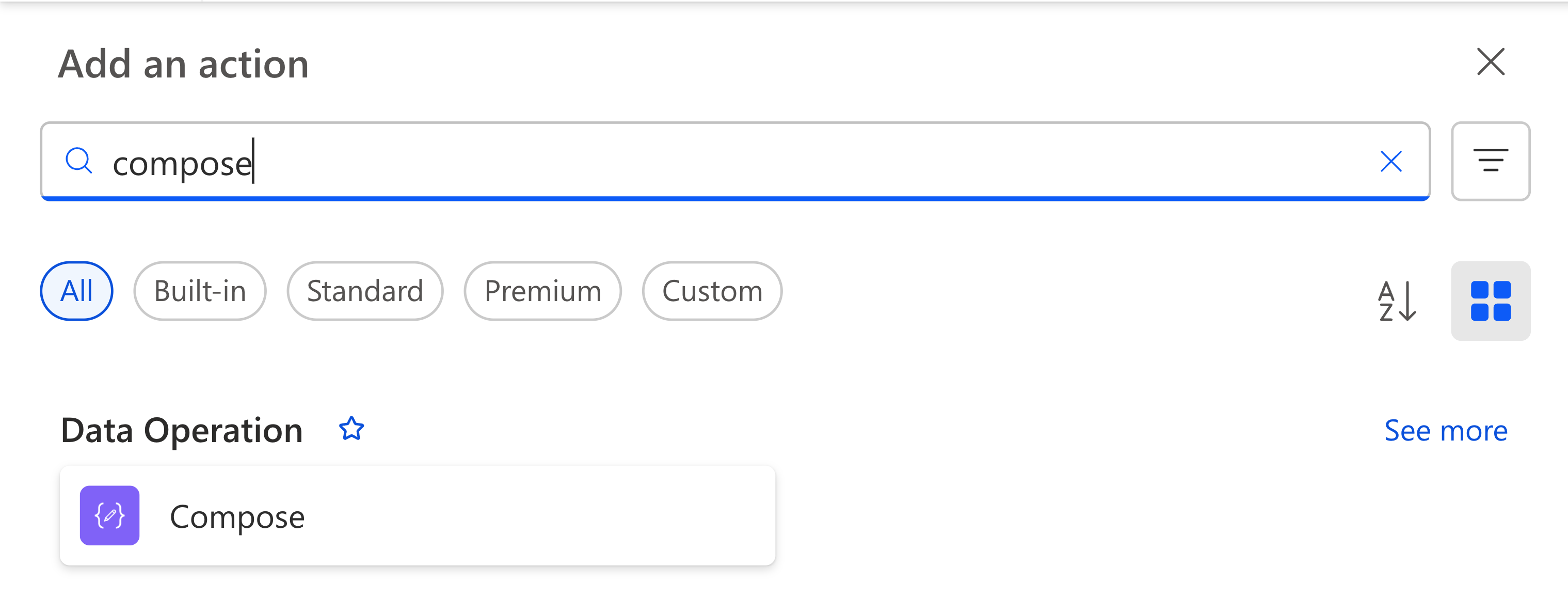
Power Automate Add an action picker open with the word compose typed into the search field and the Data Operation Compose action card showing as the matched result below, with category filter chips for All / Built-in / Standard / Premium / Custom across the top


  • Don't write a complex expression in one go: build piece by piece
  • Use Compose to test each function on its own
  • Check the output in run history after each step
  • Once each piece works, combine into the final expression
  • Remove the test Compose actions when done
Introduction to Power Automate

Let's practice!

Introduction to Power Automate

Preparing Video For Download...