Congratulations!

Introduction to Power Automate

Anushika Agarwal

Cloud Data Engineer

Chapter 1: Getting Started

nanobanana: half: Clean modern illustration on white background of a person at a desk discovering Power Automate for the first time, with a glowing flow diagram appearing on their screen and the Power Platform icons floating around them

You can now:

  • Place Power Automate inside the Power Platform family
  • Identify the five flow types: Instant, Automated, Scheduled, plus Power Automate Desktop and Business Process Flows
  • Navigate the maker portal
  • Build a first flow from scratch and have Copilot generate one too
Introduction to Power Automate

Chapter 2: Connecting to the World

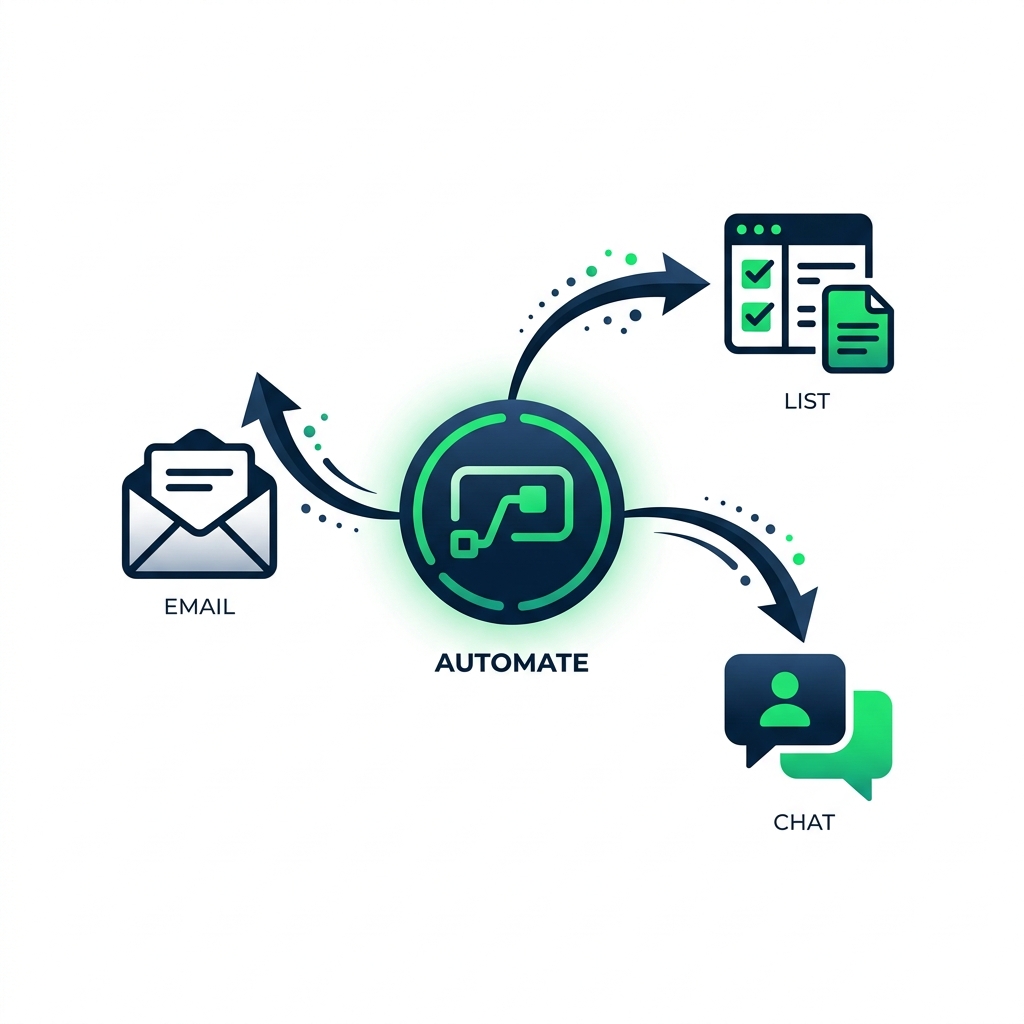
nanobanana: half: Clean modern illustration on white background of a network of connected services: Outlook email, SharePoint list, Teams chat, all linked together through a central Power Automate hub with flowing data arrows

You can now:

  • Use connectors to talk to Outlook, SharePoint, Teams, and O365 Users
  • Distinguish triggers from actions, and polling from push
  • Make flows dynamic with expressions like formatDateTime(), concat(), coalesce()
  • Audit templates and edit flows with Copilot
Introduction to Power Automate

Chapter 3: Adding Logic and Intelligence
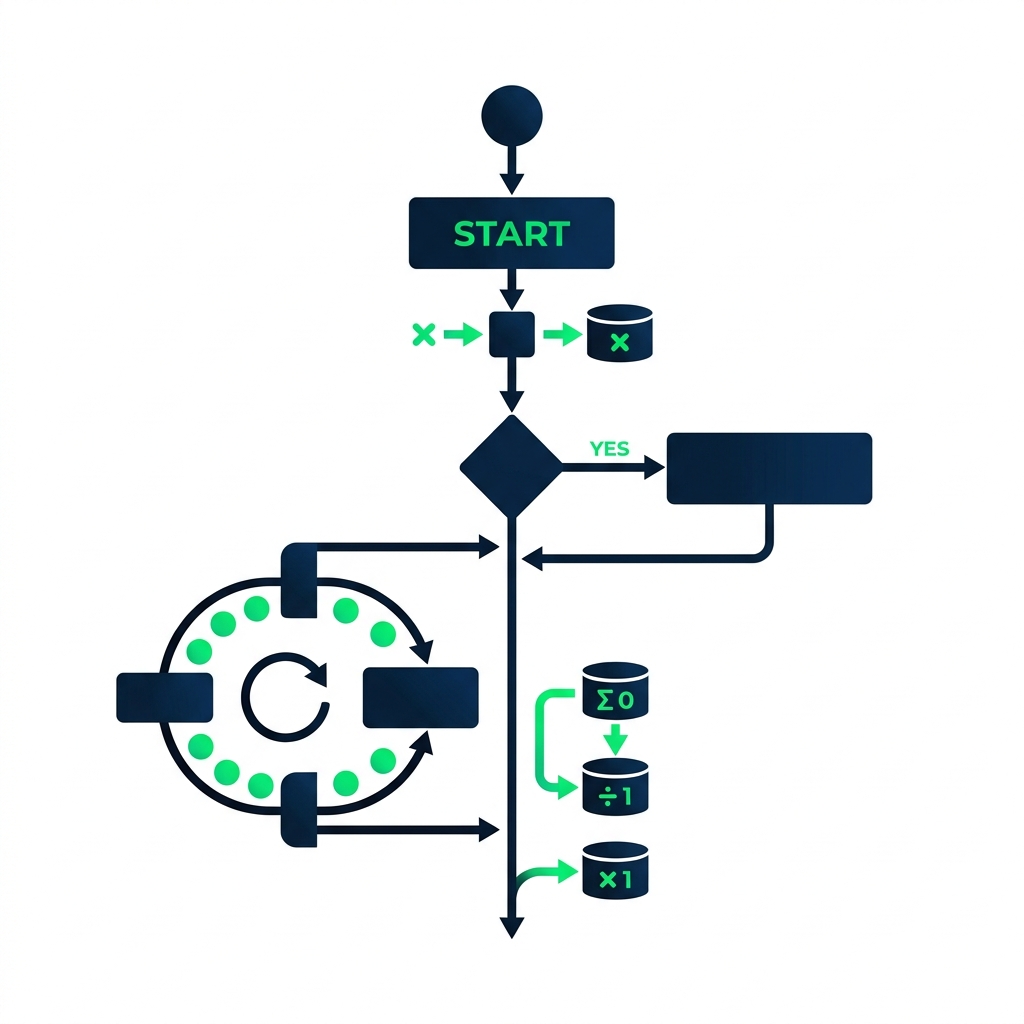
nanobanana: half: Clean modern illustration on white background of a flow with branching paths and loops, showing variables being stored and updated, conditions splitting into yes and no paths, and a loop processing items one by one

You can now:

  • Store and update values with variables and Compose
  • Add branching logic with Conditions and Switch
  • Process lists with Apply to Each and data operations
  • Schedule flows with Recurrence and react to events with Automated triggers
Introduction to Power Automate

Chapter 4: Putting It All Together

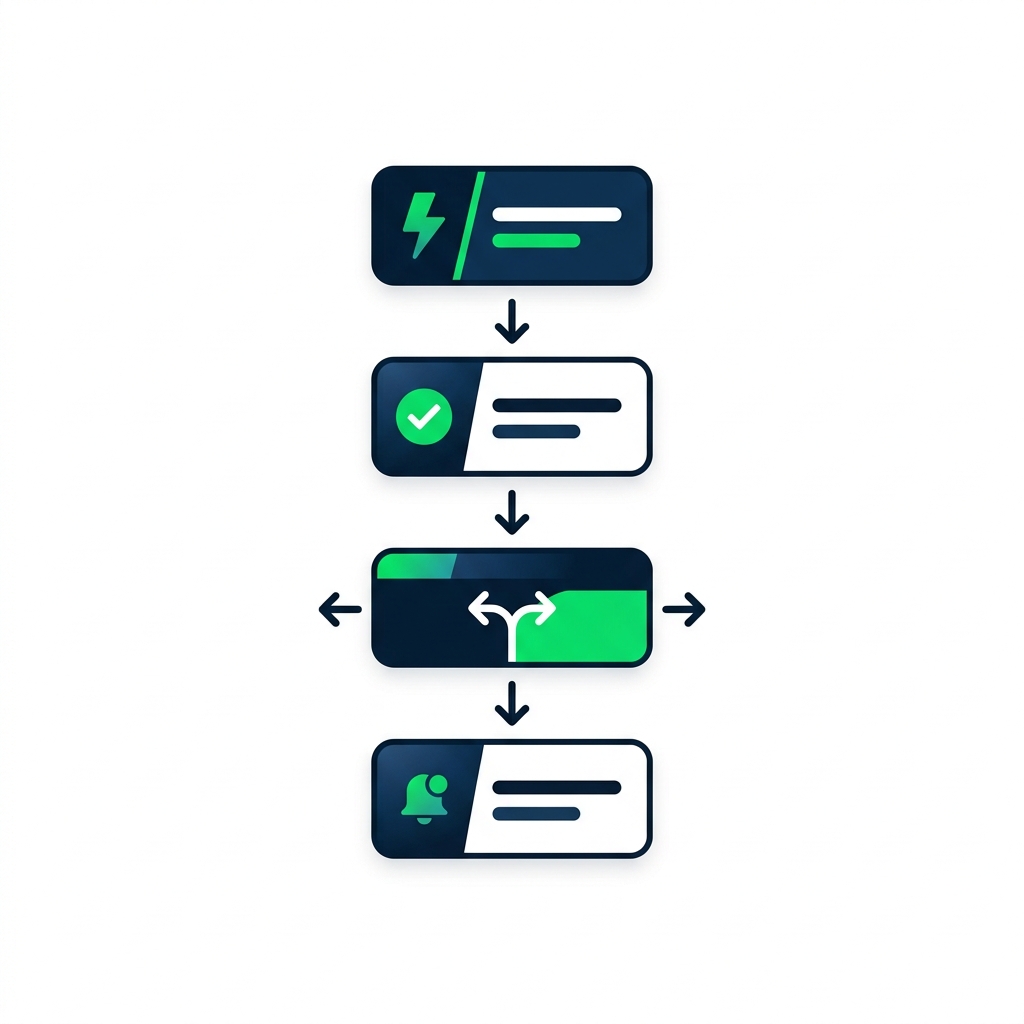
nanobanana: half: Clean modern illustration on white background of a stylized Power Automate cloud flow rendered in the Power Automate designer idiom: a vertical stack of four rounded rectangular step cards connected by short downward arrows. From top: a lightning-bolt trigger card, an approval card with a checkmark icon, a branching condition card with two arrows, and a notification card. Subtle blue/purple Power Platform color accents, no text labels, generous whitespace

You can now:

  • Build a complete approval flow with the Approvals connector
  • Read run history and diagnose failures
  • Handle errors with Configure run-after (run a step on failure / timeout / skipped)
  • Share flows safely and audit Copilot-generated flows
Introduction to Power Automate

Continue your journey

nanobanana: half: Clean modern illustration on white background of a path leading toward a bright horizon with signposts pointing to different learning destinations like Power Apps and Power BI, with a person walking forward confidently

Recommended next steps

  • Keep building → automate one real process this week
  • Go deeper → error handling, advanced connectors, approvals at scale
  • Consider certification → explore the Microsoft Power Platform certifications to validate your skills
Introduction to Power Automate

Thank You!

Introduction to Power Automate

Preparing Video For Download...