Loops and data operations

Introduction to Power Automate

Anushika Agarwal

Cloud Data Engineer

Apply to each
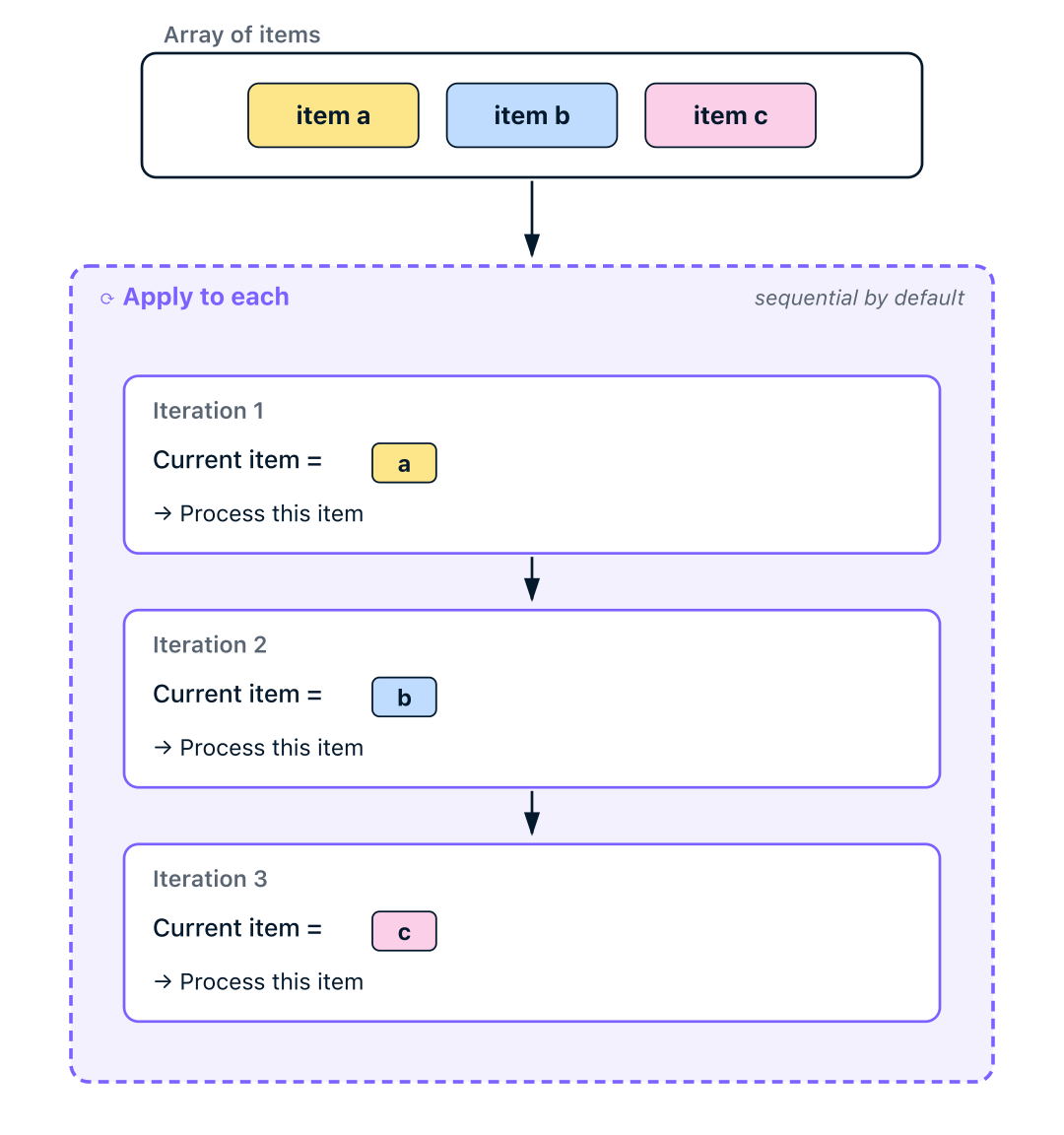
Diagram of Apply to each iterating sequentially: an Array of items box at the top contains three colour-coded pills item a (yellow), item b (blue), item c (pink), with an arrow flowing into a dashed lavender Apply to each container labelled sequential by default, which holds three vertically-stacked iteration cards connected by down arrows, each showing Iteration N with Current item equal to the matching colour-coded pill (a, then b, then c) and a Process this item line beneath


  • Processes an array one item at a time
  • Runs once per item, accessing Current item
  • Sequential by default; parallel via Concurrency control
Introduction to Power Automate

Current item


  • Current item = the value for this iteration
  • Changes with each loop pass
  • Access it from the Dynamic content panel

$$

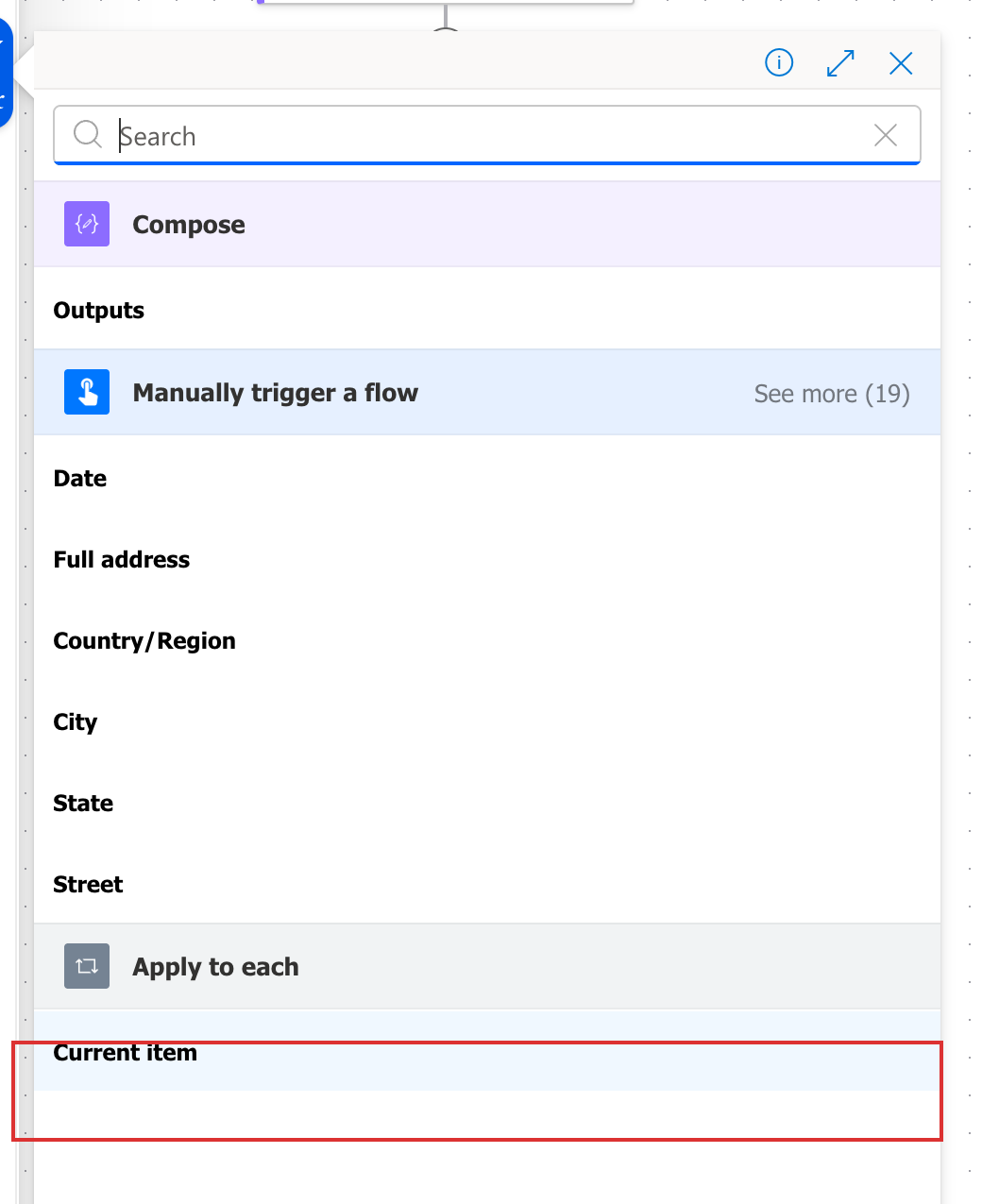
Heads up: common mistake, using the full array instead of Current item

Real Power Automate Dynamic content panel opened from a Compose action's Inputs field, listing token groups Compose, Manually trigger a flow with See more 19, Date, Full address, Country/Region, City, State, Street, then an Apply to each section at the bottom with the Current item entry highlighted in a red box

Introduction to Power Automate

Filter before you loop

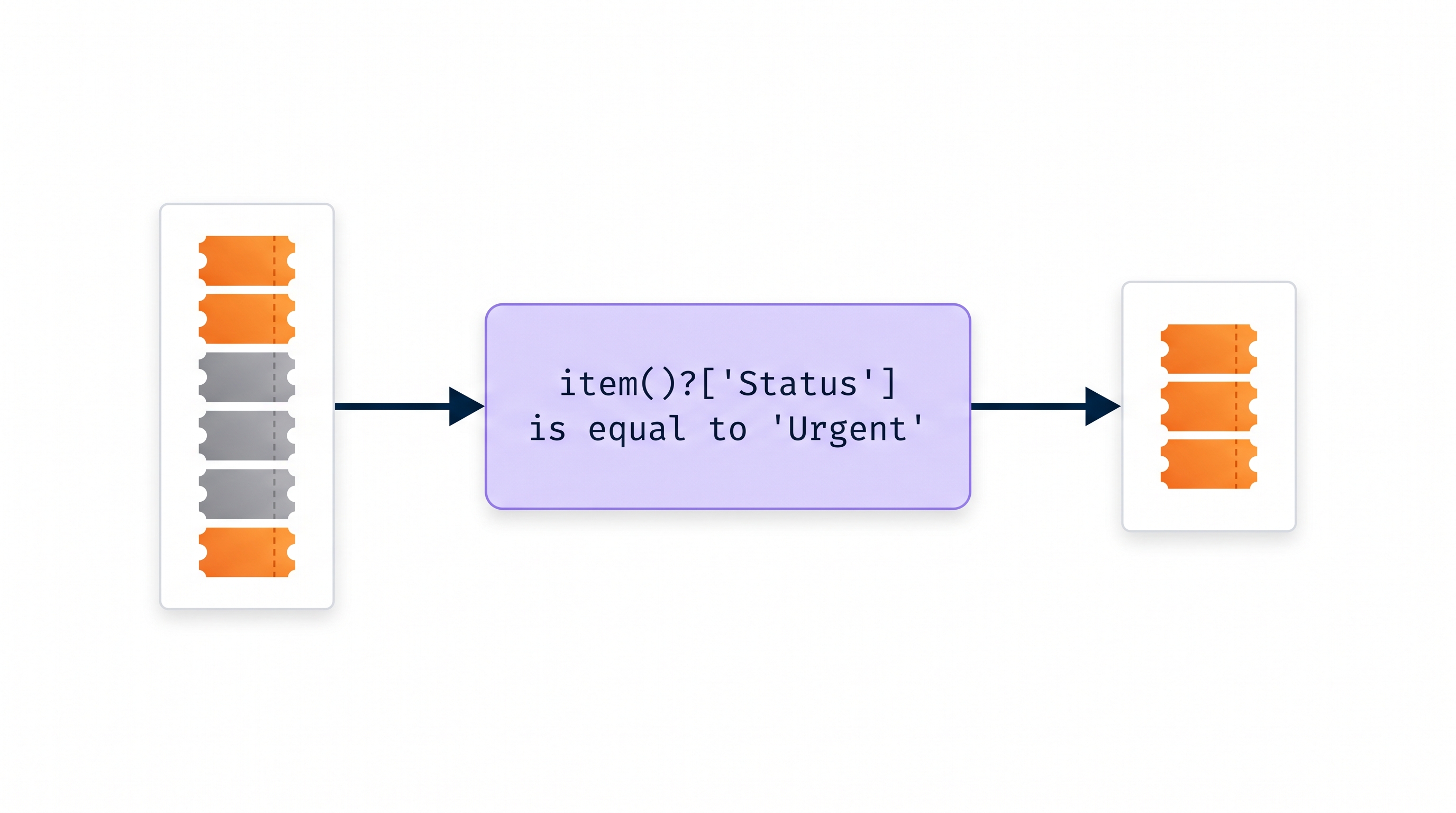
  • Use Filter Array first

Simplified horizontal pipeline diagram on white background: a Full list column of 8 stacked ticket tiles on the left (3 orange Urgent, 5 grey), an arrow leading into a lavender Filter Array card with the expression item Status is equal to Urgent in monospaced text, then an arrow leading to a short column of just 3 orange urgent tiles on the right

Introduction to Power Automate

Less work per run


Without Filter Array With Filter Array
Loop runs 500 times 12 times
Condition checks per run 500 (once per item) 0 (filter did it)
API calls per run 500 12


  • Filter Array runs once. A Condition inside Apply to each runs every iteration
Introduction to Power Automate

Filter array action


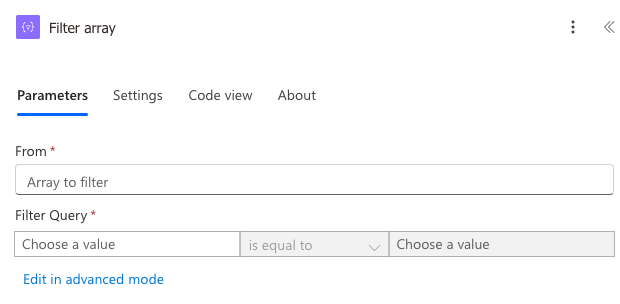
Real Power Automate Filter array action card cropped to its parameters panel, showing the From field with placeholder Array to filter and a Filter Query with three sub-fields Choose a value, is equal to, Choose a value, plus an Edit in advanced mode link


  • From: the array to filter
  • Filter Query: a single condition row, Left, Operator, Right
  • Use item()?['Field'] on the Left to read a field from each item
  • Filter array outputs a Body, the filtered array. Pick Body when looping over it
Introduction to Power Automate

Body, not Body Item


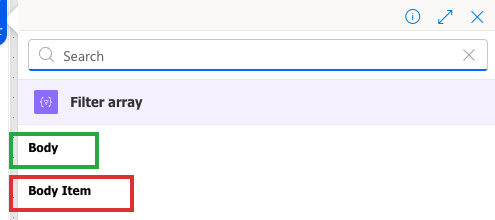
Real Power Automate dynamic-content picker open under an Apply to each card, with a Filter array section listing two outputs: Body highlighted in a green box and Body Item highlighted in a red box below it


  • When Apply to each consumes Filter array's output, pick Body
  • Body is the full filtered array. Body Item is one record, and the loop would only run once
Introduction to Power Automate

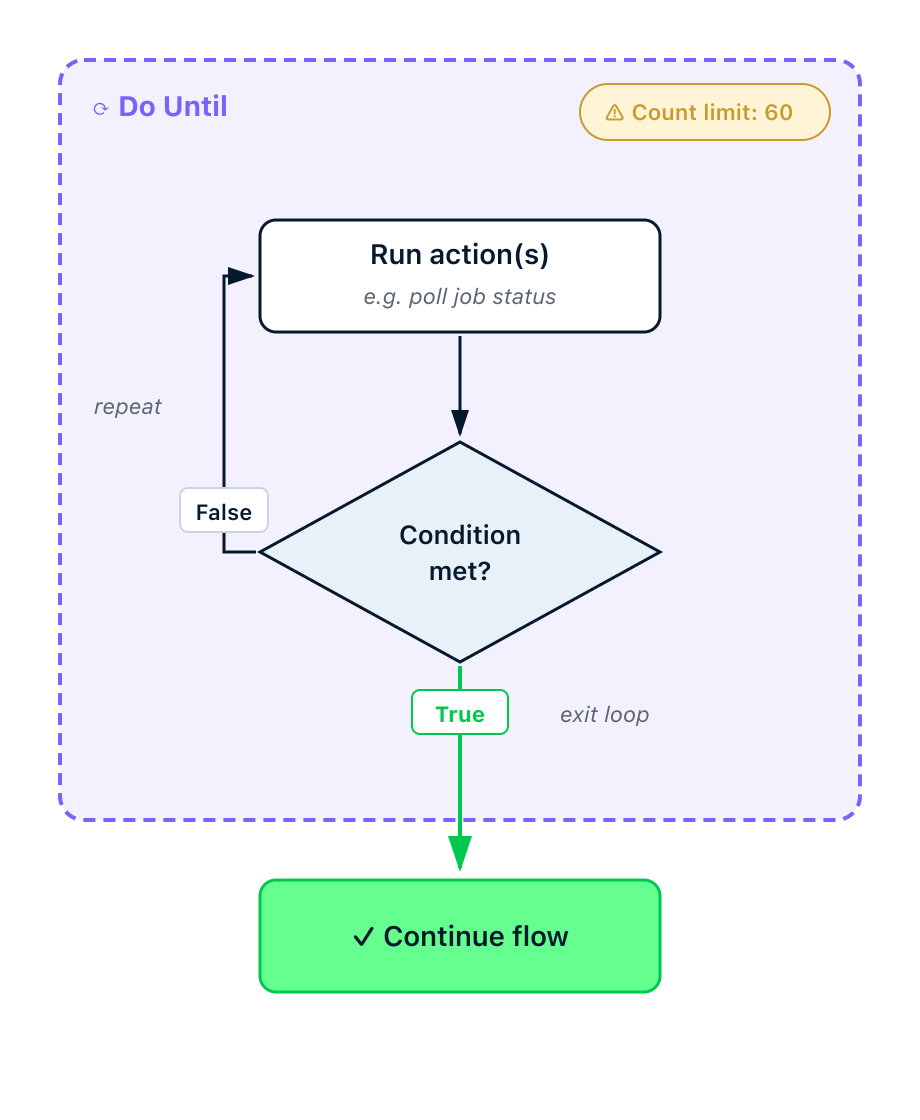
Do Until


  • Repeats actions until a condition is true
  • Not for arrays, that's Apply to Each
  • Use for polling or retry patterns

$$

Always set a count limit to prevent infinite loops

Diagram of a Do Until loop: a dashed lavender loop container labelled Do Until with a yellow Count limit 60 safety badge in the top-right corner; inside the container a Run action(s) box at the top with the caption e.g. poll job status, a down arrow leading into a neutral Condition met? diamond, the False branch curving back up and to the left to loop into Run action(s) with the label repeat, and the True branch leading down through a green True label exit-loop caption and out of the container into a green Continue flow box at the bottom

Introduction to Power Automate

Data operations


Operation What it does Good for
Select Reshape each item, pick fields Trimming an array to just the columns you need
Join Items → one separated string A comma-separated list in an email subject
Create HTML table Array → HTML for emails A formatted summary in an email body
Create CSV table Array → CSV for exports Attaching data for Excel or downstream tools


Select + Create HTML table is the email-body workhorse.

Introduction to Power Automate

Let's practice!

Introduction to Power Automate

Preparing Video For Download...