Monitor and troubleshoot

Introduction to Power Automate

Anushika Agarwal

Cloud Data Engineer

Flow Checker
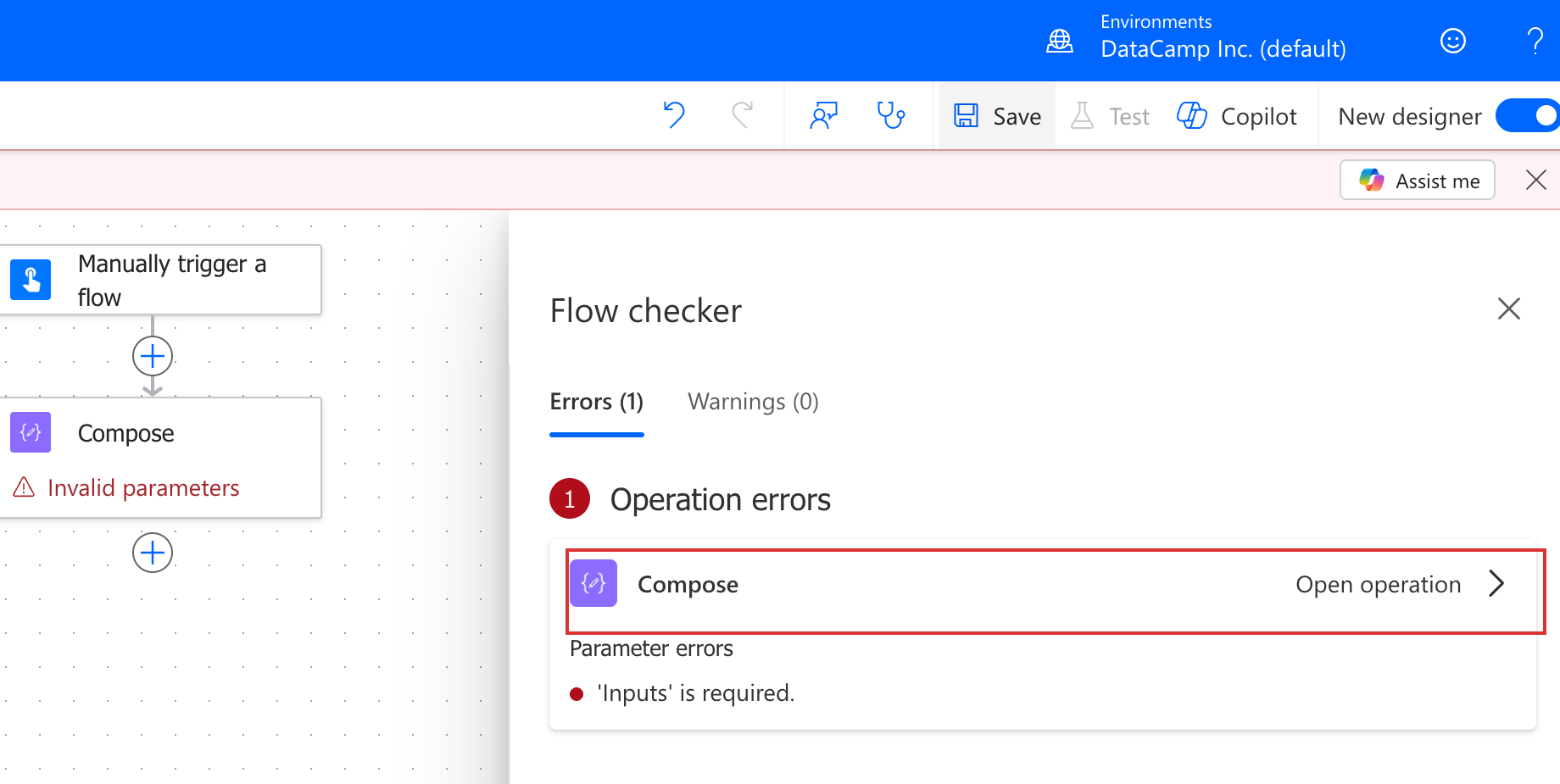
 

Flow Checker pane open in the Power Automate designer listing the Compose action's parameter error and an Open operation button, with the error chip highlighted in a red box


  • Errors block the save: you can't ship a broken flow
  • Warnings allow save: flag them for review
  • The pane opens automatically on a blocked save, or on demand via the stethoscope icon in the top toolbar

$$

  • Flow Checker = your first line of defense before tests even run
Introduction to Power Automate

Test modes


  • Save first: Test only runs on a saved flow
  • Test → Manually: you fire the trigger yourself with test inputs
  • Test → Automatically: replays a recent run (great after a fix)

$$

  • Test after each step you add: don't build the whole flow first

Power Automate designer toolbar strip showing Save, Test, Copilot, and the New designer toggle, with a tight red highlight box around the Test flask icon and label

nanobanana: half: Clean modern illustration on white background of a step-by-step testing checklist with checkmarks appearing one by one as each flow step is verified, with a magnifying glass inspecting each step

Introduction to Power Automate

Run history deep dive

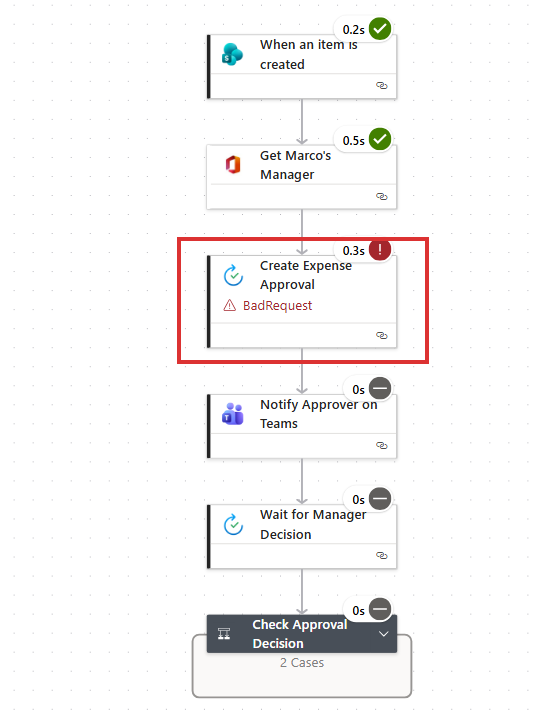
Marco's Expense Approval run history showing Create Expense Approval failed with BadRequest and three actions below grey/skipped, with the Create Expense Approval card highlighted in a red box as the first red action to investigate


  • Green check = succeeded
  • Amber spinner = running or waiting (e.g. an approval)
  • Red X = failed (expand to see the error)
  • Grey dash = skipped (never ran)

Tip: start at the first red action: everything grey below is a consequence, not the cause.

  • Flow analytics (Actions / Usage / Errors tabs) give a 30-day rolling view
Introduction to Power Automate

Inputs and outputs


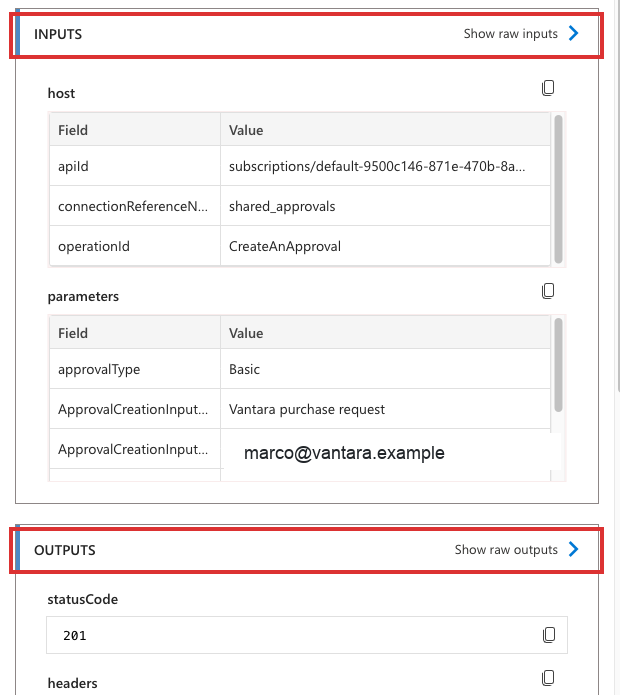
  • Every action shows Inputs and Outputs
  • Inputs = what the action received
  • Outputs = what the action produced

$$

  • Compare Inputs to what you expected: mismatches reveal bugs

Expanded Create an approval action card in run history showing the INPUTS section (host fields, approvalType, request title, assignee) above the OUTPUTS section (statusCode 201) in a tight stacked layout, with the INPUTS header and OUTPUTS header each highlighted in a red box

Introduction to Power Automate

Configure run-after


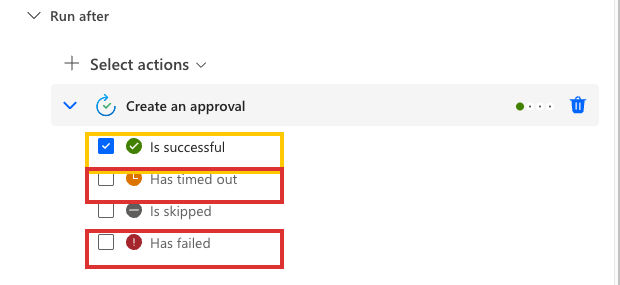
Real Power Automate Settings → Run after panel for a Create an approval action, showing four checkboxes (Is successful, Has timed out, Is skipped, Has failed) with Is successful highlighted in a yellow box to flag unticking it and Has timed out and Has failed each highlighted in a red box to flag ticking them, which is the swap that turns the branch into a fallback path


  • Default: each action runs only if the previous succeeded
  • Add a parallel branch for the fallback you want on failure
  • Settings → Run after → tick has failed / has timed out
  • A red dotted arrow in the designer = non-default run-after
Introduction to Power Automate

Resubmit and Compose


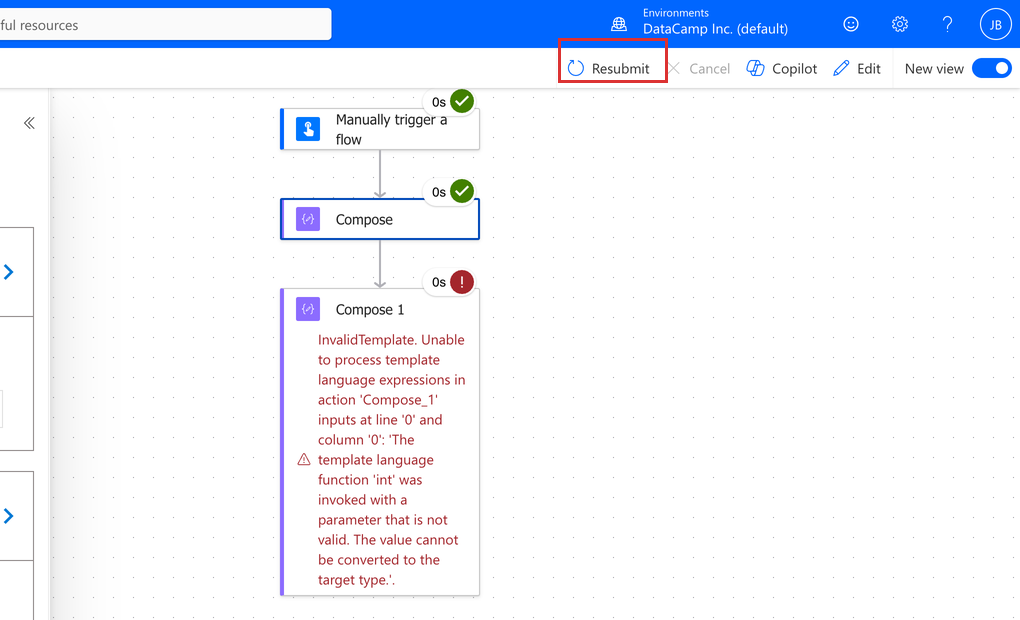
  • Resubmit a failed run: replays it with the same trigger data
  • After a fix, Resubmit confirms the same payload now passes

$$

  • Inspect: drop in a Compose to read a mid-flow value, then remove it once you've seen the output

$$

Power Automate run-detail view of the Vantara Compose Inspect flow cropped to focus on the canvas, with the Resubmit button in the top toolbar highlighted in a red box, then the canvas showing Manually trigger a flow into Compose (both succeeded), into the failed Compose_1 card which displays its full InvalidTemplate error message about template language function int being invoked with an invalid parameter

Introduction to Power Automate

Let's practice!

Introduction to Power Automate

Preparing Video For Download...