Navigating the Power Automate portal

Introduction to Power Automate

Anushika Agarwal

Cloud Data Engineer
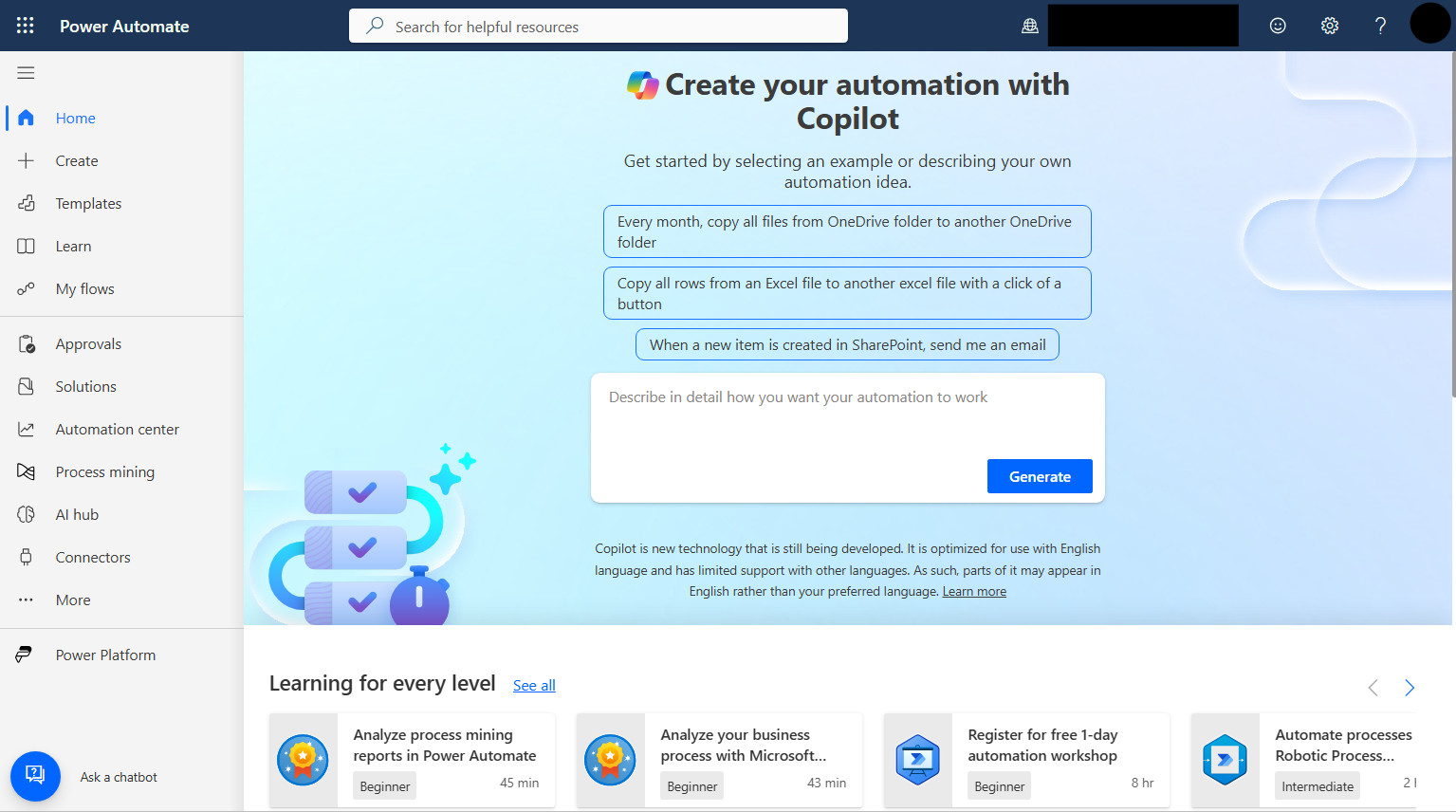
Power Automate maker portal home page with full left navigation

Introduction to Power Automate

Key sections

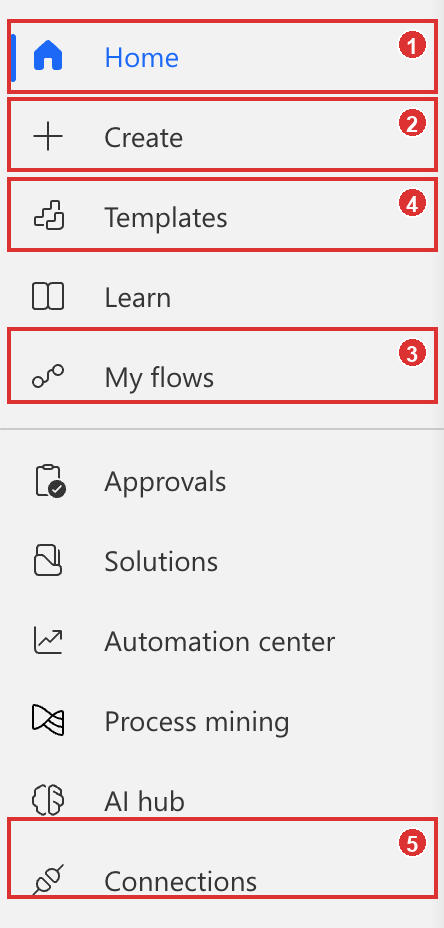
$$ Power Automate left navigation menu with five numbered red highlight boxes anchored to each of the five sections the bullets call out: Home (1), Create (2), Templates (4), My flows (3), and Connections (5) at the bottom of the nav


  1. Home → Copilot, learning resources, and quick links
  2. Create → build new flows
  3. My flows → manage existing flows
  4. Templates → pre-built starting points
  5. Connections → browse available services
Introduction to Power Automate

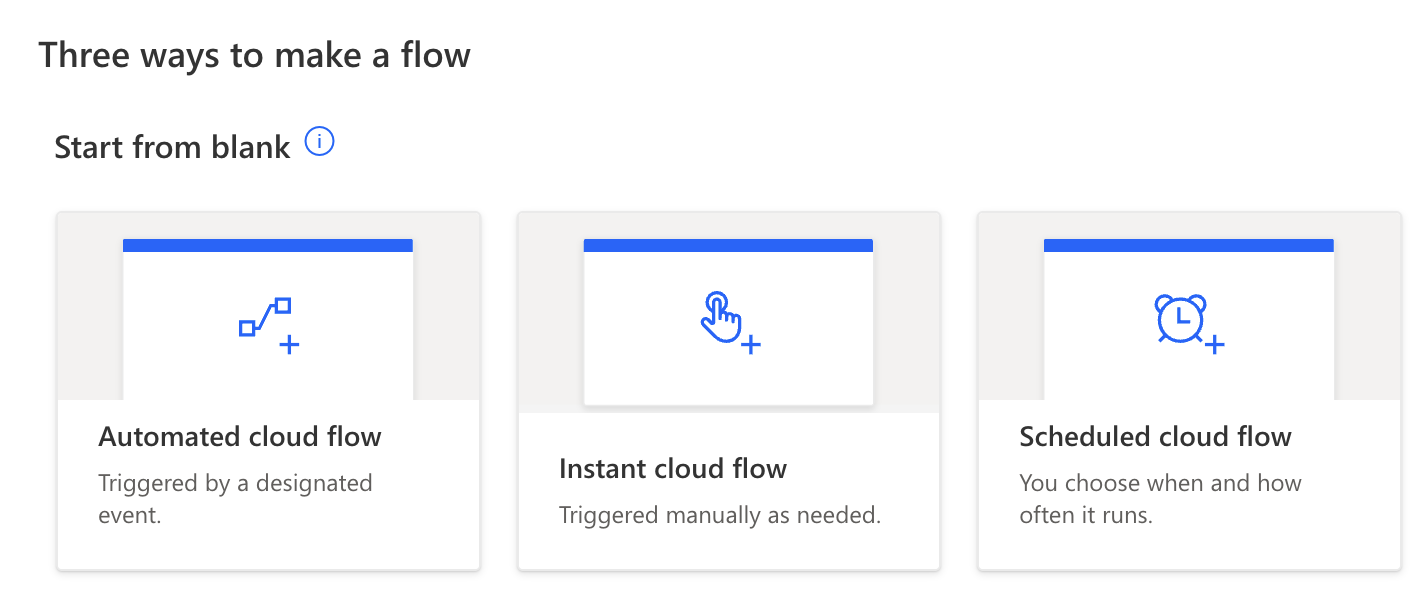
Create: where flows begin

$$

  1. Blank: Instant, Automated, or Scheduled
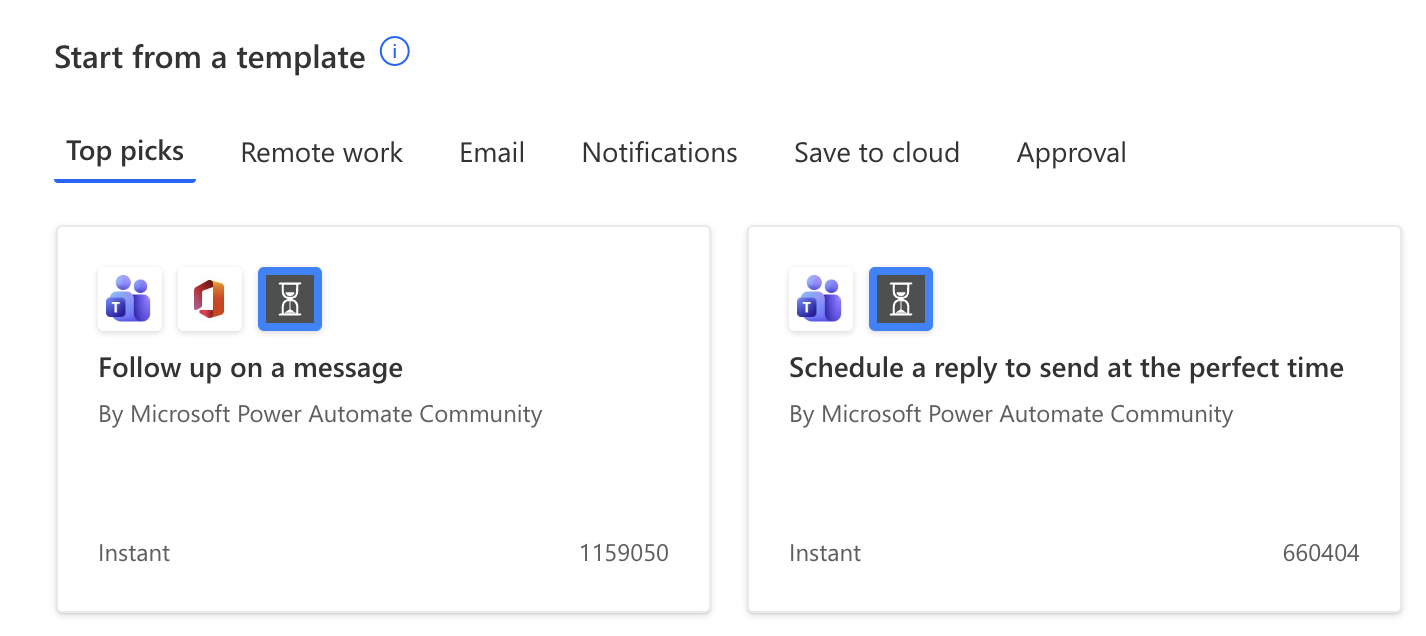
  2. Template: pre-built starting point
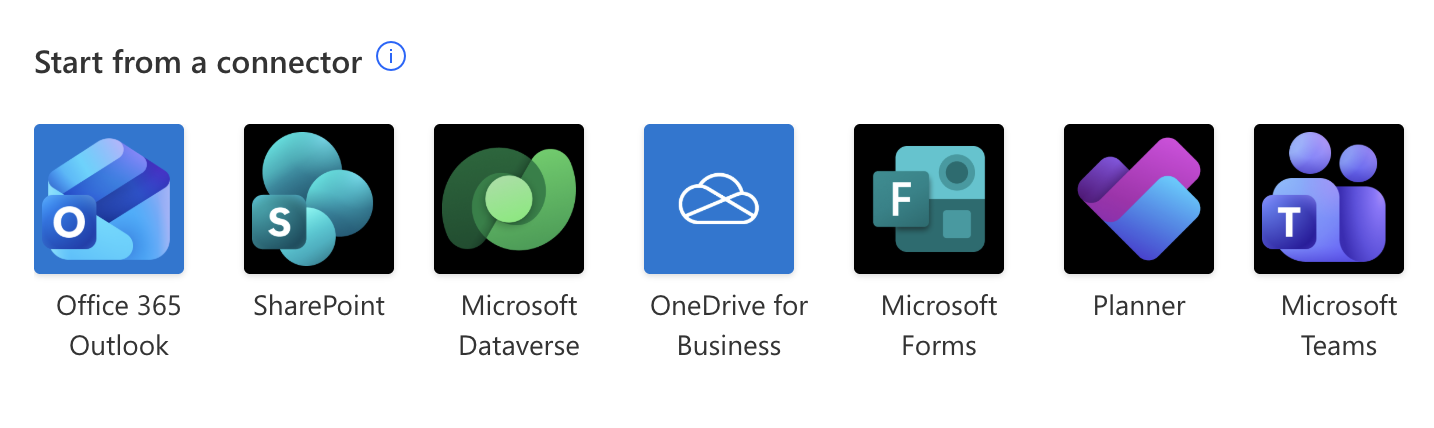
  3. Connector: let the app lead the way

$$
Screenshot 2026-06-09 at 10.58.53.png

Screenshot 2026-06-09 at 10.41.48.png

Screenshot 2026-06-09 at 10.42.21.png

Introduction to Power Automate

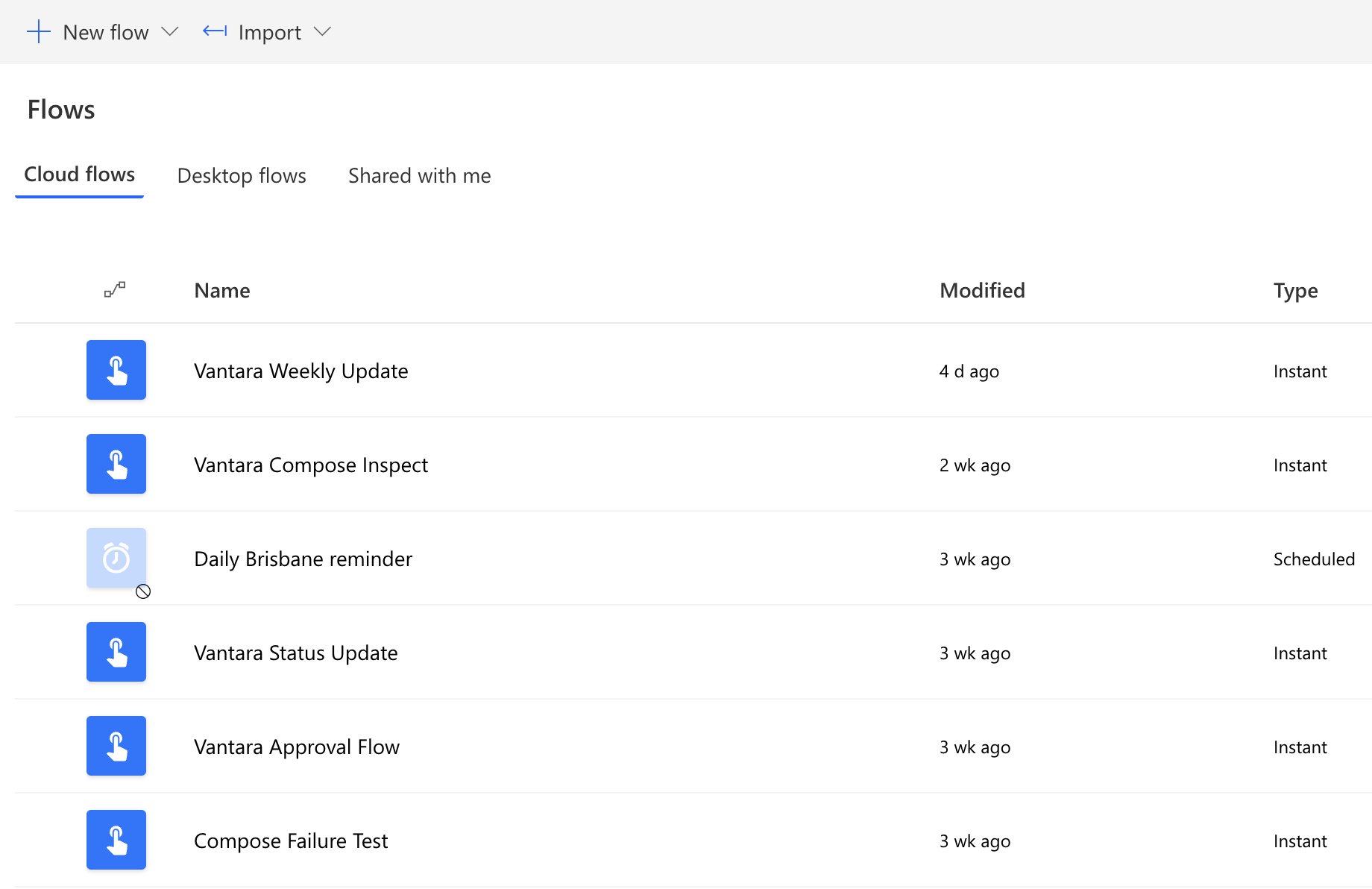
My flows: your flow library

$$

Screenshot 2026-06-09 at 11.03.00.png


  • Flow Name, modified, and type at a glance
  • Filter by Cloud flows · Desktop flows · Shared with me
  • Click any flow to open its detail page
Introduction to Power Automate

Editing an existing flow


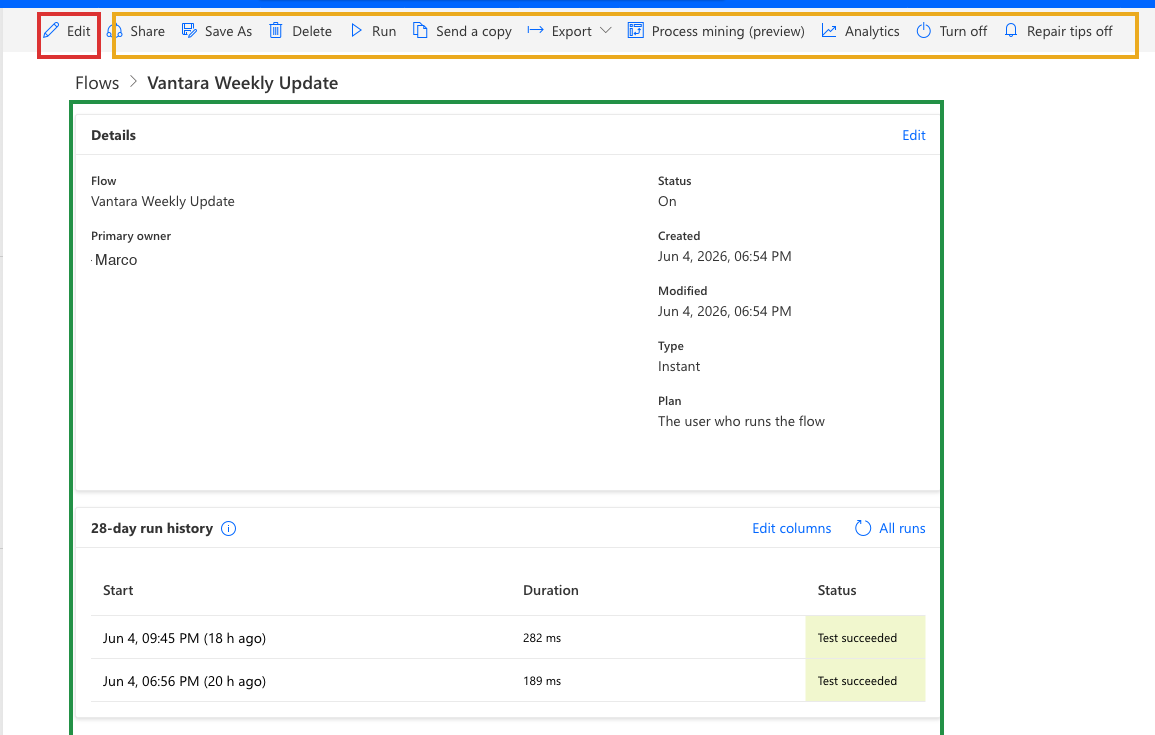
Real Power Automate flow detail page with three tight highlight boxes: a red box around the Edit pencil icon on the far left of the top toolbar, a yellow box around the rest of the toolbar covering Share, Save As, Delete, Run, Send a copy, Export, Process mining, Analytics, Turn off, and Repair tips off, and a green box around the Details panel and 28-day run history beneath the breadcrumb

  • Edit (pencil icon) at the top-left of the toolbar opens the flow in the designer
  • The rest of the toolbar covers Run, Share, Save As, Delete, Export, Turn off
  • Below the toolbar, the Details panel shows when the flow was created, modified, type, and run history
Introduction to Power Automate

Templates: pre-built starting points


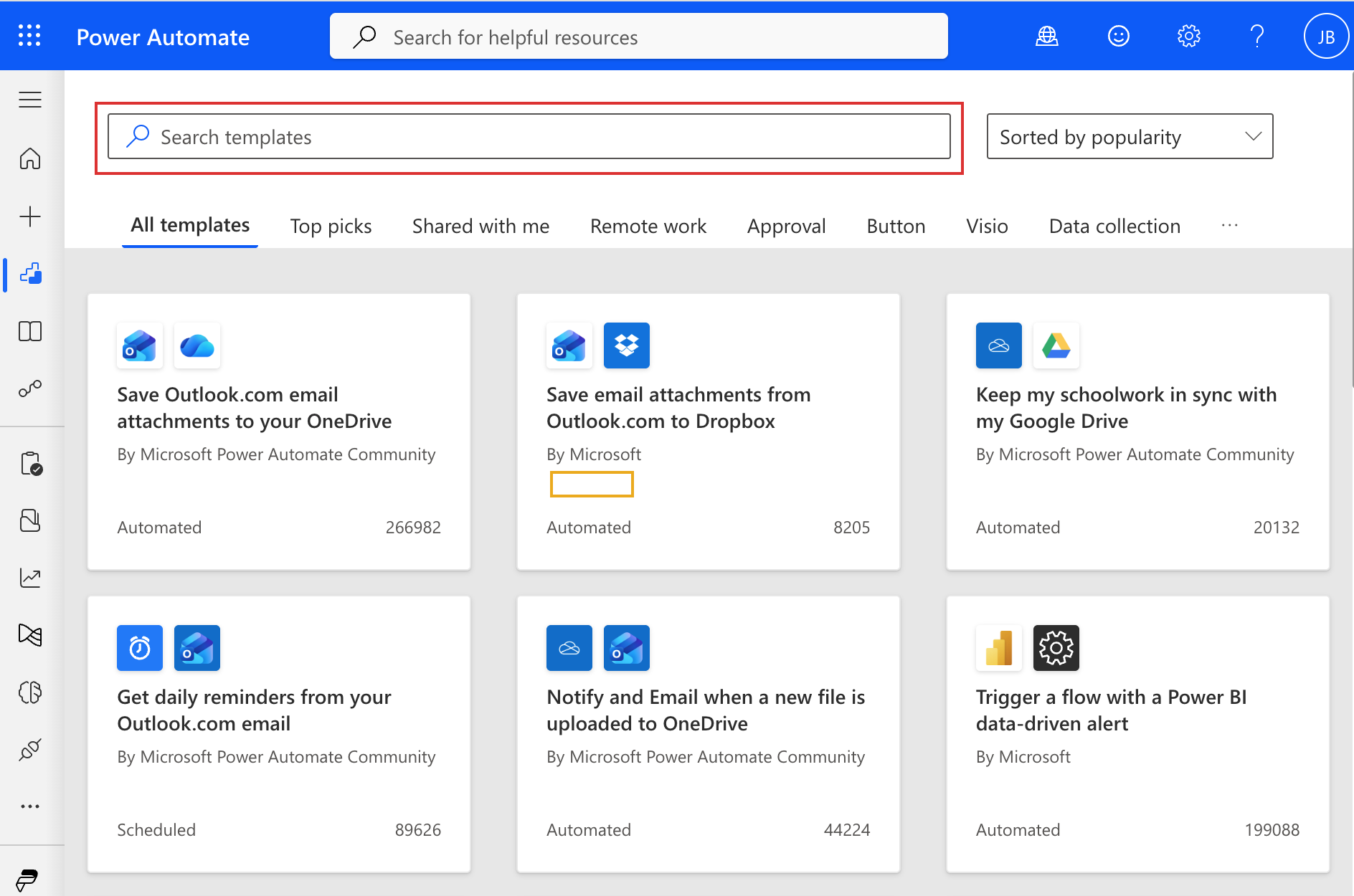
  • Built by Microsoft and the community
  • Search by keyword → "email notification", "SharePoint approval"

$$

Starting points, not finished products. Always review first!

$$

Power Automate Templates gallery with two tight highlight boxes: a red box around the Search templates field at the top, and a yellow box around the By Microsoft author badge on the middle Save email attachments from Outlook.com to Dropbox card

Introduction to Power Automate

Connectors: your flow's toolbox

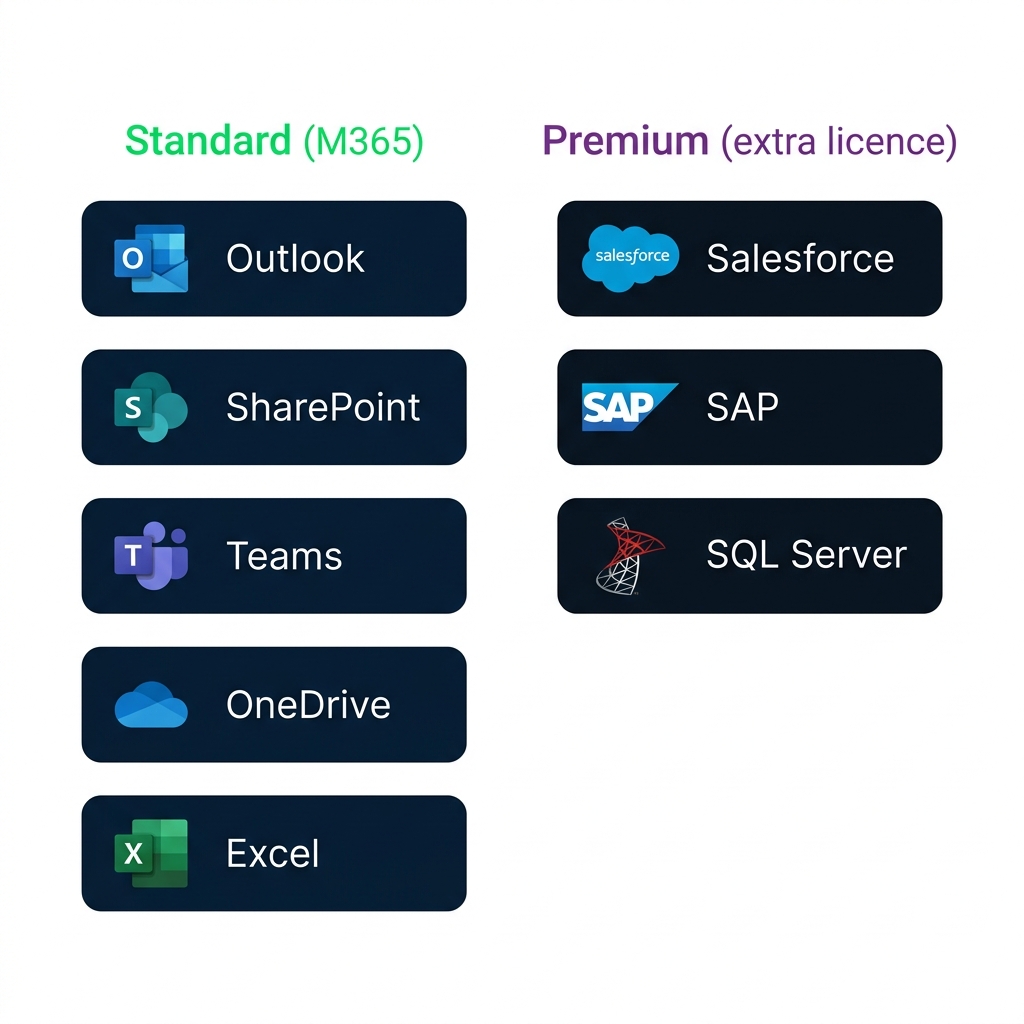
nanobanana: half: Clean modern flat illustration on pure white background of a two-column connectors comparison. Left column header "Standard (M365)" in green; five rectangular pill cards stacked vertically, each with a simple coloured app icon and label: "Outlook", "SharePoint", "Teams", "OneDrive", "Excel". Right column header "Premium (extra licence)" in purple; three rectangular pill cards stacked vertically, each with a simple coloured app icon and label: "Salesforce", "SAP", "SQL Server". Each card is distinct and clearly labelled. No Power Platform product logos — these are CONNECTOR app logos, not Power-prefixed products.

$$

  • 1,000+ services Power Automate can connect to!
Introduction to Power Automate

Environments


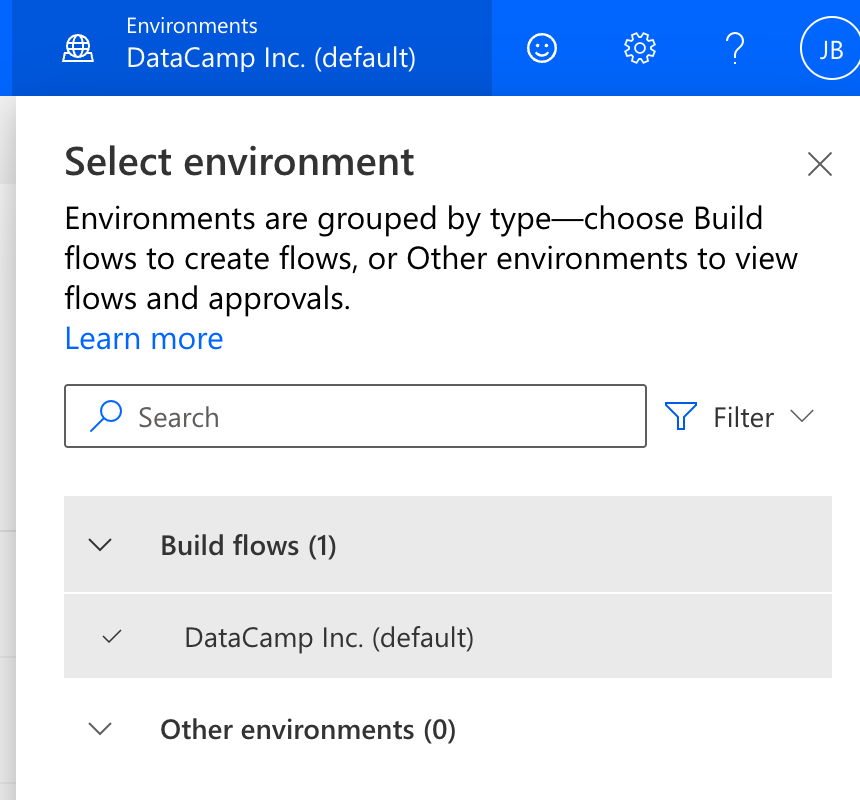
  • Environment switcher in the top-right corner
  • Containers that separate flows, connections, and data

Environment picker dropdown panel showing Select environment with Build flows and Other environments sections

Introduction to Power Automate

Let's practice!

Introduction to Power Automate

Preparing Video For Download...