Conditions and Switch

Introduction to Power Automate

Anushika Agarwal

Cloud Data Engineer

Where to find them
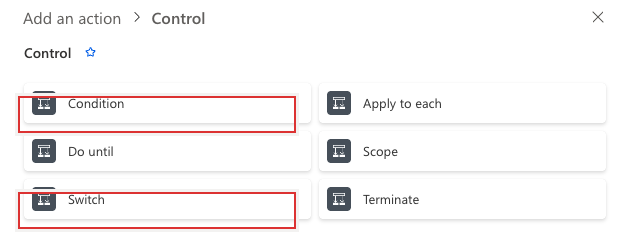
 

Real Power Automate action picker showing the Control category expanded with six built-in actions in a two-column grid (Condition, Apply to each, Do until, Scope, Switch, Terminate), with tight red highlight boxes around Condition and Switch as the two actions taught in this lesson


  • Both live under Control in the action picker
  • Same category as Apply to each and Do until
  • Click +, search for the action name, or filter by Built-inControl
Introduction to Power Automate

The Condition action

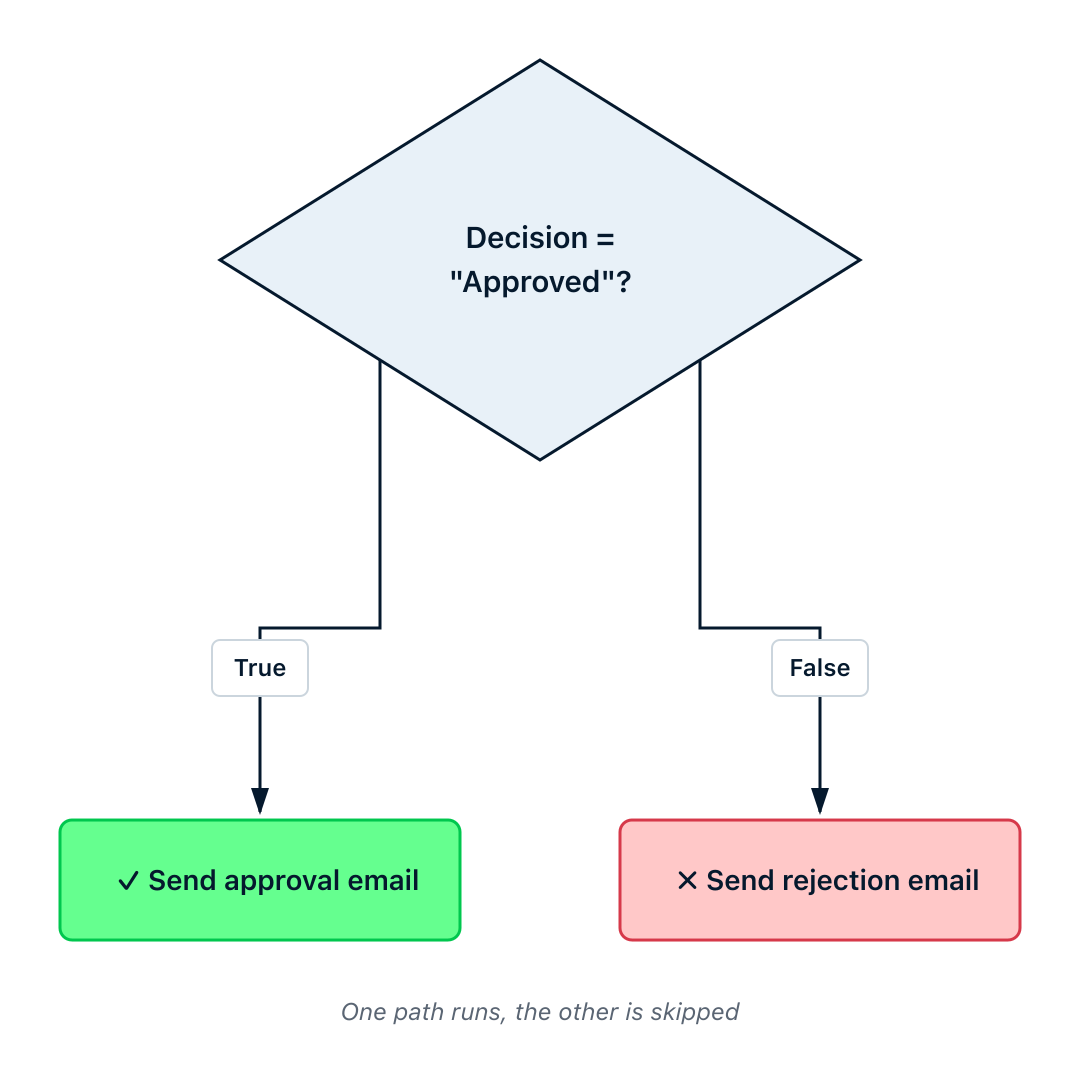
Flowchart of a Condition action with a neutral diamond at the top labelled Decision = Approved? branching into two paths: the True branch leads down through a True label box into a green pill reading check Send approval email, and the False branch leads down through a False label box into a red pill reading cross Send rejection email, with an italic caption beneath stating one path runs and the other is skipped


  • Evaluates a rule as true or false
  • True branch → one set of actions
  • False branch → different actions
  • Labeled "Yes" / "No" in older designs
Introduction to Power Automate

Setting up a Condition

$$

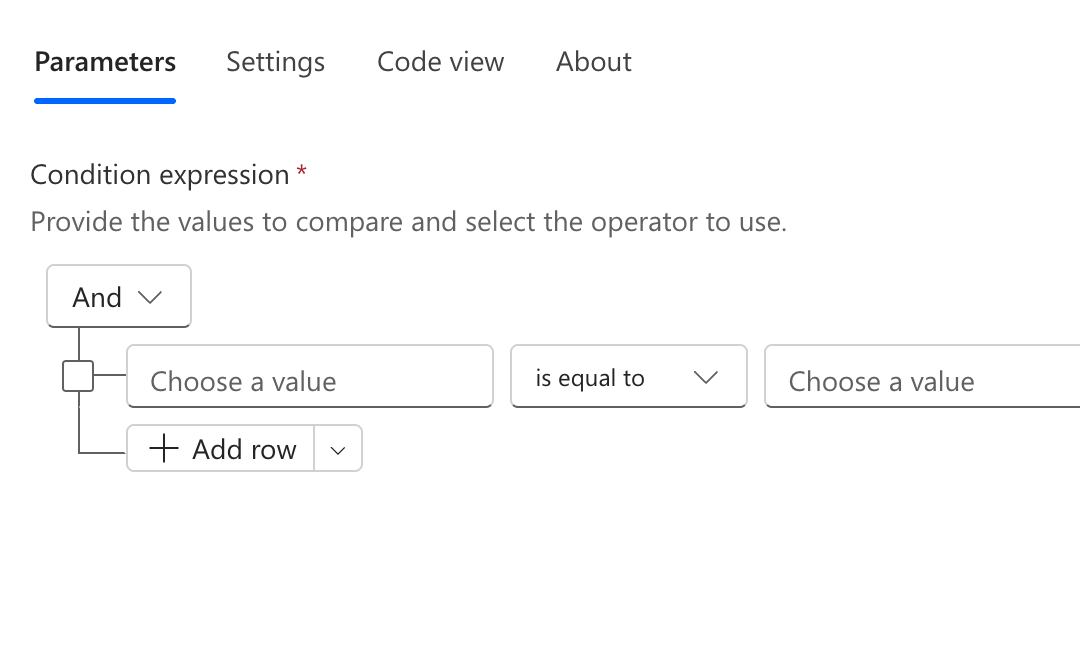
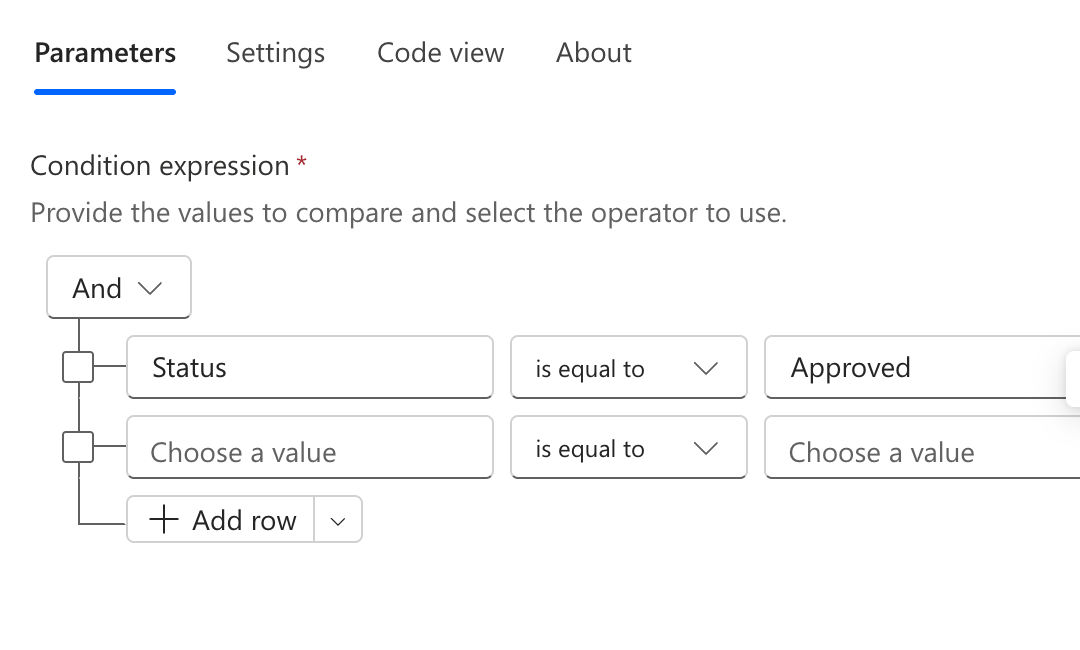
Real screenshot of an empty Condition action card cropped to the editing pane: tabs labelled Parameters / Settings / Code view / About, condition expression area with an And group, an empty row of Choose a value, is equal to, Choose a value, and an Add row button


  • Three slots: Left value, Operator, Right value
Introduction to Power Automate

Setting up a Condition

$$

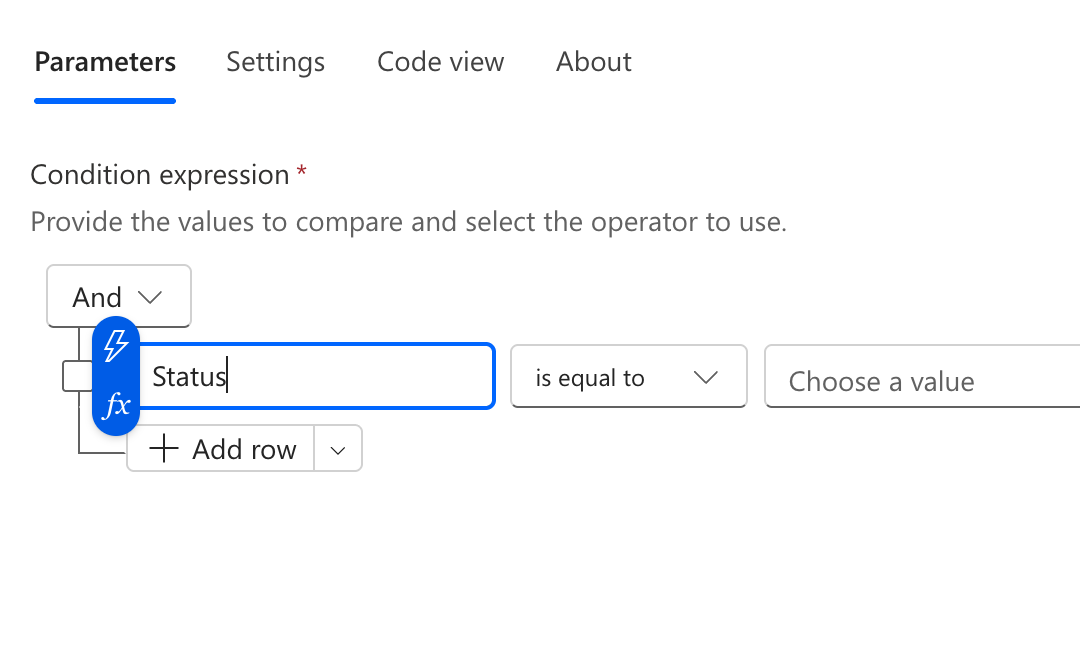
Real screenshot of a Condition card with the left value populated by a dynamic content token labelled Status, operator still showing is equal to, and right value empty


  • Three slots: Left value, Operator, Right value
  • Left: the value to check, usually a dynamic content token or a variable
Introduction to Power Automate

Setting up a Condition

$$

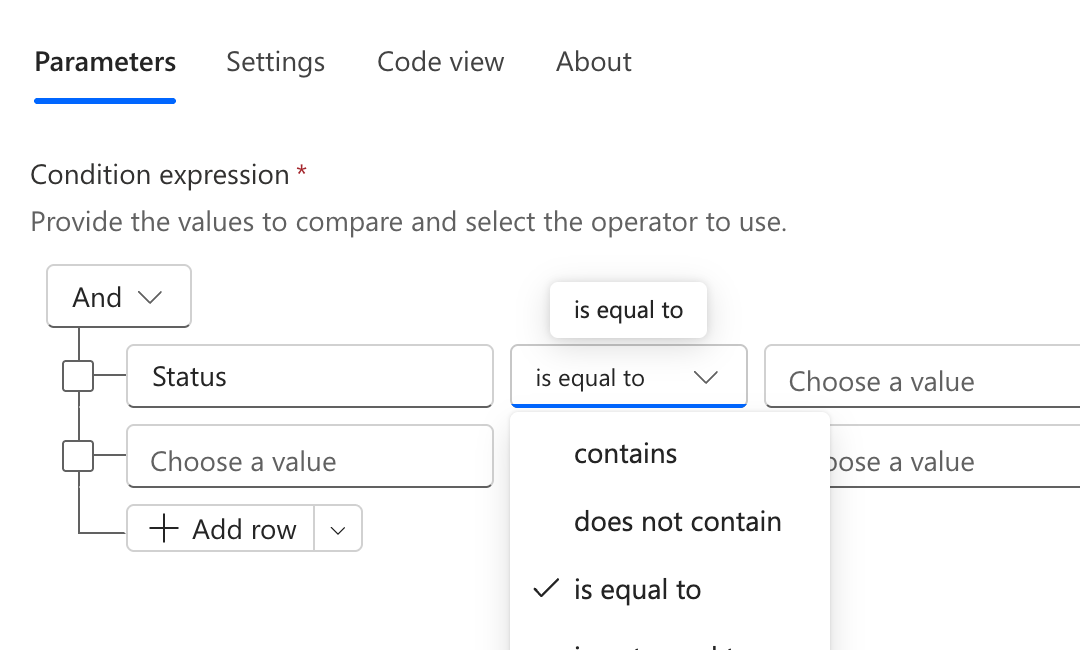
Real screenshot of a Condition card showing the operator dropdown expanded with options including is equal to, contains, and does not contain


  • Three slots: Left value, Operator, Right value
  • Left: the value to check, usually a dynamic content token or a variable
  • Operator: is equal to, contains, is greater than, is empty, and more
Introduction to Power Automate

Setting up a Condition

$$

Real screenshot of a Condition action card with all three fields configured: left value Status from dynamic content, operator is equal to, right value Approved


  • Three slots: Left value, Operator, Right value
  • Left: the value to check, usually a dynamic content token or a variable
  • Operator: is equal to, contains, is greater than, is empty, and more
  • Right: the comparison value
Introduction to Power Automate

Combining rules with AND / OR

$$

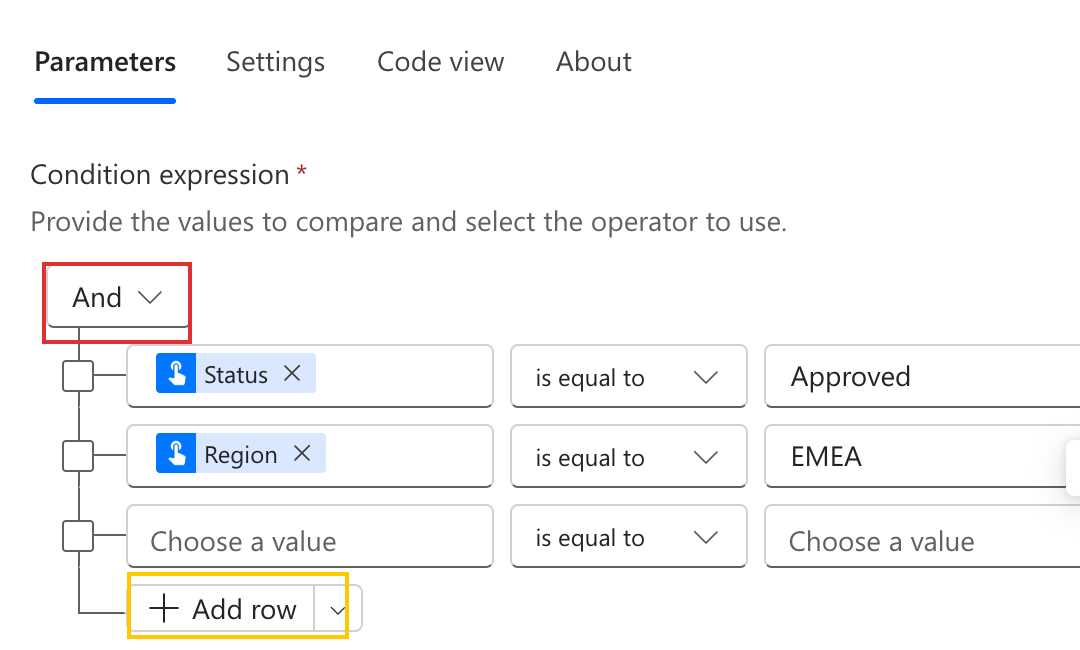
Real Power Automate Condition card cropped to its rule expression area showing two populated rows of rules Status is equal to Approved and Region is equal to EMEA, with the And dropdown highlighted in a red box and the + Add row dropdown highlighted in a yellow box to show where Add row group lives


  • Click AddAdd row to add a rule
  • Andall rules must be true
  • Orany one rule must be true

$$

  • Wrap groups with Add row group for mixed AND/OR logic
Introduction to Power Automate

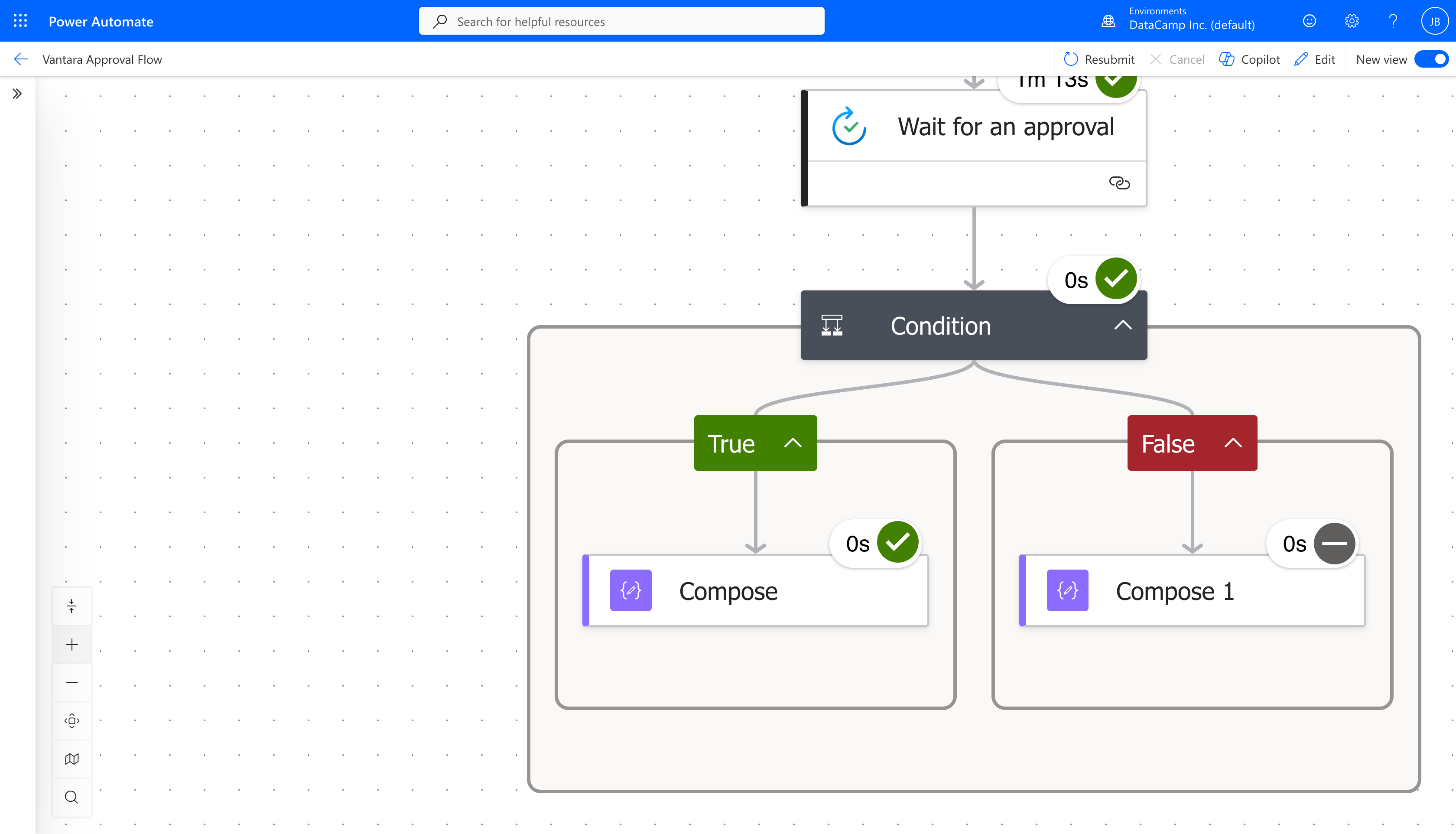
Zoomed close-up contrasting the True branch's Compose action with a green checkmark against the False branch's Compose action with a grey dash icon

Introduction to Power Automate

Common mistakes


  • Case sensitivity: "Approved" ≠ "approved"
  • Trailing spaces: "Approved " ≠ "Approved"
  • Wrong type: comparing a string to a number

$$

  • Use toLower() or trim() to normalize inputs

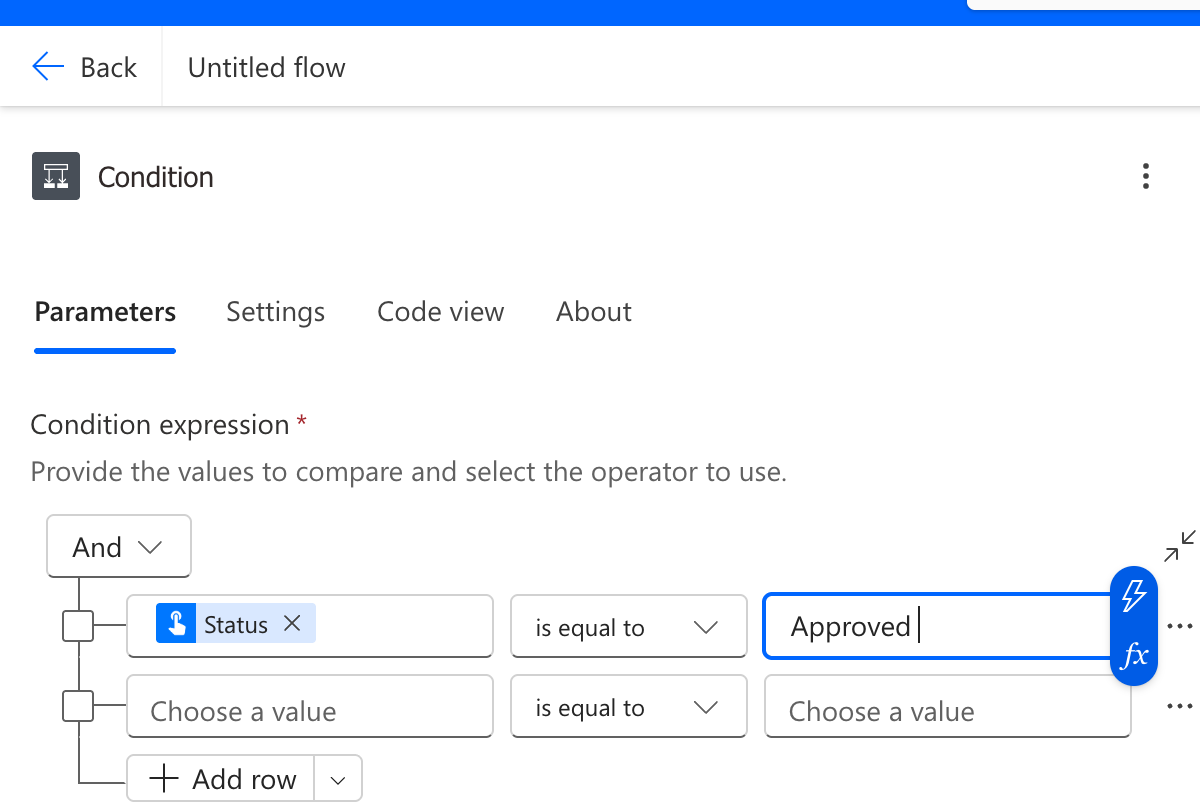
Real Power Automate Condition action card cropped to its editing pane, showing one populated rule comparing a Status dynamic-content token (is equal to) the literal string "Approved" with the right-value cell highlighted by a blue focus border and an fx pill alongside it, plus a second empty Choose a value rule row and an Add row button beneath, illustrating the editing pane that's behind every case-sensitivity, whitespace, and type-mismatch trap

Introduction to Power Automate

The Switch action

$$

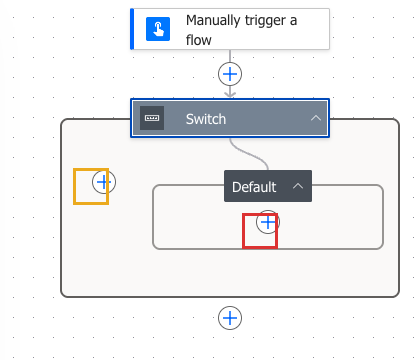
Real Power Automate canvas screenshot of a Switch action chained below a Manually trigger a flow card with tight no-label highlight boxes: a red box on the + inside Default for adding actions and a yellow box on the + to the left of Default for adding named cases


  • Match one value against multiple cases
  • Each case runs different actions
  • Default case catches anything unexpected
Introduction to Power Automate

Condition vs. Switch


Scenario Use
Two outcomes (yes/no) Condition
Three or more values Switch
Range check (> 100) Condition

$$

  • Nested Conditions work but get messy fast

Clean modern illustration on white background of a fork in a road splitting into two paths on the left labeled Condition, and a roundabout with four exits on the right labeled Switch

Introduction to Power Automate

Let's practice!

Introduction to Power Automate

Preparing Video For Download...