Sharing flows and using Copilot responsibly

Introduction to Power Automate

Anushika Agarwal

Cloud Data Engineer

Three sharing modes
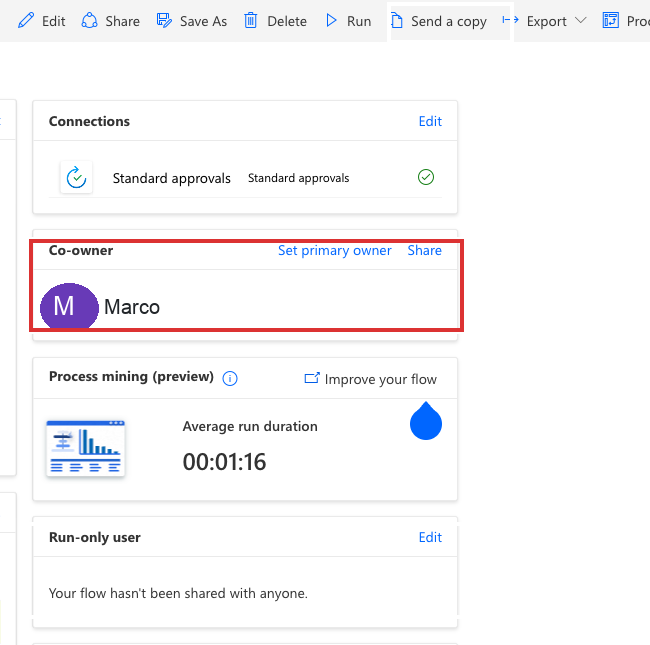
 

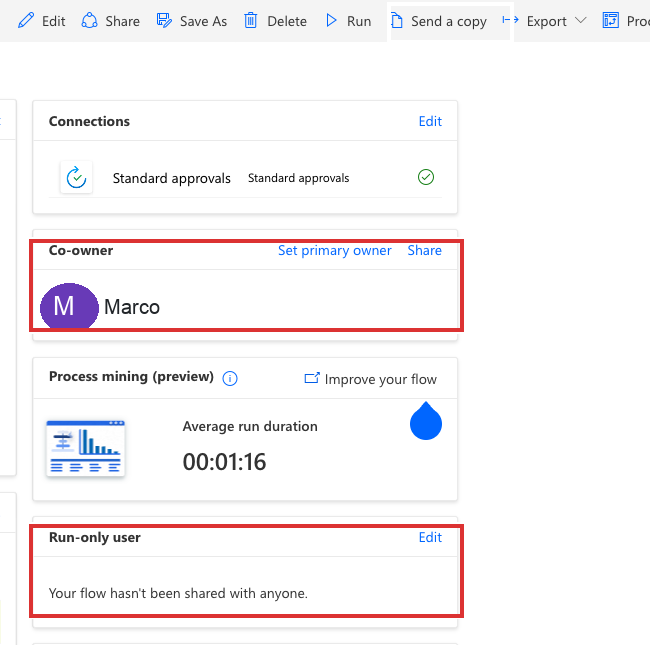
  • Co-owner → full edit access

Compact view of Power Automate sharing affordances with a tight red highlight box around the Co-owner card showing Marco listed, set against the rest of the flow detail toolbar and side cards in context but unhighlighted

Introduction to Power Automate

Three sharing modes


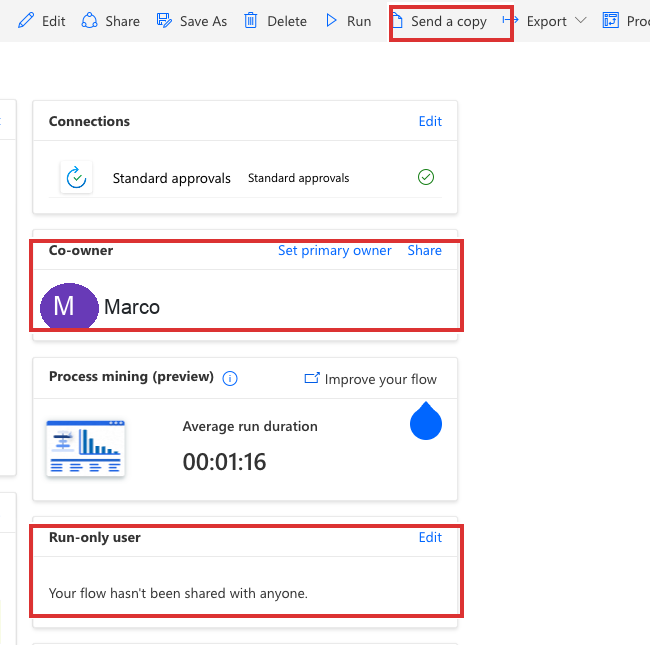
  • Co-owner → full edit access
  • Run-only → can trigger but not edit (instant flows only)

Compact view of Power Automate sharing affordances with tight red highlight boxes around the Co-owner card and the Run-only user card, with the toolbar Send a copy button still unhighlighted

Introduction to Power Automate

Three sharing modes


  • Co-owner → full edit access
  • Run-only → can trigger but not edit (instant flows only)
  • Send a copy → independent duplicate, no connections

Compact view of Power Automate sharing affordances with tight red highlight boxes around all three sharing affordances: the toolbar Send a copy button, the Co-owner card, and the Run-only user card

Introduction to Power Automate

How connections behave across the three modes

$$
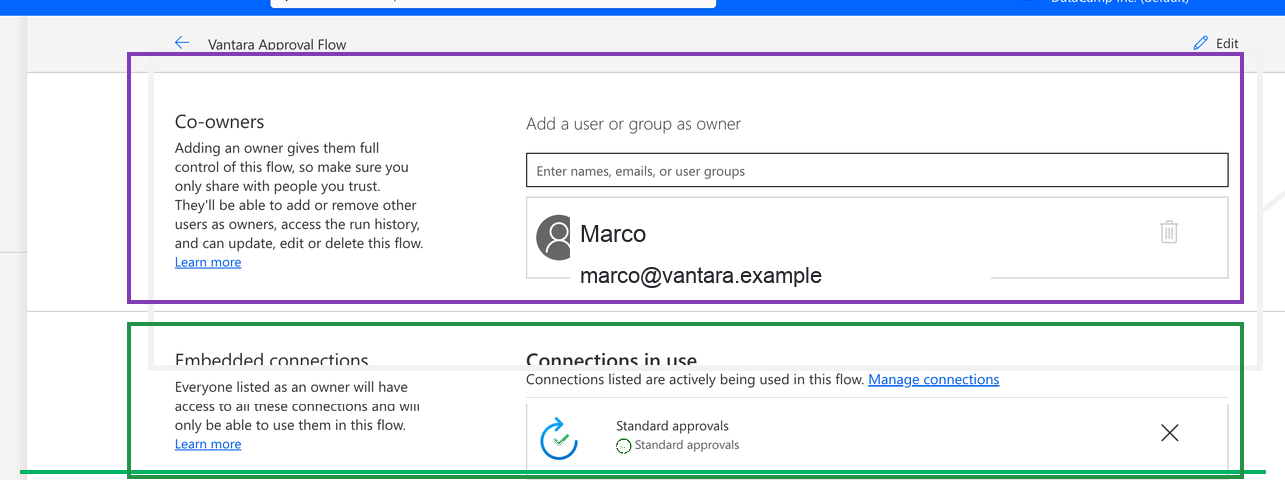
  • Co-owner → can use your embedded connections, can't modify credentials they didn't create
  • Run-only → owner chooses at share time: reuse your connections OR recipient provides their own
  • Send a copy → no connections at all; recipient builds their own from scratch

$$

Power Automate Share dialog cropped tight (no left navigation), with a tight purple highlight box around the Co-owners section showing Marco as co-owner with marco@vantara.example, and a tight green highlight box around the Embedded connections + Connections in use panel showing the active Standard approvals connection card

If the creator leaves, embedded connections break → service account for production flows

Introduction to Power Automate

Sharing in action

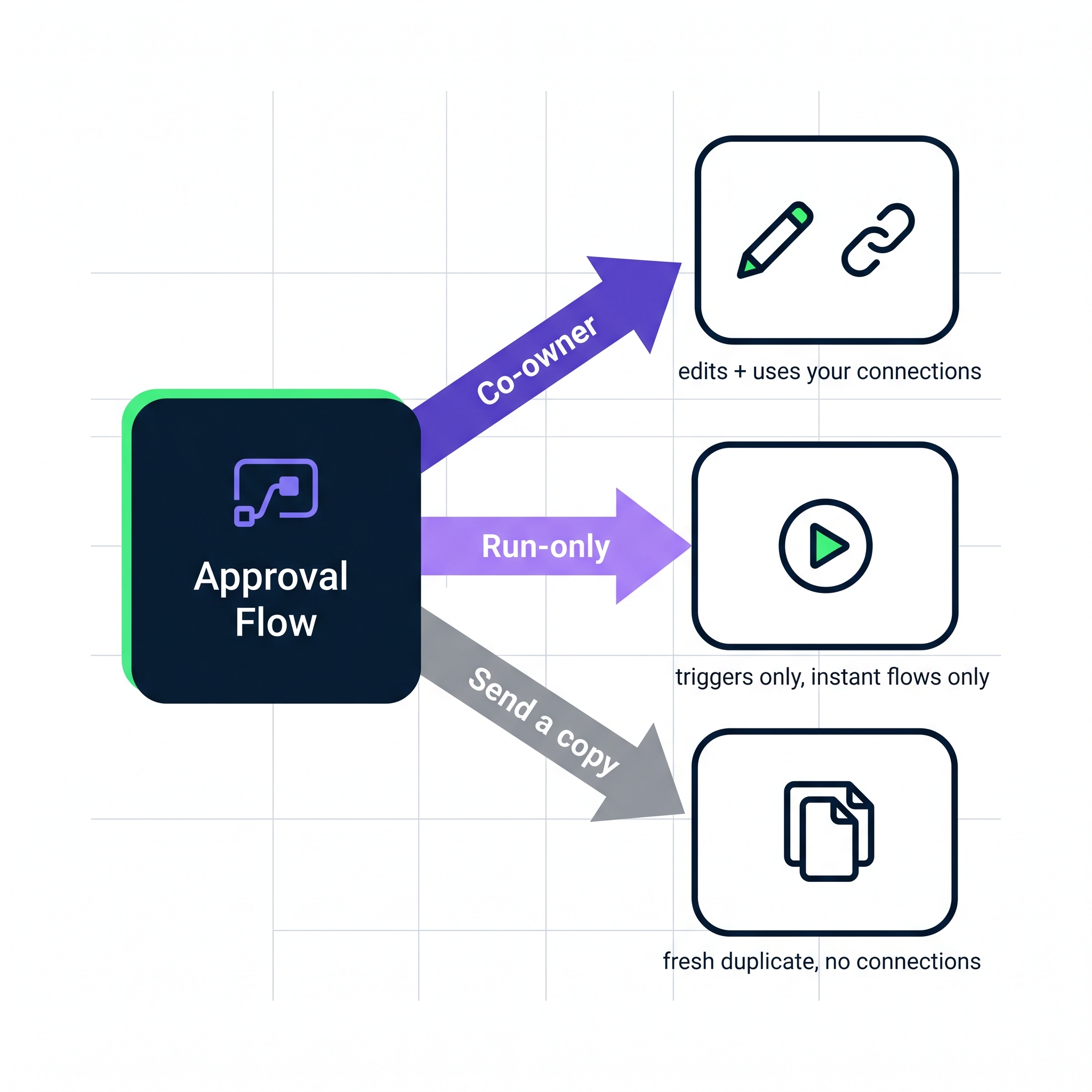
Conceptual diagram of the three Power Automate sharing modes: a central Approval Flow card with three arrows fanning out, a purple solid arrow labelled Co-owner leading to a recipient card showing pencil and chain-link icons with the caption edits + uses your connections, a lighter purple arrow labelled Run-only leading to a play-button card captioned triggers only instant flows only, and a grey arrow labelled Send a copy leading to a stacked-pages card captioned fresh duplicate no connections


  • One flow, three ways out
  • Pick by what the recipient needs to do: edit / trigger / customize

$$

  • Co-owner = collaborator
  • Run-only = button-presser
  • Send a copy = forking the recipe
Introduction to Power Automate

Moving flows between environments


Export Package Solutions
Speed Quick: click Export, get a .zip More setup, proper packaging
Dependencies None tracked; connectors re-authenticate on import Tracks connection references, env variables, related components
Use when Quick moves, prototypes, one-off transfers Production deployments, multi-environment ALM


Rule of thumb: Export Package for one-offs, Solutions the moment a flow earns a place in production.

Introduction to Power Automate

Copilot as a draft tool

Good at:

  • Scaffolding a flow structure quickly
  • Suggesting which connectors and actions to use
  • Explaining existing flows in plain English

Watch for:

  • Deprecated actions → older versions still working but unmaintained
  • Hardcoded values that should be dynamic
  • Missing error handling → almost never included
  • Wrong connectors → check every one


Remember: Treat every Copilot draft as a starting point. You're still the engineer.

Introduction to Power Automate

The Copilot audit checklist

Clean modern illustration on white background of a clipboard labelled AUDIT with five checklist items, each with a checkbox, all five ticked with green checkmarks alongside a pen sketched to the right, representing a fully-completed pre-deploy audit checklist

$$

  1. ✅ Correct trigger type?
  2. ✅ All connections authenticated?
  3. ✅ Required fields filled in?
  4. ✅ Actions in logical order?
  5. Error handling present?
Introduction to Power Automate

The responsible flow lifecycle

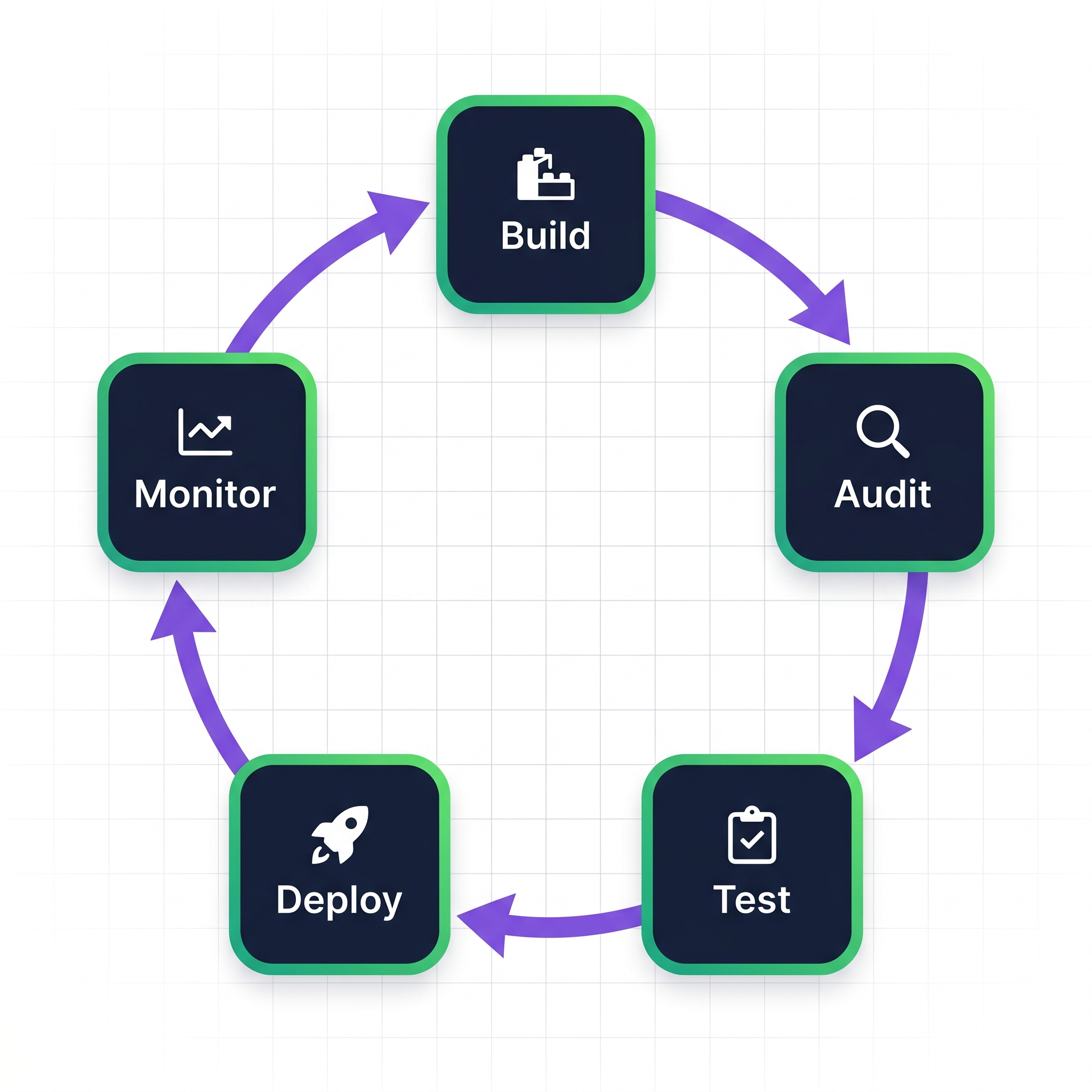
Circular conceptual diagram showing the responsible flow lifecycle as a closed loop: five rounded dark-navy nodes arranged clockwise around a circle, each with a white icon and label, Build at the top with a construction-block icon, Audit upper-right with a magnifying-glass icon, Test lower-right with a clipboard-and-checkmark icon, Deploy lower-left with a rocket icon, Monitor upper-left with a chart-line icon, connected by purple curved arrows flowing clockwise from Build through Audit, Test, Deploy, Monitor, and then back to Build to close the cycle


  1. Build (or generate with Copilot)
  2. Audit against the checklist
  3. Test manually with edge cases
  4. Deploy the real trigger
  5. Monitor run history regularly
Introduction to Power Automate

Let's practice!

Introduction to Power Automate

Preparing Video For Download...