Your first flow

Introduction to Power Automate

Anushika Agarwal

Cloud Data Engineer

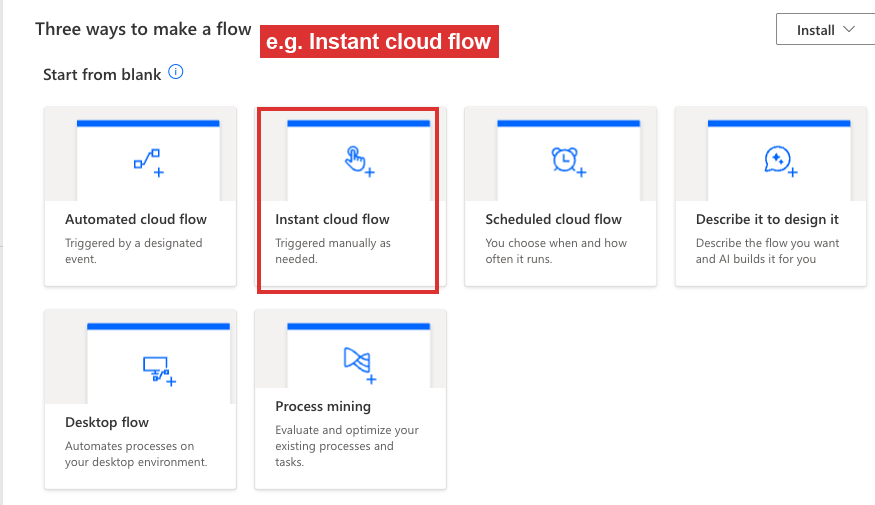
Open the Create page


  • The Create page lists every flow type
  • Pick the one that matches your trigger
  • e.g. Instant cloud flow for a manual button

$$

Power Automate Create page with the Instant cloud flow tile highlighted in red and labelled as the example flow type

Introduction to Power Automate

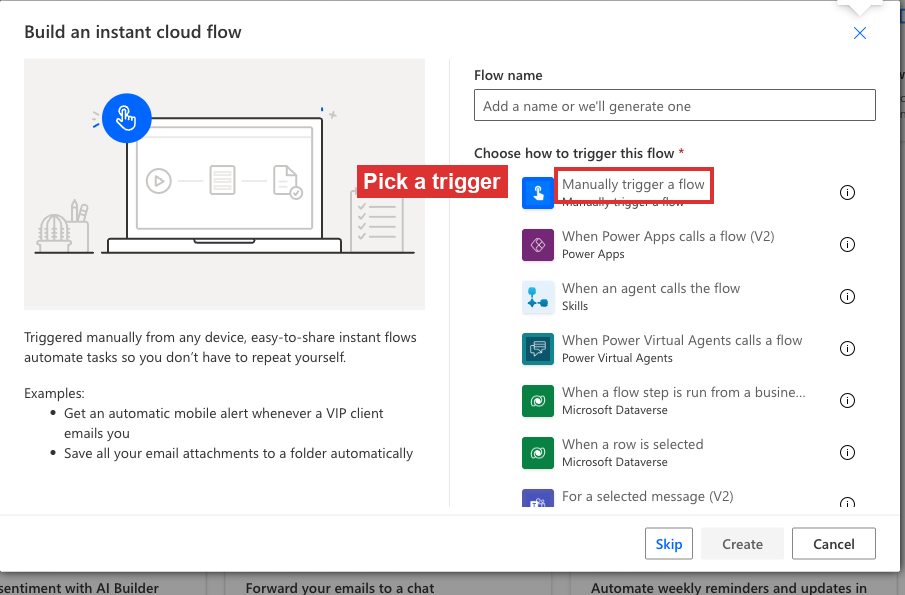
Pick a flow type and trigger


  • Name the flow
  • Pick a trigger from the list

$$

Power Automate Build an instant cloud flow dialog with the Pick a trigger area highlighted in red

Introduction to Power Automate

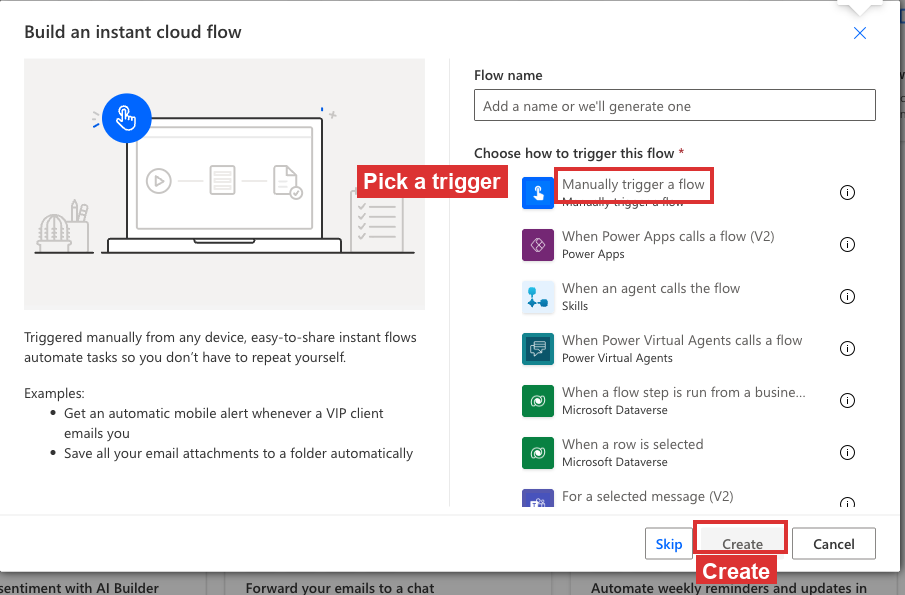
Pick a flow type and trigger


  • Name the flow
  • Pick a trigger from the list
  • Click Create to open the editor

$$

Power Automate Build an instant cloud flow dialog with the Pick a trigger area highlighted and the Create button highlighted in red

Introduction to Power Automate

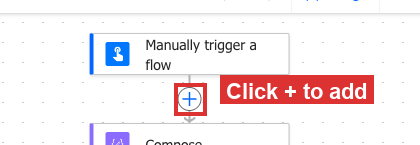
Click + to add an action


  • The + below any card adds the next action
  • Click it to open the action picker

$$

Power Automate flow canvas with the + icon below the Manually trigger a flow card highlighted in red and labelled Click + to add

Introduction to Power Automate

Add an action


  • The + below any card adds the next action
  • Click it to open the action picker
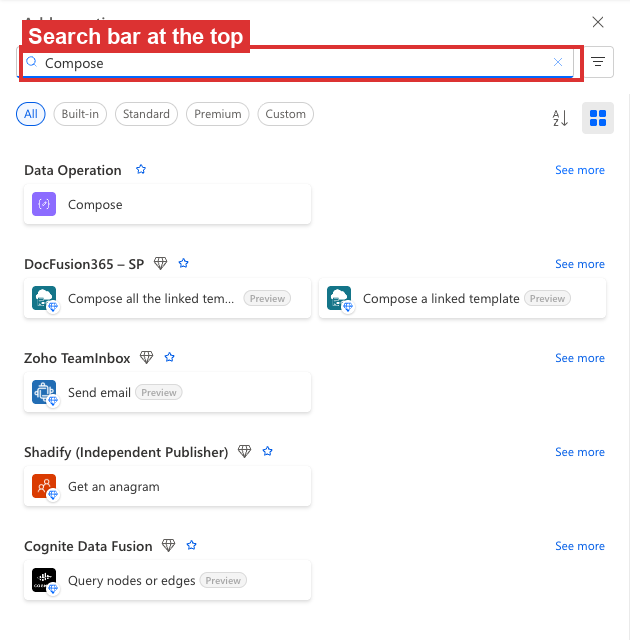
  • Use the search bar at the top to find an action

$$

Power Automate Add an action picker open with the search bar at the top highlighted in red

Introduction to Power Automate

Add an action


  • The + below any card adds the next action
  • Click it to open the action picker
  • Use the search bar at the top to find an action
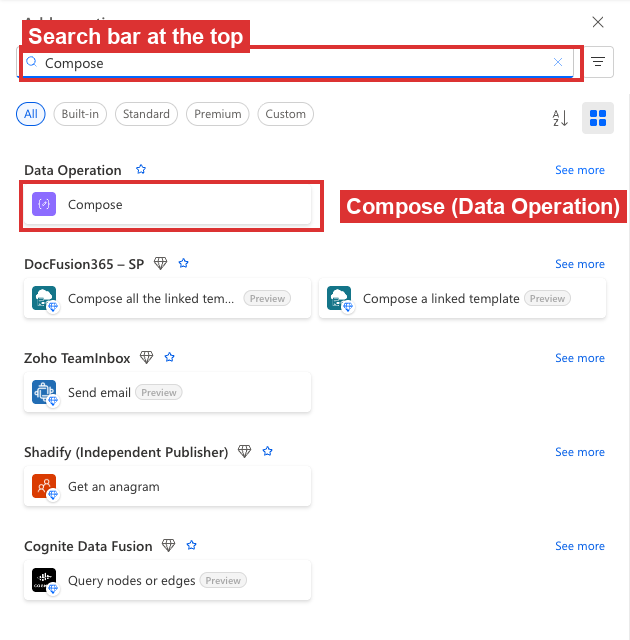
  • e.g. Compose under Data Operation

$$

Power Automate Add an action picker with the search bar and the Data Operation Compose result both highlighted in red

Introduction to Power Automate

Open and review cards


  • Click any card to open it
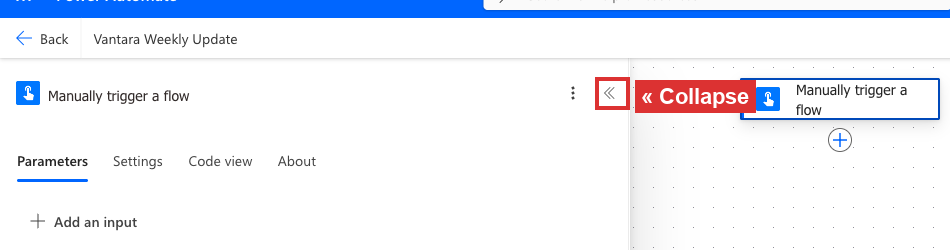
  • « at the top of an open card collapses it

$$

Power Automate open trigger card with the « Collapse chevron highlighted in red

Introduction to Power Automate

Open and review cards


  • Click any card to open it
  • « at the top of an open card collapses it
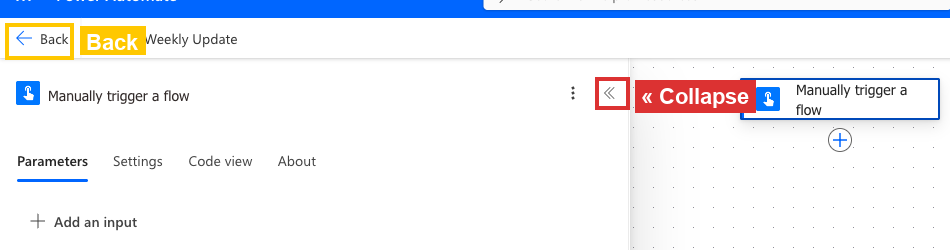
  • ← Back (top-left) leaves the flow entirely

$$

Power Automate open trigger card with the « Collapse chevron in red and the ← Back arrow in yellow as a warning

Introduction to Power Automate

Save


  • You don't need to Save between actions
  • Save when every action is wired up

$$

Power Automate flow editor toolbar with the Save button highlighted in red=

Introduction to Power Automate

Test


  • You don't need to Save between actions
  • Save when every action is wired up
  • Test runs the flow on demand

$$

Power Automate flow editor toolbar with Save and Test both highlighted in red

Introduction to Power Automate

Test and verify


  • Test → Manually → Run flow
  • Wait for the "Your flow ran successfully" banner

$$

Successful test run state in Power Automate with the Your flow ran successfully banner highlighted in red

Introduction to Power Automate

Test and verify


  • Test → Manually → Run flow
  • Wait for the "Your flow ran successfully" banner
  • Each action card gets a check when it ran

$$

Successful test run with the success banner and a green check on the trigger card both highlighted

Introduction to Power Automate

Test and verify


  • Test → Manually → Run flow
  • Wait for the "Your flow ran successfully" banner
  • Each action card gets a check when it ran

$$

Successful test run with the success banner and a green check on both the trigger and Compose action cards highlighted

Introduction to Power Automate

Reading run history

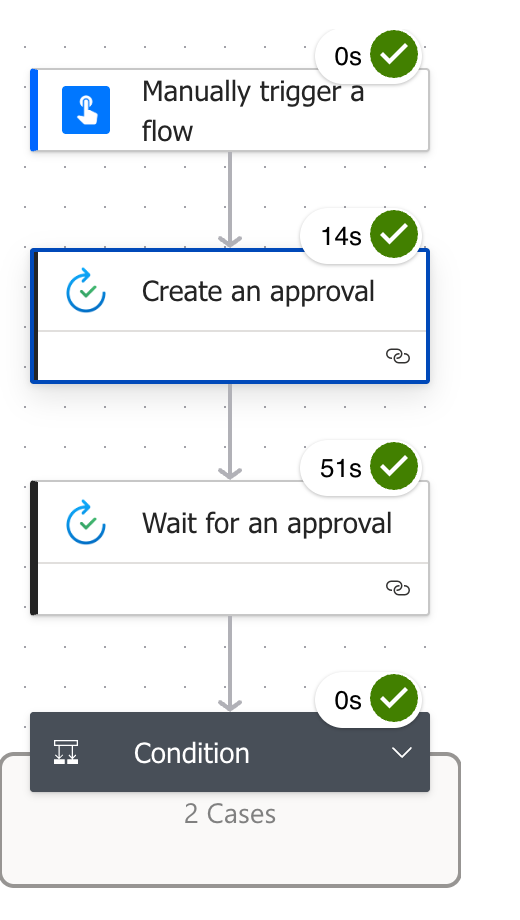
Run history flow view showing a sequence of steps with green check indicators and elapsed times: Manually trigger a flow, Create an approval (highlighted as the expanded step), Wait for an approval, and a Condition with two cases


  • Every run creates a receipt in run history
  • ✓ green = step succeeded
  • ✕ red = step failed
  • A failing step's Outputs almost always tell you why
Introduction to Power Automate

Finding the Flow Runs Page


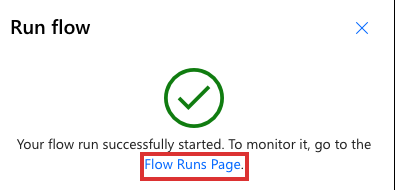
  • After a successful test, a panel appears
  • It includes a Flow Runs Page link
  • Click it to open the run's detail view

$$

Power Automate Run flow panel with a green check, the message Your flow run successfully started, and the Flow Runs Page link highlighted in red

Introduction to Power Automate

Inspecting a run's Inputs and Outputs


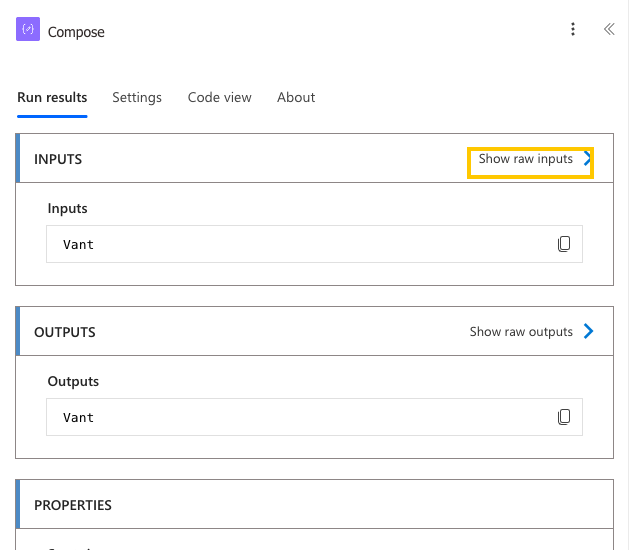
  • Click any step to expand it
  • Inputs show what the step received

$$

Compose run detail view with the Show raw inputs link highlighted in yellow

Introduction to Power Automate

Inspecting a run's Inputs and Outputs


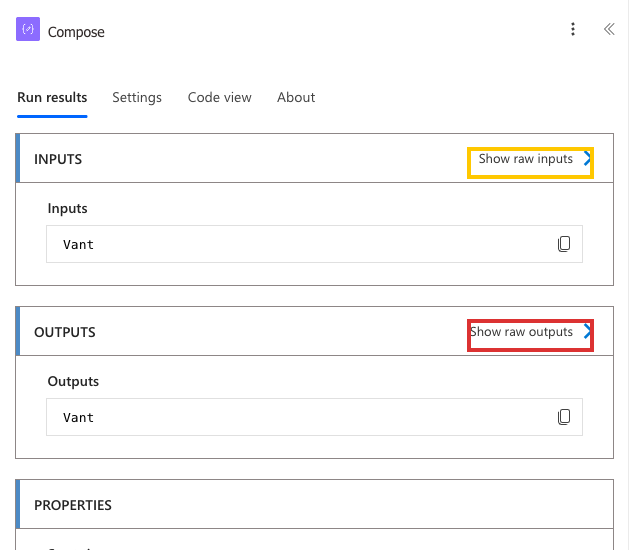
  • Click any step to expand it
  • Inputs show what the step received
  • Outputs show what it produced
  • Show raw outputs reveals the exact text

$$

Compose run detail view with the Show raw inputs link in yellow and the Show raw outputs link highlighted in red

Introduction to Power Automate

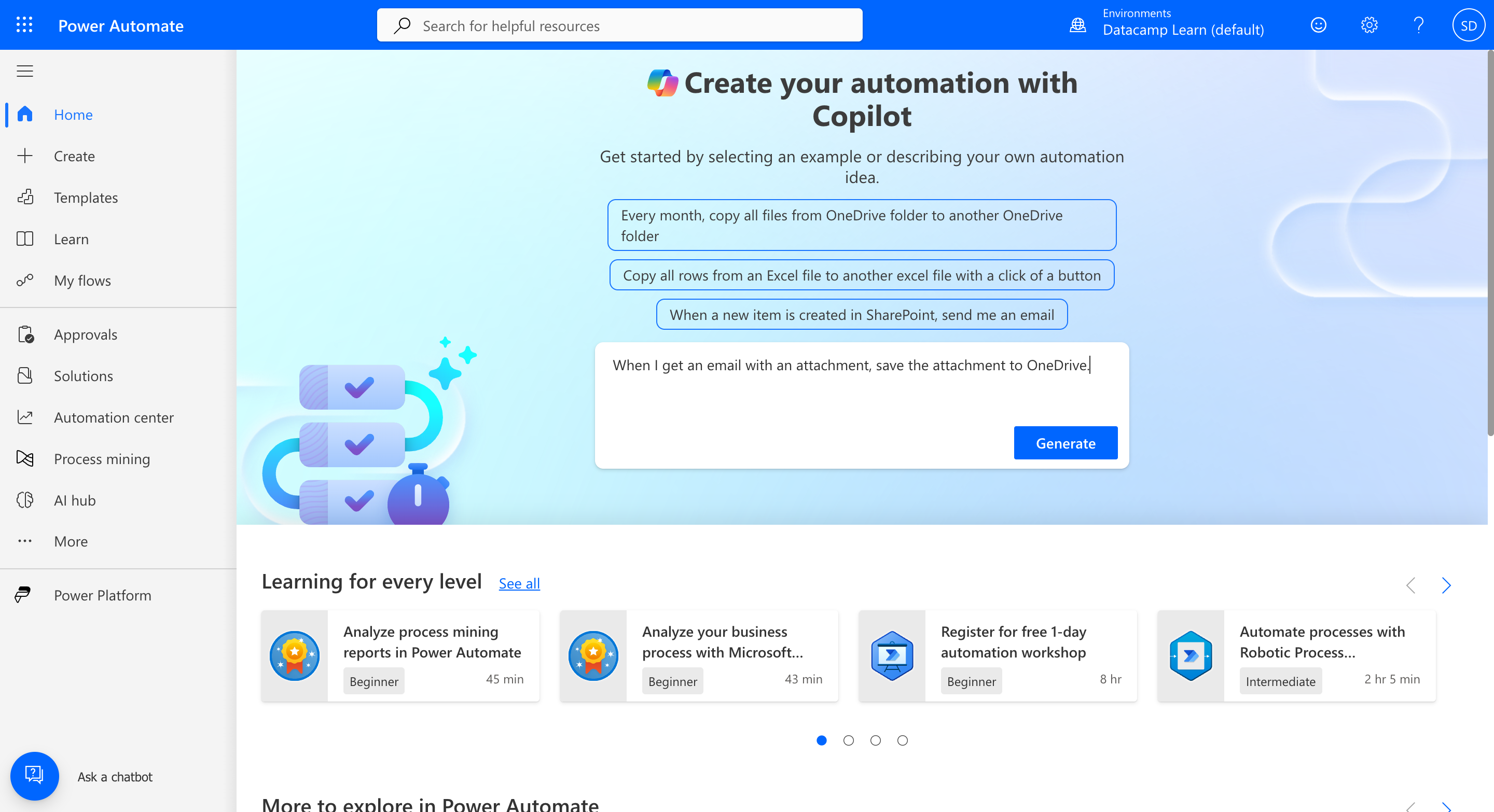
Where Copilot lives

Copilot prompt box on the Power Automate Home page with a natural language prompt and sparkle AI icon

  • Home"Create your automation with Copilot"   |   Create"Describe it to design it"
Introduction to Power Automate

Writing a good Copilot prompt

$$

✕ Bad
Make a flow about emails.

$$

✓ Good
When a new email arrives 
with the word "invoice" 
in the subject, save the 
attachment to a SharePoint
folder named 
"Incoming Invoices".
Introduction to Power Automate

Copilot produces a draft, not a finished flow
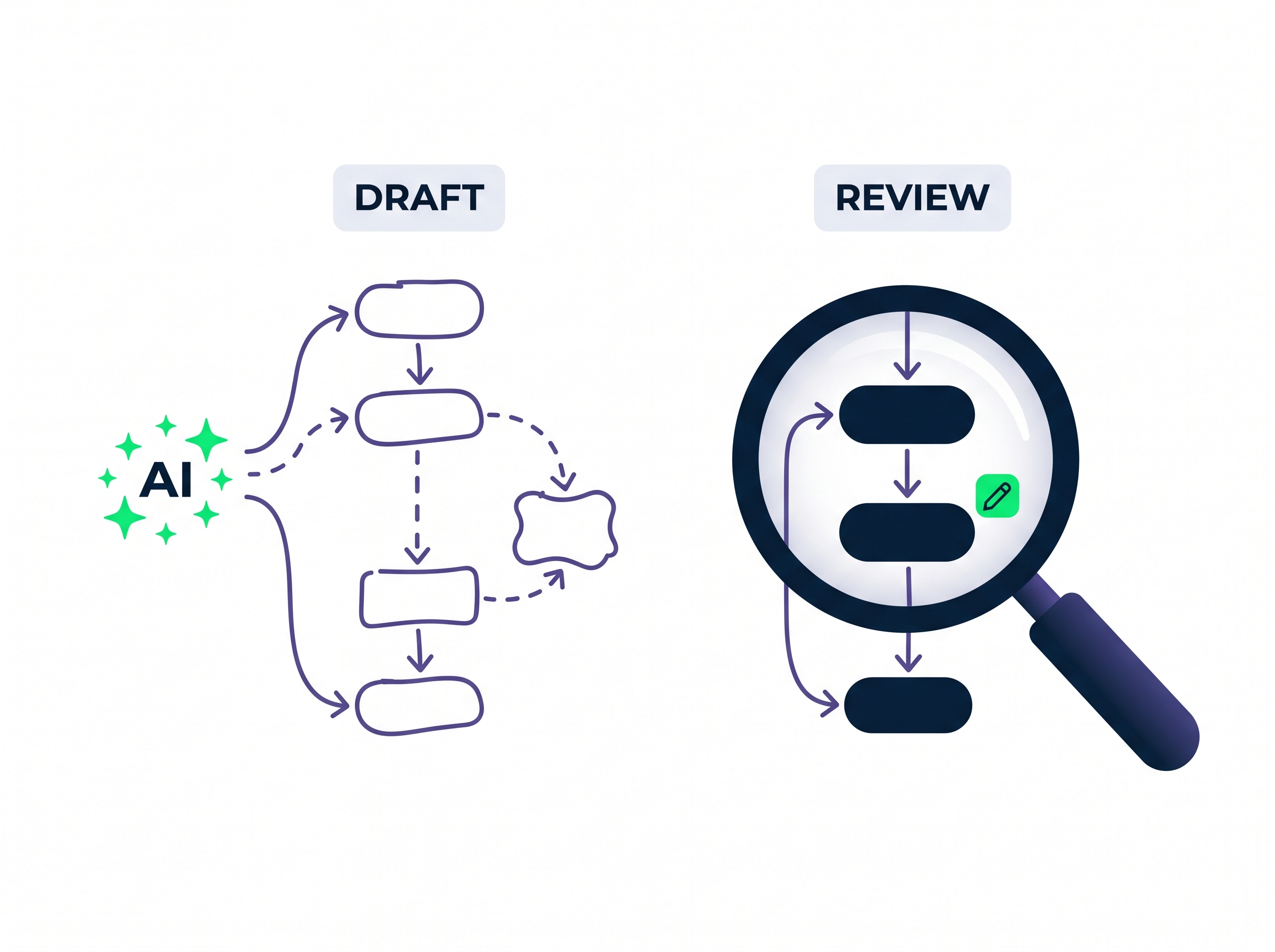
 

  • Copilot generates a starting point: always review before saving
  • Read what it built. Does it match what you described?
  • Treat every Copilot draft as a suggestion, not a final answer

Draft versus review concept: on the left, a sparkly AI icon emits a rough sketched flow with dashed lines and a wobbly node; on the right, a magnifying glass over a crisp three-step flow with a pencil-edit badge

Introduction to Power Automate

Let's practice!

Introduction to Power Automate

Preparing Video For Download...