Connectors in Power Automate

Introduction to Power Automate

Anushika Agarwal

Cloud Data Engineer

What are connectors?

Hub-and-spoke illustration of Power Automate as a central connector linking to email, calendar, chat, database, and spreadsheet services


  • A connector is the bridge between Power Automate and a service
  • Over 1,000 connectors: email, files, databases, enterprise systems
  • Each connector exposes one service's triggers and actions
  • Sign in once per connector (a few show Create instead). Power Automate remembers your credentials
Introduction to Power Automate

Standard vs. Premium

$$

Screenshot 2026-06-09 at 11.17.34.png

Screenshot 2026-06-09 at 11.18.09.png


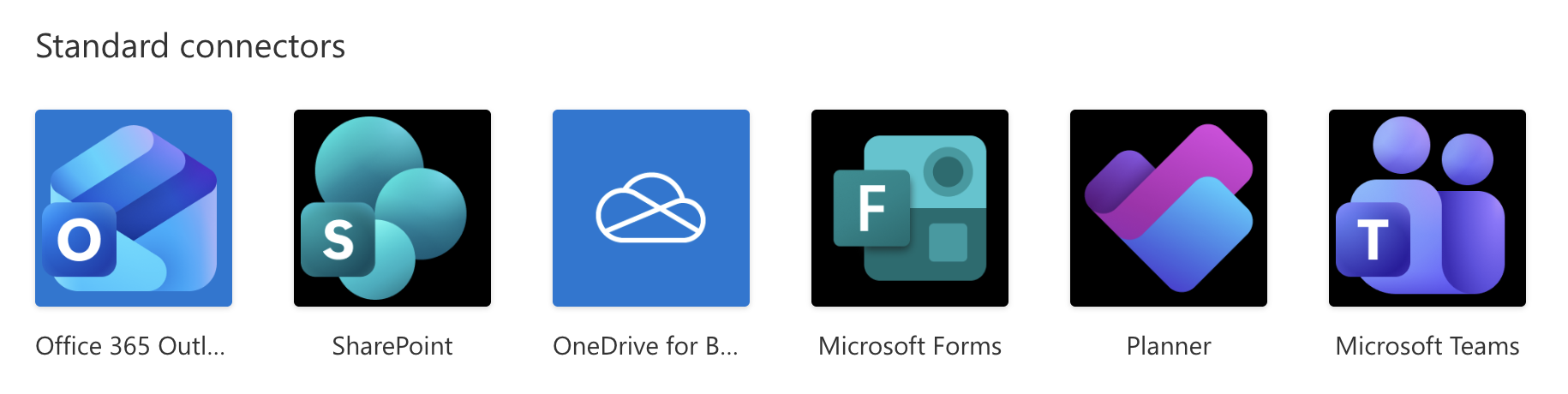
  • Standard → included with most Microsoft 365 plans
    • Outlook, SharePoint, Teams, OneDrive, and Forms
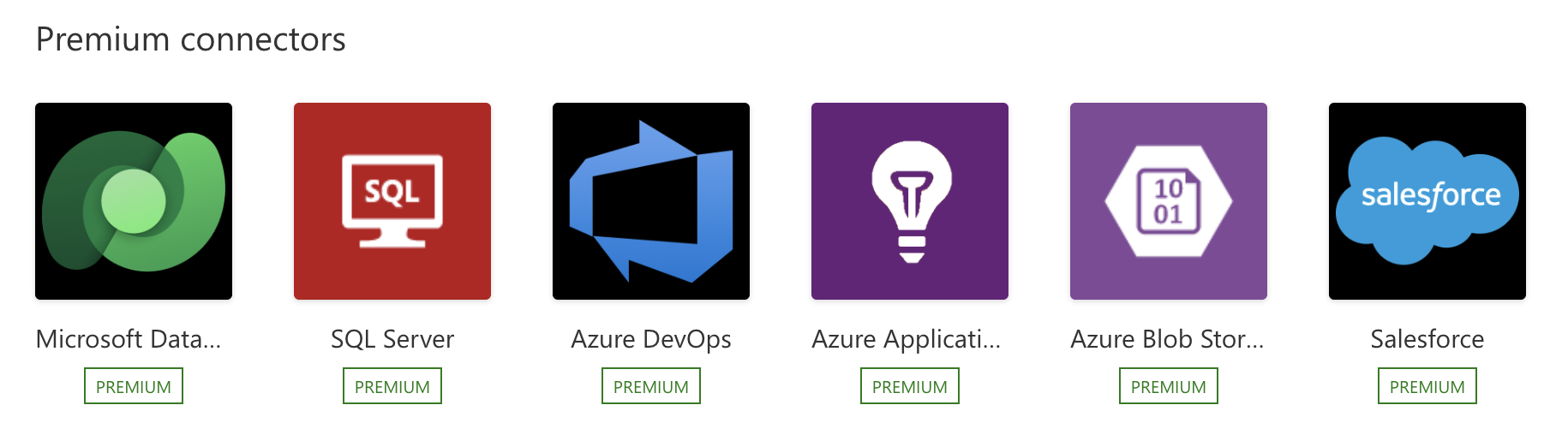
  • Premium → needs a Power Automate Premium license
    • Salesforce, SAP, Dataverse, and custom connectors
  • Look for the PREMIUM badge in the connector gallery
Introduction to Power Automate

The most common connectors


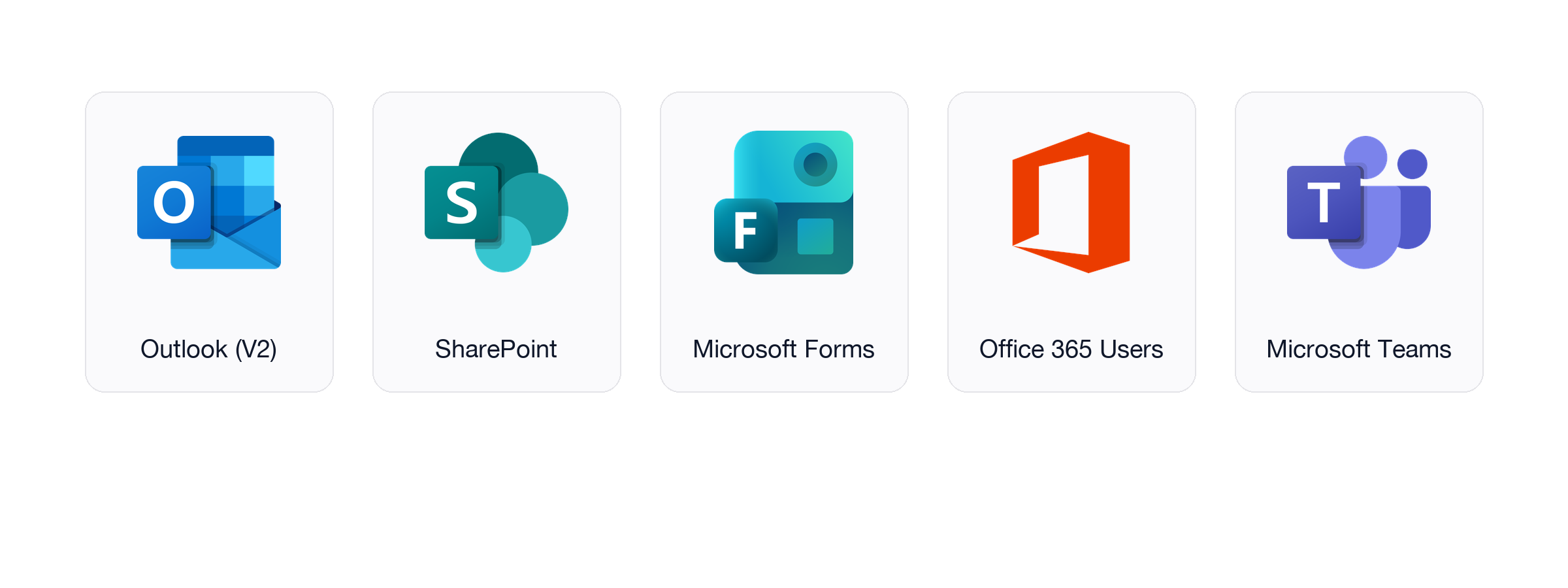
  • Outlook (V2) → sending and reading email
  • SharePoint → lists, files, libraries
  • Microsoft Forms → survey and form responses
  • Office 365 Users → profile lookups, user data
  • Microsoft Teams → messages, channels, notifications

$$

$$

Five connector logos in a row: Outlook (V2), SharePoint, Microsoft Forms, Office 365 Users, Microsoft Teams

Introduction to Power Automate

Triggers vs. actions

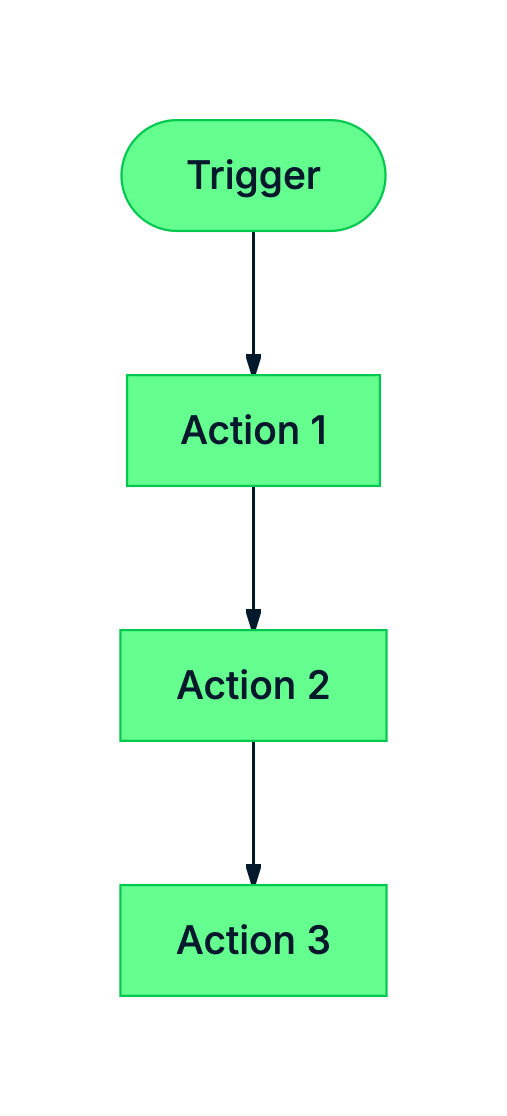
Diagram showing a trigger as the first step of a flow, followed by a chain of actions


  • Trigger → how the flow starts, one per flow
  • Actions → what the flow does, as many as you need
  • A single connector usually offers both: the same connector can trigger one flow and act in another
Introduction to Power Automate

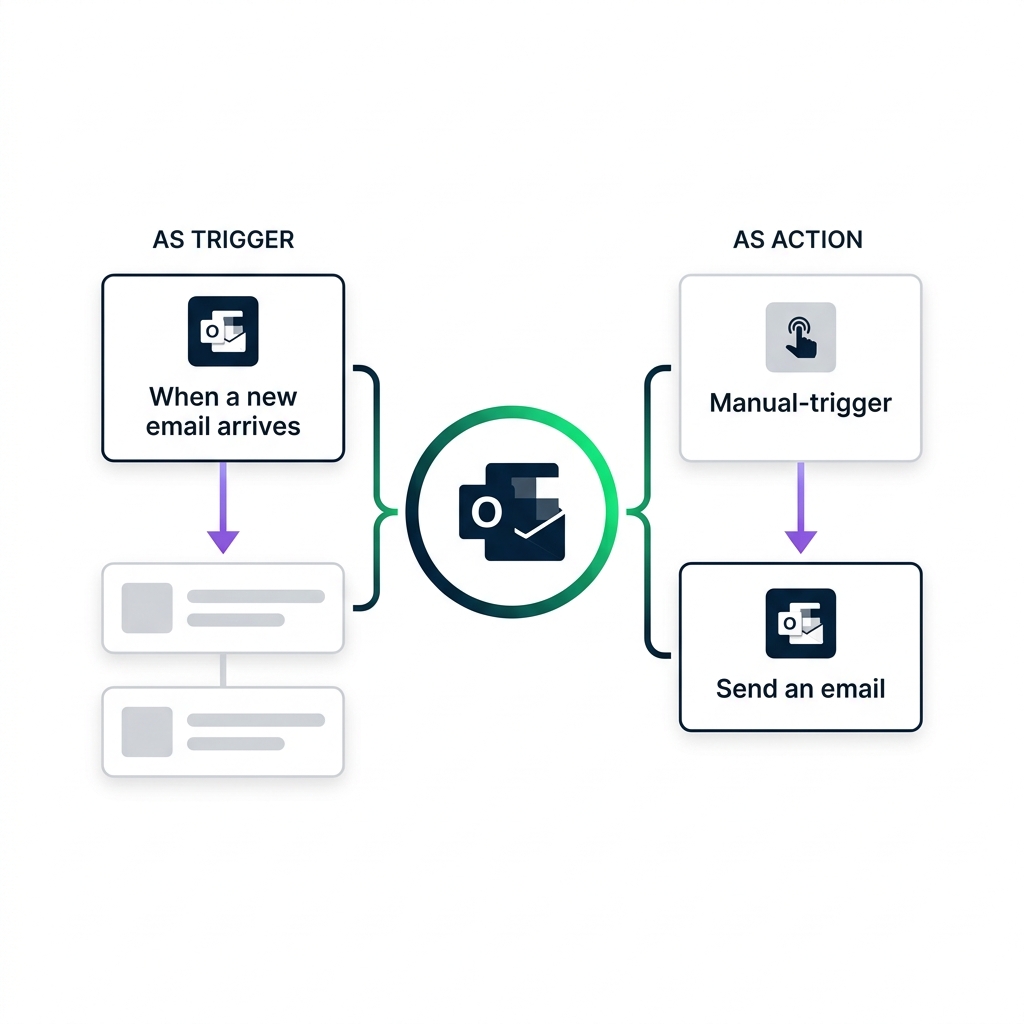
Same connector, two roles

Outlook connector logo in the center with two parallel mini-flows fanning out, labelled AS TRIGGER on the left (an Outlook "When a new email arrives" card flowing into two action cards) and AS ACTION on the right (a manual-trigger card flowing into an Outlook "Send an email" card), emphasising that the connector is shared


  • The same connector can play both roles in different flows

  • Flow 1: Outlook as the trigger → fire on a new email

  • Flow 2: Outlook as an action → send an email

Introduction to Power Automate

Adding a connector action


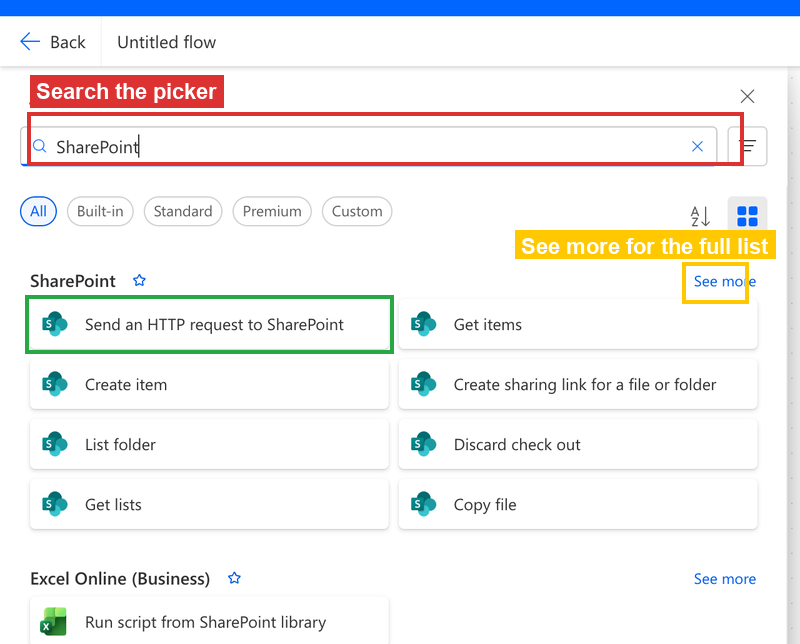
Power Automate Add an action picker open with the search field highlighted in red and SharePoint typed in it, a See more link highlighted in yellow on the right of the SharePoint category, and the first SharePoint action card highlighted in green as an example click target


  • Click the + below any card to open the picker
  • Search by connector or action name at the top
  • Filter by Built-in, Standard, Premium, or Custom
  • See more expands a long category list
Introduction to Power Automate

Polling vs. Push (Webhook) triggers

nanobanana: half: Clean modern illustration on white background of POLLING for a Power Automate concept slide: a single rounded clock face with a magnifying glass overlay on its right side, three small rounded event boxes in a queue below the clock, and two looping arrows curling around the clock to show repeated checks on a schedule. Use a calm blue and soft green palette consistent with the Power Platform style, no labels or text

  • Polling: scheduled checks, can lag, catches up on restart
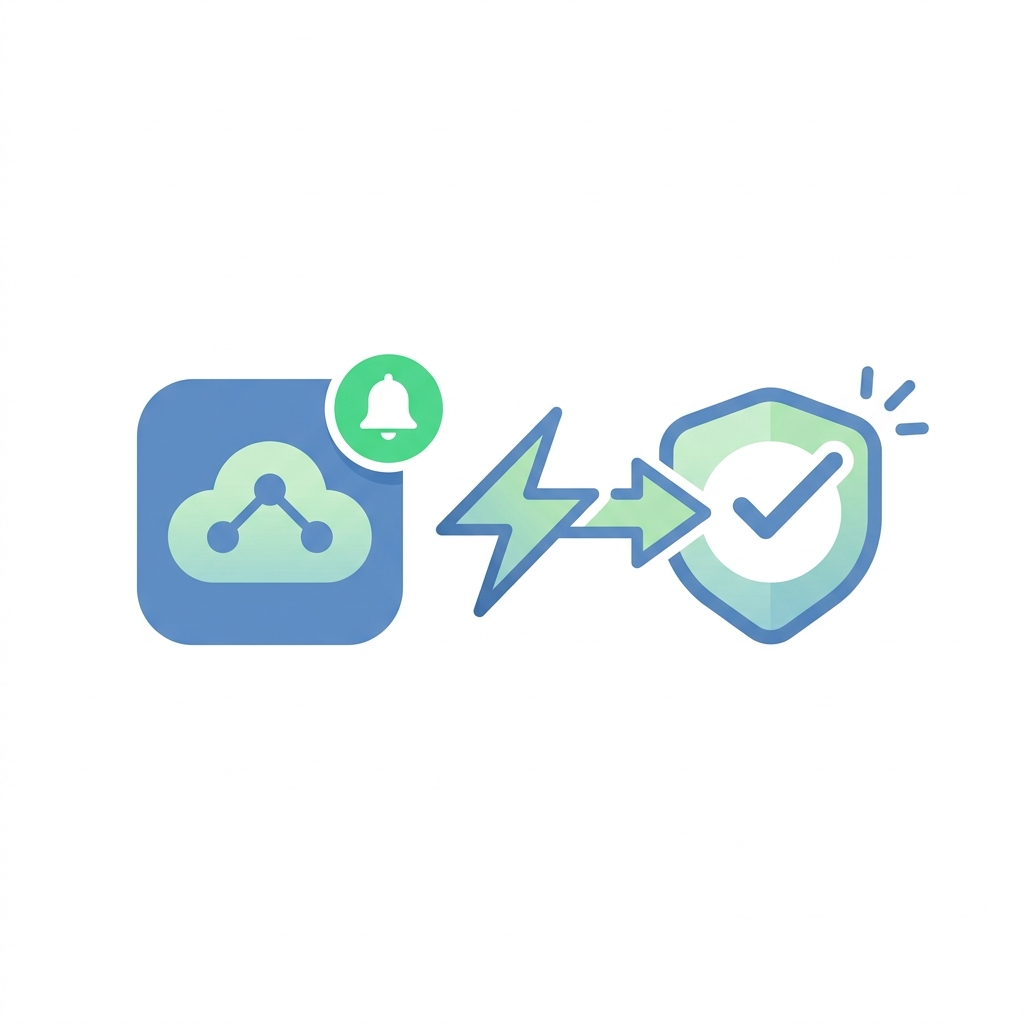
nanobanana: half: Clean modern illustration on white background of PUSH/WEBHOOK for a Power Automate concept slide: a single rounded service icon on the left with a small notification bell overlay, a single lightning bolt arrow flying from it to a rounded target icon on the right showing instant delivery. Use the same calm blue and soft green palette as the polling counterpart, no labels or text

  • Push (Webhook): instant on event, misses anything while the flow is off
Introduction to Power Automate

Best practices

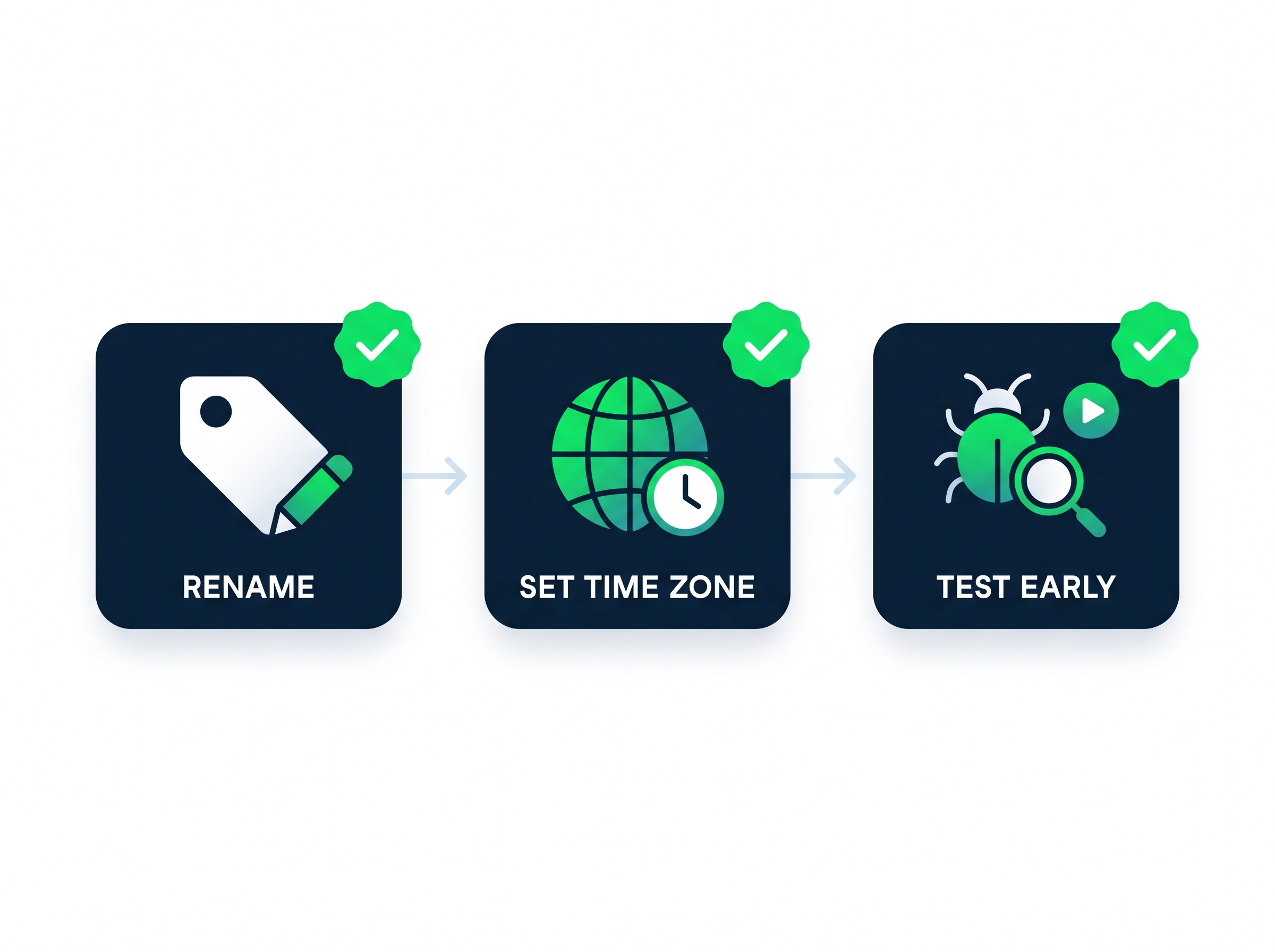
Three best-practice tiles in a row, each with a green check badge: RENAME (name tag with pencil), SET TIME ZONE (globe with clock), TEST EARLY (bug with magnifying glass)


  • Rename every action: "Send approval email" beats "Send an email (V2)"
  • Set the time zone on Recurrence triggers: default is UTC, often worth changing
  • Test after each new action: catch errors early, not at the end
Introduction to Power Automate

Let's practice!

Introduction to Power Automate

Preparing Video For Download...