What is Power Automate?

Introduction to Power Automate

Anushika Agarwal

Cloud Data Engineer

Meet your instructor

$$

Anushika Agarwal, Cloud Data Engineer


  • Anushika Agarwal, Cloud Data Engineer
  • Microsoft Fabric · Azure · Power BI · SQL
  • Loves sharing emerging cloud tech through hands-on learning
Introduction to Power Automate

What You'll learn

Power Automate icon


  • Ch 1 → Get oriented and ship your first flow
  • Ch 2 → Connect to Outlook, SharePoint, Teams, and more
  • Ch 3 → Variables, conditions, loops, and triggers
  • Ch 4 → Approvals, error handling, and safe sharing
Introduction to Power Automate

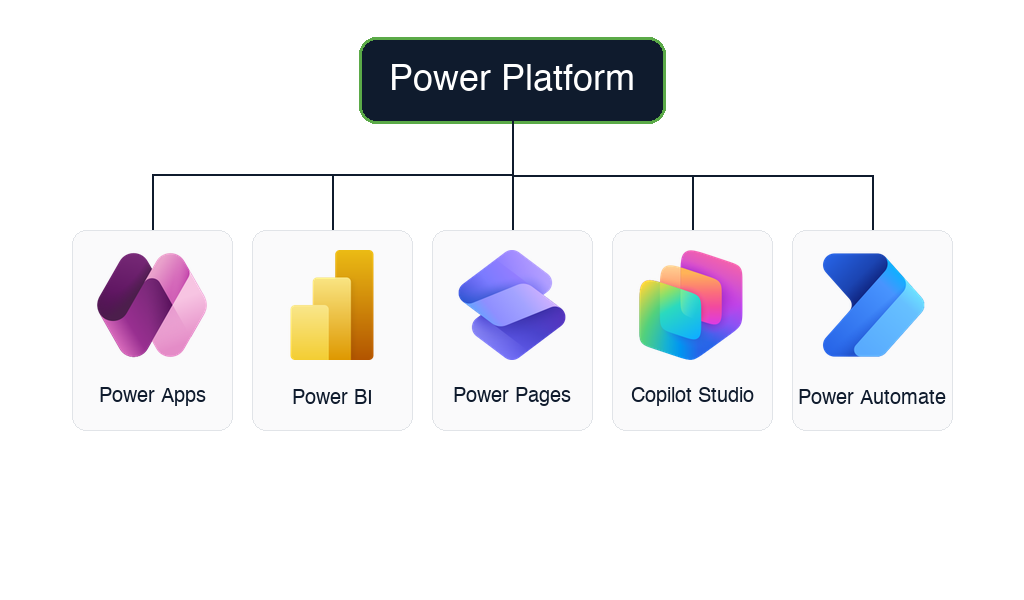
Meet the Power Platform


  • Power Apps → custom business apps
  • Power BI → dashboards and reports
  • Power Pages → external websites and portals
  • Copilot Studio → custom AI agents and chatbots
  • Power Automate → automated workflows

$$

Microsoft Power Platform family tree with the official product logos for all five tools: Power Apps, Power BI, Power Pages, Copilot Studio, and Power Automate, each in a labelled card under a "Power Platform" header

Introduction to Power Automate

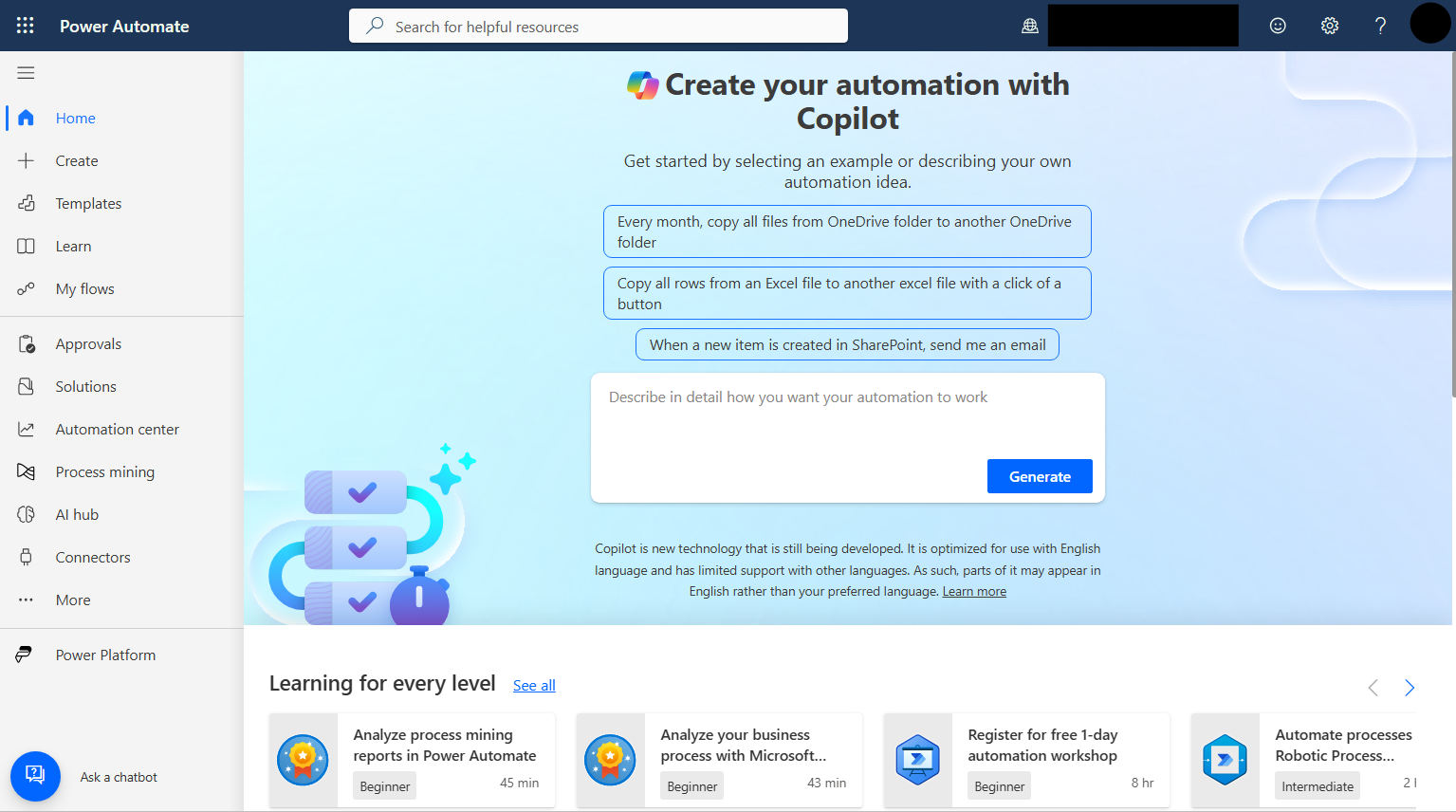
This is Power Automate

$$

Power Automate maker portal home page showing the left navigation with Home, Create, Templates, Learn, My flows, Approvals, Solutions, Process mining, AI hub and Connectors, the "Create your automation with Copilot" prompt at the top of the page, and a row of Learning for every level cards along the bottom


  • The maker portal at make.powerautomate.com is where you'll spend this course
  • The left navigation is how you move between Create, My flows, Templates, and more
  • The big prompt at the top is Copilot, which drafts a flow from plain English
Introduction to Power Automate

What does Power Automate actually do?
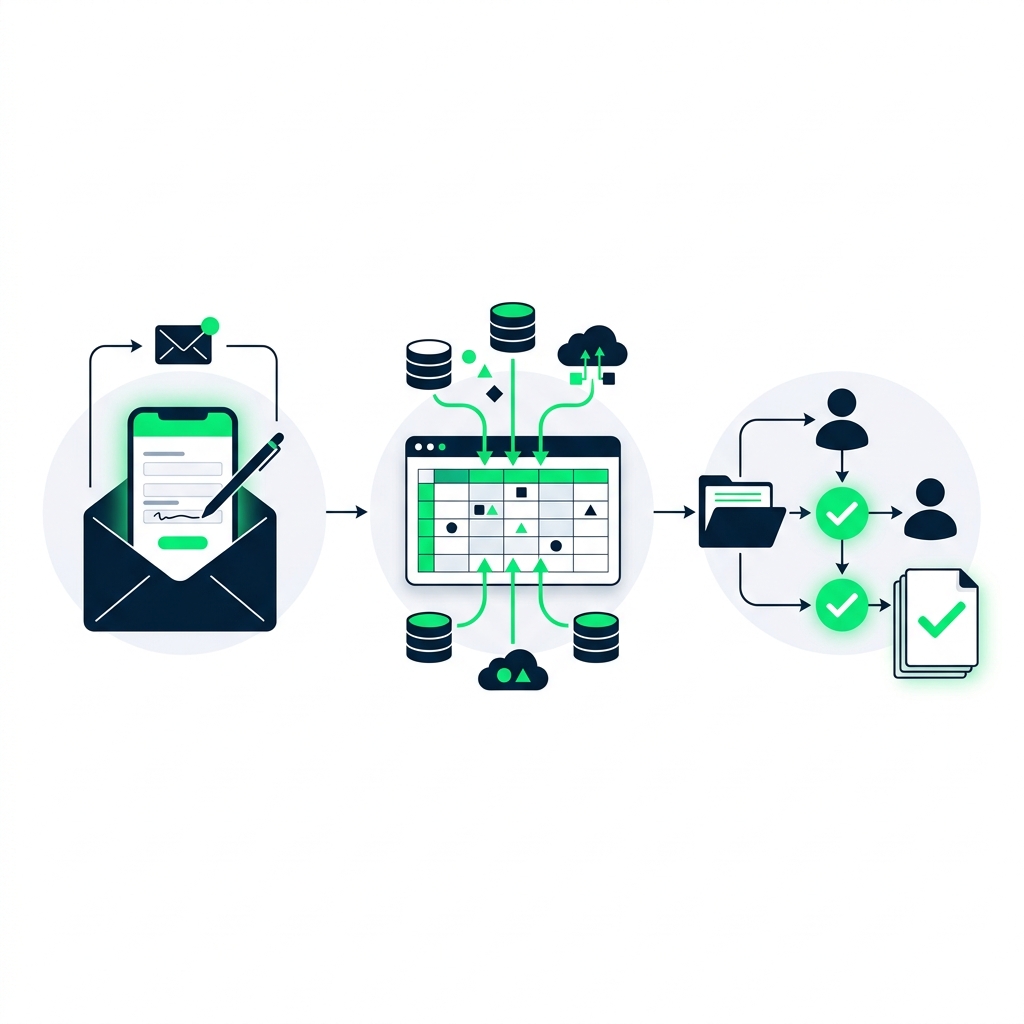
nanobanana: half: Professional illustration on white background showing three automated workflow scenarios side by side: email notification with a form, spreadsheet with data flowing in, and an approval routing with checkmarks


$$

  • Notify when a form is submitted
  • Copy email attachment data into a spreadsheet
  • Route approval requests to the right manager
Introduction to Power Automate

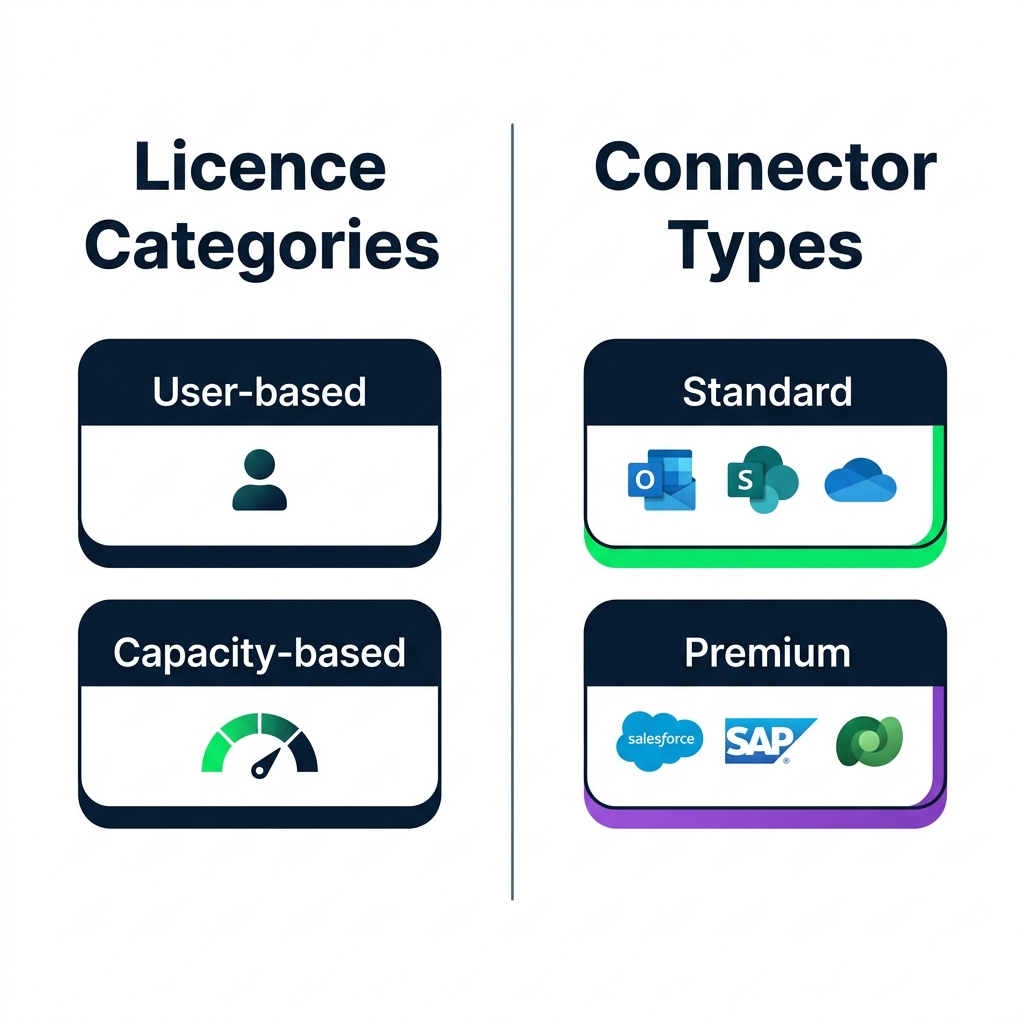
Licensing

nanobanana: half: Clean modern flat illustration on pure white background showing a Power Automate licensing diagram with two distinct sections side by side, separated by a thin vertical divider. LEFT section header bold large text "Licence Categories" with two stacked rounded rectangles below: top rectangle labelled "User-based" with a small person icon, bottom rectangle labelled "Capacity-based" with a usage-meter gauge icon. RIGHT section header bold large text "Connector Types" with two stacked rounded rectangles below: top rectangle labelled "Standard" with three small coloured icons representing Outlook, SharePoint, OneDrive and a green accent, bottom rectangle labelled "Premium" with three small coloured icons representing Salesforce, SAP, Dataverse and a purple accent. Two section headers are same size and bold. No other text or elements.


  • License categories

    1. User-based
    2. Capacity-based

    $$

  • Connector types

    1. Standard: Outlook, SharePoint, OneDrive
    2. Premium: Salesforce, SAP, Dataverse
Introduction to Power Automate

Instant cloud flow


  • Starts when someone clicks a button
  • You decide when it runs
  • Perfect for on-demand tasks

nanobanana: half: Clean flat minimalist illustration on pure white background, one single icon centred. A hand with index finger pressing a large round green button. Below the button, a simple text label "INSTANT" in bold uppercase. Flat 2D style — no 3D rendering, no shadows. Same illustration style as the matching Automated (lightning bolt) and Scheduled (clock face) trio in this lesson.

Introduction to Power Automate

Automated cloud flow


  • Starts when an event happens
  • New email, uploaded file, form submission
  • No human action required after setup

nanobanana: half: Clean flat minimalist illustration on pure white background, one single icon centred. A simple lightning bolt in DataCamp green. Below the bolt, a simple text label "AUTOMATED" in bold uppercase. Flat 2D style — no 3D rendering, no shadows. Same illustration style as the matching Instant (button + hand) and Scheduled (clock face) trio in this lesson.

Introduction to Power Automate

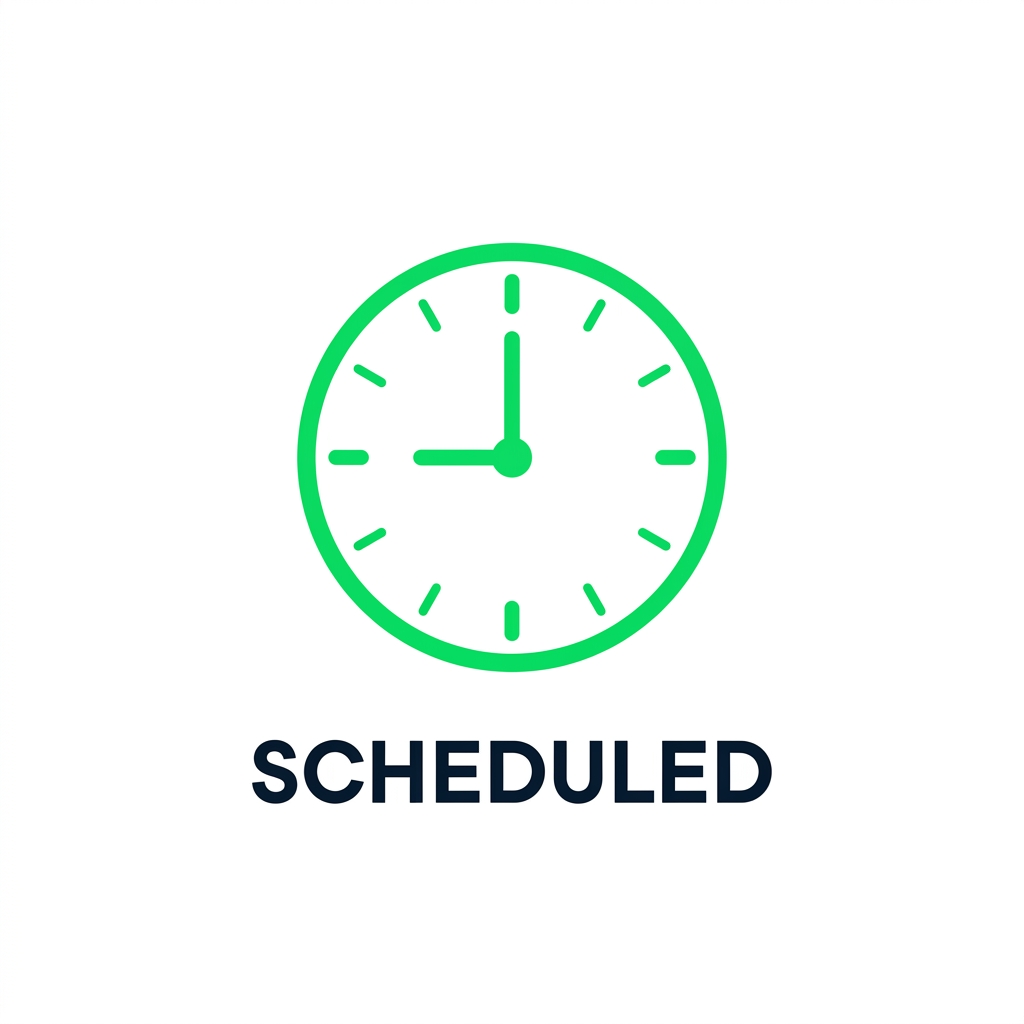
Scheduled cloud flow


  • Starts on a timer
  • Every Monday at 9 AM, every hour, once a month
  • Set it and forget it

nanobanana: half: Clean flat minimalist illustration on pure white background, one single icon centred. A simple analog clock face showing 9:00 in DataCamp green. Below the clock, a simple text label "SCHEDULED" in bold uppercase. Flat 2D style — no 3D rendering, no shadows, no padlock, no Microsoft 365 logo. Same illustration style as the matching Instant (button + hand) and Automated (lightning bolt) trio in this lesson.

Introduction to Power Automate

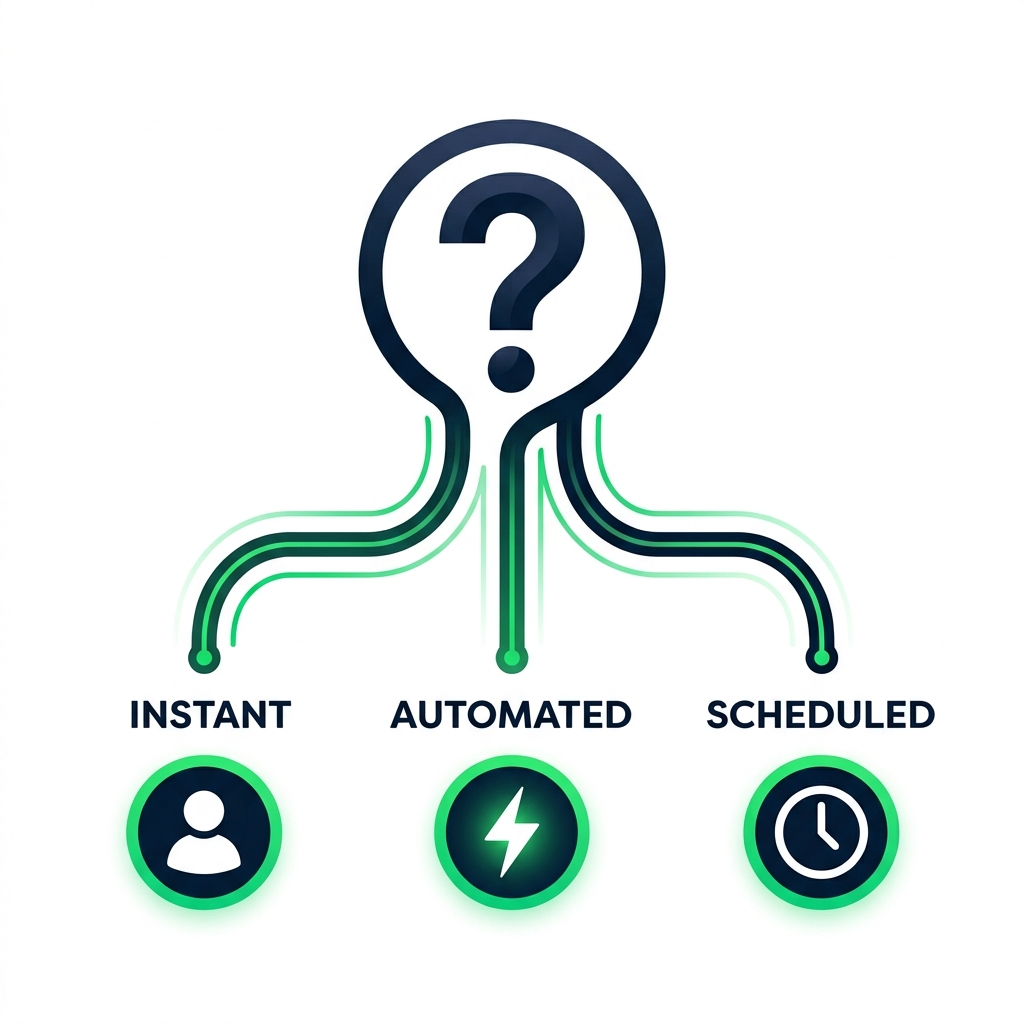
Choosing the right flow type

nanobanana: half: Clean decision guide illustration on white background showing three paths from a central question mark: person icon leading to Instant, lightning bolt to Automated, clock to Scheduled


  • Person starts it? → Instant cloud flow
  • Event starts it? → Automated cloud flow
  • Clock starts it? → Scheduled cloud flow
Introduction to Power Automate

Beyond cloud flows


$$

  • Desktop flows → automate local PC tasks
  • Business Process Flows → guided multi-stage processes

nanobanana: half: Clean modern illustration on white background showing a desktop computer with a robotic arm clicking through a legacy application on one side, and a horizontal progress bar with stages on the other side

Introduction to Power Automate

Let's practice!

Introduction to Power Automate

Preparing Video For Download...