Templates and editing with Copilot

Introduction to Power Automate

Anushika Agarwal

Cloud Data Engineer

Find, preview, connect

$$
Screenshot 2026-06-09 at 11.37.13.png


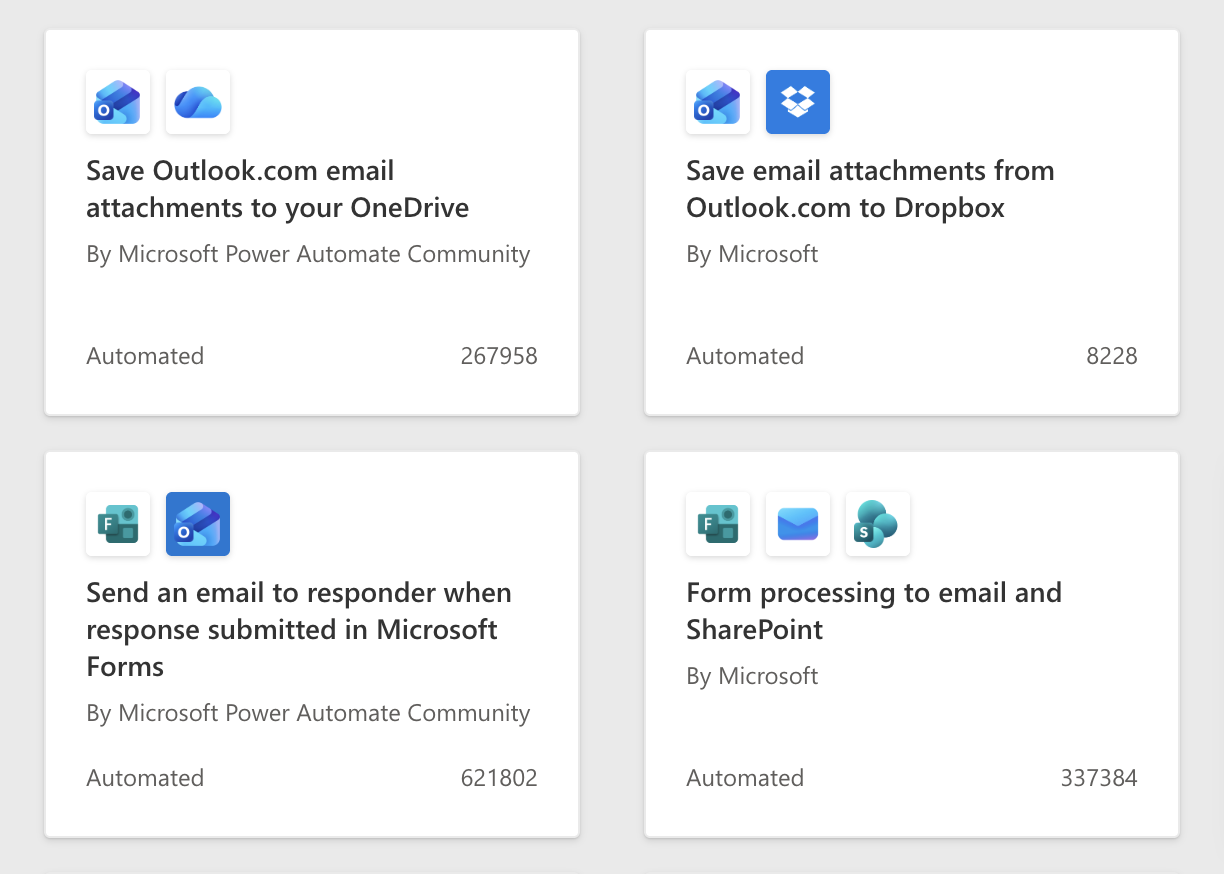
  1. Find: search the gallery by keyword ("approval", "email notification") or browse by category
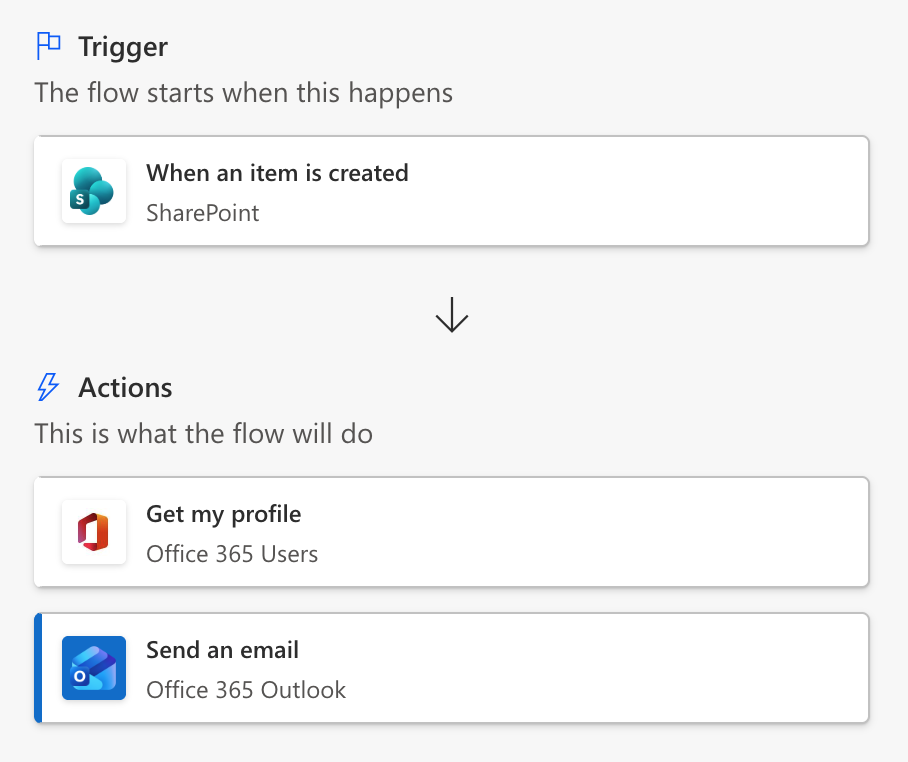
  2. Preview: click any template to see its trigger, actions, and connectors. That's your first audit
  3. Connect & Customize: sign in to required connectors → Continue
Introduction to Power Automate

Always audit before you use


Power Automate template preview showing the flow's structure: a Trigger section with a SharePoint When-an-item-is-created card, then a downward arrow into an Actions section listing Get my profile (Office 365 Users) and Send an email (Office 365 Outlook)


Always audit for:

  • Hardcoded values that should be dynamic
  • Deprecated or outdated actions
  • Missing error handling
  • Wrong trigger type for your scenario

$$

Templates are starting points, not finished products.

Introduction to Power Automate

Run Flow Checker


Power Automate designer top toolbar with the stethoscope icon highlighted in a red box, plus the Undo, Redo, Comments, Save, Test, and Copilot icons visible around it


  • Flow Checker lives in the designer toolbar
  • The stethoscope icon opens it
  • Catches missing required fields before you go further
Introduction to Power Automate

Run Flow Checker


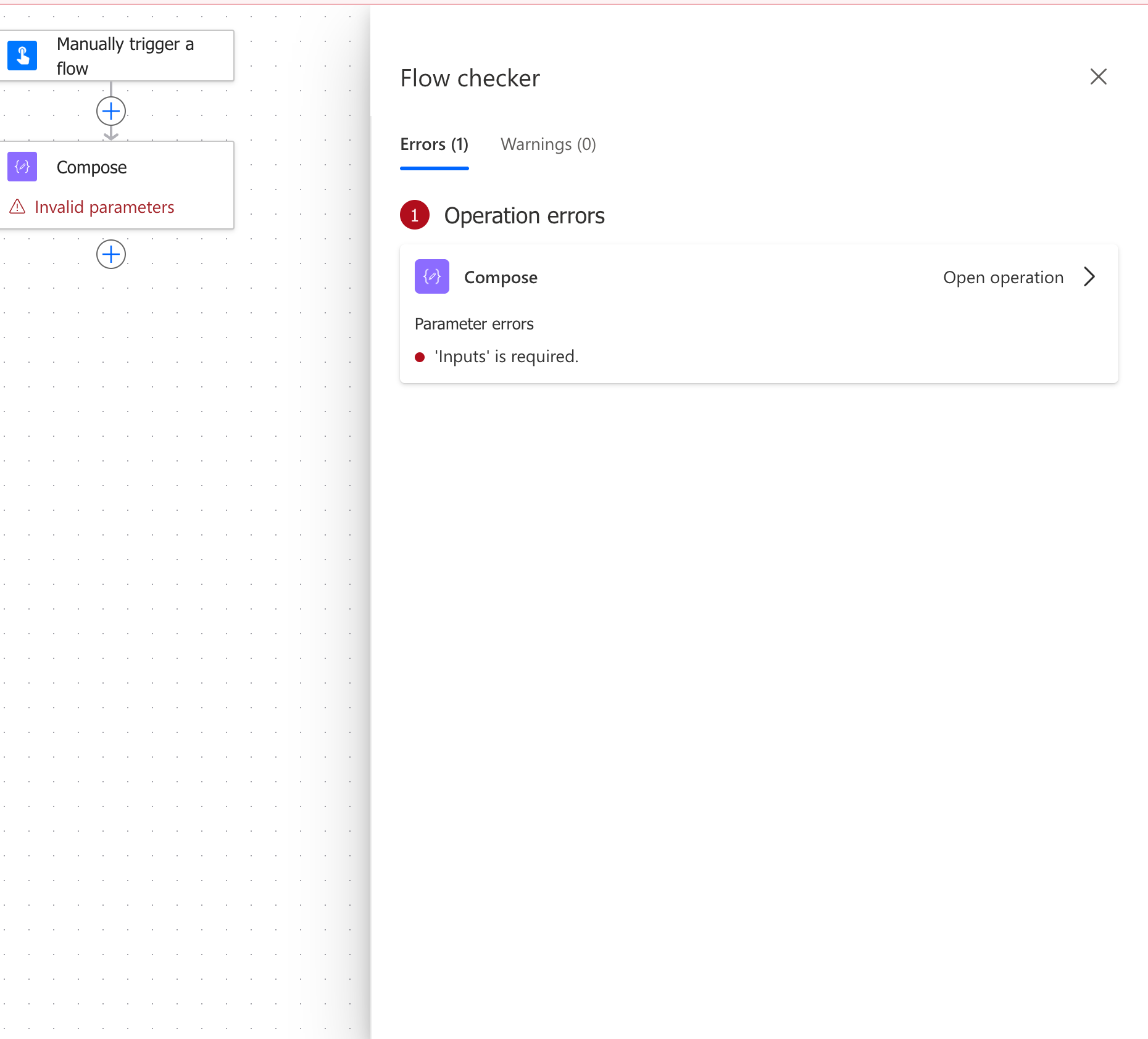
Flow Checker pane open in the Power Automate designer listing errors and warnings for the current flow


  • Flow Checker lives in the designer toolbar
  • The stethoscope icon opens it
  • Catches missing required fields before you go further
  • Opens a pane listing every error and warning
Introduction to Power Automate

Edit with Copilot


Power Automate designer top toolbar with the Copilot icon highlighted in a red box, plus the Undo, Redo, Comments, Flow Checker stethoscope, Save, and Test icons visible around it


  • Open the Copilot sidebar from the designer toolbar
  • Describe a change → Copilot modifies the flow and tells you what changed
  • Add a step to get my profile → Copilot adds Get my profile from Office 365 Users
  • Remove the failure notification action → Copilot removes that step and rewires the flow
Introduction to Power Automate

Edit with Copilot


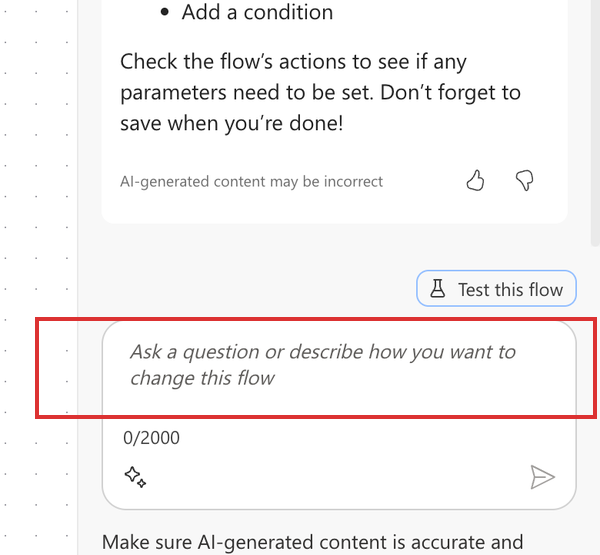
Power Automate Copilot side panel cropped to its chat area, showing the Test this flow button above the chat input field, with the input "Ask a question or describe how you want to change this flow" highlighted in a red box


  • Type your prompt in the chat input at the bottom of the panel
  • Be specific if multiple similar steps exist, and always review what changed
Introduction to Power Automate

Copilot: Explain


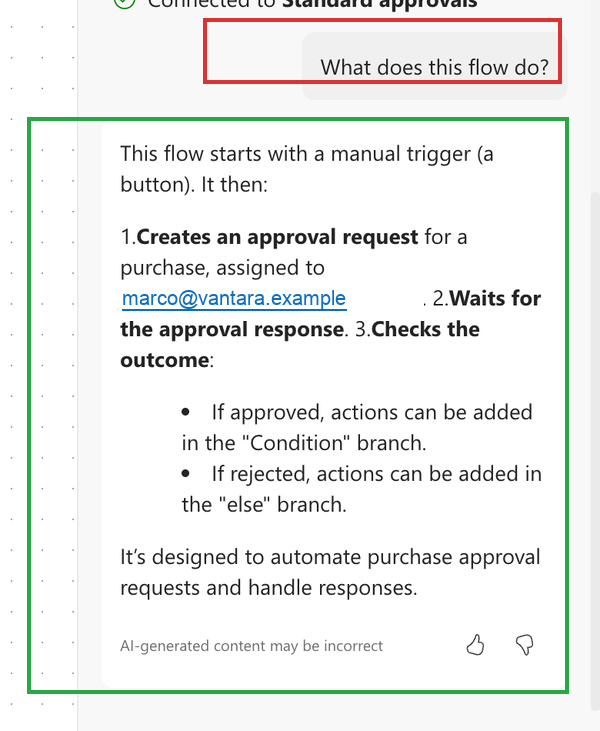
  • Ask What does this flow do? → plain-language summary of every step

  • Useful for auditing templates or understanding a colleague's flow

  • Can also ask about individual actions

Power Automate Copilot side panel cropped to the question + answer area, with the What does this flow do? question highlighted in a red box at the top and the plain-language explanation paragraph below it highlighted in a green box, summarizing the Vantara Approval Flow

Introduction to Power Automate

Undo is your safety net


Power Automate designer top toolbar with the leftmost arrow icon highlighted in a red box, plus the Redo, Comments, Flow Checker stethoscope, Save, Test, and Copilot icons visible around it


  • Copilot changes can be undone, but only before the next prompt
  • Always review the diff before sending another instruction
  • Same rule as templates: Copilot is a starting point
Introduction to Power Automate

Let's practice!

Introduction to Power Automate

Preparing Video For Download...