Prompting in Word and PowerPoint

Working with Microsoft Copilot

Susanth Sutheesh

Copilot Solution Engineer, Microsoft

Word and PowerPoint


The current Microsoft Word app icon

Word: draft and summarize written content


The current Microsoft PowerPoint app icon

PowerPoint: turn ideas into structured slides

Working with Microsoft Copilot

What's different in Word


  • Copilot drafts into your document, not into a chat you copy from
  • Rewrite works on a selection, so you can fix one paragraph
  • Your styles and formatting survive the edit

$$

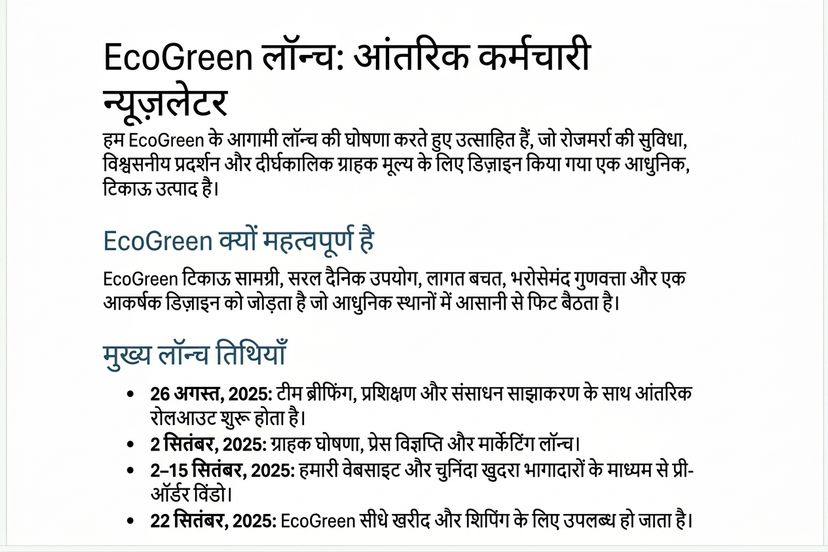
Same GCSE discipline, one prompt: Draft a short EcoGreen launch newsletter from EcoGreen_ProjectNotes.docx: milestones, deadlines and a team spotlight. Friendly tone, clear headings.

Working with Microsoft Copilot

$$

The EcoGreen newsletter Copilot drafted in Word, with clear headings and short sections

Working with Microsoft Copilot

Refine one step at a time

Follow up with one small, focused prompt

  • Copilot edits in place
  • Headings, styles, and structure stay

$$

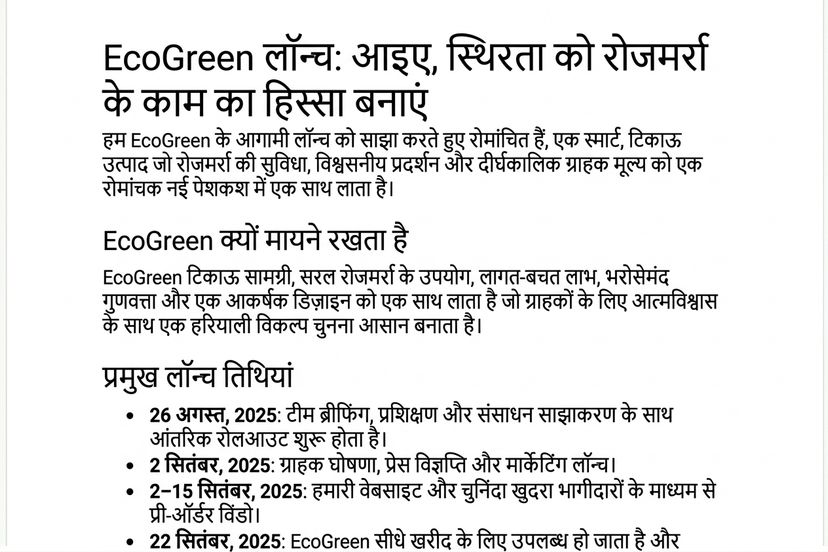
Add a motivating headline and keep the tone upbeat

$$

The same newsletter after the follow-up: a motivating headline added and the tone lifted, facts unchanged

Working with Microsoft Copilot

PowerPoint: describe the deck you want


One prompt to Copilot in PowerPoint:

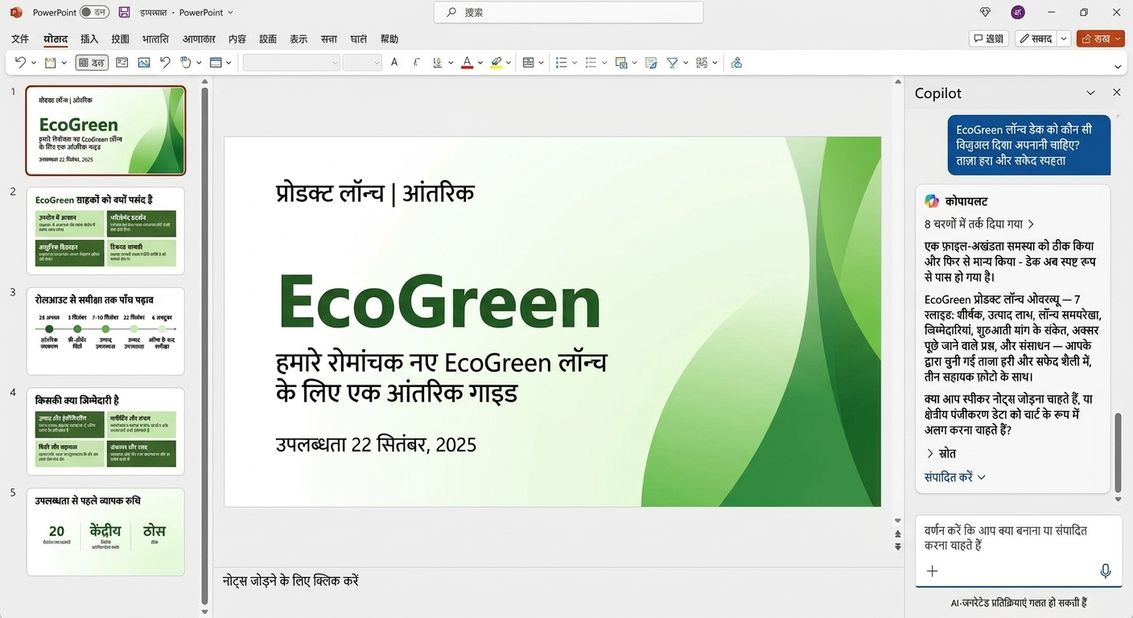
Create a presentation about the EcoGreen reusable water bottle launch, covering our sustainability goals, product benefits, and the team rollout plan.

Working with Microsoft Copilot


Copilot building a multi-slide EcoGreen deck in PowerPoint: the reasoning pane sits beside a thumbnail rail of the generated slides

Working with Microsoft Copilot

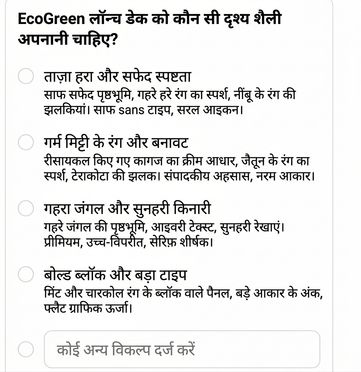
Copilot may ask before it builds

$$

Copilot asking which visual direction the EcoGreen deck should take, offering four described styles to choose from


  • Copilot sometimes asks a question back
  • Answering takes seconds; rebuilding a deck takes longer
  • Or choose Skip and let Copilot decide
Working with Microsoft Copilot

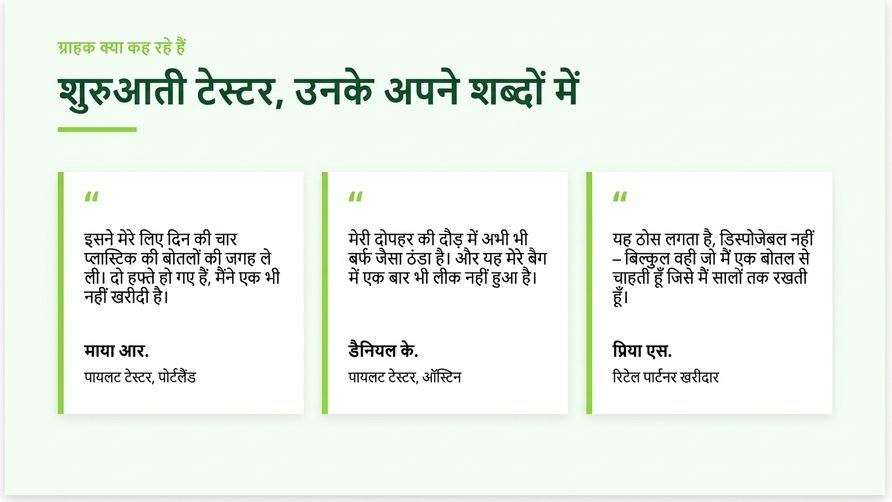
Refine: add a testimonials slide


Ask for one targeted change:

Add a slide with three customer testimonials


The testimonials slide Copilot added, with three on-brand quote cards

Working with Microsoft Copilot

Key takeaways


A green target icon

A blue funnel icon

A purple ascending-steps icon

An orange save icon

A navy open-book icon


  • Set a clear goal that fits each app's strengths
  • Reference specific files or sections as your Source
  • Refine in small, focused steps. Don't try to fix everything in one go.
  • Save the prompts that work
  • Apply GCSE to every new slide, section or document
Working with Microsoft Copilot

Let's practice!

Working with Microsoft Copilot

Preparing Video For Download...