Permissions and plan mode

Introduction to Snowflake CoCo CLI

James Cha-Earley

Senior Developer Advocate, Snowflake

You decide
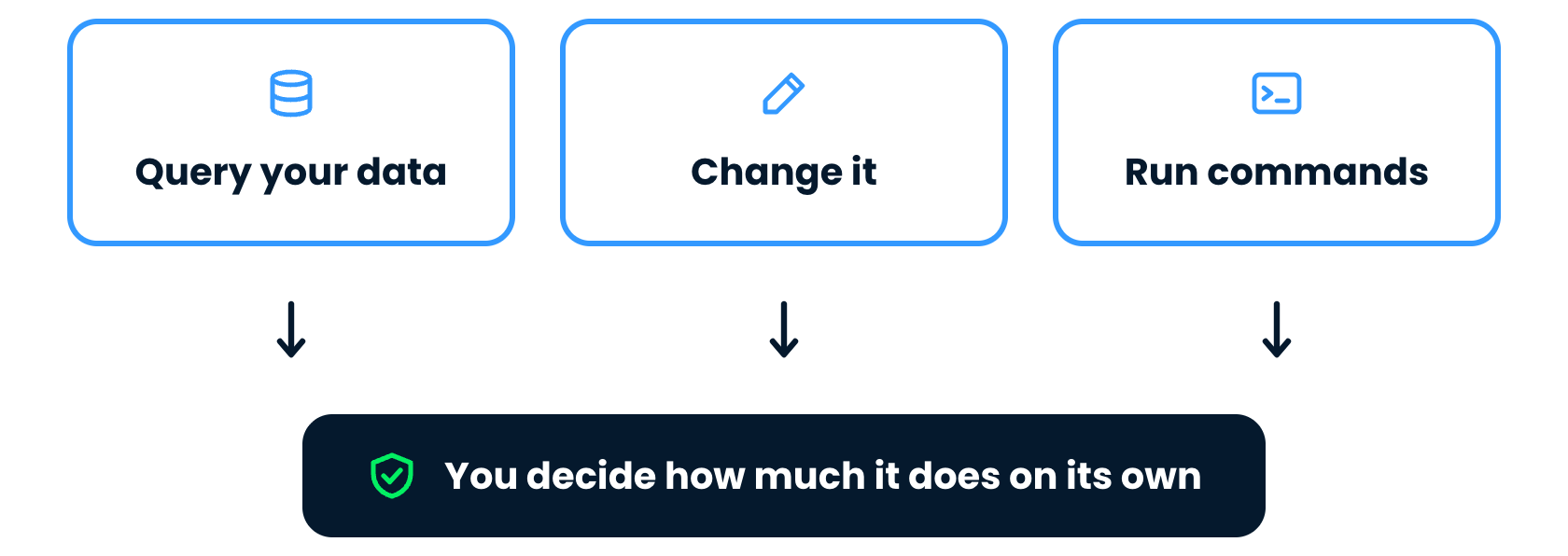
 

Querying data, changing it and running commands, all decided by you

Introduction to Snowflake CoCo CLI

The plan


Step one, what runs and what asks

Introduction to Snowflake CoCo CLI

The plan


Step two, permission modes

Introduction to Snowflake CoCo CLI

The plan


Step three, plan a change

Introduction to Snowflake CoCo CLI

The plan


Step four, a read-only session

Introduction to Snowflake CoCo CLI

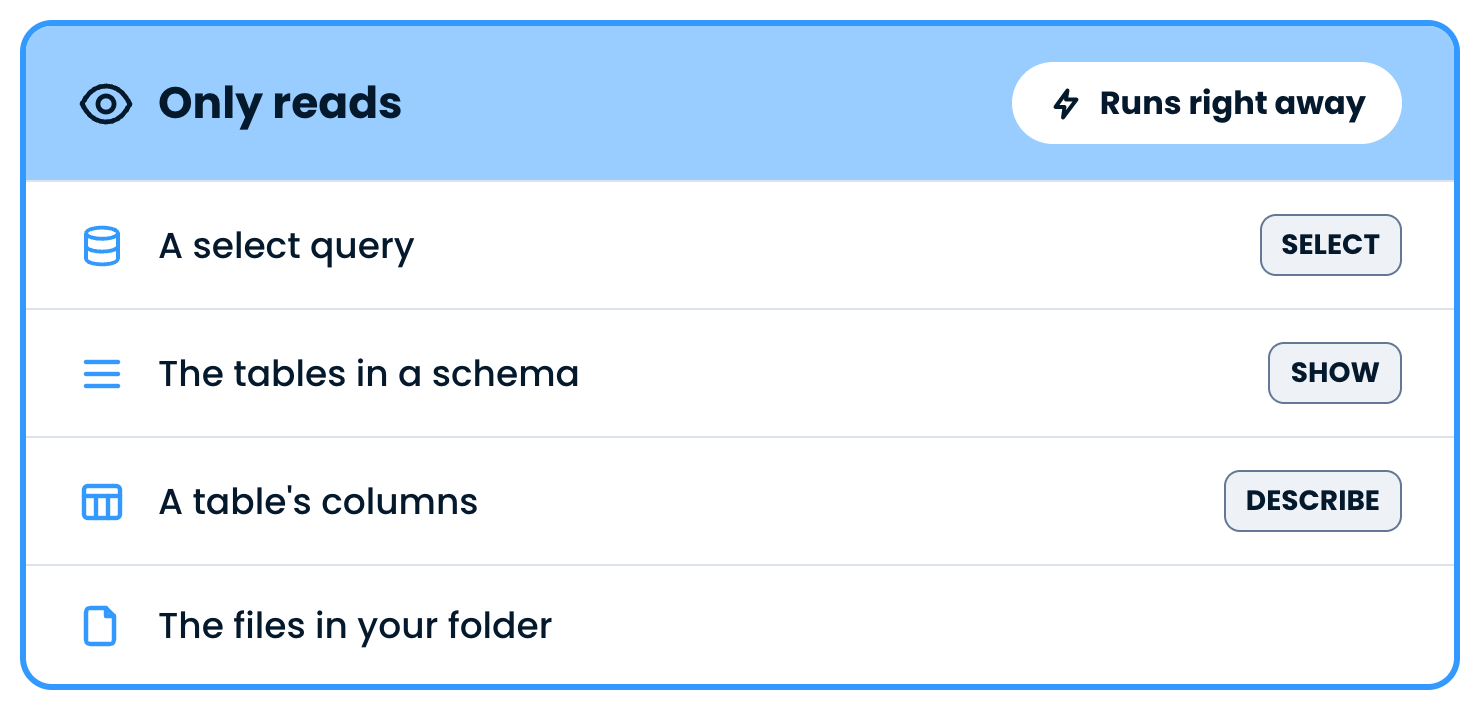
Runs without asking


Requests that only read and run right away

Introduction to Snowflake CoCo CLI

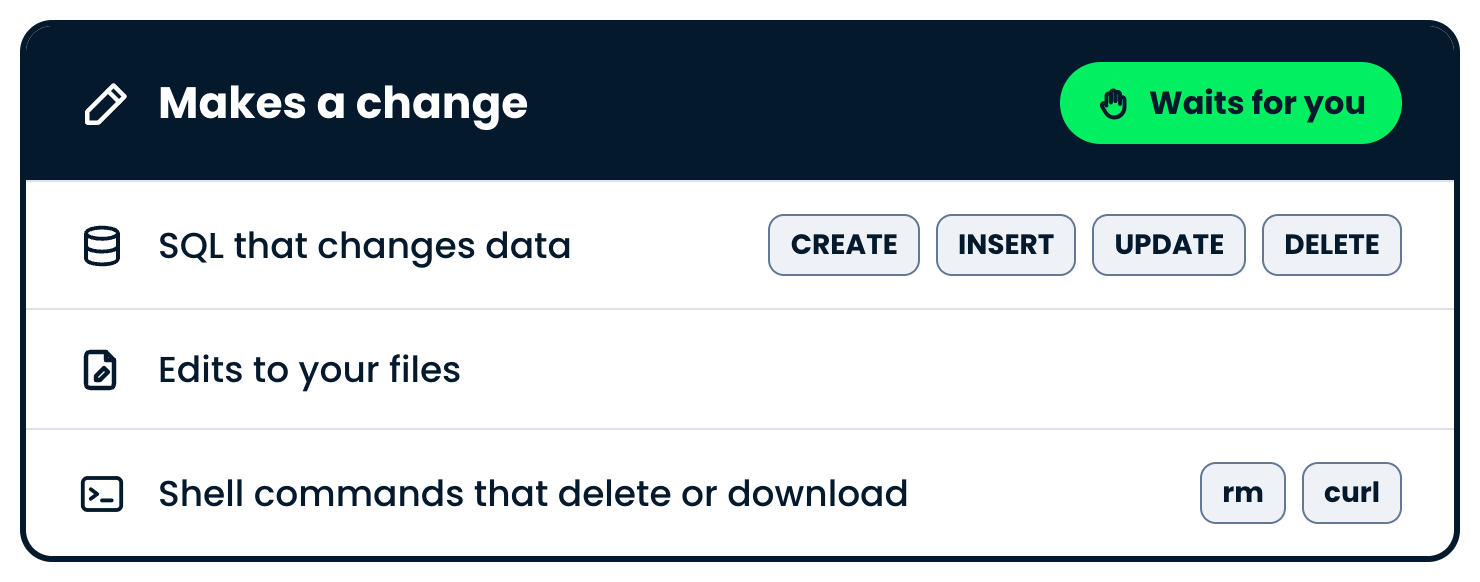
Asks for approval


Requests that make a change and wait for you

Introduction to Snowflake CoCo CLI

Approving a change

  • Asked for: monthly revenue, no cancelled orders

$$
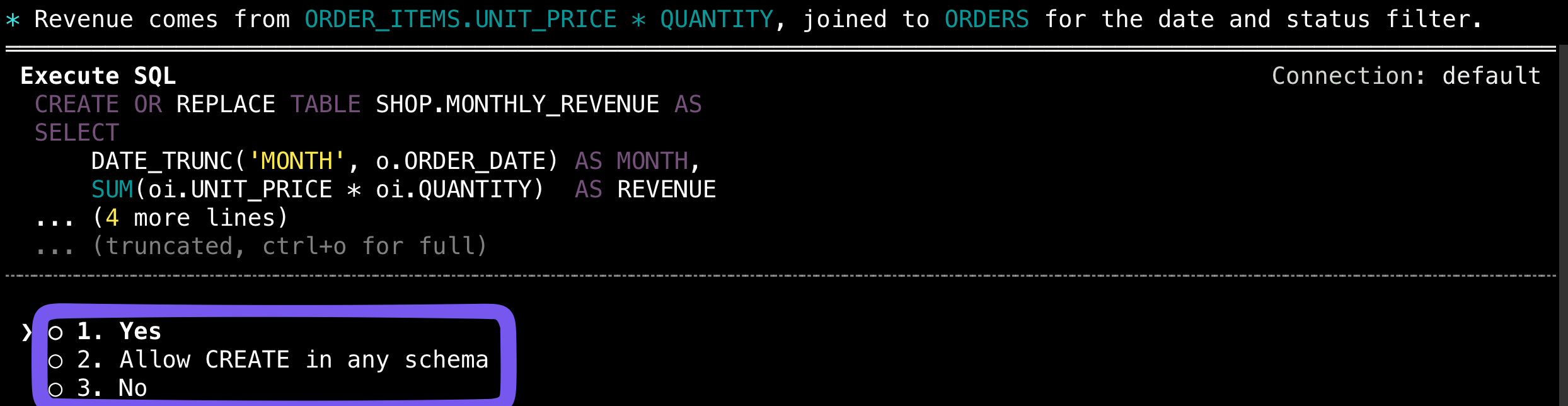
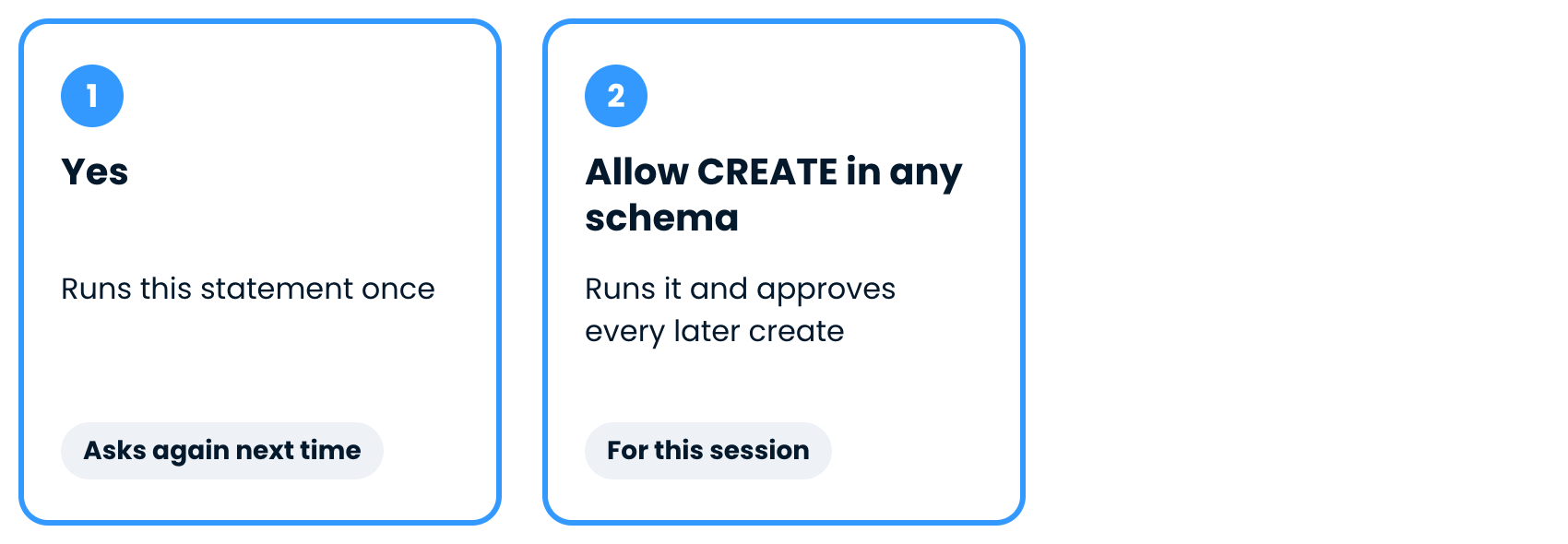
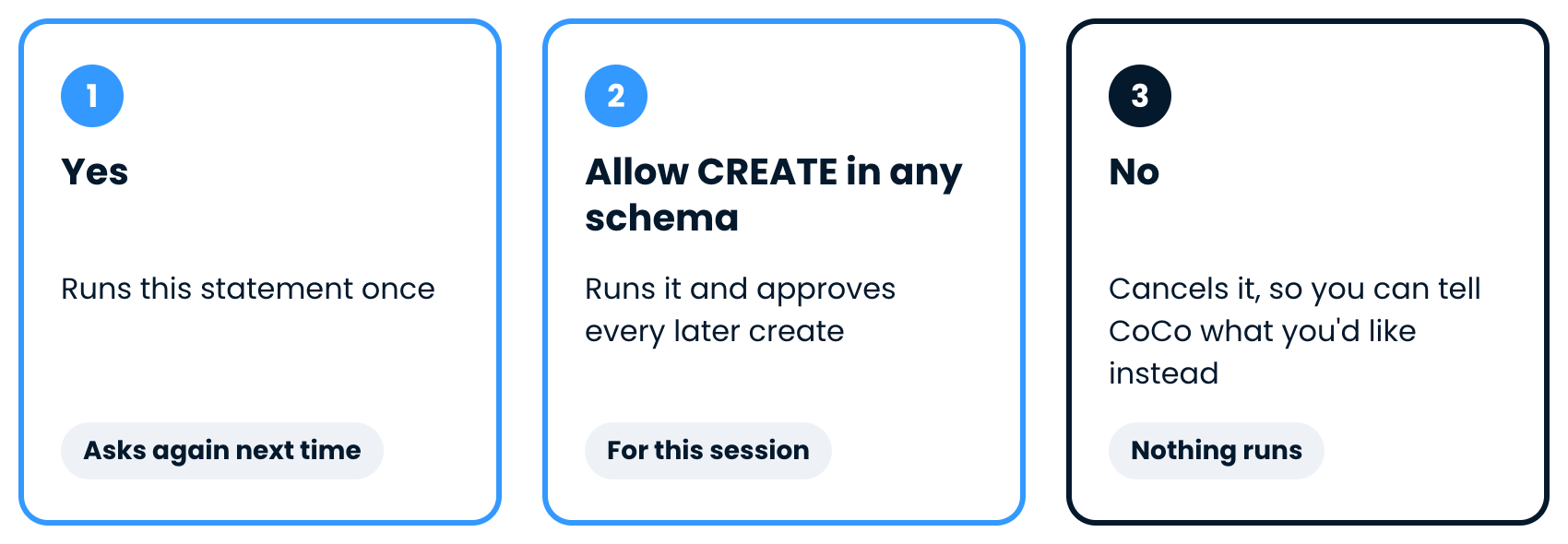
The Execute SQL box with three choices

Introduction to Snowflake CoCo CLI

The three options


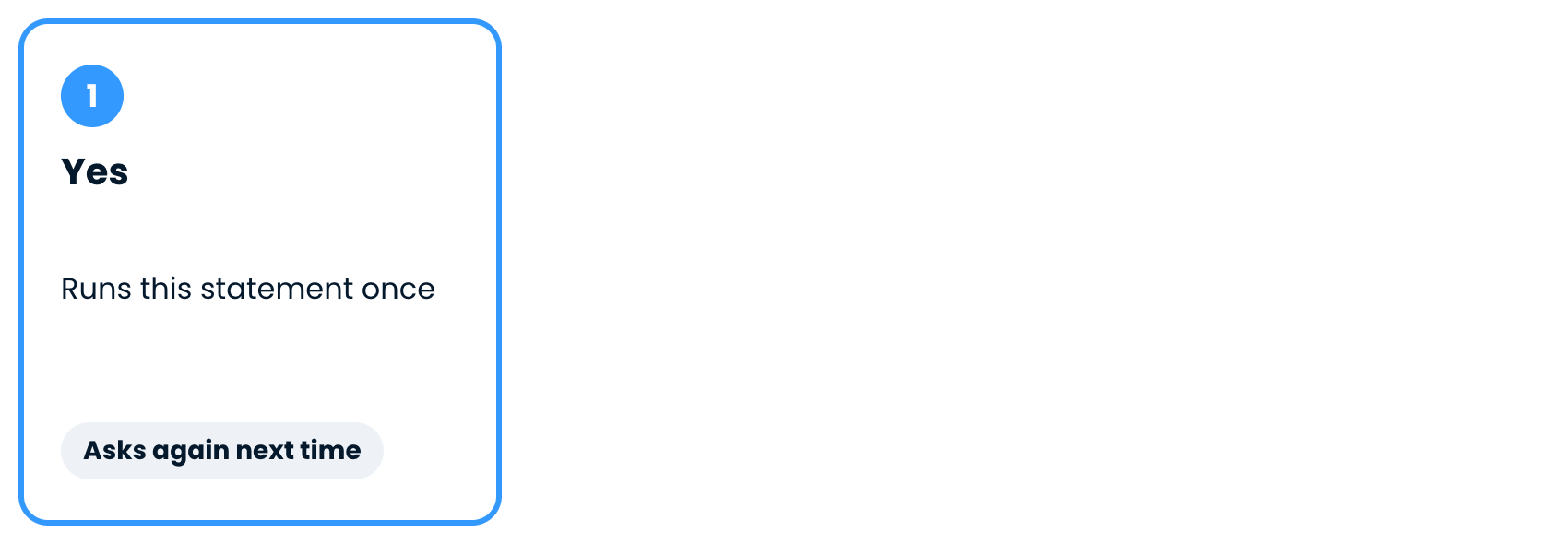
Option one, Yes

Introduction to Snowflake CoCo CLI

The three options


Option two, Allow CREATE in any schema

Introduction to Snowflake CoCo CLI

The three options


Option three, No

Introduction to Snowflake CoCo CLI

Permission modes


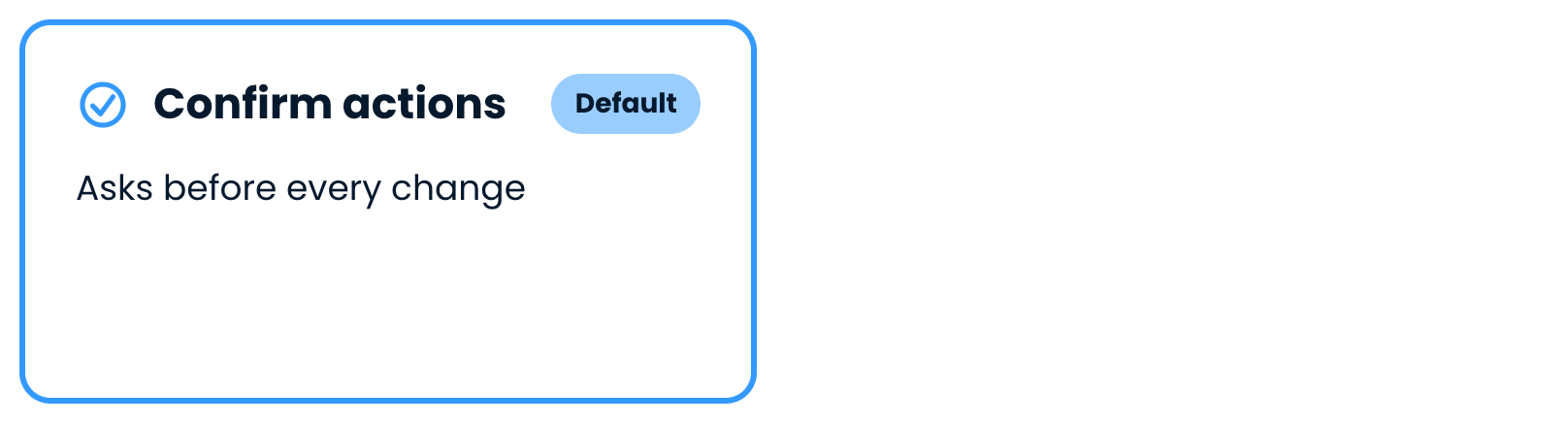
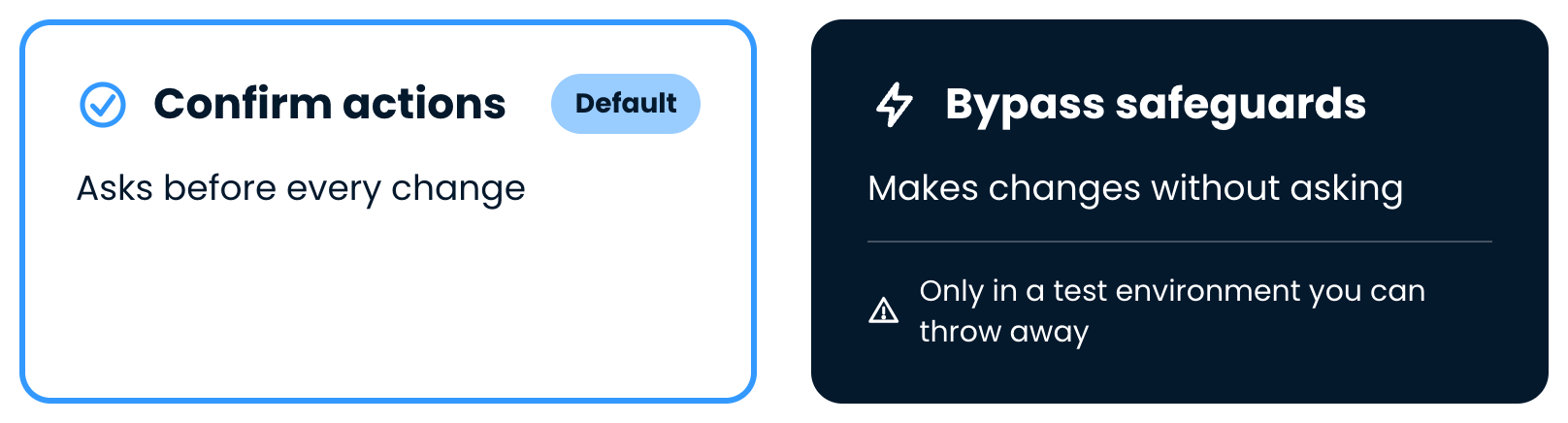
Confirm actions, the default mode

Introduction to Snowflake CoCo CLI

Permission modes


Bypass safeguards, beside confirm actions

Introduction to Snowflake CoCo CLI

Switching with Shift+Tab


The status bar in confirm actions mode

Introduction to Snowflake CoCo CLI

Switching with Shift+Tab


The status bar in bypass safeguards mode

  • Press Shift+Tab to switch modes
Introduction to Snowflake CoCo CLI

Plan mode with Ctrl+P


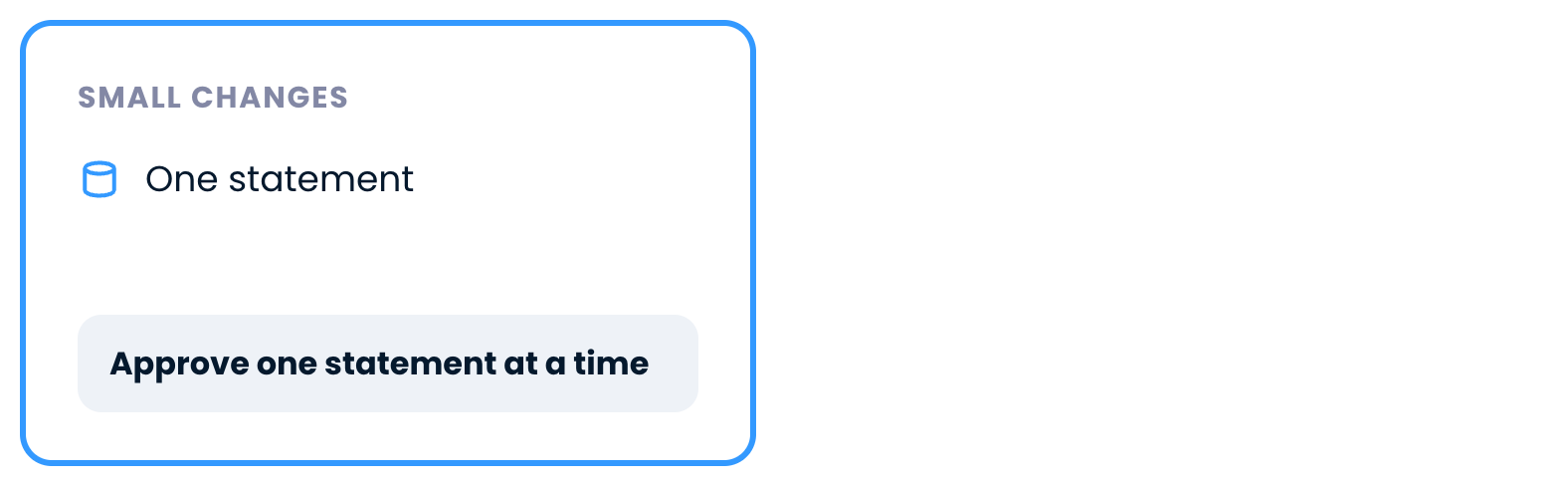
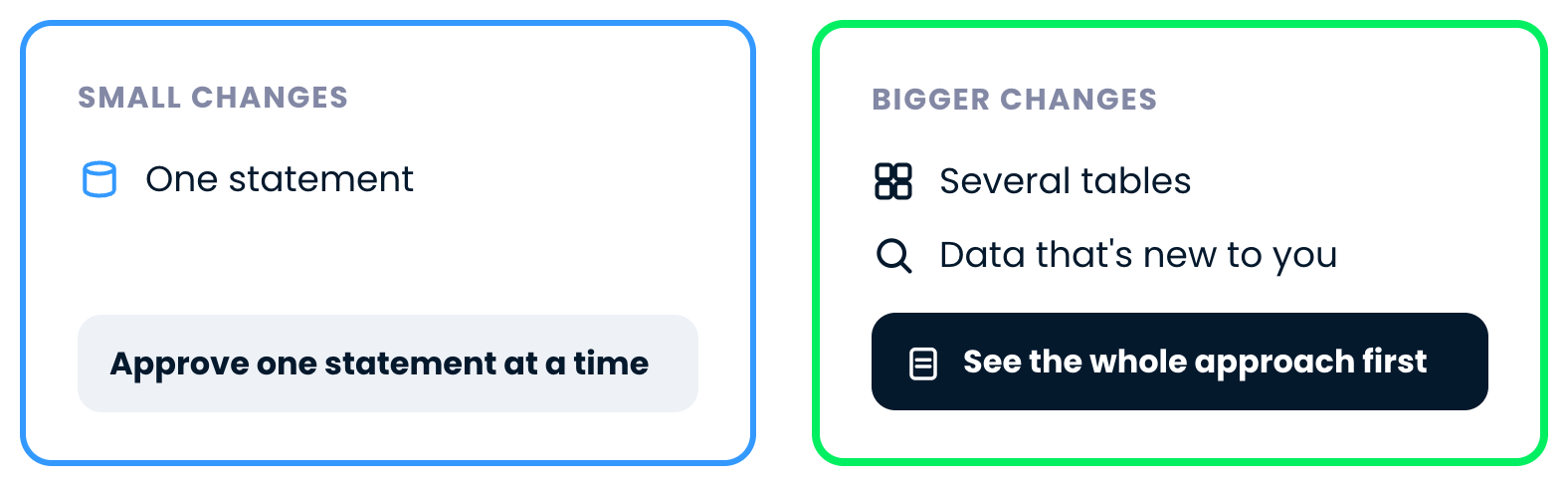
Small changes, approved one statement at a time

Introduction to Snowflake CoCo CLI

Plan mode with Ctrl+P


Bigger changes, where you see the whole approach first

Introduction to Snowflake CoCo CLI

Plan mode with Ctrl+P

  • Press Ctrl+P, or type /plan


The status bar with plan mode on

Introduction to Snowflake CoCo CLI

Reading the plan


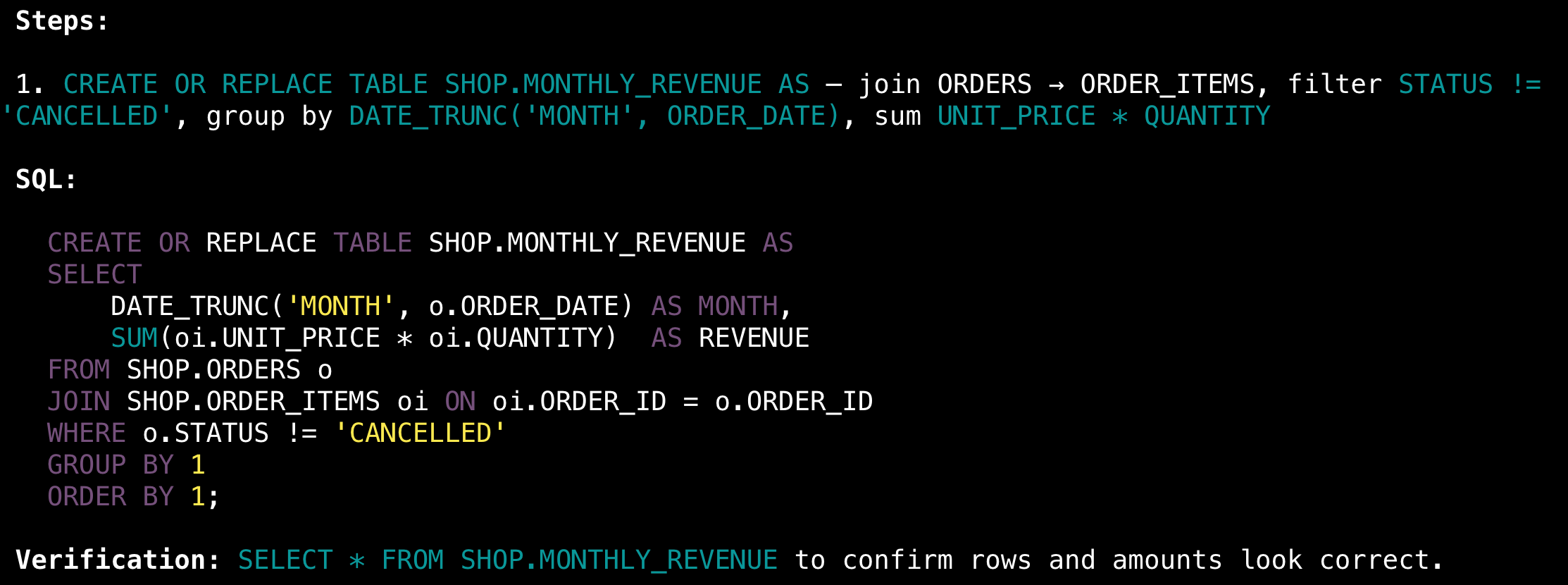
A plan with its steps, its SQL and a verification query

Introduction to Snowflake CoCo CLI

Approving the plan

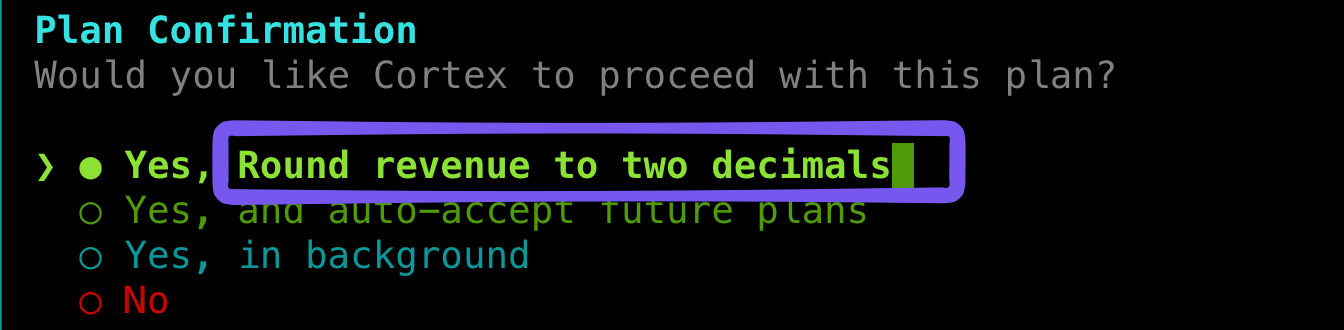
  • Tab adds an instruction before you approve


The plan confirmation with an instruction to round revenue to two decimals

Introduction to Snowflake CoCo CLI

The new table


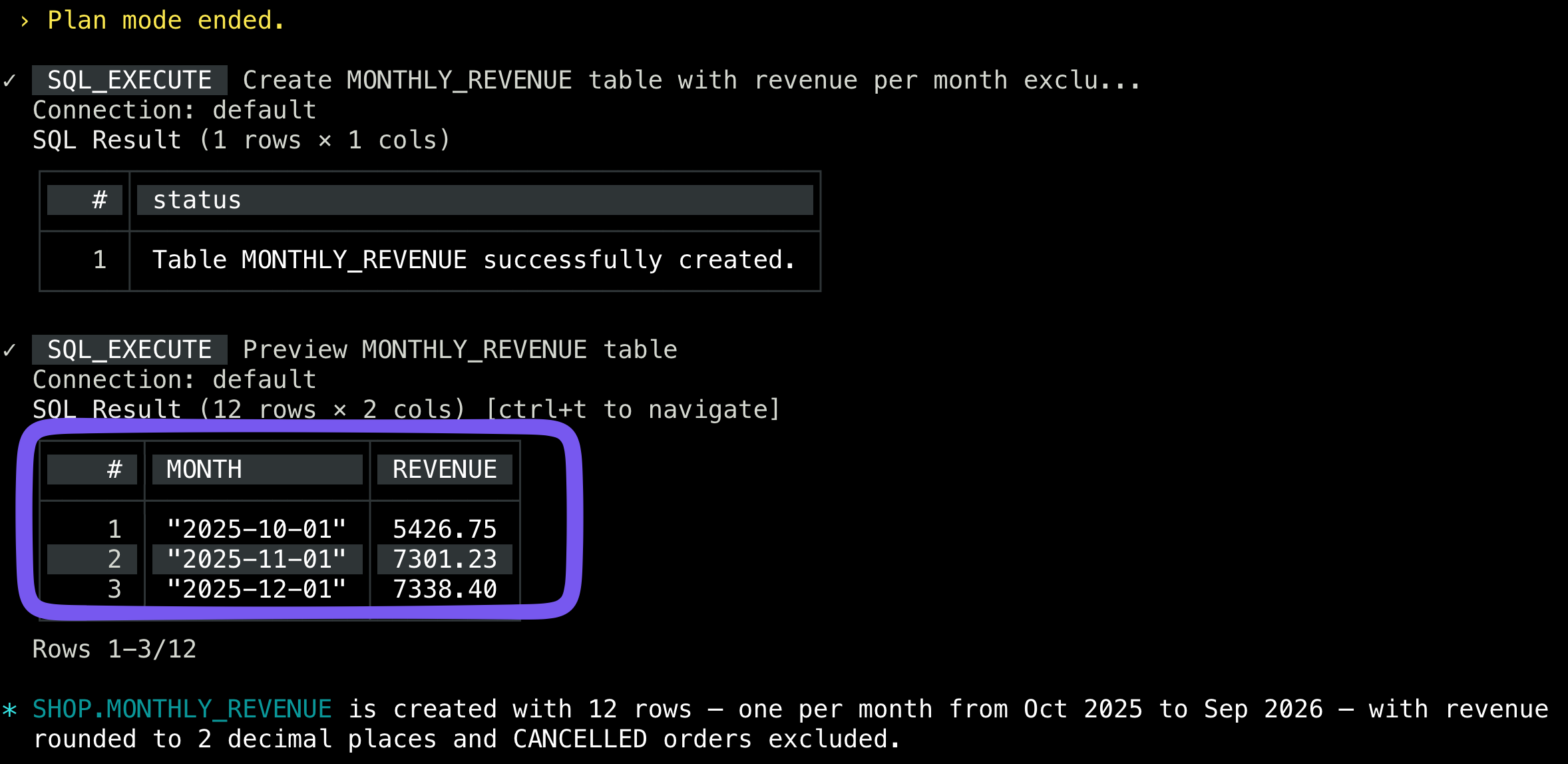
The table created, with a preview of its monthly revenue

Introduction to Snowflake CoCo CLI

Read-only sessions

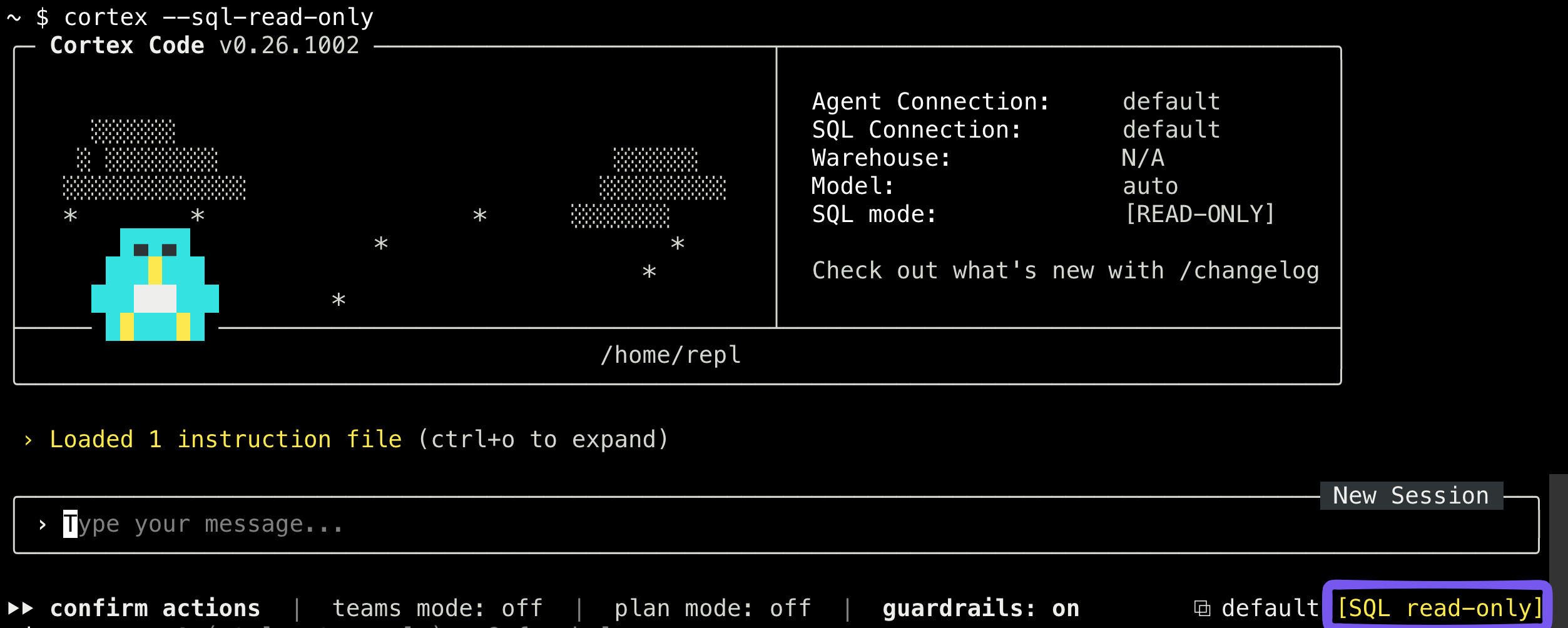
  • Start with cortex --sql-read-only

$$

The welcome screen and status bar of a read-only session

Introduction to Snowflake CoCo CLI

Writes are refused

  • Snowflake rejects it, even after you approve

$$

A create statement rejected with an access control error in red

Introduction to Snowflake CoCo CLI

Turning it off with /guardrails

  • Type /guardrails, then remove the restriction

$$
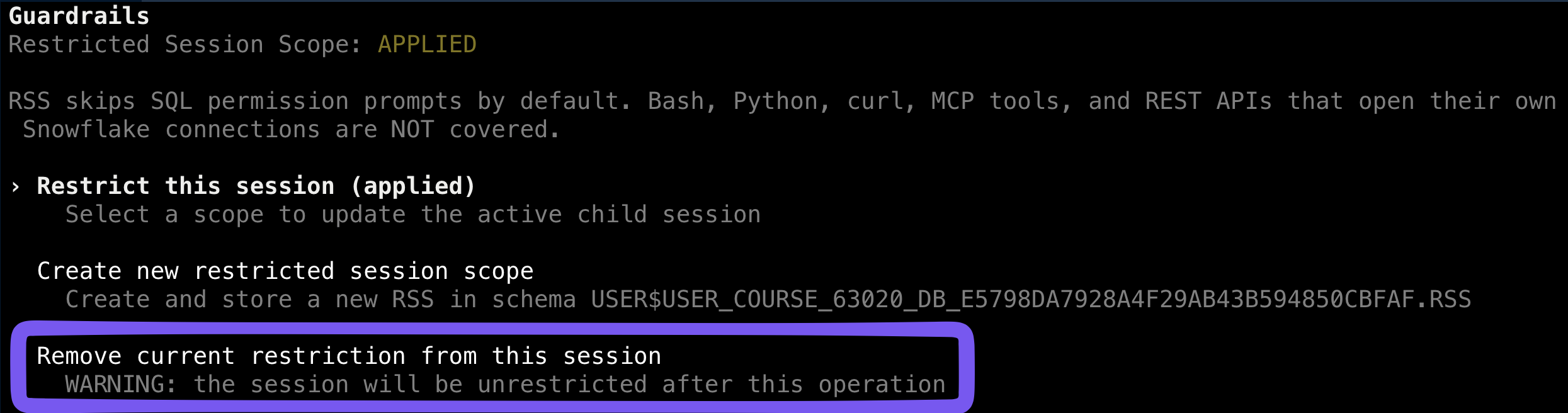
The guardrails menu with the option to remove the current restriction

Introduction to Snowflake CoCo CLI

Commands from this video


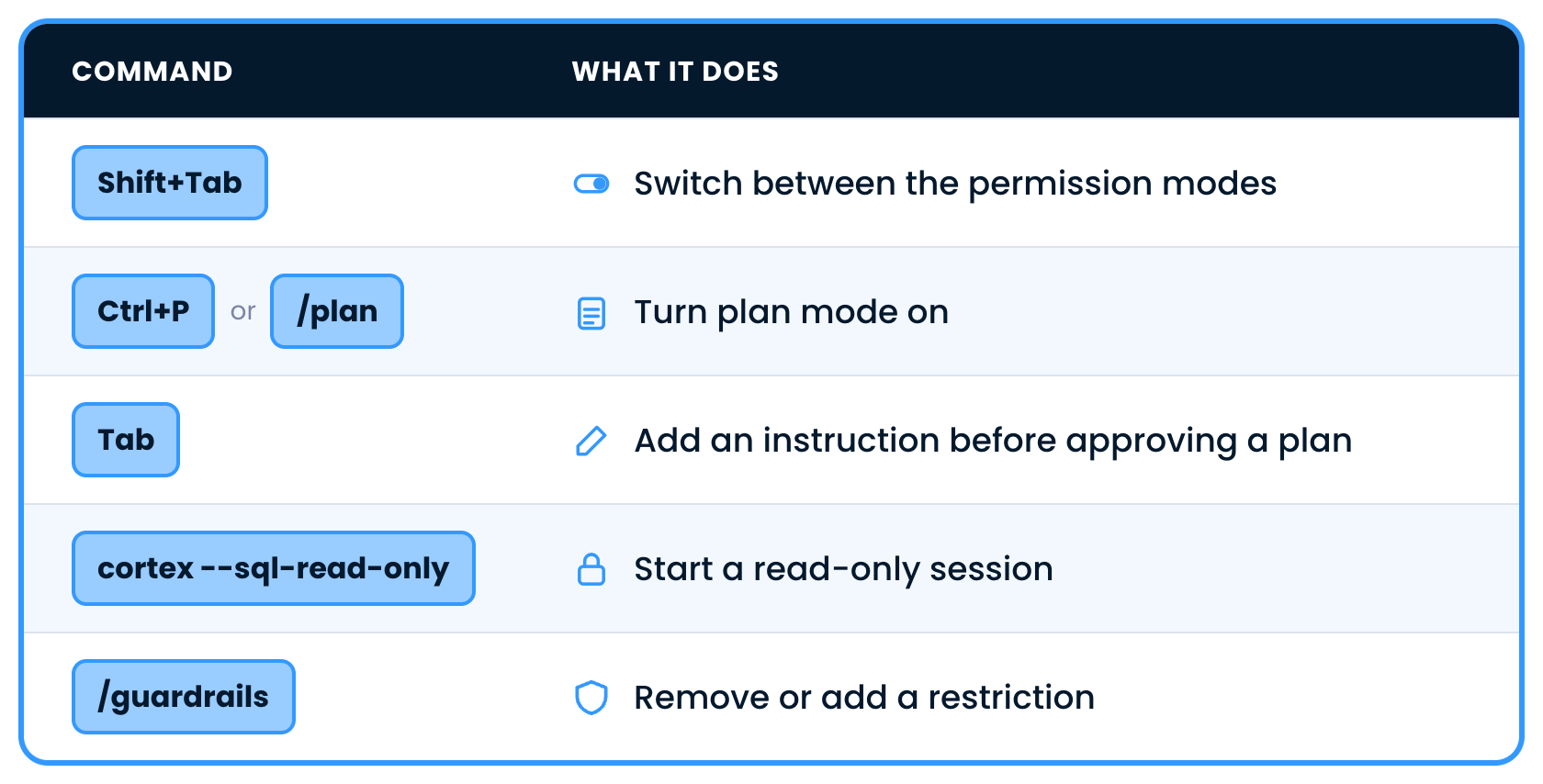
Shift+Tab, Ctrl+P or the plan command, Tab, the read-only flag and the guardrails command

Introduction to Snowflake CoCo CLI

Let's practice!

Introduction to Snowflake CoCo CLI

Preparing Video For Download...