使用 Dash 與 Plotly 建立儀表板
Alex Scriven
Data Scientist
使用者輸入的常見應用:
number 輸入)search 或 text 輸入)password 與 email/text 輸入)
使用者輸入是 dash core components 的 Input 類型(dcc.Input)
id 才能串接 callbacktype 預設為 textplaceholder 顯示淡色引導文字
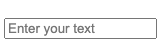
dcc.Input(
id='my_input',
type='text',
placeholder="Enter your text")
# @callback()
def update_plot(entered_data):
fig = px.scatter(
data_frame=sales,
y='OrderValue', x='Quantity',
, title=f'{entered_data}')
return fig
'text'、'number'、'password'、'email''range' 會產生區間滑桿'tel' 與 'url' 用於電話與網站網址'search' 與 'hidden' 牽涉進階的瀏覽器互動
type 參數會自動套用一些限制。
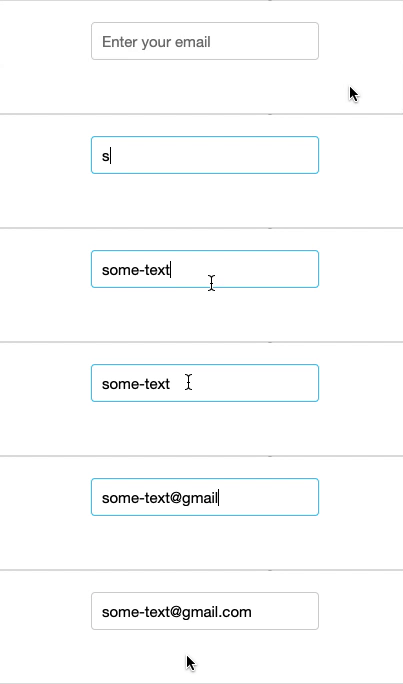
email 型別需要 [email protected] 格式dcc.Input(
id='my_input',
type='email',
placeholder="Enter your email")

number 型別僅允許數字min 與 max 設定數值範圍text 輸入可用 minLength / maxLengthtext 型別也可用 pattern 做正規表示式驗證

dcc.Input(
id='my_input',
type='number',
max=250)
disabled
required$$
dcc.Input() 的 True/False 參數

dcc.Input(id='my_input', disabled=True)

dcc.Input(id='my_input', required=True)
$$
dcc.Input(id='my_input', type='text',
debounce=False)
$$
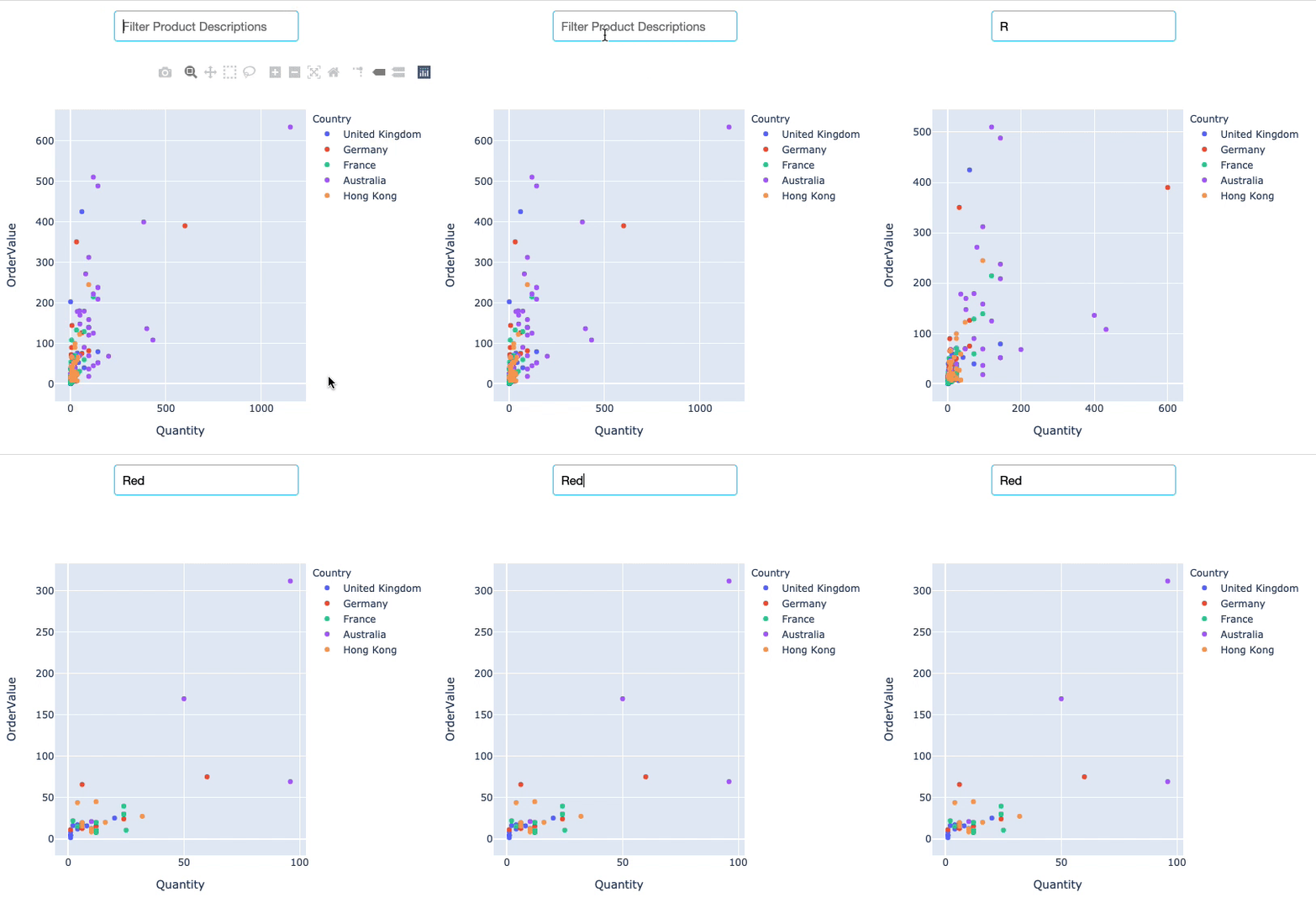
R、Re、Red、Redd
使用 Dash 與 Plotly 建立儀表板