頁首與側邊欄

使用 shinydashboard 建立儀表板

Png Kee Seng

Researcher

頁首

  • 頁首就像餐廳的招牌
  • 可放儀表板標題
  • 可放下拉選單
    • 例如:訊息、通知、工作

這是一個簡單店面示例。

頁首就像餐廳的招牌。它可包含實用或美觀的元素。這是較複雜前端的樣子。

1 Image by upklyak on Freepik
使用 shinydashboard 建立儀表板

shinydashboard 的標題

  • dashboardHeader() 定義頁首
  • 若標題太長怎麼辦?
    • 設定參數 titleWidth
    • 預設為 230 像素
header <- dashboardHeader(title = "Soccer tournament")
header <- dashboardHeader(title = "Analysis for global soccer tournament")
                            titleWidth = 400)
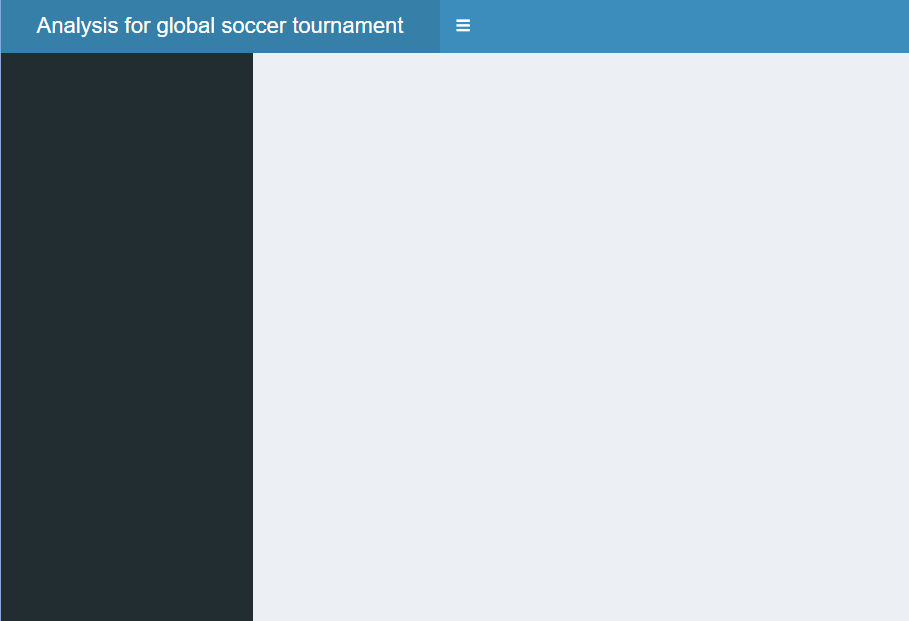
可調整頁首寬度以容納長標題。

使用 shinydashboard 建立儀表板

加入含訊息的下拉選單

  • 可在頁首加入下拉選單
  • 有三種類型
    • 訊息
    • 通知
    • 工作
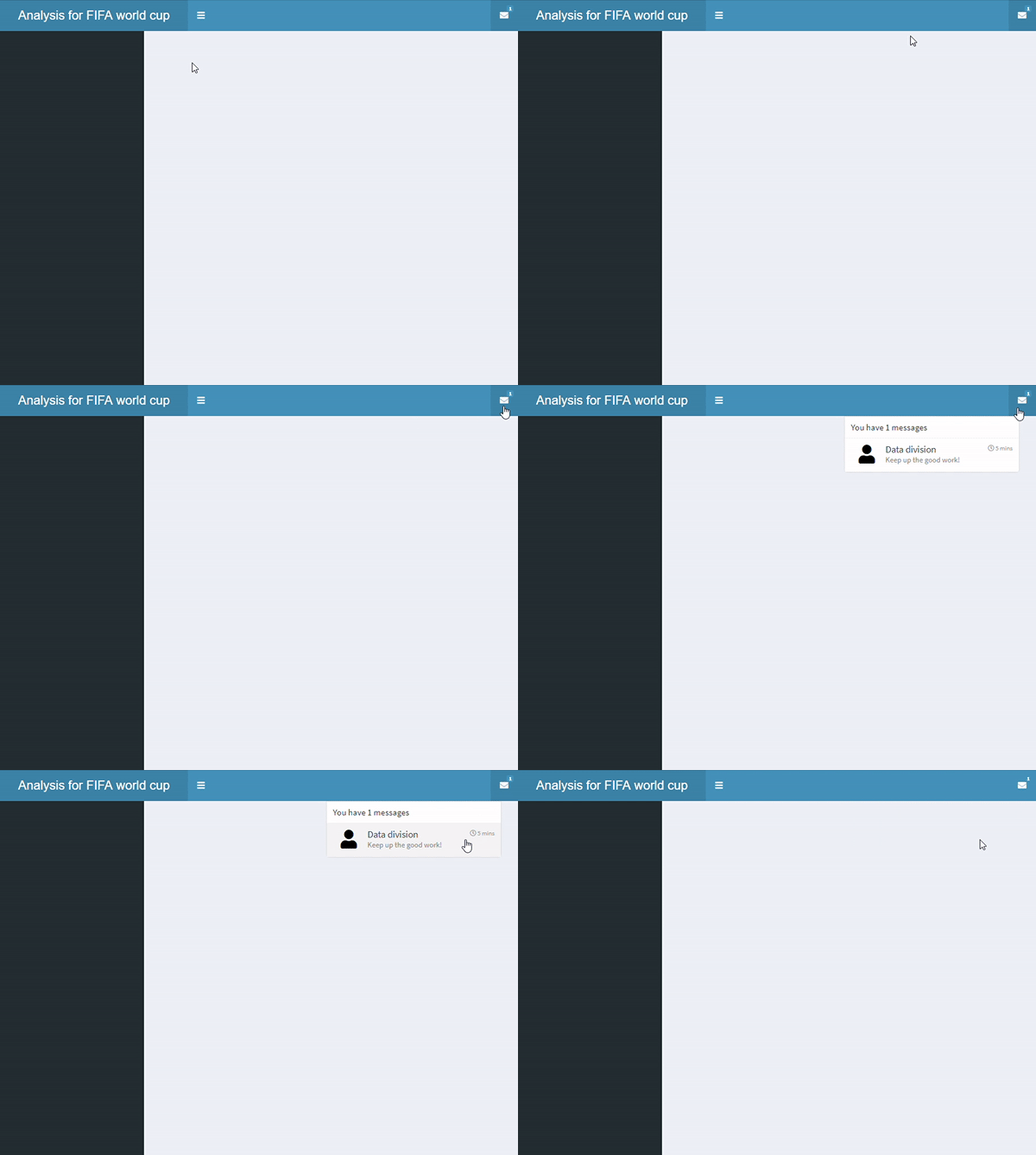
  • 加入 type 為 "messages" 的 dropdownMenu()
    • 加入一個 messageItem()
    • 預設圖示為 icon("user")
    • 也可設定 time
header <- dashboardHeader(
  title = "Analysis for FIFA world cup",
  titleWidth = 300,
  dropdownMenu(type = "messages",

messageItem("Data division", "Keep up the good work!",
time = "5 mins"
)))

含一則訊息項目的下拉選單。

使用 shinydashboard 建立儀表板

加入含多則訊息的下拉選單

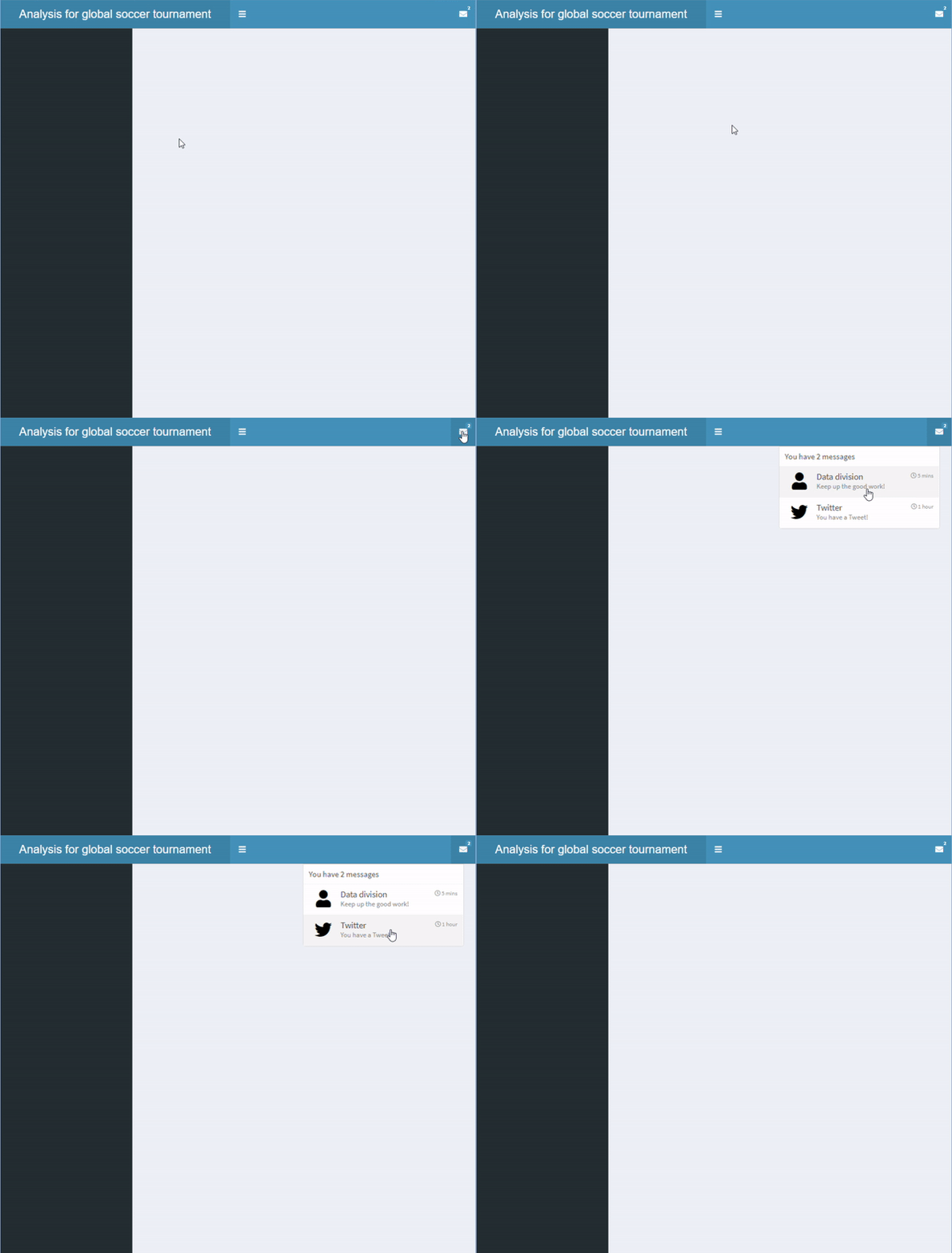
  • dropdownMenu() 中再加入一個名為「Twitter」的 messageItem()

含兩則訊息的下拉選單。

header <- dashboardHeader(
  title = "Analysis for global soccer tournament",
  titleWidth = 400,
  dropdownMenu(type = "messages",
    messageItem("Data division",
      "Keep up the good work!",
      time = "5 mins"
    ),

messageItem("Twitter", "You have a Tweet!", time = "1 hour", icon=icon("twitter")) ) )
使用 shinydashboard 建立儀表板

加入含多種項目的下拉選單

  • 也可加入其他類型的項目
    • messageItem()
    • notificationItem()
    • taskItem()
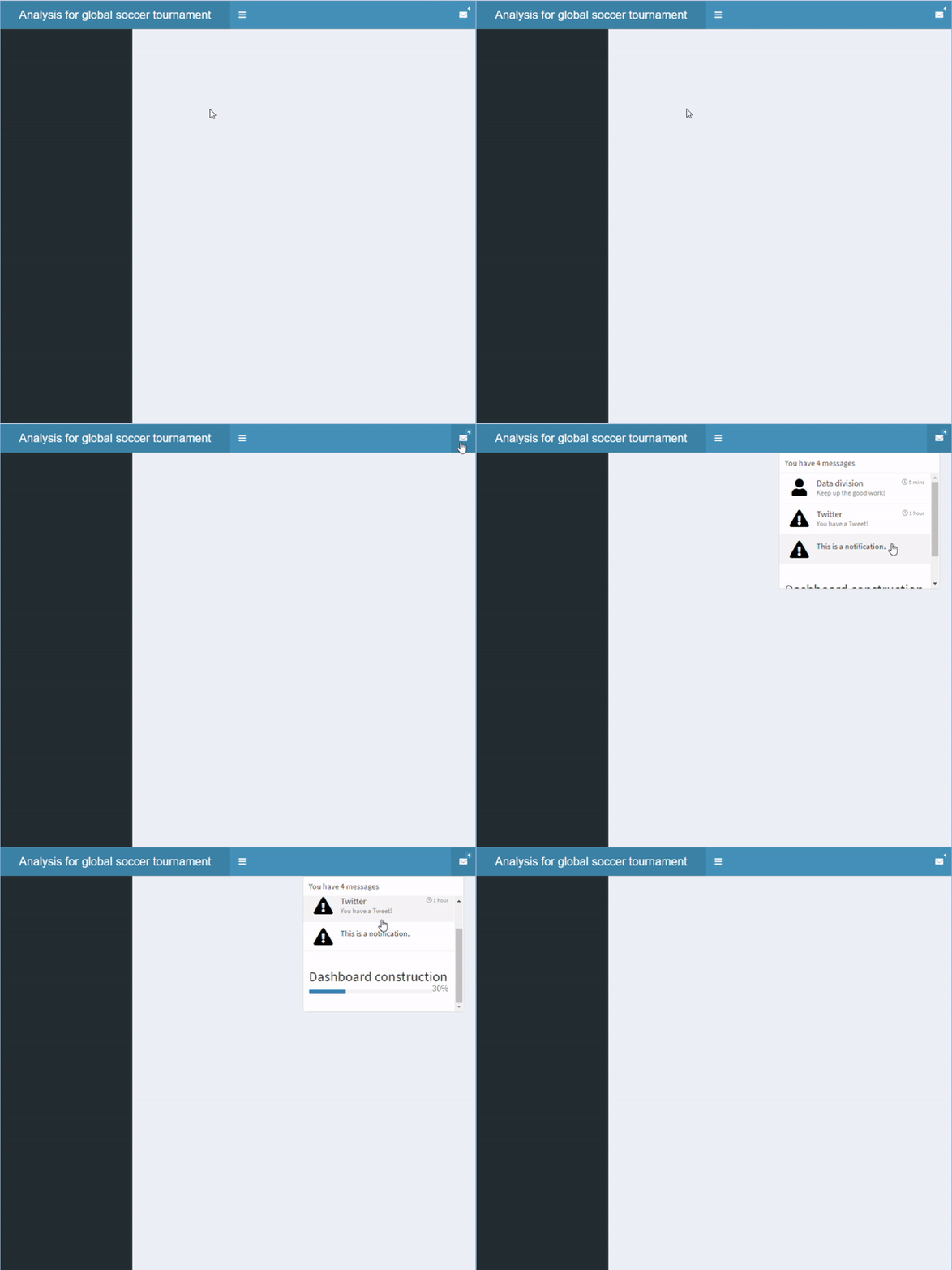
  • 外觀有所不同
    • messageItem():預設圖示 icon("user")
    • notificationItem():預設圖示 icon("exclamation-triangle")
    • taskItem():含進度列
header <- dashboardHeader(
  title = "Analysis for global soccer tournament",
  titleWidth = 400,
  dropdownMenu(type = "messages",

messageItem("Data division", "Keep up the good work!", time = "5 mins"), messageItem("Twitter", "You have a Tweet!", time = "1 hour", icon=icon("twitter")),
notificationItem("This is a notification." ),
taskItem(value = 30, color = "blue", "Dashboard construction") ))
使用 shinydashboard 建立儀表板

加入含多種項目的下拉選單

含多種項目的下拉選單

使用 shinydashboard 建立儀表板

加入更多下拉選單

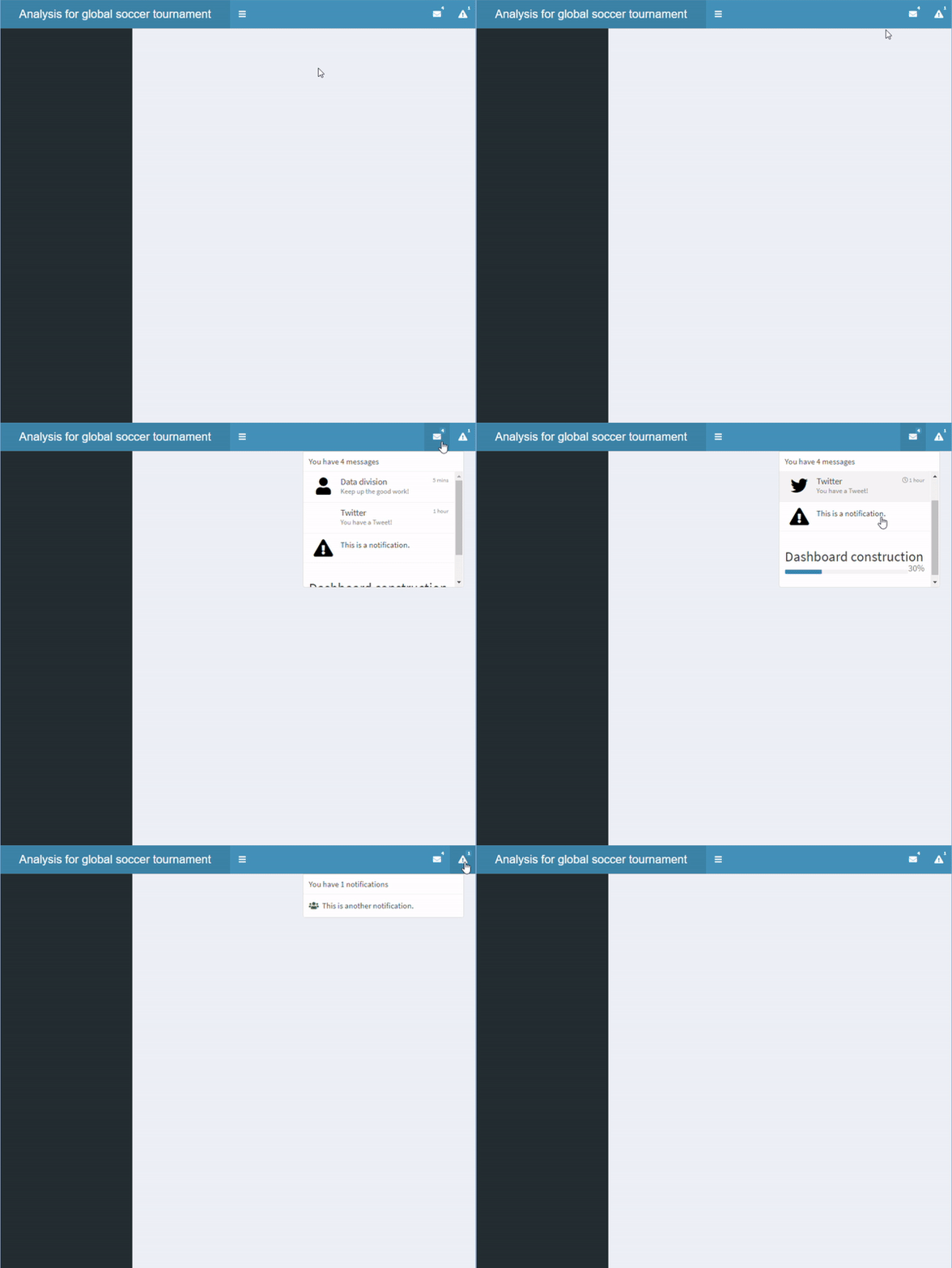
  • 也可再加一個下拉選單

含多個下拉選單的頁首。

header <- dashboardHeader(
  title = "Analysis for global soccer tournament",
  titleWidth = 400,

dropdownMenu(type = "messages", messageItem("Data division", "Keep up the good work!", time = "5 mins"), messageItem("Twitter", "You have a Tweet!", time = "1 hour", icon=icon("twitter")), notificationItem("This is a notification."), taskItem(value = 30, color = "blue", "Dashboard construction")),
dropdownMenu(type = "notifications", notificationItem(icon = icon("users"), "This is another notification." )))
使用 shinydashboard 建立儀表板

側邊欄

  • dashboardSidebar() 定義側邊欄
  • 可用 width 調整側邊欄寬度
  • sidebarMenu() 可在 shinydashboard 放多個頁面

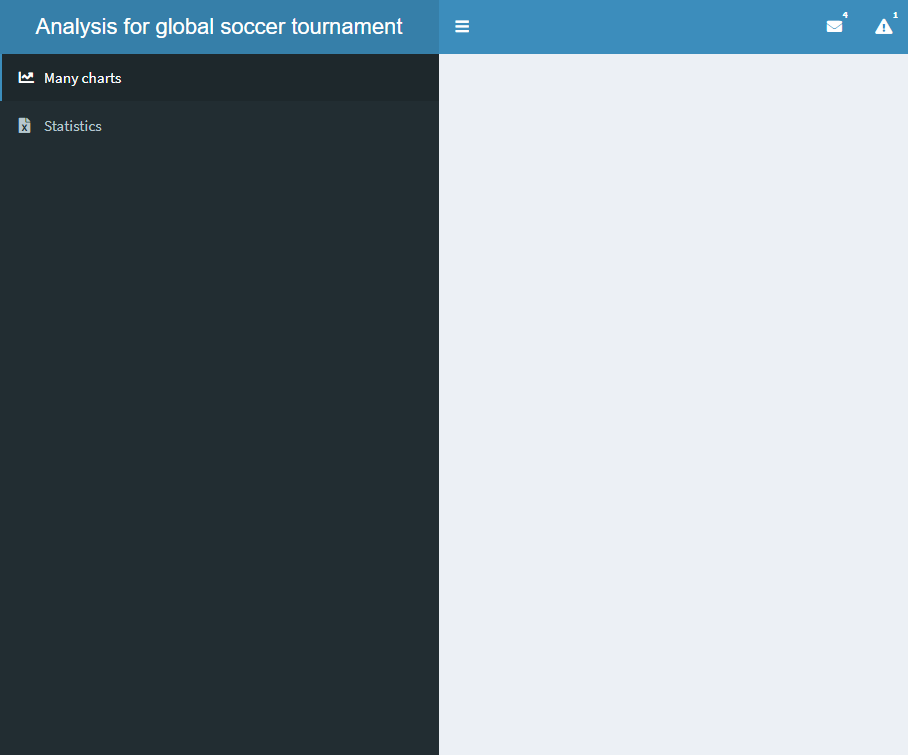
含兩個按鈕的側邊欄

sidebar <- dashboardSidebar()
sidebar <- dashboardSidebar(width=400)
sidebar <- dashboardSidebar(width=400,
  sidebarMenu(
    id = "pages",
    menuItem("Many charts", tabName = "charts", 
        icon = icon("chart-line")),
    menuItem("Statistics", icon = icon("file-excel"), 
        tabName = "stats")
  )
)
sidebar <- dashboardSidebar(disable = TRUE)
使用 shinydashboard 建立儀表板

加入徽章

  • 也可加入徽章
    • 設定 badgeLabelbadgeColor

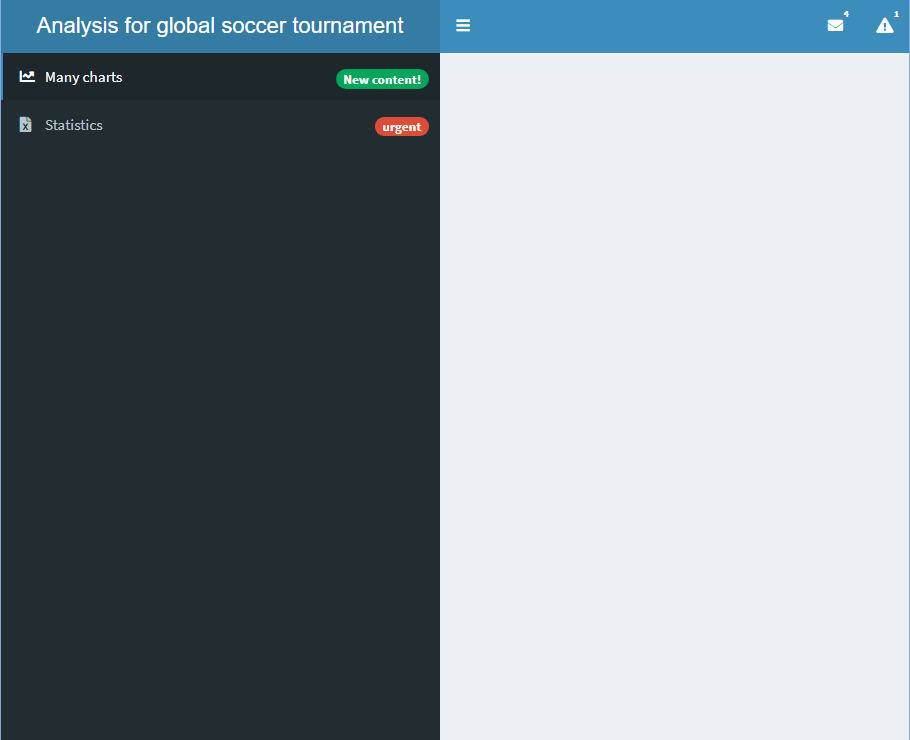
含徽章的側邊欄

sidebar <- dashboardSidebar(width=400,
  sidebarMenu(
    id = "pages",
    menuItem("Many charts", tabName = "charts", 
             icon = icon("chart-line"),

badgeLabel = "New content!", badgeColor = "green"),
menuItem("Statistics", icon = icon("file-excel"), tabName = "stats",
badgeLabel = "urgent", badgeColor = "red")
) )
使用 shinydashboard 建立儀表板

加入子分頁

  • menuSubItem() 加入子分頁
  • 注意:含子分頁的分頁無法加徽章

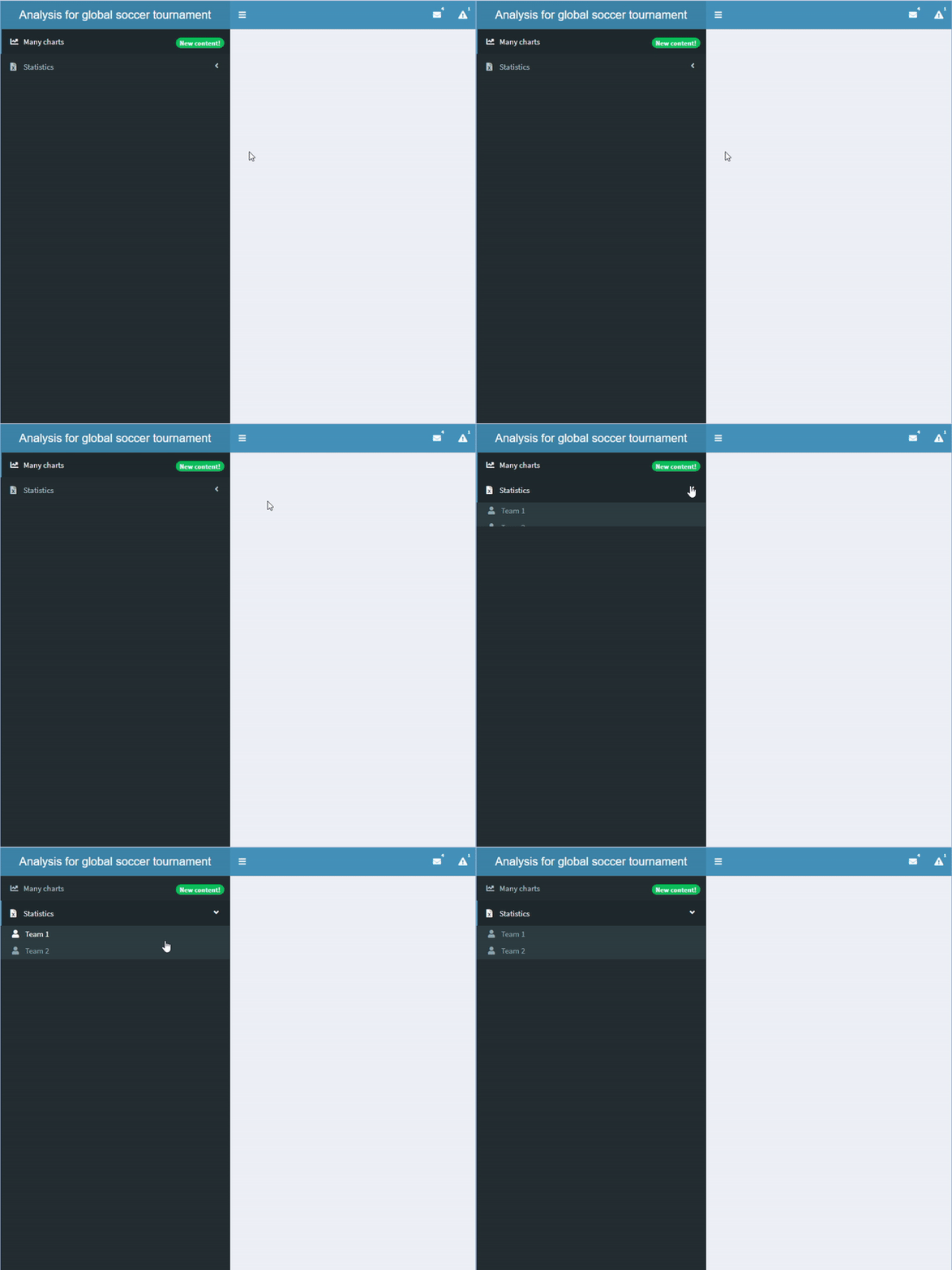
含子分頁的側邊欄

sidebar <- dashboardSidebar(width=400,
  sidebarMenu(
    id = "pages",
    menuItem("Many charts", tabName = "charts", 
             icon = icon("chart-line"),
             badgeLabel = "New content!", 
             badgeColor = "green"),
    menuItem("Statistics", icon = icon("file-excel"), 
            tabName = "stats", 
            menuSubItem("Team 1", tabName = "team1", 
                     icon=icon("user")),
            menuSubItem("Team 2", tabName = "team2", 
                     icon=icon("user")))
  )
)
使用 shinydashboard 建立儀表板

在側邊欄加入輸入與輸出

  • 可在側邊欄加入輸入與輸出
  • 也要在 server 定義對應的輸入與輸出

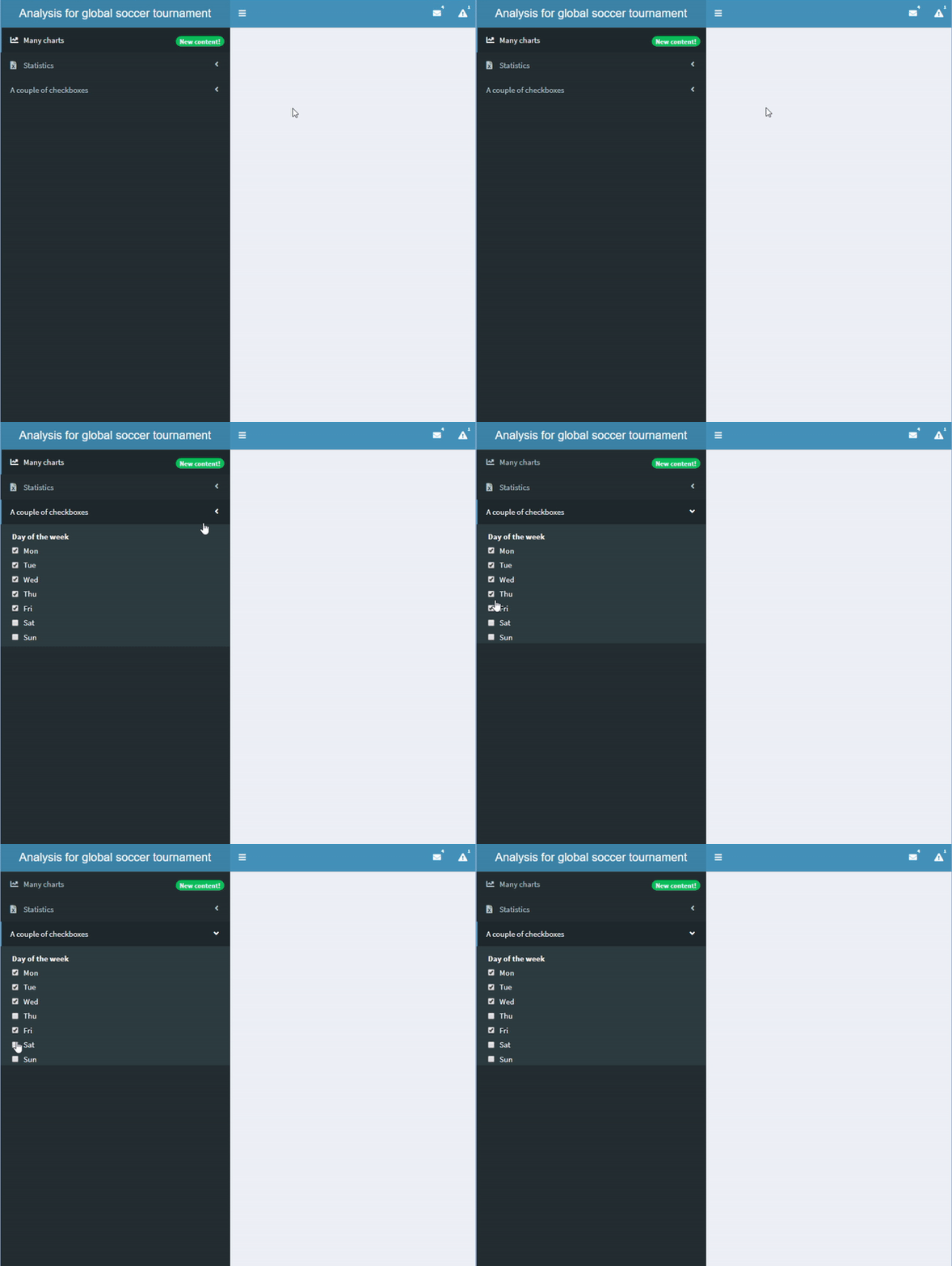
含 checkboxGroupInput() 的側邊欄。

sidebar <- dashboardSidebar(width=400,
  sidebarMenu(
    id = "pages",
    menuItem("Many charts", tabName = "charts", 
             icon = icon("chart-line"),
             badgeLabel = "New content!", 
             badgeColor = "green"),
    menuItem("Statistics", icon = icon("file-excel"), 
            tabName = "stats", 
            menuSubItem("Team 1", tabName = "team1", 
            icon=icon("user")),
            menuSubItem("Team 2", tabName = "team2", 
            icon=icon("user"))),

menuItem("A couple of checkboxes", checkboxGroupInput("checkboxes", "Day of the week", choices = c("Mon","Tue","Wed","Thu","Fri","Sat","Sun"), selected = c("Mon","Tue","Wed","Thu","Fri"))) ) )
使用 shinydashboard 建立儀表板

一起來練習吧!

使用 shinydashboard 建立儀表板

Preparing Video For Download...