工具設定

使用 Bokeh 製作互動式資料視覺化

George Boorman

Core Curriculum Manager, DataCamp

預設工具列

  • 平移工具 PanTool
    • pan 平移
  • 方框縮放 BoxZoomTool
    • box_zoom 方框縮放
  • 滾輪縮放 WheelZoomTool
    • wheel_zoom 滾輪縮放
  • 儲存 Save
    • save 儲存
  • 重設 Reset
    • reset 重設

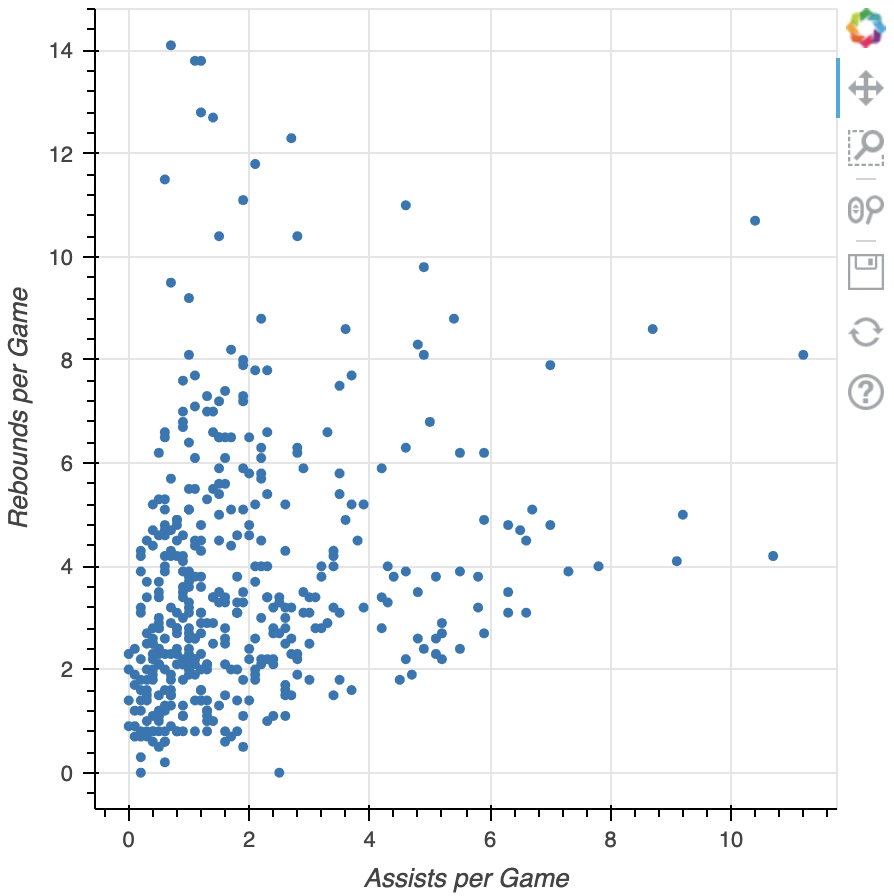
預設工具列

使用 Bokeh 製作互動式資料視覺化

工具設定

本章重點:

  • 平移/拖曳工具

  • 點擊/輕觸工具

  • 捲動/縮放工具


課程範圍外的其他工具:

  • 動作

  • 檢查器

  • 編輯工具

1 http://docs.bokeh.org/en/latest/docs/user_guide/tools.html
使用 Bokeh 製作互動式資料視覺化

平移/拖曳工具

  • 平移工具 PanTool

    • pan 平移
  • 方框選取 BoxSelectTool

    • box_select 方框選取
  • 方框縮放 BoxZoomTool

    • box_zoom 方框縮放
  • 套索選取 LassoSelectTool

    • lasso_select 套索選取

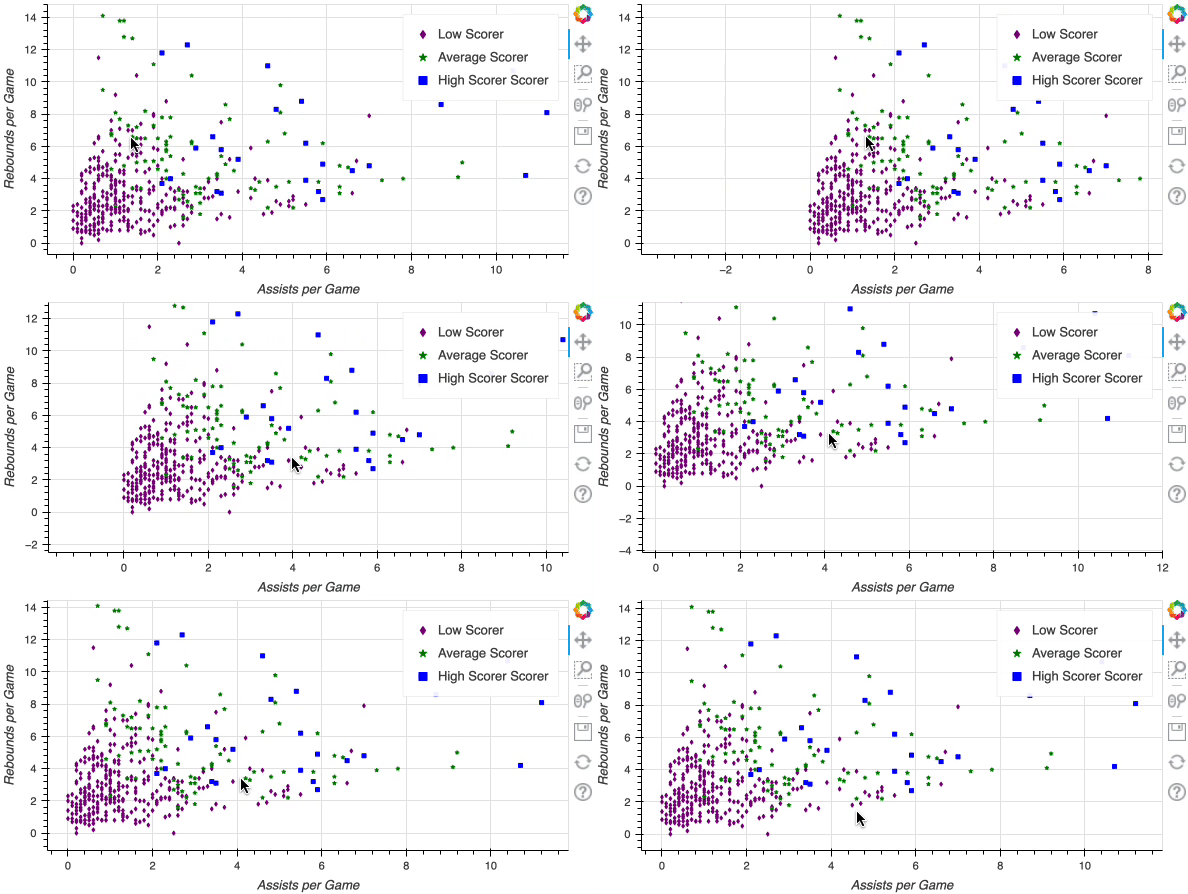
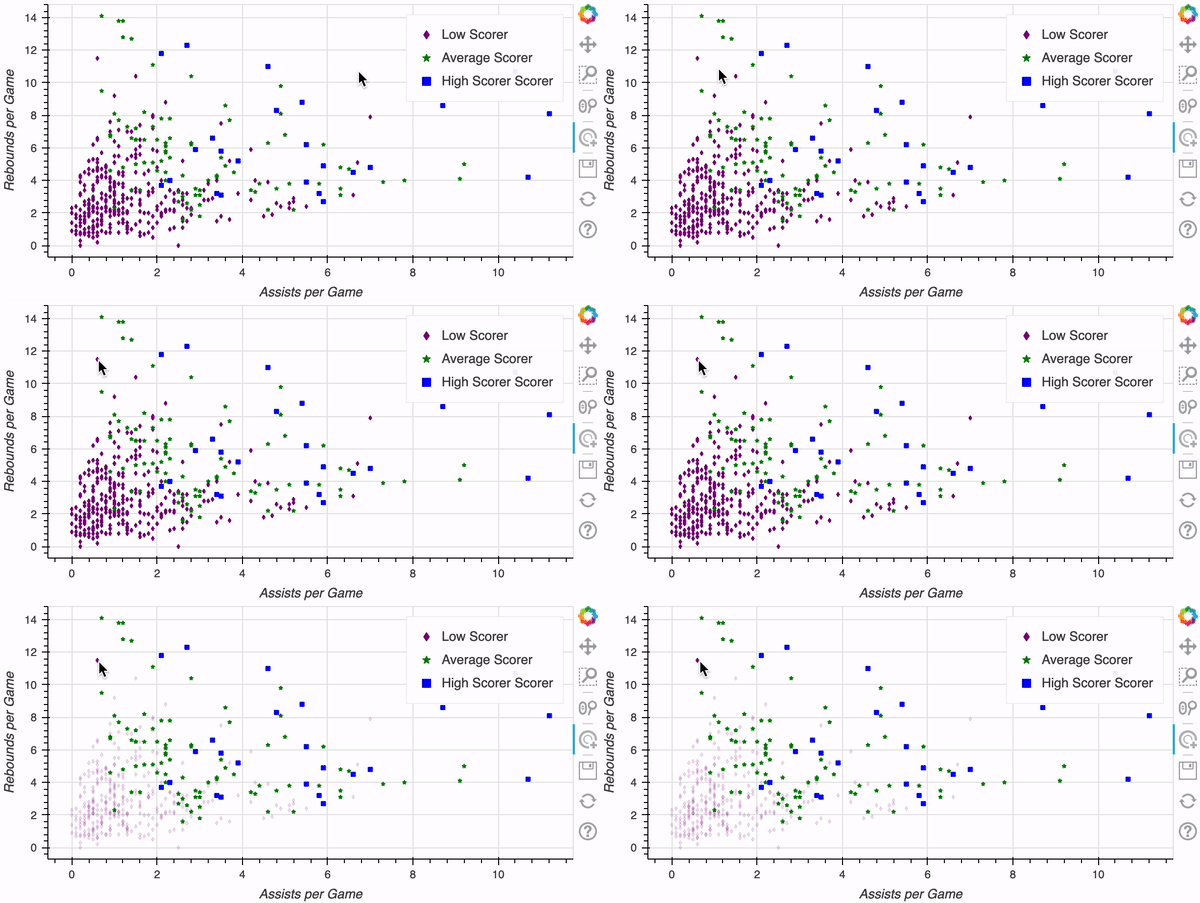
平移示範

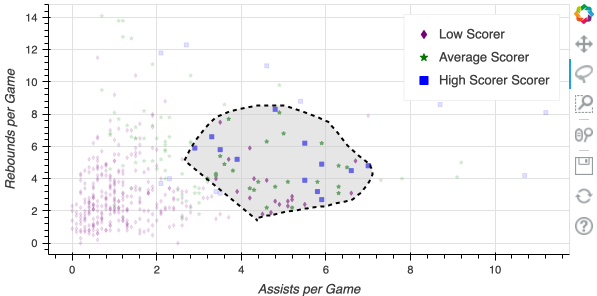
套索選取示範

使用 Bokeh 製作互動式資料視覺化

點擊/輕觸工具


  • 多邊形選取 PolySelectTool
    • poly_select 多邊形選取


  • 點擊工具 TapTool
    • tap 點擊

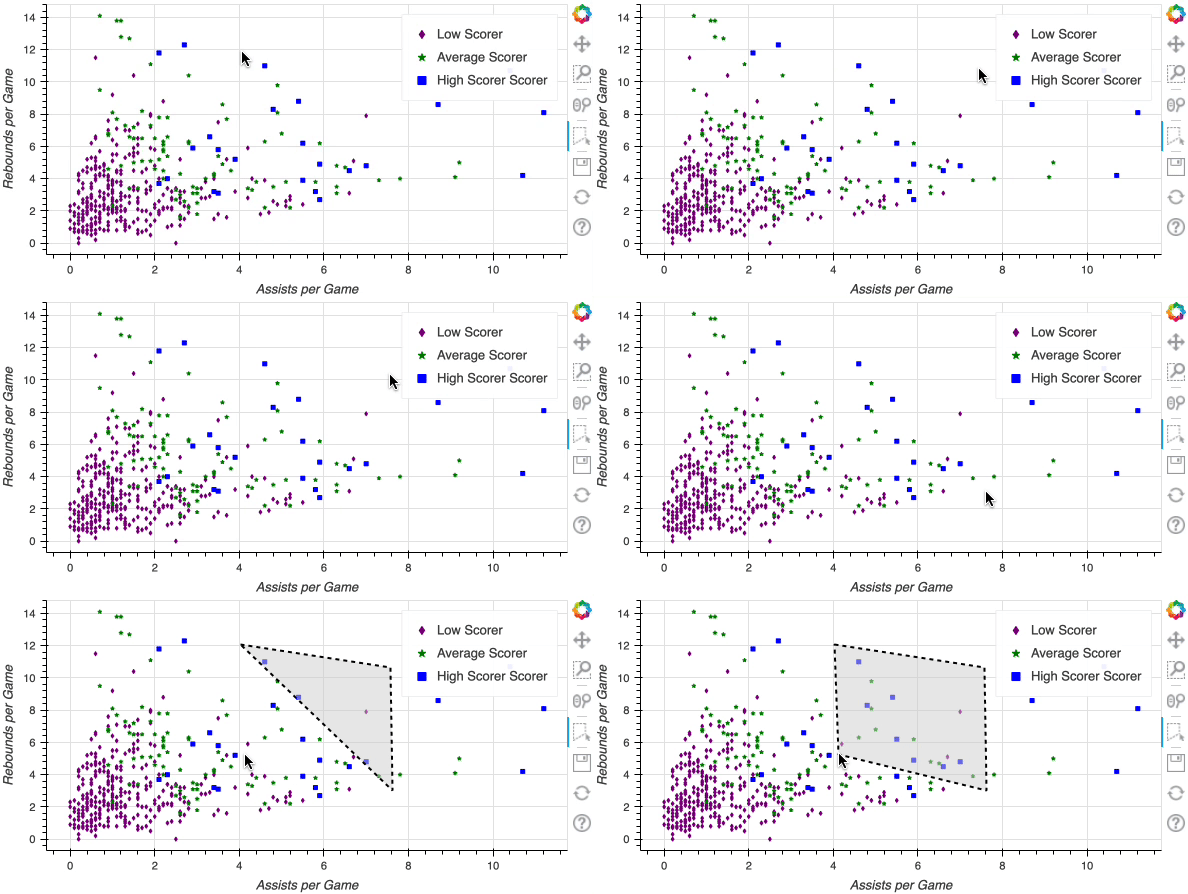
多邊形選取示範


點擊示範

使用 Bokeh 製作互動式資料視覺化

捲動/縮放工具

  • 滾輪縮放 WheelZoomTool
    • wheel_zoom 滾輪縮放


  • 滾輪平移 WheelPanTool 滾輪平移
    • xwheel_pan
    • ywheel_pan

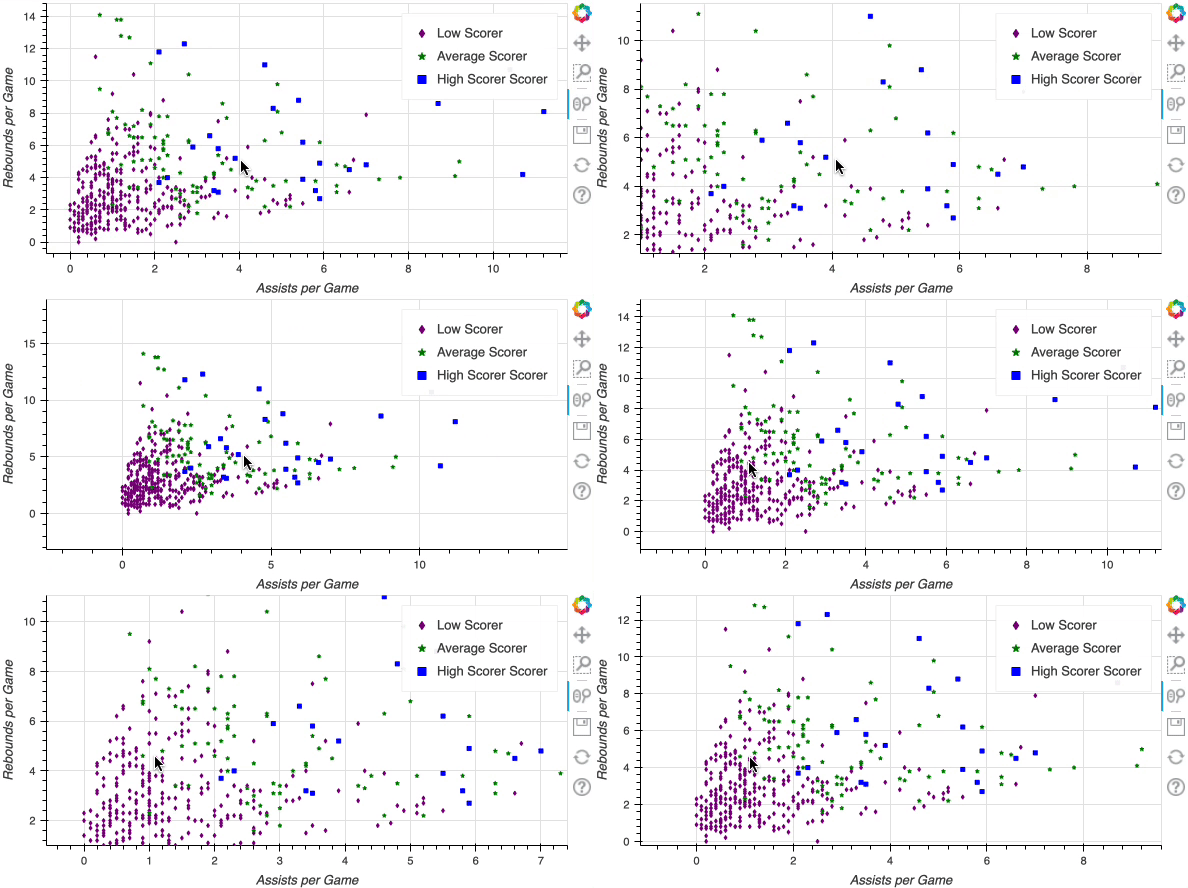
滾輪縮放示範

使用 Bokeh 製作互動式資料視覺化

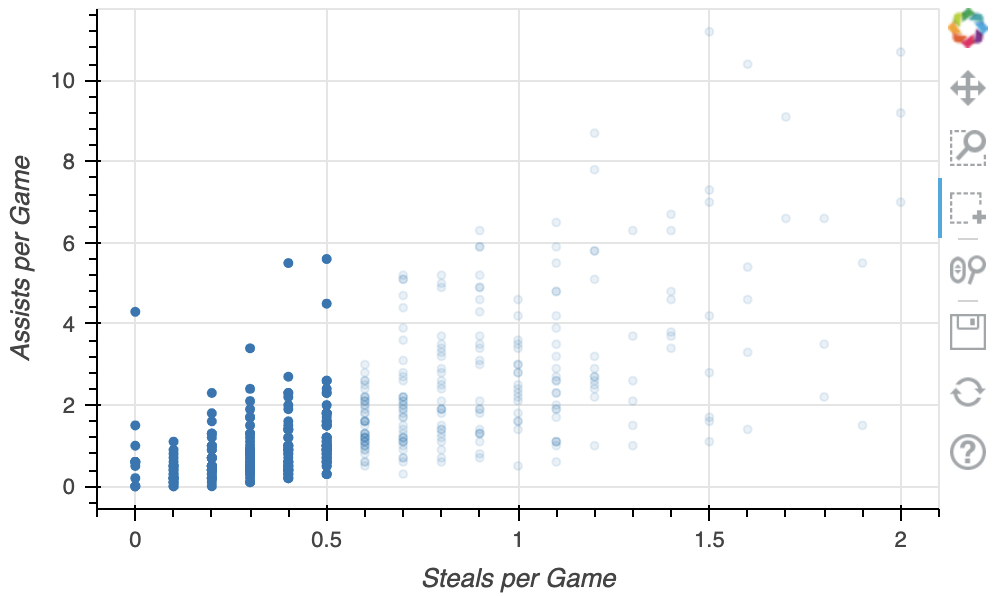
自訂工具列

from bokeh.models import BoxSelectTool

fig = figure(x_axis_label="Steals per Game", y_axis_label="Assists per Game") fig.circle(x=nba["steals"], y=nba["assists"])
fig.add_tools(BoxSelectTool())
output_file(filename="adding_box_select.html") show(fig)

加入 BoxSelect

使用 Bokeh 製作互動式資料視覺化

自訂工具清單

tools = ["lasso_select", "box_zoom", "tap"]

fig = figure(x_axis_label="Steals", y_axis_label="Assists",
tools=tools)
fig.circle(x=nba["steals"], y=nba["assists"]) output_file(filename="custom_tools.html") show(fig)
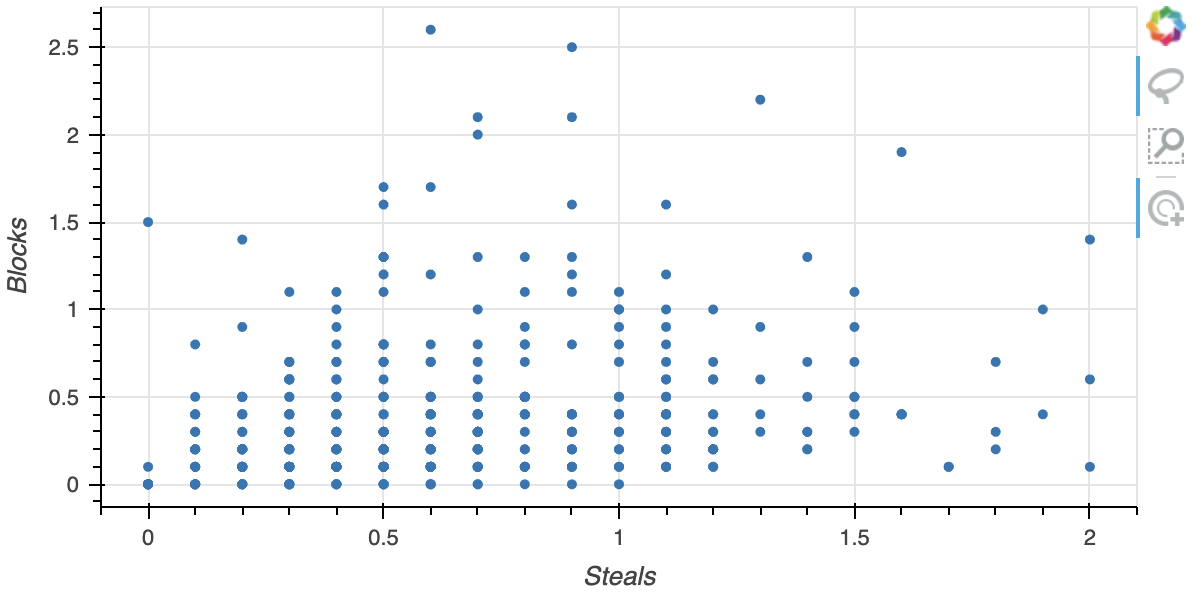
  工具清單

使用 Bokeh 製作互動式資料視覺化

一起來練習吧!

使用 Bokeh 製作互動式資料視覺化

Preparing Video For Download...