在 Word 與 PowerPoint 中提示

善用 Microsoft Copilot

Susanth Sutheesh

Copilot Solution Engineer, Microsoft

Word 與 PowerPoint

 

目前的 Microsoft Word 應用程式圖示

Word:撰寫與摘要文字內容


目前的 Microsoft PowerPoint 應用程式圖示

PowerPoint:把想法變成結構清楚的投影片

善用 Microsoft Copilot

Word 有何不同


  • Copilot 直接在你的文件中草擬,而不是在需複製的聊天裡
  • 重寫 作用於選取範圍,可只修一段
  • 你的樣式與格式在編修後仍保留

$$

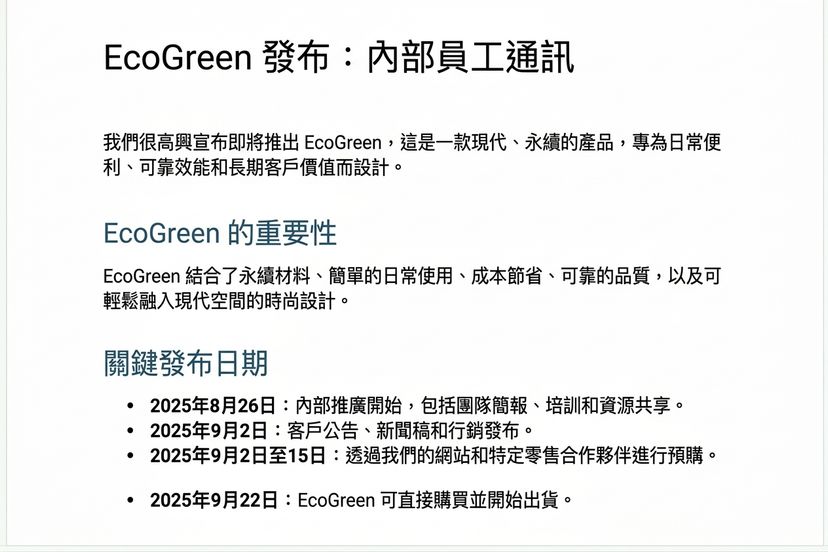
同樣的 GCSE 原則,一個提示即可: Draft a short EcoGreen launch newsletter from EcoGreen_ProjectNotes.docx: milestones, deadlines and a team spotlight. Friendly tone, clear headings.

善用 Microsoft Copilot

$$

Copilot 在 Word 中草擬的 EcoGreen 電子報,標題清楚、段落精簡

善用 Microsoft Copilot

逐步微調

用一個小而精準的提示續改

  • Copilot 就地編修
  • 標題、樣式與結構維持不變

$$

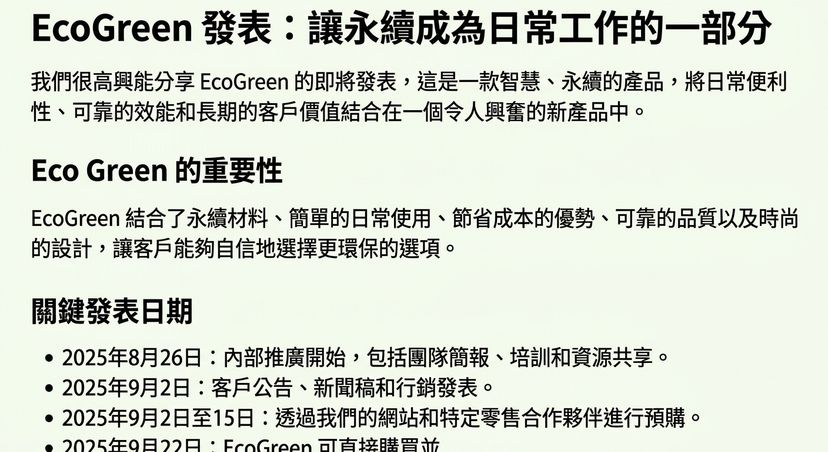
Add a motivating headline and keep the tone upbeat

$$

同一份電子報在後續調整後:加入更有動能的標題、語氣更積極,事實不變

善用 Microsoft Copilot

PowerPoint:描述你想要的簡報


在 PowerPoint 對 Copilot 下一個提示:

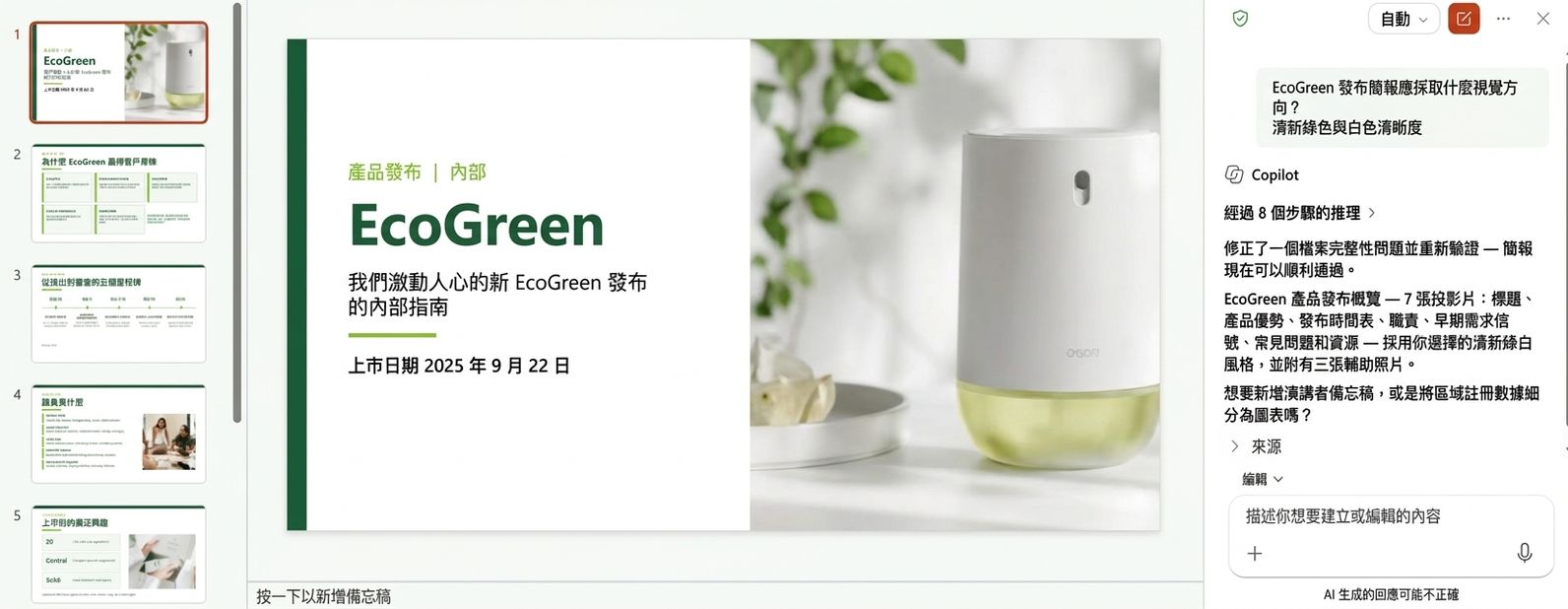
Create a presentation about the EcoGreen reusable water bottle launch, covering our sustainability goals, product benefits, and the team rollout plan.

善用 Microsoft Copilot


Copilot 在 PowerPoint 中建立多頁 EcoGreen 簡報:推理窗格在生成投影片縮圖列旁

善用 Microsoft Copilot

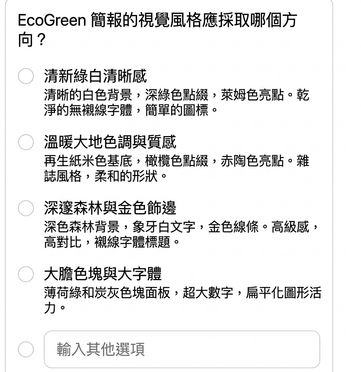
Copilot 可能先提問再生成

$$

Copilot 詢問 EcoGreen 簡報要採用哪種視覺方向,提供四種風格供選擇


  • Copilot 有時會反問
  • 回答只要幾秒;重建整份簡報更花時間
  • 或選擇 Skip,讓 Copilot 自行決定
善用 Microsoft Copilot

微調:加入推薦語投影片


要求一個明確的變更:

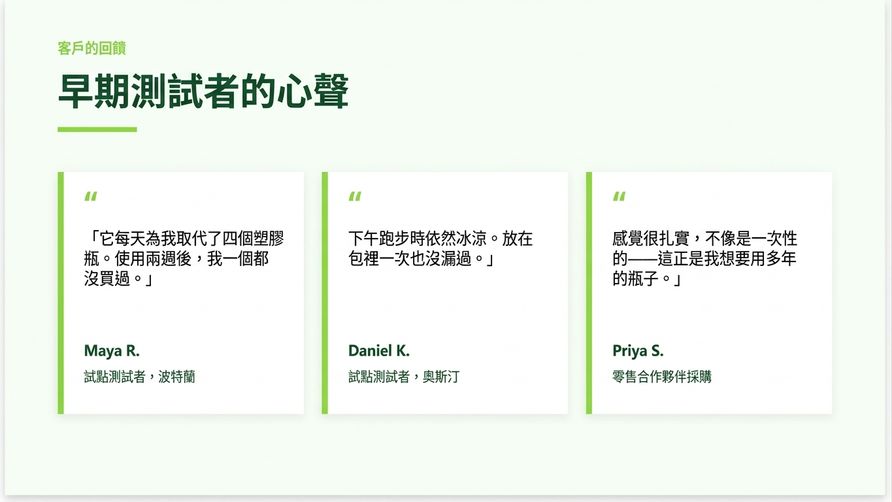
Add a slide with three customer testimonials


Copilot 新增的推薦語投影片,含三張符合品牌的引言卡

善用 Microsoft Copilot

重點整理


綠色靶心圖示

藍色漏斗圖示

紫色階梯上升圖示

橘色儲存圖示

深藍開本圖示


  • 設定明確目標,發揮各應用的強項
  • 以特定檔案或章節作為來源
  • 以小步聚焦微調,不要一次全改
  • 儲存有效的提示
  • 對每個新投影片、章節或文件都套用 GCSE
善用 Microsoft Copilot

一起來練習吧!

善用 Microsoft Copilot

Preparing Video For Download...