सही ट्रिगर चुनना

इंटरमीडिएट Power Automate

Dani Kahil

Solution Architect | Microsoft MVP

आप क्या सीखेंगे

$$

Power Automate


  • Chapter 1 → काम के लिए सही ट्रिगर चुनें
  • Chapter 2 → Dataverse और SharePoint डेटा पर action लें
  • Chapter 3 → conditional logic और reliability जोड़ें
  • Chapter 4 → approvals के जरिए route करें, फिर capstone ship करें
इंटरमीडिएट Power Automate

इंस्ट्रक्टर से मिलें

$$

Dani Kahil, Solution Architect & Microsoft MVP


  • Dani Kahil - Solution Architect | Microsoft MVP
  • Kahil Consulting के संस्थापक; speaker, MVP, और वास्तविक-world automation builder
  • Power Platform, Dynamics 365, और Azure DevOps में 15+ साल

$$

Prereq: Introduction to Power Automate (या समान अनुभव)

इंटरमीडिएट Power Automate

फ़्लो का पहला निर्णय

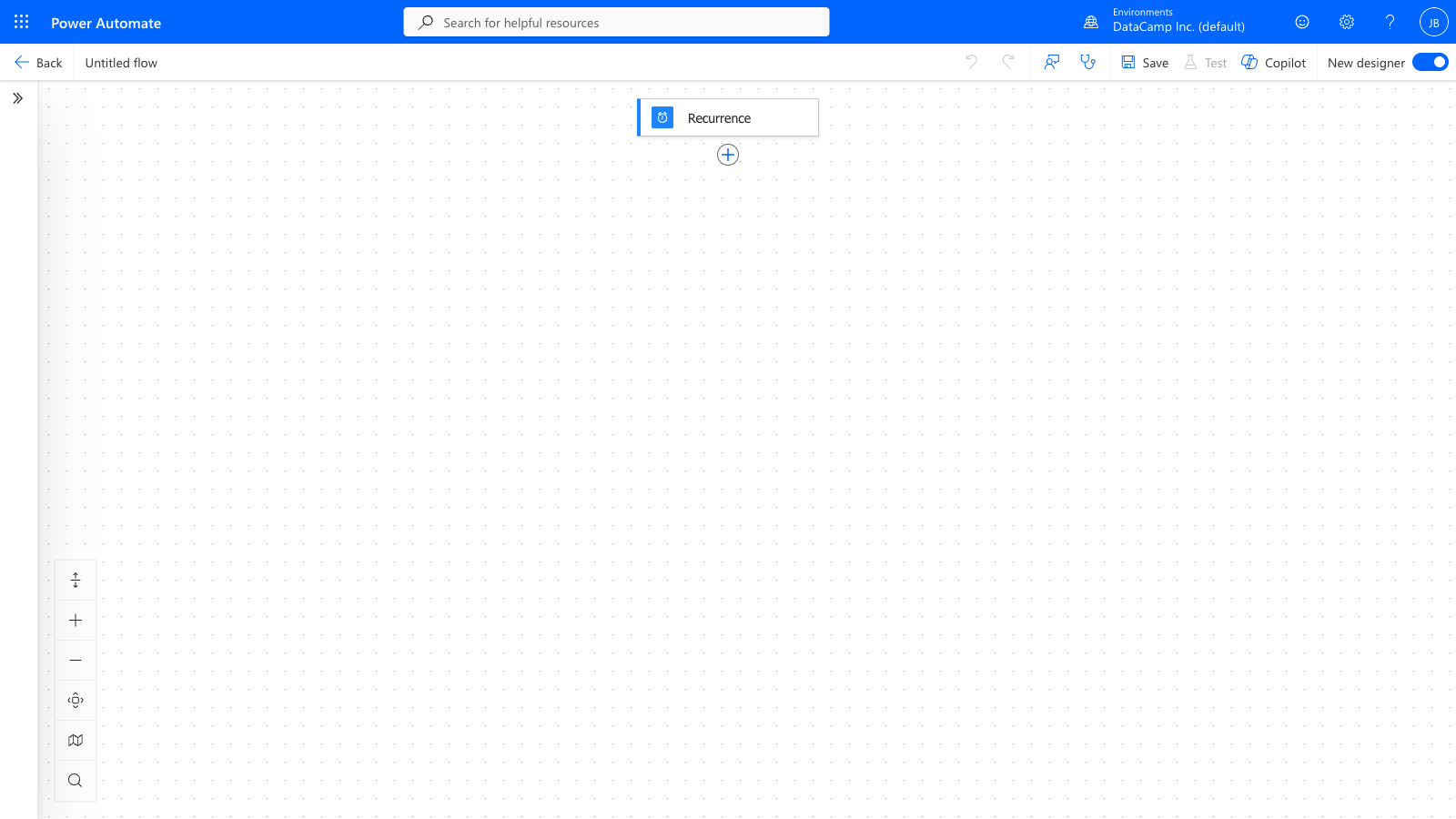
Power Automate designer canvas, जिसमें ऊपर ट्रिगर और नीचे तीरों से जुड़े sequential action कार्ड हैं

इंटरमीडिएट Power Automate

ट्रिगर के तीन परिवार


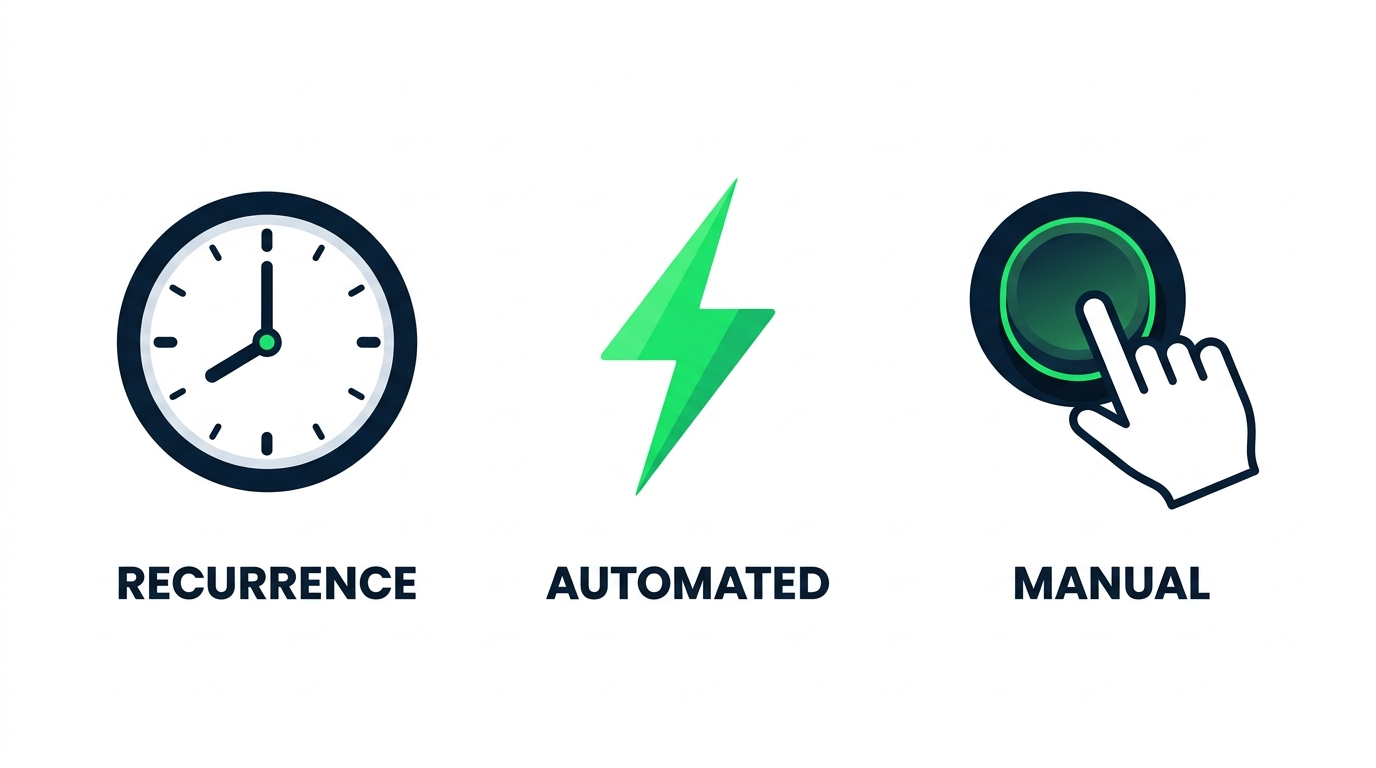
तीन ट्रिगर परिवार आइकन - घड़ी, बिजली, बटन


  • Recurrence — शेड्यूल पर fire होता है
  • Automated — source-system event पर fire होता है
  • Manual — जब कोई व्यक्ति बटन दबाए तब fire होता है
इंटरमीडिएट Power Automate

Manual ट्रिगर इनपुट ले सकते हैं


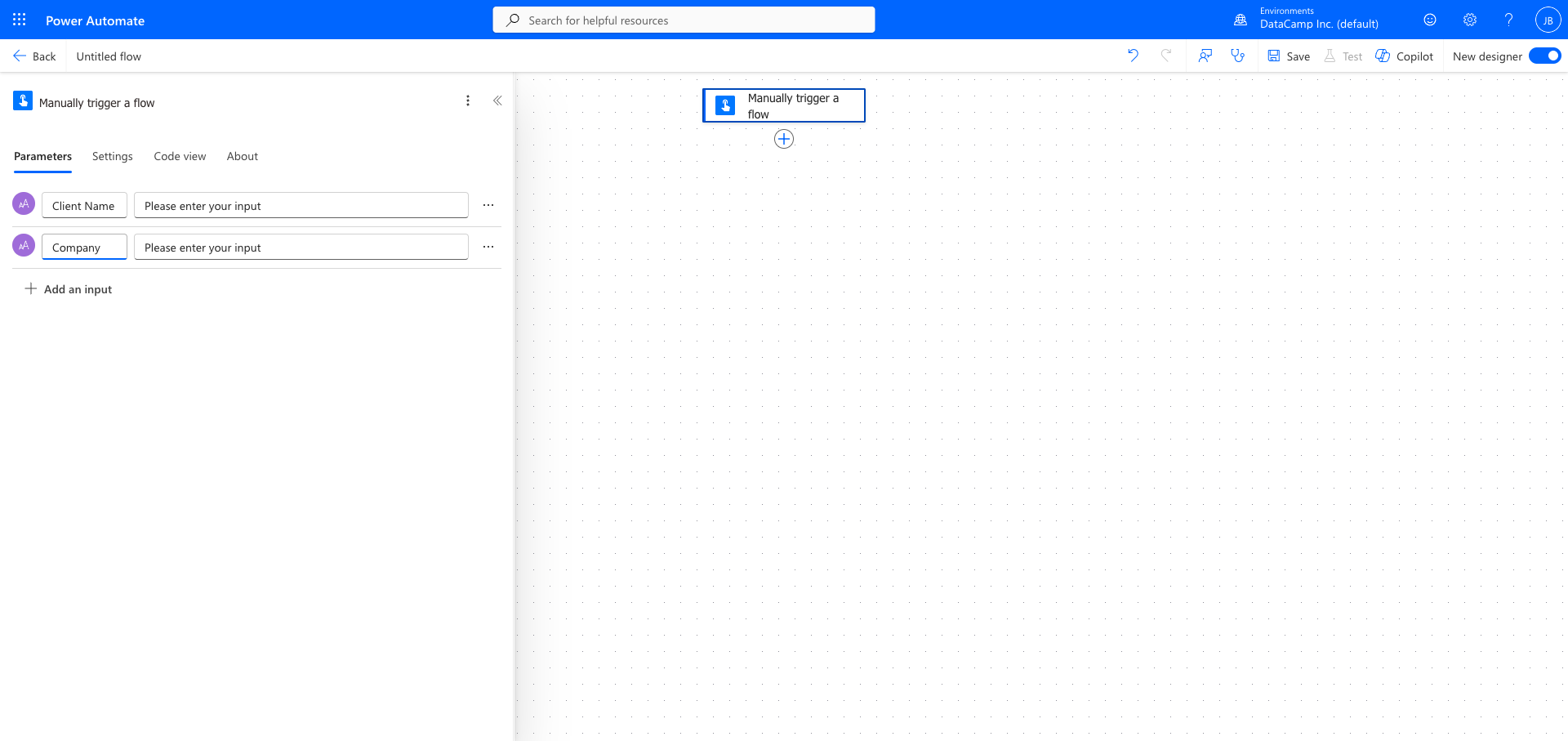
Manual trigger configuration जिसमें Client Name और Company टेक्स्ट इनपुट हैं


  • ट्रिगर कार्ड पर inputs जोड़ें - Text, Number, Yes/No, आदि
  • Downstream actions इन्हें dynamic content से पढ़ते हैं
  • उन ad-hoc tools के लिए सही, जिन्हें user से values चाहिए
इंटरमीडिएट Power Automate

एक ही फ्लो, तीन अलग ट्रिगर


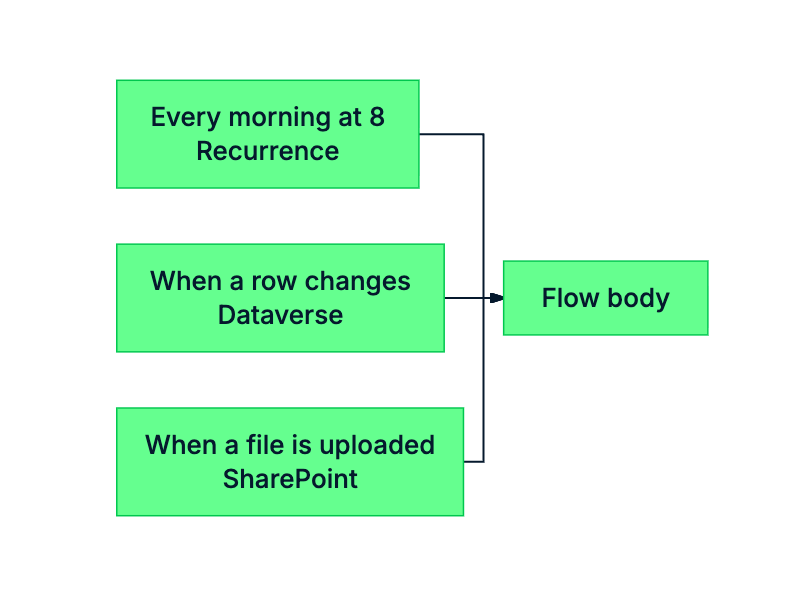
mermaid: green-navy: वही flow body, तीन अलग-अलग trigger heads


  • एक ही flow body, तीन trigger विकल्प
  • ट्रिगर event बताता है
  • वही ट्रिगर चुनें जो तय करे कब काम शुरू होना चाहिए
इंटरमीडिएट Power Automate

शुरुआत के लिए Templates

$$

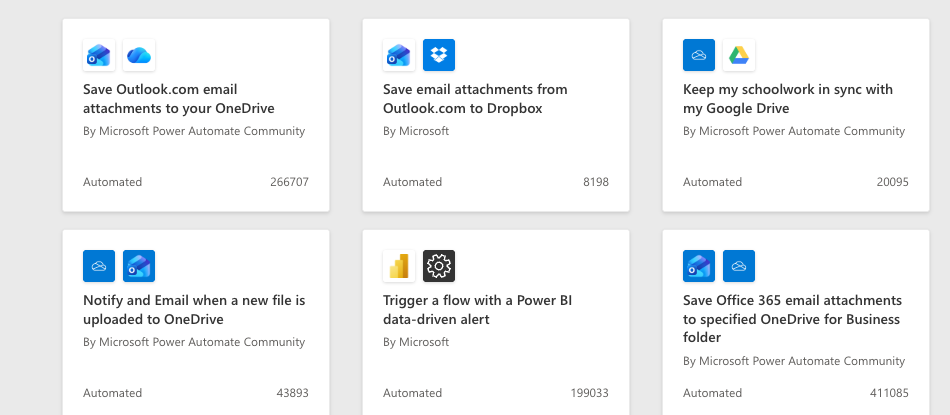
Power Automate Templates gallery - 3x2 ग्रिड में pre-built flow templates, नाम स्पष्ट दिखते हैं

सैकड़ों pre-wired flows  ·  सही template = सही trigger  ·  अपनाने से पहले हमेशा audit करें

इंटरमीडिएट Power Automate

अभ्यास करते हैं!

इंटरमीडिएट Power Automate

Preparing Video For Download...