挑對觸發器

Power Automate 中級

Dani Kahil

Solution Architect | Microsoft MVP

你將學到什麼

$$

Power Automate


  • 第 1 章 → 為工作挑選正確的觸發器
  • 第 2 章 → 操作 Dataverse 與 SharePoint 資料
  • 第 3 章 → 加入條件邏輯與可靠性
  • 第 4 章 → 走核准流程,完成最終專題
Power Automate 中級

講師介紹

$$

Dani Kahil, Solution Architect & Microsoft MVP


  • Dani Kahil - 解決方案架構師|Microsoft MVP
  • Kahil Consulting 創辦人;講者、MVP、實戰自動化打造者
  • 15+ 年經驗:Power Platform、Dynamics 365、Azure DevOps

$$

先修課:Introduction to Power Automate(或同等經驗)

Power Automate 中級

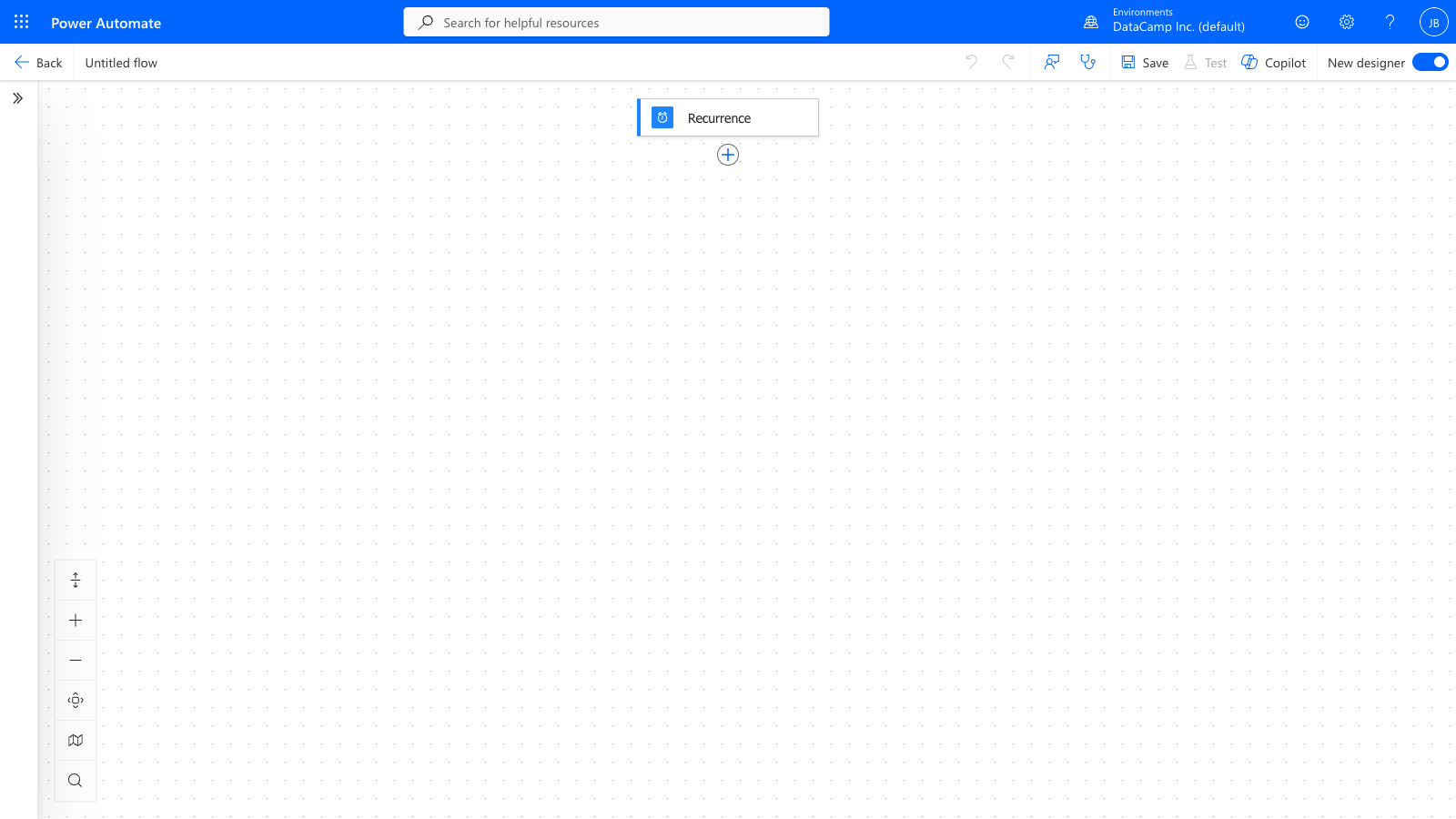
流程的第一個抉擇

The Power Automate designer canvas showing a flow with a trigger at the top and sequential action cards connected by arrows

Power Automate 中級

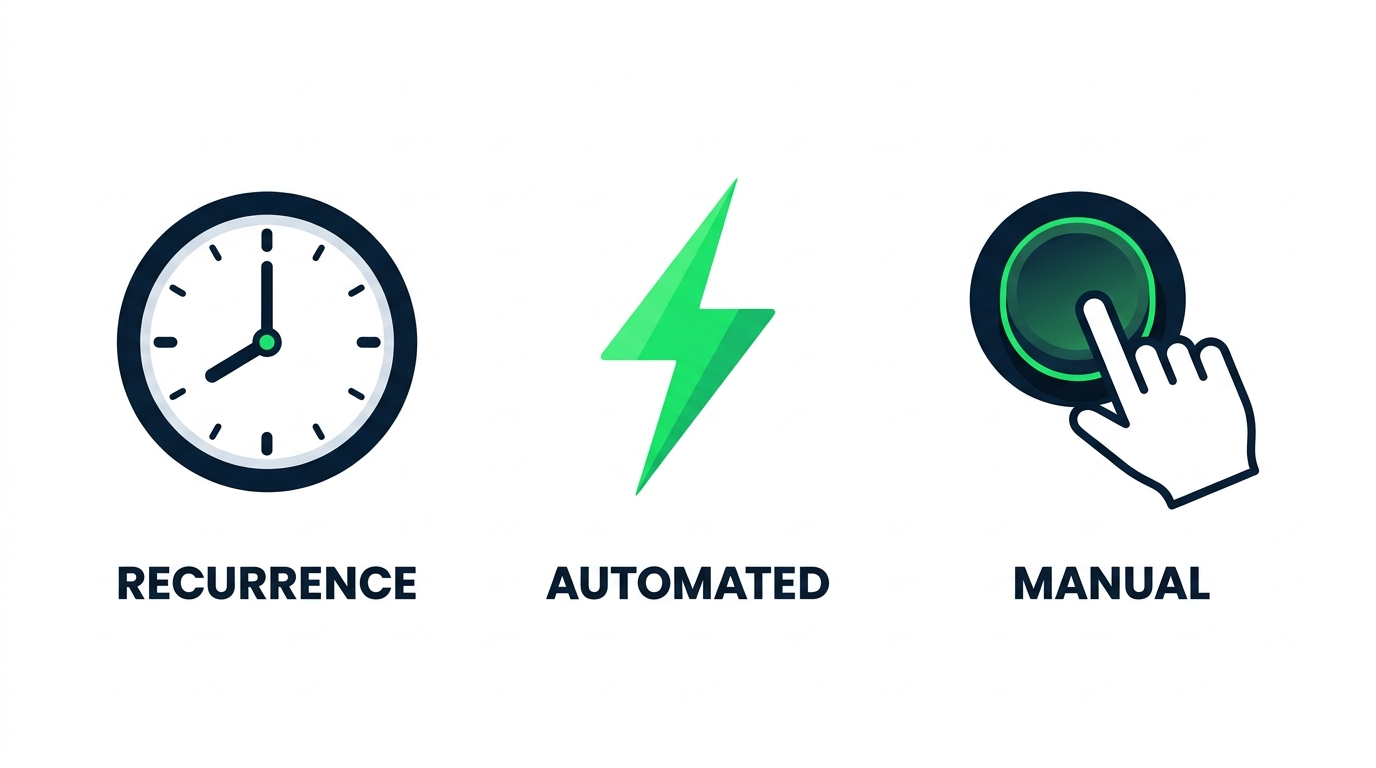
三大觸發器家族


Three trigger family icons - clock, lightning bolt, button


  • Recurrence — 依排程觸發
  • Automated — 由來源系統事件觸發
  • Manual — 使用者按下按鈕時觸發
Power Automate 中級

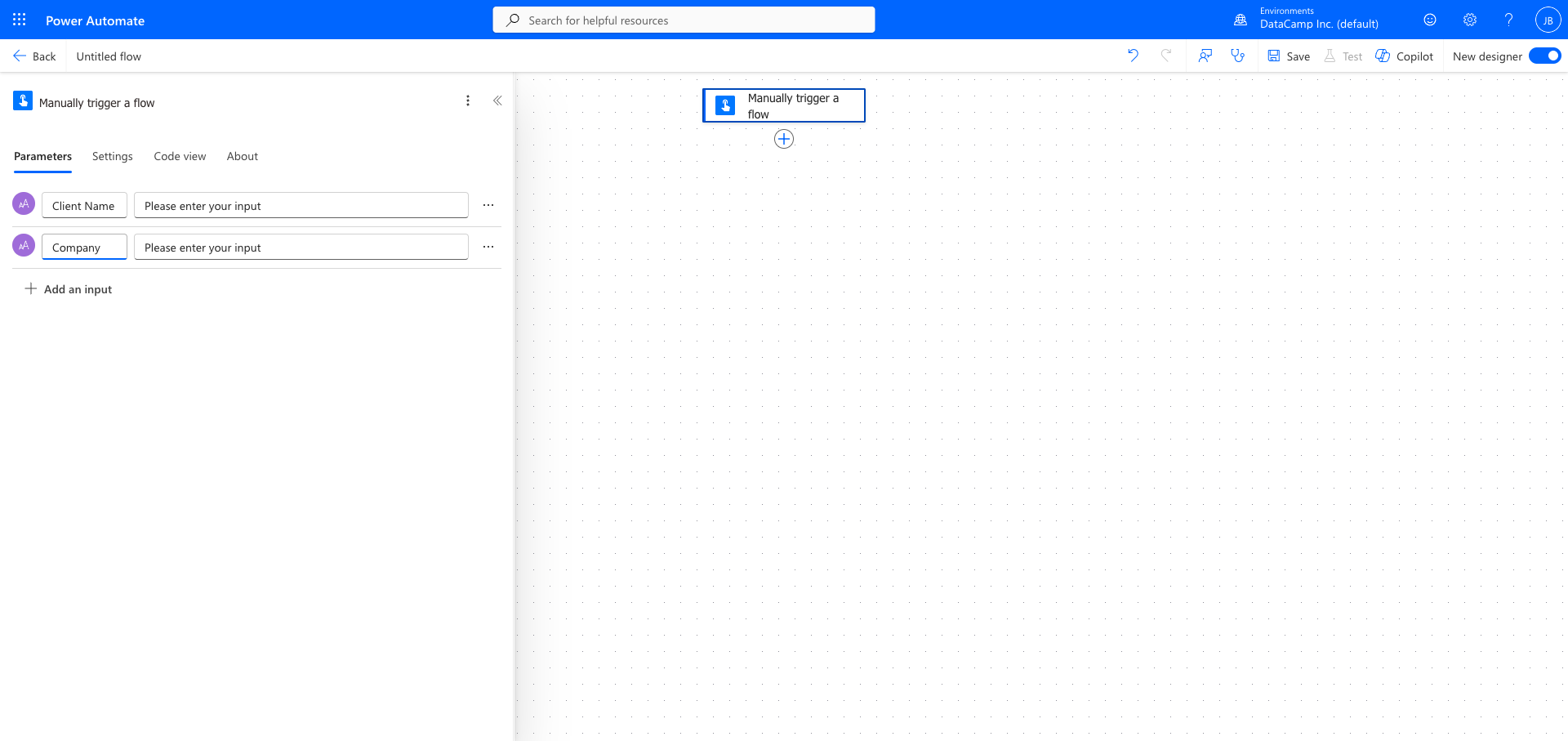
手動觸發器可接收輸入


Manual trigger configuration with Client Name and Company text inputs


  • 在觸發器卡片上新增輸入:文字、數字、是/否等
  • 後續動作透過動態內容讀取
  • 適合臨時工具,需由使用者提供數值
Power Automate 中級

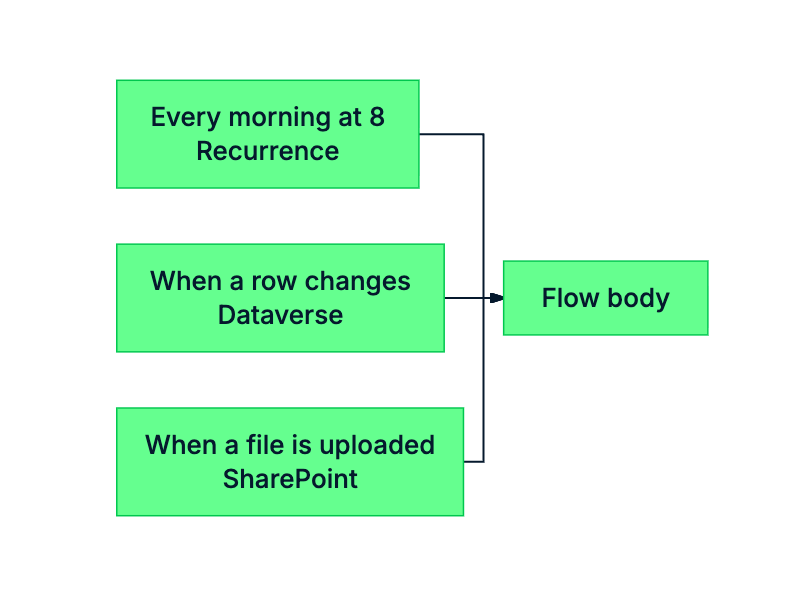
同一流程,不同三種觸發器


mermaid: green-navy: Same flow body, three different trigger heads


  • 流程本體相同,觸發器有三種選項
  • 觸發器描述要發生的事件
  • 挑選符合工作應該開始時機的觸發器
Power Automate 中級

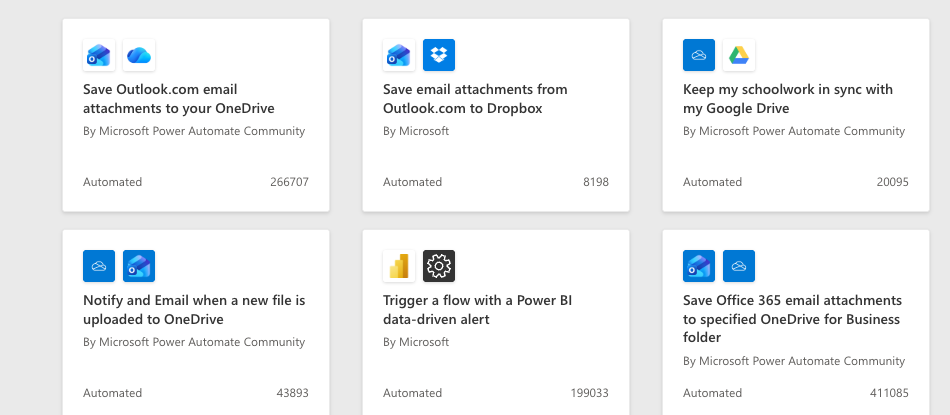
以樣板為起點

$$

Power Automate Templates gallery - a 3x2 grid of pre-built flow templates with names readable

上百個預先佈線的流程 · 對的樣板=對的觸發器 · 導入前務必審視

Power Automate 中級

一起來練習吧!

Power Automate 中級

Preparing Video For Download...