取得資料:擷取結構化記錄

Power Automate 中級

Dani Kahil

Solution Architect | Microsoft MVP

每個連接器都有清單動作


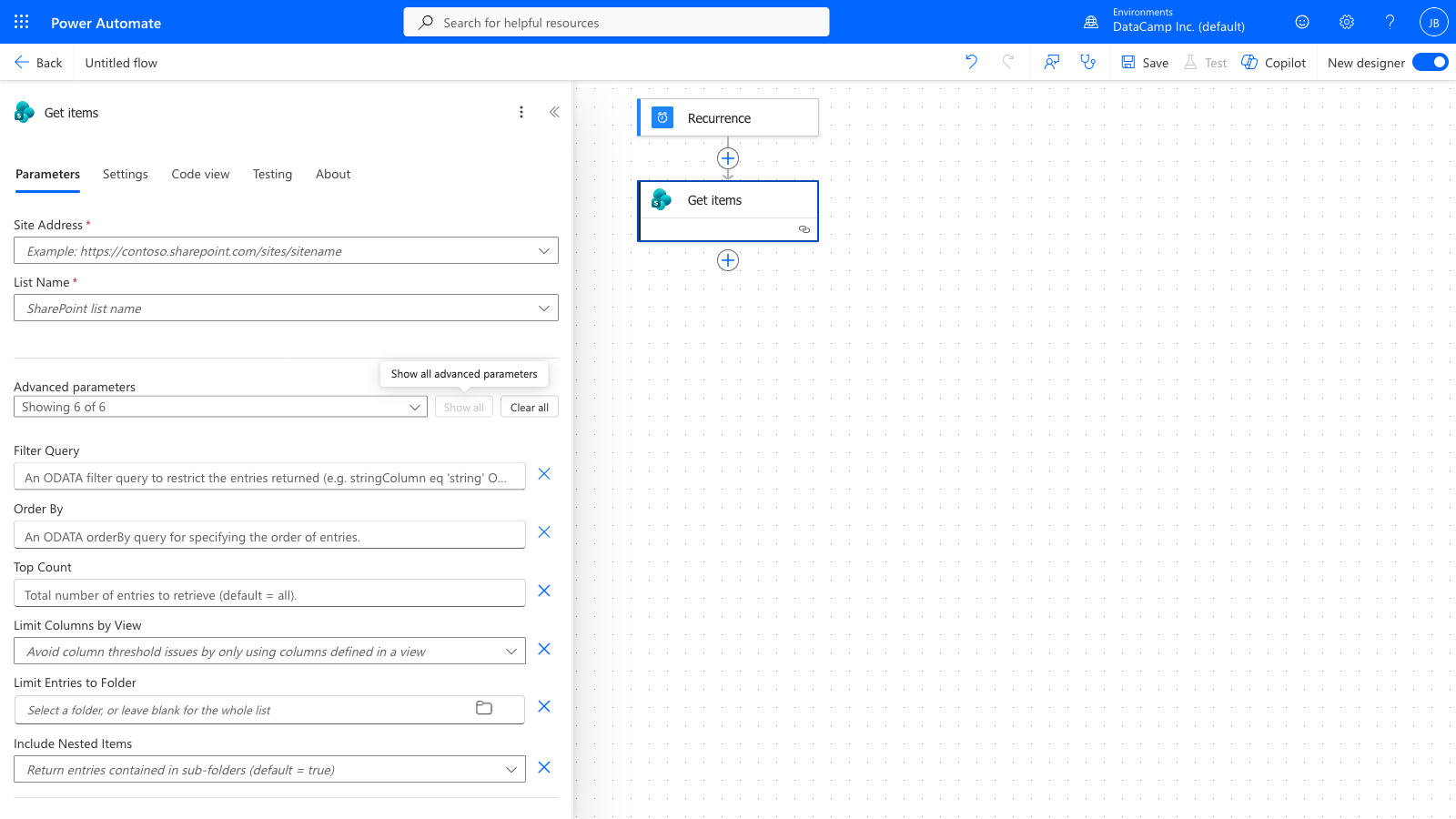
Power Automate 的 Get items(SharePoint)動作在 v3 設計工具中展開,顯示 Site Address、List Name,以及所有進階參數:Filter Query、Order By、Top Count、Limit Columns by View、Limit Entries to Folder、Include Nested Items


  • Dataverse:List rows
  • SharePoint:Get items
  • Excel:List rows present in a table
  • Salesforce:Get records
  • 以上皆回傳記錄的 array
Power Automate 中級

Get items 的結構


screenshot_get_items_anatomy:Power Automate 的 Get items(SharePoint)動作展開,顯示 Site Address、List Name,以及動作卡上的進階選項 Filter Query、Order By、Top Count、Limit Columns by View。


  • Filter Query-OData 表達式
  • Order By-欄位加 asc/desc
  • Top Count-限制結果筆數上限
  • Limit Columns by View-限制欄位數量
Power Automate 中級

在來源端過濾


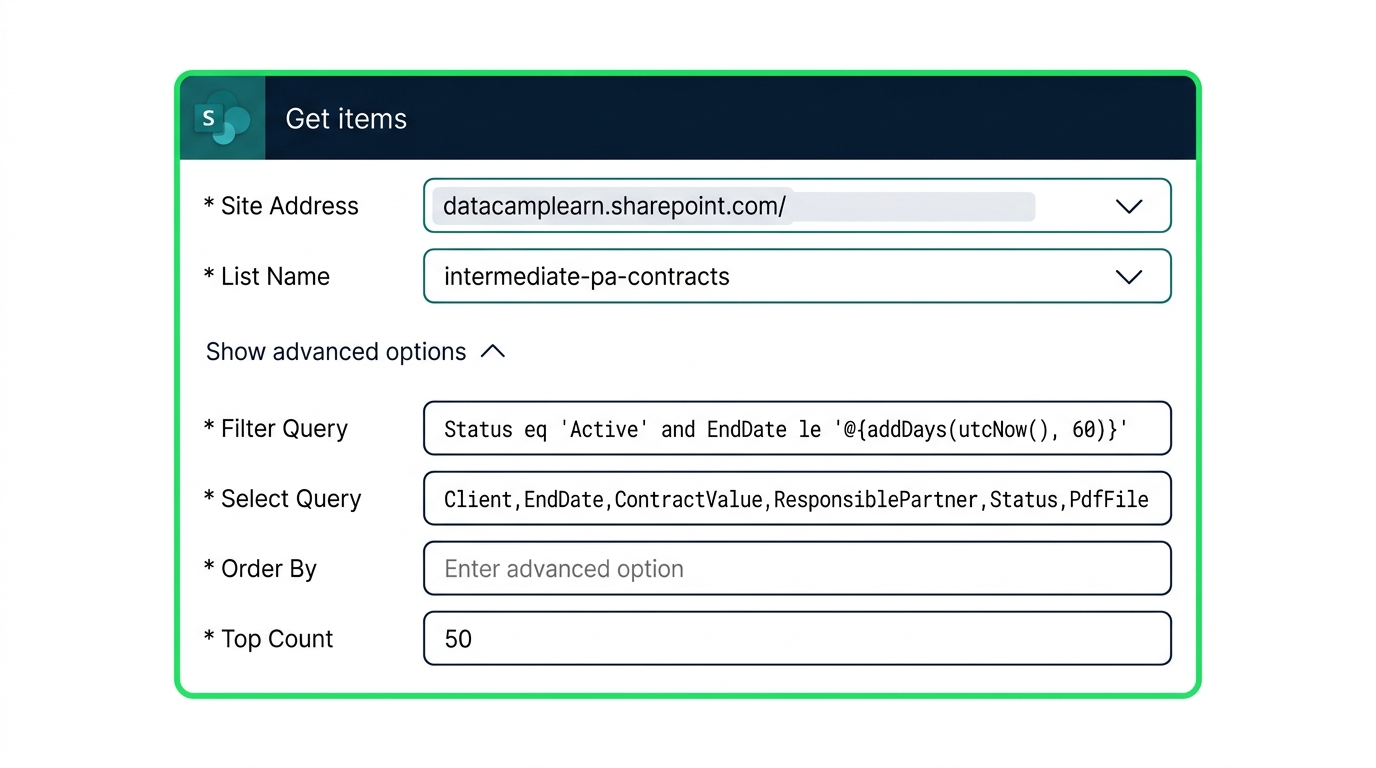
Filter Query 是 OData 表達式——欄位、運算子、值。

Status eq 'Active'
EndDate le '@{addDays(utcNow(), 60)}'
Status eq 'Active' and EndDate le
  '@{addDays(utcNow(), 60)}'

選項欄位需使用加引號的顯示標籤;日期需為用單引號包住的 ISO 字串,並包在 @{...} 中。

Power Automate 中級

來源端 vs 流程內過濾

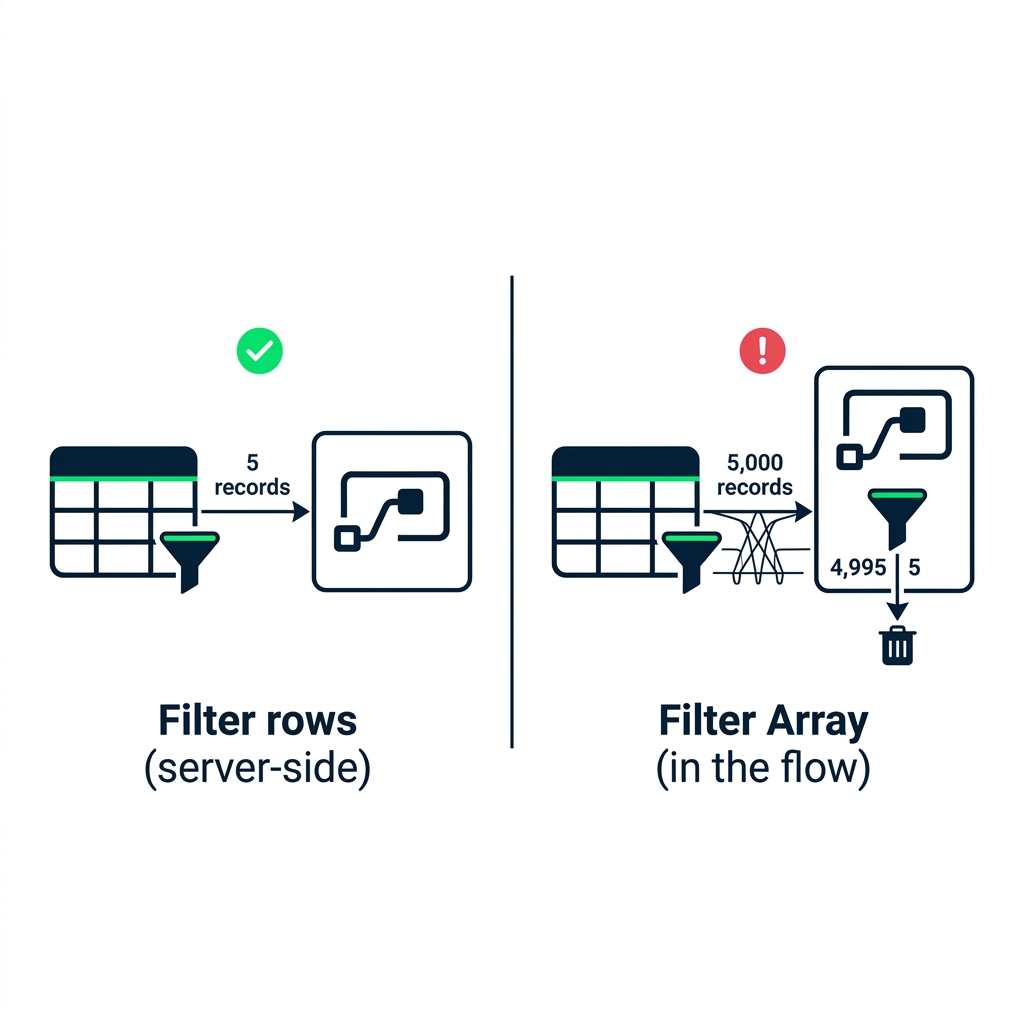
nanobanana:並排比較插圖,中央有垂直分隔線。左側標示「Filter at the source」:泛用資料儲存圖示(標示「List / Table」的圓柱)加漏斗;一個標示「5 records」的箭頭進入 Power Automate 流程方塊,旁有綠色勾選。右側標示「Filter in the flow」:相同資料圖示;一個標示「5,000 records」的箭頭通往流程方塊,內有 Filter Array 動作將 4,995 丟進垃圾桶圖示,5 繼續往下;右上方有紅色驚嘆圖示。扁平向量風格,綠與深藍配色,白色背景。


  • Filter Query 在「來源端」執行
  • Filter Array 在「流程內」執行
  • 結果相同,成本天差地遠

$$

Tip:若能用來源的查詢語言表達過濾,就在來源端執行

Power Automate 中級

縮減載荷

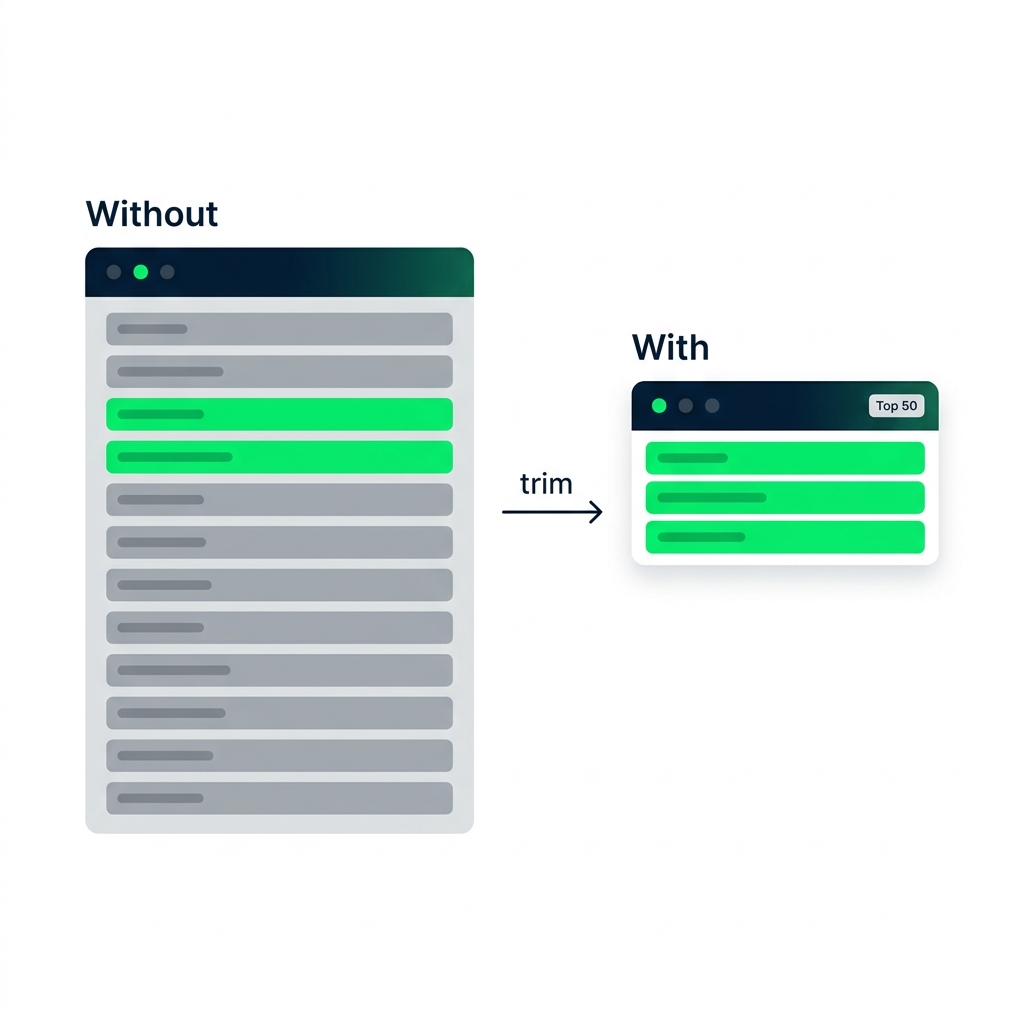
nanobanana:概念性扁平向量插圖,白色背景並列兩張記錄卡。左卡標示「Without Limit Columns by View」:約 12 列欄位,多數灰色(系統欄、稽核欄、未用欄),僅兩列綠色高亮。右卡標示「With Limit Columns by View + Top 50」:較精簡的記錄,只顯示綠色高亮列,角落有「Top 50」徽章。兩卡間有標示「trim」的小箭頭。綠與深藍配色,無襯線標籤。


  • 未選檢視 → 回傳每個欄位
  • Limit Columns by View → 僅回傳流程需要的欄位
  • Top Count 限制結果筆數
Power Automate 中級

一起來練習吧!

Power Automate 中級

Preparing Video For Download...