通知與稽核追蹤回寫

Power Automate 中級

Dani Kahil

Solution Architect | Microsoft MVP

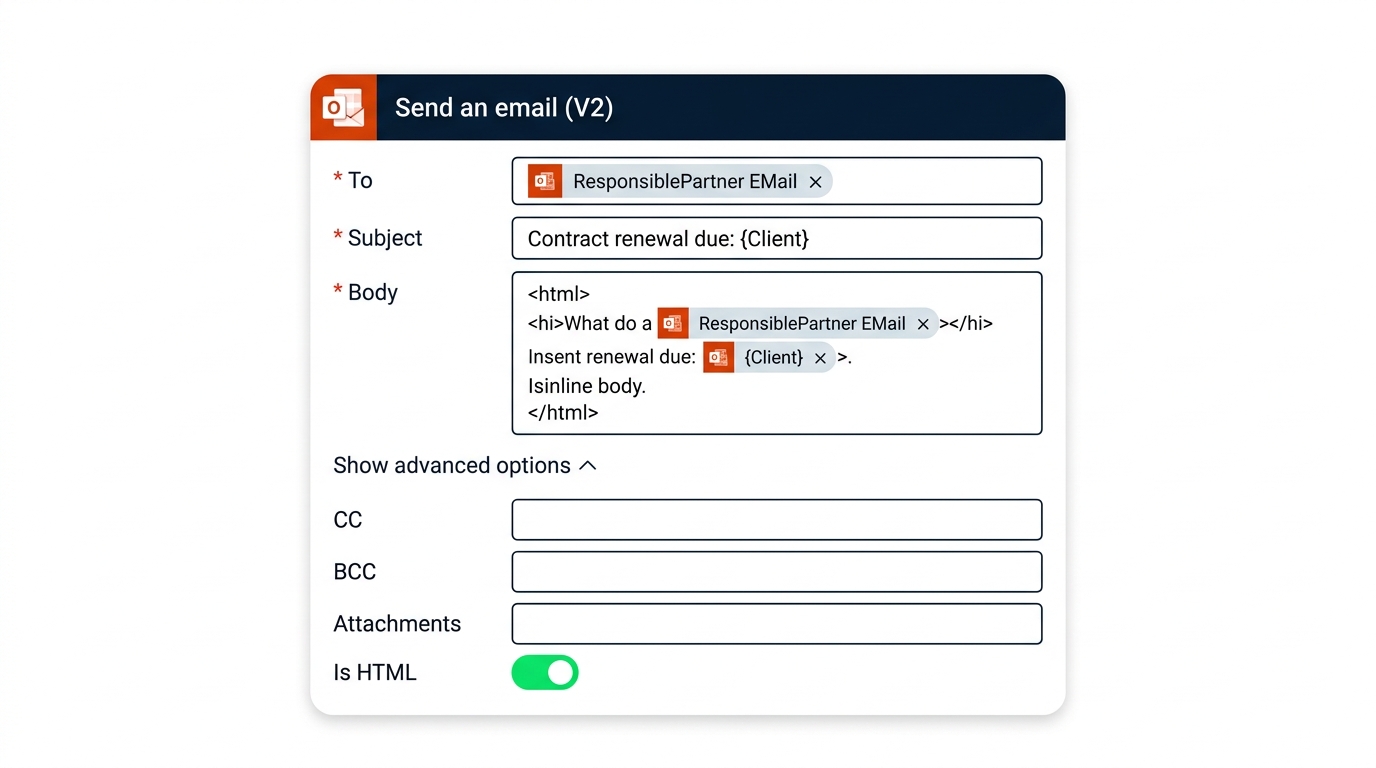
Send an email (V2)


screenshot_send_email_v2: Power Automate 的 Office 365 Outlook「Send an email (V2)」動作展開畫面,顯示 To、Subject、Body 以動態內容代入,並展開進階選項(CC、BCC、Attachments、Importance、Is HTML 切換)。


  • Office 365 Outlook 連接器
  • To、Subject、Body,以及進階選項
  • Body 可用純文字或 HTML
Power Automate 中級

Dynamic content 與 expressions

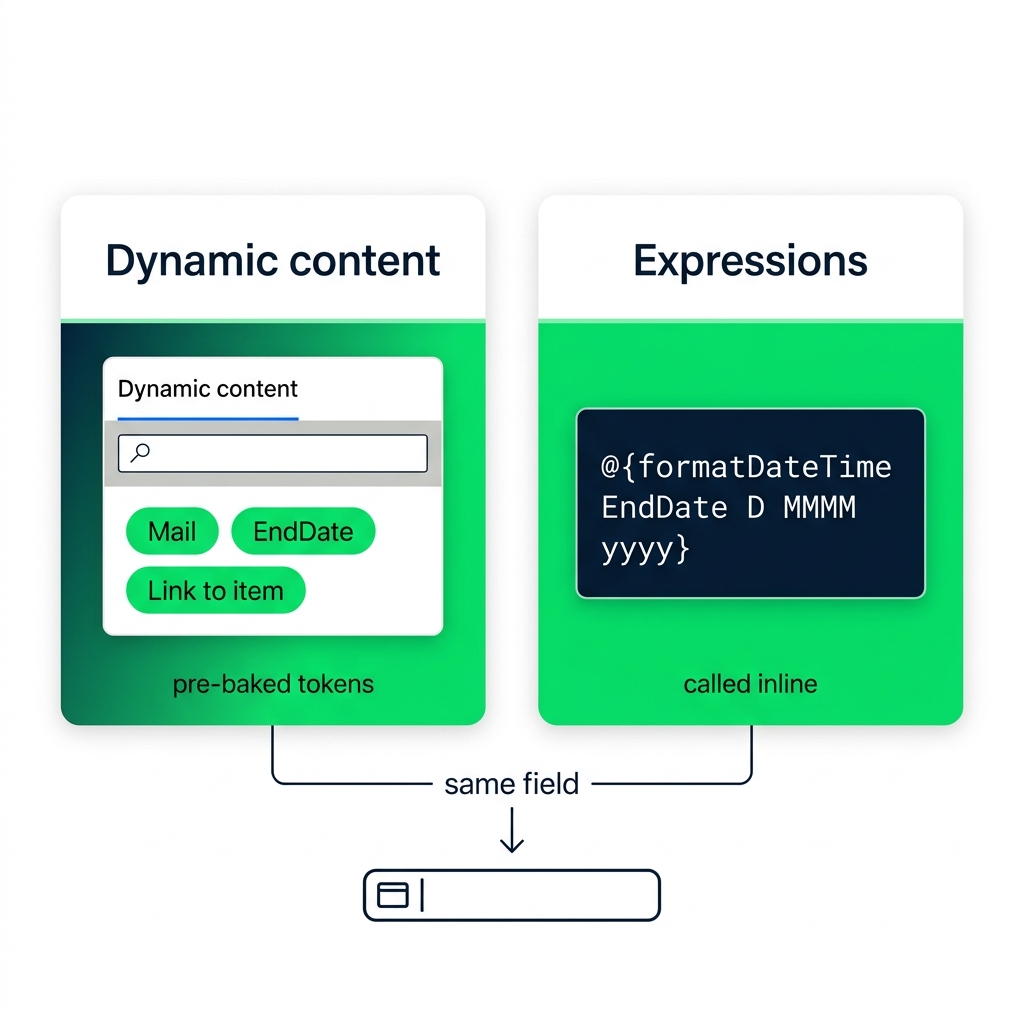
nanobanana: 白底的扁平向量教學圖。左卡片標示「Dynamic content」:Power Automate 動態內容面板,三個圓角標籤 Mail、EndDate、Link to item,旁有小註「pre-baked tokens」。右卡片標示「Expressions」:等寬字樣式方框,內文「@{formatDateTime EndDate D MMMM yyyy}」,旁有小註「called inline」。底部細箭頭標示「same field」匯入同一個輸入欄位圖示。綠與海軍藍配色,無襯線標籤。


  • Dynamic content → 來自前面步驟的現成權杖
  • Expressions → 以 at-curly-brace 語法行內呼叫的函式
  • 最終都進同一欄位;選較簡單者
Power Automate 中級

將日期轉成人類可讀格式


所有連接器輸入的日期都是 ISO 8601。formatDateTime 會用 .NET 慣例格式字串轉成可讀形式。

D MMMM yyyy - 15 August 2026
d MMM yyyy - 15 Aug 2026
dddd, d MMMM yyyy - Saturday, 15 August 2026
Power Automate 中級

通用的稽核追蹤模式


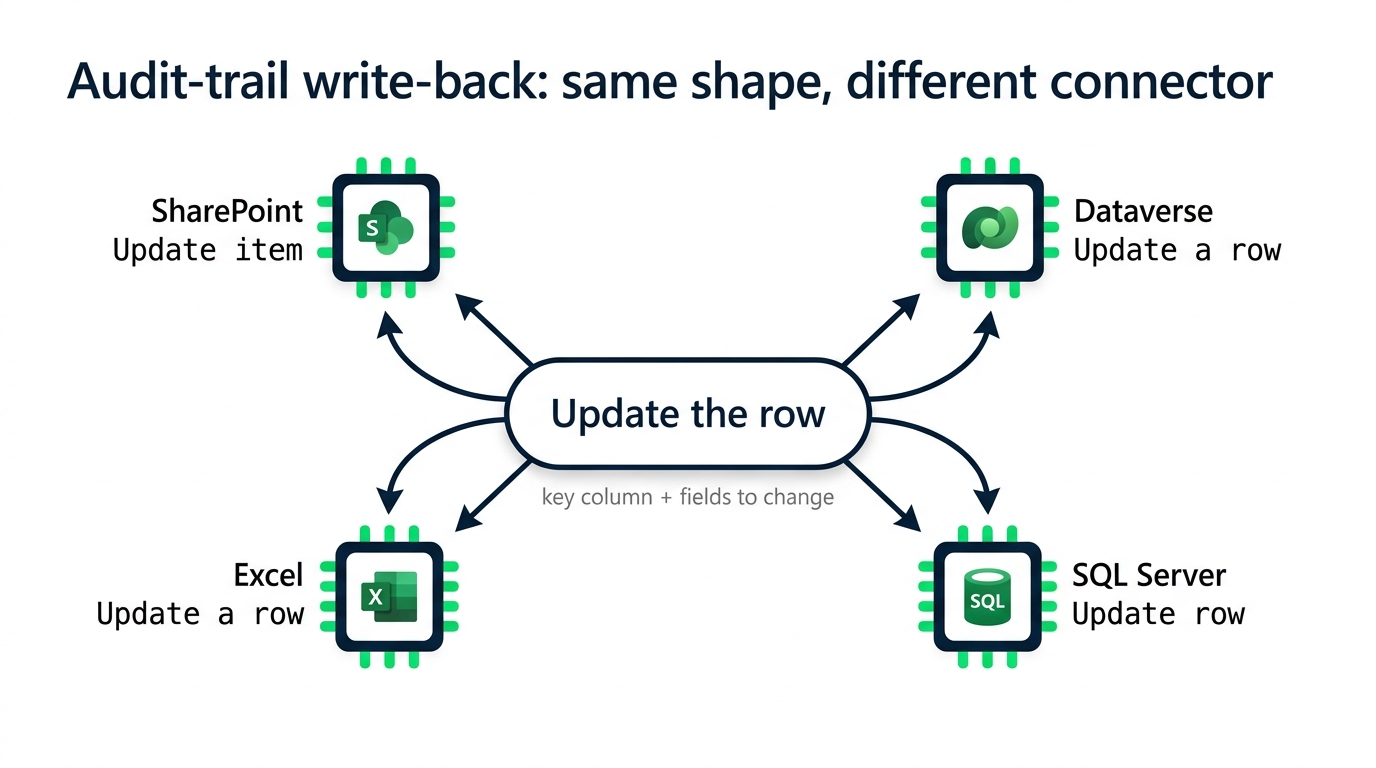
nanobanana: 白底扁平向量教學圖,標題「Audit-trail write-back: same shape, different connector」。中央為「Update the row」膠囊,四箭頭指向四個連接器晶片與標誌:SharePoint(「Update item」)、Dataverse(「Update a row」)、Excel(「Update a row」)、SQL Server(「Update row」)。中央膠囊下方小註「key column + fields to change」。綠與海軍藍配色,動作名用等寬字,連接器標籤用無襯線。


  • 模式:read → 執行工作 → write back
  • 各連接器同樣流程;動作名稱不同
  • 我們用 Excel 練習此模式
Power Automate 中級

稽核追蹤是流程的記憶

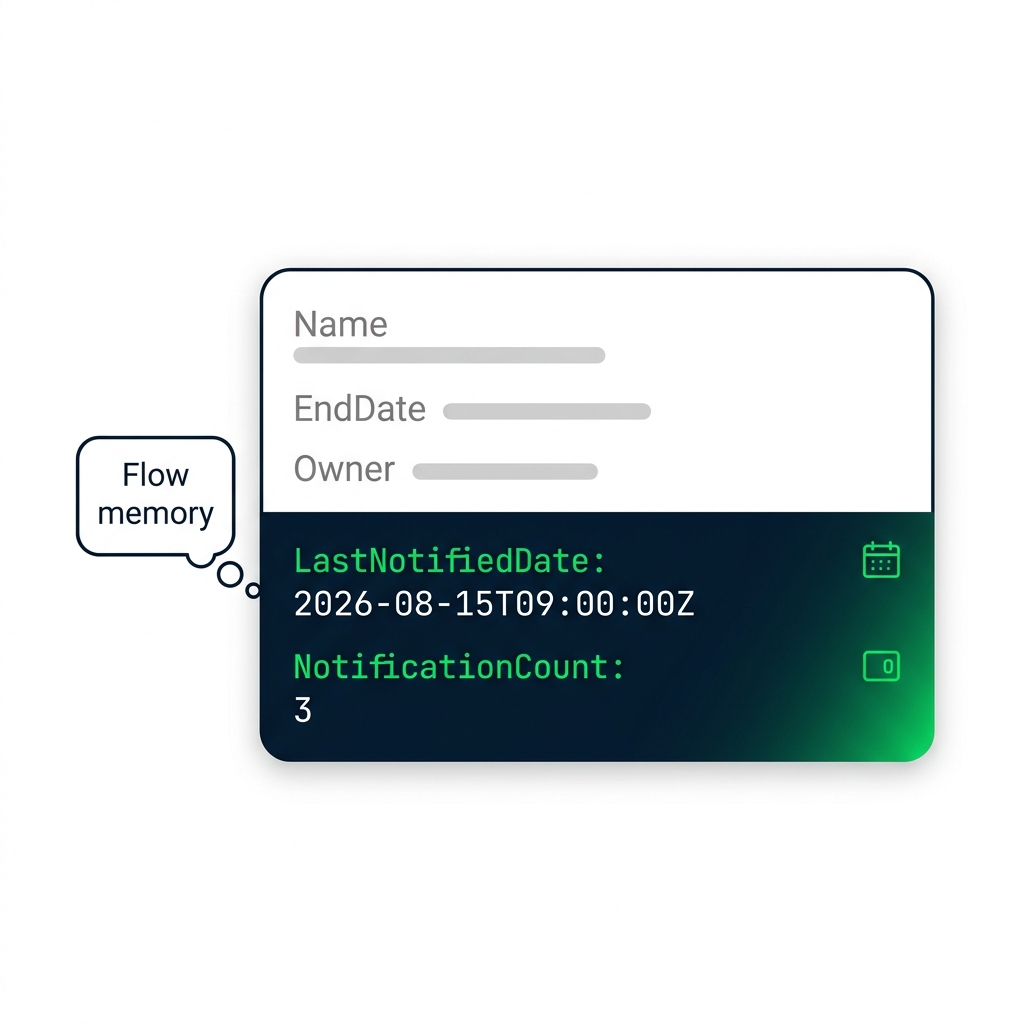
nanobanana: 白底扁平向量圖,單一 Contracts 列卡片,樣式如 Dataverse 記錄。卡片上方核心欄位(Name、EndDate、Owner)為灰色,下方兩欄以綠色強調:「LastNotifiedDate: 2026-08-15T09:00:00Z」與「NotificationCount: 3」。旁有小日曆與計數圖示。左側對話泡小註「the flow's memory」。綠與海軍藍配色,欄位值為等寬字,標籤為無襯線。


  • 不回寫的流程會一直重複
  • 寄出後回寫 LastNotifiedDate 與 NotificationCount
  • 下次執行會讀取並略過已通知的列
Power Automate 中級

一起來練習吧!

Power Automate 中級

Preparing Video For Download...