解鎖 AI 驅動的分析

Microsoft Copilot in Excel

James Chapman

AI Curriculum Manager, DataCamp

認識你的講師…

$$

susanth_intro.jpg

Microsoft Copilot in Excel

什麼是 Excel 中的 Copilot?

$$

$$

Microsoft Copilot 標誌

$$

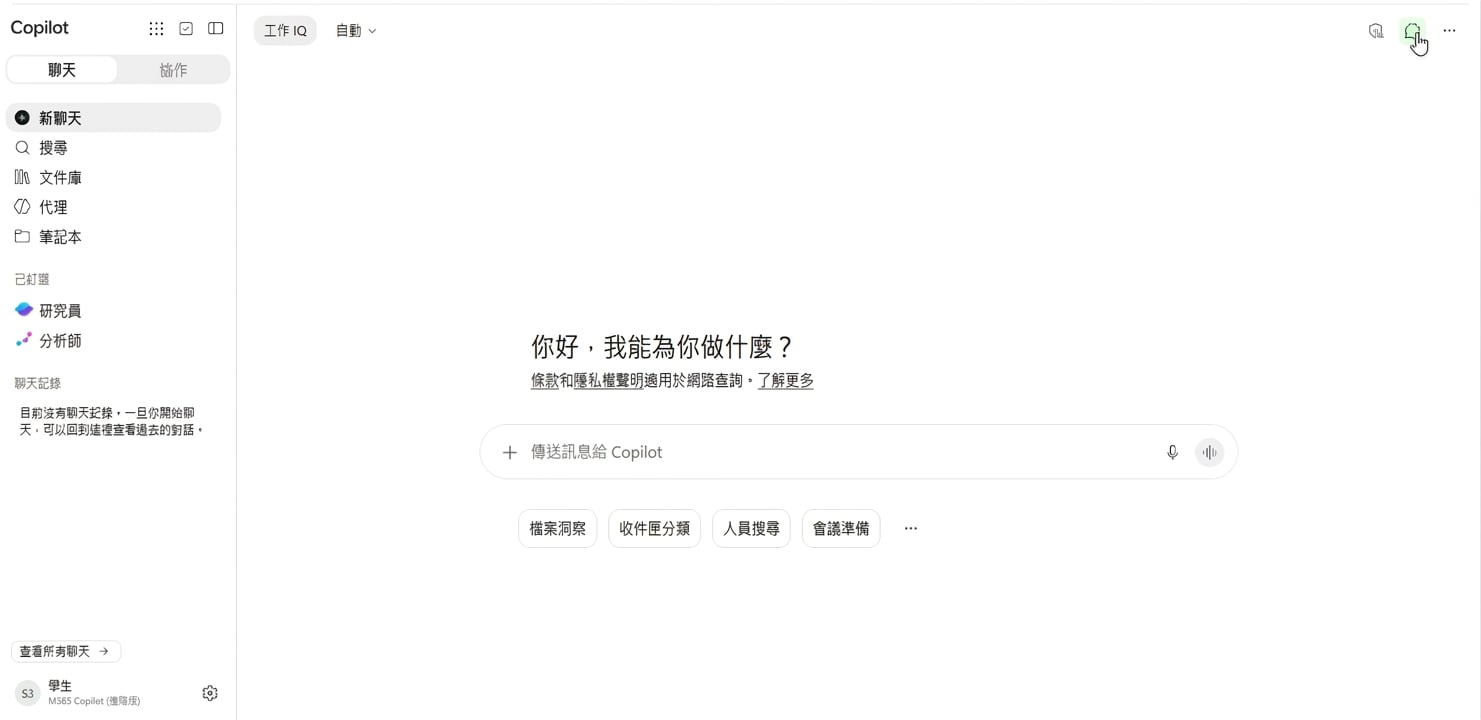
使用工作帳戶登入的 Microsoft Copilot 聊天應用程式

Microsoft Copilot in Excel

什麼是 Excel 中的 Copilot?

$$

  • Copilot → 橫跨 MS 應用程式的效率助理
Microsoft Copilot in Excel

什麼是 Excel 中的 Copilot?

$$

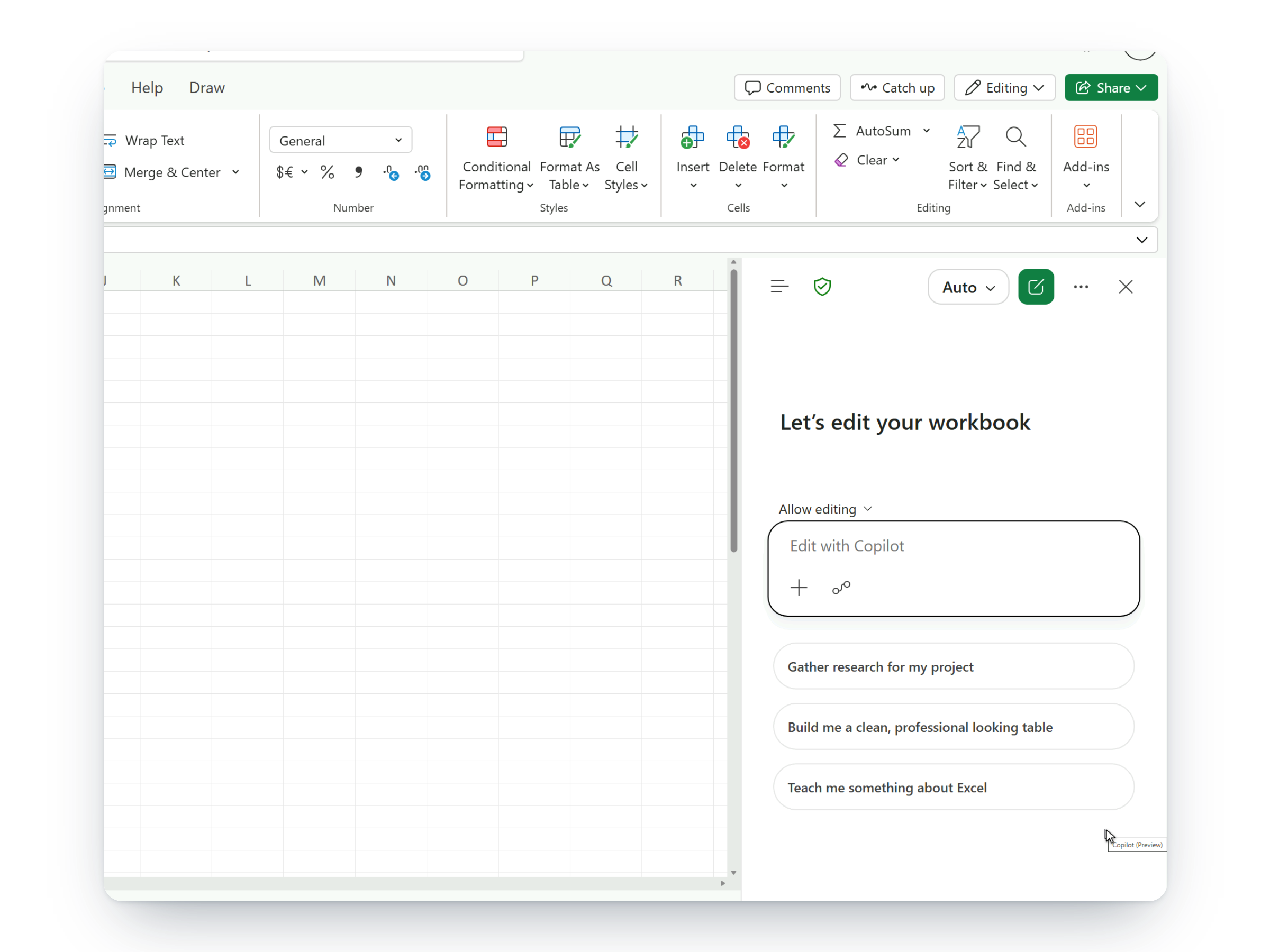
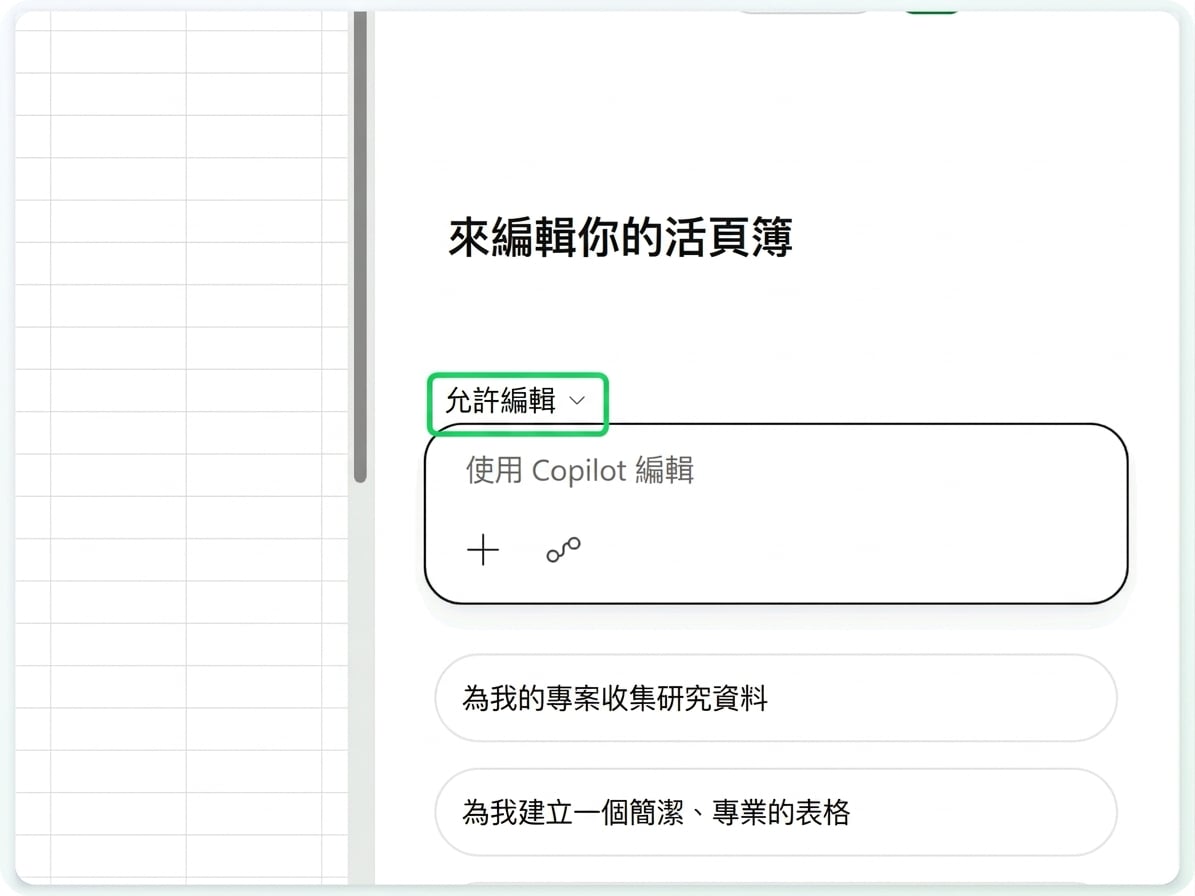
在網頁版 Excel 開啟的 Copilot,現行介面

$$

  • Copilot → 橫跨 MS 應用程式的效率助理
  • Copilot in Excel = 內建於 Excel 的 AI
  • 產生資料、解釋公式、執行分析


目標 → 強化你現有的 Excel 工作流程,提升效率

Microsoft Copilot in Excel

聊天與實作的差異

  • Chat = 詢問資料問題與公式解說

僅聊天模式中的提問與 Copilot 回答,表格未變更

  • Allow editing = 直接在活頁簿中編輯與建立資料與圖表

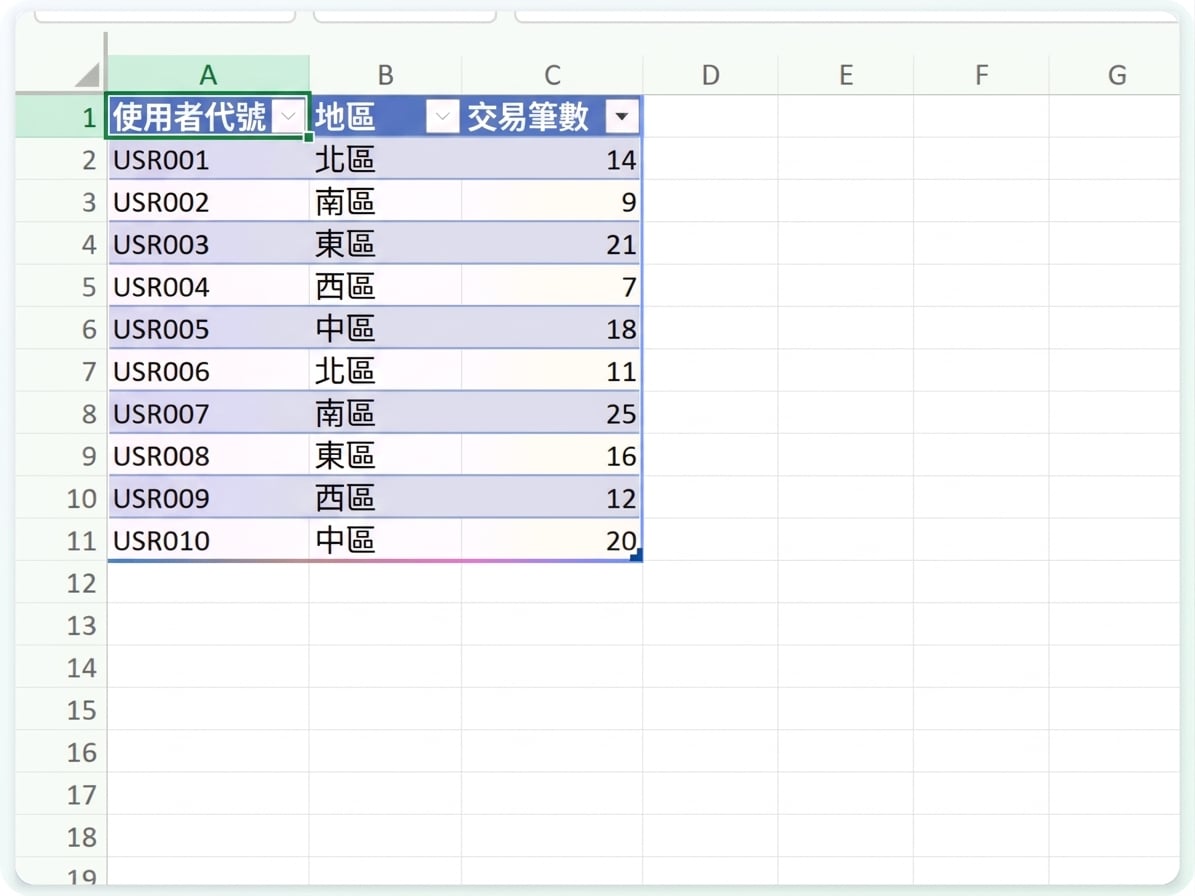
Copilot 直接寫入工作表的表格

Microsoft Copilot in Excel

OneDrive 一統管理


  • 你的活頁簿必須儲存到 OneDrive
  • 這樣 Copilot 才能存取你的工作表
  • 在瀏覽器中會自動儲存
  • 桌面版請開啟 AutoSave

$$

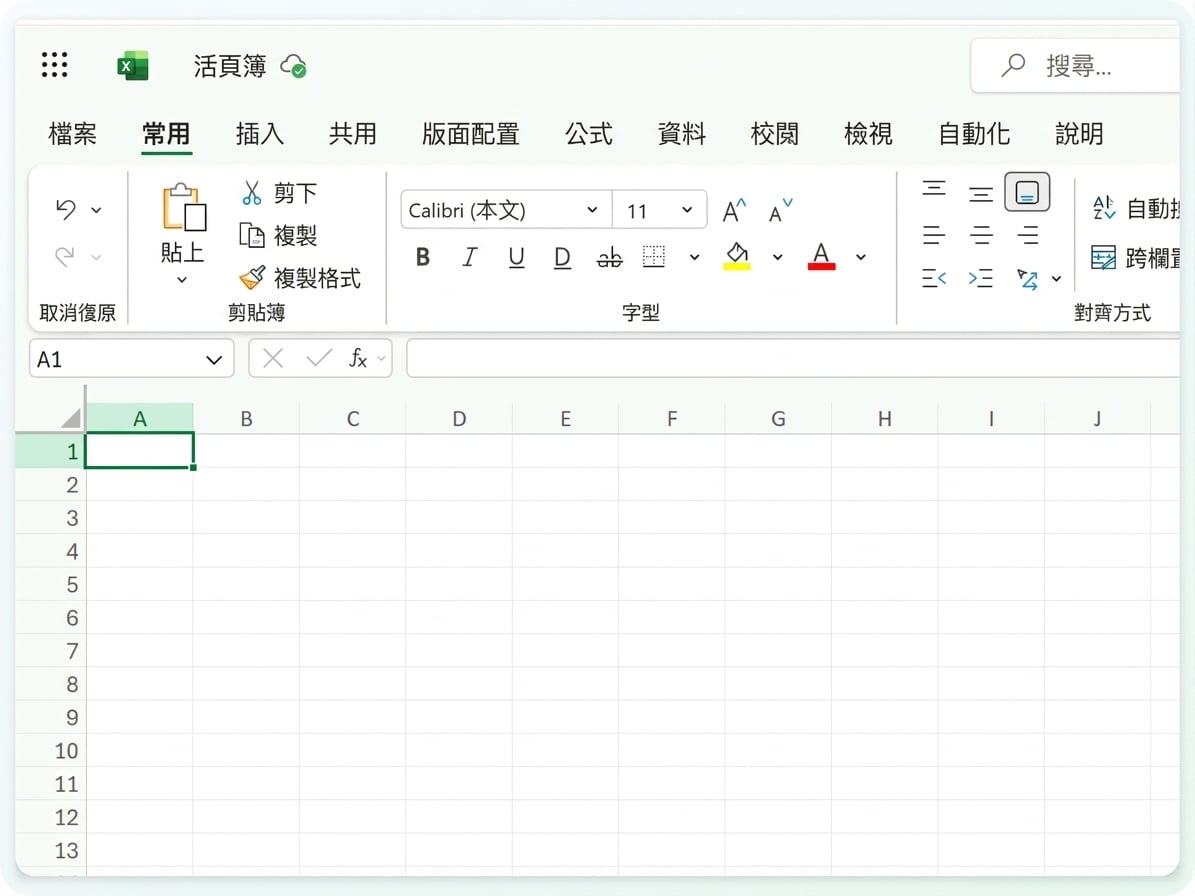
活頁簿標題列與 OneDrive 儲存指示器

Microsoft Copilot in Excel

範例:產生模擬資料


  • 從右下角的按鈕開啟 Copilot
  • 確認模式為 Allow editing,讓 Copilot 可寫入工作表

$$

Copilot 窗格與 Allow editing 模式控制

Microsoft Copilot in Excel

範例:產生模擬資料


  • 從右下角的按鈕開啟 Copilot
  • 確認模式為 Allow editing,讓 Copilot 可寫入工作表
  • 接著在提示中描述你要的表格:

Create a table with three columns called userID, region, and numTransactions, and ten rows of data

$$

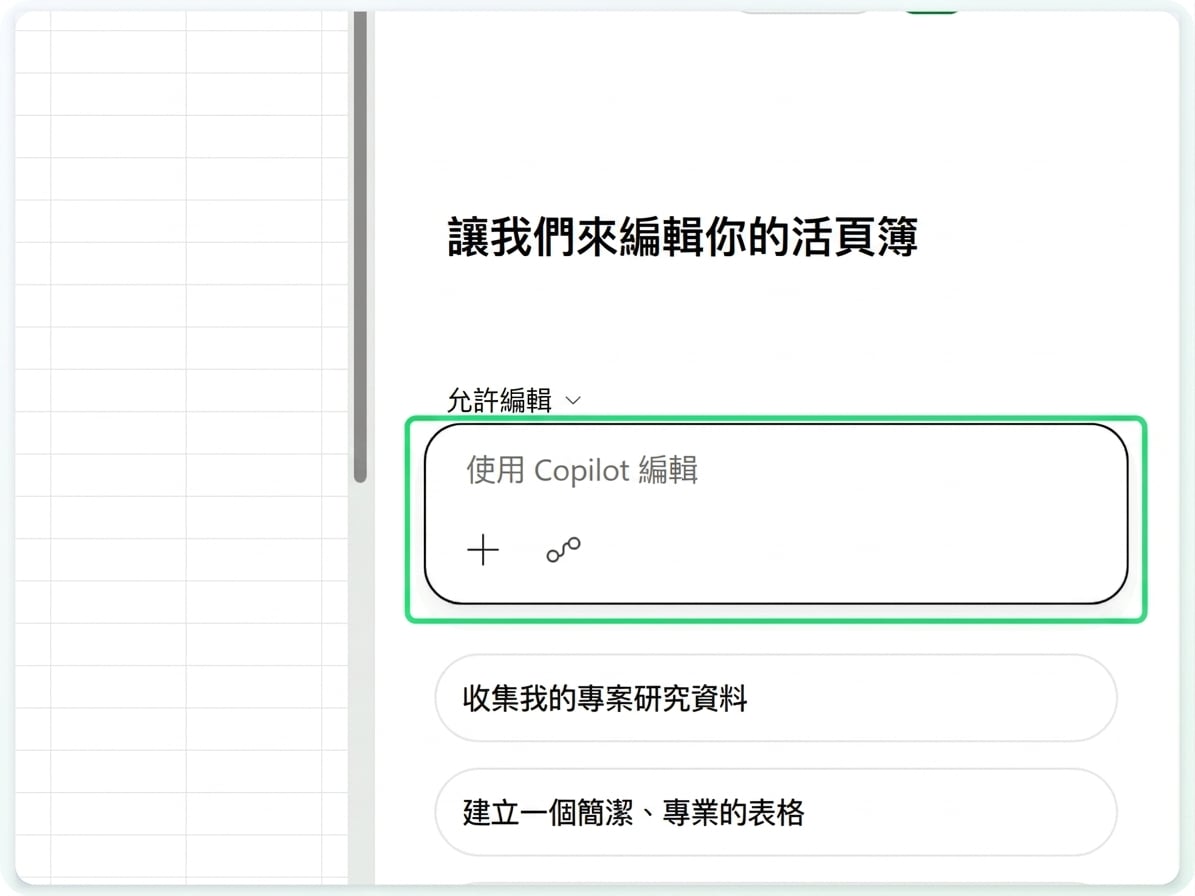
Copilot 窗格,突顯提示輸入框

Microsoft Copilot in Excel

範例:產生模擬資料


  • 從右下角的按鈕開啟 Copilot
  • 確認模式為 Allow editing,讓 Copilot 可寫入工作表
  • 然後描述你要的表格—欄位與列數

Create a table with three columns called userID, region, and numTransactions, and ten rows of data

$$

Copilot 直接在工作表寫入的 10 列表格

Microsoft Copilot in Excel

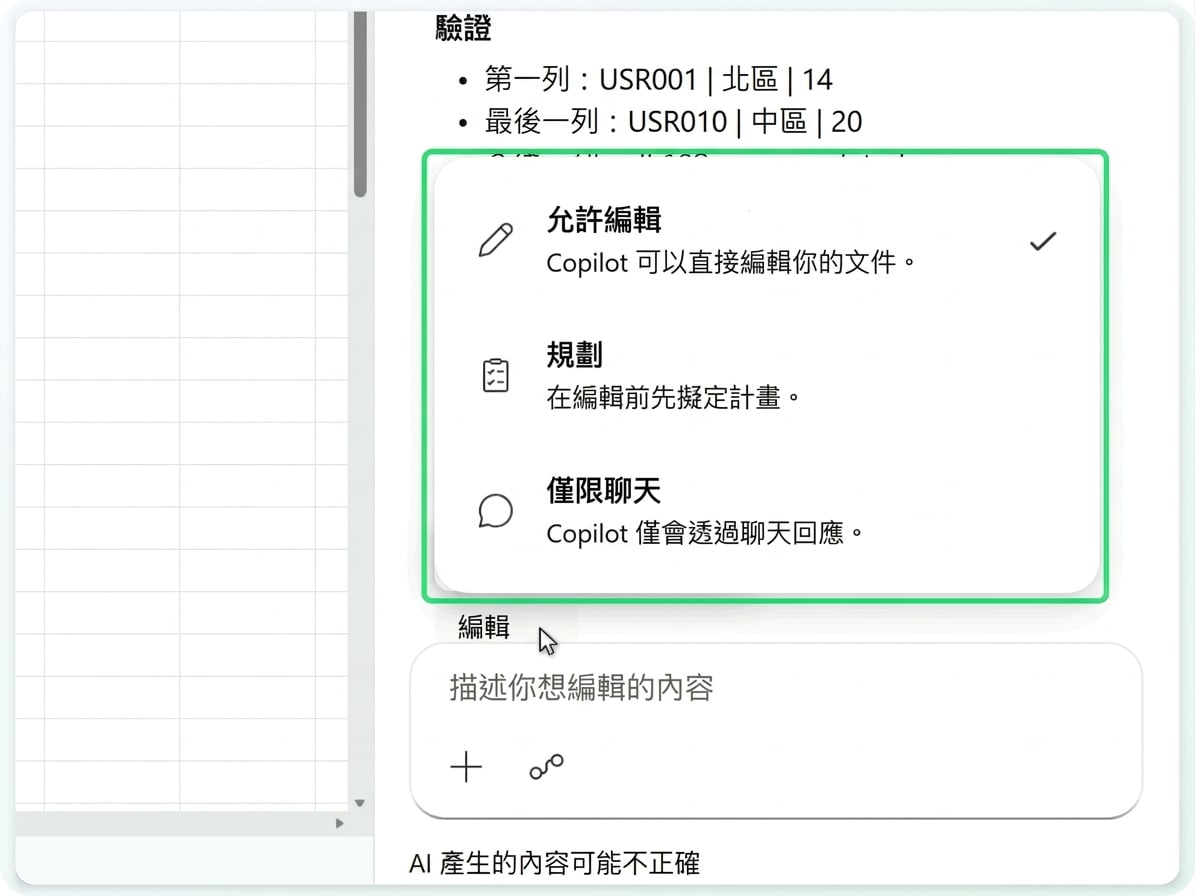
Copilot 三種模式


  • Allow editing → Copilot 直接編輯活頁簿
  • Plan → 編輯前先提出計畫
  • Chat only → 僅回答,不動到你的資料

$$

Copilot 模式選單-Allow editing、Plan、Chat only

Microsoft Copilot in Excel

範例:公式解說


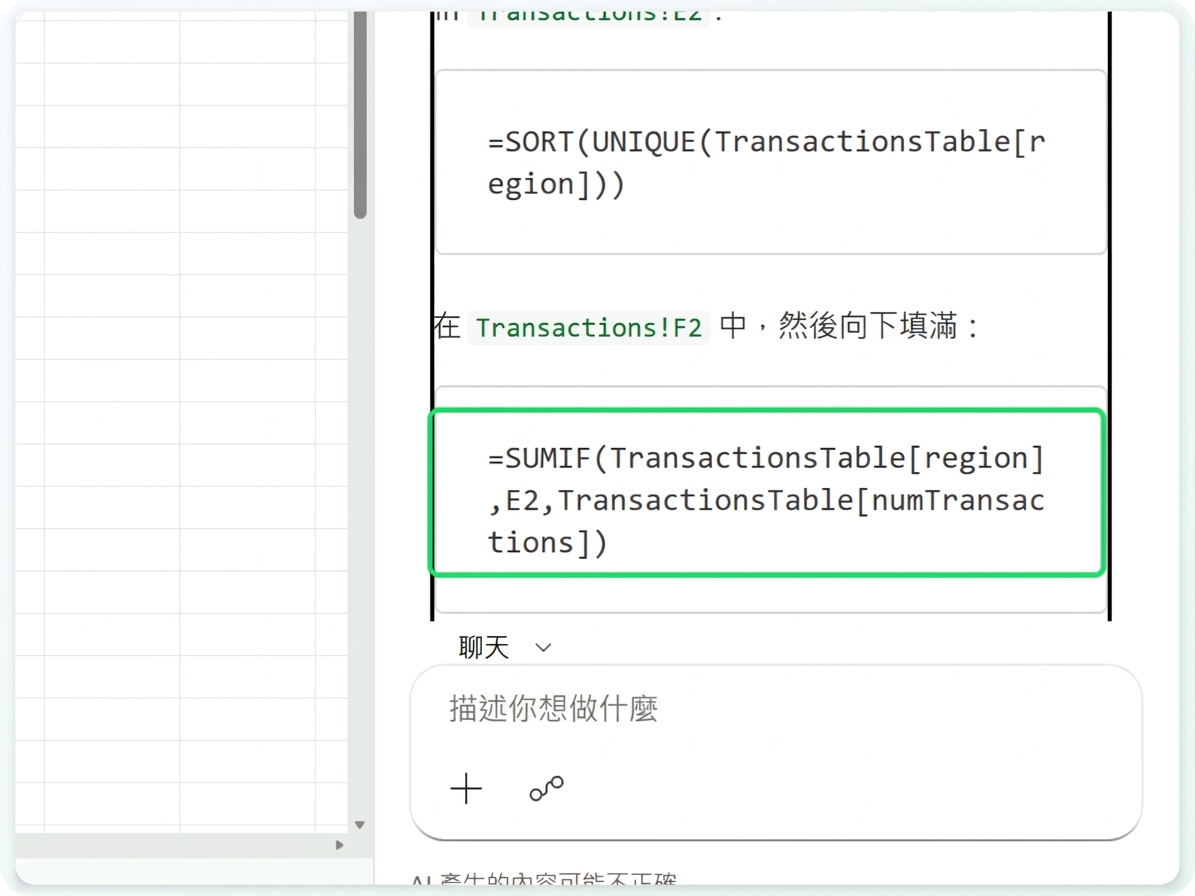
  • 請 Copilot 撰寫並解釋一個公式
  • 準備好時可從聊天插入該公式
  • 若不想插入,切換成 Chat only

$$

Copilot 的 SUMIF 公式

Microsoft Copilot in Excel

一起來練習吧!

Microsoft Copilot in Excel

Preparing Video For Download...