解锁 AI 加持的分析

Microsoft Copilot 在 Excel 中

James Chapman

AI Curriculum Manager, DataCamp

认识您的讲师…

$$

讲师介绍

Microsoft Copilot 在 Excel 中

什么是 Copilot in Excel?

$$

$$

Microsoft Copilot 标志

$$

使用工作帐户登录的 Microsoft Copilot 聊天应用

Microsoft Copilot 在 Excel 中

什么是 Copilot in Excel?

$$

  • Copilot → 跨 MS 应用的高效助手
Microsoft Copilot 在 Excel 中

什么是 Copilot in Excel?

$$

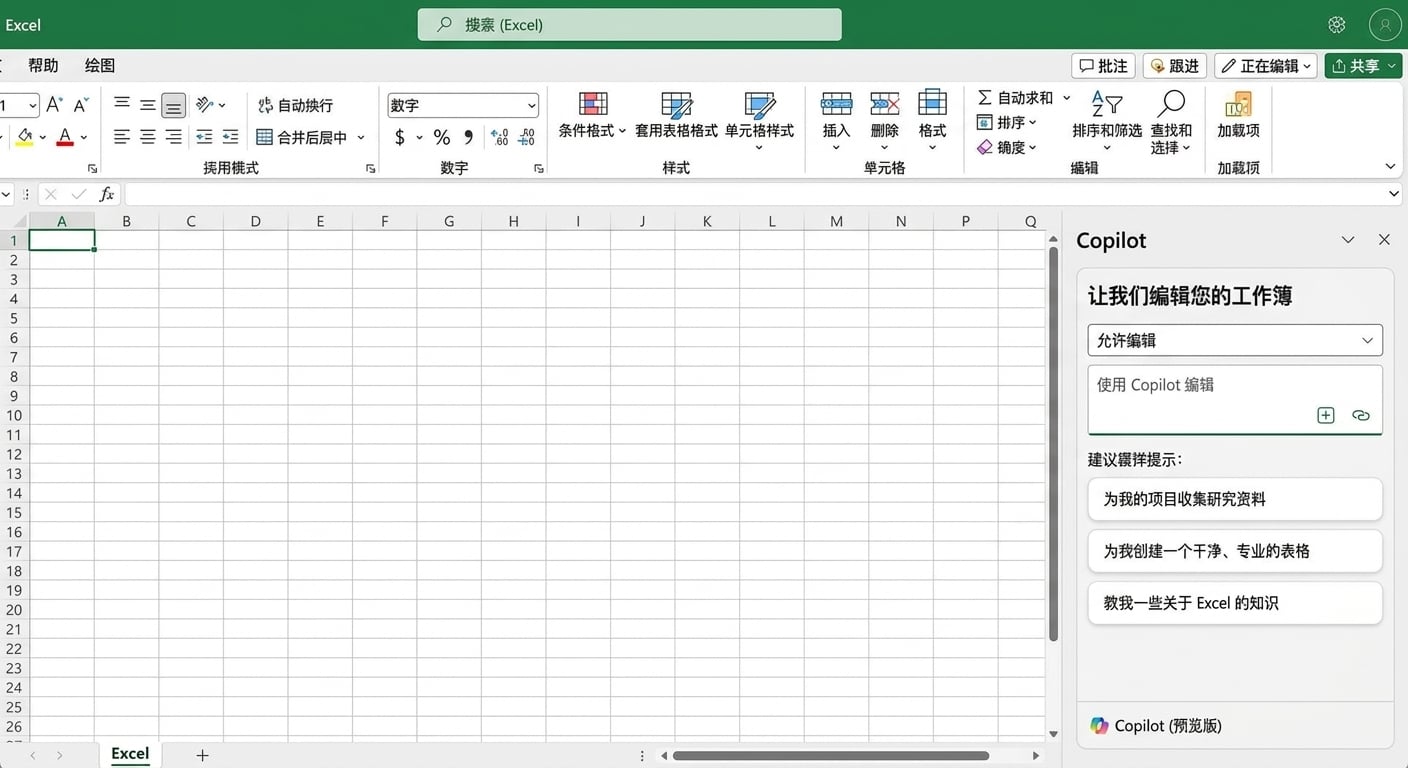
在网页版 Excel 中打开的 Copilot(当前界面)

$$

  • Copilot → 跨 MS 应用的高效助手
  • Copilot in Excel = 内置于 Excel 的 AI
  • 生成数据、解释公式、执行分析


目标 → 强化您现有的 Excel 流程,提升效率

Microsoft Copilot 在 Excel 中

聊天 vs 执行操作

  • Chat = 就数据提问,并获取公式解释

仅聊天模式中的提问与 Copilot 的回答,表格未改动

  • Allow editing = 直接在工作簿中编辑与创建数据和图表

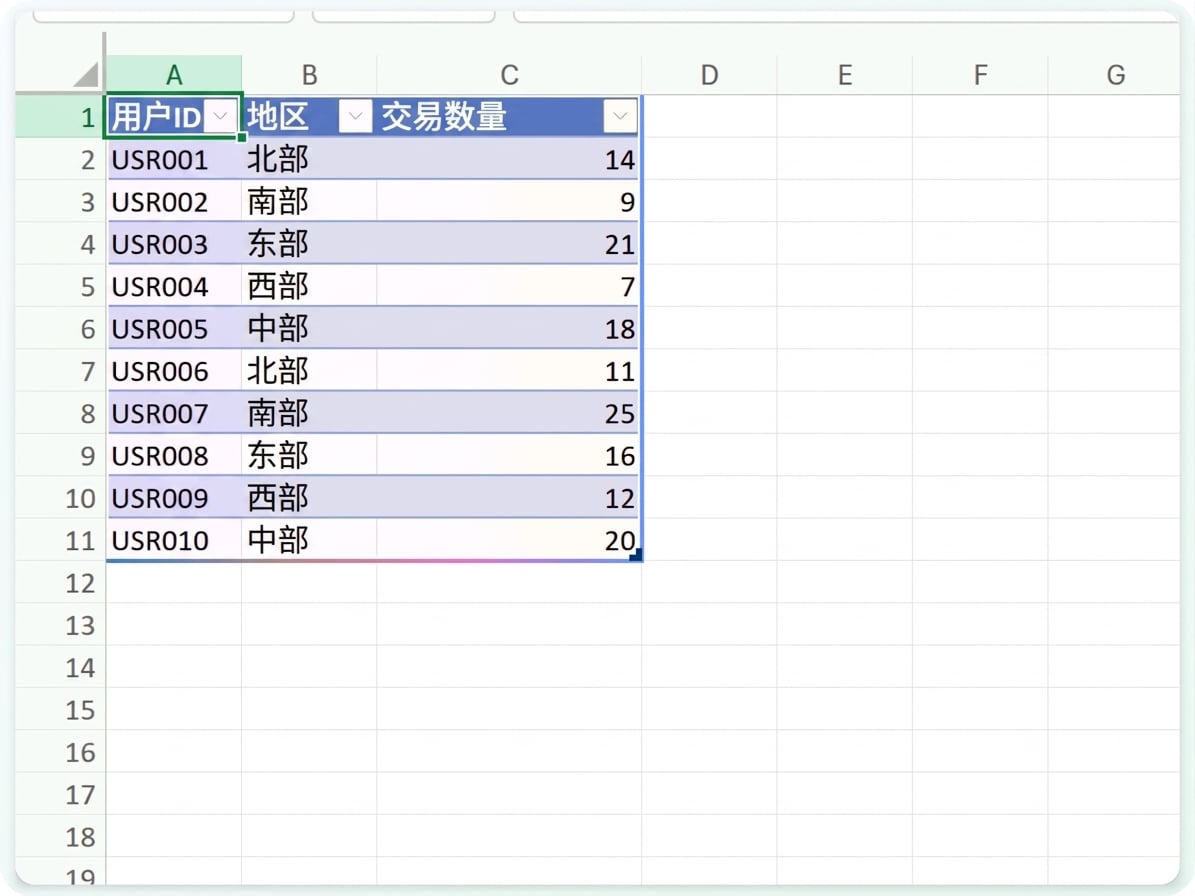
Copilot 直接写入工作表的表格

Microsoft Copilot 在 Excel 中

OneDrive 统一管理


  • 您的工作簿必须保存到 OneDrive
  • 这样 Copilot 才能访问您的工作表
  • 在浏览器中会自动完成
  • 桌面端请打开 AutoSave

$$

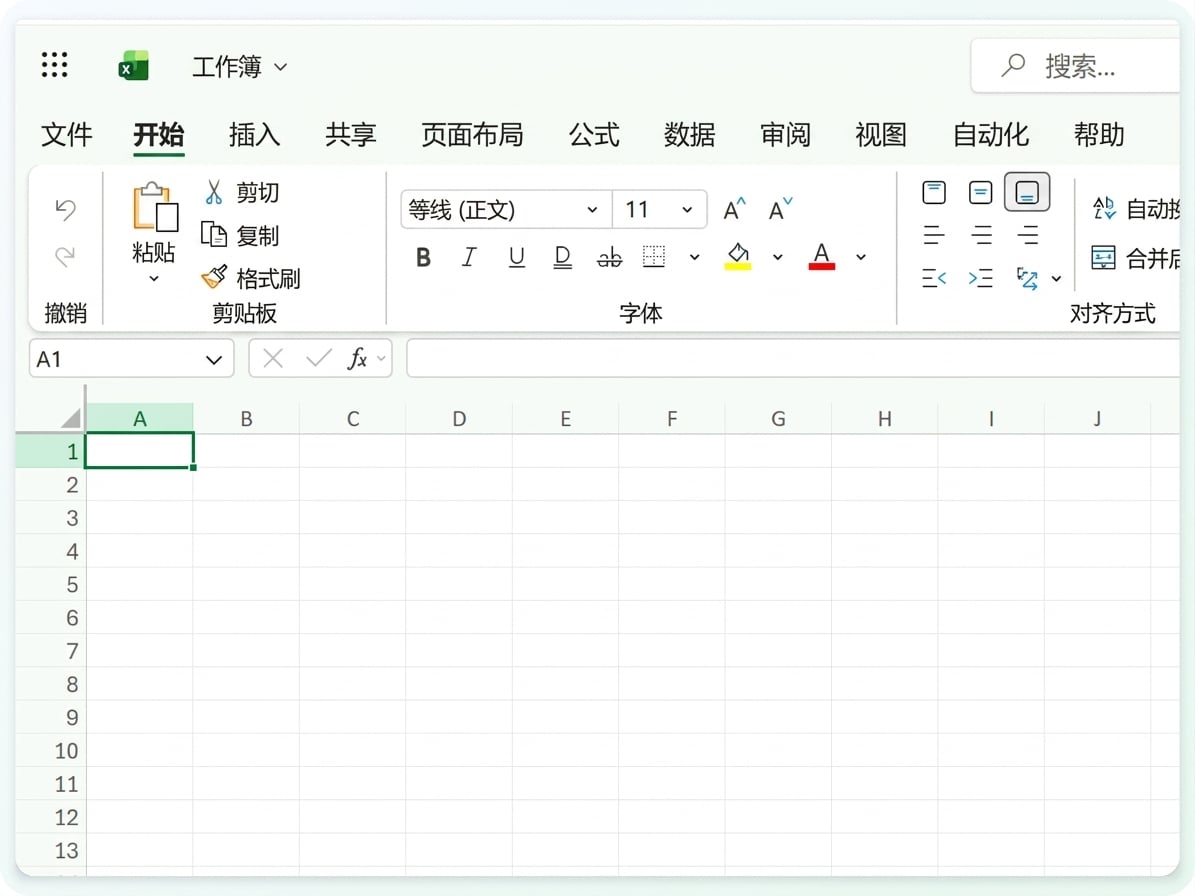
工作簿标题栏中的 OneDrive 保存指示器

Microsoft Copilot 在 Excel 中

示例:生成模拟数据


  • 从右下角按钮打开 Copilot
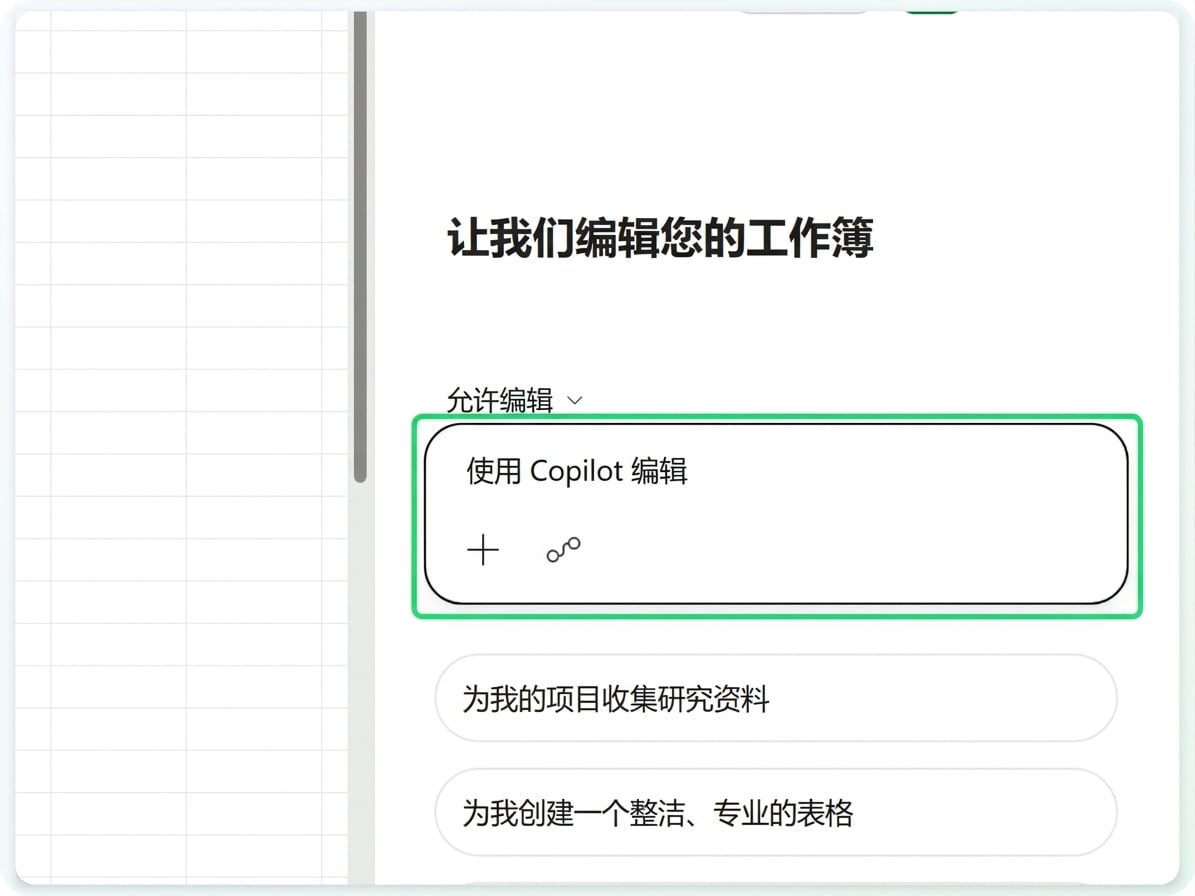
  • 确认模式为 Allow editing,让 Copilot 可写入工作表

$$

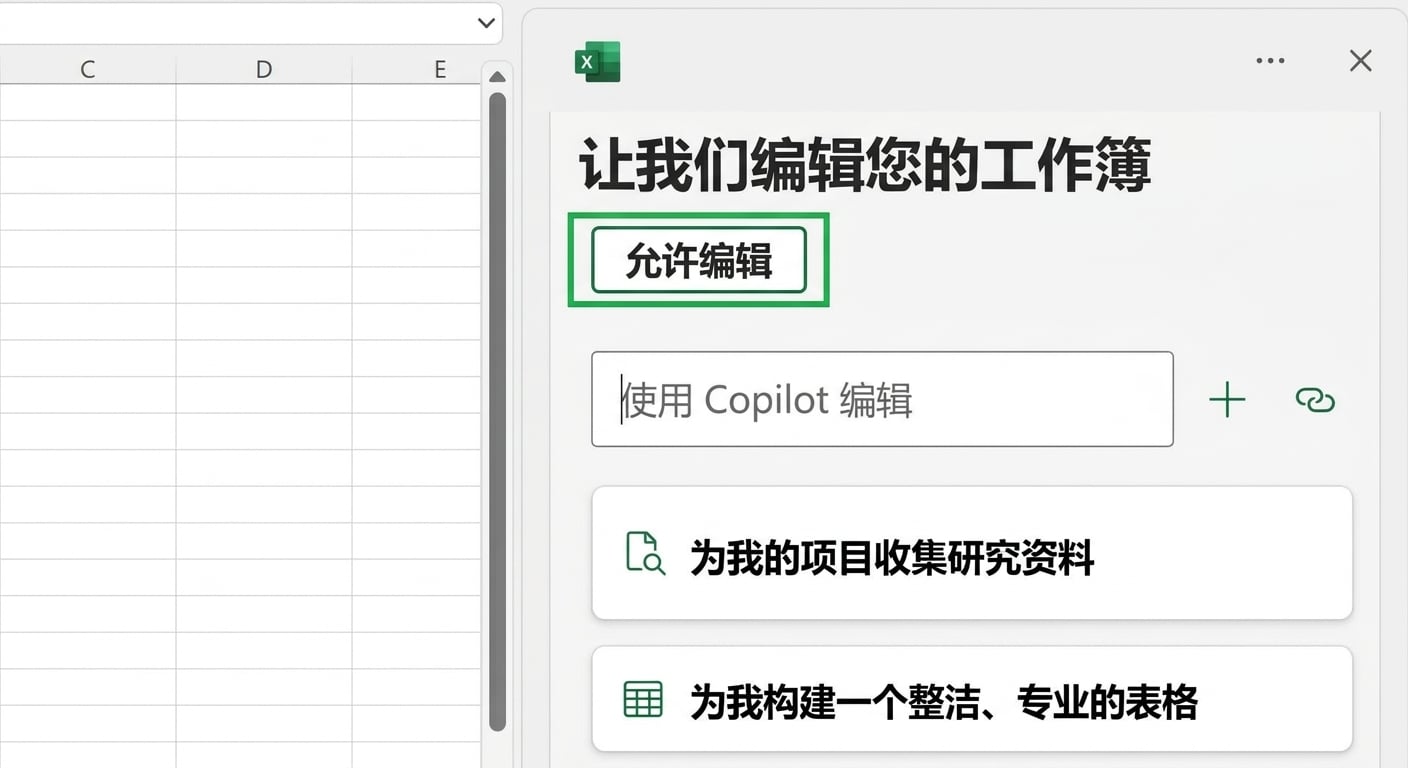
Copilot 窗格,含 Allow editing 模式控制

Microsoft Copilot 在 Excel 中

示例:生成模拟数据


  • 从右下角按钮打开 Copilot
  • 确认模式为 Allow editing,让 Copilot 可写入工作表
  • 然后在提示中描述所需表格:

Create a table with three columns called userID, region, and numTransactions, and ten rows of data

$$

Copilot 窗格,突出显示提示输入框

Microsoft Copilot 在 Excel 中

示例:生成模拟数据


  • 从右下角按钮打开 Copilot
  • 确认模式为 Allow editing,让 Copilot 可写入工作表
  • 然后描述所需表格——列名与行数

Create a table with three columns called userID, region, and numTransactions, and ten rows of data

$$

Copilot 直接写入工作表的十行表格

Microsoft Copilot 在 Excel 中

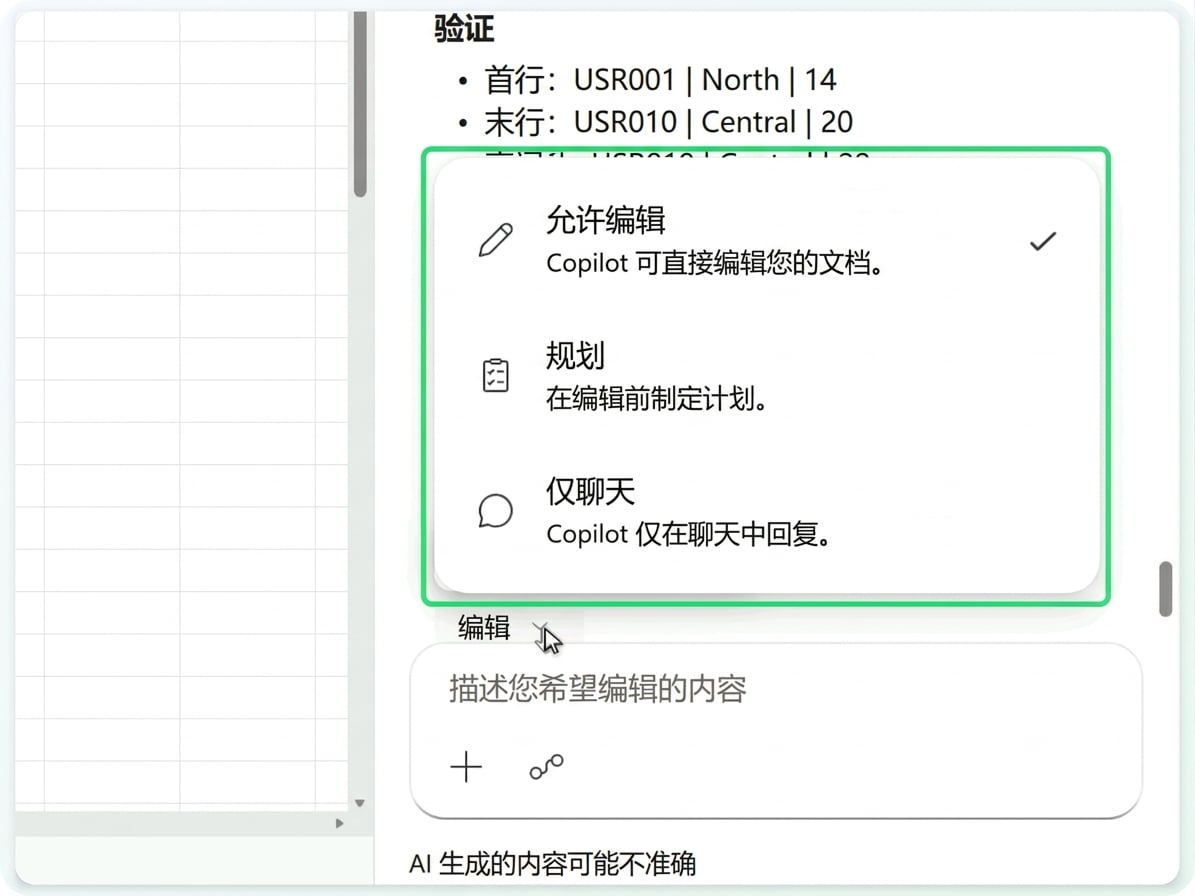
Copilot 的三种模式


  • Allow editing → Copilot 直接编辑工作簿
  • Plan → 编辑前先给出方案
  • Chat only → 仅回答,不改动数据

$$

Copilot 模式菜单:Allow editing、Plan、Chat only

Microsoft Copilot 在 Excel 中

示例:解释公式


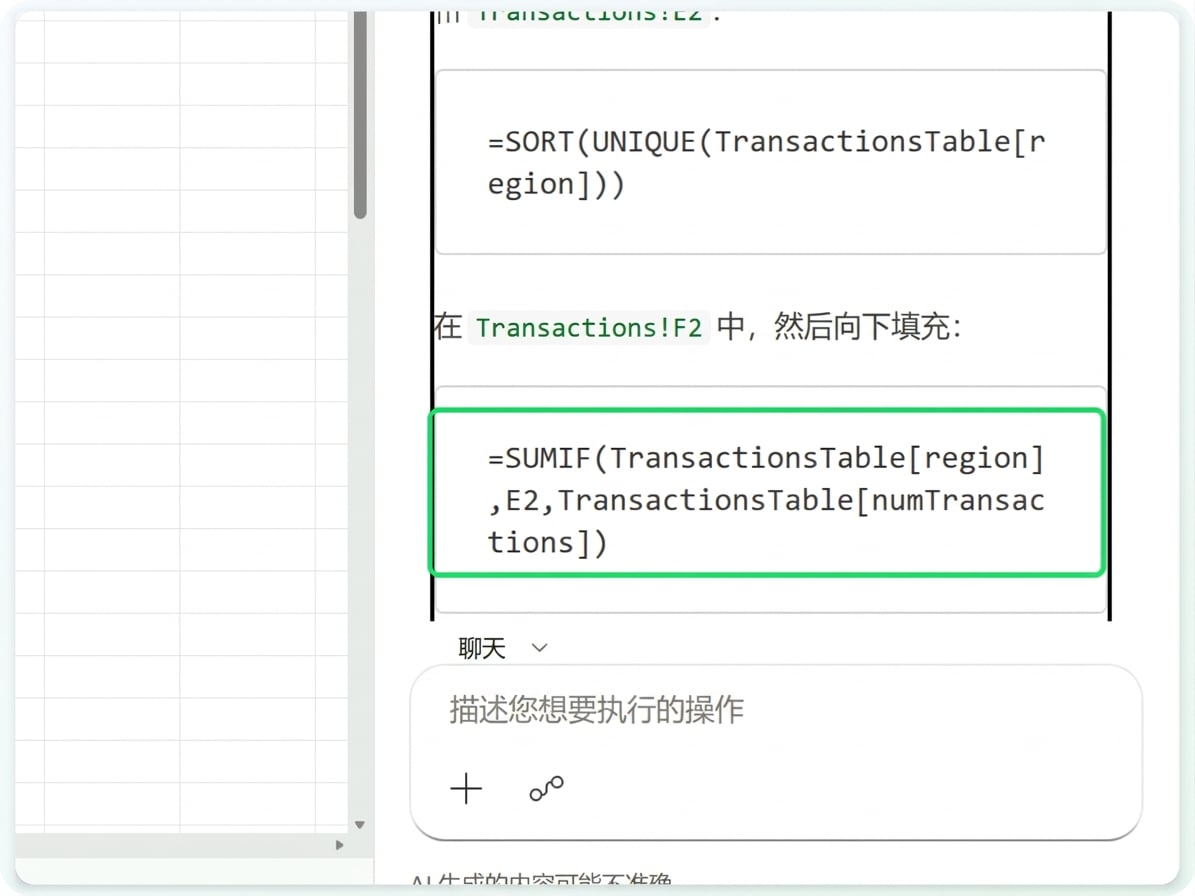
  • 让 Copilot 编写并解释公式
  • 准备好后,您可从聊天中插入公式
  • 不想插入时切换到 Chat only

$$

Copilot 给出的 SUMIF 公式

Microsoft Copilot 在 Excel 中

让我们一起练习吧!

Microsoft Copilot 在 Excel 中

Preparing Video For Download...