自动化转换与公式

Microsoft Copilot 在 Excel 中

James Chapman

AI Curriculum Manager, DataCamp

肃静!保持秩序!
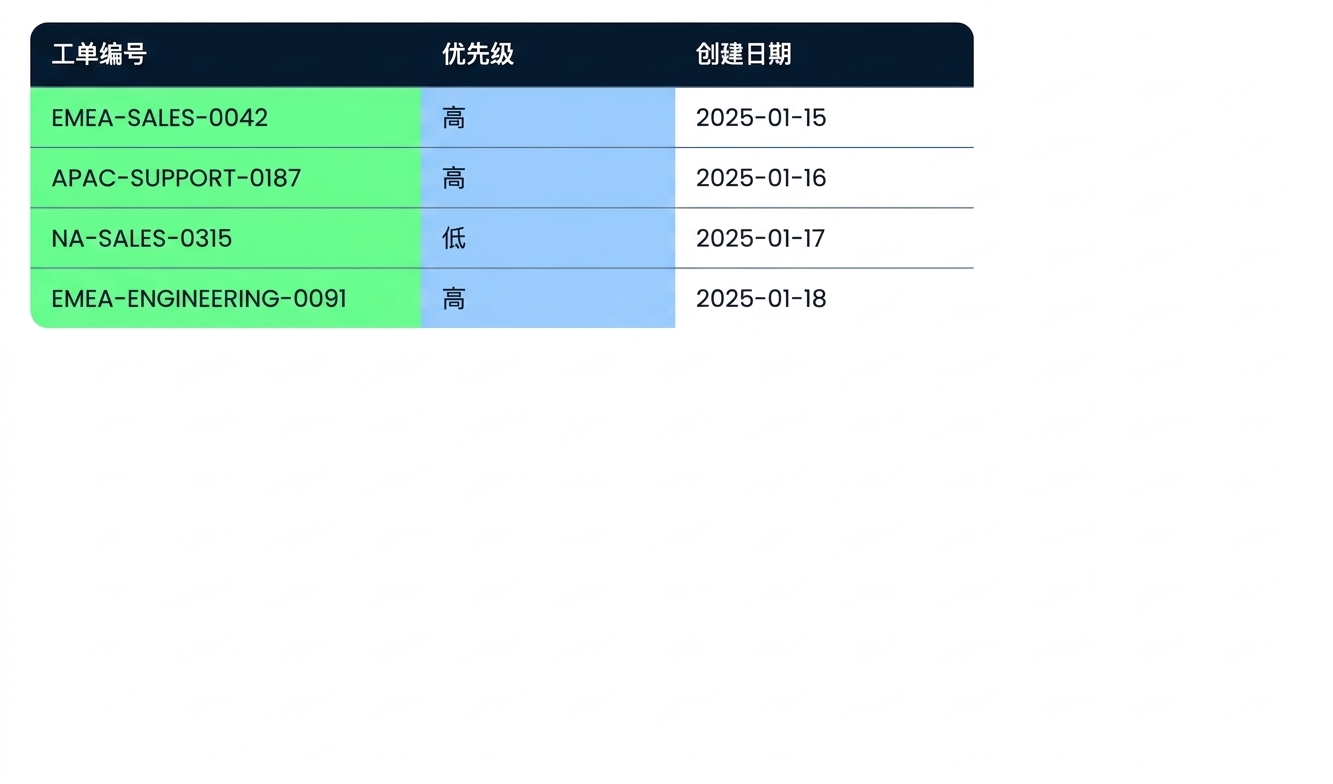
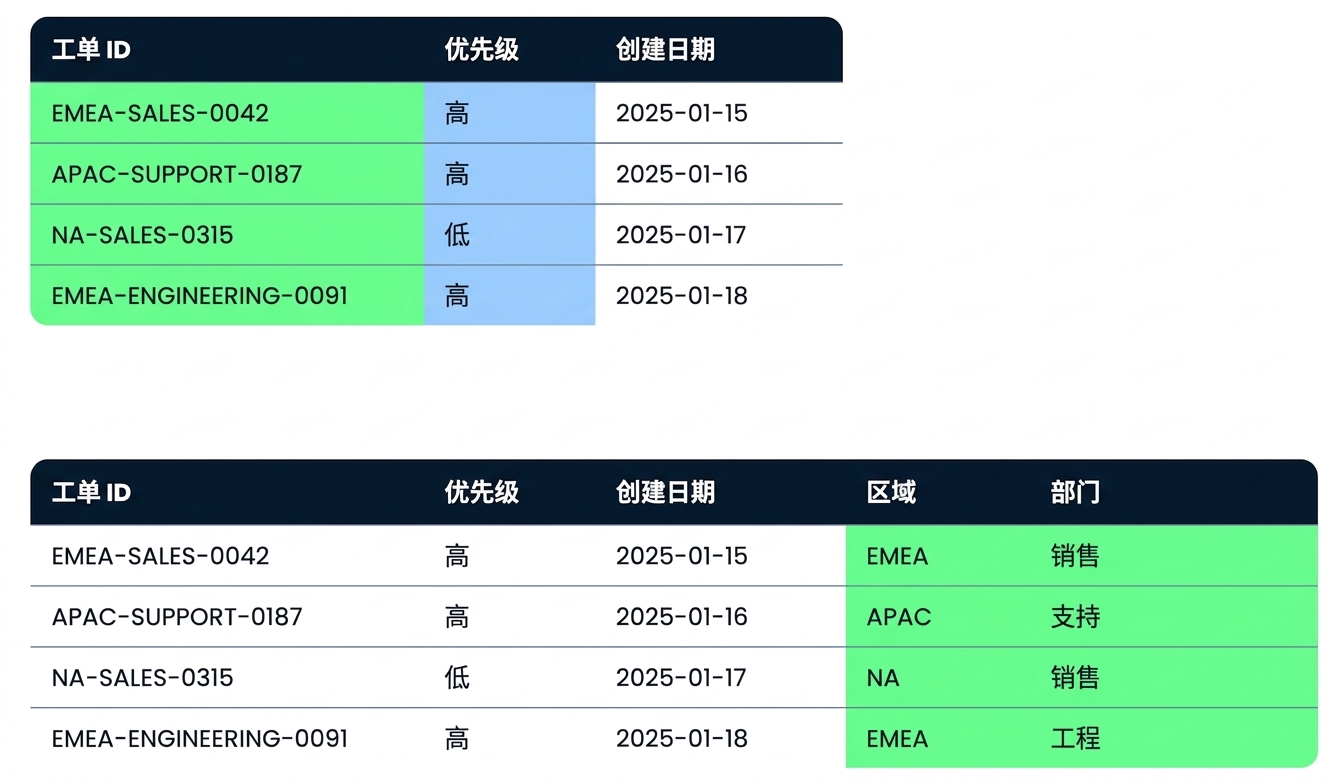
"Tickets" 表,已压缩的 Ticket ID 列与大小写不一的 Priority 列被标记

Microsoft Copilot 在 Excel 中

肃静!保持秩序!

同一张 "Tickets" 表,下方已将 Region 和 Department 提取为两列

Microsoft Copilot 在 Excel 中

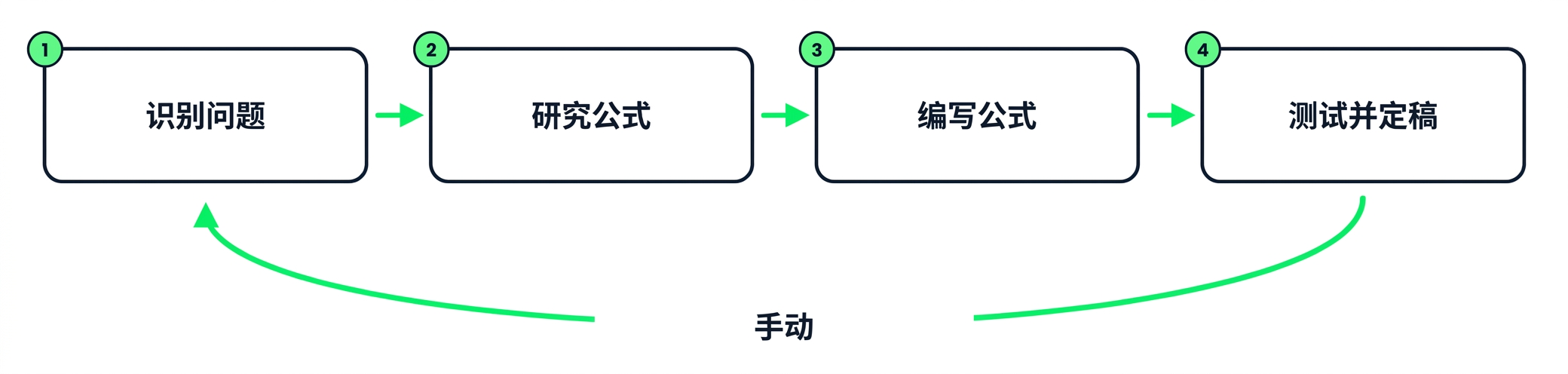
传统工作流

$$

手写公式的四步循环:识别、查找、编写、测试

Microsoft Copilot 在 Excel 中

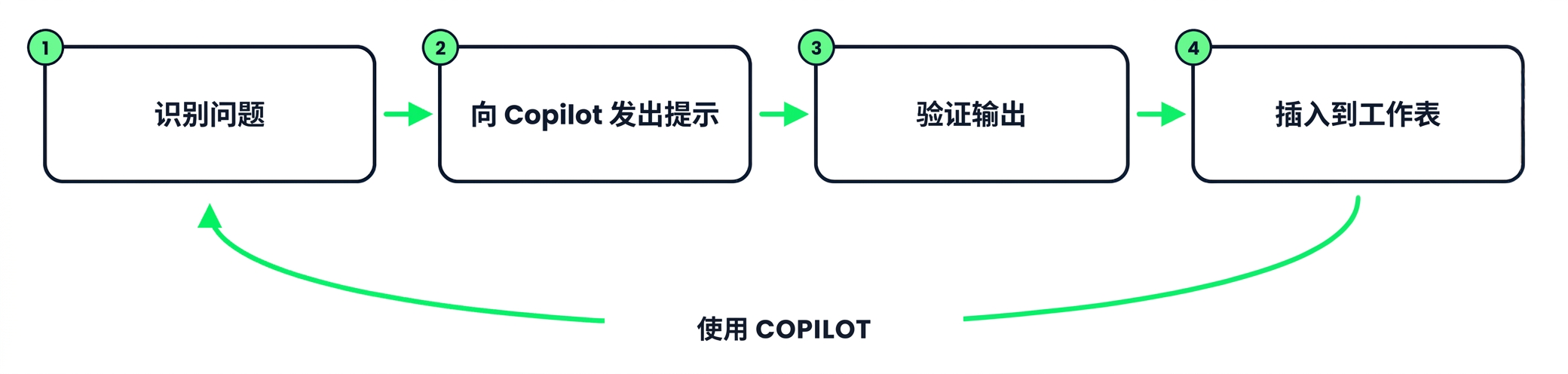
Copilot 工作流

$$

使用 Copilot 的四步循环:识别、提示、验证、插入

Microsoft Copilot 在 Excel 中

示例:拆分文本单元格

$$

常见转换:拆分 文本,按模式 提取


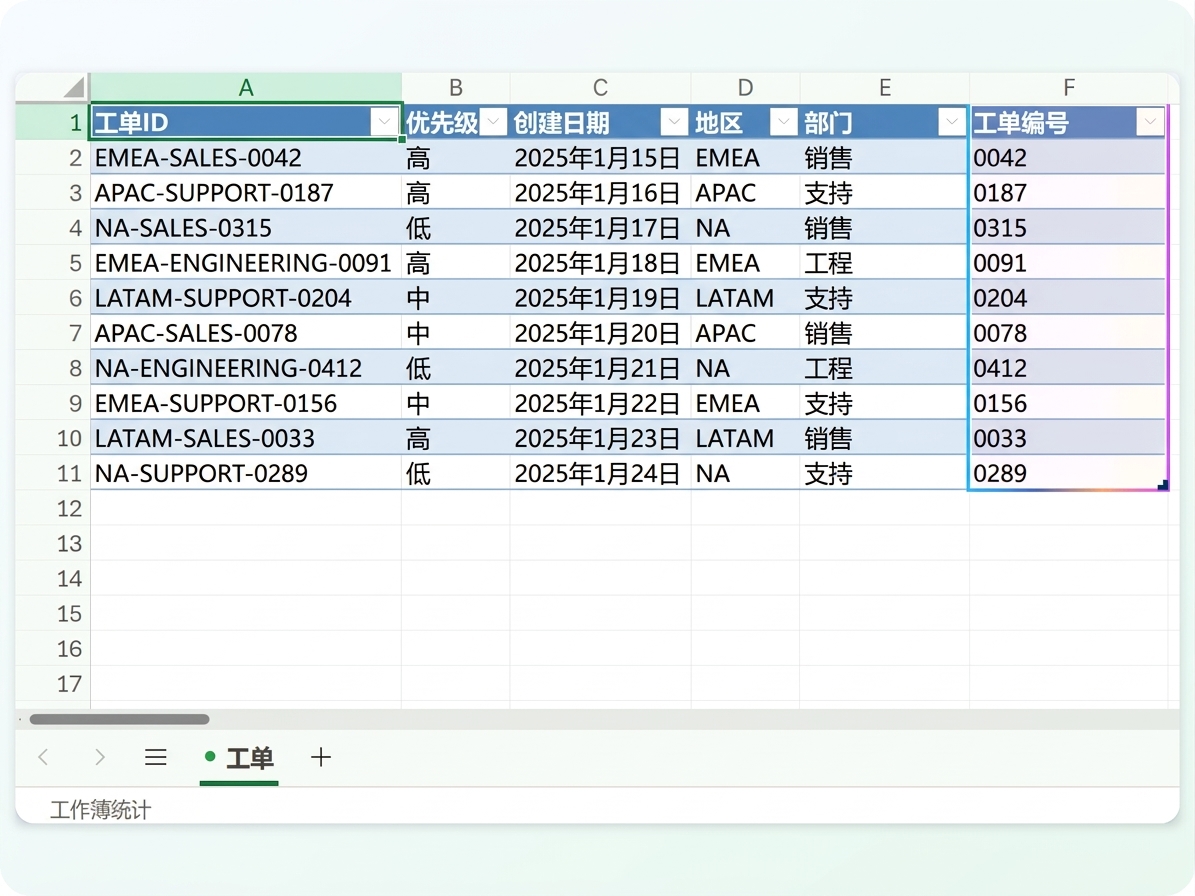
  • 每个工单 ID 遵循同一模式 - REGION-DEPARTMENT-NUMBER
  • 将模式保持为 Allow editing,以便 Copilot 可添加列
  • 请求 两列新列:Region 和 Department

在 Allow editing 模式下打开 Copilot 的 Tickets 工作簿

Microsoft Copilot 在 Excel 中

示例:拆分文本单元格

$$

Extract the region and department out of the ticket ID into two new columns

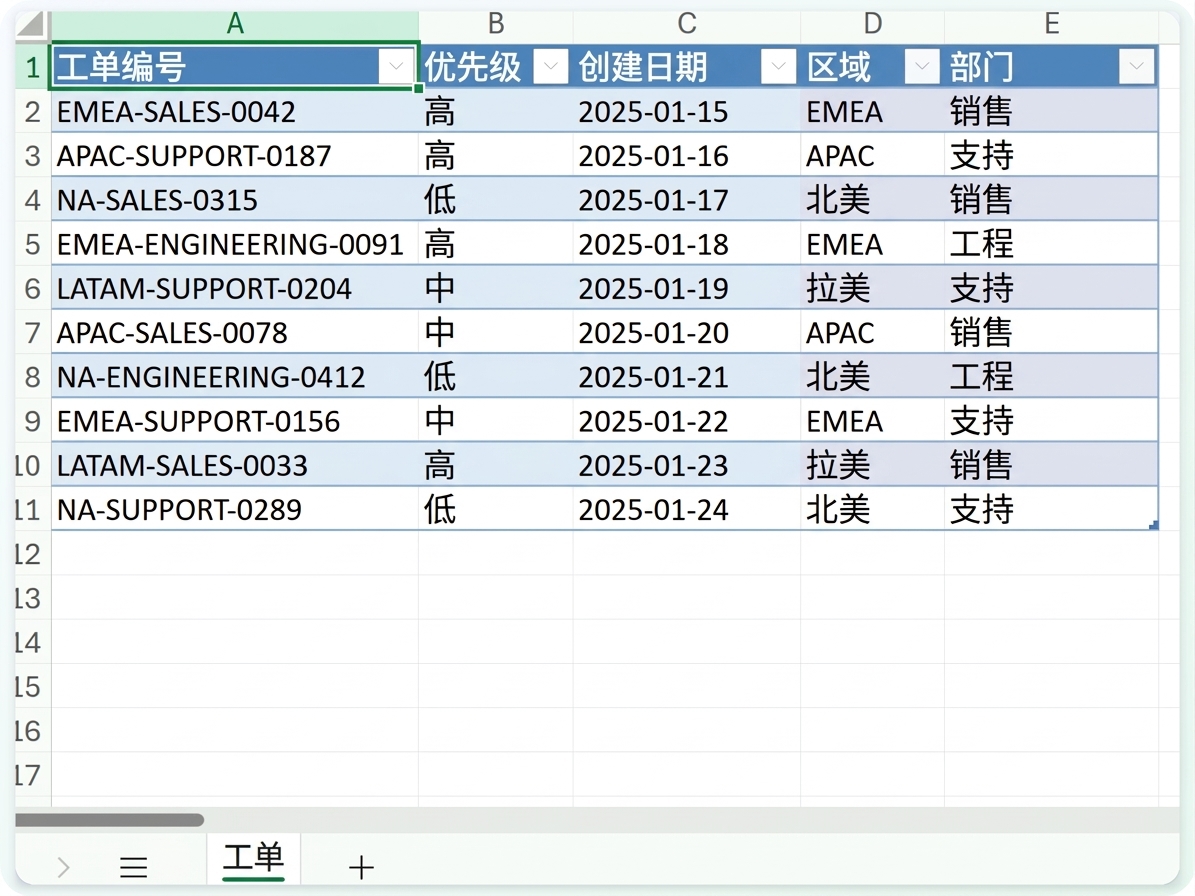
  • Copilot 编写公式并填充两列
  • EMEA-SALES-0042 变为 EMEA 和 SALES
  • 在继续前逐行检查
  • 需要时更正 Copilot

$$

由 Copilot 添加的 Region 和 Department 列

Microsoft Copilot 在 Excel 中

示例:提取文本元素


  • 同一模式还包含第三部分——数字
  • 让 Copilot 将仅此部分提取到新列
  • EMEA-SALES-0042 变为 0042,保留前导零

$$

从模式中提取出的 Ticket Number 列

Microsoft Copilot 在 Excel 中

提示语检查清单

$$

带三项勾选的检查清单


  1. 明确引用表与列,让 Copilot 精确识别数据
  2. 开启新对话,当对话过长或切换任务时

→ 上下文泄漏:其他任务的上下文干扰当前任务

Microsoft Copilot 在 Excel 中

让我们一起练习吧!

Microsoft Copilot 在 Excel 中

Preparing Video For Download...