表单与数据录入

Power Apps 入门

Luise Freese

Azure & Power Platform Architect

Edit form 控件
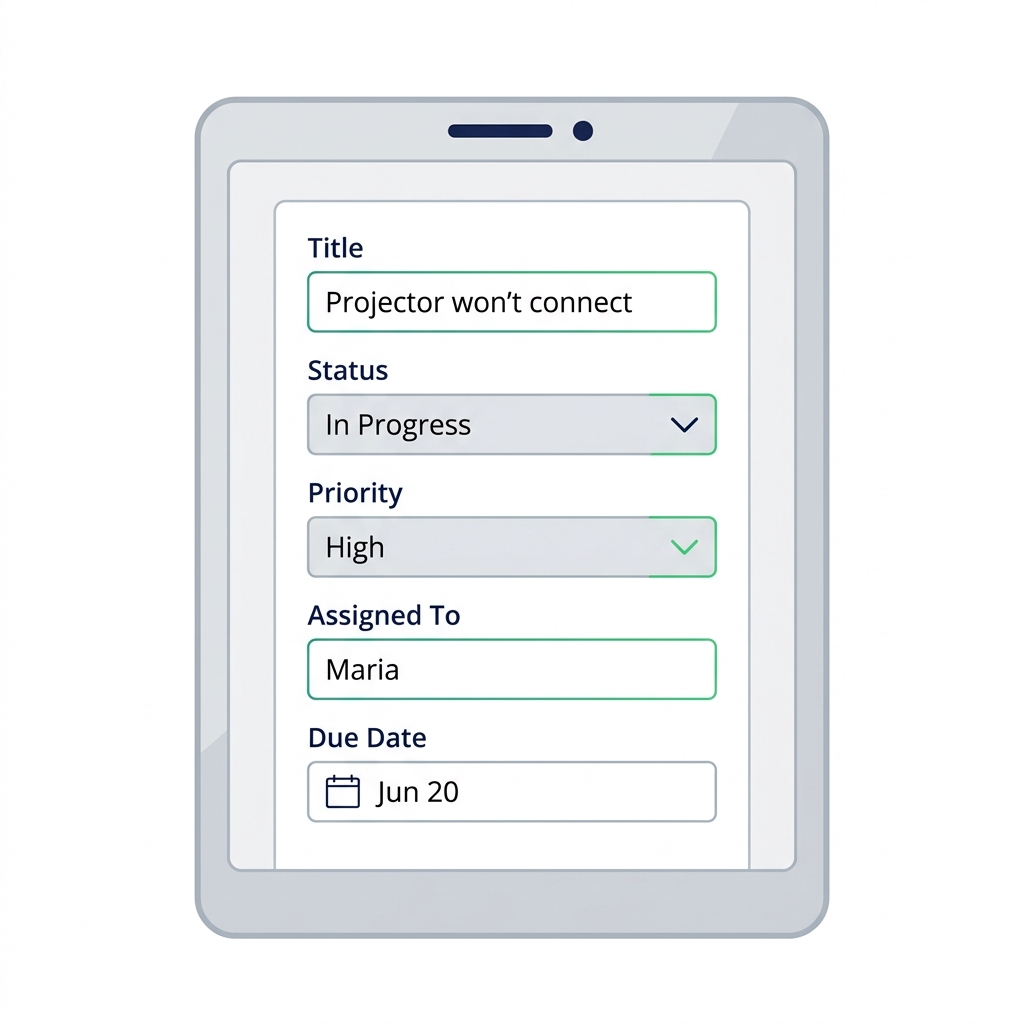
 

  • 插入 → Edit form
  • 将 DataSource 设为您的 tickets 列表
  • Power Apps 为每列自动生成一个卡片

平板上的 Power Apps Edit Form,包含 Title、Status、Priority、Due Date 输入卡片。

Power Apps 入门

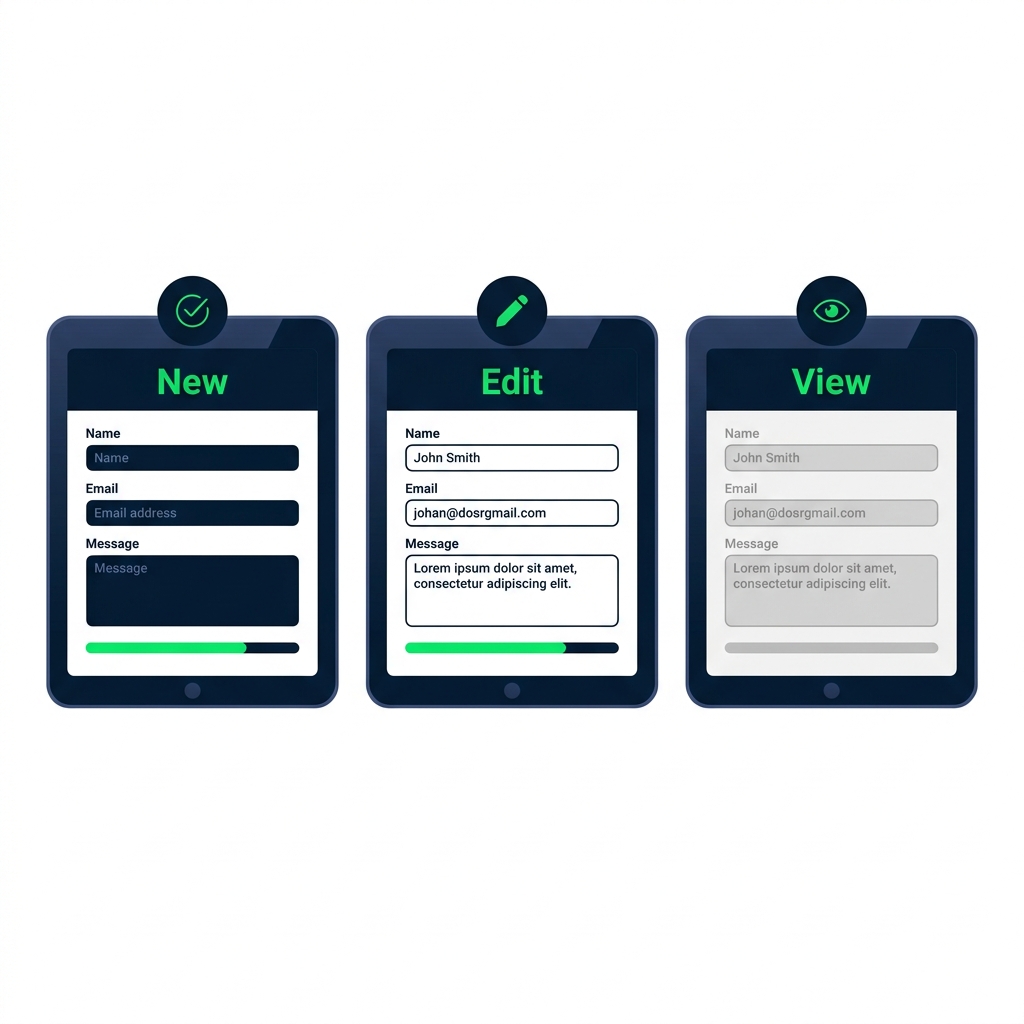
表单模式:New / Edit / View

三种 Edit Form 状态并排:空白的 FormMode.New、预填的 FormMode.Edit、只读的 FormMode.View。


  • FormMode.New:空白表单,创建新行
  • FormMode.Edit:用现有行预填
  • FormMode.View:只读显示
Power Apps 入门

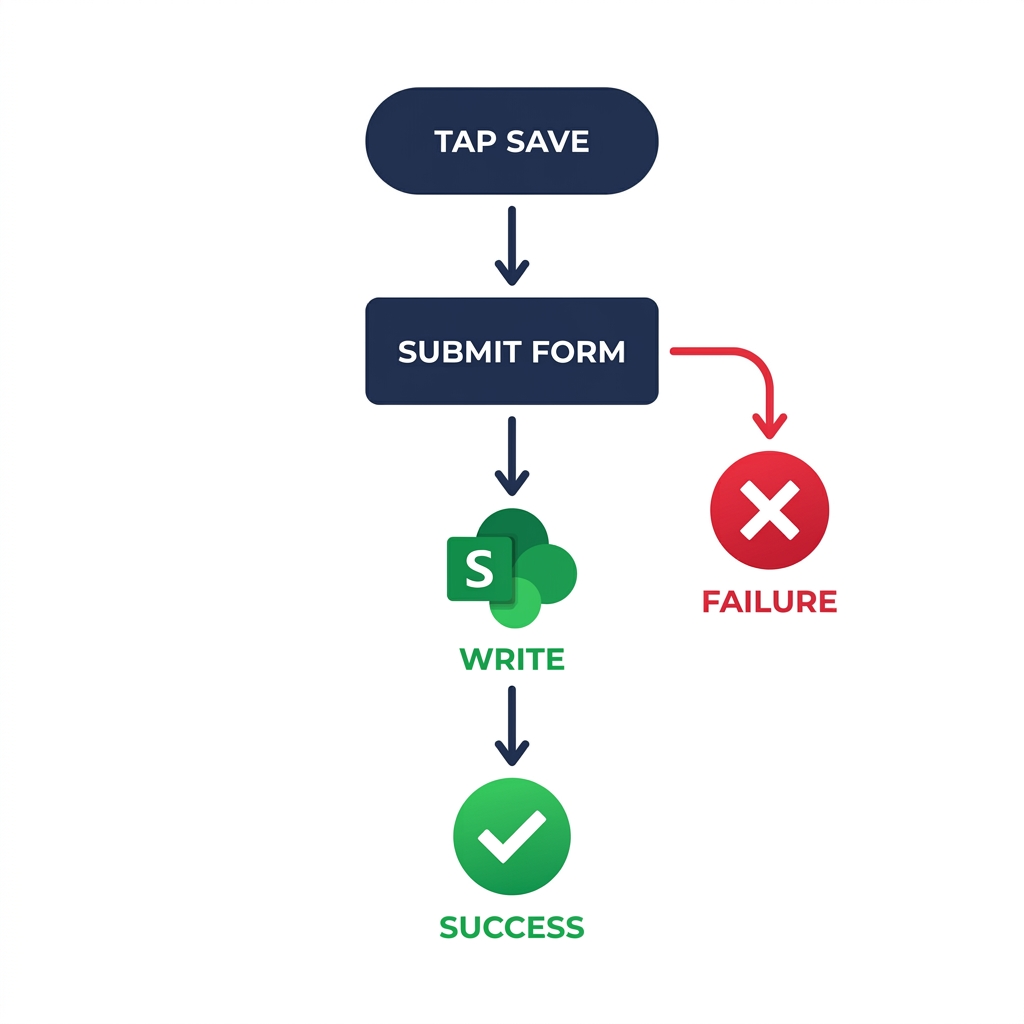
SubmitForm() 与生命周期


  • 保存按钮运行 SubmitForm(frmTicket)
  • Power Apps 验证并写入数据源
  • 表单触发 OnSuccess 或 OnFailure

流程图:从保存点击到 SubmitForm()、写入 SharePoint、OnSuccess 勾号,以及 OnFailure 错误分支。

Power Apps 入门

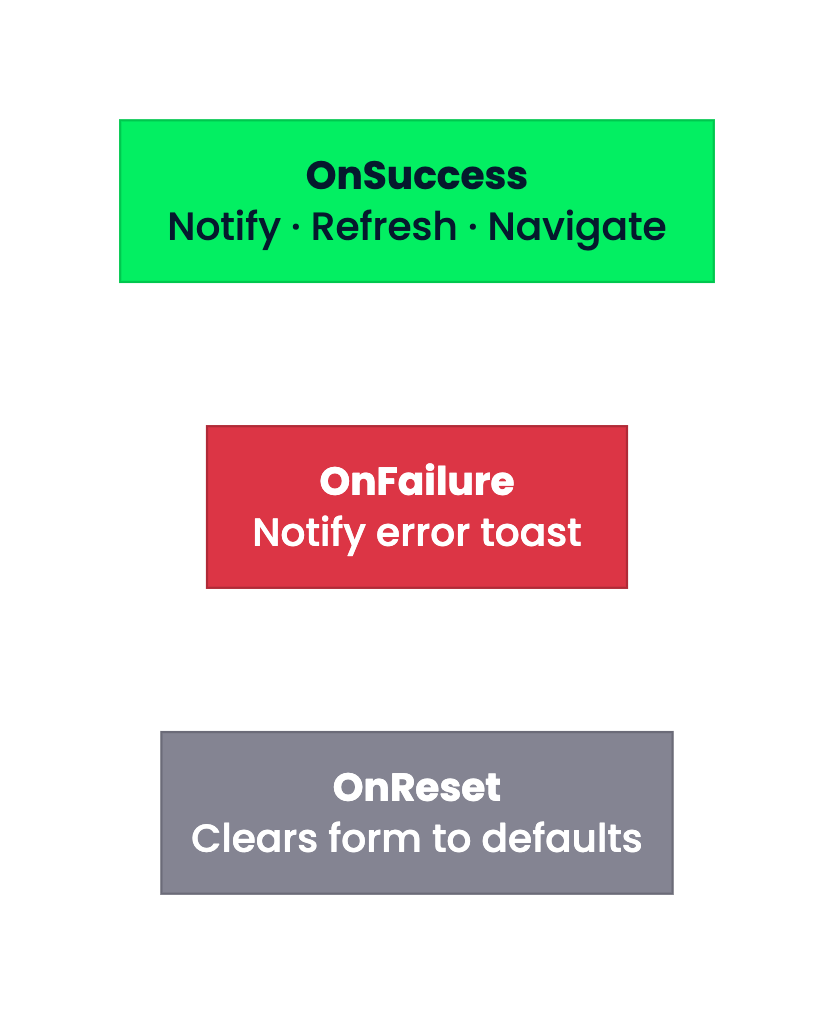
OnSuccess、OnFailure、OnReset

三块配色区块自上而下:绿色 OnSuccess 含 Notify、Refresh、Navigate;红色 OnFailure 含错误通知;灰色 OnReset 清空表单为默认。


  • OnSuccess:显示吐司,刷新库,导航返回
  • OnFailure:显示错误吐司
  • OnReset:在表单被清空时运行
Power Apps 入门

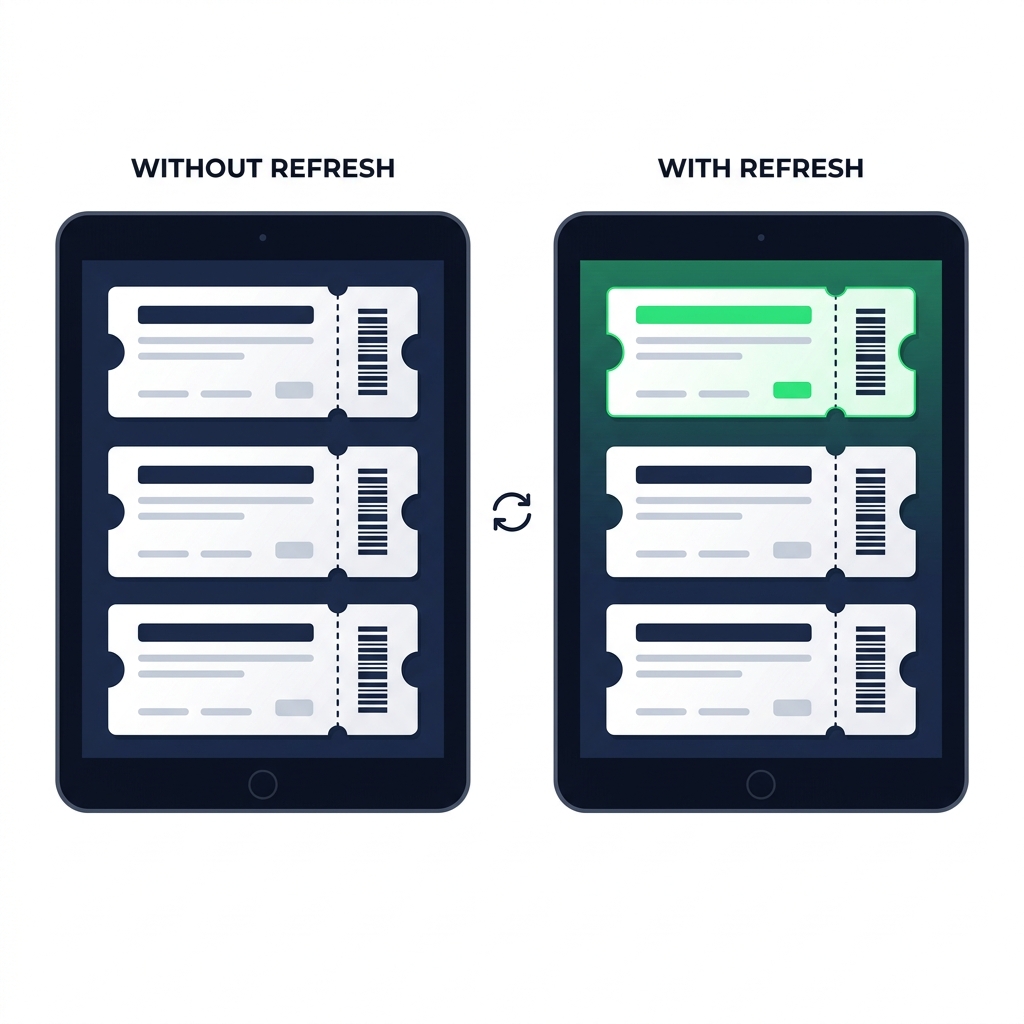
Refresh():常被遗忘的一步


  • 提交后图库不会自动刷新
  • 在表单的 OnSuccess 中添加 Refresh(Tickets)
  • 否则新行会像是不可见

两台平板并排:左侧未 Refresh 的图库缺少新工单,右侧 Refresh 后新工单高亮显示在顶部。

Power Apps 入门

ResetForm():取消路径

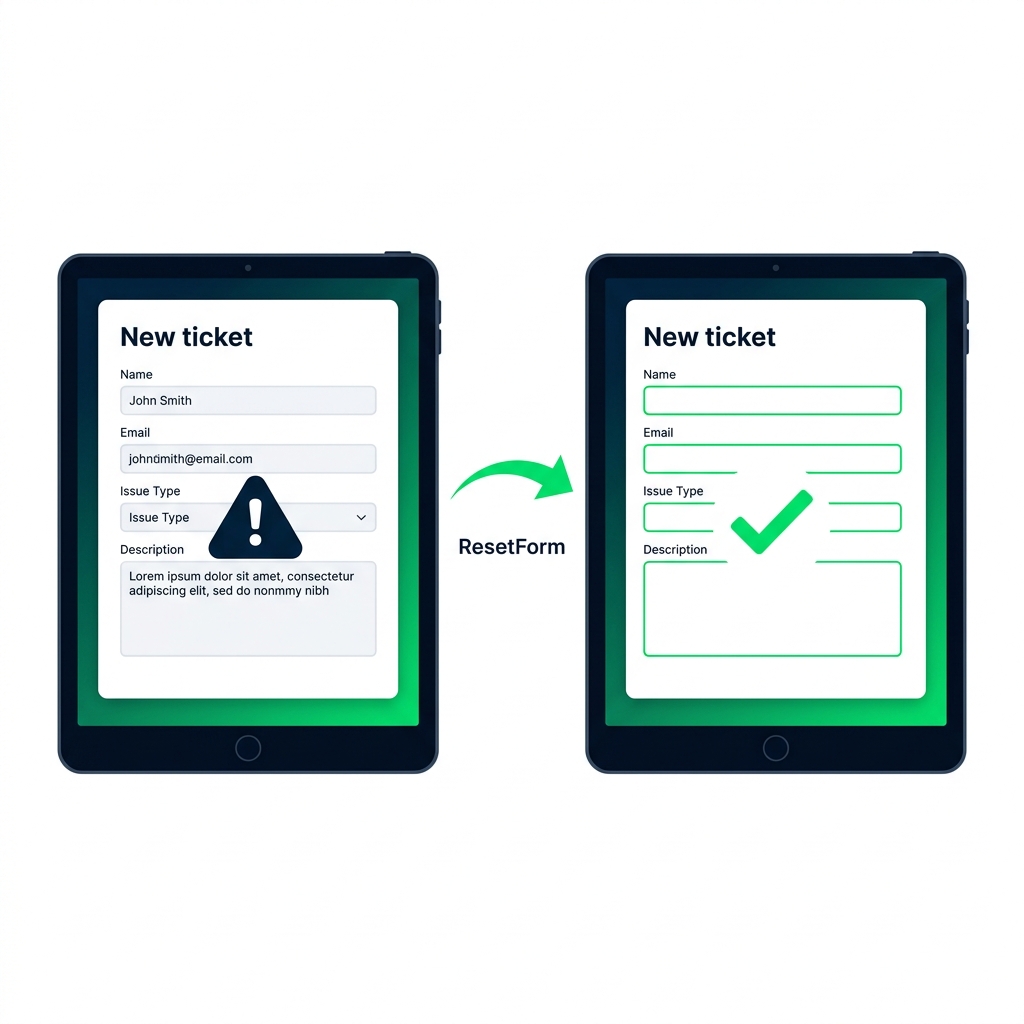
两个新建工单表单:ResetForm() 前残留数据,重置后为空白可录入。


  • ResetForm(frmTicket) 清空所有字段
  • 放在 取消按钮上,切勿放在 OnSuccess
  • OnSuccess 会导航离开,NewForm 下次会清空表单
Power Apps 入门

Patch()


  • Patch(DataSource, record, changes) 在无表单时写入
  • 适合批量更新或单字段修改
  • 更高级的工具,超出本课范围

$$

Patch(
  Tickets,
  ThisItem,
  { Status: "Resolved" }
)
Power Apps 入门

您将练习的内容

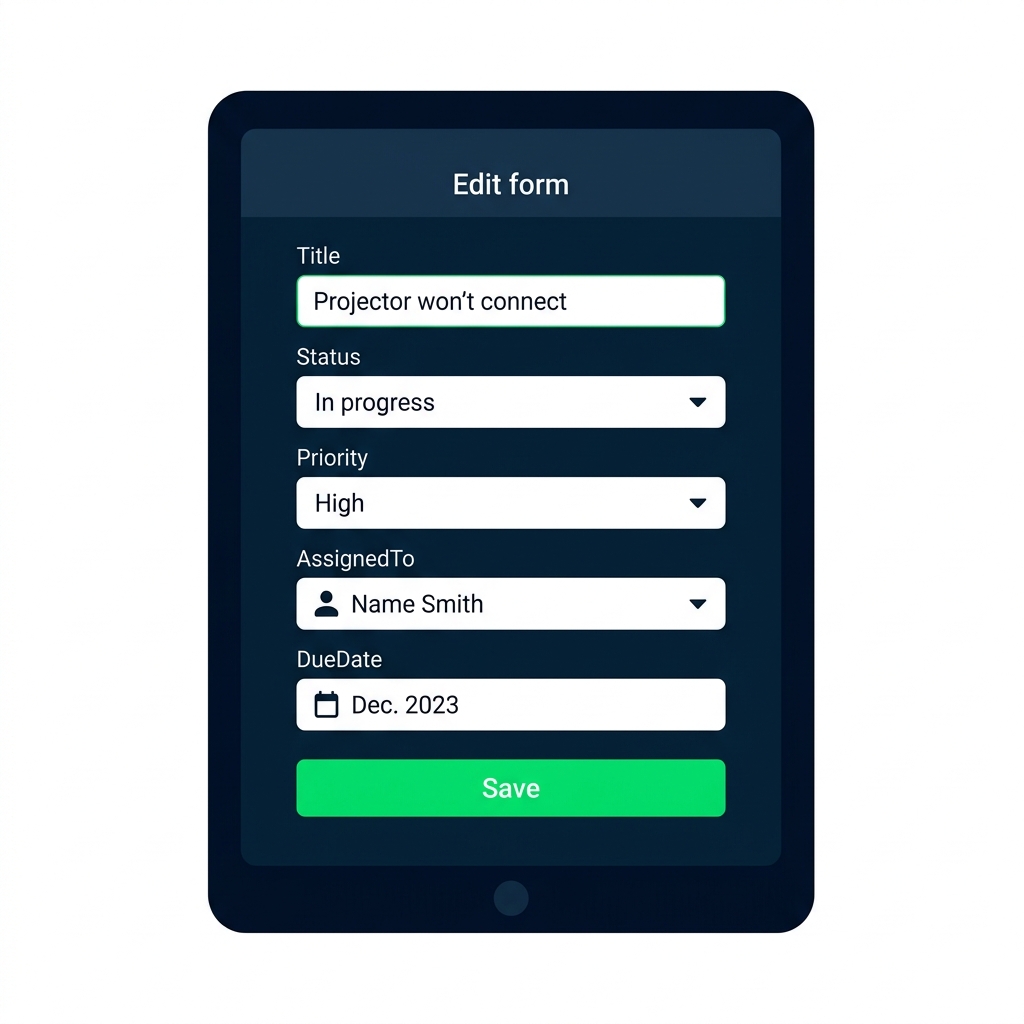
Edit Form 预填工单字段,含下拉、人员选择器、DueDate,以及底部绿色 Save 按钮。


  • Edit Form 如何绑定数据源并生成卡片
  • 提交后成功与失败会发生什么
  • New 与 Cancel 按钮如何完善表单生命周期
Power Apps 入门

让我们一起练习吧!

Power Apps 入门

Preparing Video For Download...