融会贯通

Power Apps 入门

Luise Freese

Azure & Power Platform Architect

您已构建的内容

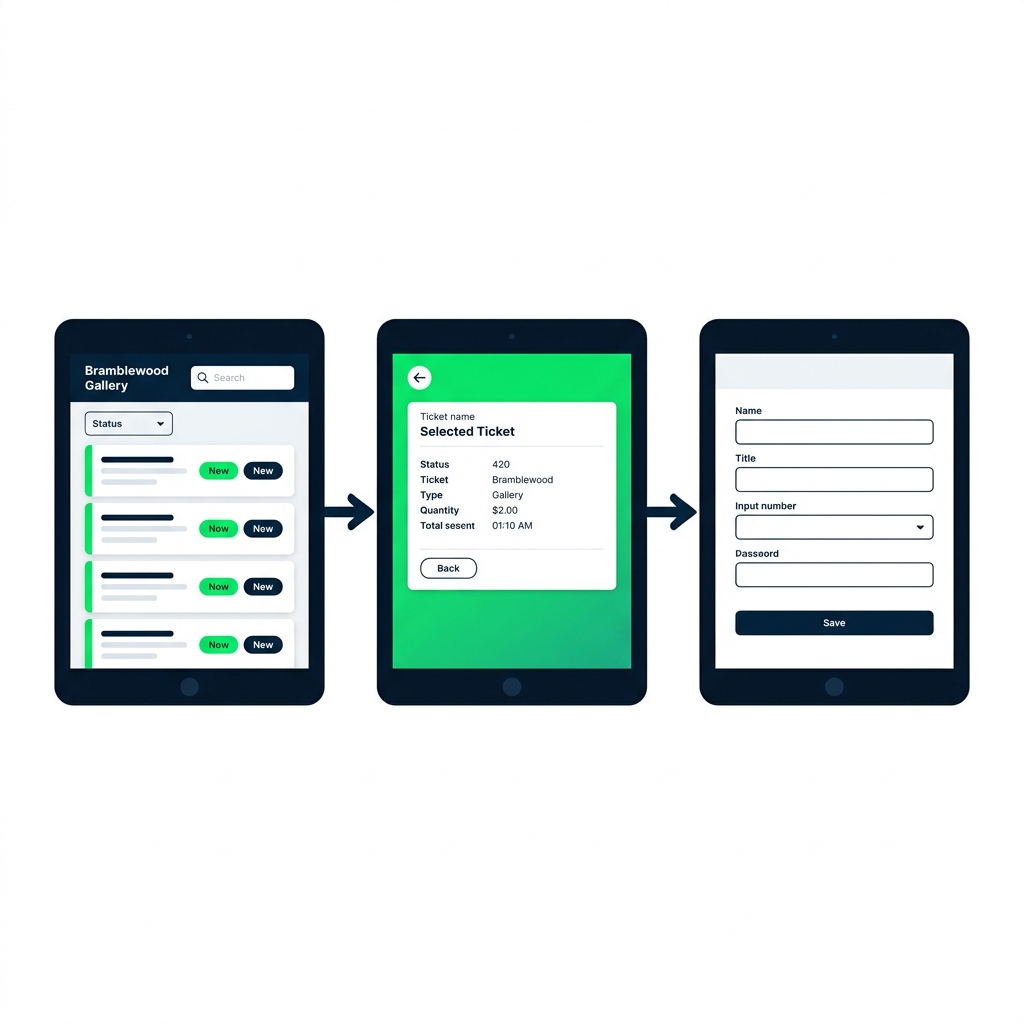
三屏联动:带筛选与搜索的图库、带返回箭头的详情、含保存按钮的编辑表单。


  • 图库:绑定、筛选、搜索
  • 详情:用 Set() 传递所选行
  • 编辑表单:带校验提交
Power Apps 入门

App Checker


  • 画布应用的内置 linter
  • 扫描公式、属性、屏幕
  • 在用户之前先捕获错误


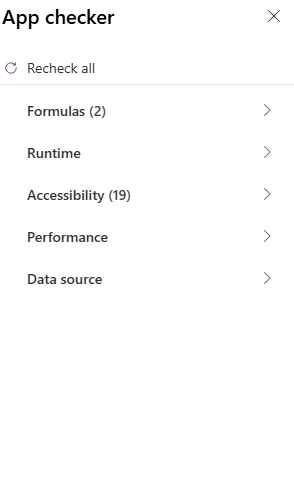
在 Power Apps Studio 中打开的 App Checker 面板,分类包括:Formulas、Runtime、Accessibility、Performance、Data source

Power Apps 入门

Formulas 选项卡

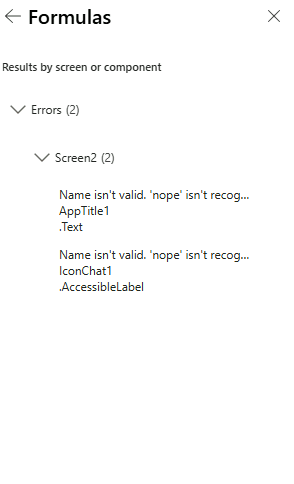
App Checker 的 Formulas 选项卡展开,按屏幕分组列出公式错误,标明出错控件和属性


  • Errors: 断开的引用、无法运行的公式
  • Warnings: 委派与性能提示
  • Info: 未用变量、风格建议
Power Apps 入门

Accessibility 选项卡


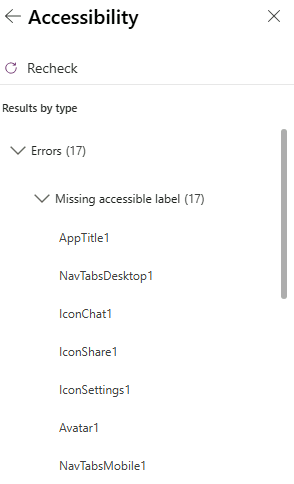
  • 输入控件需设置 AccessibleLabel
  • 文本需有足够对比度
  • Tab 顺序应合理

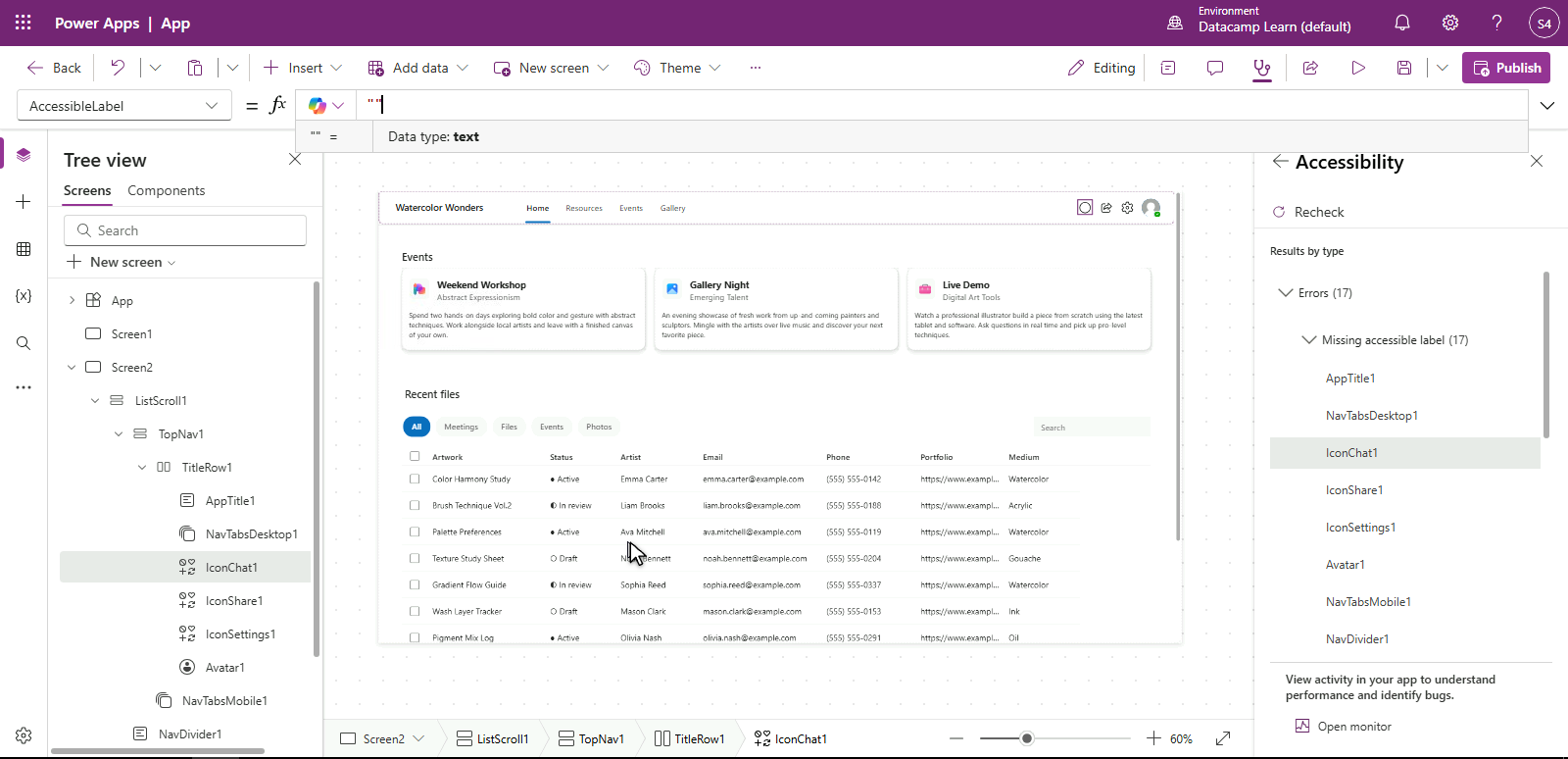
App Checker 的 Accessibility 选项卡展开,按控件分组列出缺少可访问标签的发现

Power Apps 入门

修复发现

$$ $$

选中一个缺少可访问标签的发现;Studio 已跳转到该控件,并在公式栏中显示 AccessibleLabel 属性,等待修复


  • 单击发现 → Studio 跳转到位置
  • 在公式栏修复该属性
  • 重新运行 App Checker 以确认
Power Apps 入门

本节将构建


  • 在预览中端到端走查应用
  • 串起最终的从详情到编辑流程
  • 运行 App Checker,清空全部警告

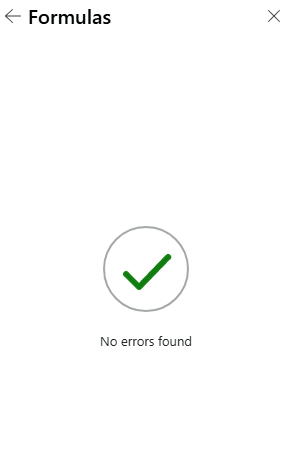
App Checker 的 Formulas 结果显示绿色对勾的 No errors found 状态

Power Apps 入门

让我们一起练习吧!

Power Apps 入门

Preparing Video For Download...