條件式邏輯與驗證

Power Apps 入門

Luise Freese

Azure & Power Platform Architect

條件式格式(複習)

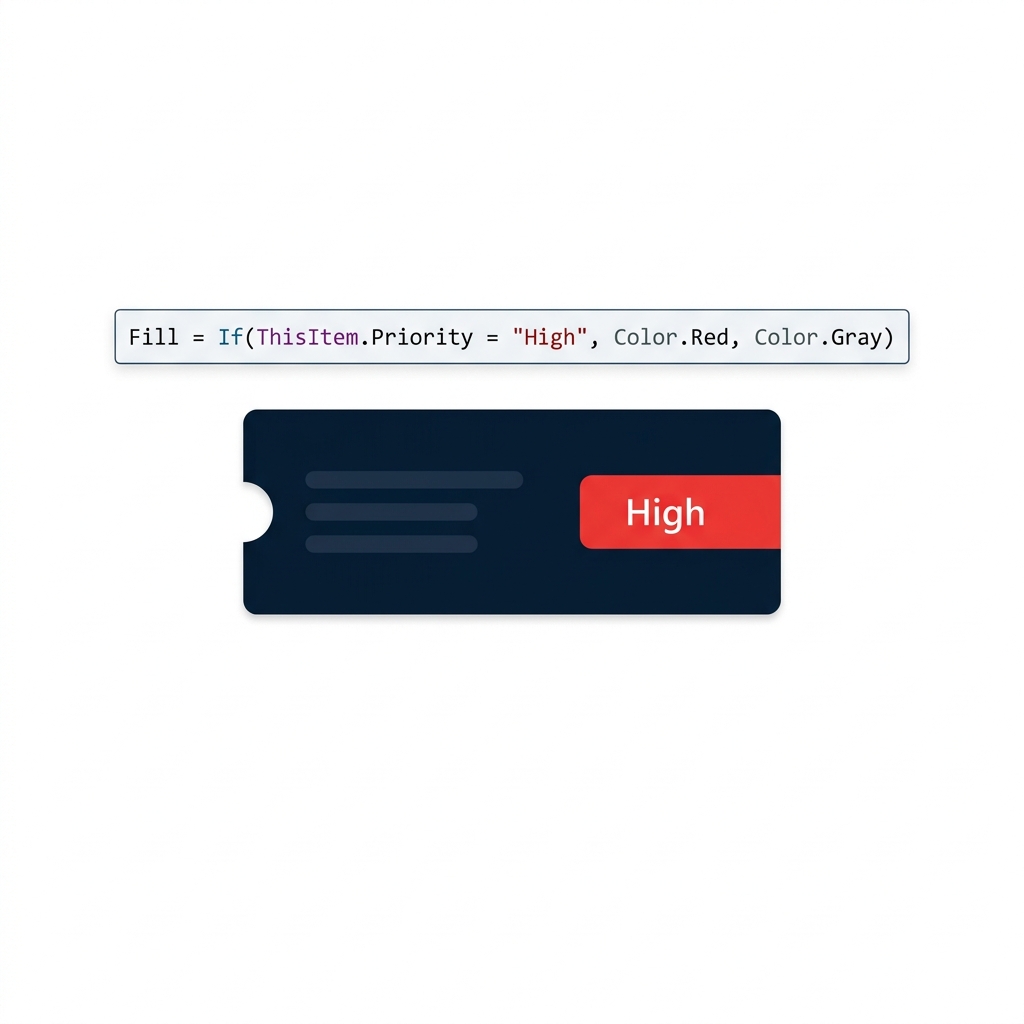
藝廊票卡,帶紅色「High priority」標籤,示範以 Priority 的 If() 公式驅動的條件填色。


  • If(condition, ifTrue, ifFalse),主力工具
  • 已用於「藝廊列」著色
  • 同一模式貫穿本支影片
Power Apps 入門

IsBlank():攔下空白欄位


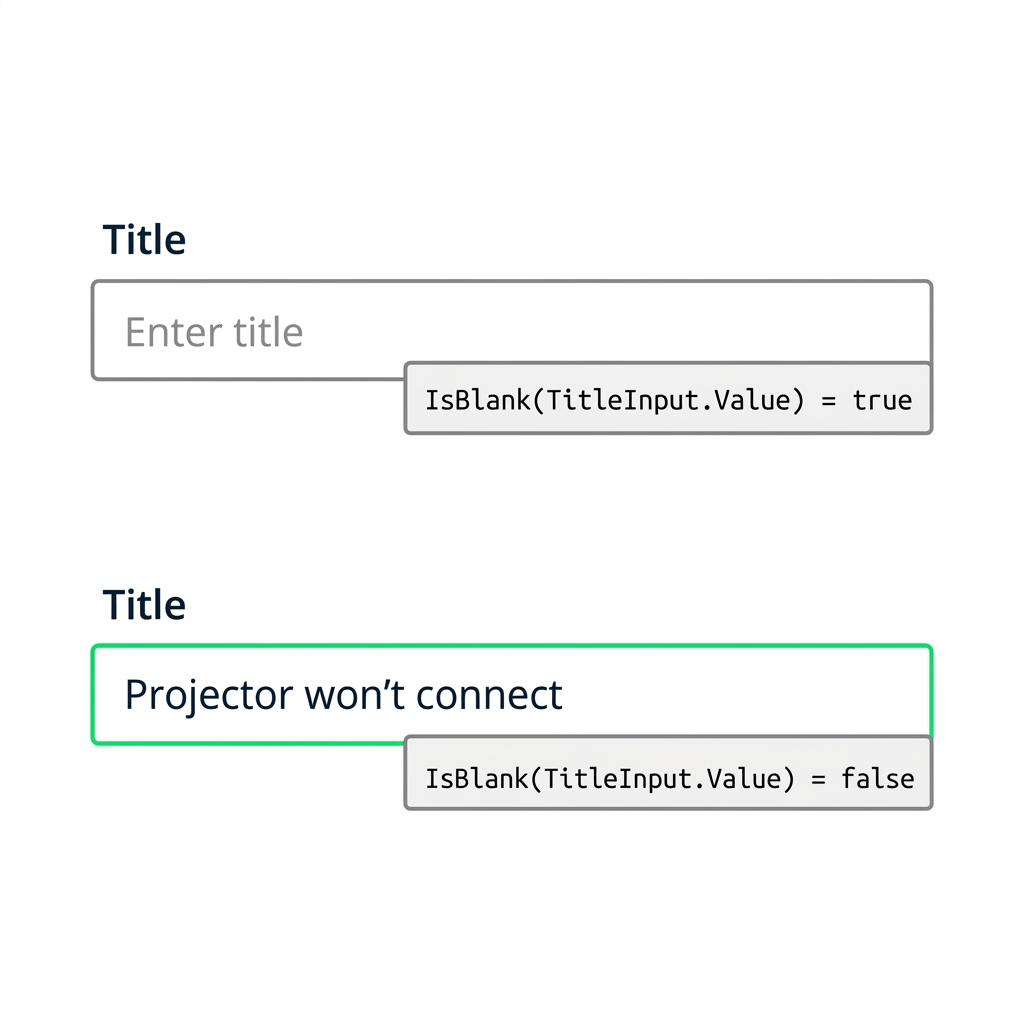
  • IsBlank(value) 在值為空時回傳 true
  • 可用於任何控制項的值
  • 後續驗證的基石

兩個 Title 輸入框:空白時 IsBlank() 為 true,含有票務文字時為 false。

Power Apps 入門

預防:DisplayMode

$$

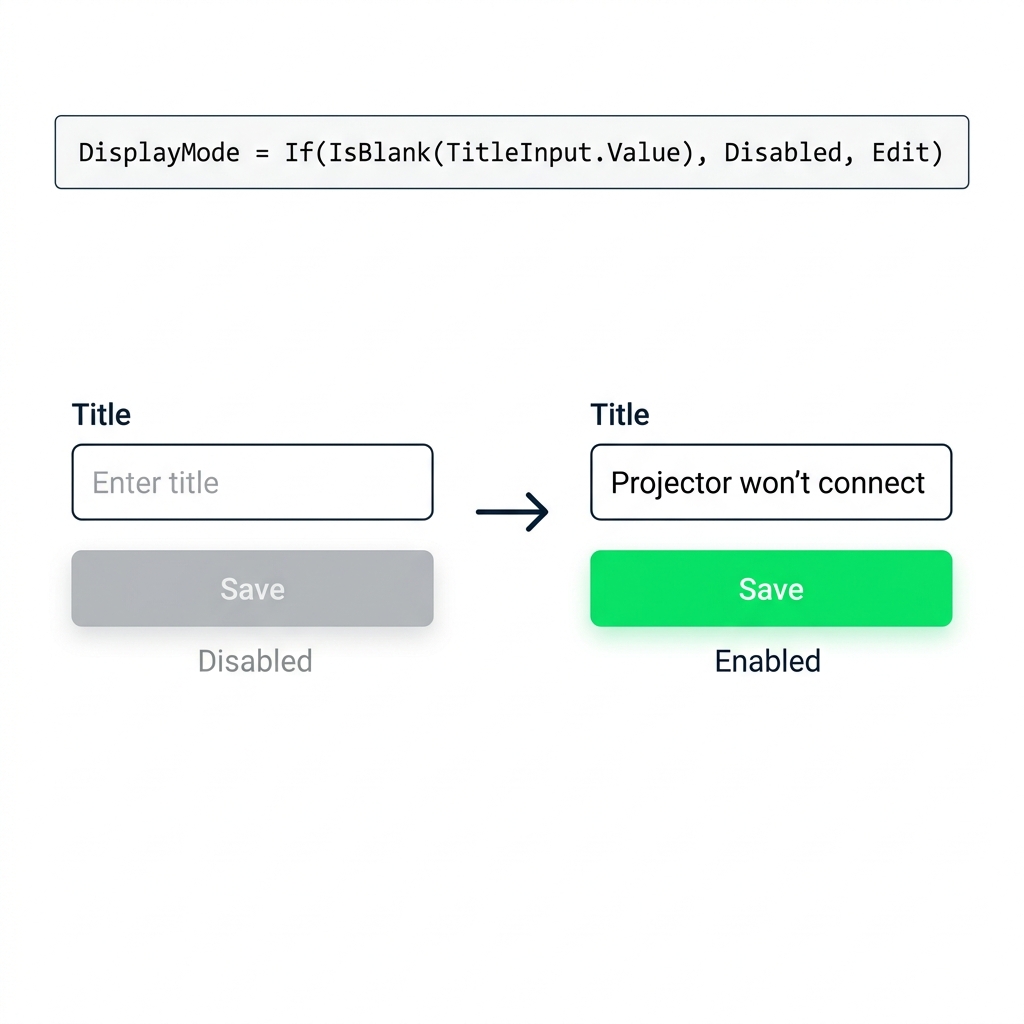
當 Title 為空時 Submit 按鈕停用,填入後啟用;示範用 IsBlank() 與 If() 控制 DisplayMode。


  • 事先阻止不良送出

DisplayMode = If(IsBlank(...), DisplayMode.Disabled, DisplayMode.Edit)

  • 在欄位填好前,按鈕會變灰
Power Apps 入門

修正:送出後的 Notify()


Notify(
    "Save failed: check fields",
    NotificationType.Error
)
  • 補捉預防做不到的情況:伺服器規則、網路錯誤
  • 將 OnFailure → Notify(),使用 NotificationType.Error
  • 與「預防」一起用,而非單獨使用

Power Apps 表單在驗證送出失敗後,出現紅色錯誤提示、Title 欄位高亮、Save 按鈕變灰。

Power Apps 入門

Visible 與 DisplayMode

並排畫面比較:Visible=false 將按鈕自版面移除;DisplayMode=Disabled 則原位變灰、唯讀。


  • Visible = false → 從版面與 Tab 順序中移除
  • DisplayMode.Disabled → 原位保留、變灰、唯讀
  • DisplayMode.View → 用於表單內的卡片
Power Apps 入門

具體範例


  • 核准按鈕:人人可見,欄位填妥前為 Disabled
  • 僅管理者區塊:Visible = isManager
  • 同一畫面,同步套用兩種規則

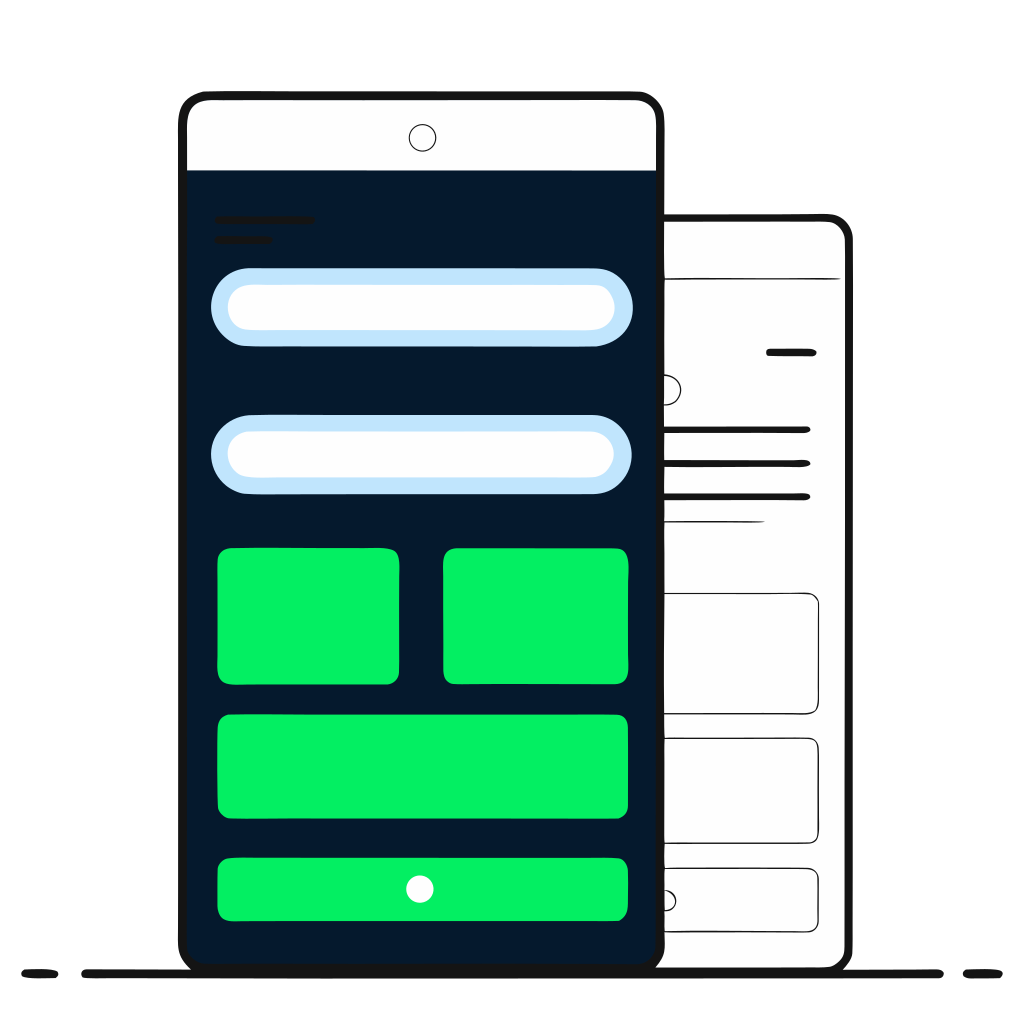
深色手機顯示含輸入欄位、動作卡與綠色送出按鈕的表單應用。

Power Apps 入門

伺服器端 vs 用戶端

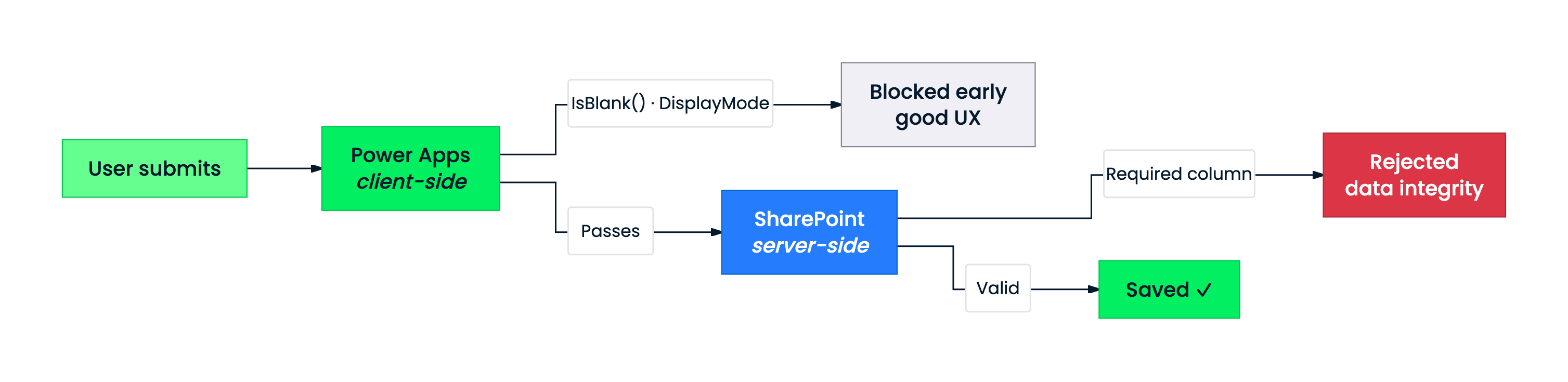
流程圖:使用者送出先經 Power Apps 用戶端檢查(IsBlank、DisplayMode),再到 SharePoint 伺服器端檢查(Required 欄)後儲存。


  • 應用內的用戶端:提升 UX
  • SharePoint 的伺服器端:保護資料完整性

Power Apps 公式不是安全邊界。

Power Apps 入門

你將打造的內容


  • 以驗證封鎖空白送出
  • 瞭解錯誤訊息如何在疏漏時提醒使用者

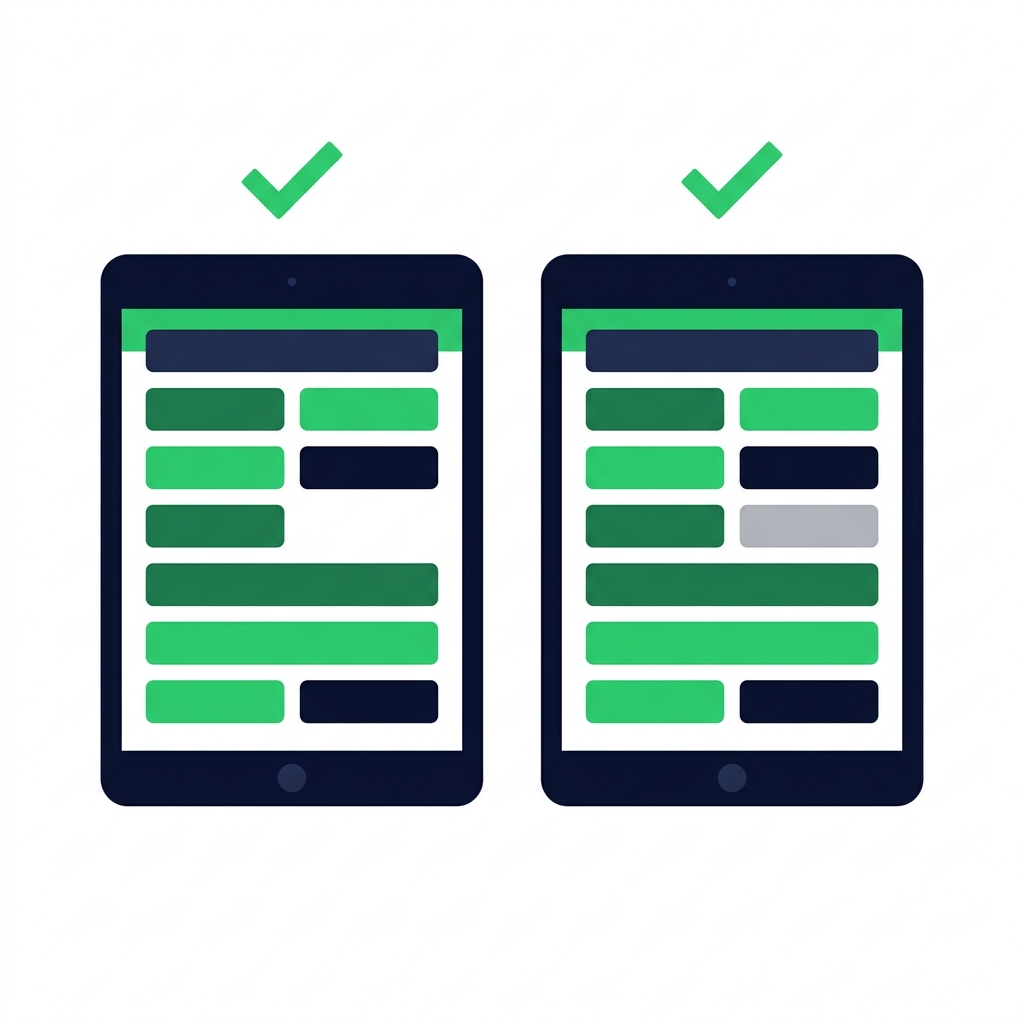
深色手機顯示含輸入欄位與綠色送出按鈕的表單,代表完成的驗證應用。

Power Apps 入門

一起來練習吧!

Power Apps 入門

Preparing Video For Download...