資料來源與連接器

Power Apps 入門

Luise Freese

Azure & Power Platform Architect

最容易混淆的名詞
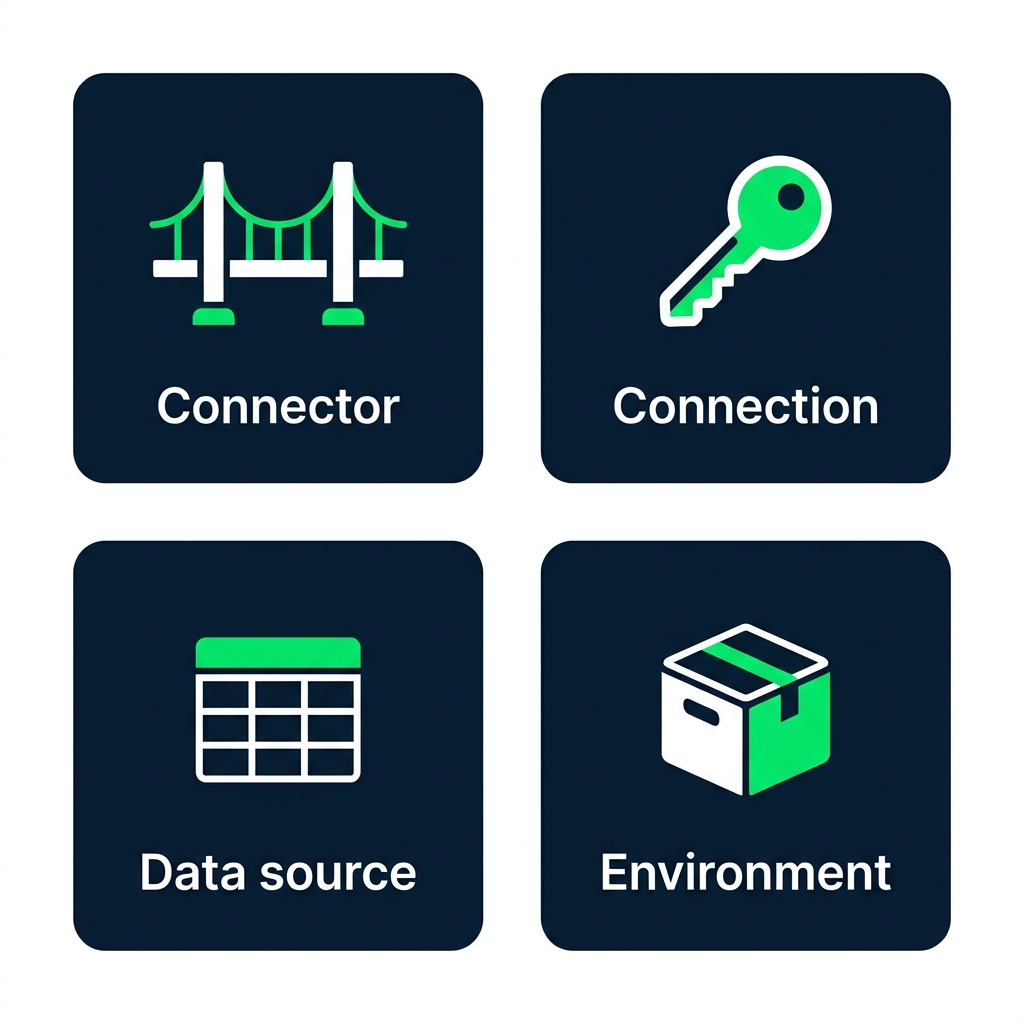
 

  • Connector,用來連到來源的「橋樑」(SharePoint、Excel…)
  • Connection,你對該橋樑的「登入設定」
  • Data source,你在 app 指向的「資料表」
  • Environment,app 與資料所在的「空間」

四張標示卡片的示意圖:Connector(橋樑圖示)、Connection(鑰匙圖示)、Data source(資料表圖示)、Environment(容器圖示)

Power Apps 入門

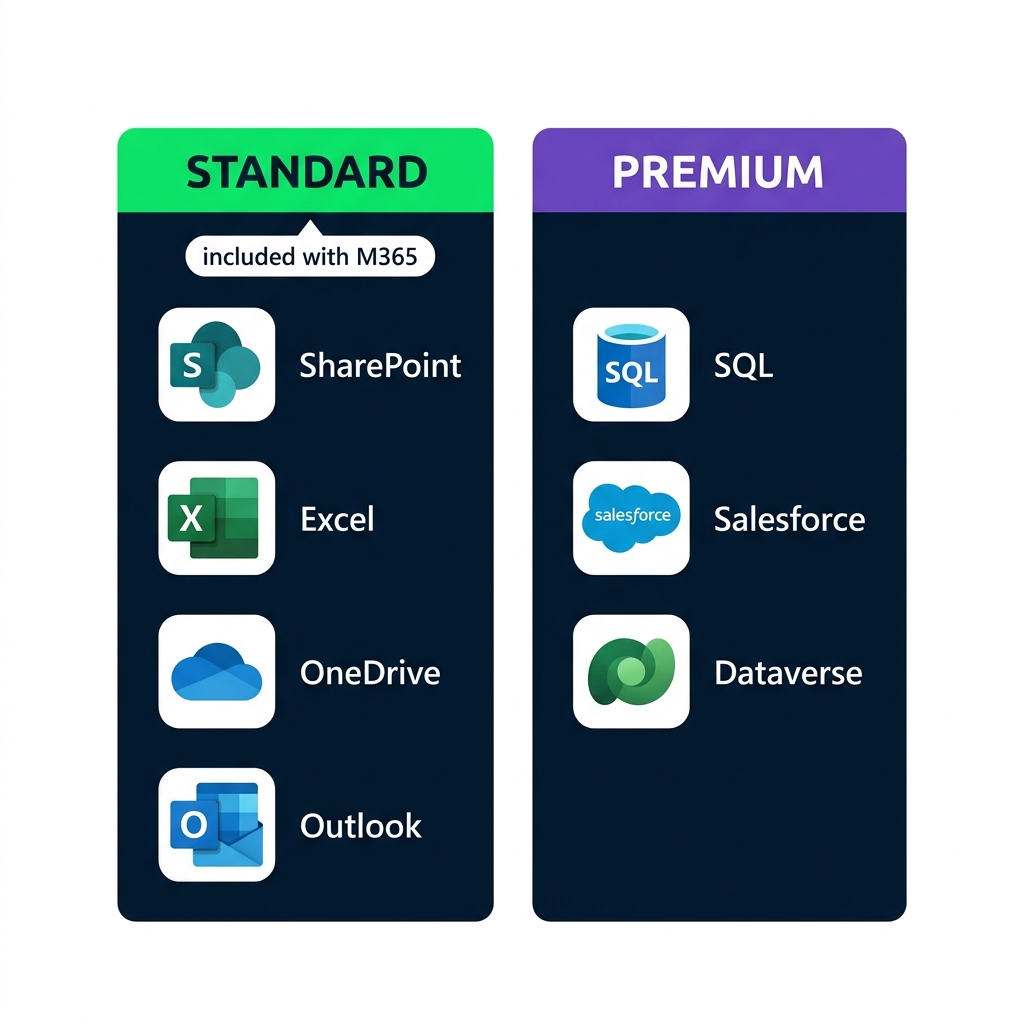
Standard 與 Premium

比較:標準連接器(SharePoint、Excel、OneDrive、Outlook,隨 M365 提供)與進階連接器(SQL Server、Salesforce、Dataverse)


  • Standard 連接器隨 Microsoft 365 提供
  • Premium 連接器需 加購授權
  • 本課程僅使用 Standard
Power Apps 入門

Lumen Coffee 的任務清單


  • Lumen Coffee 的行銷團隊
  • 一個任務資料表:Marketing Tasks
  • 五個欄位:Title、Status、Priority、AssignedTo、DueDate

SharePoint 清單檢視,顯示 Marketing Tasks 資料表含五欄:Title、Status、Priority、AssignedTo、DueDate,含三筆範例任務列

Power Apps 入門

連接器與集合(collection)


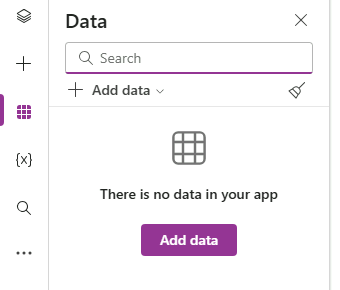
  • 實務上:+ Add data → 選連接器 → 資料表出現在 Data 面板
  • 本課程:app 在啟動時會「自行建立資料表」
  • 兩者 Power Fx 相同,無需額外授權或租用戶設定

Power Apps Studio 的 Data 面板,顯示 Add data 按鈕、Search 欄位,以及連接任何資料來源前的空白表格狀態

Power Apps 入門

用 ClearCollect 建立 collection


ClearCollect(Tasks,
    {Title: "Summer menu launch", Status: "Not started", Priority: "High"},
    {Title: "Press release draft", Status: "In progress", Priority: "High"}
)
  • collection 是存在 app 內的資料表
  • ClearCollect(name, records) 會「清空後再填入」
  • 每個 { } 是一筆 record:Column: value,以逗號分隔
Power Apps 入門

App.OnStart 執行一次

$$

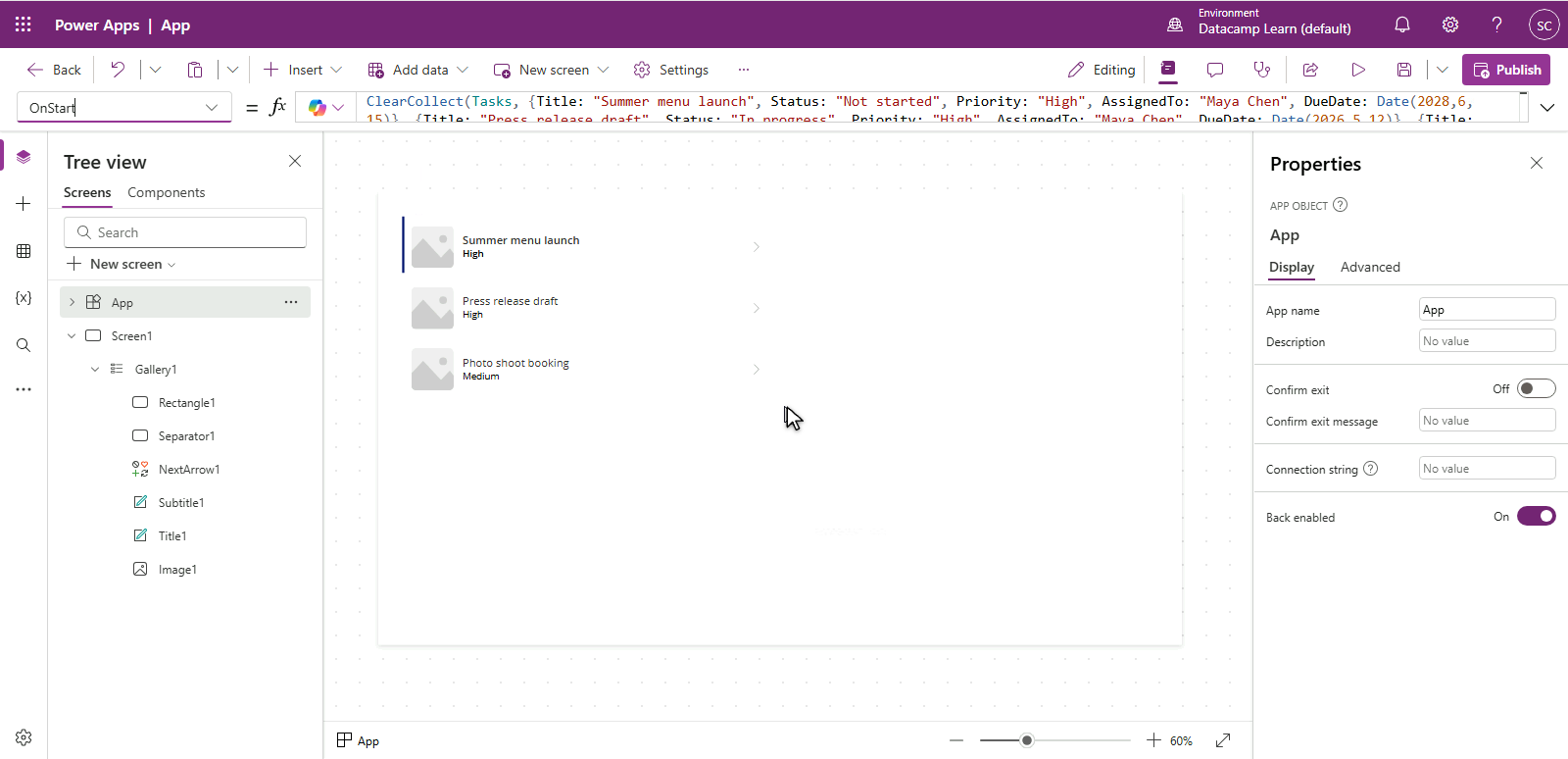
Power Apps Studio 螢幕擷取畫面:Tree view 選取 App 物件,屬性下拉選單為 OnStart,公式列含 ClearCollect(Tasks, ...)


  • 在 Tree view 頂端選取 App
  • 在公式列左側的屬性下拉選 OnStart
  • ... → Run OnStart 可不重啟就載入資料
Power Apps 入門

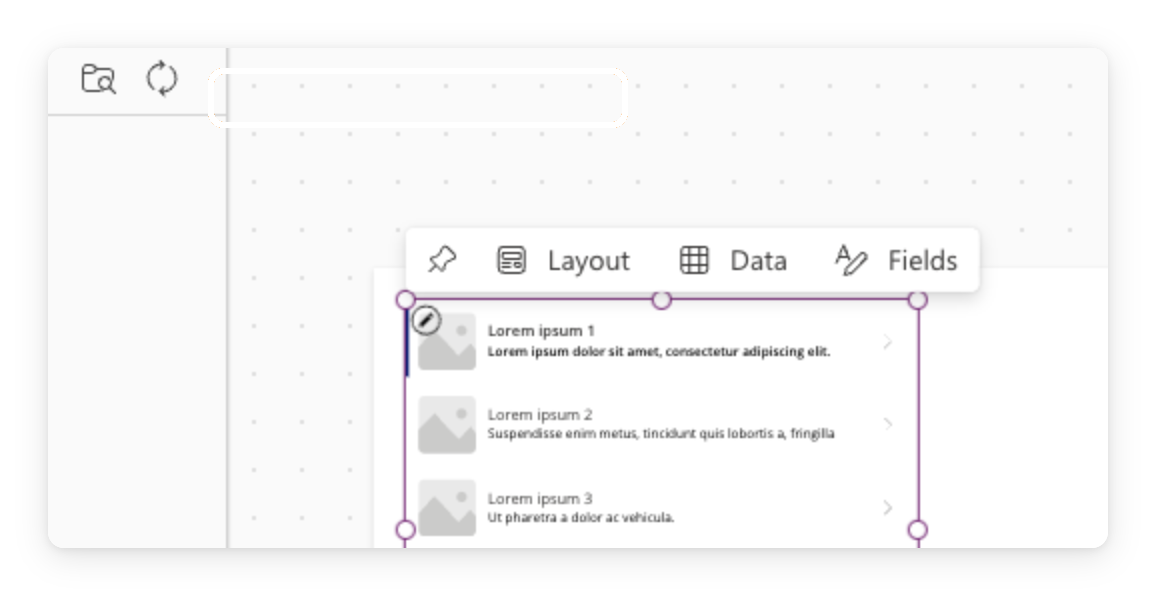
Gallery:Power Apps 顯示清單的方式


  • gallery 會為每列重複一個 template
  • 將 Items 設為資料表,如你的 Tasks collection
  • 每列都是該範本的「可點擊」副本

$$

Power Apps Studio 真實螢幕擷取,畫布上放有一個 gallery 控制項

Power Apps 入門

你將完成的成果

完成版 Lumen Marketing Tasks app 的模型圖:頂端標頭,下方四張任務卡含標題與狀態標籤,咖啡棕色系點綴


  • 建立空白 app,設定其 OnStart
  • 用 ClearCollect 載入任務,然後 Run OnStart
  • 插入 gallery,並將其 Items 綁定到 Tasks
Power Apps 入門

一起來練習吧!

Power Apps 入門

Preparing Video For Download...